

10 beste samenwerkingstools in 2026

Selectie van de beste samenwerkingstools


Samenwerkingstools omvatten alles van chatapps tot projectbeheertools en platforms voor het delen van bestanden. Met zoveel opties is het gemakkelijk om de hulpmiddelen te missen die teamwerk echt eenvoudiger maken. Daarom hebben we de beste samenwerkingstools van 2026 verzameld: de essentiële platforms die zorgen voor duidelijkere communicatie, snellere beslissingen en projecten die op tijd worden afgerond. Als deze hulpmiddelen geen deel uitmaken van je gereedschapskist, kan je team achterop raken.
Waarom u onze softwarebeoordelingen kunt vertrouwen
Ons team test en beoordeelt software sinds 2012. Als HR-experts weten we zelf hoe moeilijk — en belangrijk — het is om de juiste software te kiezen.
Voor deze gids hebben we tools geëvalueerd met behulp van praktijktests en onafhankelijk onderzoek, waarbij we tools beoordeelden aan de hand van onze selectiecriteria. We putten ook uit inzichten van vooraanstaande experts uit de branche en van praktiserende HR-professionals.
Onze reviews weerspiegelen ons menselijke redactionele oordeel, geen verkooppraatje.
Deskundige beoordelaars:
Samenvatting van de beste samenwerkingstools
Deze vergelijkingstabel vat de prijsgegevens van mijn samenwerkingstools samen, zodat je de beste optie voor je budget en zakelijke behoeften kunt vinden.
| Tool | Best For | Trial Info | Price | ||
|---|---|---|---|---|---|
|
1
|
Best for centralized document sharing and storage |
Free plan + 14-day free trial available |
From CAD $9.20/user/month (billed annually) | Website | |
|
2
|
Best for video-first virtual team meetings |
Free plan available |
From $14.16/user/month (billed annually) | Website | |
|
3
|
Best for visual project board management |
Free plan + free trial available |
From $5/user/month (billed annually) | Website | |
|
4
|
Best for customizable workspace organization |
Free plan + Free trial + Free demo available |
From $10/user/month | Website | |
|
5
|
Best for workflow customization in task management |
Free plan + trial + demo available |
From $10.99/user/month (billed annually) | Website | |
|
6
|
Best for managing complex project workflows |
14-day free trial |
From $9.99/user/month (billed annually) | Website | |
|
7
|
Best for integrated meeting and chat features |
Free plan + 1-month free trial available |
From $4/user/month (billed annually) | Website | |
|
8
|
Best for integrated work planning and tracking |
Free plan available |
From $4/user/month (billed annually) | Website | |
|
9
|
Best for simple mobile team task assignments |
Free plan available |
Free | Website | |
|
10
|
Best for digital whiteboarding and brainstorming |
Free plan + 14-day free trial available |
From $8/user/month (billed annually) | Website |

Beoordelingen van de beste samenwerkingstools
Hieronder vind je mijn gedetailleerde samenvattingen van de beste samenwerkingstools die op mijn selectie zijn beland. In mijn beoordelingen bekijk ik de functies, beste gebruiksscenario’s en integraties van elke tool in detail, zodat je de beste optie voor jou kunt vinden.

Best for centralized document sharing and storage
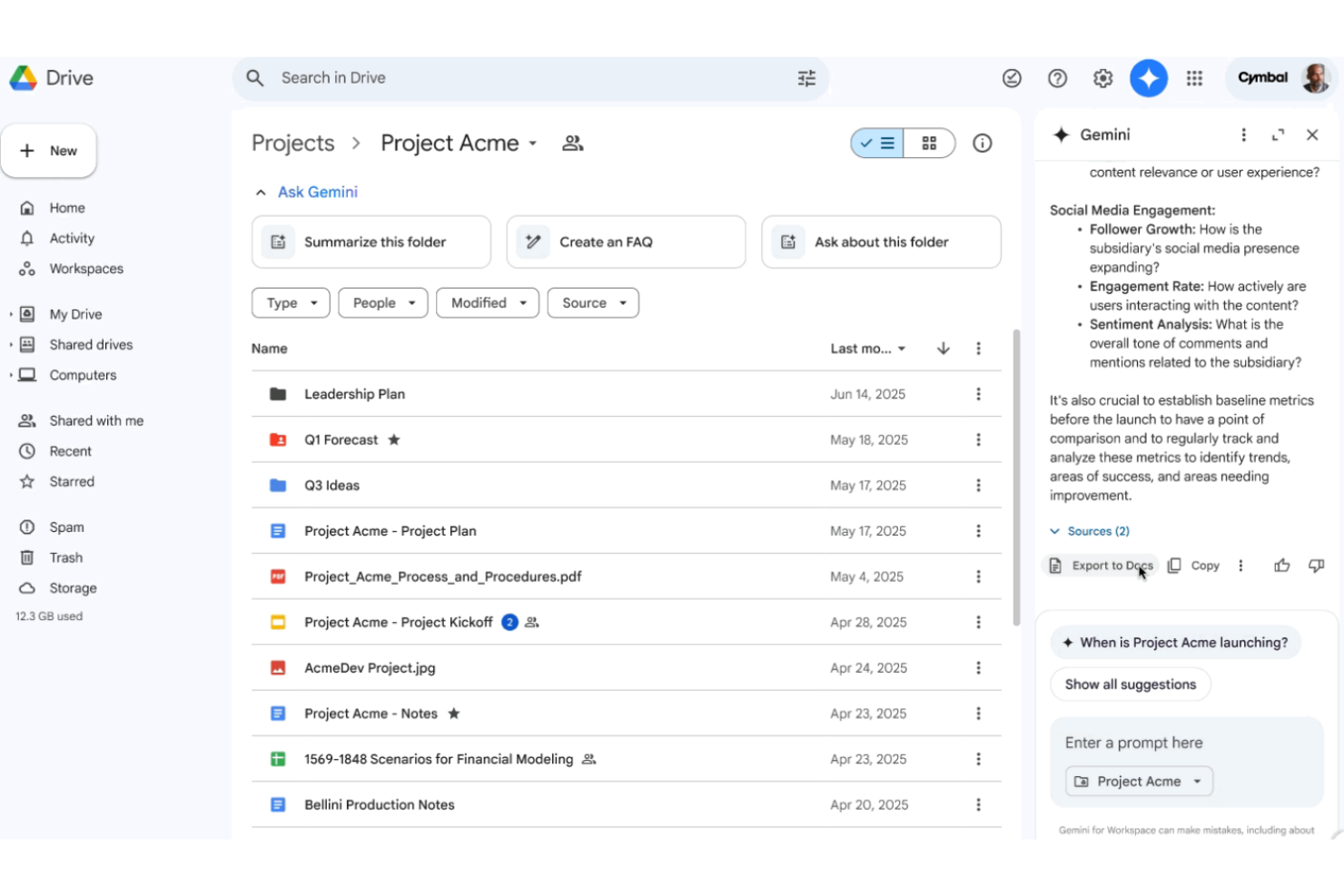
Google Drive is a cloud-based collaboration platform that lets teams store, organize, access, and share documents, spreadsheets, and other files in a centralized workspace.
Who Is Google Drive Best For?
Google Drive is well-suited for distributed teams who need secure, real-time access to shared files and folders from any device.
Why I Picked Google Drive
I picked Google Drive because I rely on it to centralize our document storage, keeping contracts, policies, and onboarding documents in shared folders. I like the granular permission controls for managing access and the built-in search for quickly finding files.
Google Drive Key Features
- Version history: Lets users view and restore previous file versions.
- Shared drives: Allows teams to collectively manage file access and ownership.
- Commenting and suggestions: Enables real-time feedback and collaboration on documents.
- Third-party app integrations: Supports connections with tools like Slack, Docusign, and Asana.
Google Drive Integrations
Google Drive offers native integrations with Google Workspace tools like Google Docs, Google Sheets, Google Slides, Gmail, and Google Meet. It also connects with Slack, Docusign, Asana, and Zoom. An API is available for custom integrations.
Pros and Cons
Pros:
- Easy file access from mobile devices
- Granular file and folder permission controls
- Real-time document co-authoring for teams
Cons:
- Folder organization can become messy quickly
- Limited offline functionality for collaboration

Zoom
Best for video-first virtual team meetings

Zoom is a video conferencing platform for teams that offers HD video meetings, webinars, cloud recordings, chat, and screen sharing for remote and hybrid collaboration.
Who Is Zoom Best For?
I recommend Zoom for distributed teams and organizations who prioritize face-to-face online meetings and webinars across locations or departments.
Why I Picked Zoom
I picked Zoom because my remote teams rely on its high-quality video conferencing and breakout rooms for running structured team meetings. I often use its screen sharing and webinar capabilities to host large virtual sessions where clarity and participation matter most.
Zoom Key Features
- Virtual backgrounds: Replace or blur your background during meetings for privacy or branding.
- Meeting recording: Save video and audio meetings locally or to the cloud for later review.
- Polling: Launch live polls during meetings to quickly gather participant input.
- Waiting room: Control the flow of attendees by admitting participants individually from a secure staging area.
Zoom Integrations
Zoom offers native integrations with Slack, Microsoft Teams, Google Workspace, Salesforce, HubSpot, Trello, Asana, Dropbox, Box, and Facebook Workplace. An API is available for custom integrations.
Pros and Cons
Pros:
- Supports large webinars and conferences
- Breakout rooms for small group collaboration
- Reliable video and audio quality for meetings
Cons:
- Limited whiteboarding features compared to peers
- Can require frequent app updates
Trello
Best for visual project board management
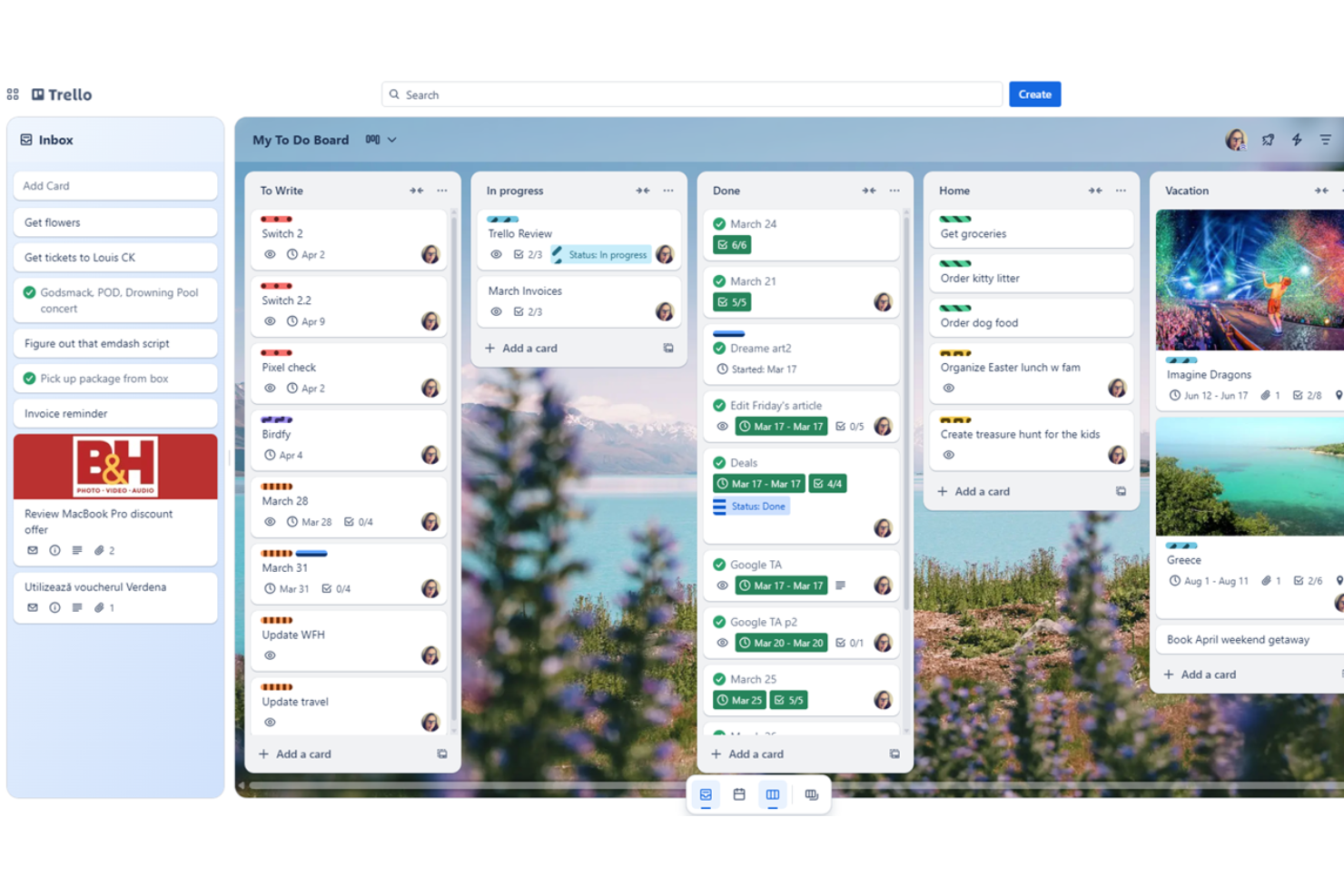
Trello is a visual collaboration platform that uses boards, lists, and cards to help teams organize projects, assign tasks, share files, and track live progress.
Who Is Trello Best For?
Trello is a strong choice for cross-functional teams or project managers who need a flexible way to visualize and manage workflows.
Why I Picked Trello
I picked Trello as one of the best because I can instantly map out team projects using drag-and-drop Kanban boards, create custom lists for tracking progress, and use visual labels to organize priorities across multiple workflows.
Trello Key Features
- Card attachments: Add files and documents directly to any card.
- Butler automation: Automate repetitive board tasks with customizable rules.
- Calendar view: See all cards with due dates in a calendar layout.
- Comment threads: Leave feedback or updates on any individual card.
Trello Integrations
Trello supports hundreds of integrations including Slack, Google Drive, Dropbox, GitHub, Jira, Evernote, Microsoft Teams, Salesforce, Confluence, and Zendesk. An API is available for custom integrations.
Pros and Cons
Pros:
- Power-Up add-ons extend board functionality
- Easily assign tasks or deadlines to team members
- Card-based boards visually organize every project
Cons:
- Advanced reporting features require third-party tools
- Limited offline access for boards and cards
Notion
Best for customizable workspace organization
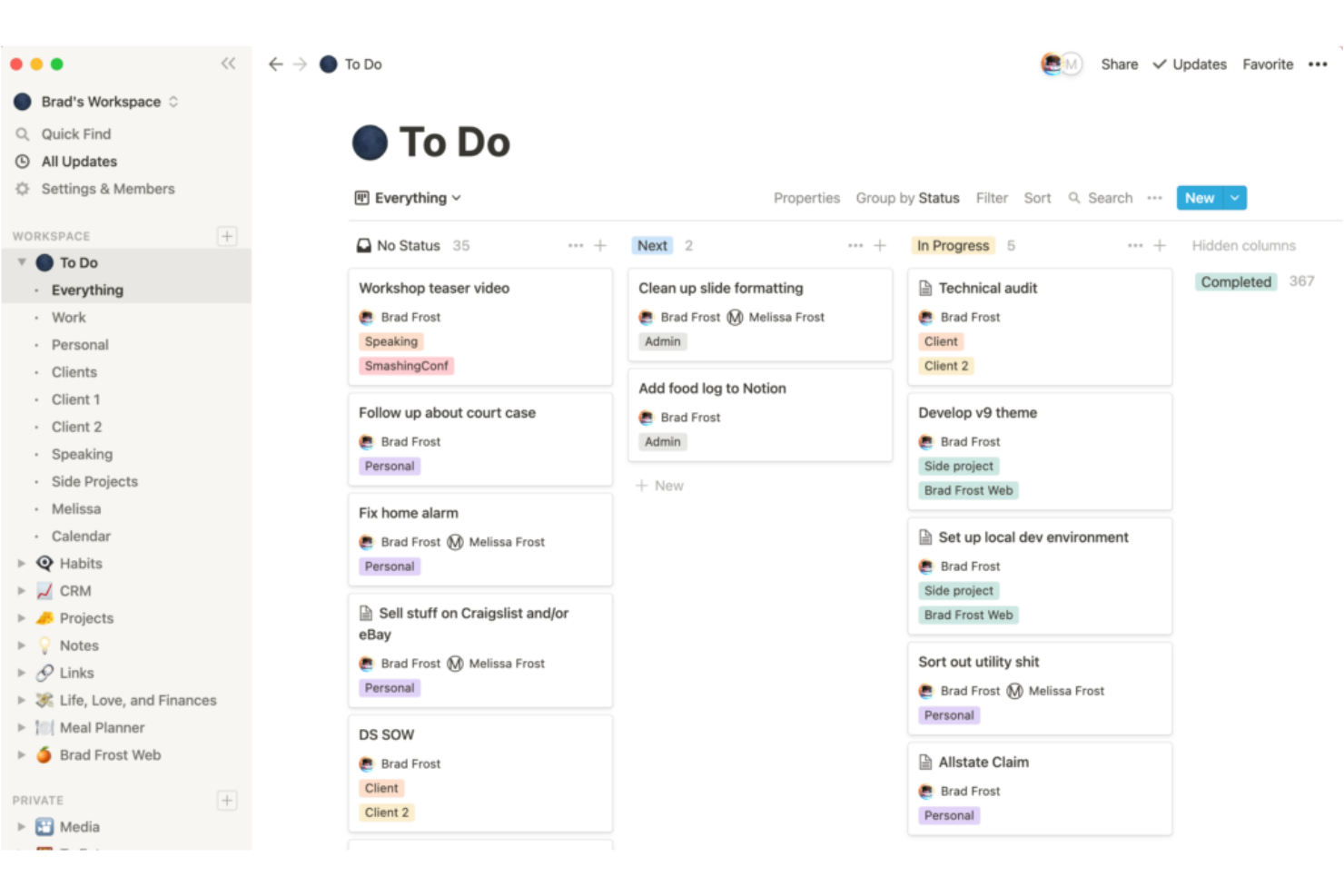
Notion is a collaborative workspace platform that brings together note-taking, wikis, project management, and customizable databases for teams in one flexible environment.
Who Is Notion Best For?
Notion is a great choice for multidisciplinary teams or fast-growing startups who want to organize projects, documents, and knowledge in one place.
Why I Picked Notion
I picked Notion as one of the best because I can set up customized workspaces combining wikis, tasks, and knowledge bases, then use templates and databases to structure everything the way my team works best.
Notion Key Features
- Real-time editing: Multiple users can edit pages together and see updates instantly.
- Commenting and mentions: Tag teammates and leave comments directly on any block or page.
- Integrated calendar view: Display project timelines and events in a calendar format within workspaces.
- Version history: Review or restore previous page versions at any time for easy tracking.
Notion Integrations
Notion offers native integrations with Slack, GitHub, Google Drive, Asana, Jira, Trello, Zoom, Figma, and Confluence. It also connects with Zapier and provides an API for custom integrations.
Pros and Cons
Pros:
- Real-time co-editing with page comments
- Supports databases and linked data views
- Flexible page structure for team knowledge sharing
Cons:
- Finding information relies on strong workspace organization
- Permission management can get confusing
Asana
Best for workflow customization in task management
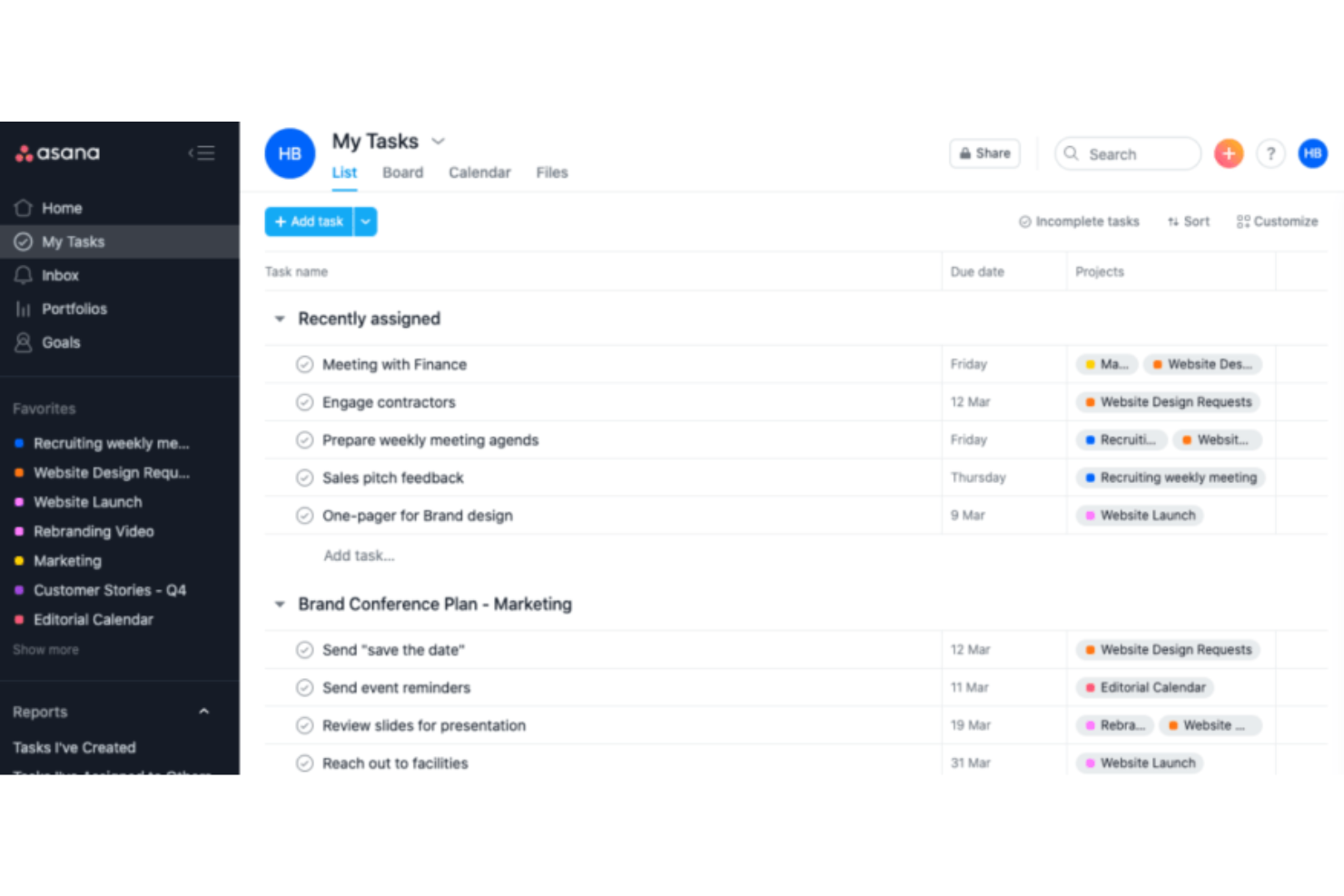
Asana is a collaborative work management platform that helps teams organize projects, assign tasks, monitor timelines, automate workflows, and centralize conversations in one workspace.
Who Is Asana Best For?
Asana is a good fit for cross-functional teams at growing companies that need flexible task management and custom project workflows.
Why I Picked Asana
I picked Asana because I rely on its highly customizable workflows, like custom fields and rules, to adapt projects for different teams. I like how I can automate routine steps and track dependencies easily from board or list views.
Asana Key Features
- Task comments: Collaborators can discuss tasks directly within each item.
- Timeline view: Visualize project schedules and deadlines with Gantt-style charts.
- Milestones: Mark key points in a project to track important achievements.
- Project templates: Start new projects quickly with customizable templates for different workflows.
Asana Integrations
Asana offers over 200 native integrations, including Slack, Google Drive, Microsoft Teams, Zapier, GitHub, Adobe Creative Cloud, Dropbox, Salesforce, Zoom, and OneDrive. An API is available for custom integrations.
Pros and Cons
Pros:
- Multiple task views for different workstyles
- Project permissions allow granular team access control
- Workflow automation handles repetitive task updates
Cons:
- No built-in document editing functionality
- Notification overload in large project teams

Teamwork
Best for managing complex project workflows
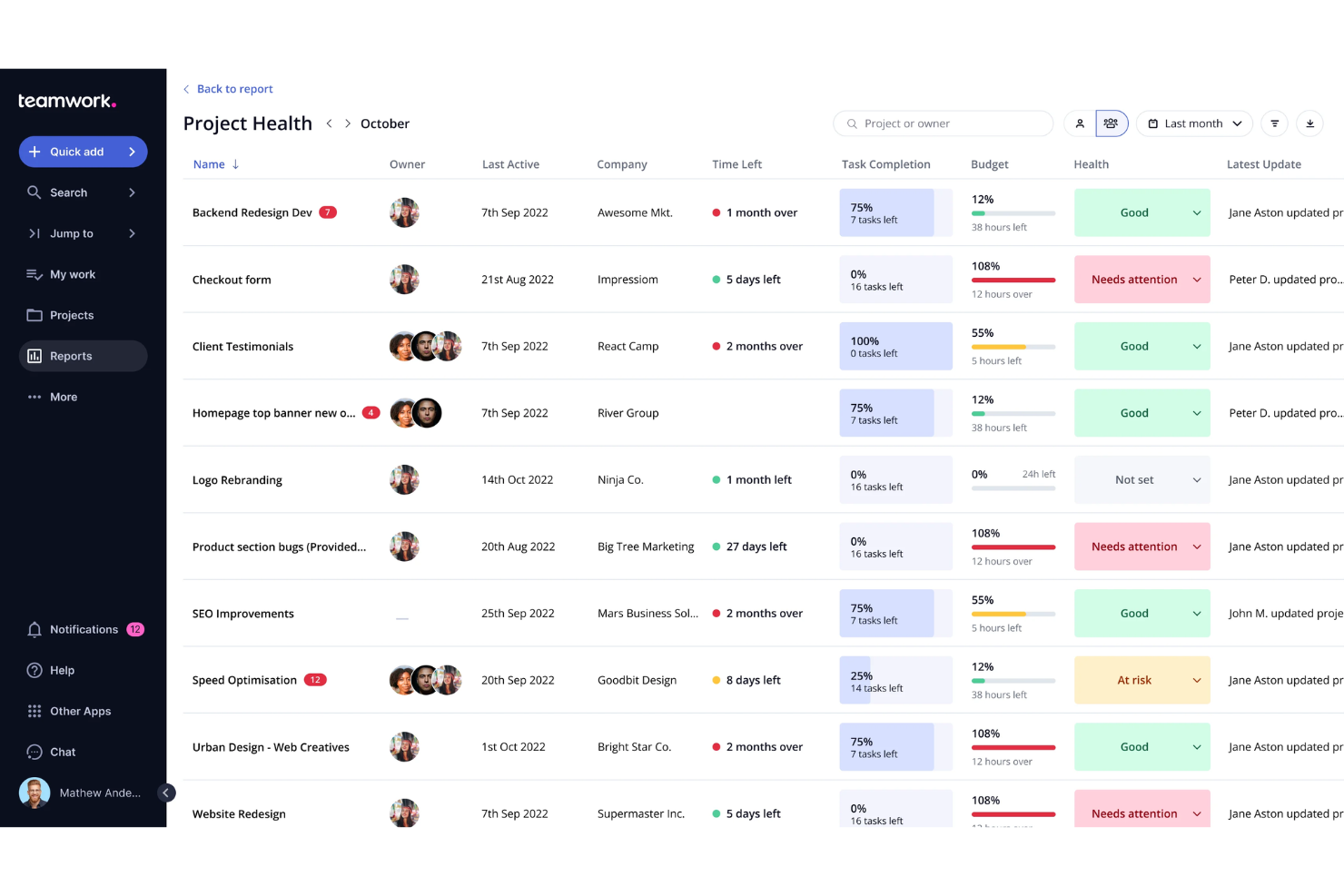
Teamwork is a project management software designed for teams who need advanced tools for planning, tracking, and collaborating across multiple projects with layered task relationships.
Who Is Teamwork Best For?
Project managers and operations teams at growing agencies or service-based businesses who need detailed project control.
Why I Picked Teamwork
I picked Teamwork as one of the best because I rely on its granular task dependencies, workload management, and portfolio-level project visibility to manage complex project workflows with lots of moving parts.
Teamwork Key Features
- Time tracking: Track billable and non-billable hours directly within project tasks.
- Document management: Store, share, and organize files inside project workspaces.
- Client access: Allow clients to view progress and collaborate within selected projects.
- Built-in chat: Communicate with team members in real-time inside the platform.
Teamwork Integrations
Teamwork offers native integrations with Slack, Google Drive, Microsoft Teams, Dropbox, HubSpot, QuickBooks, Xero, and Zapier, and also provides an API for custom integrations.
Pros and Cons
Pros:
- Client collaboration features for project transparency
- Built-in workload and capacity planning tools
- Granular control over task permissions and visibility
Cons:
- Reporting setup requires extra configuration
- User interface can feel cluttered
Best for integrated meeting and chat features
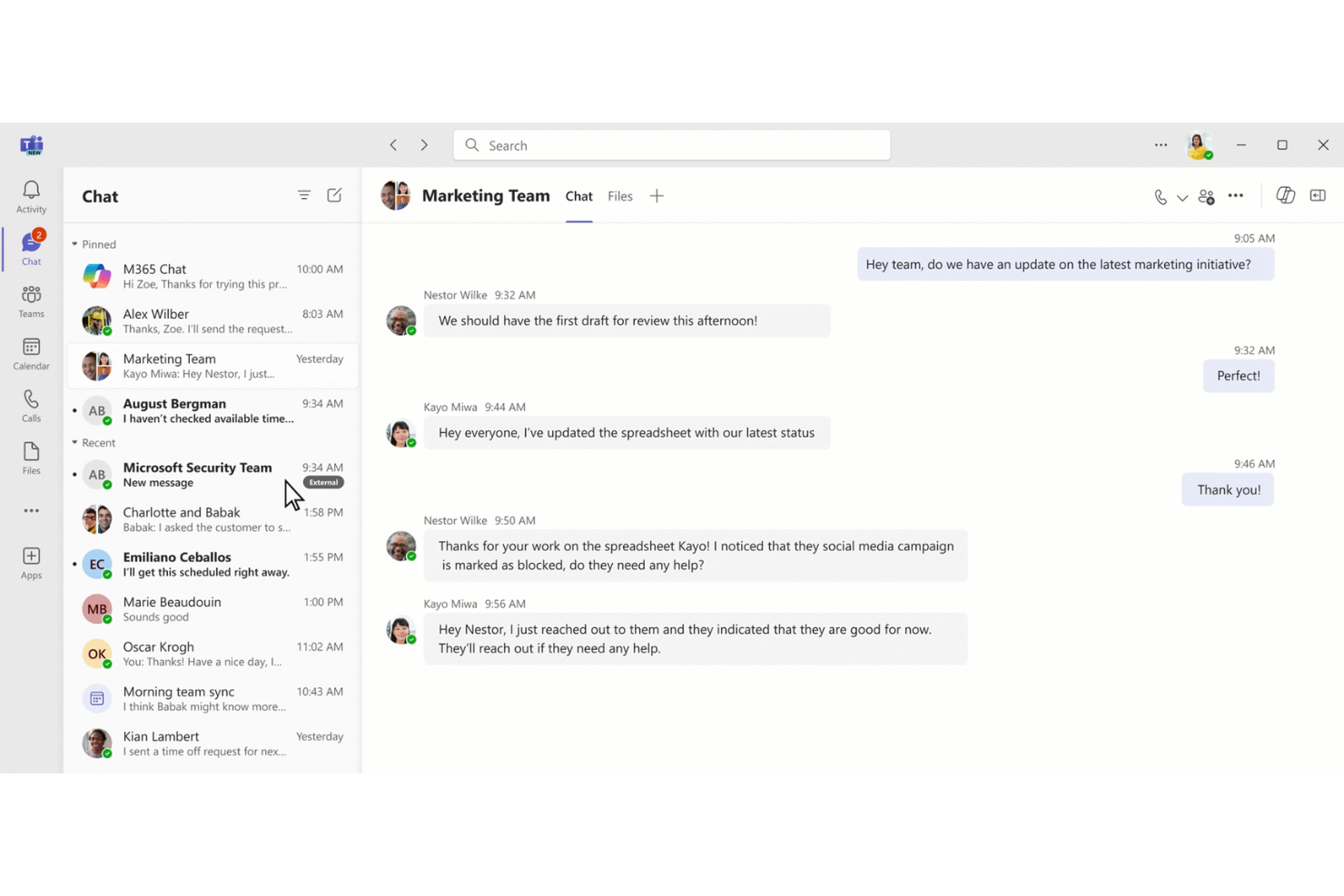
Microsoft Teams is a collaboration platform that brings together chat, video meetings, file sharing, and team workspaces to help organizations centralize communication and manage projects in one place.
Who Is Microsoft Teams Best For?
Microsoft Teams is ideal for organizations seeking unified chat, meetings, and document collaboration in a single workspace, especially those already using Microsoft 365.
Why I Picked Microsoft Teams
I picked Microsoft Teams as one of the best because I can schedule meetings, start ad-hoc video calls, and host threaded chat conversations all in one app. I use its tabs for shared files and meeting notes to keep project context in one place.
Microsoft Teams Key Features
- Channels: Organize conversations, files, and meetings by topic or project.
- Loop components: Collaborate on shared tables, lists, notes, and task trackers that stay synchronized across chats, meetings, and Microsoft 365 apps.
- Private chat: Send direct, one-on-one or group instant messages.
- Task assignments: Create, assign, and monitor tasks using integrated Planner or To Do apps.
Microsoft Teams Integrations
Microsoft Teams has native integrations across the Microsoft ecosystem, including Microsoft 365 and Azure, and also offers native integrations with Trello, GitHub, Salesforce, ServiceNow, and Zoom. An API is available for custom integrations.
Pros and Cons
Pros:
- Ease of sharing and co-editing of documents
- Real-time chat for persistent conversations
- Built-in video and audio conferencing
Cons:
- Notifications can become overwhelming in busy teams
- Initial setup can be complex

GoodDay
Best for integrated work planning and tracking
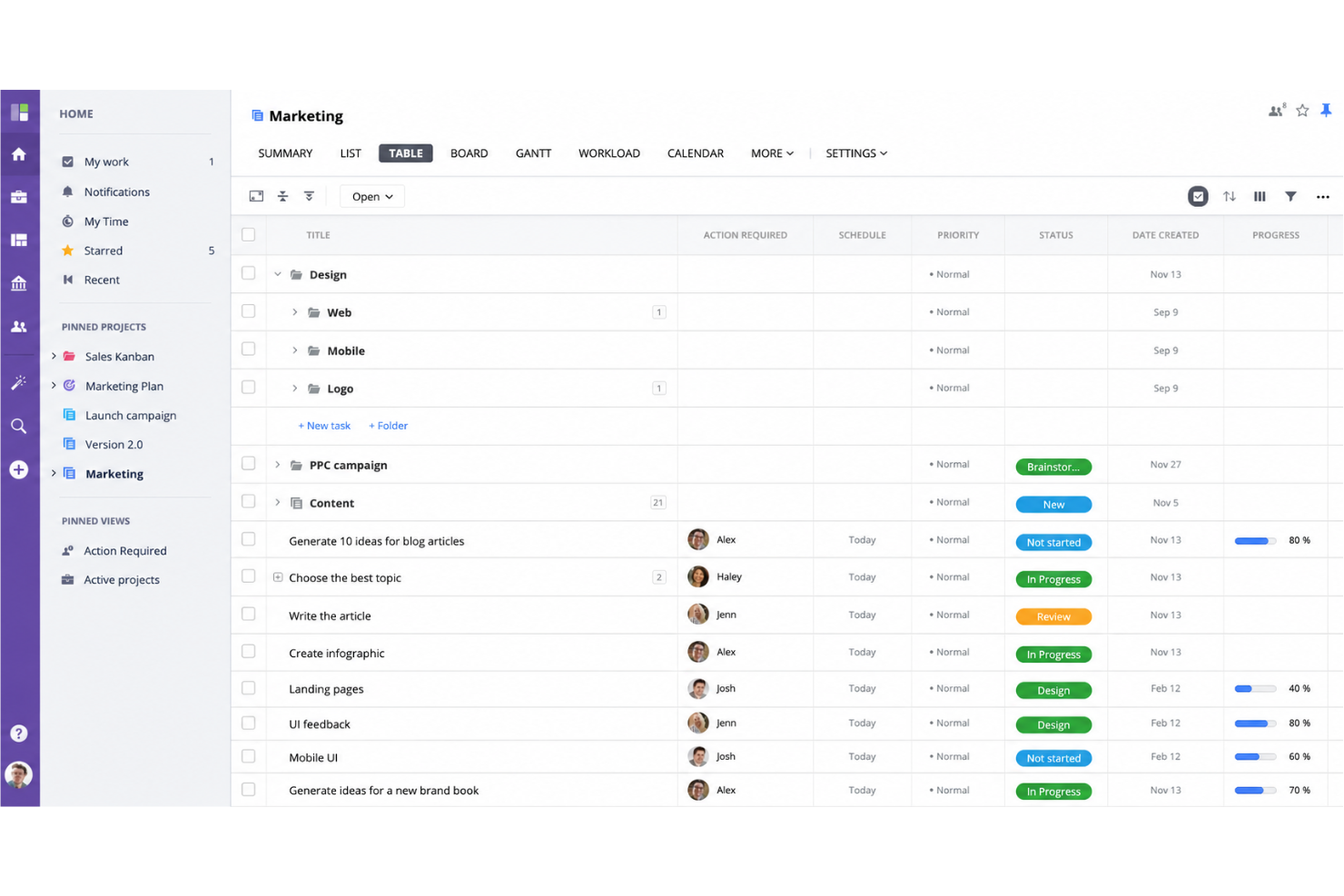
GoodDay is a work management platform for teams that merges project planning, workflow automation, real-time collaboration, time tracking, and performance analytics in a single system.
Who Is GoodDay Best For?
Project managers and department leads who need a unified space to organize, monitor, and optimize complex team workflows across growing organizations.
Why I Picked GoodDay
I picked GoodDay as one of the best because I can link task planning, progress tracking, resource management, and goal setting all in one platform, making it easy to connect project schedules with related documents, discussion threads, and analytics dashboards.
GoodDay Key Features
- Workload management: View and distribute team tasks using automatic workload balancing tools.
- Time tracking: Log hours and categorize time by project or task.
- Custom workflow templates: Create and apply standardized processes for different project types.
- Built-in approval workflows: Route documents and requests for multi-step sign-off within the platform.
GoodDay Integrations
GoodDay offers native integrations with Google Drive, Slack, Dropbox, Jira, GitHub, GitLab, Trello, Microsoft 365, Microsoft Teams, and Outlook. An API is available for custom integrations.
Pros and Cons
Pros:
- Customizable dashboards for project oversight
- Real-time activity streams for all projects
- Built-in approval and feedback workflows
Cons:
- Occasional slow performance with complex boards
- Mobile app offers limited feature set
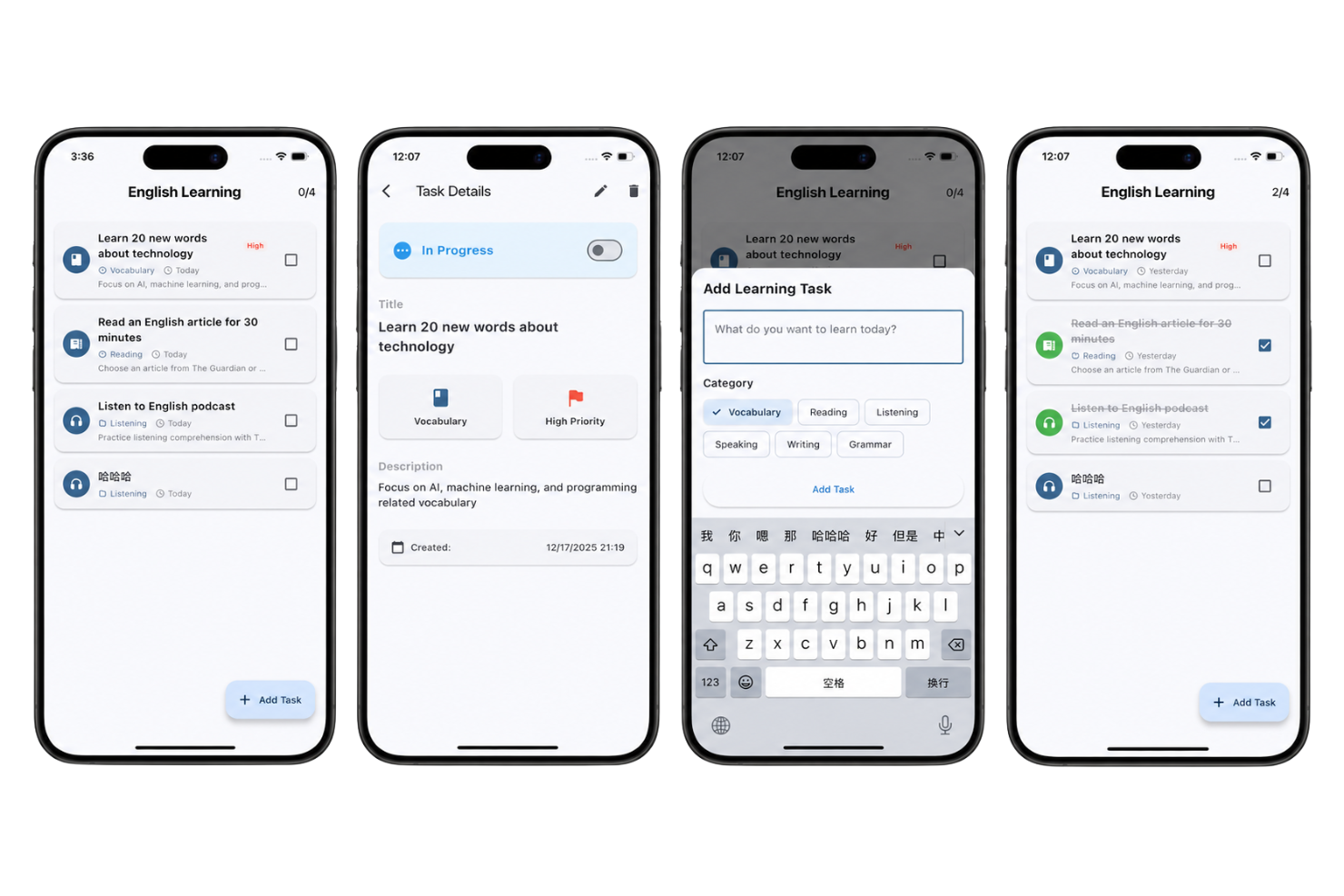
Entask is a mobile-focused collaboration tool for teams that lets you assign tasks, track progress, share notes, and manage group to-dos from iOS devices.
Who Is Entask Best For?
Entask is a great fit for small teams or field workers who need a straightforward way to delegate and manage task assignments from mobile devices.
Why I Picked Entask
I picked Entask as one of the best because I can assign, update, and check off team tasks directly from my phone, send quick reminders, and make sure mobile team members get real-time notifications about their assignments.
Entask Key Features
- Comment threads: Add notes or updates to any assigned task.
- Prioritization tags: Mark tasks by priority for quick sorting.
- Group task assignments: Assign the same task to multiple team members at once.
- Push notifications: Receive instant alerts for task changes or comments.
Entask Integrations
Native integrations are not clearly documented for Entask.
Pros and Cons
Pros:
- Real-time push notifications for updates
- Simple group to-do list creation
- Task assignment directly from iPhone or iPad
Cons:
- Lacks documentation for integrations with external collaboration tools
- No web or Android app available
Miro
Best for digital whiteboarding and brainstorming
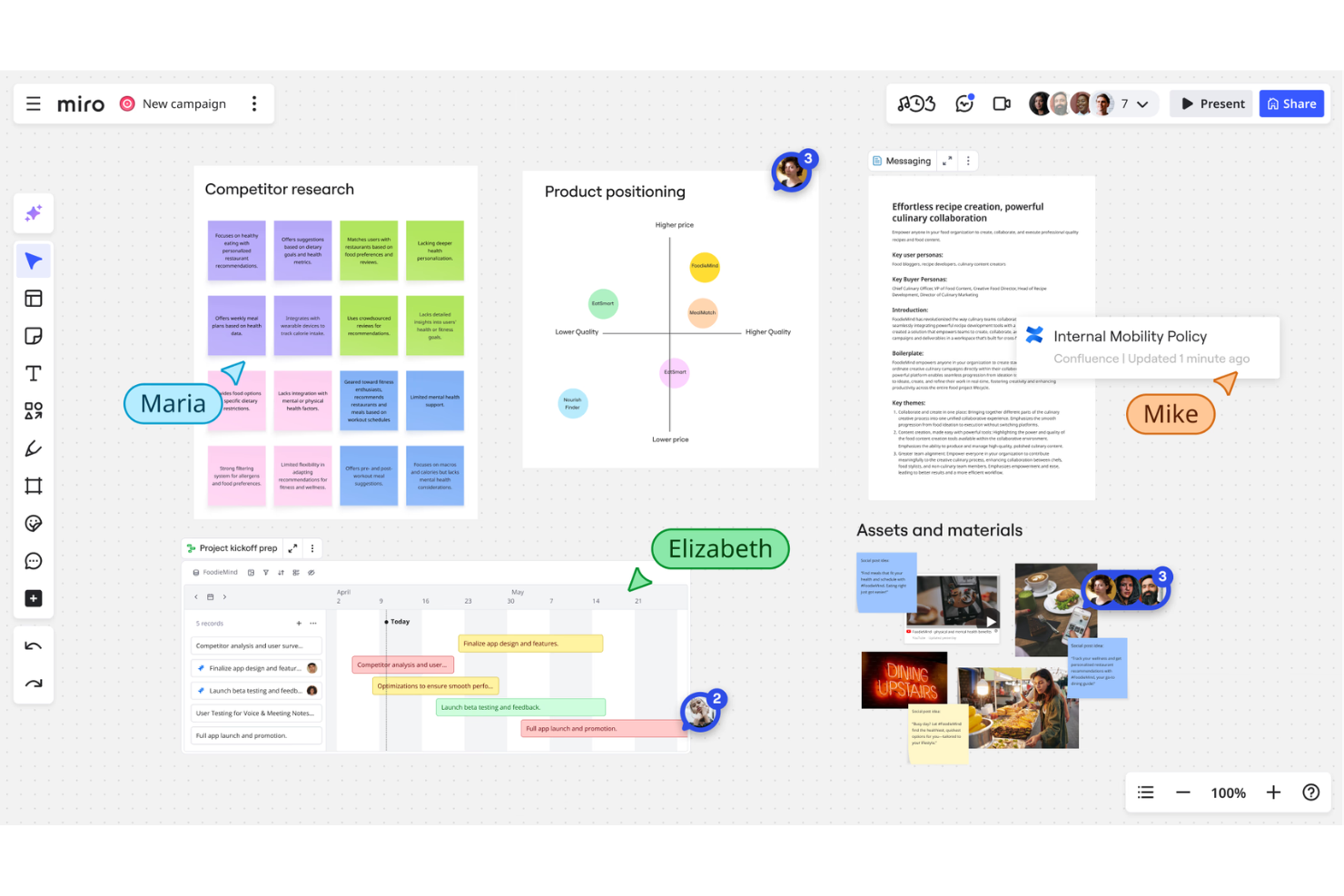
Miro is a collaborative online whiteboard platform that lets teams map workflows, brainstorm ideas, create diagrams, and manage projects together in real-time.
Who Is Miro Best For?
Miro is ideal for distributed teams and creative professionals who need visual collaboration and brainstorming spaces across departments or disciplines.
Why I Picked Miro
I picked Miro because my team uses its infinite canvas, sticky notes, and real-time collaboration features during workshops and brainstorming sessions. I like being able to collect feedback, map ideas visually, and run interactive sessions entirely online.
Miro Key Features
- Templates library: Choose from hundreds of ready-made collaboration and diagram templates.
- Video chat: Collaborate with your team using built-in video calls on the board.
- Commenting tools: Leave threaded comments, @mentions, and markups directly on board elements.
- Export options: Download boards in PDF or image formats or share with public or private links.
Miro Integrations
Miro offers over 100 native integrations, including Slack, Microsoft Teams, Google Drive, Jira, Confluence, Asana, Trello, Zoom, Figma, and Airtable. It also provides an API for custom integrations.
Pros and Cons
Pros:
- Real-time cursor tracking for all users
- Extensive library of templates and widgets
- Supports unlimited collaborators on whiteboards
Cons:
- Occasional sync issues during large team sessions
- Heavy boards can slow down performance
New Product Updates from Miro
Miro Adds Japan Data Residency for Enterprise Customers
Miro has introduced Japan data residency for enterprise customers, offering in-region storage for production data, backups, and metadata, plus in-region compute infrastructure. For more information, visit Miro's official site.
Andere samenwerkingstools
Hier zijn enkele aanvullende opties voor samenwerkingstools die mijn selectie niet hebben gehaald, maar die toch het bekijken waard zijn:
-
Smartsheet
For spreadsheet-style project oversight
-
Hive
For real-time task tracking with automation
-
Slack
For integrated app-based team messaging
-
Wrike
For advanced project reporting tools
-
monday AI Workspace
For visual team timeline planning
-
Guru
For instant internal knowledge sharing
-
ClickUp
For tailored workflow automation


Selectiecriteria voor samenwerkingstools
Bij het selecteren van de beste samenwerkingstools voor deze lijst heb ik rekening gehouden met veelvoorkomende behoeften en pijnpunten van kopers, zoals het verbinden van verspreid werkende teamleden en het verminderen van communicatiesilo's. Ik heb ook het volgende kader gebruikt om mijn beoordeling gestructureerd en eerlijk te houden:
Belangrijkste functionaliteit (25% van de totaalscore)
Om in aanmerking te komen voor deze lijst, moest elke oplossing aan deze veelvoorkomende gebruiksscenario's voldoen:
- Virtuele vergaderingen plannen en eraan deelnemen
- Bestanden en documenten delen
- Communiceren via berichten of chat
- Taken toewijzen en volgen
- In realtime samenwerken
Aanvullende onderscheidende functies (25% van de totaalscore)
Om de concurrentie verder te beperken, heb ik ook gezocht naar unieke functies, zoals:
- Ingebouwde brainstormwhiteboards
- Geautomatiseerde transcriptie van vergaderingen
- Realtimevertaling
- Diepgaande integratie met apps van derden
- Door AI gegenereerde samenvattingen van vergaderingen
Gebruiksvriendelijkheid (10% van de totaalscore)
Om een beeld te krijgen van de gebruiksvriendelijkheid van elk systeem, heb ik rekening gehouden met het volgende:
- Eenvoudige en intuïtieve interface
- Eenvoudige navigatie tussen functies
- Minimale configuratie voor nieuwe gebruikers
- Duidelijke labels en instructies
- Responsief ontwerp op alle apparaten
Introductie (10% van de totaalscore)
Om de introductie-ervaring voor elk platform te beoordelen, heb ik rekening gehouden met het volgende:
- Stapsgewijze installatiehandleidingen
- Beschikbaarheid van trainingsvideo's
- Interactieve productrondleidingen
- Toegang tot sjablonen voor een snelle start
- Ondersteuning bij de introductie via livechat of chatbot
Klantenondersteuning (10% van de totaalscore)
Om de klantenondersteuningsdiensten van elke softwareleverancier te beoordelen, heb ik het volgende in overweging genomen:
- Beschikbaarheid van ondersteuning 24/7
- Meerdere aangeboden contactkanalen
- Snelheid van reactie
- Kwaliteit van zelfbedieningsbronnen
- Diepgang van productkennis
Waar voor je geld (10% van de totaalscore)
Om de prijs-kwaliteitverhouding van elk platform te evalueren, heb ik het volgende in overweging genomen:
- Flexibele prijsplannen
- Aangeboden gratis proefperiodes of gratis niveaus
- Functies inbegrepen in het basisplan
- Limieten voor gebruikersplaatsen of opslag
- Transparante upgrademogelijkheden
Klantbeoordelingen (10% van de totaalscore)
Om een beeld te krijgen van de algehele klanttevredenheid, heb ik bij het lezen van klantbeoordelingen het volgende in overweging genomen:
- Consistentie van positieve feedback
- Terugkerende problemen of klachten
- Genoemde verbeteringen in de loop der tijd
- Waardering voor specifieke functies
- Beoordelingen vergeleken met gemiddelden in de sector
Hoe kies je samenwerkingstools?
Het is gemakkelijk om verstrikt te raken in lange functielijsten en complexe prijsstructuren. Om je te helpen gefocust te blijven tijdens je unieke proces voor softwareselectie, volgt hier een checklist met factoren om rekening mee te houden:
| Factor | Waar je rekening mee moet houden |
|---|---|
| Schaalbaarheid | Ondersteunt de tool je teamgrootte nu en naarmate je groeit? Controleer limieten voor gebruikersplaatsen, opslaglimieten en mogelijkheden om naar een ander plan te upgraden. |
| Integraties | Maakt de tool standaard verbinding met je belangrijkste platforms, zoals e-mail, agenda, CRM of projectmanagementtools? Tel de beschikbare integraties die relevant zijn voor je werkprocessen. |
| Aanpasbaarheid | Kun je werkprocessen, machtigingen of dashboards aanpassen aan je processen zonder veel technisch werk? Let op sjablonen, toegangsbeheer en aangepaste weergaven. |
| Gebruiksgemak | Kunnen niet-technische medewerkers gemakkelijk overstappen? Probeer demo's om de navigatie, duidelijkheid van menu's en snelheid van ingebruikname door gebruikers te beoordelen. |
| Implementatie en ingebruikname | Is het installatieproces verstorend of beheersbaar? Houd rekening met opties voor gegevensmigratie, beschikbare praktische training en de planning voor volledige implementatie. |
| Kosten | Zijn de plannen transparant, met voorspelbare verlengingskosten en zonder onverwachte extra kosten? Bekijk de prijzen per gebruiker, gegevenshoeveelheid of functieniveau. |
| Beveiligingsmaatregelen | Beschermt de tool gevoelige communicatie en gegevens? Zoek naar tools met meervoudige authenticatie, sterke versleuteling en duidelijke beveiligingscertificeringen. |
| Beschikbaarheid van ondersteuning | Is er snelle hulp beschikbaar wanneer zich problemen voordoen? Controleer of er livechat, telefonische ondersteuning of een ticketsysteem is en of gedocumenteerde reactietijden voor probleemoplossing beschikbaar zijn. |
Wat zijn samenwerkingstools?
Samenwerkingstools zijn digitale platforms die teams helpen communiceren, informatie delen en samenwerken, ongeacht hun fysieke locatie.
Deze tools ondersteunen berichten, videogesprekken, het delen van bestanden en gezamenlijk taakbeheer, zodat groepen projecten kunnen coördineren en op één lijn kunnen blijven. Ze zijn essentieel voor werken op afstand en hybride werkomgevingen, omdat ze gebruikers helpen hiaten te overbruggen en de productiviteit te verbeteren.
Functies
Let bij het selecteren van samenwerkingstools op de volgende belangrijke functies:
- Berichten in realtime: Ondersteunt directe communicatie tussen individuen en groepen, waardoor teams problemen kunnen oplossen en updates kunnen delen zonder vertraging.
- Videoconferenties: Stelt gebruikers in staat om elkaar persoonlijk te spreken via geplande of ad-hoc virtuele vergaderingen, waardoor het eenvoudiger wordt om projecten te bespreken en op afstand een goede band op te bouwen.
- Bestanden delen: Hiermee kunnen gebruikers documenten, afbeeldingen of andere bestanden veilig uploaden, opslaan en verspreiden, zodat essentiële bronnen toegankelijk blijven voor het hele team.
- Taakbeheer: Maakt het toewijzen van taken, instellen van deadlines en volgen van de voortgang van projecten mogelijk, waardoor duidelijkheid ontstaat over verantwoordelijkheden en statusupdates.
- Samenwerken aan documenten: Ondersteunt gelijktijdig bewerken en becommentariëren van documenten of presentaties, zodat meerdere gebruikers samen ideeën kunnen bijdragen en materialen kunnen afronden.
- Agenda-integratie: Synchroniseert met agenda's van gebruikers om vergaderingen in te plannen, herinneringen te versturen en dubbele boekingen binnen teams te voorkomen.
- Zoekfunctionaliteit: Biedt gedetailleerde filters en zoekvelden om snel berichten, bestanden of contactpersonen te vinden zonder door lange geschiedenissen te hoeven scrollen.
- Op rollen gebaseerde machtigingen: Hiermee kunnen beheerders de toegang tot verschillende functies, kanalen of bestanden beheren, zodat gevoelige informatie alleen beschikbaar is voor bevoegde gebruikers.
- Meldingen en waarschuwingen: Biedt aanpasbare updates om teamleden op de hoogte te houden van nieuwe berichten, taken of komende gebeurtenissen.
- Mobiele toegang: Biedt een mobiele app met uitgebreide functies of een responsief ontwerp, zodat gebruikers overal kunnen samenwerken met hun voorkeursapparaten.
Voordelen
Het implementeren van samenwerkingstools biedt verschillende voordelen voor je team en je bedrijf. Hier zijn enkele voordelen waar je naar kunt uitkijken:
- Gestroomlijnde communicatie: Teamleden kunnen direct contact leggen via chat, video of het delen van bestanden, waardoor lange e-mailketens worden beperkt.
- Hogere productiviteit: Gecentraliseerde taakopvolging en samenwerking aan documenten helpen teams zich te richten op resultaten en minder tijd te besteden aan het zoeken naar informatie.
- Verbeterde transparantie: Functies voor het volgen van de voortgang stellen iedereen in staat om projectstatussen, verantwoordelijkheden en tijdlijnen in één oogopslag te zien.
- Betere ondersteuning voor werken op afstand: Berichten in realtime, videogesprekken en mobiele toegang stellen teams in staat om overal effectief te werken.
- Snellere besluitvorming: Directe meldingen en geïntegreerde planningstools helpen teams snel te coördineren en samen weloverwogen keuzes te maken.
- Betere afstemming binnen het team: Gedeelde werkruimten, samenwerking aan documenten en agenda-integratie houden iedereen georganiseerd en gericht op gemeenschappelijke doelen.
- Verbeterde gegevensbeveiliging: Op rollen gebaseerde machtigingen en het veilig delen van bestanden zorgen ervoor dat gevoelige bedrijfsinformatie binnen het team beschermd blijft.
Kosten en prijzen
Bij het selecteren van samenwerkingstools is inzicht in de verschillende beschikbare prijsmodellen en abonnementen vereist. De kosten variëren op basis van functies, teamgrootte, uitbreidingen en meer. De onderstaande tabel geeft een overzicht van veelvoorkomende abonnementen, hun gemiddelde prijzen en de functies die doorgaans zijn inbegrepen in oplossingen voor samenwerkingstools:
Vergelijkingstabel voor abonnementen van samenwerkingstools
| Type abonnement | Gemiddelde prijs | Veelvoorkomende functies |
|---|---|---|
| Gratis abonnement | $0 | Basisberichten, beperkt delen van bestanden, videogesprekken voor kleine groepen en basis-taakbeheer. |
| Persoonlijk abonnement | $5–$10/gebruiker/maand | Groepschat, uitgebreidere opslag, audio- en videoconferenties, agenda-integratie en basistools voor samenwerking. |
| Zakelijk abonnement | $10–$25/gebruiker/maand | Hogere limieten voor vergaderingen, geavanceerde beheerdersfuncties, integraties met bedrijfssoftware en verbeterde beveiliging. |
| Bedrijfsabonnement | $25–$40/gebruiker/maand | Onbeperkt aantal gebruikers, prioriteitsondersteuning, geavanceerde beveiligingsfuncties, nalevingsopties en aangepaste ingebruikname. |
Veelgestelde vragen over samenwerkingstools
Hier volgen antwoorden op veelgestelde vragen over samenwerkingstools:
Hoe kan ik bepalen welke samenwerkingstool het beste is voor mijn team?
Begin met het in kaart brengen van de werkstromen en communicatiebehoeften van je team. Stem deze vervolgens af op tools die goed integreren met je huidige technologiestack, binnen je budget passen en de belangrijkste functies bieden die je team daadwerkelijk gebruikt.
Zijn samenwerkingstools veilig genoeg voor gevoelige zakelijke communicatie?
Ja, de meeste samenwerkingstools bevatten sterke beveiligingsmaatregelen, zoals end-to-endversleuteling, op rollen gebaseerde toegangsrechten en compliancecertificeringen. Toch moet je altijd de beveiligingsdocumentatie van een leverancier bekijken en de instellingen afstemmen op je vereisten.
Kunnen samenwerkingstools e-mail vervangen voor interne teamcommunicatie?
Ja, veel teams gebruiken samenwerkingstools om de hoeveelheid e-mail te verminderen door discussies, het delen van bestanden en projectupdates naar realtimeplatforms te verplaatsen. Sommige externe of formele communicatie vereist echter mogelijk nog steeds e-mail.
Waar moet ik rekening mee houden voordat ik naar een nieuwe samenwerkingstool migreer?
Plan de gegevensmigratie, gebruikerstraining en systeemintegratie. Bekijk hulpmiddelen voor de ingebruikname, zoals handleidingen en sjablonen, en reserveer tijd voor feedback en het aanpassen van processen tijdens de eerste uitrol.