

10 beste programvarer for videokonferanser i 2026

10 Kortliste over den beste programvaren for videokonferanser


I dagens hektiske arbeidsmiljø trenger du verktøy som hjelper teamet ditt med å holde kontakten og kommunisere effektivt. Programvare for videokonferanser kan bygge bro mellom eksterne team, gjøre møtene mer produktive og samarbeidet enklere.
Som en som har testet og vurdert utallige programvareløsninger, vet jeg hvor viktig det er å finne det som passer best til behovene dine. Du ønsker et brukervennlig verktøy som håndterer de unike utfordringene ved å lede et team.
I denne artikkelen deler jeg mine beste anbefalinger for programvare for videokonferanser. Du kan forvente en upartisk og grundig vurdering med fokus på praktiske funksjoner og fordeler som kan utgjøre en reell forskjell for deg og teamet ditt.
Hvorfor du kan stole på våre programvareanbefalinger
Teamet vårt har testet og anmeldt programvare siden 2012. Vi er selv HR-eksperter, så vi vet hvor vanskelig og hvor viktig det er å velge riktig programvare.
I denne guiden har vi vurdert verktøyene gjennom praktisk testing og uavhengig research og gitt dem poeng ut fra våre utvelgelseskriterier. Vi bygger også på innsikt fra ledende eksperter i bransjen og erfarne HR-eksperter.
Anmeldelsene våre bygger på vår egen redaksjonelle vurdering. De er ikke et salgsargument.
Ekspertanmeldere:
Sammenligningstabell for programvare for videokonferanser
Denne sammenligningstabellen oppsummerer prisopplysningene for mine beste utvalgte programmer for videokonferanser:
| Tool | Best For | Trial Info | Price | ||
|---|---|---|---|---|---|
| 1 | Customizable video conferencing tool with engagement features and ‘knock to enter’ meeting security | Free plan available | From $10.99/user/month | Website | |
| 2 | Best for high-definition video quality | 14-day free trial + free plan + free demo available | From $24/month (billed annually) | Website | |
| 3 | Affordable video conferencing tool, well-integrated into Zoho’s comprehensive technology suite | Free plan available; 14-day free trial | From $1/user/month (billed annually) | Website | |
| 4 | Advanced video conferencing app competitively priced to include 37 other productivity apps | Freemium account for up to 10 users. | From $14.99 USD/month and includes access to 37 other productivity tools designed by 500apps | Website | |
| 5 | Sophisticated video conferencing software with AI-based Voice Intelligence transcription feature | 14-day free trial + free demo available | Pricing upon request | Website | |
| 6 | Modern web conferencing software with embedded Smart Meeting Assistant, well-suited for healthcare professionals | Free trial + free demo available | From $12/organizer/month (billed annually) | Website | |
| 7 | Scalable video conferencing software for team meetings, webinars, and large virtual events | 14-day free trial | Pricing upon request | Website | |
| 8 | Full-feature video conferencing software with useful presentation mode that superimposes the speaker over shared content | 14-day free trial | From £18/user/month | Website | |
| 9 | Futuristic video conferencing solution with productivity tools to flag highlights and assign action items | 14-day free trial | From $9.99/host/month | Website | |
| 10 | Best for immersive virtual environments | Free plan + 7-day free trial + free demo | From $8/user/month | Website |
Vurdering av den beste programvaren for videokonferanser
Nedenfor finner du mine detaljerte oppsummeringer av den beste programvaren for videokonferanser som kom med på kortlisten. Vurderingene mine gir et detaljert innblikk i de viktigste funksjonene, fordelene & ulempene, integrasjonene og ideelle bruksområdene for hvert verktøy, slik at du kan finne det som passer best for deg.

Whereby
Customizable video conferencing tool with engagement features and ‘knock to enter’ meeting security

Whereby makes my list because it’s one of the few video solutions where meeting security and engagement features are genuinely baked into the workflow. The ‘knock to enter’ security gives my remote teams peace of mind that our calls won’t be interrupted or accessed by the wrong people.
I like the way Whereby supports participant engagement with built-in reactions and collaborative tools that feel more human than most. I recommend this tool when you need a remote meeting space that feels both private and inviting—especially during open brainstorming sessions or team check-ins.
Whereby’s Best For
- Remote teams that want private, secure video meetings with minimal friction
- Groups focused on interactive sessions with built-in engagement features
Whereby’s Not Great For
- Large enterprises needing deep integrations or complex IT management
- Teams that want extensive breakout room or large event features
What Sets Whereby Apart
Whereby stands out for how directly it centers meeting access and privacy in the user flow. Instead of a login-driven approach like Zoom or Google Meet, it uses the ‘knock to enter’ model that puts the host in control and sets a welcoming, intentional tone before each call. In practice, this lowers friction for remote teams that need both drop-in access and consistent security without juggling codes or waiting rooms. I often find this fits teams that treat recurring meetings as collaborative spaces rather than formal presentations.
Tradeoffs with Whereby
Whereby optimizes for simplicity and a focused meeting experience, but you lose out on advanced moderation or breakout session controls. For large training sessions or events requiring segmented group work, you’ll run into limits.
Best for high-definition video quality
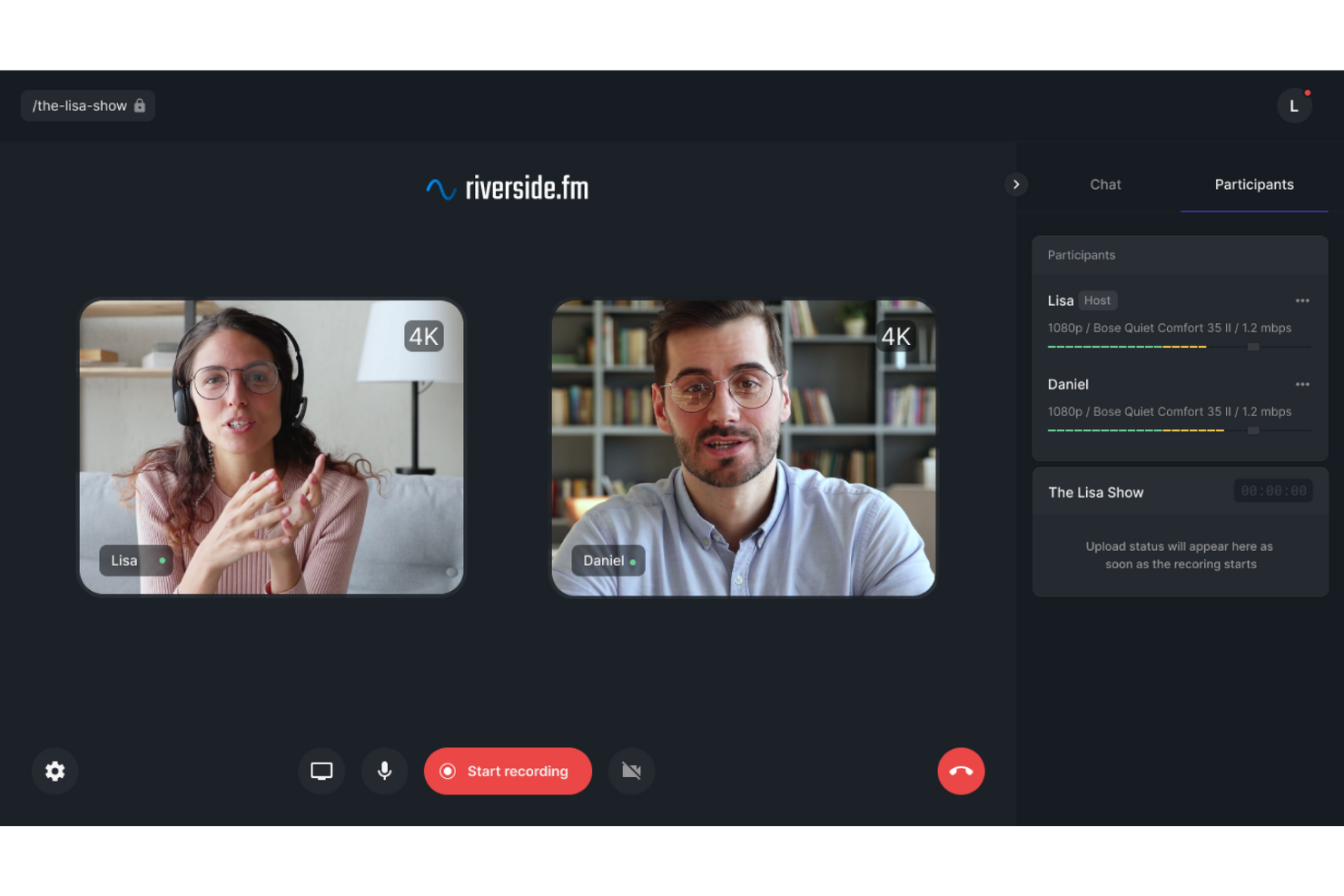
Riverside makes my shortlist because it’s unique in prioritizing studio-quality video and audio, even for remote team calls.
I appreciate how Riverside’s local recording tech keeps video and audio crisp, even with unstable connections. Teams working on all-hands meetings, webinars, or training sessions should expect smooth results and reliable playback.
Riverside’s Best For
- Remote teams recording high-definition video calls, webinars, or interviews
- Companies prioritizing studio-quality audio and video for virtual events
Riverside’s Not Great For
- Teams that need breakout rooms and advanced collaboration tools
- Organizations focused on quick, informal daily video check-ins
What Sets Riverside Apart
Riverside stands out because it’s built to deliver studio-level video and audio quality right from your browser. Unlike Zoom or Google Meet, which prioritize live interactivity, Riverside centers its design on local recording for each participant. This approach means your recordings keep their clarity even when someone’s internet connection drops.
I often recommend Riverside when people need to capture interviews, webinars, or presentations that will be republished or shared externally.
Tradeoffs With Riverside
Riverside optimizes for top-tier recordings but deprioritizes collaboration tools like screen sharing or breakout rooms. In practice, you give up interactive meeting features, so it’s not set up for teams running fast-paced, participatory calls.
Pros and Cons
Pros:
- Automatic transcription and chapter division
- Free plan without credit card
- Cloud storage prevents data loss and allows easy access to archives
Cons:
- Chrome required for best performance
- Charges can add up

Affordable video conferencing tool, well-integrated into Zoho’s comprehensive technology suite

Zoho Meeting makes my shortlist because it’s so well-suited to remote teams already invested in Zoho’s ecosystem. I've seen distributed groups get a lot of value from how tightly it connects to Zoho projects, calendars, and docs.
One thing I appreciate about Zoho Meeting is how easy it is to launch calls directly from other Zoho tools. This works best when teams want calling, screen sharing, and follow-ups to be a natural part of their existing workflow, not a siloed activity.
Zoho Meeting’s Best For
- Remote teams already working inside the Zoho suite
- Organizations that want video calls deeply linked to projects, docs, and calendars
Zoho Meeting’s Not Great For
- Teams that need advanced video webinar features or large meeting support
- Companies not already using Zoho tools or wanting broad third-party integrations
What Sets Zoho Meeting Apart
Zoho Meeting feels different from tools like Zoom or Microsoft Teams because it’s designed to work as an extension of the larger Zoho platform. Instead of pulling you out to manage video calls in a separate app, it expects you to build meetings right into your project or calendar workflow. This works best in environments where collaboration is already happening inside Zoho apps, not scattered across several platforms.
Tradeoffs With Zoho Meeting
Zoho Meeting prioritizes tight integration with its own suite over advanced meeting features and broad compatibility. In practice, this means you give up some webinar capabilities or external integrations that other dedicated video tools offer.

Advanced video conferencing app competitively priced to include 37 other productivity apps

500Conference stands out for remote teams that want video meetings and collaboration tools all in one place. I picked it because the platform goes well beyond just video calls, bundling 37 different productivity apps for teams that need to do more together. In practice, I’ve seen organizations launch meetings and automatically kick off tasks, create polls, or collaborate on documents without ever leaving the platform. I especially like how you’re not forced to juggle multiple tools when switching from meetings to shared work.
500Conference’s Best For
- Remote teams looking to bundle video conferencing with built-in productivity tools
- Organizations that want to manage meetings, tasks, and collaboration in one platform
500Conference’s Not Great For
- Teams that only need basic video calling without extra features
- Businesses seeking specialized, standalone video production or broadcasting tools
What Sets 500Conference Apart
500Conference takes a different approach from tools like Zoom by assuming teams want a unified workspace for both meetings and ongoing collaboration. Instead of limiting you to scheduled video calls, it encourages you to keep work moving between meetings with built-in docs, whiteboards, and task tools. This works best when you want everything tied together, so you’re not hopping between disconnected apps.
Tradeoffs With 500Conference
You gain convenience by consolidating work into one platform, but the experience can feel cluttered if you just need focused video calls. In practice, some teams end up navigating more menus or unused tools than they would with a dedicated video solution.
Dialpad
Sophisticated video conferencing software with AI-based Voice Intelligence transcription feature

Dialpad makes my list because of how much value it adds to remote team meetings through its AI-based Voice Intelligence transcription. I see teams relying on Dialpad when keeping meeting participants engaged and accountable is key—especially across time zones or asynchronous work.
I like that the transcription feature not only captures the discussion in real time but also helps teams refer back to action items or decisions without missing a beat. This tool stands out when gathering input from dispersed team members and tracking follow-ups after calls is crucial for running tight, productive meetings.
Dialpad’s Best For
- Distributed teams needing AI-based meeting transcription and documentation
- Organizations that run frequent, action-oriented remote meetings with follow-ups
Dialpad’s Not Great For
- Teams that don't need advanced transcription or call analytics
- Video-first teams wanting breakout rooms or immersive meeting formats
What Sets Dialpad Apart
Dialpad is built around live transcription as a core part of every meeting, not just an add-on. Unlike platforms like Zoom, which focus on video quality and breakout rooms, Dialpad expects you to lean on searchable, real-time transcripts to keep everyone aligned and informed. This works best when meetings are action-heavy and follow-ups matter just as much as the discussion.
Tradeoffs With Dialpad
Because Dialpad optimizes for transcription and post-meeting insights, you lose out on richer video collaboration features like breakout groups. In practice, this means meetings with a heavy focus on face-to-face interaction or brainstorming might feel more limited.
Modern web conferencing software with embedded Smart Meeting Assistant, well-suited for healthcare professionals
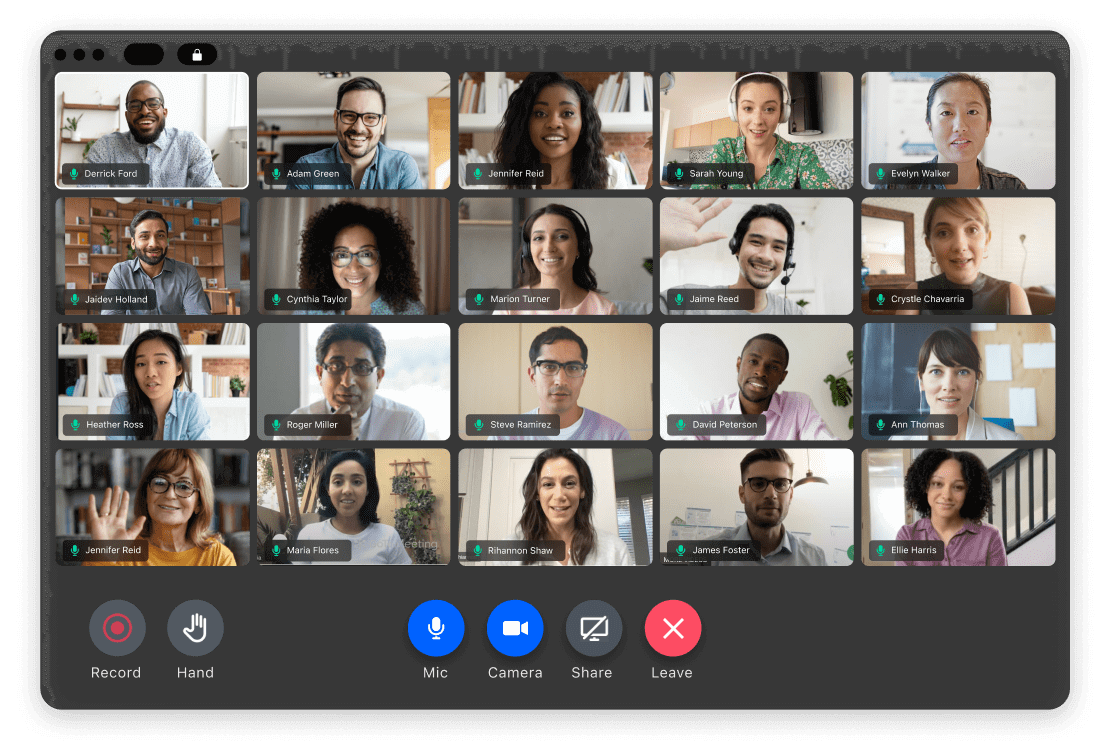
GoTo Meeting makes my shortlist because it’s one of the few video conferencing platforms built with healthcare-specific needs in mind. I look at solutions that do more than just connect people—I want features that help make remote interactions smarter and more impactful.
I appreciate how GoTo Meeting’s Smart Meeting Assistant can capture meeting notes and action items automatically, which is huge for busy teams who need to document critical decisions. When I see organizations needing HIPAA-ready security plus reliable, interactive collaboration, this is the tool I lean toward.
GoTo Meeting’s Best For
- Healthcare professionals needing HIPAA-compliant video meetings with documentation
- Teams that want automated meeting transcripts and action items
GoTo Meeting’s Not Great For
- Large enterprises needing advanced virtual event or webinar features
- Organizations wanting built-in asynchronous video messaging or persistent chat
What Sets GoTo Meeting Apart
GoTo Meeting takes a meetings-first approach, aiming to streamline remote sessions for industries with strict compliance needs. This isn’t like using Zoom or Microsoft Teams, which often compete on enterprise-level features and broader messaging. GoTo Meeting centers on reliability and actionable meeting records, especially where proper documentation is essential. Teams tend to get consistent, secure calls, and the Smart Meeting Assistant expects you to rely on accurate records rather than scattered notes.
Tradeoffs With GoTo Meeting
By focusing on structured meetings and compliance, GoTo Meeting leaves out casual messaging and large-scale event features. In practice, you miss the chance to manage ongoing conversations or run interactive webinars in the same space.

Scalable video conferencing software for team meetings, webinars, and large virtual events

ClickMeeting makes my shortlist because it’s built to scale well beyond basic team check-ins, which matters when you’re running large virtual meetings or webinars. I usually recommend it to organizations that manage everything from panel discussions to full hands-on workshops and want consistent engagement wherever people dial in from.
What’s most useful for me is its event automation feature: you can set up registration, reminder emails, and follow-ups without extra tools. I appreciate how the webinar controls let hosts run polls, Q&A, and whiteboarding that keep even big groups participating, not just watching.
ClickMeeting’s Best For
- HR, marketing, and training teams hosting large, interactive virtual events or webinars
- Organizations running multi-session meetings with automation, attendee engagement, and branded experiences
ClickMeeting’s Not Great For
- Small teams needing just basic video call functionality
- Groups prioritizing informal, rapid-fire collaboration over structured event controls
What Sets ClickMeeting Apart
ClickMeeting is designed for running large, controlled virtual sessions instead of quick internal check-ins. Unlike Zoom or Google Meet, it expects you to treat every session as an event—setting up registration, automating reminders, and using host-led tools to guide engagement. In practice, this works best when you want high participation and structured interaction with larger, sometimes external, audiences.
Tradeoffs With ClickMeeting
ClickMeeting optimizes for planning and event management, but that structure adds steps for impromptu team communication. You give up the casual, rapid setup you’d get with simpler video call tools.
Full-feature video conferencing software with useful presentation mode that superimposes the speaker over shared content

RingCentral isn’t just another video platform—it stands out for truly supporting engagement during remote team meetings. I picked it for this list because the presentation mode lets the speaker appear directly over the content, so you’re not forced to choose between sharing information and keeping those moments of face time.
I like how this feature lets presenters hold the group’s attention and avoid that “disconnected voice-over-slide-deck” feeling. When I see teams using RingCentral, engagement clearly stays higher because participants can see both the presenter’s reactions and the content in a single view.
RingCentral’s Best For
- Remote teams needing dynamic, interactive presentations in video meetings
- Facilitators who want to keep visual contact while sharing detailed content
RingCentral’s Not Great For
- Teams that need advanced collaboration beyond meetings, like persistent team workspaces
- Organizations looking for simple, no-frills video chat without presentation features
What sets RingCentral apart
RingCentral stands out for how seriously it treats presence and engagement in remote meetings. Unlike Meet or Teams, it lets presenters appear over shared content, so visuals and human connection stay front and center. This works especially well when you want to keep participants focused on both the message and the person delivering it.
I often recommend RingCentral when teams find standard screen sharing too impersonal or disengaging for remote collaboration.
Tradeoffs with RingCentral
By centering experience around live meetings and presentations, it's not for async collaboration. This means file management, team chat, and ongoing discussions need to happen elsewhere.

Futuristic video conferencing solution with productivity tools to flag highlights and assign action items
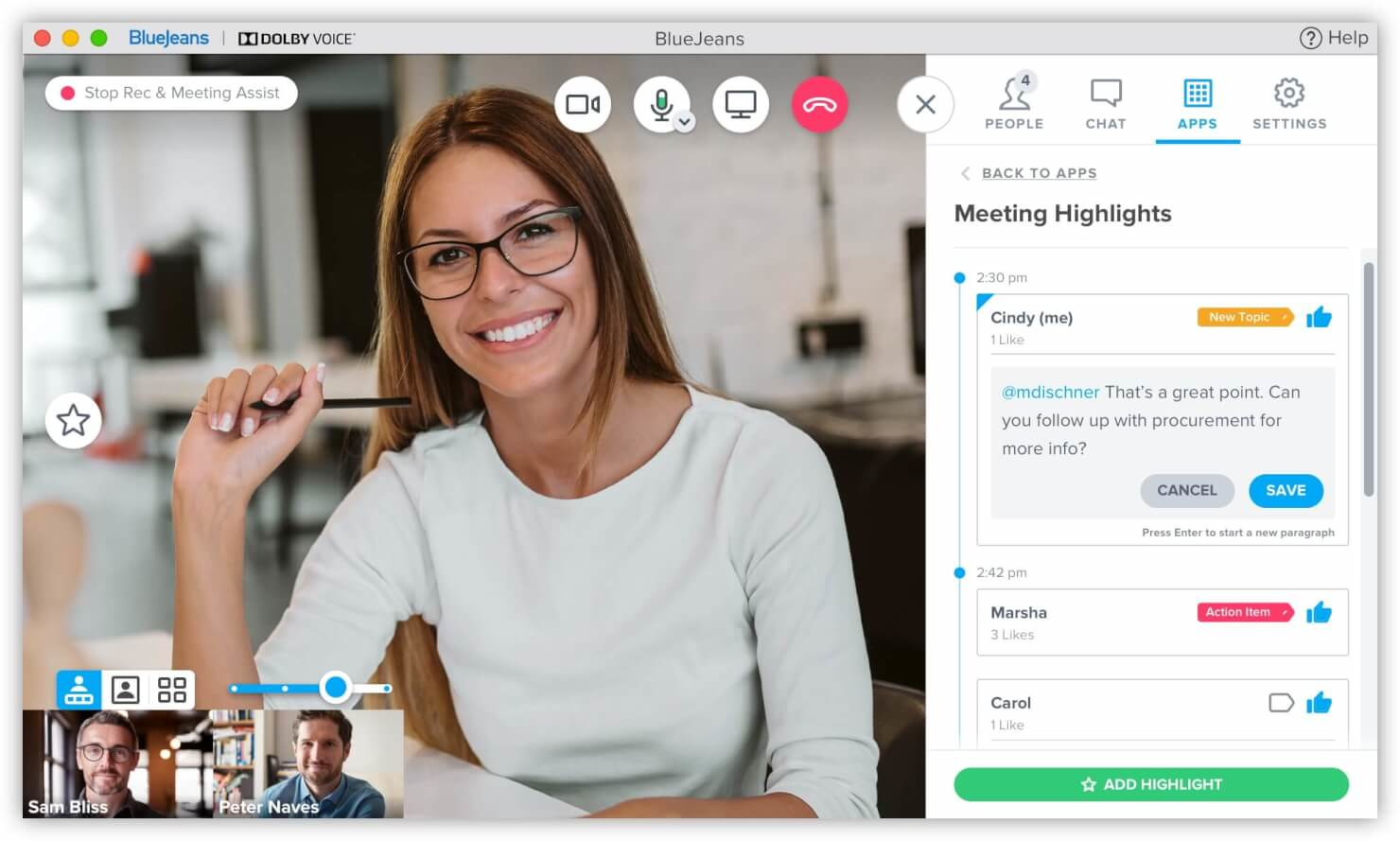
Blue Jeans Network feels like it was built for teams that want more out of their video meetings than just talking heads. I put it on this list because tools that let you flag key moments and instantly turn conversation into action make a difference when you're remote.
What keeps impressing me is how quickly I can highlight important discussion points and assign follow-up tasks—all inside the meeting. Teams tend to get more engagement because no part of the conversation gets lost or forgotten once the call ends.
Blue Jeans Network’s Best For
- Remote teams that need to capture meeting highlights and assign action items live
- Managers who want better follow-up and accountability from video meeting discussions
Blue Jeans Network’s Not Great For
- Organizations looking for webinar or large event broadcasting tools
- Teams that only need basic, no-frills video calling without productivity features
What Sets Blue Jeans Network Apart
Blue Jeans Network treats meetings as working sessions rather than just calls. Unlike Zoom or Google Meet, it expects you to capture highlights and assign action items in real time as part of the conversation. This works best when you want meetings to create concrete next steps instead of leaving everything buried in notes. I tend to recommend it when teams want more active, participatory engagement during video meetings.
Tradeoffs with Blue Jeans Network
Blue Jeans Network optimizes for actionable meetings with built-in productivity tools, but you lose out if you just need straightforward video calls. For teams that value simple or large-scale conferencing, the extra layers can feel unnecessary or distracting.

SpatialChat
Best for immersive virtual environments
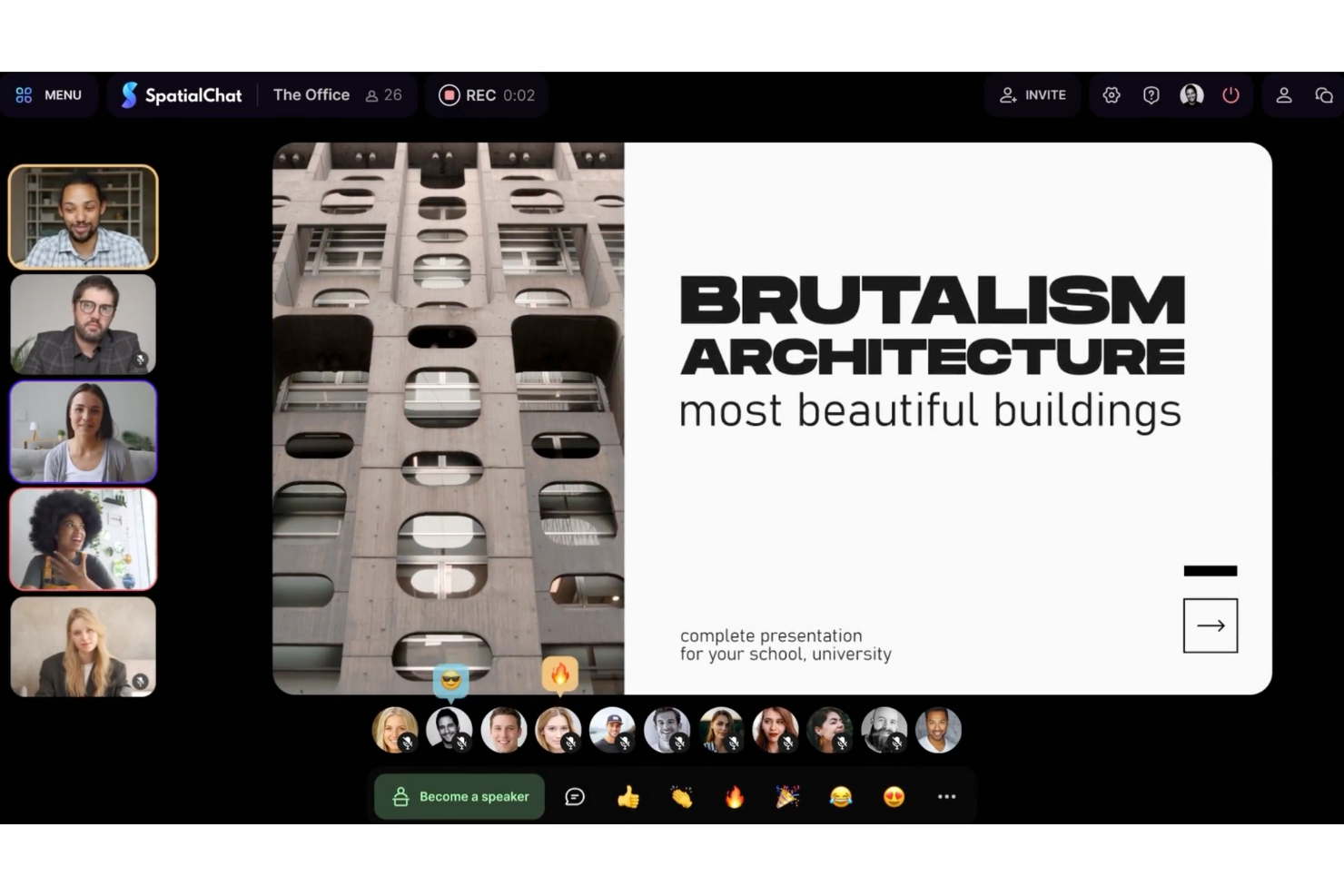
SpatialChat makes my shortlist because nothing else replicates the feel of physically moving through a space with your team during virtual sessions. I put it in front of teams who need something more engaging than standard video grids, especially when group energy starts dropping or informal conversations feel stilted.
What stands out to me is how you can walk up to clusters, “move around the room,” and break into side chats naturally during an all-hands or virtual social. I’ve seen teams use SpatialChat for brainstorms, onboarding, and interactive offsites where they want real connection across remote locations. There’s just nothing else that nails this sense of shared virtual presence quite as well.
SpatialChat’s Best For
- Distributed teams seeking immersive, interactive virtual environments
- Remote groups running brainstorming sessions, team socials, or onboarding events
SpatialChat’s Not Great For
- Large webinars or meetings where presentation control and structure matter most
- Teams who prefer traditional, static video conferencing setups
What Sets SpatialChat Apart
SpatialChat feels more like walking into a virtual gathering than joining a standard video call. Unlike Zoom, where everything sits in a static grid, SpatialChat lets you move between groups and conversations visually on the screen. I often recommend it when people want to recreate the casual flow of office chats or social meetups—those chance encounters that don’t happen in rigid meeting formats.
This works best when you need spontaneous, interactive sessions, like workshops or team mixers, rather than tightly moderated presentations.
Tradeoffs with SpatialChat
SpatialChat optimizes for natural, informal interaction, but that comes at the expense of structure and control. When you need formal facilitation or order—like a company-wide update or large webinar—the open format makes coordination harder and can leave some voices unheard.
Pros and Cons
Pros:
- Supports up to 10,000 participants for large gatherings
- Offers unique virtual backgrounds for branding opportunities
- No software installation needed; browser-based access
Cons:
- Occasional audio or browser compatibility issues
- Lacks certain advanced admin or host controls
Annen programvare for videokonferanser
Her er noen flere alternativer for programvare for videokonferanser som ikke kom med på kortlisten, men som likevel er verdt å sjekke ut:
- BigBlueButton
Open-source video conferencing and virtual classroom solution designed for teachers and educational institutions
- RemotePC Meeting
Advanced video conferencing tool with breakout rooms and live multiple choice survey tool
- GlobalMeet Collaboration
Comprehensive video conferencing software with calendar integrations and digital whiteboard feature
- Webex
Free video conferencing software for up to 100 participants, with advanced features like animated virtual backgrounds, automated transcription and interactive polls and Q&A tools.
- 8x8
Sophisticated conference call software that supports up to 500 active participants per video call.
- OnBoard
Board intelligence platform with embedded Zoom video integration, designed for virtual board meetings
- Pexip
Trusted video conferencing software with advanced security features, well-suited for legal, government, finance and healthcare use.
- Zoom
Popular virtual meeting tool, free for personal use, but scalable up to enterprise-level use.
- Microsoft Teams
Well-known video conferencing tool designed by Microsoft Office, also accessible through a mobile app.
- Google Meet
Enterprise-grade, easy-to-use video conferencing software, accessible from within your Google Workspace account.


How I Evaluate Video Conferencing Software
I split my evaluation into two layers: the baseline must-haves, like reliable recording for interview documentation, and the differentiators that make one platform the right fit for your HR team.
Core Functionality (Table Stakes For This List)
When I'm selecting tools for my list, I rank each one on a scale from 0 (does not offer the functionality) to 5 (excels in this area) for each core functionality listed below. Then, I calculate the tool's total score into a percentage. Each tool needs to achieve a minimum total score of 65% to be considered for inclusion.
- HD Video & Audio Quality: I evaluate video resolution, participant capacity, and noise suppression—especially during panel interviews where multiple interviewers speak in quick succession.
- Screen Sharing & Presentation: Whether you're walking a new hire through benefits enrollment or running a policy update, I look for flexible sharing modes and annotation support.
- Meeting Recording & Transcription: I check for cloud-based recording with searchable transcripts, since HR teams often need to revisit interview footage or archive training sessions.
- Scheduling & Calendar Integration: Booking candidate interviews across time zones gets messy fast, so I evaluate how well each tool syncs with Google Calendar and Outlook.
- Security & Access Controls: Sensitive conversations like performance reviews and disciplinary meetings demand encryption, waiting rooms, and role-based permissions at a minimum.
- Chat & Collaboration Tools: Breakout rooms, polls, and Q&A features matter for interactive use cases like onboarding workshops, team training, and company-wide town halls.
Once I have a list of tools that meet this criteria, I consider what sets each platform apart.
Differentiating Factors (What Sets Vendors Apart)
Here's how I compare and contrast different vendors:
Standout Features
AI meeting assistants are a big differentiator—I look for tools that auto-generate summaries and action items, which saves recruiters hours of post-interview documentation. ATS and HRIS integrations also matter here, since platforms that sync candidate or employee data into systems like Greenhouse or BambooHR cut down on manual entry. I evaluate live captioning and translation support too, which is especially valuable for HR teams hiring and training across multiple regions and languages.
Beyond Features
Compliance and data privacy top my list—HR conversations involve sensitive PII, so I check for encryption standards, data residency options, and certifications like SOC 2 and GDPR compliance. Scalability and licensing also shape my evaluation. A platform should handle a five-person disciplinary meeting and a 500-person town hall without forcing you onto a separate plan. I also look at engagement analytics, since tracking attendance and participation across training sessions helps L&D specialists measure program impact and justify continued investment.
Slik velger du programvare for videokonferanser
Det er lett å gå seg vill i lange funksjonslister og komplekse prisstrukturer. For å hjelpe deg med å holde fokus mens du går gjennom den unike prosessen med å velge programvare, får du her en sjekkliste over faktorer du bør ha i bakhodet:
| Faktor | Hva du bør vurdere |
|---|---|
| Skalerbarhet | Vil programvaren vokse sammen med teamet ditt? Se etter verktøy som kan håndtere flere brukere og større møter etter hvert som teamet utvides. |
| Integrasjoner | Fungerer den med de eksisterende verktøyene dine? Kontroller kompatibiliteten med CRM-systemet, kalenderen og annen viktig programvare. |
| Tilpasningsmuligheter | Kan du tilpasse verktøyet etter behovene dine? Vurder om du kan justere innstillinger og grensesnitt slik at de passer til arbeidsflytene dine. |
| Brukervennlighet | Er det brukervennlig for alle? Vurder læringskurven og om teammedlemmene kan begynne å bruke det uten omfattende opplæring. |
| Implementering og innføring | Hvor raskt kan du komme i gang? Vurder hvor lang tid oppsettet tar, og om det finnes ressurser som veiledninger og støtte under innføringsfasen. |
| Kostnad | Passer det inn i budsjettet ditt? Sammenlign prisplaner, skjulte gebyrer og verdien som tilbys sammenlignet med andre alternativer. |
| Sikkerhetstiltak | Er møtene dine sikre? Se etter kryptering, passordbeskyttelse og samsvar med standarder for databeskyttelse. |
| Tilgjengelig kundestøtte | Kan du få hjelp når du trenger det? Vurder tilgjengeligheten til kundestøtten, responstidene og kvaliteten på hjelpen som tilbys. |
Hva er programvare for videokonferanser?
Videokonferanseprogramvare er et verktøy som muliggjør virtuelle møter og kommunikasjon gjennom video- og lydforbindelser. Fagpersoner i ulike bransjer, som HR-ledere, fjernarbeidende team og undervisere, bruker disse verktøyene for bedre samarbeid og kommunikasjon. Funksjoner som skjermdeling, opptak og chatmeldinger bidrar til effektiv møtehåndtering og samhandling i teamet. Alt i alt gjør disse verktøyene det enklere å holde kontakten og samarbeide uansett hvor man befinner seg.
Funksjoner
Når du velger videokonferanseprogramvare, bør du se etter følgende viktige funksjoner:
- Skjermdeling: Gjør det mulig for deltakerne å dele skjermene sine for presentasjoner og samarbeid, noe som forbedrer kommunikasjon og tydelighet under møtene.
- Opptak: Gjør det mulig å ta opp møter for senere bruk, slik at viktige diskusjoner kan gjennomgås og deles med dem som ikke kunne delta.
- Chatmeldinger: Gir deltakerne en ekstra kommunikasjonskanal for å utveksle meldinger under møter uten å avbryte den som snakker.
- Grupperom: Legger til rette for diskusjoner i mindre grupper innenfor et større møte, og fremmer konsentrert samarbeid og idémyldring.
- Virtuelle bakgrunner: Gir mulighet til å endre eller gjøre bakgrunner uskarpe, slik at personvern og profesjonalitet ivaretas i eksterne arbeidssituasjoner.
- Direkte transkripsjon: Transkriberer automatisk talte ord til tekst, noe som forbedrer tilgjengeligheten og gjør det enkelt å finne frem til møteinnhold.
- Integrasjonsmuligheter: Kobler seg til andre verktøy, som CRM-systemer eller kalendere, og effektiviserer arbeidsflyten og øker produktiviteten.
- Sikkerhetstiltak: Omfatter kryptering og passordbeskyttelse for å sikre sensitiv informasjon og sørge for trygg kommunikasjon.
- Mobiltilgang: Gjør det mulig for brukere å delta i møter fra mobile enheter, noe som gir fleksibilitet og bekvemmelighet for deltakere på farten.
- Tilpassbare innstillinger: Lar brukerne tilpasse grensesnittet og funksjonene etter egne behov, noe som forbedrer brukeropplevelsen og tilpasningsevnen.
Fordeler
Implementering av videokonferanseprogramvare gir flere fordeler for teamet og virksomheten din. Her er noen av fordelene du kan se frem til:
- Bedre kommunikasjon: Legger til rette for samhandling i sanntid, reduserer misforståelser og styrker samarbeidet i teamet.
- Reduserte kostnader: Reduserer reiseutgifter ved å muliggjøre virtuelle møter, slik at team kan holde kontakten uansett hvor de befinner seg.
- Økt produktivitet: Funksjoner som skjermdeling og chatmeldinger hjelper team med å samarbeide effektivt og ta beslutninger raskere.
- Større fleksibilitet: Mobiltilgang gjør at teammedlemmer kan delta i møter uansett hvor de befinner seg, og gjør det enklere å håndtere fjernarbeid og varierende tidsplaner.
- Bedre engasjement: Verktøy som virtuelle bakgrunner og grupperom skaper mer interaktive og engasjerende møteopplevelser.
- Tilgjengelighet: Direkte transkripsjon gjør møtene mer tilgjengelige for alle deltakerne og sikrer at alle kan følge med.
- Datasikkerhet: Sikkerhetstiltak beskytter sensitiv informasjon under møtene og gir brukere som deler konfidensielle data, trygghet.
Kostnader & priser
Valg av videokonferanseprogramvare krever en forståelse av de ulike prismodellene og abonnementene som er tilgjengelige. Kostnadene varierer basert på funksjoner, teamstørrelse, tillegg og mer. Tabellen nedenfor oppsummerer vanlige abonnementer, gjennomsnittsprisene deres og typiske funksjoner som er inkludert i videokonferanseløsninger:
Sammenligningstabell for abonnementer på videokonferanseprogramvare
| Abonnementstype | Gjennomsnittspris | Vanlige funksjoner |
|---|---|---|
| Gratisabonnement | $0 | Arrangere begrensede møter, grunnleggende skjermdeling og chatmeldinger. |
| Personlig abonnement | $5-$15/user/month | Lengre møtetid, opptaksmuligheter og tilpassbare bakgrunner. |
| Bedriftsabonnement | $15-$25/user/month | Avanserte møtekontroller, integrasjon med andre verktøy og forbedrede sikkerhetsfunksjoner. |
| Storselskapsabonnement | $25-$50/user/month | Møter i stor skala, dedikert kundestøtte samt omfattende rapporterings- og analysefunksjoner. |
Vanlige spørsmål om programvare for videokonferanser
Her er svar på vanlige spørsmål om programvare for videokonferanser:
Hvilken internetthastighet kreves for videokonferanser?
Du trenger en internetthastighet på minst 1 Mbps for vanlige videosamtaler. For HD-videosamtaler bør du ha minst 3 Mbps. Sjekk internetthastigheten din ved hjelp av nettbaserte verktøy, og vurder å oppgradere hvis du opplever forsinkelser eller dårlig videokvalitet. Husk at både opplastings- og nedlastingshastighet er viktig for problemfrie videokonferanser.
Kan jeg bruke programvare for videokonferanser på smarttelefonen min?
Ja, de fleste programmer for videokonferanser tilbyr mobilapper. Med disse appene kan du delta i møter mens du er på farten, noe som er praktisk ved fjernarbeid eller reiser. Sørg for at telefonens operativsystem er kompatibelt, og hold appen oppdatert for best mulig ytelse.
Hvordan feilsøker jeg lydproblemer under en konferanse?
Kontroller først lydinnstillingene på enheten, og sørg for at riktig mikrofon og høyttaler er valgt. Noen ganger kan det hjelpe å koble headsettet fra og til igjen. Hvis problemet vedvarer, kan du teste internettilkoblingen og starte programvaren på nytt. De fleste plattformer har en innebygd funksjon for lydtesting som du kan bruke.
Er programvare for videokonferanser sikkert?
Ja, de fleste verktøy for videokonferanser prioriterer sikkerhet med kryptering og passordbeskyttelse. Du bør likevel alltid gå gjennom sikkerhetsinnstillingene og aktivere funksjoner som venterom eller møtelåsing. Unngå å dele møtelenker offentlig for å hindre uautorisert tilgang.