

10 beste verktøy for fjernarbeid for distribuerte team i 2026

10 Beste programvare for fjernarbeid – kortliste


Det kan være krevende å navigere i fjernarbeid for HR-medarbeidere som deg. Det er ikke enkelt å balansere teamets produktivitet med effektiv kommunikasjon. Programvare for fjernarbeid kan bidra til å bygge bro over disse gapene ved å tilby verktøy som holder teamet tilkoblet og på rett spor.
Etter min erfaring kan det gjøre en stor forskjell å velge riktig programvare når du skal lede team som jobber eksternt. Jeg har gjort det krevende arbeidet med å teste og vurdere ulike alternativer for å finne de beste.
I denne artikkelen får du en objektiv gjennomgang av de beste verktøyene for fjernarbeid. Jeg deler funksjoner samt fordeler og ulemper for å hjelpe deg med å ta en informert beslutning for teamet ditt. La oss sammen utforske verdenen av løsninger for fjernarbeid.
Why Trust Our Software Recommendations
Our team has been testing and reviewing software since 2012. As HR experts ourselves, we know how difficult—and important—it is to choose the right software.
For this guide, we evaluated tools using hands-on testing and independent research, scoring tools using our selection criteria. We also draw on insights from industry thought leaders and practicing HR experts.
Our reviews reflect our human editorial judgment, not a sales pitch.
Expert reviewers:
Sammenligningstabell for programvare for fjernarbeid
Tabellen nedenfor sammenligner prisopplysningene for mine beste utvalgte programmer for fjernarbeid.
| Tool | Best For | Trial Info | Price | ||
|---|---|---|---|---|---|
| 1 | Best for managing distributed teams globally | Free demo available | From $5/user/month | Website | |
| 2 | Best remote working software to engage teams | Free demo available | Pricing upon request | Website | |
| 3 | Best remote working software for visual collaboration | Free plan + 14-day free trial available | From $8/user/month (billed annually) | Website | |
| 4 | Best for organizational visibility and building connection | Free trial available | From $1.50/user/month | Website | |
| 5 | Best for distributed team time and pay management | 14-day free trial + free demo available | From $3.99/user/month (billed annually) | Website | |
| 6 | Best for automatic productivity tracking | 14-day free trial + free demo available | From $6.42/user/month (billed annually) | Website | |
| 7 | Best for remote access on any device | 7-day free trial | From $44.00/computer /month | Website | |
| 8 | Best remote working software for project management | Free plan available | From $7/user/month (billed annually) | Website | |
| 9 | Best remote working software for video capture | Free demo available | $18/month | Website | |
| 10 | Best for promoting employee happiness | Free version available | From $32.47/user/month (billed annually) | Website |


Beste programvare for fjernarbeid
Her er en kort beskrivelse av hvert programvaresystem for fjernarbeid, med informasjon om deres beste bruksområde, bemerkelsesverdige funksjoner samt fordeler & ulemper. Jeg har også tatt med skjermbilder for å gi deg et innblikk i brukergrensesnittet.
Deel HR
Best for managing distributed teams globally
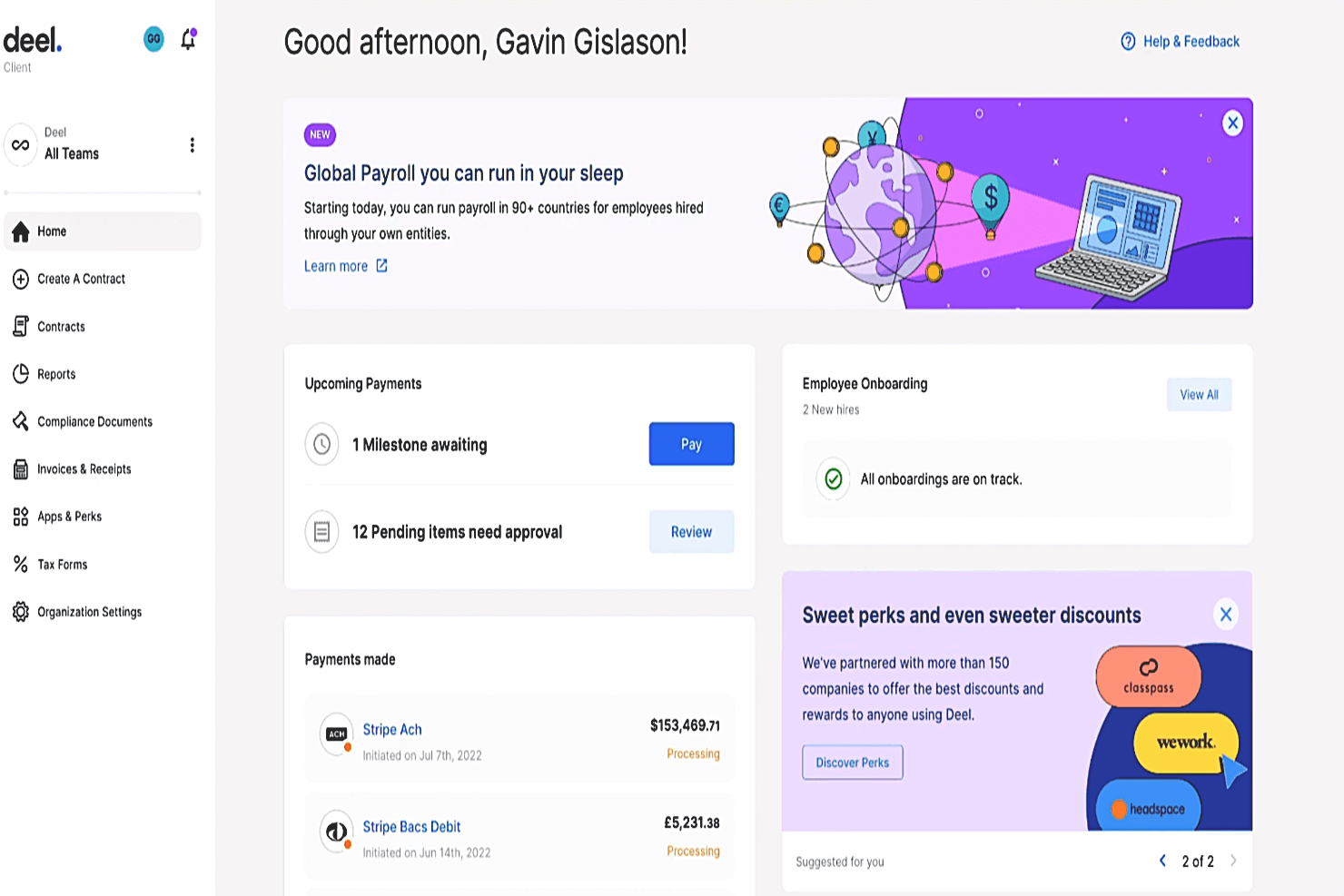
Deel is a remote working software solution that helps organizations manage and pay distributed teams. Using their global-first, all-in-one HR platform you can hire remote employees and contractors from anywhere in the world and Deel will manage your international tax and compliance obligations on your behalf.
Their platform covers both HR and payroll functions and includes additional tools such as their "1 on 1" feature that integrates Deel with Slack to enable easy team communication and coordination. This feature is part of their Deel Engage plan, which has a strategic focus on supporting remote teams more effectively. Other features within that module include employee engagement surveys, paid time-off management tools, and automation for common HR tasks.
Deel Engage also helps distributed teams coordinate meetings across different time zones, and easily share talking points and agendas in advance of each team meeting. By integrating "1 on 1" with Deel Engage, their global platform becomes even more supportive of an essential digital hub for truly remote organizations.
Deel Standout Features and Integrations
Features include international hiring tools, onboarding & offboarding workflows, global payroll functionalities, multiple currencies and payment methods, remote communication tools, tax and compliance management, international benefits, meeting collaboration tools, and advanced IP protection.
Integrations are available with Ashby, BambooHR, Expensify, Greenhouse, Hibob, Netsuite, Okta, OneLogin, Quickbooks, Slack, Xero, Workday, and Workable. They also have an Open API that supports additional custom software integrations as well.
Pros and Cons
Pros:
- Offers additional employer of record (EOR) services as well
- Simplifies global payroll across 150+ currencies
- Helpful time zone meeting coordination feature
Cons:
- No free trial available
- No mobile app available
New Product Updates from Deel HR

Deel Expands Stablecoin Wallet to 80+ Countries
Deel expands its Stablecoin Wallet to 80+ countries with dollar-backed balances and optional rewards. This gives eligible contractors more ways to hold and manage earnings inside Deel. For more information, visit Deel’s official site.
 .
.
Nectar
Best remote working software to engage teams
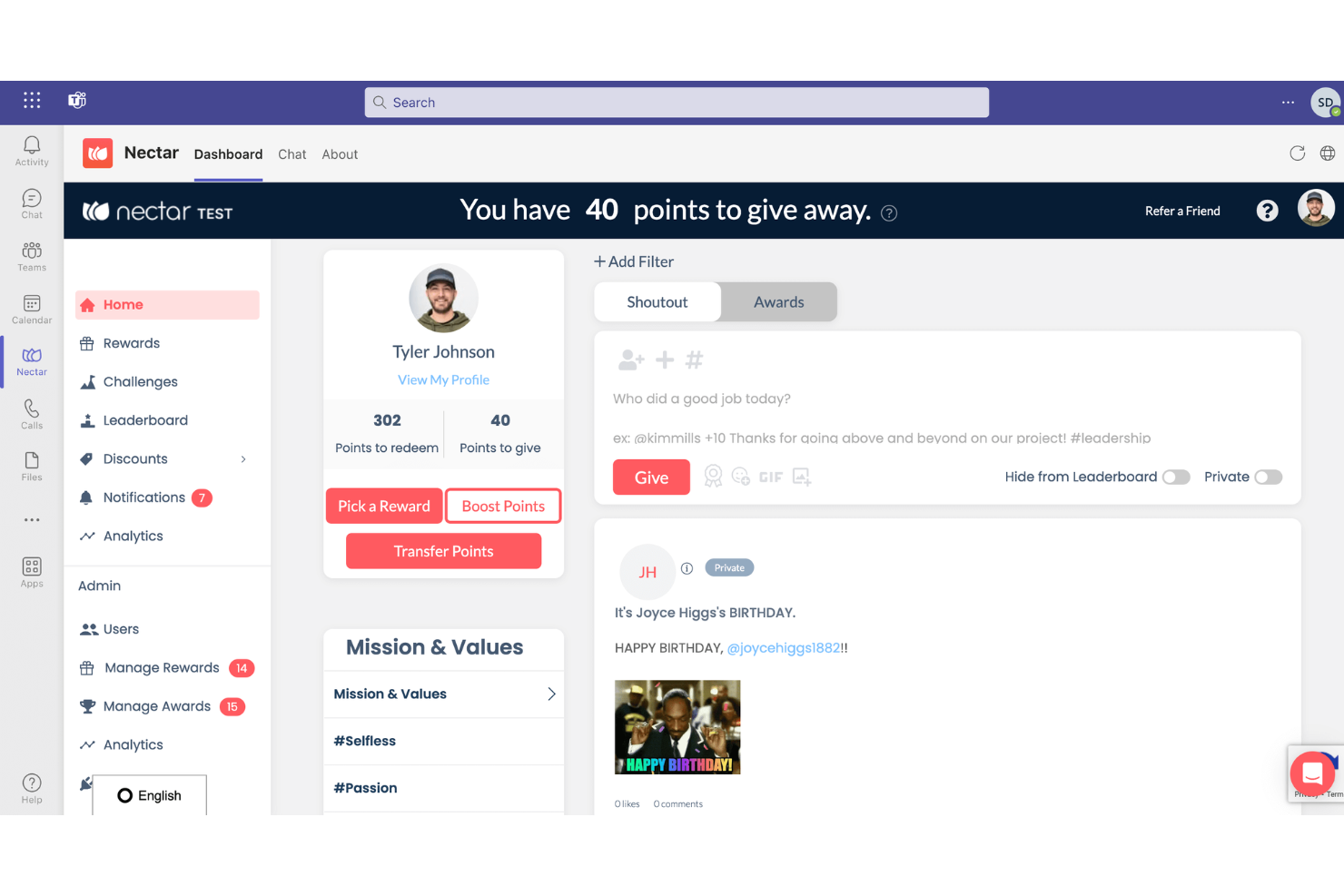
Nectar is an employee recognition platform that focuses on improving the employee experience by understanding user interactions and boosting engagement. It integrates with various HRIS, SSO, and collaboration software to offer a comprehensive solution for recognizing and retaining employees.
Why I picked Nectar: Nectar stands out as an excellent remote working software due to its comprehensive suite of features designed to enhance employee engagement, recognition, and overall company culture. One of the key features of Nectar is its robust employee recognition system, which allows both managers and employees to send meaningful shoutouts to celebrate great work.
Additionally, the platform allows for the creation of custom challenges, such as wellness activities and feedback surveys, which can be used to engage employees in various company initiatives. The ability to send recognition directly from Slack or Microsoft Teams further enhances its usability, making it easy for employees to participate in the recognition process without having to switch between different platforms.
Nectar Standout Features & Integrations
Features include shoutouts, anniversary and birthday milestone notifications, a drag-and-drop interface for designing communications like newsletters and announcements, and five reward options for employees.
Integrations include Slack, Microsoft Teams, BambooHR, ADP, Namely, Paylocity, Zenefits, Workday, Rippling, Gusto, Netsuite, G Suite, Okta, OneLogin, and Azure AD.
Pros and Cons
Pros:
- Allows companies to design their own challenges
- Insightful analytics and reporting
- Diverse range of reward options
Cons:
- May not be the best for scalability
- Rewards can be expensive so users have to save up on points
New Product Updates from Nectar

Nectar Enhances Clara AI With Live Platform Data
Nectar introduces live platform data access and expanded knowledge coverage for Clara AI. The updates improve response accuracy and speed while enabling Clara AI to answer questions across more recognition and rewards features. For more information, visit Nectar's official site.
Miro
Best remote working software for visual collaboration
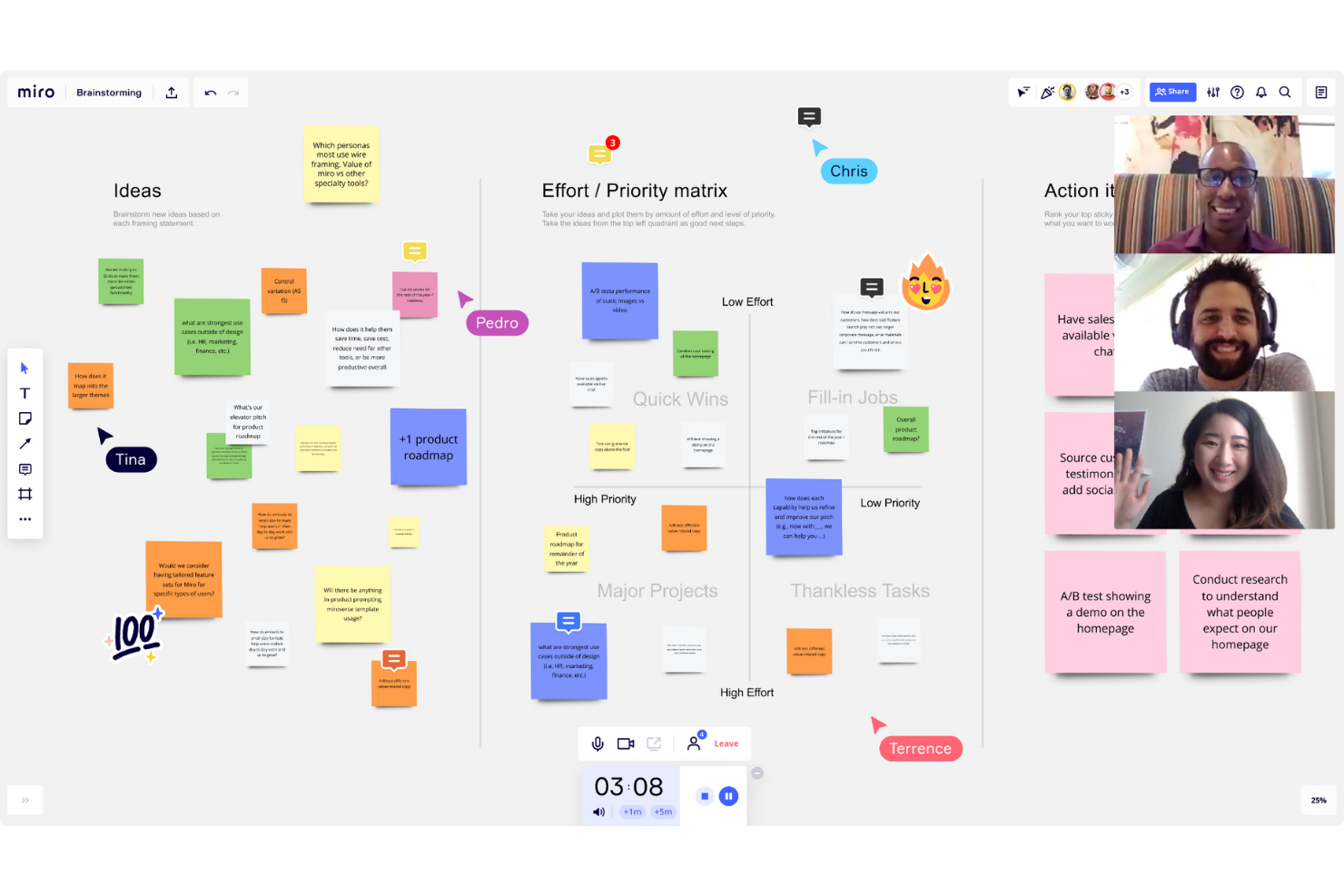
Miro is a visual collaboration tool for small to midsize businesses. The software features a digital whiteboard that can be used for research, idea creation, building customer journeys, defining user story maps, wireframing, and other collaborative activities.
Remote team members can collaborate easily using Miro whiteboards. They can draw with a stylus, write on sticky notes, or drop files into the conversation. The whiteboard toolkit enables users to write down ideas, create mockups and schemes, and leave feedback on the input of other team members. You can create boards using preloaded templates, convert them into presentations, or save them as PDFs.
Miro includes an integrated library of icons, wireframes, and other content. Users can also upload files, images, and documents from their computer or Google Drive. The software offers advanced security and management features, including secure sign-on and auto logouts.
Miro Standout Features and Integrations
Features include screen sharing, embedded video, a large library of content, pre-built templates, frameworks, and widgets.
Integrations include Airtable, Asana, Atlassian, Box, Figma, Jira, Microsoft 365, Notion, Slack, and Zoom.
Pros and Cons
Pros:
- Flexible templates
- Wide range of features
- Shared team whiteboards
Cons:
- Takes time to learn
- Overwhelming at first
New Product Updates from Miro
Miro Adds Japan Data Residency for Enterprise Customers
Miro has introduced Japan data residency for enterprise customers, offering in-region storage for production data, backups, and metadata, plus in-region compute infrastructure. For more information, visit Miro's official site.
Sift
Best for organizational visibility and building connection
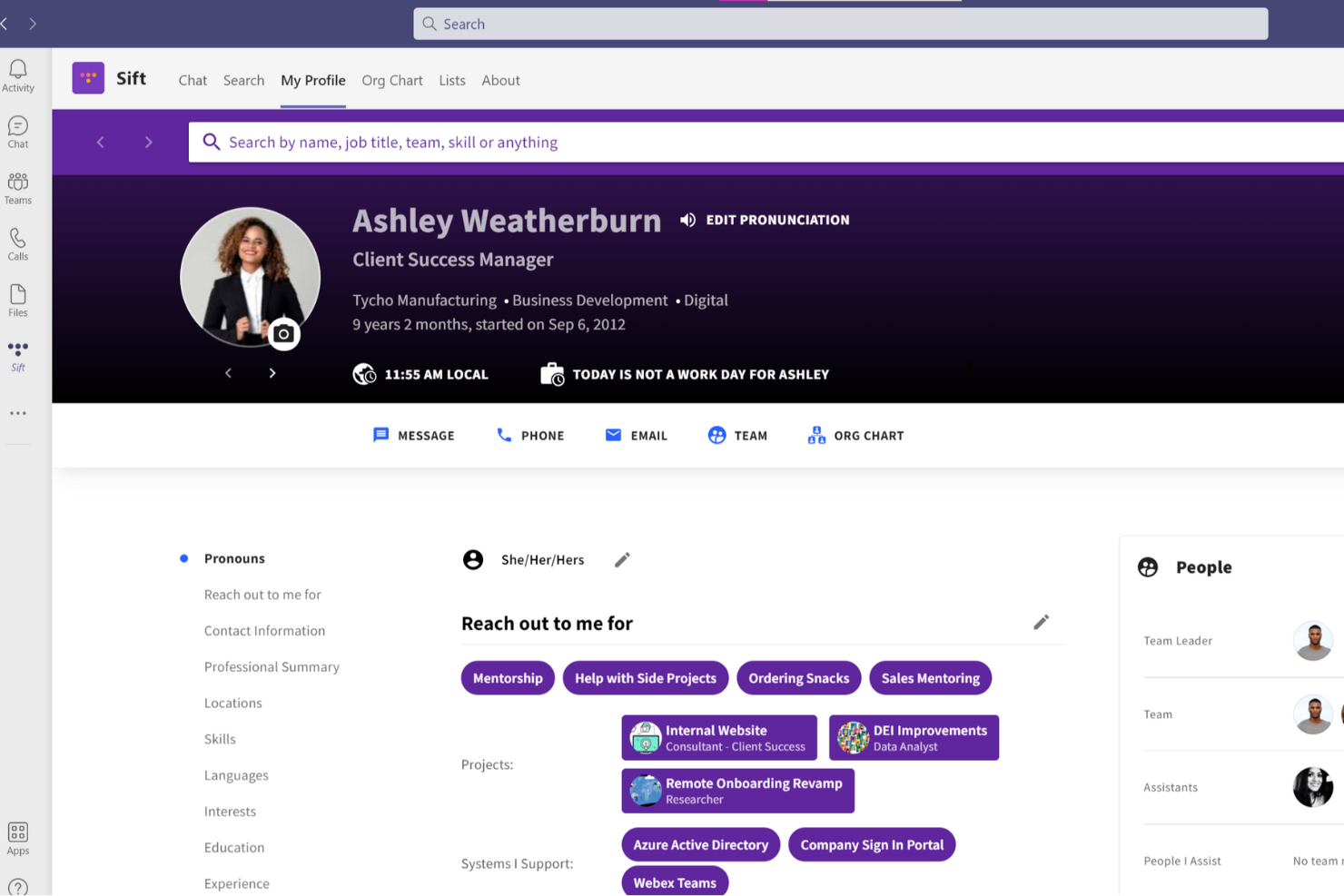
Sift is a people search engine that includes employee profiles and a dynamic org chart that helps remote employees get to know their colleagues and familiarize themselves with how they connect with other people at their company.
Why I picked Sift: This software provides a useful database for remote staff to figure out who their colleagues are, figure out who to go to for certain things, and generally get to know other remote team members. Users can share information like their skills and experience, interests, photos, contact info, and more.
The advanced org chart capabilities of the software allow users to visualize and navigate the entire workforce in a digital environment. Staff can be grouped by departments and teams, and you can easily keep records of who’s who as your company grows.
Sift Standout Features & Integrations
Features include customizable employee profiles, dynamic org chart visualizations, directory search, custom filters, analytics dashboards, and mobile and desktop apps.
Integrations are available with various HR and IT systems, such as Microsoft Teams, UKG Pro, Azure AD, Google Workspace, OKTA and more.
Pros and Cons
Pros:
- Provides transparency into its intelligence model
- Comprehensive risk assessment and real-time risk intelligence
- User-friendly interface and customizable features
Cons:
- Limited automation capabilities
- Limited API connections and integrations
Best for distributed team time and pay management
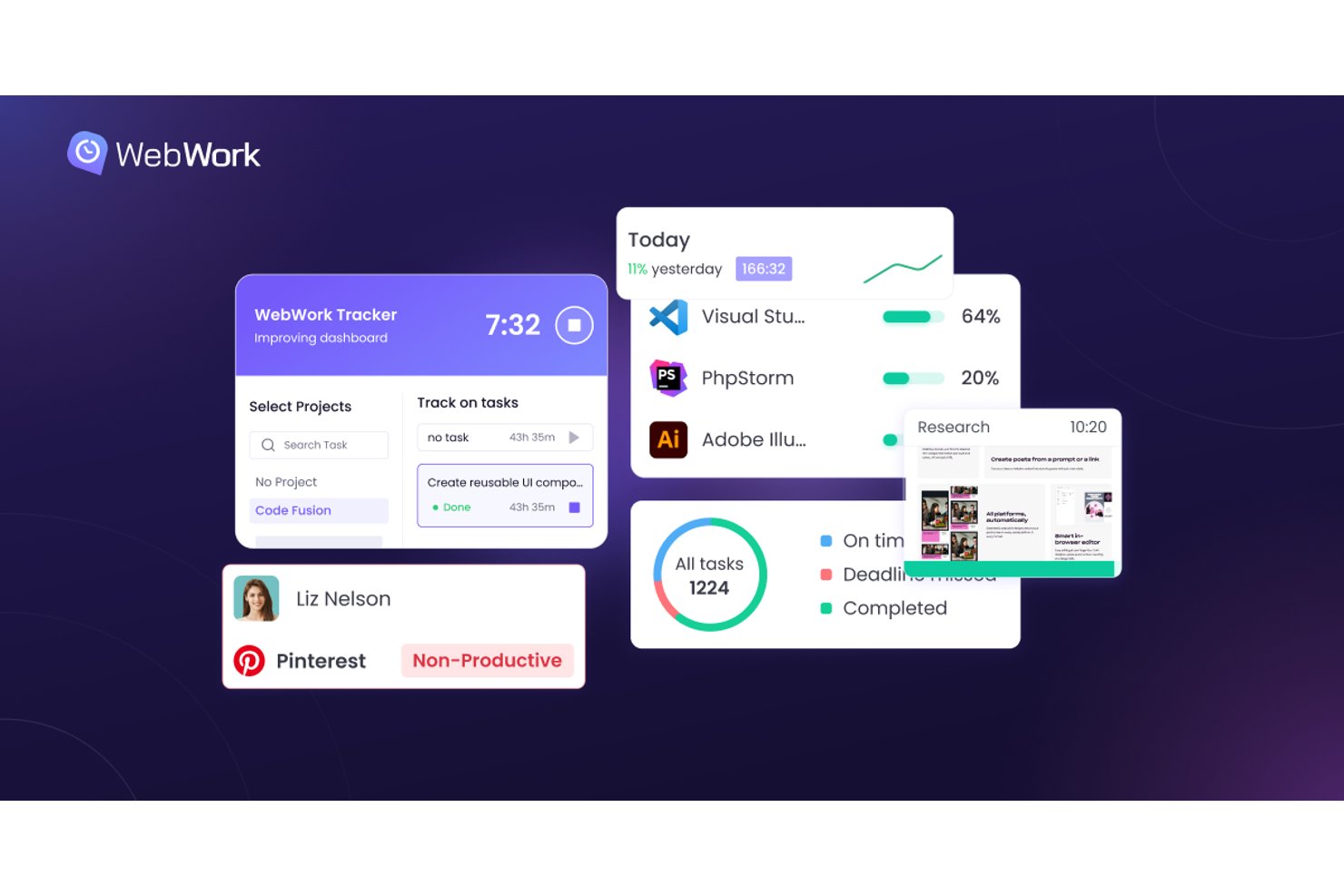
WebWork Time Tracker is a time tracking and employee monitoring platform for remote and distributed teams that combines automatic time tracking, attendance management, shift scheduling, payroll, and built-in team chat and video meetings.
Who Is WebWork Time Tracker Best For?
WebWork Time Tracker is a strong fit for global workforce coordinators managing distributed teams who need time tracking, shift scheduling, and multi-currency payroll in one place.
Why I Picked WebWork Time Tracker
I picked WebWork Time Tracker as one of the best because it handles the two things that get genuinely messy for distributed teams: knowing when people are working and making sure they get paid correctly across borders. I love that shift scheduling lets you configure time zone-specific settings per team, and that payroll runs directly through Wise, Payoneer, and Gusto in multiple currencies without routing through a separate tool. Burnout risk detection, which flags overwork and missed breaks automatically, adds a layer I don't often see in time tracking tools.
WebWork Time Tracker Key Features
- Automated stand-ups: Daily check-ins run automatically, with the AI assistant able to manage stand-up delivery and responses across your remote team.
- Built-in video meetings: Schedule or launch instant meetings with screen sharing, personal rooms, and recurring session options directly inside the platform.
- Burnout risk detection: The platform flags overwork patterns, irregular hours, and missed breaks so you can intervene before problems escalate.
- AI performance assistant: An AI assistant answers questions about team activity, writes periodic performance reviews, and surfaces unusual behavior across your workforce.
WebWork Time Tracker Integrations
WebWork Time Tracker offers native integrations with Slack, Google Calendar, Outlook Calendar, Microsoft Entra ID, Deel, Wise, Payoneer, Gusto, QuickBooks, and more. It also supports Zapier and an open API for custom integrations.
Pros and Cons
Pros:
- Burnout alerts flag unhealthy work patterns
- Cross-time-zone scheduling supports global teams
- One-click tracking simplifies daily time capture
Cons:
- Mobile experience trails desktop tracking
- Screenshots can feel intrusive to employees

DeskTime
Best for automatic productivity tracking
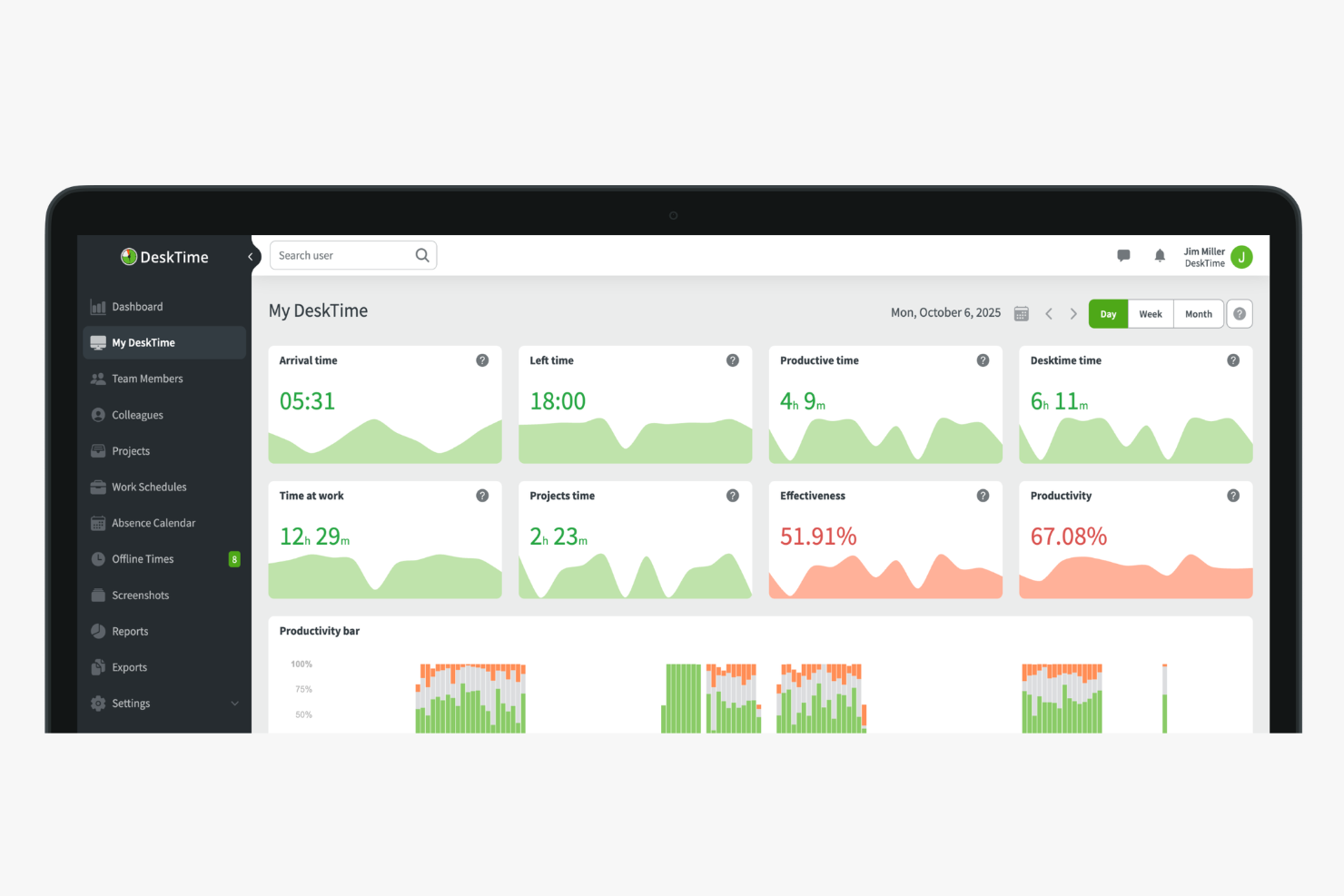
DeskTime is an automatic time tracking and productivity monitoring platform that captures app, URL, and document usage in the background to give managers real-time visibility into how remote, hybrid, and in-office teams work.
Who Is DeskTime Best For?
DeskTime is a strong fit for managers and team leads at small-to-midsize companies who need visibility into how distributed or remote teams spend their work hours.
Why I Picked DeskTime
DeskTime is one of my top picks because I love how its automatic tracking runs the moment you turn on your computer, with zero manual input needed. It captures every app, URL, and document title in the background, then calculates a real-time productivity percentage for each team member. What I find especially useful is that you can set custom productivity categories per team, so social media counts as productive for marketing but unproductive for everyone else. That level of granularity makes it genuinely useful for managing remote teams across different roles.
DeskTime Key Features
- Screenshots: Automatically captures optional timed screenshots of employee screens so managers can verify remote work activity without micromanaging.
- Project time tracking: Let team members log time directly to specific projects and tasks, giving managers a breakdown of where billable hours are going.
- Idle time detection: Tracks periods of inactivity and flags them separately, so remote team performance data stays accurate.
- AI daily summaries: Generates an automatic end-of-day overview of each employee's work activity, apps used, and time spent per project.
DeskTime Integrations
Integrations include Google Calendar, Outlook Calendar, Trello, Gitlab, Asana, Jira, and Zapier.
Pros and Cons
Pros:
- Built-in absence and leave calendar
- Employees can pause tracking for privacy
- Tracks app and URL usage automatically
Cons:
- No real-time screen monitoring
- Mobile tracking lacks detailed activity data
GoToMyPC
Best for remote access on any device
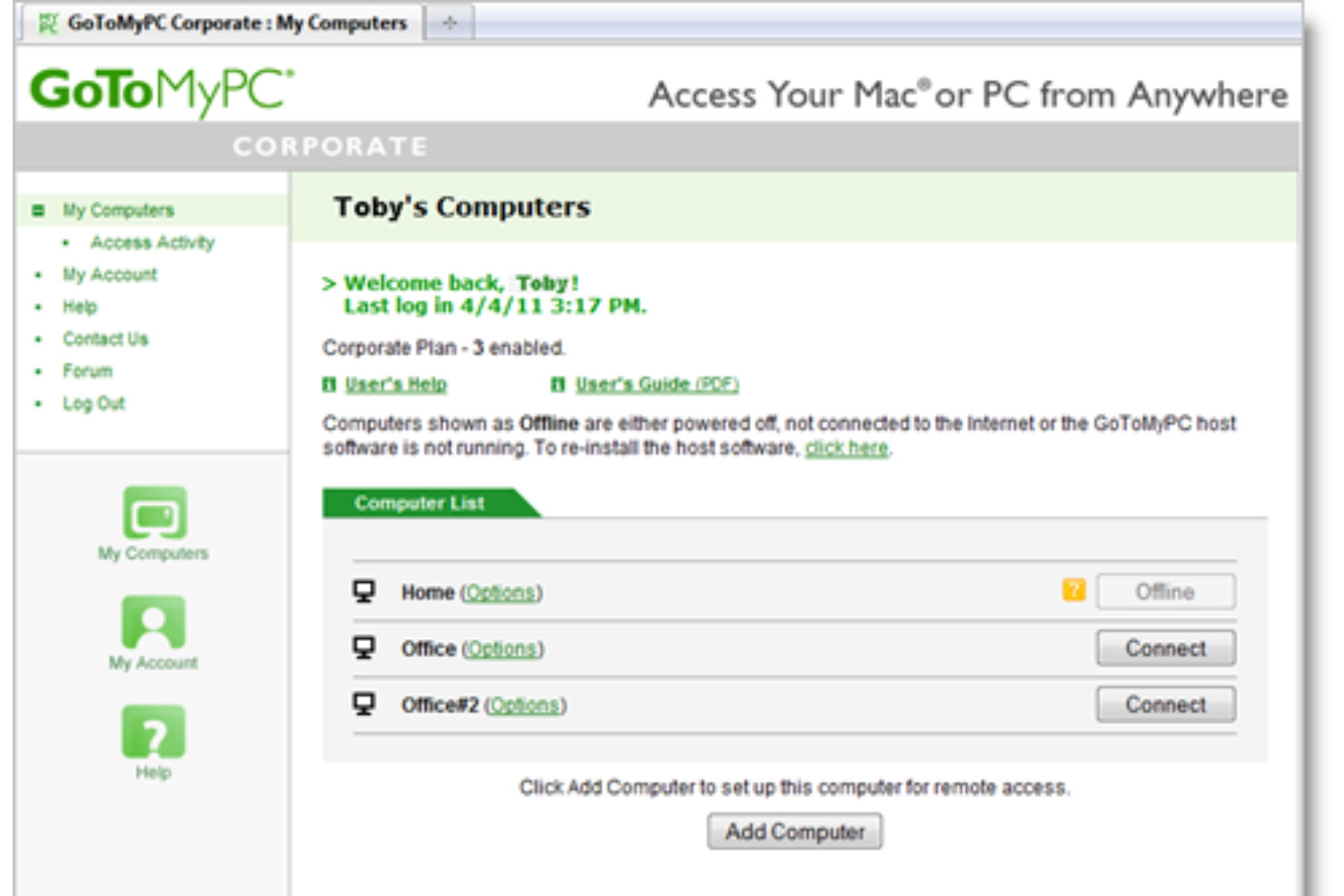
GoToMyPC is a remote desktop software that allows you to access your computer from any internet-connected device. Whether you're at home, in the office, or traveling, it enables you to work on your files, applications, and network as if you were physically present at your desk.
Why I picked GoToMyPC: One feature that makes GoToMyPC ideal for remote working is its remote printing capability. This allows you to print documents from your remote computer to a local printer, eliminating the need to transfer files manually. For professionals who require hard copies of documents while working remotely, this feature offers significant convenience.
Another valuable aspect is multi-monitor support. If your host computer uses multiple monitors, GoToMyPC enables you to view and interact with all of them remotely. This is particularly beneficial for users who rely on expansive digital workspaces to manage complex tasks or monitor multiple applications simultaneously.
GoToMyPC Standout Features & Integrations
Features include file transfer, mobile access, secure connections, copy and paste functionality, desktop shortcut creation, usage reports, remote access, remote sound, guest invite, and active connectivity monitoring.
Integrations include RADIUS.
Pros and Cons
Pros:
- Secure connections with strong encryption
- Supports multiple monitors effectively
- Reliable remote access from any location
Cons:
- Lacks remote collaboration features
- No Linux support

ClickUp
Best remote working software for project management
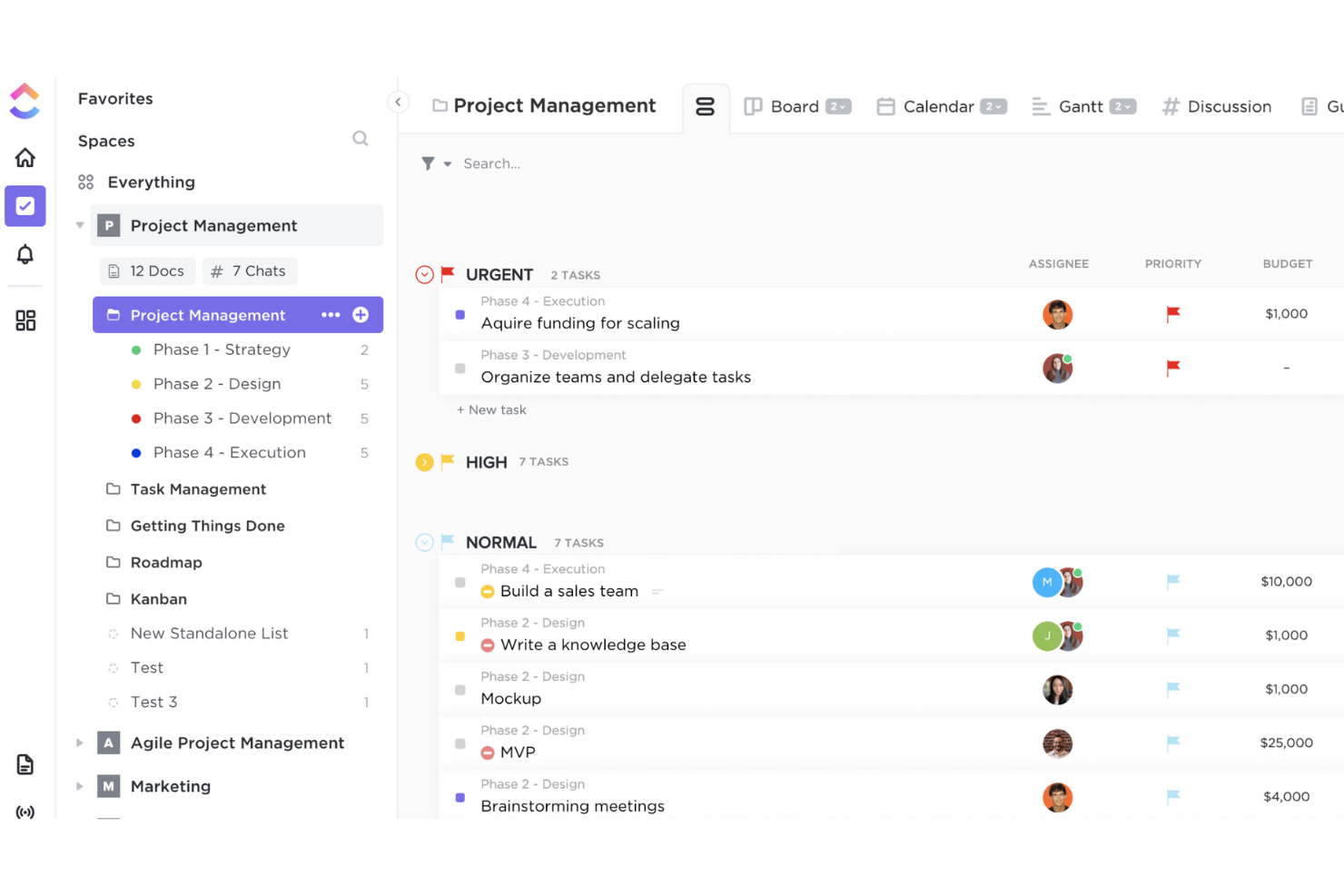
ClickUp is an online collaboration and project management tool suitable for businesses of all sizes and industries.
You can assign comments and tasks to specific team members or groups of people. You can also mark comments and tasks as resolved or in progress, or create custom statuses. All projects can be viewed from an agile dashboard or organized by assignee. The real-time activity stream displays tasks as they’re created and completed.
You can also configure notifications to be sent only for specific items. The mentions feature alerts users when a colleague names them in a discussion, and comments can be edited after posting.
ClickUp Standout Features and Integrations
Features include customizable tasks, checklists, communication tools, to-do lists, video chat, collaboration options, task assignments, invoicing, status alerts, and a task toolbar.
Integrations include Dropbox, Everhour, Figma, GitHub, HubSpot, Loom, Slack, Toggl, Vimeo, and YouTube.
Pros and Cons
Pros:
- Regularly updated
- Lots of video tutorials
- Powerful project management capabilities
Cons:
- Relies on manual input
- Can be overwhelming
New Product Updates from ClickUp
ClickUp Adds Meetings Hub, Super Agent Templates, and ZoomInfo Integration
ClickUp adds a searchable Meetings Hub, new ways to clone and template Super Agents, and a ZoomInfo integration through the App Center. These updates improve meeting retrieval, agent reuse, and access to sales intelligence. For more information, visit ClickUp’s official site.
Loom
Best remote working software for video capture
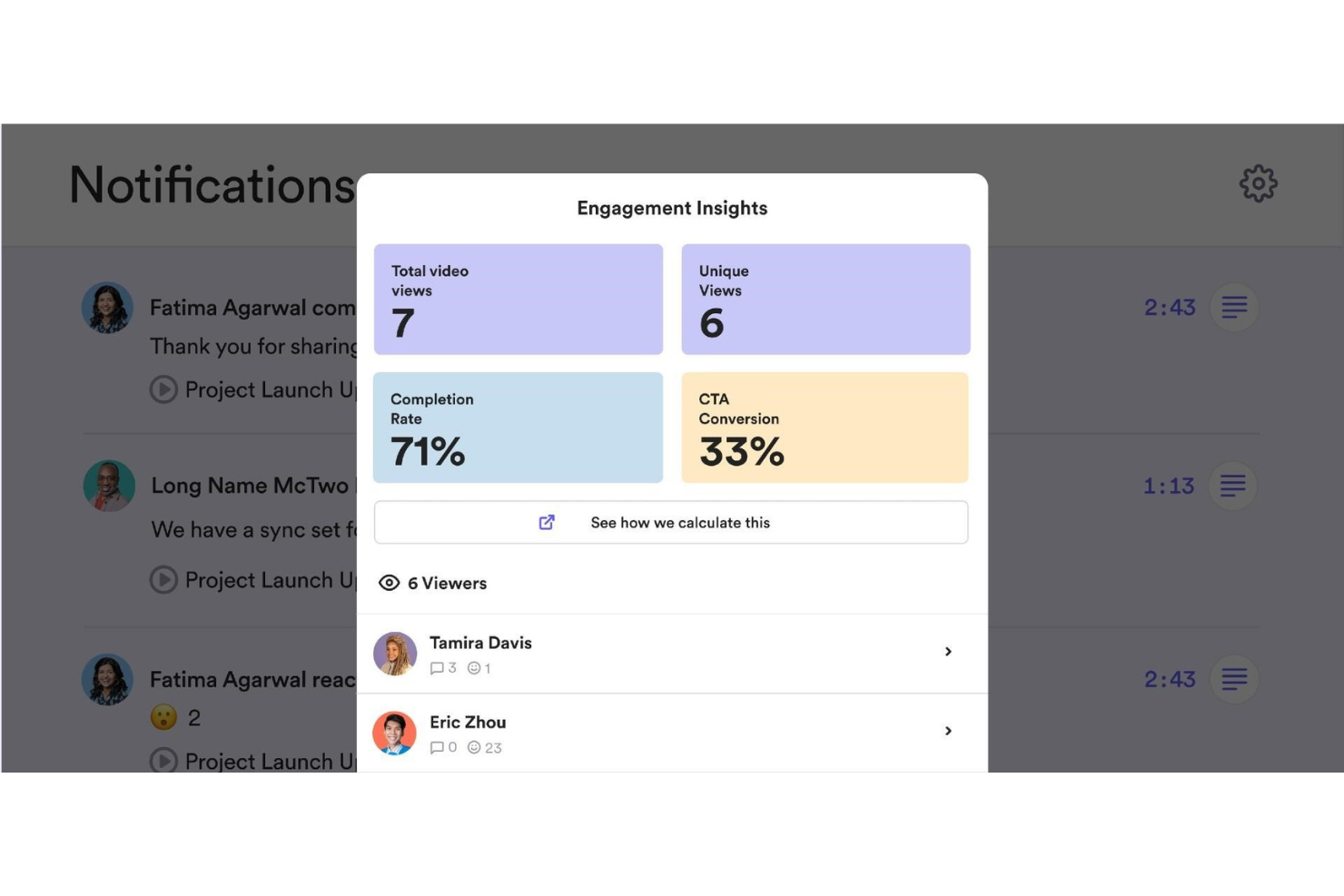
Loom is a popular video recording and screen sharing solution that allows teams to communicate without wasting hours in non-productive meetings.
Remote team members can record their screen or a specific application in addition to live recording for any video session. Loom generates a custom URL for every video session, which can be shared with other users.
Loom's editing tools make it easy to edit, trim, and add CTAs and custom thumbnails. Video owners can use access controls to set video privacy filters, restricting visibility for users who don't have a password or URL link. Loom is also available for Apple mobile devices via an iOS app.
Loom Standout Features and Integrations
Features include fast recording, screen sharing, link sharing, video editing, emoji reactions and comments, access controls, and advanced reporting.
Integrations include Dropbox, GitHub, Gmail, InVision, Jira, Notion, Salesforce, Slack, Zendesk, and Zoom.
Pros and Cons
Pros:
- Built-in video editor
- Great sharing features
- Quick, easy video creation
Cons:
- Videos are public by default
- No option to change default settings
Othership
Best for promoting employee happiness

Othership is a versatile platform designed to enhance hybrid and remote working experiences by providing access to various workspaces and collaborative software. It offers solutions such as on-demand workspaces, desk booking, and meeting room management, catering to individual and enterprise needs.
Why I picked Othership: Its cloud-based workplace scheduler allows users to book a variety of workspaces, whether they prefer cafes, coworking spaces, or private offices. This flexibility ensures that remote workers can find the most suitable environment for their needs. Additionally, the software includes desk and meeting room management, which enhances the process of reserving spaces and reduces the administrative burden on employees, allowing them to focus more on their core tasks.
Another significant benefit of Othership is its visitor management system, which enhances security and keeps track of workspace activity. This feature is particularly useful for businesses that have a fluctuating number of remote workers and visitors at their offices. Furthermore, the platform supports collaboration, connection, and overall happiness among coworkers by providing tools to find and connect with colleagues, set custom notifications, and analyze usage patterns.
Othership Standout Features & Integrations
Features include customizable booking rules, automated reminders and notifications, detailed analytics and reporting, user-friendly mobile access, support for multiple locations, integration with access control systems, personalized booking experiences, and efficient resource management.
Integrations include major office and HR applications, scheduling, and video conference software like Microsoft Office, Outlook, Teams, Entra, Gmail, Google Calendar, Slack, Zoom, and Bamboo.
Pros and Cons
Pros:
- Mange a hybrid policy with data from in and out the office
- Meeting room and desk booking analytics
- Ability to book rooms on different devices
Cons:
- May have limited coworking space availability in some regions
- Limited availability for additional languages
Annen programvare for fjernarbeid
Her er noen flere gode alternativer som ikke kom med på listen over den beste programvaren for fjernarbeid:
- Microsoft Teams
Remote working software for collaboration within the Microsoft ecosystem
- Tettra
Remote working software for building a knowledge base
- Omnipresent
For global onboarding
- Compass
For remote walkthroughs
- Agile HRO
For global team management
- Insightful
For visibility across distributed teams
- Cooleaf (ITA Group)
Remote working software for advanced messaging tools
- monday AI Workspace
Remote working software for collaboration and productivity at scale
- Bonusly
Remote working software for employee recognition and rewards
- Slack
Remote working software for collaboration across multiple teams


How I Evaluate Remote Working Software
I evaluate remote working software in two layers: the baseline features a tool must have—think async comms, time tracking, and virtual onboarding—and the differentiators that separate good from great.
Core Functionality (Table Stakes For This List)
When I'm selecting tools for my list, I rank each one on a scale from 0 (does not offer the functionality) to 5 (excels in this area) for each core functionality listed below. Then, I calculate the tool's total score into a percentage. Each tool needs to achieve a minimum total score of 75% to be considered for inclusion.
- Team Communication Tools: I look for built-in chat, video conferencing, and channel-based messaging that lets distributed teams hold standups, quick syncs, and async updates without jumping between apps.
- Real-Time Collaboration: Whether it's co-editing a policy doc or managing tasks on a shared board, I evaluate how well the platform keeps remote teammates working together in one place.
- Employee Engagement Features: Pulse surveys, peer recognition, and virtual social spaces all matter here. I check whether the tool gives HR teams a way to gauge morale across locations.
- Time & Attendance Tracking: I look at how the platform handles clock-ins, time zone visibility, and shift scheduling for teams spread across regions with different working hours.
- Virtual Onboarding Workflows: Starting a new role remotely can feel isolating. I evaluate whether the tool supports structured onboarding steps like digital document signing, training modules, and welcome sequences.
- Access & Security Controls: Role-based permissions, SSO, and MFA are what I check for here, especially for teams where employees access sensitive HR data from personal devices and home networks.
Once I have a list of tools that meet this criteria, I consider what sets each platform apart.
Differentiating Factors (What Sets Vendors Apart)
Here's how I compare and contrast different vendors:
Standout Features
Virtual workspace environments are a big differentiator. Platforms that simulate an office layout with drop-in rooms give remote teams the spontaneous interaction HR leaders often struggle to recreate. I also look for AI-driven productivity insights that flag workload imbalances or collaboration gaps before they become retention problems. Wellness and burnout tools round things out. Features like focus time blocking and mental health check-ins help HR teams proactively support distributed staff rather than reacting to disengagement after the fact.
Beyond Features
Integration ecosystem matters a lot here. I check whether a platform connects natively with HRIS tools, payroll systems, and collaboration suites like Slack or Microsoft 365 so HR teams aren't manually syncing employee data across systems. Security and compliance are equally important when your workforce accesses sensitive data from home networks. I look for SOC 2 and GDPR certifications, plus data residency options. Global workforce support also weighs in—time zone-aware scheduling and localized holiday calendars make a real difference for internationally distributed teams.
Slik velger du programvare for fjernarbeid
Det er lett å gå seg vill i lange funksjonslister og kompliserte prisstrukturer. For å hjelpe deg med å holde fokus mens du går gjennom den unike prosessen med å velge programvare, har jeg laget en sjekkliste over faktorer du bør ha i bakhodet:
| Faktor | Hva du bør vurdere |
|---|---|
| Skalerbarhet | Kan programvaren vokse sammen med teamet ditt? Tenk på fremtidig utvidelse og om verktøyet kan håndtere flere brukere eller større datamengder uten ytelsesproblemer. |
| Integrasjoner | Kan den kobles til de nåværende verktøyene dine? Sørg for at den støtter integrasjoner med plattformene du allerede bruker, slik at du får en smidig arbeidsflyt. |
| Tilpasningsmuligheter | Kan du tilpasse den etter behovene dine? Se etter verktøy som lar deg tilpasse oppsett, dashbord og arbeidsflyter slik at de passer til teamets prosesser. |
| Brukervennlighet | Er den brukervennlig? Velg programvare som er intuitiv og enkel for teamet å ta i bruk uten omfattende opplæring. |
| Implementering og innføring | Hvor raskt kan du komme i gang? Vurder hvor lang tid oppsettet tar, samt hvilke ressurser som kreves for å innføre løsningen effektivt i teamet. |
| Kostnad | Passer den budsjettet ditt? Sammenlign prisplaner og se etter skjulte gebyrer. Vurder hvilken verdi du får for prisen. |
| Sikkerhetstiltak | Er dataene dine trygge? Sørg for at programvaren har sterke tiltak for databeskyttelse, som kryptering og regelmessige sikkerhetsoppdateringer. |
| Tilgjengelig brukerstøtte | Får du hjelp når du trenger det? Sjekk leverandørens åpningstider og supportkanaler for å sikre at de dekker behovene dine. |
Hva er programvare for fjernarbeid?
Programvare for fjernarbeid er et sett med digitale verktøy som gjør det mulig for team å samarbeide og kommunisere effektivt fra ulike steder. Disse verktøyene brukes vanligvis av fagpersoner som prosjektledere, teamledere og fjernarbeidende ansatte for å legge til rette for arbeid utenfor et tradisjonelt kontormiljø. Programvare for fjernarbeid kan omfatte verktøy for videokonferanser, plattformer for fildeling, apper for oppgavehåndtering og wikiprogramvare for delt kunnskap.
Alt i alt gjør disse verktøyene det enklere for team å jobbe effektivt og opprettholde arbeidsflyten, uansett hvor de befinner seg.
Funksjoner
Når du velger programvare for fjernarbeid, bør du se etter følgende viktige funksjoner:
- Videokonferanser: Tilrettelegger for kommunikasjon ansikt til ansikt og hjelper team med å holde kontakt og samarbeide i sanntid.
- Fildeling: Gjør det enkelt for brukere å dele og få tilgang til dokumenter, slik at alle har informasjonen de trenger.
- Oppgavehåndtering: Hjelper med å organisere og tildele oppgaver, slik at teammedlemmene holder oversikten og prosjektene går fremover.
- Integrasjonsmuligheter: Kobler seg til andre verktøy teamet bruker, og skaper en sømløs arbeidsflyt på tvers av plattformer.
- Tilpassbare kontrollpaneler: Lar brukerne tilpasse arbeidsområdet etter sine spesifikke behov og preferanser.
- Sikkerhetstiltak: Beskytter sensitive data med kryptering og regelmessige oppdateringer, og sikrer personvern og etterlevelse.
- Brukervennlig grensesnitt: Gjør det enkelt for teammedlemmer å navigere i og bruke programvaren uten omfattende opplæring.
- Skalerbarhet: Støtter vekst ved å håndtere flere brukere og større datamengder etter hvert som teamet utvides.
- Interaktive produktomvisninger: Veileder nye brukere gjennom programvaren, og forbedrer introduksjonen og bruksraten.
- Kundestøtte døgnet rundt: Gir hjelp når det er nødvendig, slik at eventuelle problemer raskt blir løst.
Fordeler
Implementering av programvare for fjernarbeid gir flere fordeler for teamet og virksomheten din. Her er noen av fordelene du kan se frem til:
- Bedre kommunikasjon: Videokonferanser og chatteverktøy holder teamet samlet, reduserer misforståelser og forbedrer samarbeidet.
- Økt produktivitet: Funksjoner for oppgavehåndtering hjelper med å følge fremdrift og tidsfrister, slik at prosjektene holder tidsplanen.
- Større fleksibilitet: Verktøy for fjernarbeid lar teamet jobbe hvor som helst, og legger til rette for ulike arbeidsstiler og arbeidssteder.
- Kostnadsbesparelser: Ved å legge til rette for fjernarbeid kan du redusere driftskostnadene knyttet til vedlikehold av fysiske kontorlokaler.
- Bedre datasikkerhet: Sikkerhetstiltak beskytter sensitiv informasjon og gir deg trygghet når det gjelder personvern.
- Effektiviserte arbeidsflyter: Integrasjonsmuligheter sørger for smidige overganger mellom ulike verktøy og forbedrer den samlede effektiviteten.
- Skalerbarhet: Etter hvert som virksomheten vokser, lar skalerbar programvare deg legge til flere brukere og håndtere større arbeidsmengder uten avbrudd.
Kostnader og priser
Valg av programvare for fjernarbeid krever en forståelse av de ulike prismodellene og abonnementene som er tilgjengelige. Kostnadene varierer basert på funksjoner, teamstørrelse, tillegg og mer. Tabellen nedenfor oppsummerer vanlige abonnementer, gjennomsnittsprisene deres og typiske funksjoner som er inkludert i programvareløsninger for fjernarbeid:
Sammenligningstabell for abonnementer for programvare for fjernarbeid
| Abonnementstype | Gjennomsnittspris | Vanlige funksjoner |
|---|---|---|
| Gratisabonnement | $0/user/month | Grunnleggende kommunikasjonsverktøy, begrenset lagringsplass og viktige sikkerhetsfunksjoner. |
| Personlig abonnement | $5-$15/user/month | Forbedrede samarbeidsverktøy, moderat lagringsplass og prioritert brukerstøtte. |
| Bedriftsabonnement | $20-$40/user/month | Avansert oppgavehåndtering, integrasjoner med andre apper og forbedrede sikkerhetstiltak. |
| Virksomhetsabonnement | $50+/user/month | Tilpassbare funksjoner, omfattende integrasjoner, dedikert kontostøtte og omfattende analyseverktøy. |
Programvare for fjernarbeid: Vanlige spørsmål
Her er noen av spørsmålene jeg stadig hører om bruken av verktøy for fjernarbeid.
Finnes det ulike typer programvare for fjernarbeid?
Det finnes ulike typer programvare for fjernarbeid, med funksjoner som videokonferanser, prosjektstyring, fildeling og samarbeid. Du kan også finne verktøy for tidsregistrering, kommunikasjon og meldinger.
Hvordan kan jeg finne ut hvilken programvare for fjernarbeid som passer for virksomheten min?
For å finne ut hvilken programvare for fjernarbeid som passer for virksomheten din, bør du vurdere behovene og kravene til teamet ditt, samt budsjettet. Begynn med å identifisere de spesifikke oppgavene og prosessene du trenger støtte for, og se deretter etter programvare som tilbyr funksjonene og egenskapene som kreves for å støtte disse oppgavene.
Hvordan får jeg teamet mitt til å ta i bruk ny programvare for fjernarbeid?
For å oppmuntre til bruk bør du involvere teamet ditt i beslutningsprosessen og sørge for god opplæring. Begynn med å forklare fordelene og hvordan programvaren vil bidra til å forbedre arbeidsflyten deres. Tilby opplæringsøkter, veiledninger og ressurser for å hjelpe dem med å komme godt i gang. Oppmuntre til tilbakemeldinger og ta raskt hånd om eventuelle bekymringer. Fremhev raske resultater eller forbedringer i produktiviteten for å motivere til fortsatt bruk. Følg regelmessig opp med teamet ditt for å sikre at de føler seg trygge på å bruke verktøyet og utnytter det effektivt.