
Gusto still handles payroll, but managing benefits and employment responsibilities separately has started taking more time than your team can comfortably absorb.
Moving to Justworks is not simply a software change. It means entering a PEO relationship in which payroll tax filing, workers’ compensation, and employee benefits are handled through a co-employment model.
That shift affects more than the information you transfer. You need to compare the full cost of both setups, decide how benefits will move, and preserve the Gusto records that Justworks will not carry forward.
This guide explains how to prepare for the change and complete the cutover without disrupting payroll or employee coverage.
Why Move From Gusto to Justworks?
The decision to leave Gusto often comes before payroll itself becomes a problem.
Gusto may still process payments reliably, but managing benefits and employer responsibilities can demand more attention as your workforce grows. Hiring across several states can make that workload even heavier.
Justworks addresses this by changing the relationship. Instead of operating only as your payroll provider, it becomes a co-employer and assumes defined administrative responsibilities.
Federal employment taxes for wages processed through Justworks are filed under its EIN, while workers’ compensation is handled through its PEO arrangement. Companies using PEO Plus can also manage health benefits within that same setup.
This does not make Gusto a worse platform. It means your company now needs a different employment model.
If the goal is to reduce fragmented administration and gain more support around your employer obligations, moving to Justworks is a practical next step.
What to Prepare Before Migrating From Gusto to Justworks
Before setting the migration in motion, make sure the new setup works for your budget and current operations. A little preparation here can prevent unexpected costs or missing workflows later.
Want to learn more about Justworks?
Compare the Complete Cost and Benefits Offering
Review your actual Justworks quote against what you currently spend on Gusto and outside providers. Account for the PEO fee and workers’ compensation costs, then compare health plan premiums and employee contributions. Check the available carrier networks to make sure the plans still work for your team.
Inventory the Workflows Connected to Gusto
List the tools and processes that currently rely on Gusto, such as accounting sync, time tracking, retirement contributions, and reimbursements. Confirm which ones Justworks will replace and which will need to be rebuilt or handled separately.
Clean Up Your Company and Employee Information
Correct employee names and addresses in Gusto before exporting anything, then confirm each person’s work location and employment classification. Check that your company’s legal details and payroll bank account match the information that will be entered in Justworks.
Once these preparations are complete, you are ready to begin the migration. The next section walks you through each step of moving from Gusto to Justworks.
How to Migrate From Gusto to Justworks
Here’s how you can move from Gusto to Justworks while keeping payroll and employee coverage on track.
1. Pick Your Cutover Date
Justworks PEO onboarding typically takes three to six weeks, while expedited enrollment may take two to three weeks.
When possible, start at the beginning of a quarter or calendar year. Gusto notes that only one provider should file a quarterly return for a given quarter, so a quarter boundary can make the filing handoff easier.
Choose a target date, then work backward based on the Justworks application, benefits enrollment, payroll setup, and Gusto cancellation requirements.
2. Pull Your Year-to-Date Payroll Data From Gusto
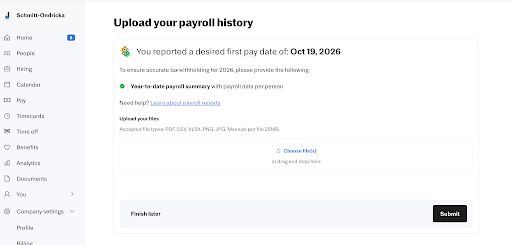
Justworks needs each employee’s year-to-date taxable wages and Social Security, Medicare, and unemployment withholdings from January 1 through the cutover.
For Gusto, Justworks identifies the Payroll Journal in Advanced View as the appropriate report. It can be submitted as a PDF, CSV, or Excel file.
Pull an initial report during onboarding so Justworks can identify missing information. After processing the final Gusto payroll, generate an updated report that includes everyone paid during the year, including former employees.
Without accurate YTD data, the company may pay more employer taxes than necessary and may not be eligible to recover the overpayment. Employees may still be able to recover their own overpaid taxes when filing their returns.
3. Export Your Other Gusto Records
Gusto says administrators can continue viewing forms, reports, employee information, and past payrolls after cancellation. Still, save the records you may need before closing the account.
Gusto’s available reports and exports include:
- Payroll Data Export
- Employee Summary
- Payroll Journal
- Federal and state tax filings
- Benefits deductions and available enrollment records
- Time Off Balances
- Cash Requirements reports
- Garnishment and deduction information
The Employee Benefit Elections report is only available in certain account configurations. If Gusto manages your benefits, confirm which enrollment and carrier records you can obtain before transferring or cancelling the service.
4. Confirm Who Will Complete the Remaining Tax Filings
Before cancelling Gusto, ask Justworks which quarterly and year-end filings it will handle. This prevents both providers from filing the same return or each expecting the other to complete it.
Gusto cannot be cancelled while payroll is in progress. If you identify the cancellation as a switch to another payroll provider, Gusto says it will refund the outstanding tax balance so the new provider can handle future payments and filings.
If Gusto instead completes the remaining filings after cancellation, its published fees are:
- $100 for federal forms
- $100 per state
- $5 per W-2 or 1099
Confirm the filing handoff with both providers before processing the cancellation.
5. Submit the Employee Census and Identify COBRA Participants
Justworks uses the employee census to evaluate benefits eligibility and prepare health insurance options. Include eligible employees, dependents who may enroll, and former employees currently covered through COBRA.
Existing COBRA participants do not automatically disqualify the company, but Justworks applies a 10% COBRA limit. Because eligibility requirements may vary by carrier, confirm how this percentage applies to your company during enrollment.
You have 45 days from the benefits effective date to provide the information required to transfer your existing COBRA population. Identify these participants during enrollment rather than after coverage begins.
6. Set the Waiting Period and Payroll Schedule
Justworks offers 0, 30, and 60 day benefits waiting periods. These can only be established during initial onboarding or at a health insurance renewal
Also compare your Gusto pay schedule with the payroll periods supported by Justworks.
Justworks PEO supports weekly, biweekly, and semimonthly payroll but does not support monthly payroll. Payroll periods can be customized during onboarding based on whether employees use timecards.
Finalize the waiting period and payroll schedule before the PEO start date, then communicate any changes to employees.
7. Cancel Each Service on the Correct Date
Do not use one cancellation date for payroll, health insurance, and workers’ compensation.
According to the Justworks PEO onboarding guide:
- Your current payroll provider should end the day before the Justworks PEO start date.
- Your existing health plan should end the day before the confirmed effective date of the new Justworks benefits.
- Your existing workers’ compensation policy should end on the Justworks PEO start date.
The benefits effective date may differ from the PEO start date due to enrollment timing and the selected waiting period. Confirm both dates in writing before cancelling coverage.
Justworks also says that workers’ compensation generally cannot be opted out of. Keeping an existing policy active can result in duplicate charges, although limited exceptions may apply.
8. Resolve State Unemployment Accounts and Sign Form 8973
Justworks handles state unemployment insurance differently depending on the state:
- PEO-reporting states use Justworks’ EIN and SUI account.
- Client-reporting states use an account tied to the client’s EIN.
- Hybrid states associate a client account with Justworks’ master account.
An existing account in a PEO-reporting state may need to be closed to avoid delinquency notices and fines. Hybrid states may also require an existing account to be replaced. Confirm the treatment for every state where you have employees.
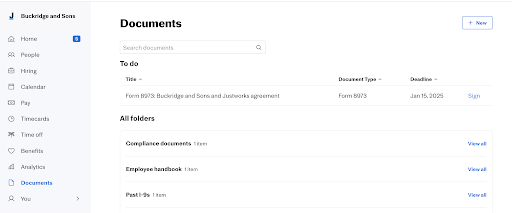
After the PEO start date, Justworks will prompt you to e-sign IRS Form 8973 within 10 business days. The form notifies the IRS that the CPEO service contract has begun and is required for the associated federal payroll-tax liability treatment.
9. Review the First Payroll and Explain the Two W-2s
After the first live Justworks payroll is processed, review the results against the employee information entered during onboarding.
Check gross wages, taxes, benefit deductions, 401(k) or HSA contributions, and net pay. Resolve any unexplained discrepancies with the Justworks onboarding team.
Do not expect take-home pay to exactly match the final Gusto paycheck.
Payroll taxes may change when an employee reaches an annual wage limit, while benefit premiums and pretax deductions may differ based on their new elections. These changes can result in a different net pay without indicating an error.
Let employees know that a midyear transition results in two W-2s: one from Gusto for wages processed before the move and one from Justworks for wages processed afterward. They will need both when filing their taxes.
Gusto to Justworks Implementation Checklist
Use this as a final scan of your migration. If every box is checked, you should be ready to launch or close out the transition.
The Plan Is Set
Confirm that the main decisions have been made.
- Justworks plan and total cost approved
- Start date and migration owner confirmed
- Filing responsibilities documented
- Gusto workflow replacements identified
The Data Is Ready
Make sure Justworks has complete and accurate information.
- Company and employee details reviewed
- Year-to-date payroll data accepted
- Final Gusto records saved
- Employee census and COBRA details submitted
Coverage Is Coordinated
Check that benefits and compliance items are lined up.
- Benefits dates confirmed
- Health and workers’ compensation cancellations scheduled
- State unemployment actions documented
- Form 8973 assigned for completion
The Launch Is Complete
Close out the move after the first payroll.
- First Justworks payroll reviewed
- Employee communications sent
- Remaining filing responsibilities confirmed
- Outstanding migration issues resolved
What Success Looks Like
A successful migration means your first two Justworks payrolls run on schedule without unresolved discrepancies.
Employee pay, deductions, and contributions are accurate, while everyone who enrolled in benefits has confirmed coverage and an effective date. Employees also understand that a midyear transition may result in two W-2s.
Your previous health and workers’ compensation policies have ended without coverage gaps or duplicate charges, and each state unemployment account has been handled according to Justworks’ instructions.
Form 8973 is complete, your finance team understands how Justworks handles federal payroll tax filings, and any applicable ACA reporting responsibilities are confirmed.
At this point, no payroll data, employee coverage, or filing responsibilities should remain unresolved.
Risks to Avoid If You're Moving From Gusto to Justworks
Even with a clear roadmap, a few parts of the migration require closer attention. These practices can help you avoid problems that may not appear until after launch.
Confirm Benefits Before Committing to the Cutover
Your Justworks payroll and benefits may not begin on the same date. Complete the employee census and COBRA review first, then confirm the benefits effective date before ending your existing health plan.
Reconcile Taxable Wages, Not Just Take-Home Pay
Matching net pay alone can hide errors. Compare each employee’s year-to-date taxable wages, deductions, Social Security, Medicare, and unemployment taxes, including records for anyone terminated earlier in the year.
Assign Every Filing to a Provider
Create a record showing which provider will handle each federal, state, and local filing during the transition. This helps prevent returns from being missed or submitted twice, especially when switching mid-quarter.
Manage State Unemployment One State at a Time
Justworks may handle unemployment accounts differently depending on the state. Track each account separately, including whether it should remain open, be closed, or be replaced.
Keep a Complete Migration Record
Save your final Gusto reports, accepted Form 8973, benefits confirmations, policy cancellation notices, and Justworks tax reports. Because some federal payroll returns are filed in aggregate under Justworks’ EIN, these records may be needed for accounting, audits, or financing later.
Final Thoughts
If Justworks still looks like the right fit, compare its actual quote with your current total cost in Gusto and any services you manage separately.
Use your real headcount and employer contribution so the comparison reflects what your company would pay. Have your employee census and current premium invoice ready before speaking with Justworks.
Good luck with the migration, and I hope this guide helps you transition platforms with fewer surprises and when you’re ready to make the switch, head to Justworks’ website to get started.
FAQs
How Long Does a Move From Gusto to Justworks Take?
Justworks PEO onboarding generally takes three to six weeks, or two to three weeks when expedited. The exact timing depends on how quickly you complete onboarding and coordinate the cutover.
Will Employees Get Two W-2s?
Yes. A midyear switch means employees receive one W-2 from Gusto and another from Justworks for the wages each provider processed.
Will There Be a Gap in Health Coverage or Workers’ Compensation?
A gap can be avoided by coordinating the effective dates. End the existing health plan the day before new benefits begin and the previous workers’ compensation policy on the Justworks start date.
What Happens to ACA Reporting in the Transition Year?
Applicable Large Employers can have Justworks file the required ACA forms on their behalf. Companies joining midyear must provide additional coverage information for the full calendar year.
Can We Keep Our Existing Broker or Health Plan?
PEO Basic customers may keep external health insurance, although Justworks will not manage it. Companies using Justworks PEO health insurance cannot also offer outside coverage to the same covered employees or dependents, so confirm any continuing broker role directly with Justworks.