

10 beste produktivitetsverktøy i 2026

Kortliste over de beste produktivitetsverktøyene


Produktivitetsverktøy er programvare eller apper som hjelper deg med å håndtere oppgaver, organisere arbeidet og følge med på fremdriften, slik at du får gjort mer med mindre stress. Hvis du leter etter de beste produktivitetsverktøyene, ser du sannsynligvis etter pålitelige alternativer som faktisk hjelper teamet ditt med å redusere distraksjoner, samarbeide enklere og ligge foran tidsfristene – ikke bare mer digitalt rot.
I denne veiledningen finner du de beste anbefalingene for 2026, inkludert både velprøvde favoritter og nye apper, samt ærlige vurderinger av hva hver av dem tilbyr. Bruk denne listen til å finne det riktige verktøyet for å øke effektiviteten, oversikten og fokuset i arbeidsdagen.
Hvorfor du kan stole på våre programvareanbefalinger
Teamet vårt har testet og anmeldt programvare siden 2012. Vi er selv HR-eksperter, så vi vet hvor vanskelig og hvor viktig det er å velge riktig programvare.
I denne guiden har vi vurdert verktøyene gjennom praktisk testing og uavhengig research og gitt dem poeng ut fra våre utvelgelseskriterier. Vi bygger også på innsikt fra ledende eksperter i bransjen og erfarne HR-eksperter.
Anmeldelsene våre bygger på vår egen redaksjonelle vurdering. De er ikke et salgsargument.
Ekspertanmeldere:
Sammenligningstabell for produktivitetsverktøy
Denne sammenligningstabellen oppsummerer prisdetaljene for mine beste anbefalinger av produktivitetsverktøy:
| Tool | Best For | Trial Info | Price | ||
|---|---|---|---|---|---|
| 1 | Best for flexible time tracking | Free plan + 7-day free trial available | From $4.99/user/month | Website | |
| 2 | Best for centralized tasks and calendars for focused daily planning | 7-day free trial | From $19/user/month | Website | |
| 3 | Best for organizing tasks and projects with powerful simplicity | Free plan available | From $5/user/month (billed annually) | Website | |
| 4 | Best for visual project and workflow management | Free plan + free trial available | From $5/user/month (billed annually) | Website | |
| 5 | Best for building customizable team workspaces | Free plan + Free trial + Free demo available | From $10/user/month | Website | |
| 6 | Best for automatic time tracking and distraction management | 14-day free trial available | From $7/month (billed annually) | Website | |
| 7 | Best for team chat, meetings, and document collaboration | Free plan + 1-month free trial available | From $4/user/month (billed annually) | Website | |
| 8 | Best for aligning goals with project execution | Free plan available | From $4/user/month (billed annually) | Website | |
| 9 | Best for blended notes, tasks, and calendar in one workspace | Free plan available | From $10/month (billed annually) | Website | |
| 10 | Best for time tracking with built-in reporting | Free plan available; 30-day free trial; Free demo available | From $9/user/month | Website |

Anmeldelser av de beste produktivitetsverktøyene
Nedenfor finner du mine detaljerte oppsummeringer av de beste produktivitetsverktøyene som kom med på kortlisten. Anmeldelsene mine gir en grundig gjennomgang av funksjonene, de beste bruksområdene og integrasjonene til hvert verktøy, slik at du kan finne det beste alternativet for deg.

Clockify
Best for flexible time tracking
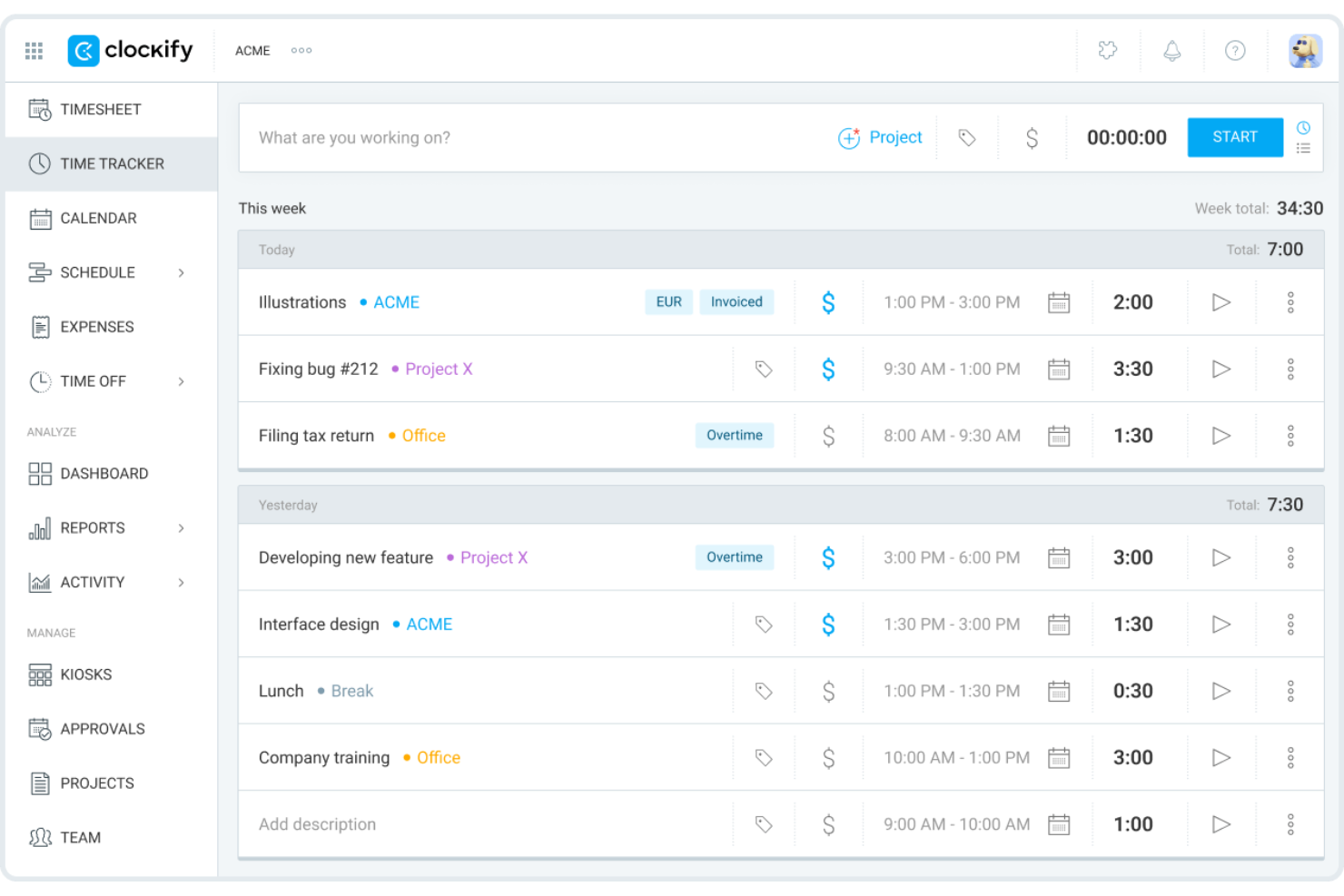
Clockify is a time tracker and timesheet app that covers manual timers, auto tracking, scheduling, reporting, invoicing, and expense management across teams.
Who Is Clockify Best For?
Clockify is a strong fit for agencies, consultancies, and service-based teams that need to track billable hours across multiple clients and projects. It is especially useful for growing teams, freelancers, and independent contractors because of its generous free tier.
Why I Picked Clockify
I picked Clockify as one of the best because it's a versatile, low-friction platform to track team productivity across diverse working styles. Its combination of real-time timers, automatic activity tracking, and visual breakdown reports lets you monitor employee output without micromanaging daily schedules. Auto Tracker silently records every app and website you visit, then lets you convert that raw activity into time entries with one click.
Clockify Key Features
- Pomodoro timer: Run timed focus sessions with automatic short and long breaks built into the work cycle.
- Project time budgets: Set hour or dollar-based budgets per project and receive alerts when you're approaching the limit.
- Visual reports: Generate summary, detailed, or weekly reports that break down logged time by user, project, or client.
- Kiosk mode: Set up a shared clock-in terminal on a tablet so team members can log hours without individual accounts.
Clockify Integrations
Clockify offers 100+ integrations through its browser extension and native connections, including QuickBooks, Xero, Jira, Asana, Trello, Slack, Google Calendar, Outlook, Salesforce, and HubSpot. It also connects with Zapier and has an API for custom integrations.
Pros and Cons
Pros:
- Kiosk mode for shared device clock-ins
- Auto tracker logs app usage silently
- Free time tracking for up to five users
Cons:
- No built-in task management features
- Reports require paid plans for filtering
Akiflow
Best for centralized tasks and calendars for focused daily planning
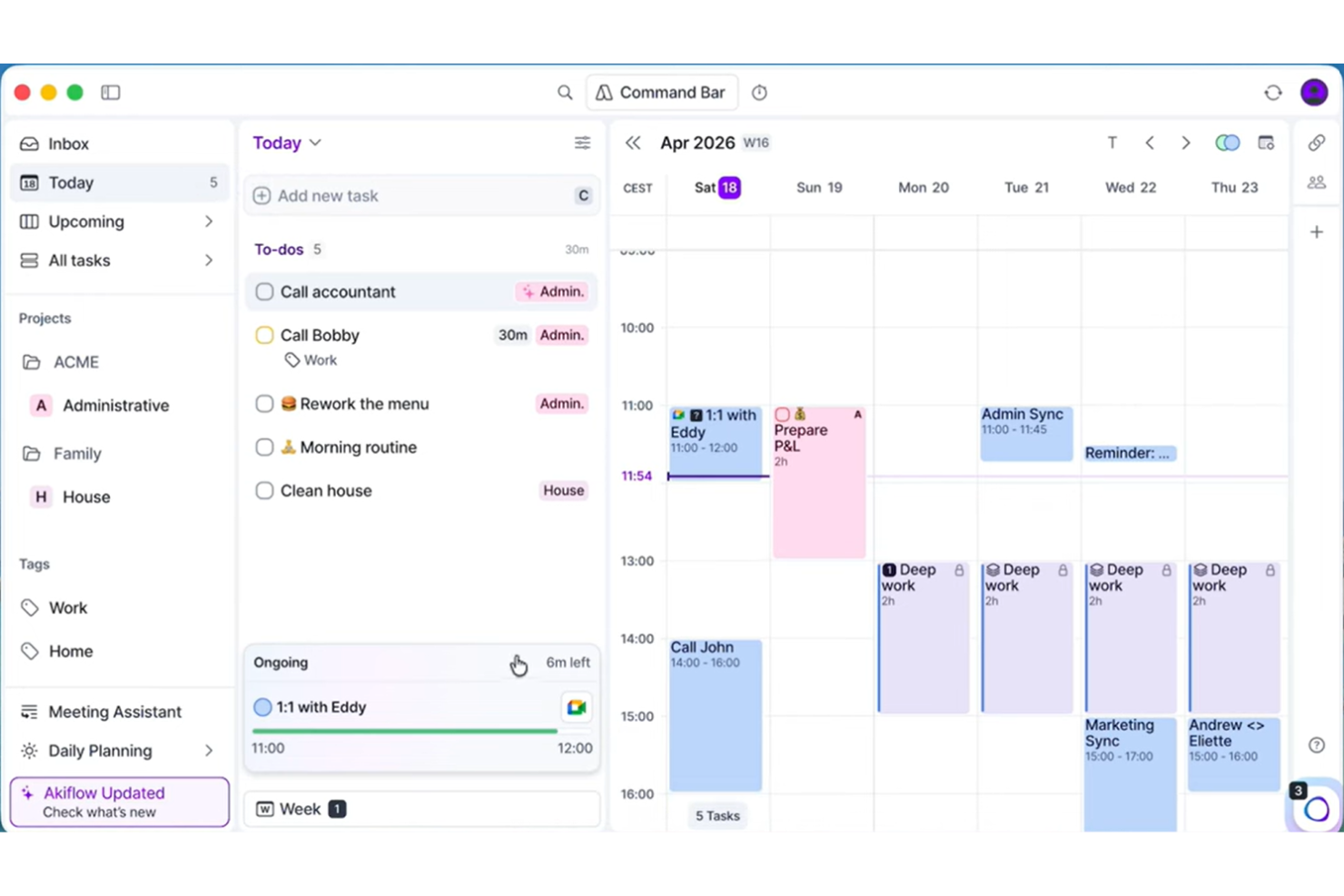
Akiflow is a daily planning tool that pulls tasks from across your apps into a single inbox and lets you schedule them directly onto your calendar.
Who Is Akiflow Best For?
Akiflow is a strong fit for busy individual professionals, particularly managers and operators who juggle tasks across multiple tools and need a single place to plan their day.
Why I Picked Akiflow
I've included Akiflow in my top picks because of features like its Universal Inbox, which is genuinely unlike what most productivity tools offer. It pulls tasks from across your connected apps into one place, so instead of checking Slack, Gmail, and Asana separately, everything lands in a single queue you can schedule directly onto your calendar. The time blocking feature is tightly built into this workflow: you drag tasks onto your calendar, and Akiflow detects conflicts automatically. I also rely on the Rituals feature, which prompts a structured daily planning and shutdown review to close out each day intentionally.
Akiflow Key Features
- Focus timer: Set a countdown timer to lock into a single task and block out distractions during deep work sessions.
- Command bar: Create tasks, events, and meetings instantly using keyboard shortcuts and natural language input.
- Stats dashboard: Review how time was spent across tasks and projects, and track your inbox zero streak over time.
- Meeting link: Share a scheduling link that lets others book one-off or recurring meetings based on your live calendar availability.
Akiflow Integrations
Akiflow offers native integrations with Slack, Gmail, Google Calendar, Outlook Calendar, Outlook Email, Microsoft Teams, Notion, Asana, ClickUp, and Jira, along with Todoist, Trello, GitHub, Linear, Zoom, and Microsoft To Do. It also connects with Zapier and IFTTT for additional app connectivity.
Pros and Cons
Pros:
- Guided daily planning and shutdown rituals
- Keyboard-driven command bar speeds up input
- Drag-and-drop time blocking on the calendar
Cons:
- Limited project management for complex workflows
- No built-in time tracking feature
Todoist
Best for organizing tasks and projects with powerful simplicity

Todoist is a task management app that lets individuals and teams capture, organize, and prioritize tasks and projects across devices with a clean, minimal interface.
Who Is Todoist Best For?
Todoist is a great fit for freelancers, solo professionals, and small teams who want a straightforward task manager without a steep learning curve.
Why I Picked Todoist
Todoist is one of my top picks because I love how its natural language input works in practice. I can type something like "submit report every Friday at 3pm" and Todoist instantly creates a recurring task with the right due date and time, no extra clicks needed. I also rely on the Priority levels (P1 through P4) to keep my task list focused, so the most critical work always surfaces first. The Karma system is a nice touch too, tracking my productivity trends over time without feeling gimmicky.
Todoist Key Features
- Project sections: Break projects into named sections to group related tasks and keep work organized by phase or category.
- Task delegation: Assign tasks to teammates directly within shared projects, with comments and file attachments on each task.
- Filters and labels: Create custom filters using combinations of due dates, assignees, and labels to build personalized task views.
- Productivity templates: Access pre-built project templates for common workflows like meeting agendas, goal tracking, and weekly reviews.
Todoist Integrations
Todoist offers 100+ integrations, including Google Calendar, Outlook Calendar, Slack, Microsoft Teams, Jira, Trello, Evernote, IFTTT, and Zoho Flow. It also connects with Zapier and Make, and provides an API for custom integrations.
Pros and Cons
Pros:
- Clean, distraction-free task views
- Works across all major platforms
- Natural language task input saves time
Cons:
- Limited project visualization beyond list view
- No built-in time tracking feature
Trello
Best for visual project and workflow management

Trello is a Kanban-based project management tool that organizes work across visual boards, lists, and cards, with support for multiple project views, including timeline, table, calendar, and map.
Who Is Trello Best For?
Trello is a strong fit for small to mid-sized teams that manage work visually and prefer a card-based system over complex project hierarchies.
Why I Picked Trello
Trello earns its spot as one of the best on my shortlist because its board-and-card system makes team planning genuinely visual and concrete. I use boards to map out every stage of a project, and each card holds checklists, due dates, and file attachments so nothing lives outside the system. The timeline view layers those cards into a Gantt-style schedule, which I find useful when my team is juggling overlapping deadlines.
Trello Key Features
- Butler automation: Build no-code automation rules that trigger actions, like moving cards or assigning members, based on set conditions.
- Power-Ups: Extend board functionality with add-ons for voting, time tracking, and reporting directly within Trello.
- Board templates: Start projects faster using pre-built templates for common workflows like sprint planning and content calendars.
- Card labels and filters: Tag cards with color-coded labels and filter boards to surface only the work that matters.
Trello Integrations
Trello offers 200+ integrations through its Power-Ups marketplace, including Slack, Jira, Microsoft Teams, Gmail, Miro, Toggl, and Make. It also connects with Zapier and provides a REST API for custom integrations.
Pros and Cons
Pros:
- Butler automation handles repetitive tasks without code
- Free plan includes unlimited cards and members
- Drag-and-drop Kanban boards visualize workflow instantly
Cons:
- Boards get cluttered with large projects
- No built-in time tracking or reporting

Notion
Best for building customizable team workspaces
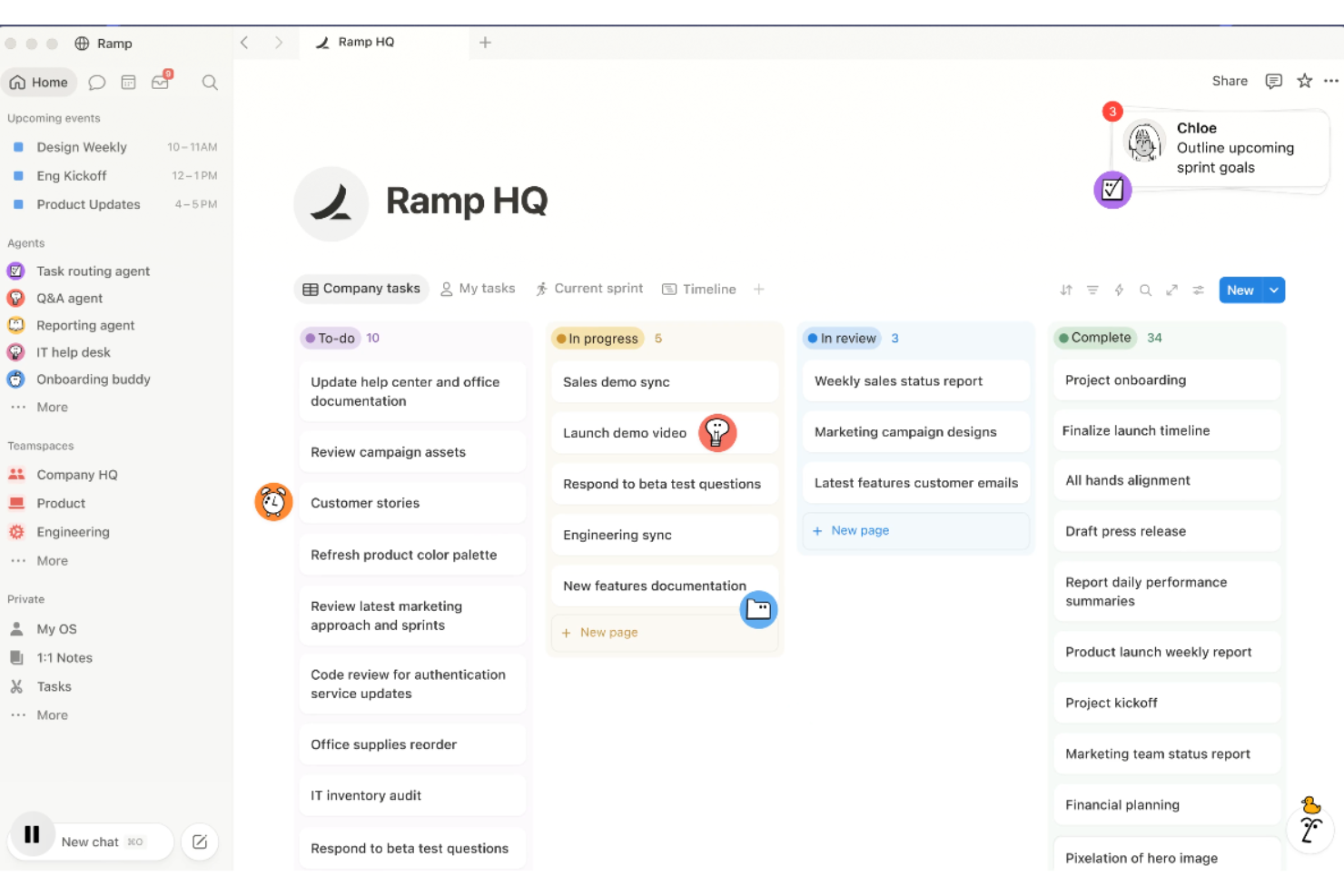
Notion is a connected workspace where you can build docs, wikis, databases, and project boards, all linked together within a single platform.
Who Is Notion Best For?
Notion is a strong fit for small to mid-sized teams that need a single place to manage knowledge, documentation, and project work together.
Why I Picked Notion
Notion earns its spot on my shortlist because the whole workspace is genuinely connected. I can link a project database to a team wiki, reference meeting notes inside a task, and pull filtered views of the same database as a board, timeline, or table. Notion's bidirectional linking means nothing lives in a silo. I also like that Notion AI can summarize pages, generate action items, and answer questions across your workspace content directly.
Notion Key Features
- Templates: Notion's template gallery includes pre-built pages for meeting notes, project plans, OKRs, and roadmaps.
- Synced blocks: Write a block of content once and sync it across multiple pages so edits update everywhere automatically.
- Inline comments: Leave comments directly on any block and @mention teammates to flag questions or assign follow-ups.
- Custom database properties: Add formulas, rollups, date pickers, and multi-select fields to structure any type of information.
Notion Integrations
Notion offers native integrations with Slack, Google Drive, Jira, GitHub, GitLab, Asana, Figma, Trello, Salesforce, and Miro, among others. It also connects with Zapier, Make, and IFTTT, and provides a public API for custom integrations.
Pros and Cons
Pros:
- Real-time co-editing on shared pages
- Replaces multiple apps with one workspace
- Relational databases link pages and projects
Cons:
- Large databases cause noticeable slowdowns
- No built-in time tracking feature
Best for automatic time tracking and distraction management
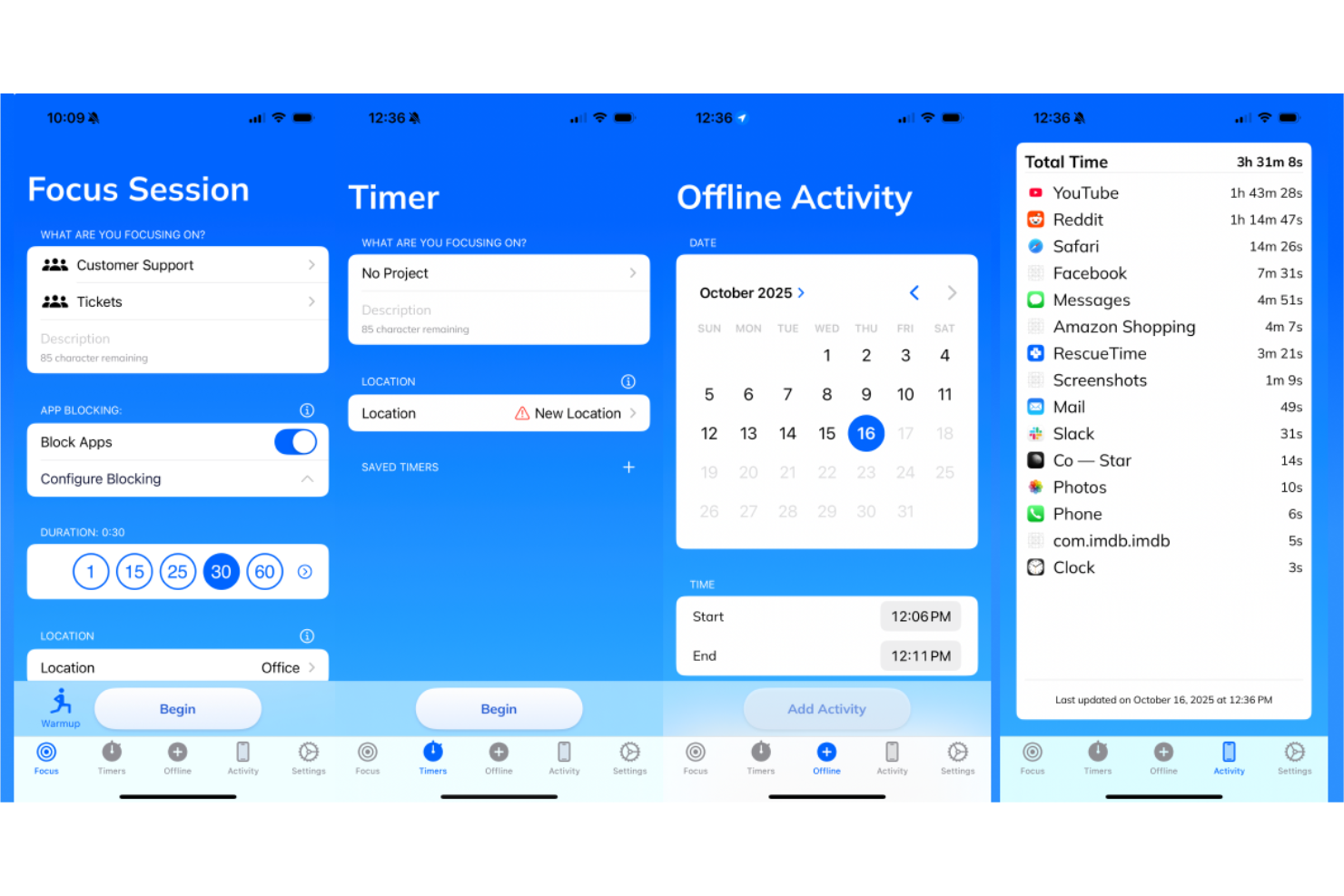
RescueTime is an automatic time tracking tool that runs silently in the background, logging time spent across apps, websites, and documents to give individuals a detailed breakdown of their daily work habits.
Who Is RescueTime Best For?
RescueTime is a natural fit for freelancers, remote workers, and individual contributors who need to understand where their time actually goes each day.
Why I Picked RescueTime
RescueTime is one of my top picks because it removes the need to manually log a single minute. The Focus Sessions feature lets you block distracting sites and apps on demand, so you can actually protect deep work time instead of just measuring what you lost to it. I also rely on the Goals and Alerts system, which nudges you back on track in real time rather than waiting until the end of the week to review what went wrong.
RescueTime Key Features
- Automatic activity categorization: RescueTime labels every app and website you use as productive, neutral, or distracting based on customizable category settings.
- Weekly email reports: A summary of your time use, productivity score, and top activities lands in your inbox each week automatically.
- Daily highlights log: Manually record what you accomplished each day alongside your tracked data to give context to your time reports.
- Offline time tracking: Log time spent in meetings, phone calls, or away from your device to keep your daily record complete.
RescueTime Integrations
RescueTime offers a small set of native integrations, including Slack, Trello, Asana, GitHub, Google Calendar, and Outlook/Office 365 Calendar. It also connects with Zapier and IFTTT. An API is available for custom integrations.
Pros and Cons
Pros:
- Runs silently without interrupting workflows
- Focus Sessions block distracting sites on-demand
- Tracks app and website time automatically
Cons:
- Tracks by app, not by project
- Mobile app is less reliable than desktops
Best for team chat, meetings, and document collaboration
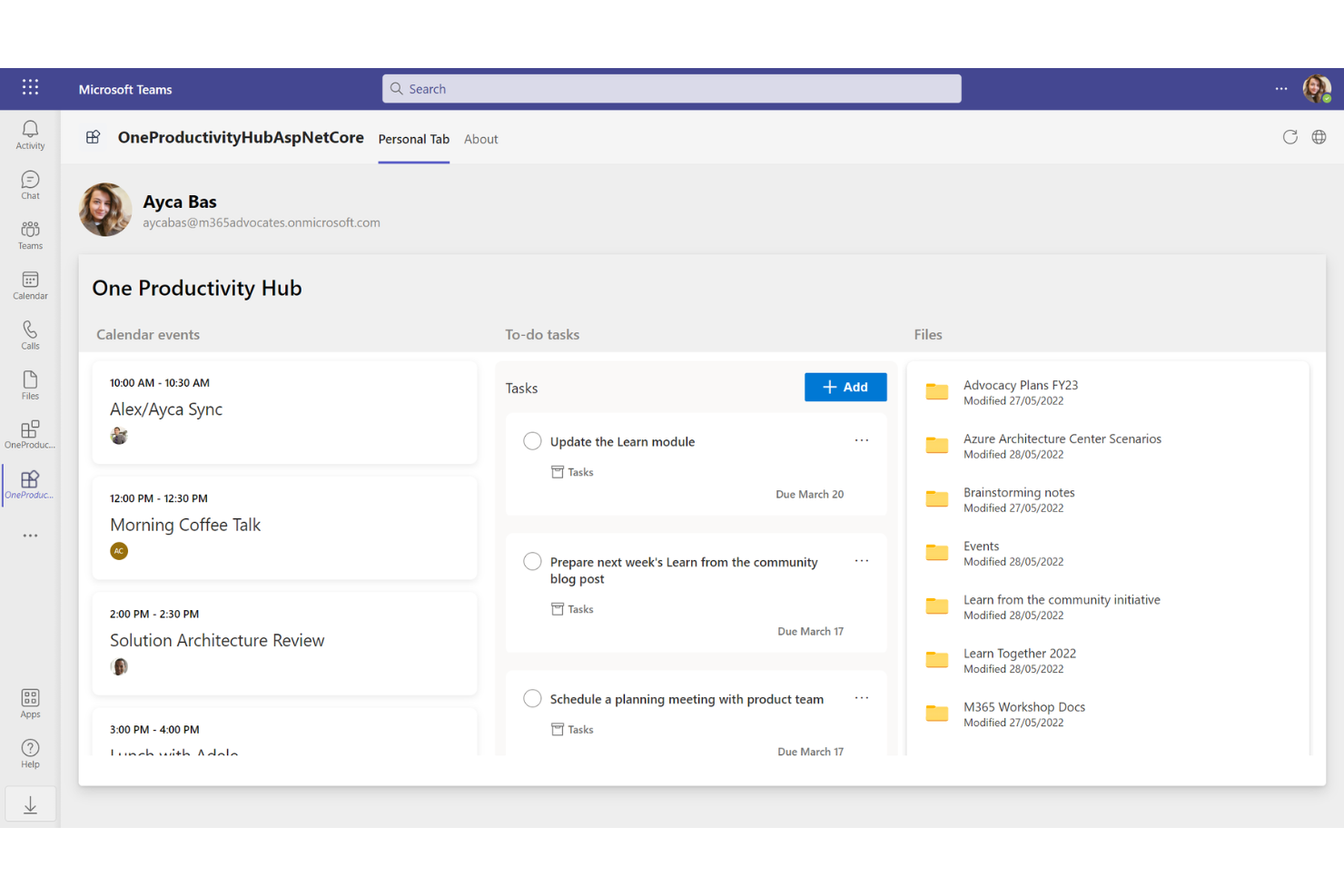
Microsoft Teams is a workplace communication and collaboration platform that combines chat, video meetings, file sharing, and task management in one connected hub.
Who Is Microsoft Teams Best For?
Microsoft Teams is a natural fit for mid-sized to enterprise organizations already running on Microsoft 365.
Why I Picked Microsoft Teams
I picked Microsoft Teams as one of the best because everything my team does, from a quick chat to a full video call to co-editing a document, happens without switching apps. Channels keep project conversations threaded and searchable, and meeting recordings with auto-generated transcripts mean I can catch up on anything I missed. I also like that tasks can be pinned directly inside a channel, so work stays connected to the conversation.
Microsoft Teams Key Features
- Together mode: Places all meeting participants in a shared virtual background so everyone appears in the same space during video calls.
- Breakout rooms: Split a meeting into smaller group sessions and bring everyone back to the main call when time is up.
- Whiteboard: A shared digital canvas built into meetings where participants can sketch, annotate, and brainstorm in real time.
- Loop components: Send live, editable content blocks inside a chat that update for everyone as changes are made.
Microsoft Teams Integrations
Microsoft Teams offers over 3,000 marketplace integrations through the Microsoft AppSource directory, including tools like Asana, Salesforce, Jira, Trello, HubSpot, Figma, Miro, Zoom, Adobe Acrobat, and Confluence. It also has deep native integrations across the Microsoft ecosystem, including Microsoft 365, Power BI, and Planner, and connects with Zapier. An API is available for custom integrations.
Pros and Cons
Pros:
- Meetings support up to 1,000 participants
- Channels organize conversations and files by project
- AI-generated meeting summaries extract action items
Cons:
- Files scatter across chats, channels, and SharePoint
- High memory usage slows down multitasking

GoodDay
Best for aligning goals with project execution
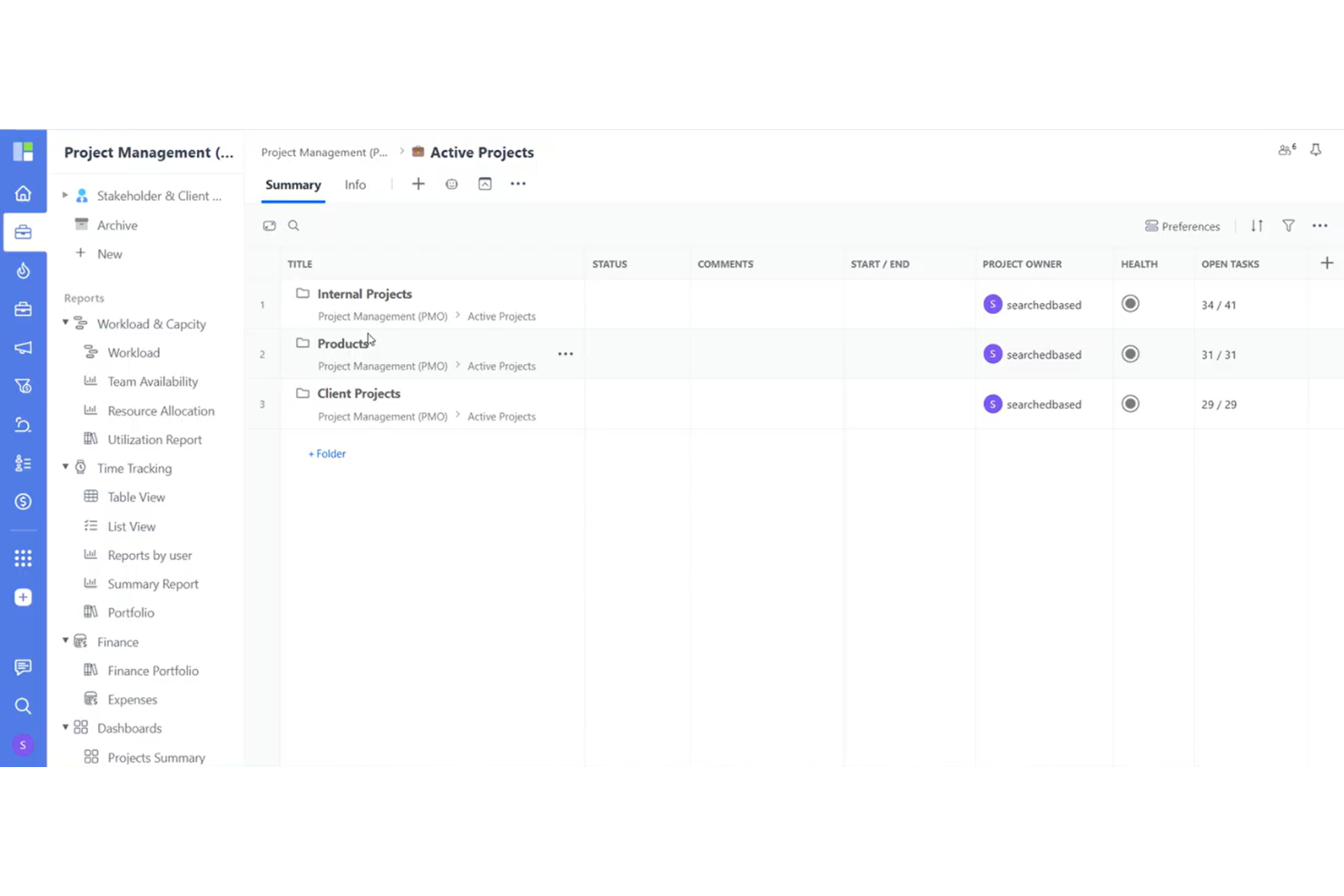
GoodDay is a work management platform that covers project planning, task tracking, resource management, goal setting, and team collaboration across 20+ configurable views.
Who Is GoodDay Best For?
GoodDay is a strong fit for mid-sized teams that need a single platform to manage multiple projects across departments without switching between tools.
Why I Picked GoodDay
I've included GoodDay in my top picks because it genuinely functions as a single system for work that usually requires multiple tools. What I find most compelling is the "Action Required" feature, which creates clear task handoffs and accountability between team members without relying on chat or email follow-ups. I also use the Goals module to connect OKRs directly to individual tasks, so everyone can see how their daily work ties to larger targets. That kind of top-to-bottom alignment is rare in a tool at this price point.
GoodDay Key Features
- Gantt chart: Plan tasks, manage dependencies, and track subprojects on a visual timeline with resource allocation built in.
- Request forms: Build custom intake forms for cross-departmental requests to keep incoming work organized and routed correctly.
- Workload view: See all task assignments across your team on a timeline to spot capacity gaps and balance work distribution.
- Custom workflows: Configure task statuses and workflows to match how your team actually moves work through each stage.
GoodDay Integrations
GoodDay offers native integrations with Google Workspace (including Gmail, Google Docs, Google Drive, and Google Calendar), Slack, Dropbox, Box.com, GitHub, and GitLab. It also connects with Zapier and provides an API for custom integrations.
Pros and Cons
Pros:
- Free plan supports up to 15 users
- Built-in time tracking and resource planning
- 20+ project views, including map and whiteboard
Cons:
- Mobile app lacks full desktop functionality
- Can get unwieldy with large task volumes

Routine
Best for blended notes, tasks, and calendar in one workspace

Routine is a personal productivity and planning tool that combines task management, calendar time blocking, a universal inbox, and AI-powered meeting notes in one workspace.
Who Is Routine Best For?
Routine is a strong fit for founders, operators, and team leads who need a single workspace to manage personal tasks, team projects, and calendar commitments without switching between tools.
Why I Picked Routine
Routine earns its spot on my shortlist because it genuinely brings tasks and time together in one view. I like that the planner screen lets me see calendar events and my task list side by side, so time blocking doesn't require a separate step. The AI meeting notes feature works without a meeting bot, which I find much less disruptive in practice. It also pulls in tasks from connected apps, so my inbox stays consolidated instead of scattered across tools.
Routine Key Features
- Quick capture: Use a desktop hotkey to add tasks instantly without opening the full app.
- Recurring task scheduling: Set tasks to repeat on a custom schedule so nothing gets dropped.
- AI voice assistant: Capture tasks and notes by voice, which is useful when away from your desk.
- Labels, priorities, and projects: Categorize tasks with labels, set priority levels, and group work into projects.
Routine Integrations
Routine offers native integrations with Gmail, Google Calendar, Google Meet, Google Workspace, Google Contacts, Microsoft Outlook, Microsoft To Do, Microsoft Teams, Notion, Slack, Todoist, Asana, GitHub, Linear, Intercom, ChatGPT, Claude, Perplexity, and Cursor. It also connects with Zapier, Make, IFTTT, n8n, and Pipedream for workflow automation and offers a GraphQL API for custom integrations.
Pros and Cons
Pros:
- Keyboard-driven command bar speeds up input
- Drag-and-drop time blocking on the calendar
- Local-first architecture works fully offline
Cons:
- No AI-powered auto-scheduling for tasks
- Mobile app is less polished than the desktop
Toggl
Best for time tracking with built-in reporting
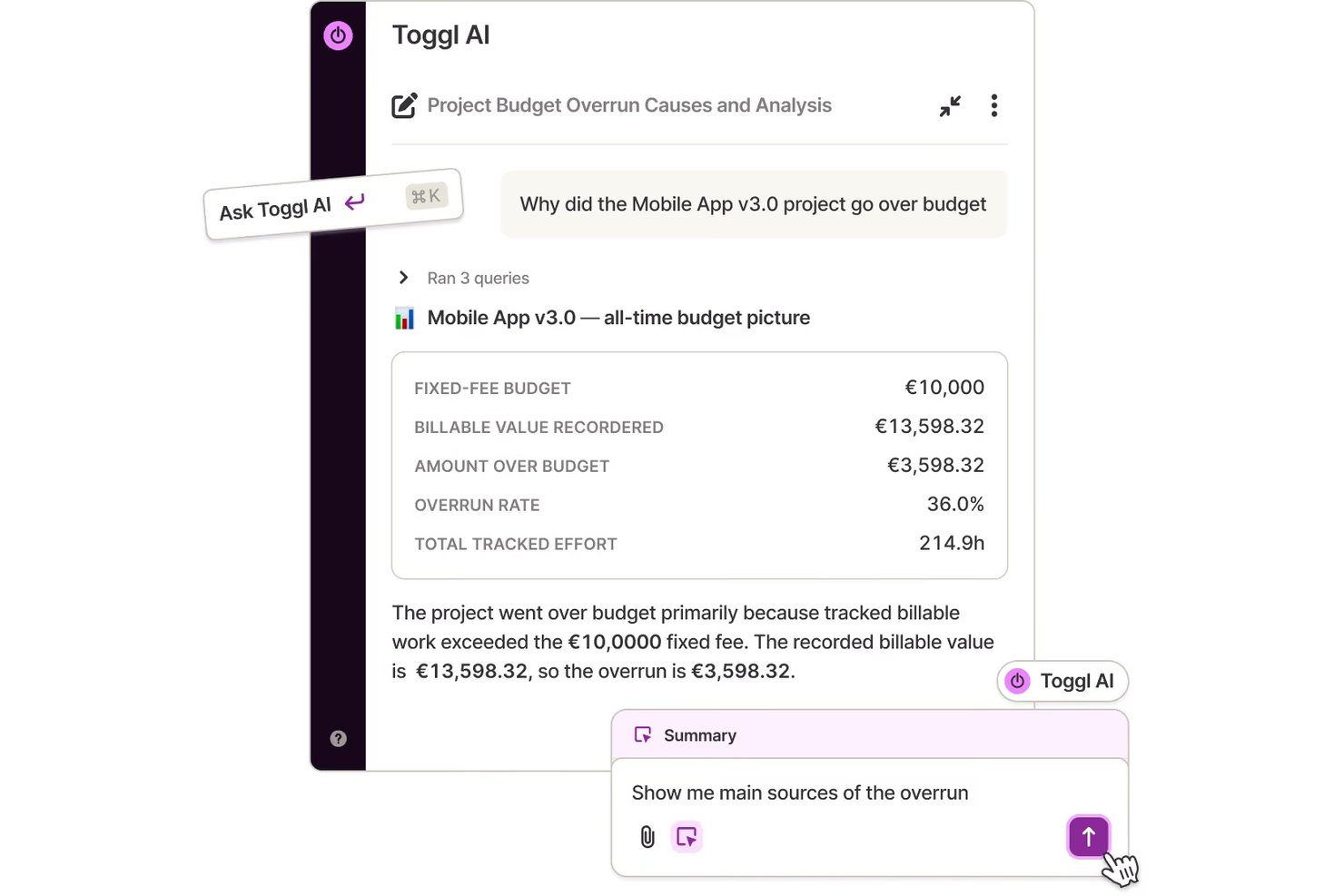
Toggl is a time tracking tool that lets individuals and teams log hours across projects, clients, and tasks, with built-in reporting and billing capabilities.
Who Is Toggl Best For?
Toggl is a natural fit for freelancers, consultants, and agencies that need to track billable hours across multiple clients and projects.
Why I Picked Toggl
I picked Toggl as one of the best because its background automated time tracking sets it apart. It runs quietly in the background, monitoring which apps and websites you use, and lets you convert that activity into time entries without manually starting and stopping a timer. I also like the calendar view, which lets you pull in existing calendar events and turn them into logged time. For anyone billing clients by the hour, the custom profitability and timesheet reports make it easy to see exactly where time went.
Toggl Key Features
- Billable rates: Set hourly rates at the workspace, project, or team member level to calculate earnings alongside logged hours.
- Project budgets: Define time or cost budgets per project and receive alerts when you're approaching the limit.
- Idle detection: Automatically detects when you've stepped away and prompts you to discard or keep the idle time from your entry.
- Browser extension: Log time directly from tools like Asana, Jira, and GitHub without leaving the tab you're working in.
Toggl Integrations
Toggl offers native integrations with Asana, Google Calendar, Jira, Outlook, QuickBooks Online, Salesforce, Slack, and iCal. Its browser extensions for Chrome, Firefox, and Edge embed a timer directly inside 100+ tools like Trello, GitHub, Notion, Todoist, and HubSpot. It also connects with Zapier and provides an API for custom integrations.
Pros and Cons
Pros:
- Filterable reports by project, client, or period
- Offline tracking syncs when reconnected
- Built-in Pomodoro timer for focused sessions
Cons:
- No pause option, only stop and restart
- No built-in invoicing for billable work
Andre produktivitetsverktøy
Her er noen flere produktivitetsalternativer som ikke kom med på kortlisten, men som likevel er verdt å sjekke ut:
- Smartsheet
For spreadsheet-style work management and automation
- Asana
Work tracking to manage tasks and deadlines
- Slack
Channels-based team messaging and file sharing
- Wrike
Collaborative work management for teams and enterprises
- ClickUp
Customizable workspace for task and project management
- monday.com
All-in-one platform for work management
- Guru
Knowledge management platform with browser extension
- TimeJam
Gamified time tracking for team productivity


Kriterier for valg av produktivitetsverktøy
Da jeg valgte de beste produktivitetsverktøyene som skulle inkluderes i denne listen, tok jeg hensyn til vanlige kjøperbehov og utfordringer, som å redusere manuelt arbeid og få bedre oversikt over oppgaver. Jeg brukte også følgende rammeverk for å holde vurderingen strukturert og rettferdig:
Core Functionality (25% of total score)
To be considered for inclusion in this list, each solution had to fulfill these common use cases:
- Track tasks and projects
- Set reminders and deadlines
- Assign tasks to team members
- Share files and information
- Generate productivity reports
Additional Standout Features (25% of total score)
To help further narrow down the competition, I also looked for unique features, such as:
- AI-powered automation and suggestions
- Built-in goal tracking modules
- Cross-platform offline sync
- Visual dashboards with real-time data
- Custom workflow builders
Usability (10% of total score)
To get a sense of the usability of each system, I considered the following:
- Clear and uncluttered interface design
- Intuitive navigation menus
- Easy drag-and-drop functionality
- Quick-access shortcuts and commands
- Mobile responsiveness and app quality
Onboarding (10% of total score)
To evaluate the onboarding experience for each platform, I considered the following:
- Step-by-step setup guides
- Interactive tutorials and product tours
- Availability of free training videos
- Prebuilt templates for rapid setup
- Live chat or chatbot onboarding assistance
Customer Support (10% of total score)
To assess each software provider’s customer support services, I considered the following:
- 24/7 support availability
- Multiple contact options, including chat
- Comprehensive online knowledge base
- Fast response and resolution times
- Regular product updates and communications
Value For Money (10% of total score)
To evaluate the value for money of each platform, I considered the following:
- Transparent pricing plans
- Free tier or free trial options
- Feature set offered for each price
- Flexible contract and billing terms
- Upgrade and downgrade flexibility
Customer Reviews (10% of total score)
To get a sense of overall customer satisfaction, I considered the following when reading customer reviews:
- Volume of positive ratings
- Feedback on reliability and stability
- Comments about mobile and desktop apps
- Trends in reported pain points
- Recommendations for specific use cases
Slik velger du produktivitetsverktøy
Det er lett å gå seg vill i lange funksjonslister og kompliserte prismodeller. For å hjelpe deg med å holde fokus mens du går gjennom din unike prosess for valg av programvare, får du her en sjekkliste over faktorer du bør ha i bakhodet:
| Faktor | Hva du bør vurdere |
| Skalerbarhet | Kan verktøyet håndtere teamstørrelsen din nå og i fremtiden? Tenk på vekst, brukerbegrensninger og prosjektgrenser. |
| Integrasjoner | Kan verktøyet kobles til den eksisterende programvarestakken din (e-post, kalender, prosjektstyring osv.)? Se etter innebygde tilkoblinger eller API-tilkoblinger. |
| Tilpasningsmuligheter | Kan du tilpasse oppsett, arbeidsflyter eller visninger slik at de passer til teamets prosesser uten omfattende konfigurering? Vurder fleksibilitet opp mot begrensninger. |
| Brukervennlighet | Er grensesnittet intuitivt for alle brukere? Vurder hvor lang tid det tar å lære opp kolleger, og hvor raskt nye brukere kan bli produktive. |
| Implementering og oppstart | Hvor lang tid vil det ta å ta i bruk verktøyet fullt ut? Se etter ressurser for migrering, støtte til oppsett og tilgang til materiell for oppstart. |
| Kostnad | Er prisen i tråd med budsjettet ditt, særlig når bruken øker? Se gjennom brukernivåer, årlige kontra månedlige betalinger og eventuelle skjulte kostnader for tillegg. |
| Sikkerhetstiltak | Oppfyller verktøyet organisasjonens krav til datakryptering, tilgangskontroller og revisjonslogger? Se gjennom dokumentasjonen for sertifiseringer eller informasjon om samsvar. |
| Tilgjengelig kundestøtte | Hvilke kanaler er tilgjengelige hvis teamet ditt trenger hjelp (e-post, chat, telefon)? Kontroller svartider og åpningstider for kundestøtte opp mot behovene dine. |
Hva er produktivitetsverktøy?
Produktivitetsverktøy er digitale applikasjoner som hjelper enkeltpersoner og team med å organisere oppgaver, håndtere arbeidsmengder og effektivisere arbeidsflyter. Disse løsningene legger til rette for bedre samarbeid, støtter tidsstyring og sentraliserer prosjektinformasjon. Ved å bruke produktivitetsverktøy kan du redusere manuelle prosesser, få bedre oversikt og forbedre den generelle effektiviteten i det daglige arbeidet.
Funksjoner i produktivitetsverktøy
Når du velger produktivitetsverktøy, bør du se etter følgende viktige funksjoner:
- Oppgavehåndtering: Lar deg opprette, tildele og prioritere oppgaver, slik at alle vet hva som må gjøres og innen når. Holder arbeidet synlig og organisert for enkeltpersoner og team.
- Samarbeidsverktøy: Delte områder, kommentarer og redigering i sanntid støtter teamarbeid ved å la flere brukere arbeide sammen på filer eller prosjekter.
- Planlegging og kalendere: Integrerer møter, tidsfrister og milepæler i en samlet kalender for å gjøre det enklere å administrere alles tid og planlegge arbeidet effektivt.
- Dokumentdeling: Tilbyr et sentralt sted der filer kan lagres, åpnes og oppdateres av autoriserte brukere, slik at alle arbeider med den nyeste versjonen.
- Varsler og påminnelser: Varsler brukerne om tidsfrister, nye oppgaver eller oppdateringer, noe som bidrar til å redusere overskredede tidsfrister og holde alle på rett spor.
- Fremdriftssporing: Visuelle verktøy som tavler, tidslinjer eller sjekklister gir oppdateringer om statusen for oppgaver eller prosjekter med et raskt blikk.
- Rapportering og analyse: Genererer sammendrag og innsikt om teamets produktivitet, utestående oppgaver og prosjektstatus for bedre planlegging og ansvarsfordeling.
- Mobiltilgang: Gir brukerne mulighet til å administrere oppgaver, kommunisere og få tilgang til dokumenter fra hvilken som helst enhet, slik at arbeidet kan utføres eksternt eller på farten.
- Tillatelser og tilgangskontroll: Lar administratorer styre hvem som kan se, redigere eller dele informasjon, slik at personvernet ivaretas og sensitive data håndteres på riktig måte.
Vanlige AI-funksjoner i produktivitetsverktøy
I tillegg til standardfunksjonene i produktivitetsverktøyene som er nevnt ovenfor, tar mange av disse løsningene i bruk AI med funksjoner som:
- Smarte oppgaveforslag: Anbefaler oppgaver basert på aktivitetsmønstrene dine, hvor presserende tidsfristene er og teamets prioriteringer, slik at brukerne kan finne ut hva de bør fokusere på som neste steg uten å måtte sortere gjennom lister manuelt.
- Automatiske møtesammendrag: Bruker naturlig språkbehandling til å generere korte sammendrag etter møter, med viktige punkter, handlingselementer og beslutninger, slik at ingen trenger å ta notater manuelt.
- Prediktiv planlegging: Analyserer tidligere arbeidsmengde, teamets kapasitet og prosjektets tidslinjer for å foreslå optimal planlegging av nye oppgaver eller møter, noe som reduserer flaskehalser og konflikter i kalenderen.
- Automatisk prioritering: Rangerer oppgaver eller prosjekter ved hjelp av algoritmer som tar hensyn til tidsfrister, avhengigheter og arbeidsmengde, slik at team raskt kan identifisere og håndtere de mest presserende oppgavene.
- Utarbeiding av e-poster og meldinger: Utformer foreslåtte svar eller sammendrag av innkommende kommunikasjon, noe som sparer tid på rutinemessige svar og sikrer profesjonell og konsekvent kommunikasjon.
Fordeler med produktivitetsverktøy
Implementering av produktivitetsverktøy gir flere fordeler for teamet og virksomheten din. Her er noen av fordelene du kan se frem til:
- Bedre oversikt over oppgaver: Sentraliserte oppgavelister og funksjoner for sporing hjelper alle med å se prioriteringer, tidsfrister og fremdrift, noe som reduserer forvirring på tvers av prosjekter.
- Bedre samarbeid: Delte arbeidsområder, dokumentdeling og kommunikasjonsverktøy gjør det enklere for teamet å arbeide sammen, enten det jobber eksternt eller på samme sted.
- Større ansvarlighet: Oppgaver som kan tildeles, tydelige tidslinjer og analyser gir ledere og medarbeidere et transparent bilde av ansvar og oppfølging.
- Raskere opplæring: Veiledet oppsett, maler og brukervennlige grensesnitt hjelper nye brukere med å komme raskt inn i det daglige arbeidet og prosessene.
- Bedre beslutningstaking: Rapporterings- og analysefunksjoner gir datadrevet innsikt i teamets resultater, ressursfordeling og prosjektstatus.
- Fleksibel skalerbarhet: Skybasert arkitektur og tilpassbare arbeidsflyter gjør det mulig for organisasjonen å legge til brukere og tilpasse prosesser etter hvert som behovene endrer seg.
- Bedre datasikkerhet: Innebygde sikkerhetstiltak sørger for at sensitiv informasjon lagres og deles på en trygg måte, i tråd med krav til personvern og samsvar.
Kostnader og priser for produktivitetsverktøy
Valg av produktivitetsverktøy krever en forståelse av de ulike prismodellene og abonnementene som er tilgjengelige. Kostnadene varierer basert på funksjoner, teamstørrelse, tillegg og mer. Tabellen nedenfor oppsummerer vanlige abonnementer, gjennomsnittsprisene deres og typiske funksjoner som er inkludert i løsninger for produktivitetsverktøy:
Sammenligningstabell for abonnementer for produktivitetsverktøy
| Abonnementstype | Gjennomsnittspris | Vanlige funksjoner |
| Gratisabonnement | $0 | Grunnleggende oppgavehåndtering, begrenset antall brukere, grunnleggende samarbeid og begrenset fillagring. |
| Personlig abonnement | $5-$12/bruker/måned | Oppgavehåndtering, kalenderintegrasjon, dokumentdeling, mobiltilgang og grunnleggende rapporteringsfunksjoner. |
| Bedriftsabonnement | $12-$25/bruker/måned | Avansert samarbeid, utvidet lagring, integrasjoner, rapportering og analyse, automatisering av arbeidsflyter og brukerstøtte. |
| Virksomhetsabonnement | $25-$50/bruker/måned | Tilpasset sikkerhet, avanserte tillatelser, prioritert brukerstøtte, ubegrenset lagring, tilpassede integrasjoner og samsvar. |
Vanlige spørsmål om produktivitetsverktøy
Her er noen svar på vanlige spørsmål om produktivitetsverktøy:
Hvordan støtter produktivitetsverktøy eksterne eller hybride team?
Produktivitetsverktøy gir eksterne og hybride team en felles plattform for å håndtere oppgaver, kommunisere og dele dokumenter i sanntid. Funksjoner som skytilgang, mobilapper og integrerte meldinger bidrar til å holde alle tilkoblet, uansett hvor de jobber.
Kan produktivitetsverktøy integreres med eksisterende programvare som e-post eller kalendere?
Ja, de fleste produktivitetsverktøy tilbyr integrasjoner med populære e-postklienter, kalenderapper og samarbeidsplattformer. Dette hjelper deg med å samle varsler på ett sted, synkronisere oppgaver og gjøre planlegging og kommunikasjon mer effektiv.
Hvilke viktige sikkerhetsfunksjoner bør man se etter i produktivitetsverktøy?
Se etter produktivitetsverktøy med brukertillatelser, rollebasert tilgang, kryptering og alternativer for samsvar. Disse funksjonene beskytter sensitiv forretningsinformasjon og hjelper deg med å administrere hvem som kan få tilgang til eller endre viktige data.
Finnes det produktivitetsverktøy som passer for små team eller enkeltbrukere?
Ja, mange produktivitetsverktøy tilbyr gratis eller rimelige personlige abonnementer med et begrenset funksjonsomfang. Disse versjonene passer godt for frilansere, oppstartsbedrifter og små team som trenger grunnleggende oppgavehåndtering og samarbeid.
Hvordan hjelper KI-drevne funksjoner i produktivitetsverktøy team med å jobbe bedre?
KI-funksjoner automatiserer repetitive oppgaver, foreslår prioriteringer, genererer møtesammendrag og anbefaler tidsplaner basert på analyse av teamets aktivitet. Dette sparer tid og gjør det enklere for teamet å fokusere på arbeid med høy verdi.