

15 Workforce Management Software Features We Recommend


The right workforce management software features turn employee scheduling and time and attendance tracking into one connected system. Without that link, you're fixing schedule gaps and timesheet errors by hand.
This guide walks through 15 features worth looking for. You'll see what each one does, so you can match tools to your team's real needs.
15 Key Features to Look for in Workforce Management Software
The features below connect scheduling, attendance, labor costs, and employee needs across day-to-day workforce management:

1. Employee Scheduling
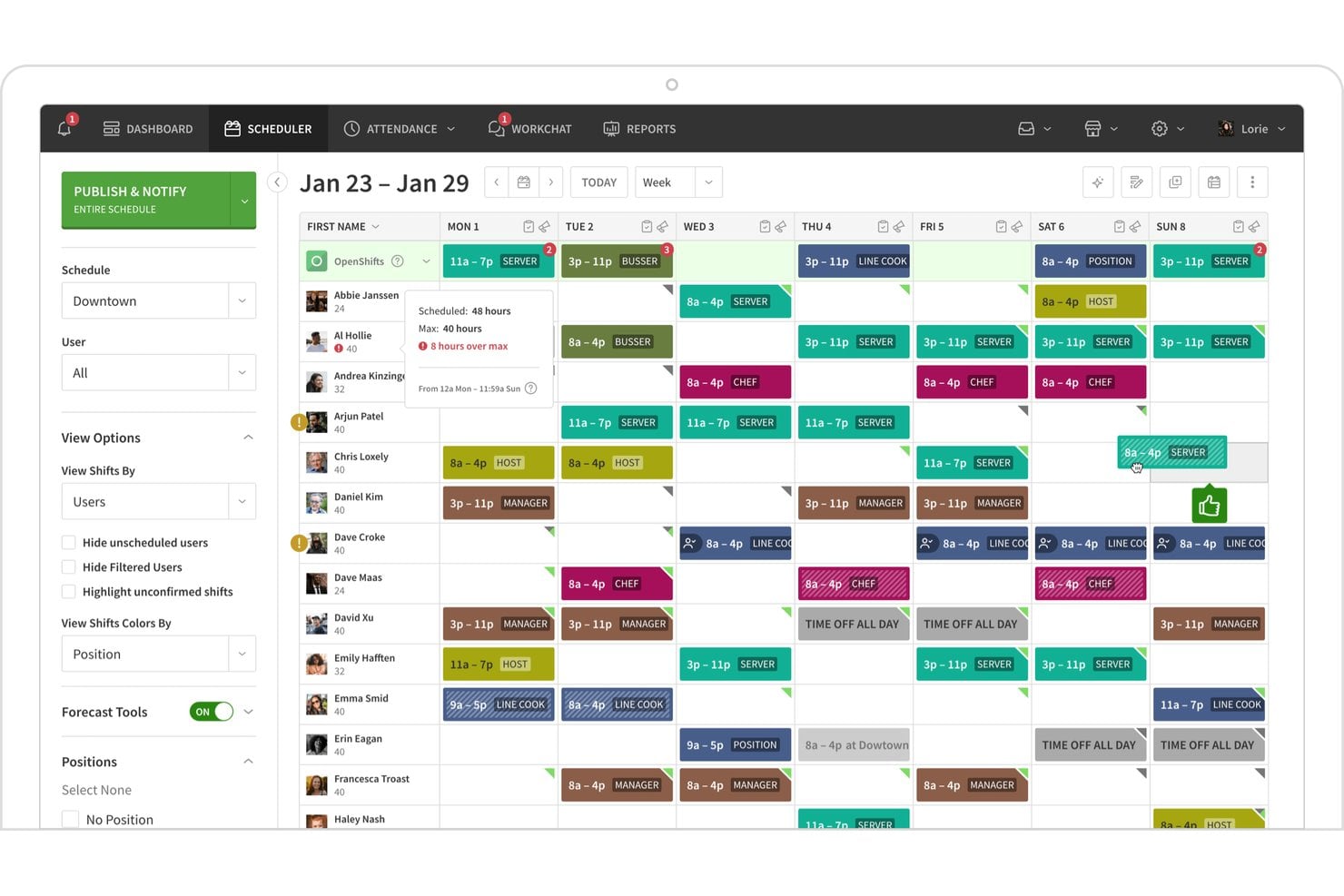
Employee scheduling is the feature you'll use most in workforce management software. It lets you build shifts on a drag-and-drop calendar, assign people by role, skill, or availability, and publish schedules to your team's phones.
In my experience, the best tools flag conflicts as you build. They warn you about overtime, double-booked shifts, and approved time off before you hit publish. Many also offer shift swap requests with manager approval, so changes don't turn into text threads. Look for templates you can copy week to week, because rebuilding from scratch gets old fast.
Scheduling tools handle different jobs depending on your workforce. These examples show where each capability fits:
- Retail and hospitality: Build schedules around demand forecasts and part-time availability. Deputy and 7shifts both support this kind of shift planning.
- Healthcare: Match shifts to required certifications and skill coverage, using qualification alerts to support regulatory compliance. Check whether managers can override warnings before relying on automated scheduling controls.
- Multi-location teams: Copy templates across sites, then adjust each one for local coverage needs.
- Hybrid or remote teams: Set availability windows across time zones so managers can see who's online.
- Seasonal hiring: Open shifts let temporary staff claim hours without a manager making individual calls.
2. Time and Attendance Tracking
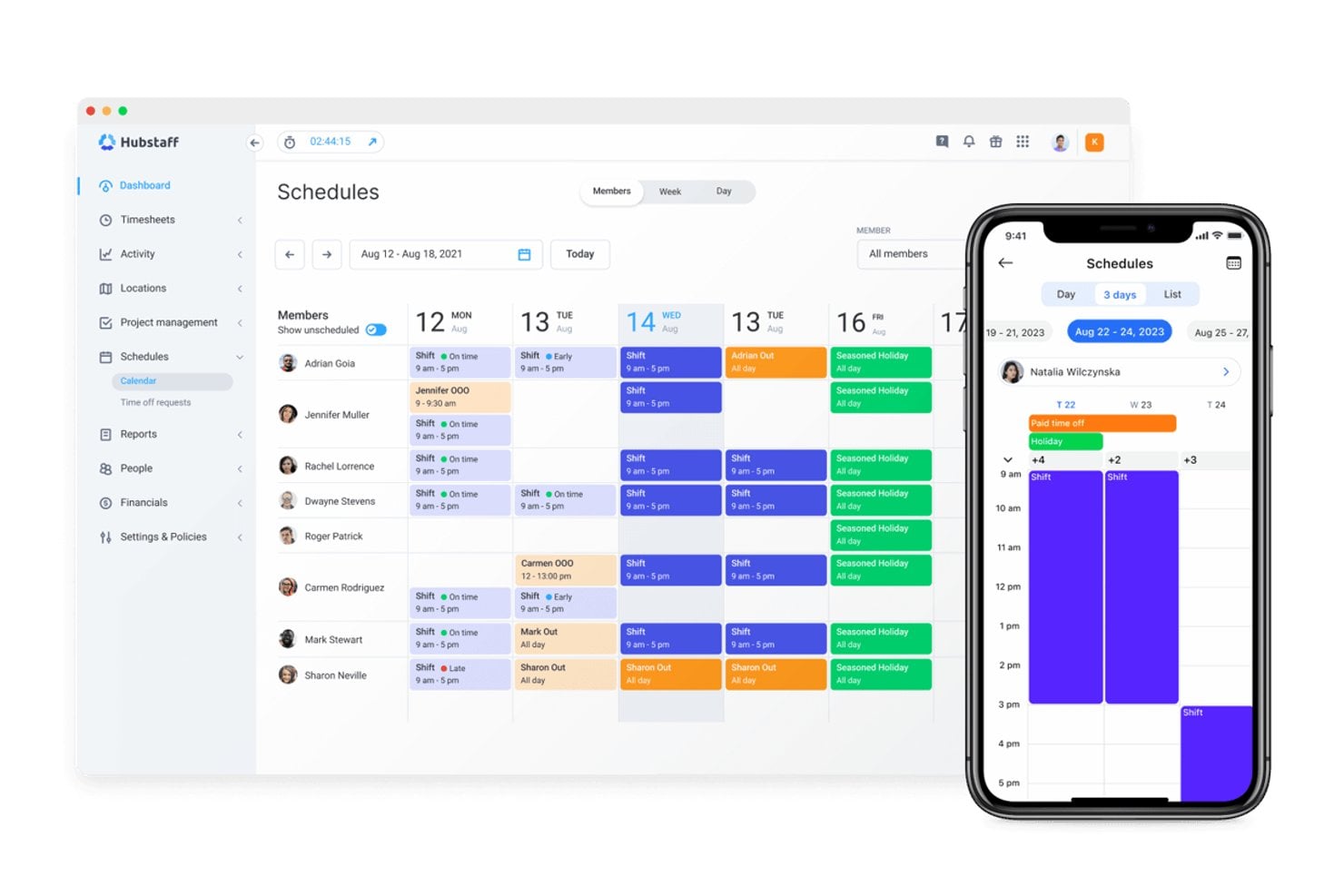
Time and attendance tracking records when your employees start, end, and break from work, then feeds those hours into payroll. Staff clock in from a mobile app, web portal, or kiosk. Many tools add geofencing or photo verification, so punches come from the right location.
In my experience, the best tools flag missed punches, late arrivals, and overtime as they happen. Managers can fix errors before timesheets close. Look for automatic break rules and approval workflows. They keep hours consistent with your labor policies, and they cut down on manual timesheet corrections.
Time tracking methods fit different work settings, and the right clock-in option depends on where your people actually work:
- Mobile app with geofencing: Field crews and home care teams clock in only within a set radius of the job site. Connecteam and Homebase both offer this.
- Kiosk with photo verification: Warehouses and retail stores use a shared tablet to catch buddy punching.
- Web portal: Office and remote staff log hours from a laptop, which suits hybrid teams.
- Automatic break rules: Healthcare and hospitality employers use these to apply meal break deductions consistently. Deputy and UKG support this.
3. Labor Forecasting and Demand Planning
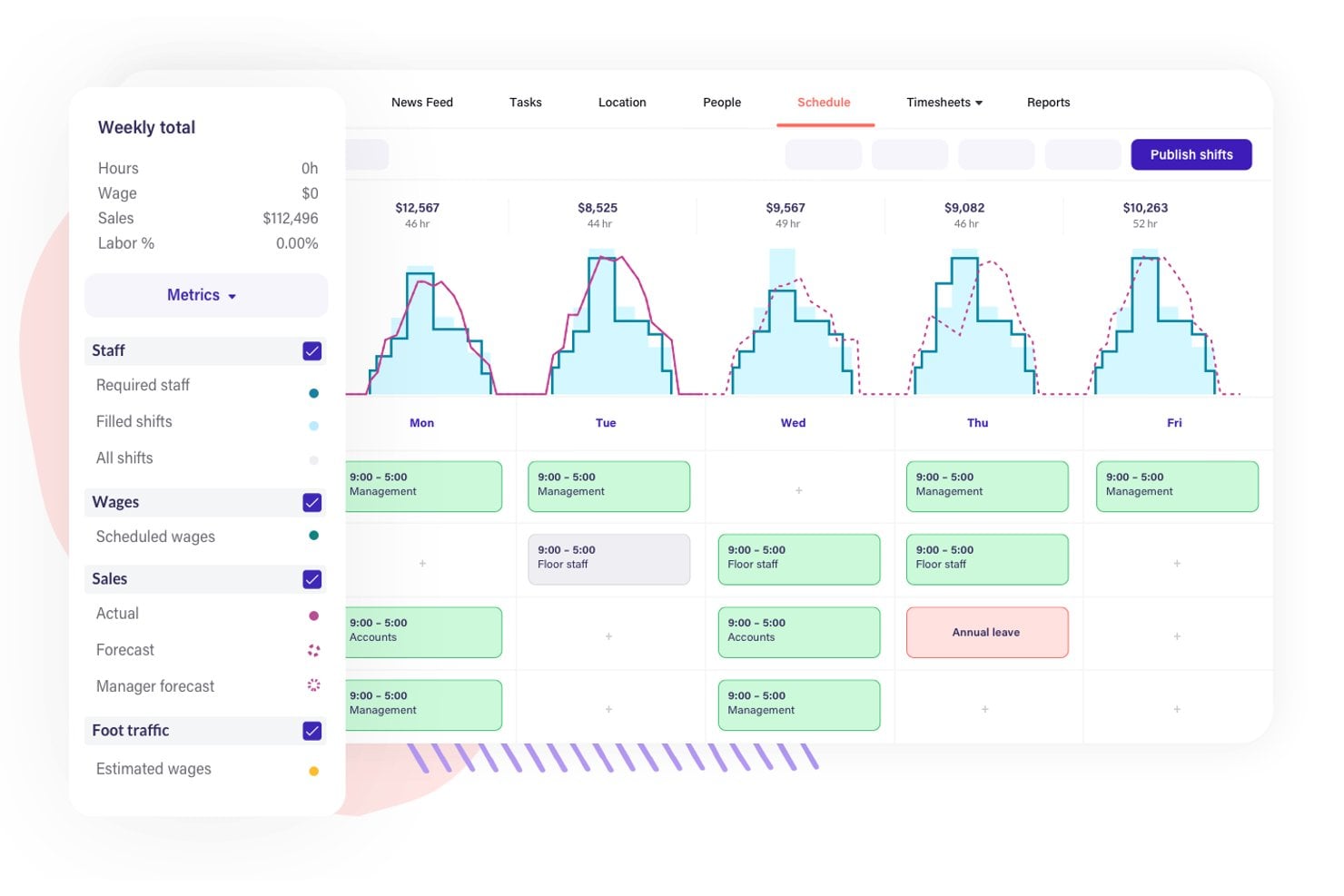
Labor forecasting predicts how many staff hours you'll need by comparing historical sales, foot traffic, or booking data against scheduled labor. Most tools pull from your POS or other business systems, then suggest staffing levels by day, shift, or role.
In my experience, the best versions show forecasted labor cost as a percentage of sales while you build the schedule. You can spot overstaffed slots before you publish. Look for tools that let you adjust forecasts for events, promotions, or seasonal spikes. Deputy and 7shifts both offer this.
Forecasting inputs vary by business, so the data you connect determines how useful the suggested staffing levels are:
- Sales and POS data: Restaurants and retailers compare past sales per hour against scheduled labor. 7shifts pulls this from POS systems to suggest staffing by shift.
- Foot traffic counts: Stores with door counters can staff for peak browsing hours, not just peak sales hours.
- Bookings and appointments: Salons, clinics, and fitness studios set staffing from upcoming reservations.
- Event and promotion flags: Add a holiday sale or local event manually, so the forecast doesn't rely on last year's average.
- Role-level targets: Set labor cost percentage goals by role, so kitchen and front-of-house forecasts stay separate.
4. Leave and Absence Management
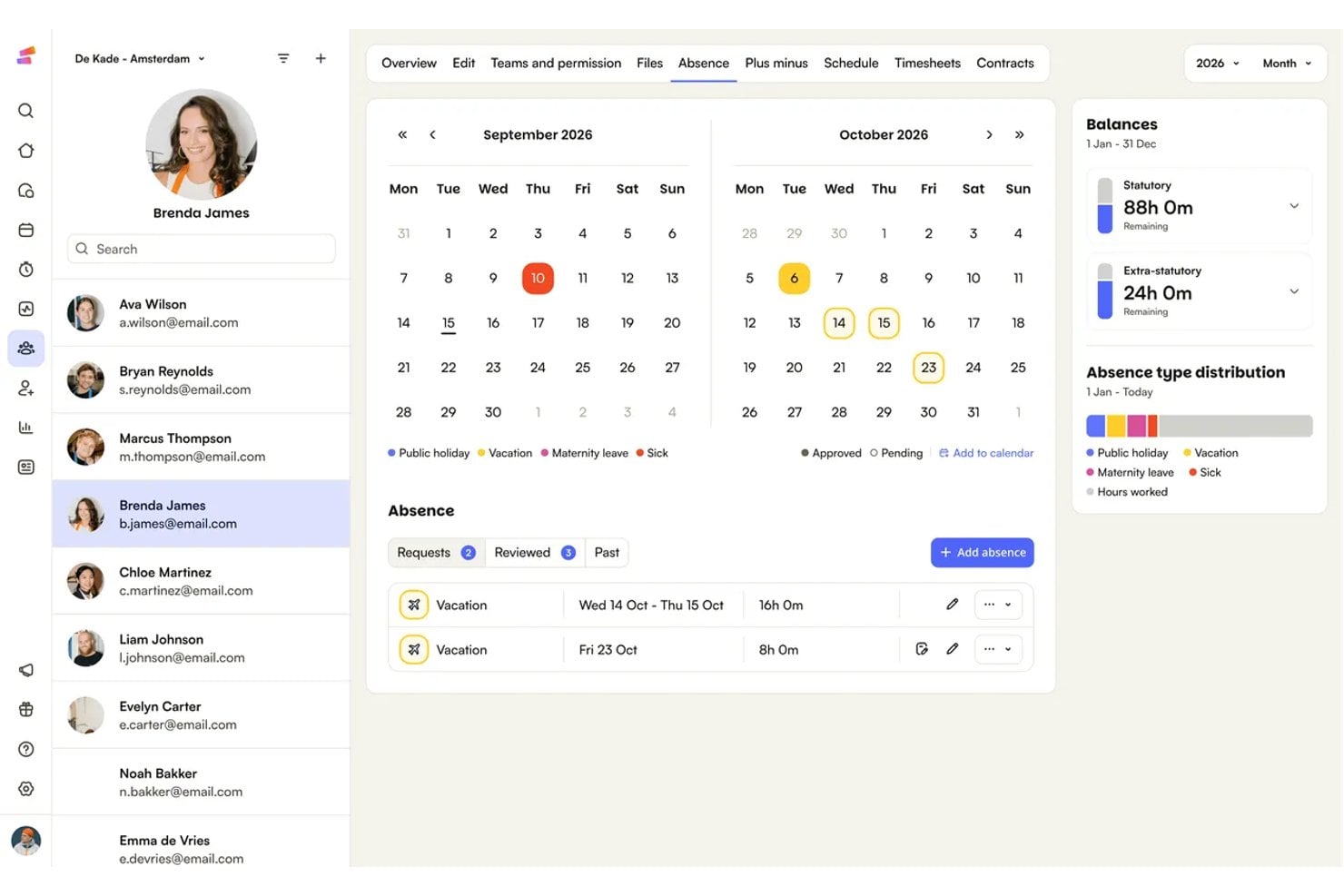
Leave and absence management tracks time off requests, balances, and approvals in the same system that builds your schedules. Employees submit requests from a mobile app or web portal, and managers approve or decline them with the schedule in view.
In my experience, the best tools apply accrual rules and local leave policies automatically. They also block approved time off from shift assignments, so you don't schedule someone who's out. Look for sick leave tracking, carryover limits, and calendar views of who's away. Kronos (UKG) and BambooHR both offer this.
Leave policies vary by employer type and region, so the way you configure absence tracking should match how your people actually take time off:
- Accrual-based vacation: Hours build per pay period or per hours worked, then carry over within set limits. BambooHR handles this with custom policy rules.
- Sick leave with local rules: Balances follow regional requirements, such as statutory sick pay or paid sick day laws. UKG supports location-based policies.
- Shift-based teams: Approved time off blocks scheduling, so a retail manager never rosters someone on leave.
- Parental and extended leave: Track long absences separately from standard PTO, so balances and return dates stay accurate.
- Team calendar view: See who's away before approving a new request.
5. Shift Swapping and Open Shift Management

Shift swapping lets employees trade shifts with coworkers, while open shift management lets them claim unfilled shifts from a mobile app. Managers set the rules, then approve or auto-approve requests.
In my experience, the best tools check each swap against role, skill, overtime limits, and approved leave before it goes through. Look for push notifications that alert eligible staff when a shift opens. Deputy and 7shifts both offer this, and you won't be answering "who can cover Saturday?" by text.
Swap and open shift rules work differently depending on how your team handles coverage. These examples show where each setup fits:
- Peer-to-peer swaps: Employees offer a shift to coworkers in the same role, and a manager approves the trade. Deputy and 7shifts both support this for restaurants and retail floors.
- Open shift claims: Managers post unfilled shifts, and qualified staff grab them from the app. Homebase offers this for part-time hourly teams.
- Credential checks: Healthcare teams block swaps when the new person lacks a required certification.
- Overtime guardrails: Auto-approval stops when a swap would push someone past weekly hour limits.
- Seasonal coverage: Temporary staff pick up peak-period shifts without a manager calling each person.
6. Payroll Integration

Payroll integration sends approved hours from your workforce management software straight into your payroll system. Time punches, overtime, paid leave, and shift differentials sync without anyone retyping a timesheet. Most tools offer native connections or exports to providers like ADP, Gusto, and QuickBooks.
In my experience, the best integrations apply your pay rules before the data moves, including overtime thresholds and break deductions. Look for approval locks that stop edits after a pay period closes. You should also check for sync error alerts, so a failed transfer doesn't surface on payday.
Payroll connections differ by provider and pay model, so match the sync method to how your team gets paid:
- Native integrations: Gusto and QuickBooks Payroll connect directly with tools like Homebase, so approved hours flow in without file uploads.
- Export files: Smaller tools often send CSV files, which you upload to ADP or another provider each pay period.
- Overtime and differentials: Set night or weekend premiums in the scheduling tool first, so payroll receives the correct rates.
- Multi-state or multi-country pay rules: UKG applies location-based pay rules before sending hours.
- Pay period locks: Close the period so late edits don't create off-cycle corrections.
7. Labor Compliance Management

Labor compliance management applies wage and hour rules to your schedules and timesheets, so you can catch violations before they become claims. The software checks shifts against overtime thresholds, required meal and rest breaks, minor work limits, and predictive scheduling notice periods.
In my experience, the best tools warn managers while they build the schedule, not after payroll runs. Look for rule libraries by location, audit trails of edits and approvals, and break violation reports. Deputy and UKG both offer this, and you'll have records ready if an audit comes.
Compliance rules change by location and workforce type, so match each check to the risk your team carries:
- Overtime thresholds: Daily and weekly limits trigger alerts while you build the schedule. Deputy flags overtime before you publish.
- Meal and rest breaks: Missed or short breaks show up in violation reports. Healthcare and hospitality teams rely on these most.
- Minor work limits: Hour and time-of-day caps stop you from scheduling younger workers past permitted limits.
- Predictive scheduling notice: Retailers and restaurants in covered cities track publish deadlines and change penalties. UKG supports these rules.
- Audit trails: Edit and approval logs give you records when a claim arrives.
8. Mobile Employee Self-Service

Mobile employee self-service lets your team handle schedules, time punches, and requests from a phone instead of asking a manager. Employees view shifts, clock in and out, request time off, and update availability in one app.
In my experience, the best apps send push notifications when schedules change and show pay period hours in real time. Look for GPS or geofenced clock-ins, offline punching, and in-app messaging. Homebase and Deputy both offer this, and your managers will field fewer "what's my schedule?" texts.
Mobile app features matter differently depending on where your team works and how they clock in. Match these capabilities to your setup:
- Geofenced clock-ins: Punches only register when someone is on site. Homebase offers this for retail and restaurant teams with several locations.
- Offline punching: Some workforce management systems allow employees to record clock-ins without an internet connection and sync them once connectivity returns. Check which devices and app versions support this functionality.
- Availability updates: Employees set when they can work, so managers don't schedule around outdated texts.
- Real-time pay period hours: Employees see hours as they build, which cuts down on overtime surprises.
- In-app messaging: Managers send shift notes to one location or the whole team.
9. Task and Activity Management

Task and activity management assigns duties to specific shifts or employees, then tracks completion from a mobile app. Managers build checklists for opening, closing, cleaning, or safety checks, and staff mark items done.
In my experience, the best tools attach tasks to roles and shifts, so the right person sees the right list. Look for photo proof, due times, and completion reports. Deputy and 7shifts both offer this, and you'll see which tasks got missed without walking the floor to check.
Task setups differ by the kind of work your team does, so match each type of checklist to the shift it supports:
- Opening and closing checklists: Managers attach cash counts, equipment checks, and lockup steps to specific shifts. 7shifts supports this for restaurants.
- Cleaning and safety rounds: Staff log temperature checks or sanitation steps with timestamps. Deputy offers task lists with photo proof.
- Role-based assignments: Only servers see server tasks, so cooks don't scroll through irrelevant lists.
- Due times: Tasks flag as overdue when nobody completes them before a set hour.
- Completion reports: Managers review missed items across locations without visiting each site.
10. Workforce Analytics and Reporting

Workforce analytics and reporting turns schedule, time, and payroll data into dashboards and reports. You can see labor cost, overtime, attendance, and schedule coverage in one place.
In my experience, the best tools compare scheduled hours against actual hours and sales or demand. Look for labor cost percentage, absence trends, and exports to spreadsheets. Deputy and 7shifts both offer this, and you'll spot overtime creep before payroll closes.
Analytics needs differ by what you manage and which numbers you review each week, so match each report to the decision it supports:
- Labor cost percentage: Compares scheduled and actual labor spend against sales. 7shifts shows this for restaurants adjusting staffing by daypart.
- Overtime tracking: Flags employees approaching weekly limits so you can reassign hours before payroll closes. Deputy offers this.
- Attendance and absence trends: Highlights repeat late arrivals or Monday call-outs across locations.
- Schedule coverage: Shows understaffed shifts against forecasted demand.
- Spreadsheet exports: Sends data to Excel or Google Sheets when finance wants custom analysis.
11. Employee Communication and Engagement

Employee communication tools keep shift updates, location announcements, and team messages in the same place employees check their schedules.
Two-way messaging and recognition features can also support employee engagement, especially for teams that rarely share an office. The goal is a better employee experience without relying on personal texts for every update.
In my experience, the best tools offer group and one-to-one chat, read receipts, and announcement posts by location or role. Look for shout-outs, polls, and shift-change alerts. Homebase and 7shifts both offer team messaging, and you'll know who saw an update without chasing people down.
Communication tools earn their keep when the message type matches the audience, so set up each channel before you roll out the app:
- Location announcements: Post schedule policy changes to one site only. Homebase lets managers target a single location.
- Role-based posts: Send closing-procedure updates to kitchen staff without pinging servers. 7shifts supports this.
- Read receipts: Check who opened a last-minute policy change before the shift starts.
- Shift-change alerts: Push notifications tell employees when a swap is approved or a shift moves.
- Recognition shout-outs: Public praise after a busy weekend keeps hourly teams motivated.
12. Performance and Productivity Management

Performance and productivity management in workforce management software tracks how employees perform against goals, schedules, and output targets. You set metrics, such as sales per labor hour or tasks completed per shift, and the software compares them with actual results.
In my experience, the best tools connect performance data to time and attendance records, so reviews rest on facts instead of memory. Look for goal tracking, feedback logs, and productivity dashboards. Deputy and 7shifts both offer sales and labor performance views, and you'll see who needs coaching before review season arrives.
Performance tracking looks different depending on what your team produces, so match each metric to the work your employees do:
- Sales per labor hour: Compares revenue against scheduled hours by shift. 7shifts shows this for restaurants coaching servers by daypart.
- Tasks completed per shift: Tracks checklist completion against due times. Deputy offers this for cleaning and safety rounds.
- Attendance against schedule: Links late arrivals and early clock-outs to review notes, so feedback rests on timestamps.
- Feedback logs: Store coaching notes beside time records, so you can pull examples before a review.
- Productivity dashboards: Rank locations or shifts so you can spot who needs support.
13. Labor Cost Management and Budgeting

Labor cost management and budgeting sets spending targets for each location, then tracks scheduled and actual wages against them. You see projected cost as you build the schedule, before anyone works a shift.
In my experience, the best tools pull in sales forecasts, pay rates, and overtime rules to calculate cost automatically. Look for budget alerts, labor percentage targets, and variance reports. Deputy and 7shifts both offer live labor cost tracking, and you'll catch an overspent schedule while you can still change it.
Labor cost setups vary by how you staff and where you review the numbers, so match each control to the budget decision it supports:
- Location budgets: Set a weekly wage target for each site. 7shifts shows projected labor cost against sales targets for restaurants.
- Live cost while scheduling: Watch the total change as you add shifts. Deputy shows projected cost as you build the roster.
- Overtime rules: Apply local overtime thresholds to the calculation, so projected cost reflects premium pay.
- Budget alerts: Flag a schedule that goes over target before you publish it.
- Variance reports: Compare planned and actual wages after each pay period.
14. Skills and Certification Tracking

Skills and certification tracking stores each employee's licenses, training records, and qualifications in their workforce management profile. You set expiration dates, and the software checks them against the schedule.
In my experience, the best tools block assignments when a certification has lapsed. Look for expiry alerts, document uploads, and skill-based shift matching. Deputy and 7shifts both offer qualification tracking, and you'll catch an expired food handler card or first aid certificate before an audit does.
Certification rules differ by industry and by role, so match each tracking feature to the credential your team has to keep current:
- Expiry alerts: Notify managers 30 or 60 days before a license lapses. Deputy sends these for first aid and food handler cards.
- Document uploads: Store a scanned certificate in the employee profile, so audit files live in one place.
- Skill-based shift matching: Limit shift assignments to staff with the right qualification. 7shifts supports this for roles like bartenders and line cooks.
- Assignment restrictions: Check whether the software blocks scheduling when a required certification expires or simply warns managers. Some systems allow overrides, so human review remains important.
- Compliance reports: Identify employees with missing or expiring certifications across locations.
15. Integration with HR and Business Systems

Workforce management software should connect with the HR software and business systems your team already uses, including human capital management (HCM) platforms, payroll, accounting, and point-of-sale tools.
Look beyond the list of available integrations and check which employee records, labor data, and updates actually sync. Reliable connections reduce duplicate entry and make the system easier to scale as your workforce grows.
In my experience, the best tools sync new hires, pay rates, and approved timesheets automatically. Look for two-way syncing, error logs, and connectors for tools like QuickBooks, Xero, and Gusto. Deputy and 7shifts both offer payroll and POS integrations, and you'll stop re-keying hours into payroll before every pay run.
Integration needs vary by system, so check each connection against the data you re-key today:
- Payroll sync: Approved timesheets flow to Gusto or QuickBooks Payroll, so you stop retyping hours before each pay run. Deputy and 7shifts both offer this.
- HRIS sync: New hires and pay rate changes carry over once, so profiles match across systems.
- POS data: Sales figures feed labor forecasts. 7shifts connects with Toast and Square for restaurants.
- Accounting export: Labor costs post to Xero or QuickBooks for month-end close.
- Error logs: Failed syncs show which employee record needs a fix.
Top 10 Workforce Management Software
Here are our top picks for workforce management software to help you with your search:
Clicks on the links below may earn a commission, which supports our independent testing and review of software and services. Learn more about how we stay transparent.


Now Match the Features to Your Budget
Once you know which features your team needs, compare them against workforce management software pricing to see typical per-user rates, add-on fees, and hidden costs before you request demos.