

Le 10 migliori alternative a Google Docs per i team HR nel 2026

Elenco delle migliori alternative a Google Docs


Una valida alternativa a Google Docs offre un programma di videoscrittura basato sul cloud con funzioni affidabili per la collaborazione, la modifica e la condivisione, oltre a opzioni per la privacy, l'integrazione del flusso di lavoro o l'accesso offline. Se stai cercando uno strumento che eguagli o superi la flessibilità di Google Docs, adattandosi meglio alle esigenze del tuo team, non sei il solo.
Se hai bisogno di una formattazione avanzata, di una maggiore sicurezza, di un'unica soluzione completa o di un approccio diverso alla gestione dei documenti, questo elenco ti aiuterà a confrontare le migliori opzioni per il 2026 e a scegliere la soluzione più adatta al tuo flusso di lavoro.
Che cos'è Google Docs?
Google Docs è un programma di videoscrittura basato sul cloud che consente agli utenti di creare, modificare e condividere documenti online in tempo reale. Supporta la modifica collaborativa, il salvataggio automatico e un facile accesso da qualsiasi dispositivo con una connessione Internet. Google Docs è ampiamente utilizzato da team e singoli utenti grazie alla sua interfaccia semplice, all'integrazione con gli altri strumenti di Google Workspace e alla possibilità di gestire i flussi di lavoro dei documenti senza dover installare software localmente.
Riepilogo delle migliori alternative a Google Docs
Questa tabella comparativa riassume i dettagli sui prezzi delle mie migliori alternative a Google Docs, per aiutarti a trovare quella più adatta al tuo budget e alle esigenze della tua azienda.
| Tool | Best For | Trial Info | Price | ||
|---|---|---|---|---|---|
| 1 | Ideale per l'archiviazione privata dei documenti nel cloud | Prova gratuita + dimostrazione gratuita disponibili | Prezzi su richiesta | Website | |
| 2 | Ideale per la compatibilità multipiattaforma | Piano gratuito disponibile | A partire da $2.49/utente/mese (con fatturazione annuale) | Website | |
| 3 | Ideale per l'automazione integrata dei flussi di lavoro | Piano gratuito disponibile | A partire da $3/user/month (con fatturazione annuale) | Website | |
| 4 | Ideale per la modifica offline dei documenti | Piano gratuito disponibile | Prezzi su richiesta | Website | |
| 5 | Ideale per strumenti integrati di gestione dei progetti | Piano gratuito + prova gratuita di 30 giorni disponibile | A partire da $20/amministratore/mese | Website | |
| 6 | Ideale per controlli di formattazione avanzati | Piano gratuito disponibile | Da $99.99/anno | Website | |
| 7 | Ideale per documenti con crittografia end-to-end | Piano gratuito disponibile | Da $12.99/utente/mese (con fatturazione annuale) | Website | |
| 8 | Ideale per la collaborazione documentale a codice aperto | Demo gratuita disponibile | Prezzi su richiesta | Website | |
| 9 | Ideale per l'assistenza alla scrittura basata sull'intelligenza artificiale | Prova gratuita disponibile | A partire da $14.99/mese (fatturato annualmente) | Website | |
| 10 | Ideale per la creazione istantanea di documenti senza registrazione | Demo gratuita disponibile | A partire da €14.99 (per 3 mesi) | Website |
Perché fidarsi delle nostre recensioni sui software
Il nostro team testa e recensisce software dal 2012. In quanto esperti HR noi stessi, sappiamo quanto sia difficile — e importante — scegliere il software giusto.
Per questa guida, abbiamo valutato gli strumenti attraverso test pratici e ricerche indipendenti, assegnando un punteggio agli strumenti in base ai nostri criteri di selezione. Ci basiamo inoltre sulle competenze di leader di pensiero del settore e di professionisti HR attivi.
Le nostre recensioni riflettono il nostro giudizio editoriale umano, non un discorso di vendita.
Revisori esperti:
Recensioni delle migliori alternative a Google Docs
Di seguito trovi i miei riepiloghi dettagliati delle migliori alternative a Google Docs incluse nel mio elenco. Le mie recensioni offrono un’analisi dettagliata delle caratteristiche principali, dei pro e dei contro, delle integrazioni e dei casi d’uso ideali di ogni strumento, per aiutarti a trovare quello più adatto a te.
Ideale per l'archiviazione privata dei documenti nel cloud
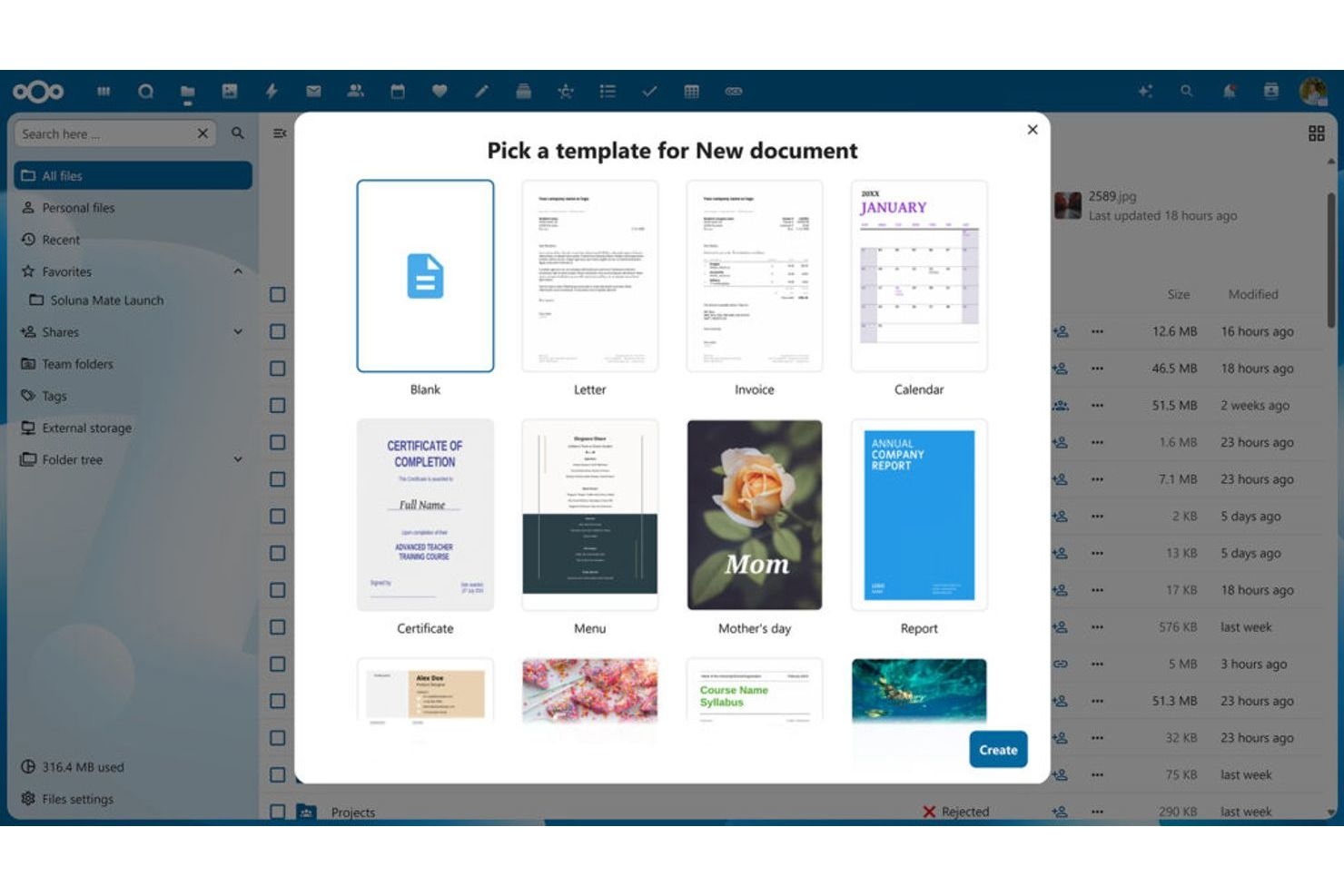
Se la tua organizzazione ha bisogno di un sistema privato di archiviazione dei documenti in sede insieme alla modifica online, Nextcloud Office merita un'attenta valutazione. Questa piattaforma è progettata per aziende, istituti scolastici e gruppi governativi che desiderano mantenere i file sensibili sui propri server, abilitando al contempo la collaborazione basata sul cloud. Nextcloud Office si distingue da Google Docs offrendo piena sovranità sui dati, controlli di accesso personalizzabili e integrazione con un'ampia gamma di strumenti di produttività ospitati internamente.
Per chi è più adatto Nextcloud Office?
Gruppi IT e della sicurezza di organizzazioni di medie e grandi dimensioni in tutto il mondo, che gestiscono l'archiviazione privata dei documenti nel cloud e la collaborazione.
Perché ho scelto Nextcloud Office
A differenza della maggior parte degli elaboratori di testo basati sul cloud, Nextcloud Office consente di archiviare e gestire i documenti interamente sulla propria infrastruttura. Ho scelto Nextcloud Office perché è pensato per le organizzazioni che hanno bisogno di archiviare i documenti in un cloud privato e desiderano evitare l'hosting dei dati da parte di terzi. Grazie a funzionalità come le autorizzazioni granulari per l'accesso ai file e la crittografia end-to-end, puoi controllare esattamente chi visualizza e modifica i documenti sensibili. Se il tuo gruppo deve soddisfare rigorosi requisiti di conformità o semplicemente desidera mantenere i file all'interno dell'organizzazione, Nextcloud Office è una valida alternativa a Google Docs.
Funzionalità principali di Nextcloud Office
Alcune altre funzionalità che rendono Nextcloud Office interessante per la collaborazione sui documenti includono:
- Suite per ufficio integrata: Crea, modifica e collabora su documenti, fogli di calcolo e presentazioni direttamente all'interno della piattaforma.
- Controllo delle versioni: Tieni traccia delle modifiche e ripristina le versioni precedenti dei file quando necessario.
- Strumenti di collaborazione: Usa la chat integrata, le videochiamate e i commenti per comunicare con i membri del gruppo mentre lavori sui documenti.
- Sincronizzazione automatica dei file: Mantieni i file aggiornati su tutti i dispositivi grazie alla sincronizzazione automatica.
Integrazioni online di Nextcloud Office
Integrazioni native con Nextcloud Files, Talk, Deck, l'API di DeepL, Outlook, SharePoint e altro.
Pros and Cons
Pros:
- L'hosting in sede offre alle organizzazioni il pieno controllo sui dati dei documenti
- Supporta la modifica collaborativa grazie alla funzionalità integrata di suite per ufficio
- Offre autorizzazioni granulari per gli utenti e controlli di accesso avanzati
Cons:
- La configurazione iniziale e la manutenzione del server richiedono competenze tecniche
- La collaborazione in tempo reale può subire rallentamenti con file grandi o complessi

Ideale per la compatibilità multipiattaforma

Se hai bisogno di un elaboratore di testi basato sul cloud che funzioni senza problemi su dispositivi e sistemi operativi diversi, vale la pena dare un’occhiata a WPS Docs. Questa piattaforma è progettata per squadre e professionisti che passano da Windows, Mac, Linux, Android e iOS. WPS Docs si distingue per offrire un’esperienza di modifica coerente e la compatibilità dei file, indipendentemente da dove o da come lavori.
Per chi è più adatto WPS Docs?
Utenti aziendali e studenti di piccole e medie organizzazioni in tutto il mondo che lavorano su dispositivi e sistemi operativi diversi e necessitano di compatibilità multipiattaforma.
Perché ho scelto WPS Docs
WPS Docs si distingue per la capacità di offrire un’esperienza di modifica unificata su quasi tutti i dispositivi e sistemi operativi. Ho scelto WPS Docs perché puoi iniziare un documento sul telefono, continuare sul computer portatile e terminarlo su un tablet senza perdere la formattazione o le funzionalità. La piattaforma supporta Windows, Mac, Linux, Android e iOS, quindi la tua squadra non è limitata dalle scelte relative ai dispositivi o ai programmi. Per chiunque abbia bisogno di una vera compatibilità multipiattaforma in un elaboratore di testi basato sul cloud, WPS Docs offre una flessibilità che Google Docs non riesce sempre a garantire.
Funzionalità principali di WPS Docs
Alcune altre funzionalità che rendono WPS Docs interessante per la collaborazione sui documenti includono:
- Strumenti di modifica PDF: modifica, annota e converti i file PDF direttamente all’interno della piattaforma.
- Libreria di modelli per documenti: accedi a un’ampia gamma di modelli predefiniti per relazioni, curriculum e altro.
- Integrazione con l’archiviazione cloud: connettiti a servizi come Dropbox, Google Drive e OneDrive per la gestione dei file.
- Strumenti di collaborazione: usa commenti in tempo reale e tieni traccia delle modifiche per lavorare insieme sui documenti.
Integrazioni di WPS Docs
Le integrazioni native non sono elencate pubblicamente.
Pros and Cons
Pros:
- Funziona in modo coerente su dispositivi Windows, Mac, Linux, Android e iOS
- Supporta la modifica e la conversione dei file PDF all’interno della piattaforma
- Offre un’ampia libreria di modelli per documenti e fogli di calcolo
Cons:
- Per accedere ad alcune funzionalità avanzate è necessario un abbonamento a pagamento
- Lo spazio di archiviazione cloud è più limitato rispetto al piano gratuito di Google Drive
Ideale per l'automazione integrata dei flussi di lavoro
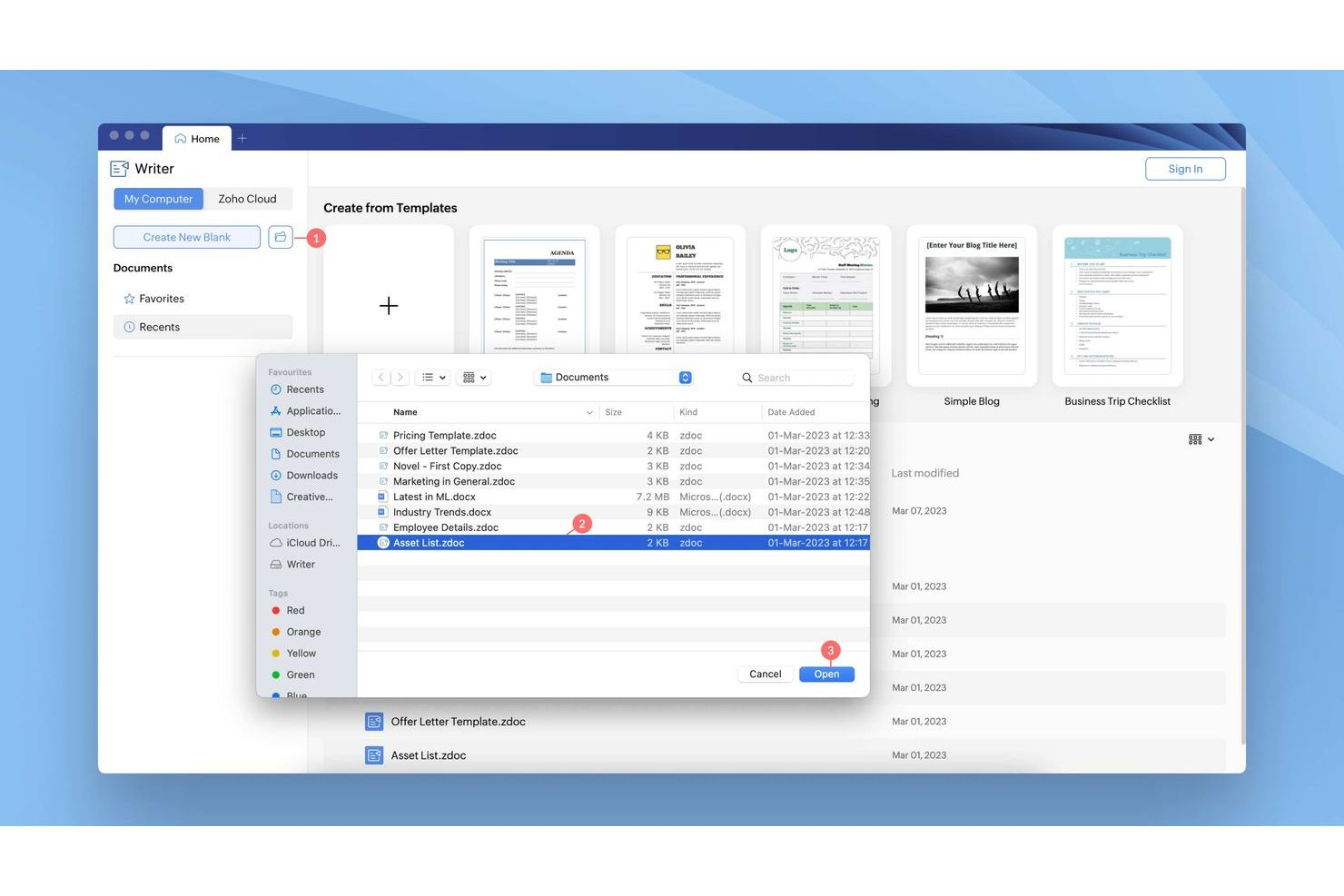
Se cerchi un elaboratore di testi basato sul cloud con automazione dei flussi di lavoro integrata, Zoho Writer merita un'analisi più approfondita. È progettato per i team e le organizzazioni che desiderano automatizzare le approvazioni dei documenti, le firme e le fasi di collaborazione direttamente nel proprio strumento di scrittura. Zoho Writer si distingue per gli utenti che devono gestire i processi documentali senza affidarsi a piattaforme separate per i flussi di lavoro o le firme elettroniche.
A chi è più adatto Zoho Writer?
Team operativi e utenti aziendali di piccole e medie imprese in Nord America e in Europa che automatizzano i flussi di lavoro documentali all'interno di ambienti per ufficio basati sul cloud.
Perché ho scelto Zoho Writer
A differenza della maggior parte degli elaboratori di testi basati sul cloud, Zoho Writer include funzioni di automazione dei flussi di lavoro integrate direttamente nella piattaforma. Ho scelto Zoho Writer perché consente di configurare flussi di approvazione dei documenti, automatizzare le richieste di firma elettronica e assegnare attività ai collaboratori senza uscire dal documento. Il pannello di automazione consente di creare flussi di lavoro personalizzati per revisioni e approvazioni, una funzione particolarmente utile per i team delle risorse umane, legali o operativi. Questi strumenti integrati aiutano a gestire i processi documentali in modo più efficiente rispetto a Google Docs, che richiede componenti aggiuntivi di terze parti per funzionalità simili.
Funzionalità principali di Zoho Writer
Oltre agli strumenti di automazione dei flussi di lavoro, Zoho Writer offre diverse altre funzioni che supportano la creazione collaborativa di documenti:
- Collaborazione in tempo reale: Più utenti possono modificare e commentare i documenti contemporaneamente da qualsiasi dispositivo.
- Modifica offline: Lavora sui documenti senza connessione Internet e sincronizza le modifiche quando torni online.
- Unione avanzata dei documenti: Genera automaticamente documenti personalizzati unendo dati provenienti da fogli di calcolo o moduli.
- Modelli integrati: Accedi a una raccolta di modelli predefiniti per lettere commerciali, report e altro.
Integrazioni di Zoho Writer
Le integrazioni includono Slack, Trello, WordPress, Zoho Flow e altro.
Pros and Cons
Pros:
- L'automazione integrata dei flussi di lavoro gestisce le approvazioni e le firme dei documenti
- La funzione di unione dei documenti automatizza la creazione di file personalizzati
- La modifica offline consente di lavorare senza connessione Internet
Cons:
- Alcuni strumenti di formattazione avanzata sono meno intuitivi da trovare
- Varietà di modelli limitata rispetto alla galleria di modelli di Google Docs
Ideale per la modifica offline dei documenti
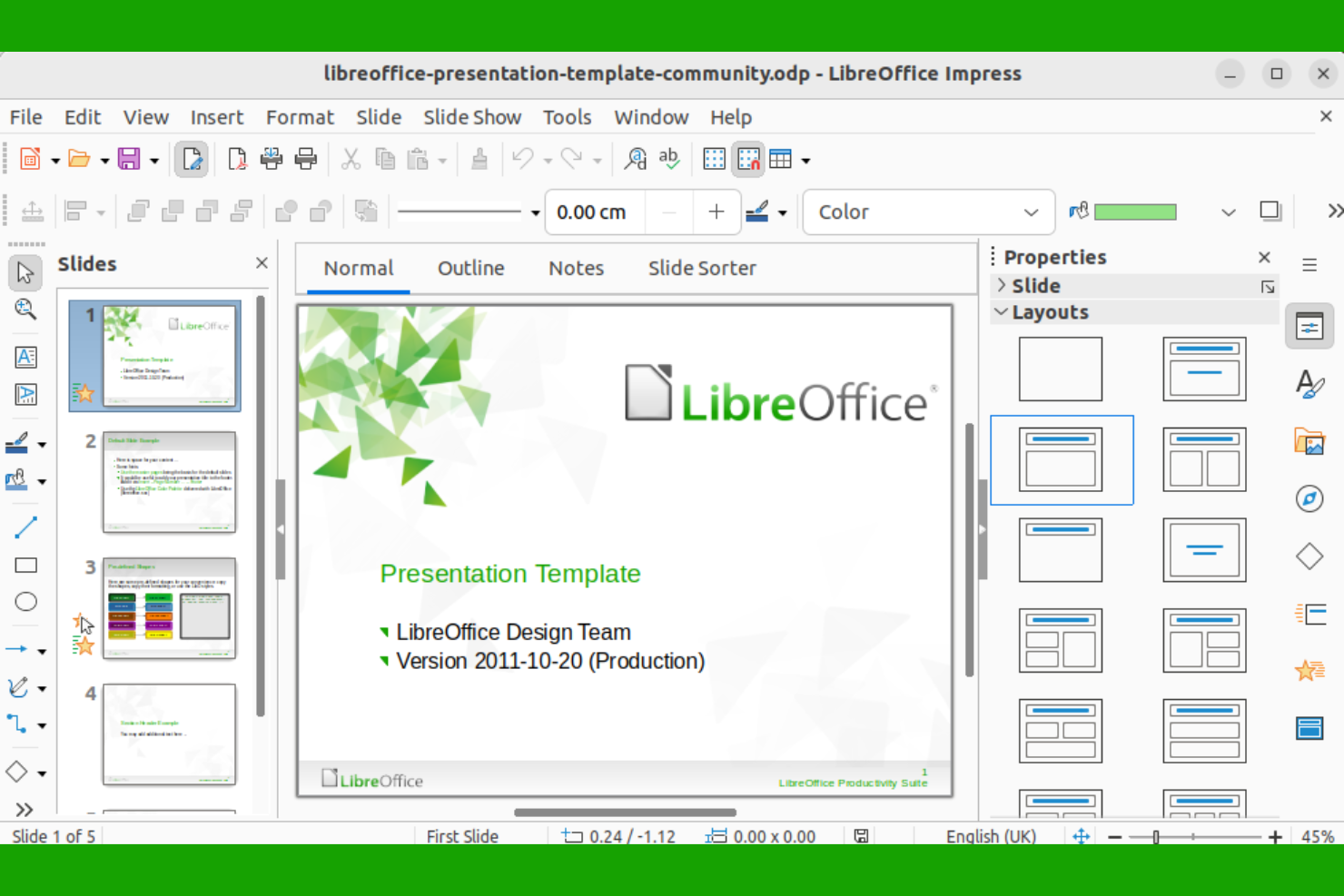
LibreOffice è una scelta valida se il tuo team ha bisogno di un elaboratore di testi che funzioni interamente offline. È particolarmente utile per le organizzazioni con requisiti rigorosi in materia di privacy dei dati o con accesso a Internet inaffidabile. A differenza di Google Docs e di altri strumenti basati sul cloud, LibreOffice ti offre il pieno controllo sui documenti senza bisogno di una connessione a Internet.
A chi è più adatto LibreOffice?
Professionisti singoli e team IT di organizzazioni di piccole e medie dimensioni in tutto il mondo che necessitano di modificare documenti offline con un software open source.
Perché ho scelto LibreOffice
Per i team che hanno bisogno di lavorare senza dipendere da Internet, LibreOffice si distingue come un elaboratore di testi offline affidabile. Ho scelto LibreOffice perché consente di creare, modificare e salvare i documenti localmente, così non si dipende mai dall'accesso al cloud o dalla connettività. La suite include strumenti di formattazione avanzati e supporta un'ampia gamma di tipi di file, inclusi i formati di Microsoft Word. Questo la rende particolarmente adatta alle organizzazioni con rigorose esigenze di privacy dei dati o che operano in luoghi con un servizio Internet limitato.
Funzionalità principali di LibreOffice
Alcune delle altre funzionalità che rendono LibreOffice interessante per la modifica dei documenti includono:
- Ampio supporto linguistico: La suite offre strumenti integrati di controllo ortografico e grammaticale per decine di lingue.
- Barre degli strumenti personalizzabili: Puoi personalizzare l'interfaccia aggiungendo o rimuovendo i pulsanti della barra degli strumenti per adattarla al tuo flusso di lavoro.
- Esportazione in PDF: Esporta i documenti direttamente in formato PDF senza bisogno di software aggiuntivo.
- Registrazione di macro: Automatizza le attività ripetitive registrando ed eseguendo macro personalizzate all'interno dei documenti.
Integrazioni di LibreOffice
Le integrazioni native non sono elencate pubblicamente.
Pros and Cons
Pros:
- Supporta un'ampia gamma di formati di file, inclusi DOCX e ODT
- Opzioni avanzate di formattazione e stile alla pari con gli elaboratori di testi desktop
- Software open source con aggiornamenti regolari e supporto della community
Cons:
- Occasionali problemi di compatibilità con la formattazione complessa di Google Docs
- Nessuna app mobile ufficiale per modificare documenti su smartphone o tablet

Ideale per strumenti integrati di gestione dei progetti
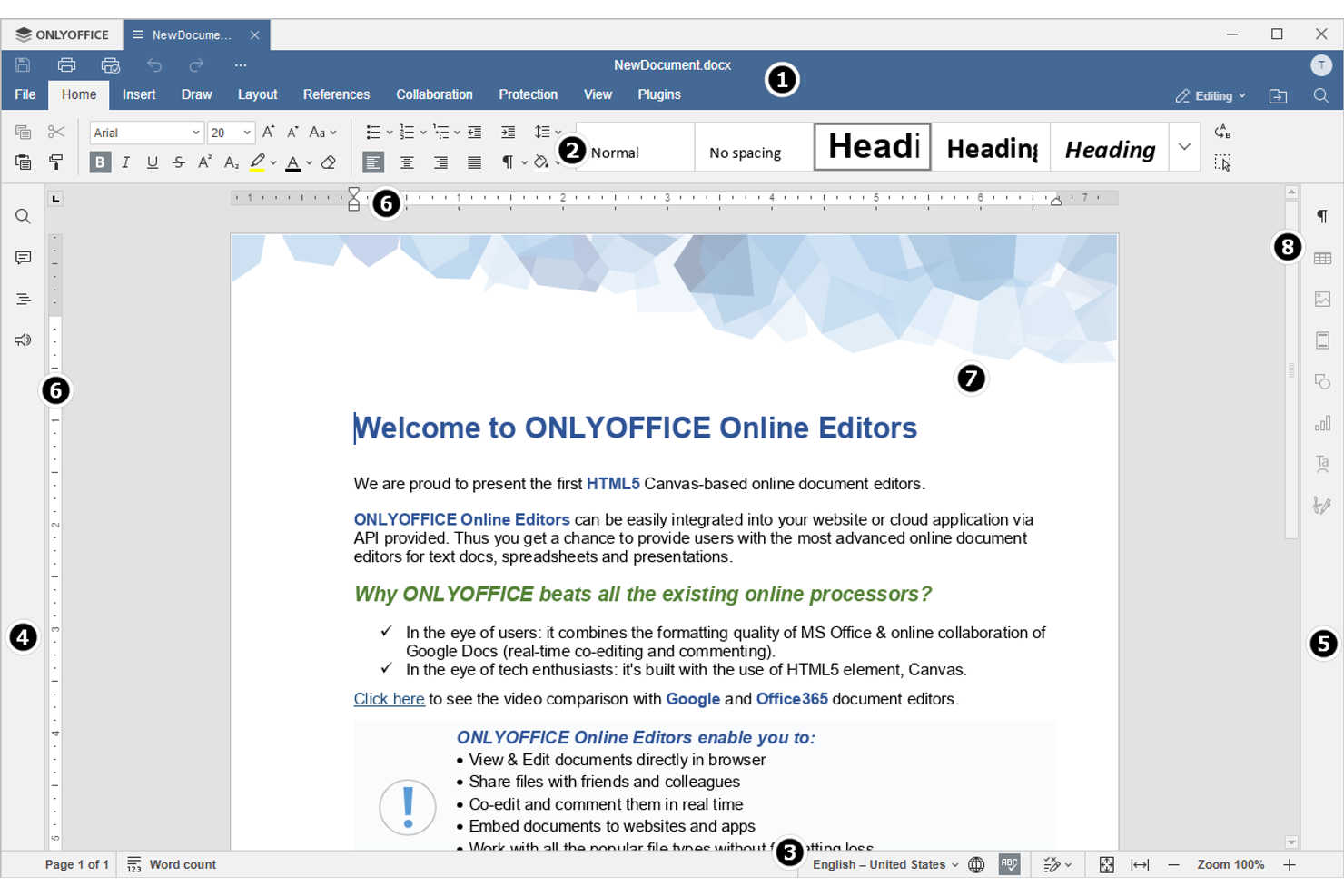
I team alla ricerca di un elaboratore di testi basato sul cloud con gestione dei progetti integrata troveranno OnlyOffice particolarmente interessante. Questa piattaforma combina la modifica dei documenti con strumenti per monitorare le attività, gestire le scadenze e collaborare ai progetti in un unico luogo. Se è necessario mantenere documenti e flussi di lavoro dei progetti strettamente connessi, OnlyOffice offre uno spazio di lavoro unificato che va oltre ciò che Google Docs mette a disposizione.
Per chi è più indicato OnlyOffice?
Responsabili delle operazioni e team IT di piccole e medie imprese in Europa e Nord America che coordinano i documenti insieme a flussi di lavoro integrati per la gestione dei progetti.
Perché ho scelto OnlyOffice
A differenza della maggior parte degli elaboratori di testi basati sul cloud, OnlyOffice riunisce la gestione dei progetti e la modifica dei documenti in un'unica piattaforma. Ho scelto OnlyOffice perché consente di assegnare attività, impostare scadenze e monitorare l'avanzamento dei progetti direttamente accanto ai documenti. È possibile creare, modificare e collaborare sui file mantenendo discussioni e traguardi del progetto nello stesso spazio di lavoro. Per i team che desiderano gestire sia i contenuti sia il flusso di lavoro senza passare da uno strumento all'altro, OnlyOffice offre un livello di integrazione che Google Docs non riesce a eguagliare.
Funzionalità principali di OnlyOffice
Alcune delle altre funzionalità che rendono OnlyOffice una scelta solida per la collaborazione sui documenti includono:
- Supporto per più formati di documento: Apri, modifica e salva file in formato DOCX, XLSX, PPTX e in altri formati diffusi.
- Co-modifica in tempo reale: Lavora sui documenti contemporaneamente con i colleghi e visualizza le modifiche mentre vengono apportate.
- Impostazioni avanzate delle autorizzazioni: Imposta diritti di accesso granulari per utenti e gruppi su ciascun documento.
- Chat e commenti integrati: Comunica direttamente all'interno dei documenti utilizzando la chat e commenti organizzati in discussioni.
Integrazioni di OnlyOffice
Le integrazioni includono Nextcloud, ownCloud, Confluence, Odoo, Pipedrive, SuiteCRM e altro.
Pros and Cons
Pros:
- Gli strumenti integrati di gestione dei progetti sono disponibili insieme alla modifica dei documenti
- Supporta la co-modifica in tempo reale per il lavoro collaborativo sui documenti
- Gestisce un'ampia gamma di formati di file, tra cui DOCX e ODT
Cons:
- L'esperienza di modifica da dispositivi mobili è meno curata rispetto alla versione desktop
- Le opzioni di archiviazione cloud sono più limitate rispetto a Google Drive
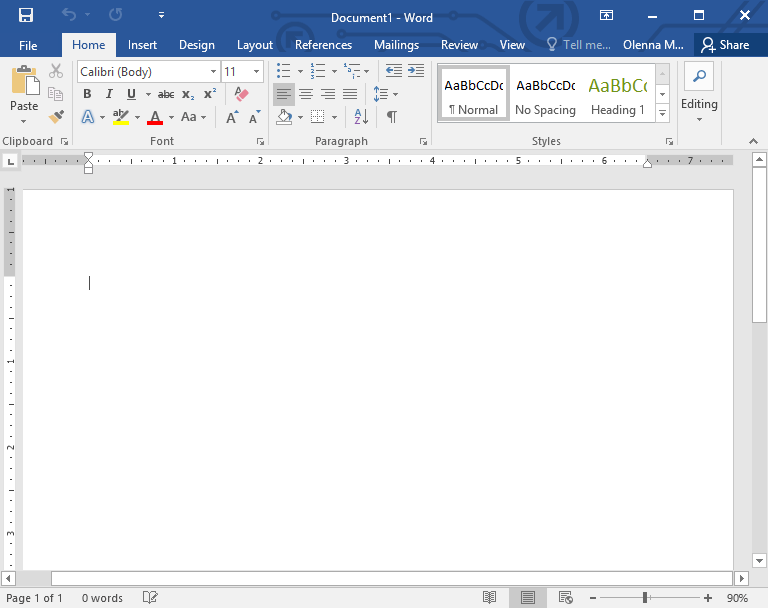
Microsoft Word offre un'elaborazione testi basata sul cloud con controlli di formattazione avanzati che vanno oltre quelli offerti dalla maggior parte degli editor online. È una soluzione ideale per professionisti e team che necessitano di opzioni precise per il layout, lo stile e la progettazione dei documenti. Se il tuo lavoro prevede report complessi, proposte o documenti che richiedono una formattazione dettagliata, Word offre la flessibilità e il controllo che spesso mancano in Google Documenti.
Per chi è più adatto Microsoft Word?
Professionisti della conoscenza e personale amministrativo di organizzazioni di piccole e grandi dimensioni in tutto il mondo che producono documenti che richiedono una formattazione avanzata e un controllo preciso del layout.
Perché ho scelto Microsoft Word
Quando hai bisogno di un maggiore controllo sulla formattazione dei documenti, Microsoft Word si distingue tra gli elaboratori di testi basati sul cloud. Ho scelto Word per le sue numerose opzioni di stile e layout, tra cui tabelle avanzate, interruzioni di sezione e intestazioni e piè di pagina personalizzati. La piattaforma supporta anche elementi complessi dei documenti, come note a piè di pagina, citazioni ed elenchi multilivello. Queste funzionalità lo rendono una scelta eccellente per gli utenti che devono creare documenti curati e professionali, andando oltre le funzioni di base offerte da Google Documenti.
Funzionalità principali di Microsoft Word
Altre funzionalità di Microsoft Word lo rendono una scelta versatile per lavorare sui documenti nel cloud:
- Collaborazione in tempo reale: Più utenti possono modificare e commentare i documenti contemporaneamente da qualsiasi luogo.
- Cronologia delle versioni: Accedi alle versioni precedenti dei tuoi documenti e ripristinale per tenere traccia delle modifiche o recuperare i contenuti.
- Editor integrato: Il correttore integrato di ortografia, grammatica e stile ti aiuta a perfezionare la scrittura mentre lavori.
- Esportazione e modifica dei PDF: Crea, esporta e modifica file PDF direttamente all'interno della piattaforma senza dover utilizzare software aggiuntivi.
Integrazioni di Microsoft Word
Le integrazioni includono Excel, PowerPoint, Outlook, OneNote, Project e altro ancora.
Pros and Cons
Pros:
- Gestione integrata di citazioni e bibliografie per la scrittura accademica
- Ampia libreria di modelli per esigenze aziendali, accademiche e creative
- Compatibilità affidabile con i documenti Word e i tipi di file precedenti
Cons:
- Richiede un account Microsoft e talvolta un abbonamento a pagamento
- La versione web non dispone di alcune funzionalità e componenti aggiuntivi desktop
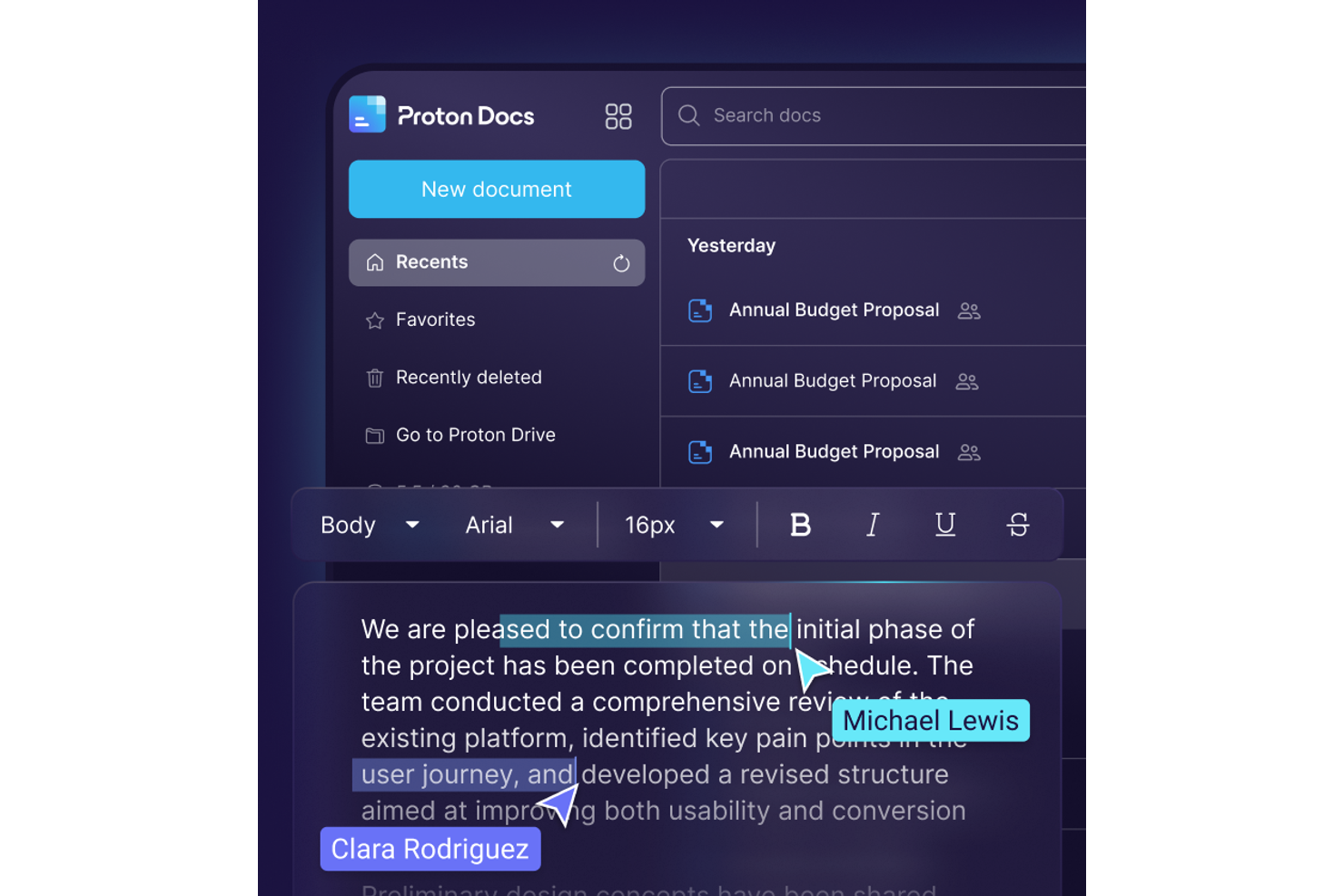
Se hai bisogno di un elaboratore di testi basato sul cloud che metta la privacy al primo posto, Proton Docs merita un'attenta valutazione. È progettato per professionisti, team legali e organizzazioni che richiedono la crittografia end-to-end per i documenti sensibili. Proton Docs si distingue perché garantisce che solo tu e i tuoi collaboratori possiate accedere ai tuoi contenuti, a differenza della maggior parte delle alternative più diffuse.
Per chi è più indicato Proton Docs?
Team responsabili della sicurezza e della conformità in organizzazioni di piccole e medie dimensioni in Europa e Nord America, che gestiscono documenti sensibili e richiedono la crittografia end-to-end.
Perché ho scelto Proton Docs
Quando la privacy è la tua principale preoccupazione, Proton Docs offre qualcosa che Google Docs non offre: una vera crittografia end-to-end per ogni documento. Ho scelto Proton Docs perché solo tu e i tuoi collaboratori potete accedere ai tuoi file, senza visibilità da parte di terzi. La piattaforma supporta inoltre la condivisione crittografata e la collaborazione in tempo reale, quindi non devi sacrificare il lavoro di squadra per la sicurezza. Per chiunque gestisca informazioni riservate o soggette a normative, Proton Docs offre un livello di protezione dei documenti difficile da eguagliare.
Funzionalità principali di Proton Docs
Tra le altre funzionalità che rendono Proton Docs interessante per la collaborazione sicura sui documenti figurano:
- Modifica del testo avanzata: Crea e formatta documenti con titoli, elenchi, tabelle e immagini.
- Cronologia delle versioni: Accedi alle versioni precedenti dei tuoi documenti e ripristinale in qualsiasi momento.
- Integrazione con Proton Drive: Archivia, organizza e gestisci i tuoi documenti all'interno dell'ecosistema Proton Drive.
- Accesso multipiattaforma: Lavora sui documenti da qualsiasi dispositivo dotato di un browser web.
Integrazioni di Proton Docs
Le integrazioni includono Proton Drive e strumenti nativi per l'importazione da Google Drive, Microsoft OneDrive, Dropbox e altro.
Pros and Cons
Pros:
- La crittografia end-to-end protegge tutti i documenti dagli accessi non autorizzati
- Nessun annuncio o raccolta di dati per un'esperienza di modifica incentrata sulla privacy
- La collaborazione in tempo reale consente a più utenti di modificare contemporaneamente
Cons:
- Le funzionalità di formattazione e modifica sono più limitate rispetto a Google Docs
- L'esperienza di modifica sui dispositivi mobili è meno curata rispetto a quella desktop

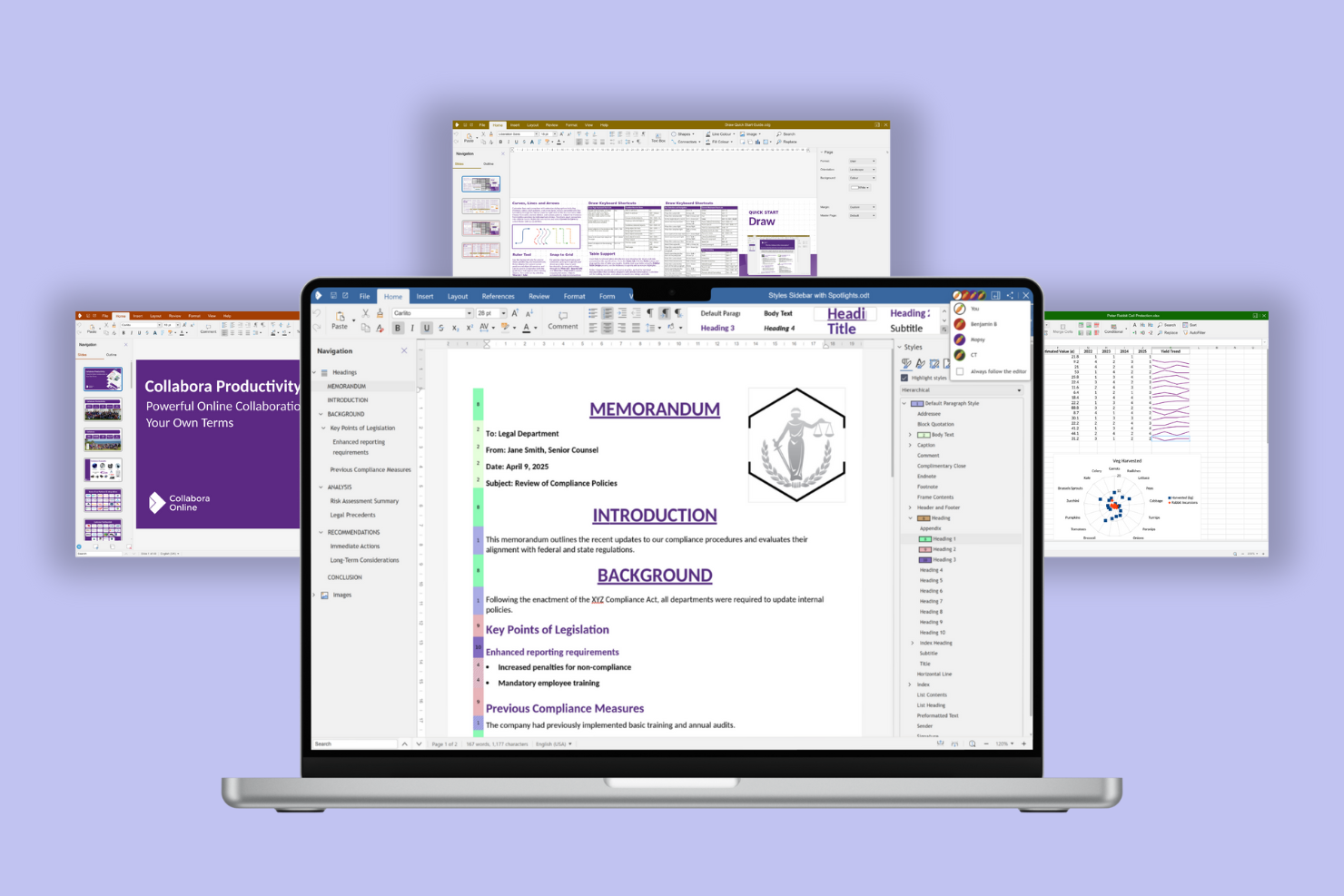
Le organizzazioni che desiderano avere il pieno controllo sulla collaborazione documentale spesso si affidano a Collabora Online. Questo elaboratore di testi a codice aperto basato sulla nuvola è apprezzato dai team IT, dalle aziende attente alla privacy e dagli enti del settore pubblico che devono ospitare e gestire i propri dati. Collabora Online si distingue da Google Docs offrendo hosting autonomo, controlli avanzati sulla privacy e compatibilità con un'ampia gamma di formati documentali.
A chi è più adatto Collabora Online?
Amministratori IT e team addetti alla collaborazione in organizzazioni di medie dimensioni in Europa e Nord America che implementano la modifica di documenti a codice aperto in ambienti controllati.
Perché ho scelto Collabora Online
Per i team che danno priorità alle soluzioni a codice aperto, Collabora Online offre un approccio unico alla collaborazione documentale basata sulla nuvola. Ho scelto Collabora Online perché consente alle organizzazioni di ospitare autonomamente i propri documenti, offrendo loro il pieno controllo sulla privacy e sulla sicurezza dei dati. La piattaforma supporta la co-creazione e la modifica in tempo reale, proprio come Google Docs, ma con la flessibilità aggiuntiva della personalizzazione a codice aperto. Se la tua azienda deve rispettare rigidi requisiti di conformità o preferisce standard aperti, Collabora Online è una valida alternativa agli elaboratori di testi proprietari.
Funzionalità principali di Collabora Online
Alcune delle altre funzionalità che rendono Collabora Online una soluzione interessante per la gestione dei documenti includono:
- Monitoraggio avanzato delle modifiche: Esamina, accetta o rifiuta le modifiche di più collaboratori in un unico documento.
- Ampio supporto ai formati di file: Apri, modifica e salva documenti nei formati di Microsoft Office, OpenDocument e in altri formati comuni.
- Modifica da dispositivi mobili e tablet: Accedi ai documenti e modificali da dispositivi iOS e Android con un'interfaccia reattiva.
- Autorizzazioni utente personalizzabili: Imposta controlli di accesso granulari per utenti e gruppi per gestire la sicurezza dei documenti.
Integrazioni di Collabora Online
Le integrazioni includono Nextcloud, ownCloud, Seafile, Picoshare, Moodle, Canvas e altro.
Pros and Cons
Pros:
- L'opzione di hosting autonomo offre alle organizzazioni il pieno controllo sulla privacy dei dati
- La modifica collaborativa in tempo reale funziona su più piattaforme e browser
- Le funzionalità avanzate di monitoraggio delle modifiche e dei commenti supportano i flussi di lavoro dei team
Cons:
- La configurazione e la manutenzione richiedono maggiori risorse e competenze IT
- Occasionali problemi di compatibilità con documenti Microsoft Office complessi

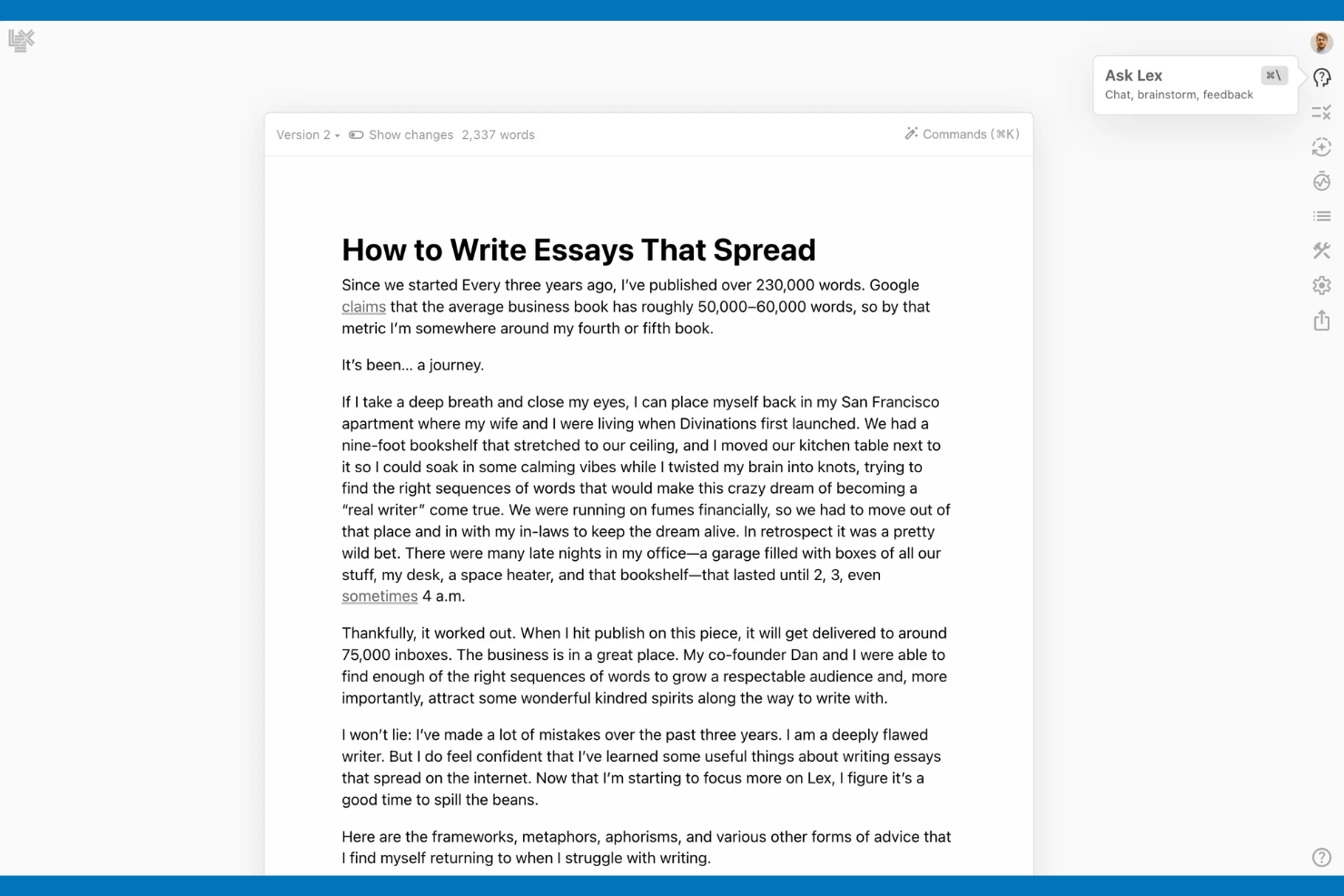
Gli scrittori e i team alla ricerca di un supporto avanzato dell'intelligenza artificiale nei propri documenti potrebbero trovare Lex particolarmente interessante. Questo elaboratore di testi basato sul cloud utilizza strumenti di intelligenza artificiale integrati per aiutarti a redigere, modificare e perfezionare i contenuti direttamente mentre scrivi. Lex si distingue da Google Docs offrendo funzionalità come il completamento automatico basato sull'intelligenza artificiale, suggerimenti di riscrittura e generazione di contenuti direttamente nell'editor.
Per chi è più adatto Lex?
Scrittori e team addetti ai contenuti di piccole e medie imprese in Nord America ed Europa che utilizzano l'assistenza dell'intelligenza artificiale per redigere e perfezionare i testi in modo efficiente.
Perché ho scelto Lex
Se vuoi un elaboratore di testi che vada oltre la modifica di base, vale la pena prendere in considerazione Lex per la sua assistenza alla scrittura basata sull'intelligenza artificiale. Ho scelto Lex perché offre suggerimenti dell'intelligenza artificiale in tempo reale, tra cui opzioni di completamento automatico e riscrittura, direttamente all'interno del documento. Lo strumento ti aiuta inoltre a generare nuovi contenuti o a riformulare il testo esistente con un semplice prompt, velocizzando così la stesura e la revisione. Per chi apprezza il supporto integrato dell'intelligenza artificiale mentre lavora nel cloud, Lex offre funzionalità uniche che lo distinguono da Google Docs.
Funzionalità principali di Lex
Tra le altre funzionalità che rendono Lex utile per la creazione di documenti figurano:
- Cronologia delle versioni: Tieni traccia delle versioni precedenti dei tuoi documenti e ripristinale in qualsiasi momento.
- Commenti e collaborazione: Aggiungi commenti e collabora con altri direttamente nell'editor.
- Supporto per Markdown: Formatta il testo utilizzando la sintassi Markdown per strutturare più rapidamente i documenti.
- Modalità senza distrazioni: Passa a un'interfaccia pulita e minimale per concentrarti sulla scrittura senza interruzioni.
Integrazioni di Lex
Le integrazioni native non sono elencate pubblicamente.
Pros and Cons
Pros:
- Il completamento automatico basato sull'intelligenza artificiale aiuta ad accelerare le attività di stesura e modifica
- Lo strumento di riscrittura integrato offre suggerimenti rapidi per migliorare i contenuti
- La cronologia delle versioni consente di monitorare e ripristinare le modifiche precedenti ai documenti
Cons:
- L'esperienza di modifica da dispositivi mobili è limitata rispetto ad altri strumenti cloud
- Le opzioni di formattazione sono meno estese rispetto agli elaboratori di testi tradizionali

Ideale per la creazione istantanea di documenti senza registrazione
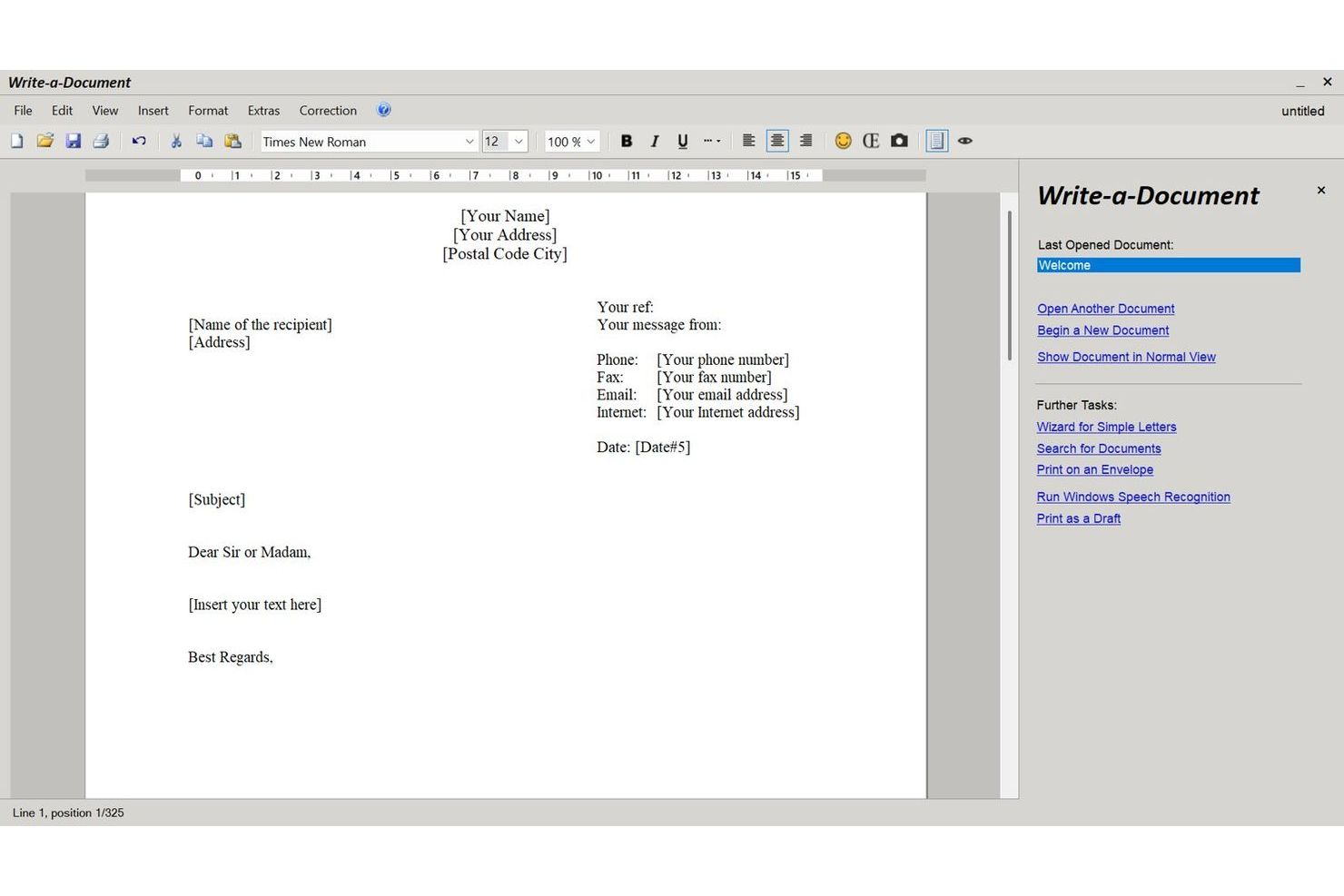
Per chiunque abbia bisogno di creare istantaneamente un documento senza la seccatura della registrazione, JMMG Communications offre una soluzione unica. Questo strumento è ideale per freelance, studenti o chiunque desideri redigere e scaricare rapidamente documenti senza lasciare tracce digitali. A differenza di Google Docs, JMMG Communications consente di iniziare subito a scrivere: nessun account, nessuna configurazione, solo una pagina vuota pronta per i tuoi contenuti.
A chi è più adatto JMMG Communications?
Professionisti singoli e piccoli team in tutto il mondo che necessitano di creare immediatamente documenti senza registrazione dell'account o procedure di configurazione iniziale.
Caratteristiche principali di JMMG Communications
Professionisti singoli e piccoli team in tutto il mondo che necessitano di creare immediatamente documenti senza registrazione dell'account o procedure di configurazione iniziale.
Perché ho scelto JMMG Communications
Se vuoi iniziare a scrivere immediatamente senza creare un account, JMMG Communications si distingue come una scelta pratica. Ho scelto JMMG Communications perché ti consente di aprire un documento vuoto e iniziare subito a digitare, senza bisogno di registrarti o effettuare l'accesso. Puoi scaricare il documento completato in diversi formati, rendendo facile condividerlo o stamparlo. Per chiunque apprezzi la velocità e la privacy in un elaboratore di testi basato sul cloud, JMMG Communications offre un'alternativa piacevolmente semplice a Google Docs.
Caratteristiche principali di JMMG Communications
Alcune altre caratteristiche che rendono JMMG Communications utile per la creazione rapida di documenti includono:
- Formattazione di base del testo: Applica il grassetto, il corsivo, la sottolineatura e altre semplici formattazioni al testo.
- Inserimento di tabelle: Aggiungi tabelle al documento per organizzare le informazioni.
- Strumento di controllo ortografico: Controlla gli errori di ortografia nel documento mentre scrivi.
- Output pronto per la stampa: Prepara i documenti per la stampa diretta dal browser.
Integrazioni di JMMG Communications
Le integrazioni native non sono elencate pubblicamente.
Pros and Cons
Pros:
- Non è richiesto alcun account o registrazione per iniziare a scrivere documenti
- Accesso istantaneo a un documento vuoto da qualsiasi browser
- Le opzioni di download includono i formati DOC, PDF e TXT
Cons:
- Non sono disponibili funzionalità di collaborazione o condivisione in tempo reale
- Non dispone di opzioni per l'archiviazione cloud o la cronologia delle versioni dei documenti
Altre alternative a Google Docs
Ecco alcune ulteriori alternative a Google Docs che non sono state incluse nel mio elenco, ma che vale comunque la pena prendere in considerazione:


Come Valuto le Alternative a Google Docs
Quando i team HR necessitano di un sostituto di Google Docs per redigere manuali o gestire le lettere di offerta, valuto gli strumenti considerando prima i requisiti di base indispensabili, poi analizzo cosa distingue ciascuna opzione.
Funzionalità Core (Requisiti Fondamentali per Questa Lista)
Quando scelgo gli strumenti per la mia lista, valuto ciascuno su una scala da 0 (non offre la funzionalità) a 5 (eccelle in quest’area) per ciascuna delle funzionalità principali elencate di seguito. Successivamente, calcolo il punteggio totale dello strumento in una percentuale. Ogni strumento deve raggiungere un punteggio totale minimo del 75% per essere preso in considerazione.
- Editing Collaborativo in Tempo Reale: Verifico se più membri del team HR possono modificare contemporaneamente un documento—come quando si affina insieme un manuale del dipendente—con commenti, suggerimenti e indicatori di presenza.
- Creazione di Documenti con Testo Ricco: Un'esperienza completa di elaborazione testi è fondamentale, quindi valuto la profondità delle opzioni di formattazione, incluse tabelle, intestazioni, media incorporati e layout strutturati per politiche e lettere di offerta.
- Archiviazione & Accesso in Cloud: Cerco un’affidabile archiviazione cloud con accesso da dispositivi diversi, così un HR coordinator può consultare i documenti di onboarding da browser, app desktop o telefono senza dover installare software.
- Condivisione & Controlli di Permesso: I documenti HR spesso contengono dati sensibili. Valuto se ogni strumento consente di impostare permessi di visualizzazione, commento o modifica sia a livello di documento che di cartella per proteggere, ad esempio, i piani di compensazione.
- Cronologia delle Versioni & Recupero: Poter tracciare chi ha modificato cosa in una bozza di politica sui benefit—e ripristinare le versioni all’occorrenza—è una caratteristica che cerco, comprese versioni nominate e confronti affiancati.
- Modelli & Formati di Esportazione: Controllo la presenza di modelli riutilizzabili (descrizioni lavoro, moduli di valutazione, schemi di policy) e la possibilità di esportare in formati standard come PDF e DOCX per la condivisione con interlocutori esterni.
Una volta raccolto l’elenco degli strumenti che soddisfano questi criteri, considero cosa distingue ogni piattaforma.
Fattori Differenzianti (Cosa Distingue i Fornitori)
Ecco come confronto e distinguo i vari fornitori:
Funzionalità Distintive
Un assistente di scrittura AI può far risparmiare davvero tempo quando il team deve redigere decine di descrizioni di lavoro o rivedere il linguaggio delle policy tra dipartimenti. Verifico anche la presenza di funzionalità per base di conoscenza—pagine nidificate e collegamenti interni trasformano documenti HR sparsi in un hub per i dipendenti strutturato e ricercabile. Il supporto integrato alla firma elettronica è un altro elemento distintivo, perché consente d’inviare lettere di offerta o NDA per la firma senza passare a uno strumento separato.
Oltre le Funzionalità
La conformità e la sicurezza dei dati sono fondamentali quando i documenti HR includono dati personali dei dipendenti. Valuto se una piattaforma supporta SOC 2, GDPR e SSO insieme a registri di controllo che tracciano chi ha avuto accesso a cosa. Le integrazioni con HRIS sono altrettanto importanti—collegarsi a strumenti come BambooHR o Workday permette d’importare i dati dei dipendenti nei documenti senza inserimenti manuali. Prendo anche in considerazione quanto sia facile per lo staff HR non tecnico migrare i Google Docs esistenti e adottare la nuova piattaforma senza una curva di apprendimento ripida.
Perché cercare un'alternativa a Google Docs?
Sebbene Google Docs sia una buona scelta come programma di videoscrittura basato sul cloud, esistono diversi motivi per cui alcuni utenti cercano soluzioni alternative. Potresti cercare un'alternativa a Google Docs perché…
- Hai bisogno di una maggiore privacy dei dati
- Hai bisogno di funzionalità per la modifica offline
- Il tuo team ha bisogno di strumenti di formattazione avanzati
- Vuoi una migliore integrazione con altre applicazioni
- Hai bisogno di conformità a normative specifiche
- Il tuo team ha bisogno di un'interfaccia più intuitiva
Se ti riconosci in una di queste situazioni, sei nel posto giusto. Il mio elenco contiene diverse opzioni di programmi di videoscrittura basati sul cloud, più adatte ai team che affrontano queste difficoltà con Google Docs e cercano soluzioni alternative.
Caratteristiche
Ecco alcune delle caratteristiche principali di Google Docs, per aiutarti a mettere a confronto ciò che offrono le soluzioni alternative:
- Collaborazione in tempo reale: Tu e il tuo team potete lavorare contemporaneamente sui documenti, visualizzando le modifiche man mano che vengono apportate.
- Commenti e suggerimenti: Aggiungi commenti e suggerimenti ai documenti, così sarà facile fornire feedback e collaborare.
- Cronologia delle versioni: Tieni traccia delle modifiche e ripristina le versioni precedenti dei documenti, assicurandoti di non perdere mai modifiche importanti.
- Modifica offline: Lavora sui documenti senza una connessione Internet e sincronizza le modifiche quando torni online.
- Digitazione vocale: Usa la tua voce per digitare i documenti, una funzione che può far risparmiare tempo a chi preferisce parlare invece di digitare.
- Componenti aggiuntivi ed estensioni: Arricchisci i documenti con una varietà di componenti aggiuntivi, che offrono funzionalità extra adatte alle tue esigenze.
- Integrazione con Google Drive: Archivia e organizza i documenti in Google Drive, assicurandoti un accesso e una condivisione semplici.
- Modelli: Usa un'ampia gamma di modelli per creare rapidamente documenti dall'aspetto professionale senza partire da zero.
- Salvataggio automatico: Non preoccuparti mai di perdere il lavoro, perché Google Documenti salva automaticamente le modifiche mentre digiti.