

I 10 migliori software gratuiti per videoconferenze nel 2026

Elenco dei migliori software gratuiti per videoconferenze


Il software gratuito per videoconferenze ti consente di ospitare videochiamate e riunioni online senza costi, utilizzando strumenti che offrono un piano veramente gratuito o una prova gratuita. Se stai cercando opzioni affidabili per connettere team da remoto, clienti o candidati senza sforare il budget, sai quanto sia importante scegliere la piattaforma giusta.
Con così tante soluzioni che promettono funzionalità “gratuite”, è difficile separare il clamore e trovare opzioni che offrano davvero flessibilità, sicurezza e facilità d’uso. Questo elenco ti aiuterà a confrontare rapidamente i migliori software gratuiti per videoconferenze, così potrai scegliere con sicurezza quello più adatto alle esigenze del tuo team, senza costi nascosti a sorpresa e senza pressioni commerciali.
Perché fidarsi delle nostre recensioni sui software
Il nostro team testa e recensisce software dal 2012. In quanto esperti HR noi stessi, sappiamo quanto sia difficile — e importante — scegliere il software giusto.
Per questa guida, abbiamo valutato gli strumenti attraverso test pratici e ricerche indipendenti, assegnando un punteggio agli strumenti in base ai nostri criteri di selezione. Ci basiamo inoltre sulle competenze di leader di pensiero del settore e di professionisti HR attivi.
Le nostre recensioni riflettono il nostro giudizio editoriale umano, non un discorso di vendita.
Tabella comparativa dei software gratuiti per videoconferenze
Questa tabella comparativa riassume i dettagli dei prezzi delle mie migliori selezioni di software gratuiti per videoconferenze:
| Tool | Best For | Trial Info | Price | ||
|---|---|---|---|---|---|
| 1 | Ideale per sessioni di gruppo numerose | Piano gratuito + demo gratuita disponibile | Da $14.16/mese (fatturato annualmente) | Website | |
| 2 | Ideale per partecipazione da browser | Piano gratuito disponibile | Da $7/utente/mese (fatturazione annuale) | Website | |
| 3 | Ideale per webinar preregistrati | Piano gratuito + demo gratuita disponibile | Da $3/partecipante (fatturazione annuale) | Website | |
| 4 | Ideale per utenti Microsoft 365 | Piano gratuito disponibile | A partire da $4/utente/mese (fatturazione annuale) | Website | |
| 5 | Ideale per ospitare webinar semplici | Prova gratuita di 14 giorni + piano gratuito + demo gratuita disponibile | Da $1/host/mese (fatturato annualmente) | Website | |
| 6 | Ideale per la tecnologia di rimozione del rumore | Piano gratuito disponibile | Da $12/utente/mese (fatturazione annuale) | Website | |
| 7 | Ideale per riunioni senza limiti di durata | Prova gratuita di 14 giorni + demo gratuita disponibile | Da $20/utente/mese (fatturazione annuale) | Website | |
| 8 | Ideale per riunioni senza account | Gratis per sempre | Gratis per sempre | Website | |
| 9 | Ideale per la collaborazione sui documenti in tempo reale | Piano gratuito disponibile | A partire da $12/utente/mese (fatturazione annuale) | Website | |
| 10 | Ideale per branding aziendale personalizzato | Piano gratuito disponibile | Da $6.99/mese | Website |
Recensioni dei migliori software gratuiti per videoconferenze
Di seguito trovi i miei riepiloghi dettagliati dei software gratuiti per videoconferenze inclusi nel mio elenco. Le mie recensioni offrono un’analisi approfondita delle funzionalità, dei casi d’uso migliori e dei prezzi di ogni piattaforma, per aiutarti a trovare quella più adatta a te.

Zoom
Ideale per sessioni di gruppo numerose
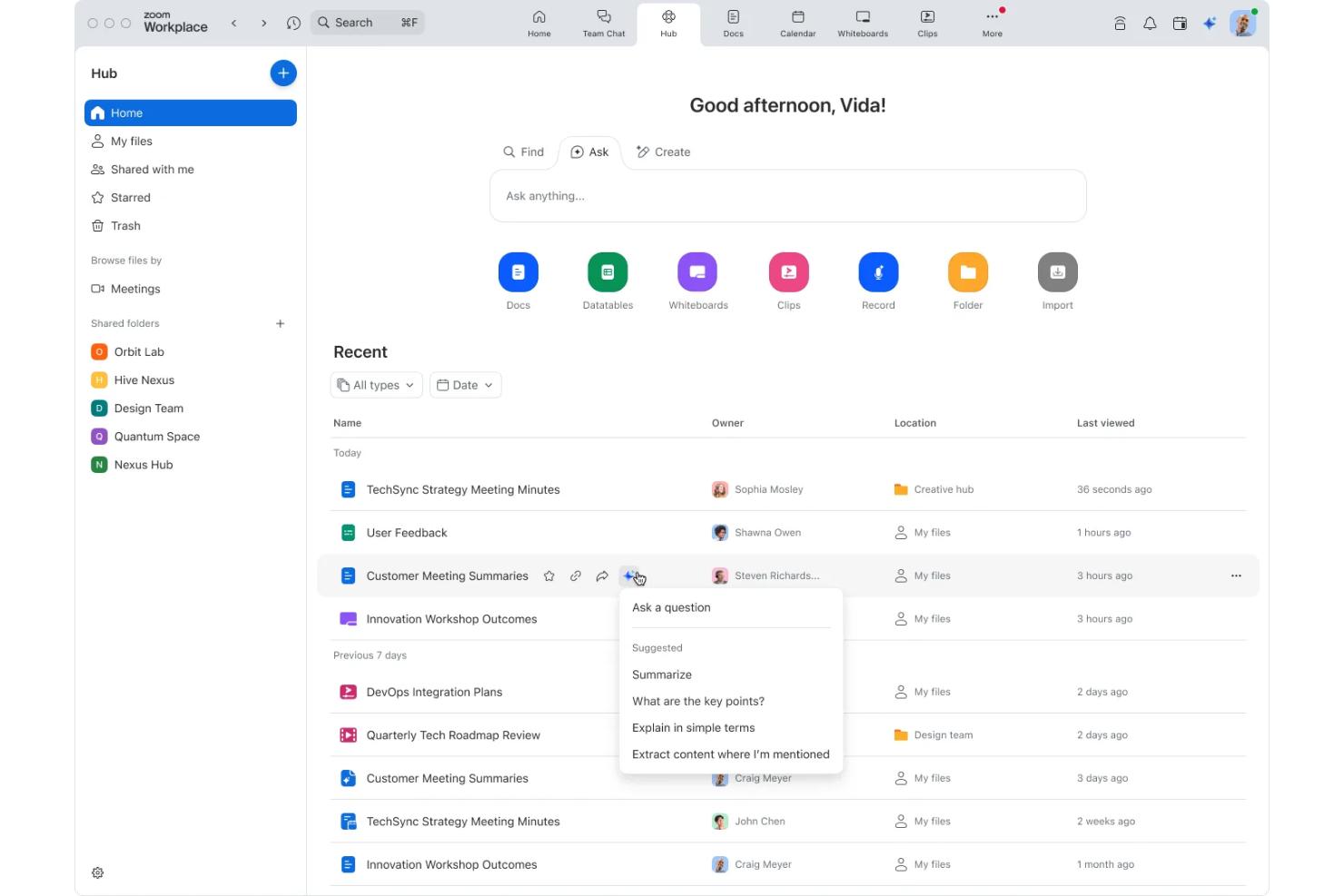
Zoom è una piattaforma di videoconferenza per ospitare riunioni online, webinar e sessioni collaborative con funzionalità interattive come la condivisione dello schermo, la chat e le sale riunioni separate.
Per chi è ideale Zoom?
Grandi organizzazioni o team che necessitano di riunioni virtuali con molti partecipanti dislocati in sedi multiple.
Perché ho scelto Zoom
Ho scelto Zoom tra i migliori perché permette al mio team di organizzare riunioni fino a 100 partecipanti gratuitamente, il che è perfetto per sessioni numerose. Mi piace la funzione delle sale separate che aiuta a organizzare discussioni in piccoli gruppi all’interno di chiamate molto affollate. La condivisione dello schermo e la chat integrata rendono facile collaborare in modo interattivo durante queste grandi riunioni.
Funzionalità principali di Zoom
- Sfondi virtuali: Personalizza il tuo video con immagini preimpostate o caricate da te.
- Registrazione riunione: Registra le riunioni localmente sul tuo dispositivo per consultarle in seguito.
- Sala d’attesa: Controlla l’accesso dei partecipanti con un’area di attesa virtuale prima dell’inizio della riunione.
- Reazioni: Usa emoji e icone per comunicare in modo non verbale durante le chiamate.
Integrazioni di Zoom
Zoom offre integrazioni native con Google Workspace, Microsoft 365, Slack, Salesforce e Dropbox, e puoi trovarne centinaia di altre nello Zoom App Marketplace.
Cosa è gratis?
Zoom offre un piano gratuito per sempre che consente riunioni fino a 100 partecipanti per 40 minuti a sessione. Alcune funzionalità avanzate, durate maggiori delle riunioni e la registrazione su cloud richiedono un upgrade a pagamento.
Pros and Cons
Pros:
- Riunioni fino a 100 partecipanti
- Le sale separate sono incluse nel piano gratuito
- Gli sfondi virtuali funzionano sulla maggior parte dei dispositivi
Cons:
- Limite di 40 minuti per riunione di gruppo
- Richiede la creazione di un account per gli organizzatori
Ideale per partecipazione da browser
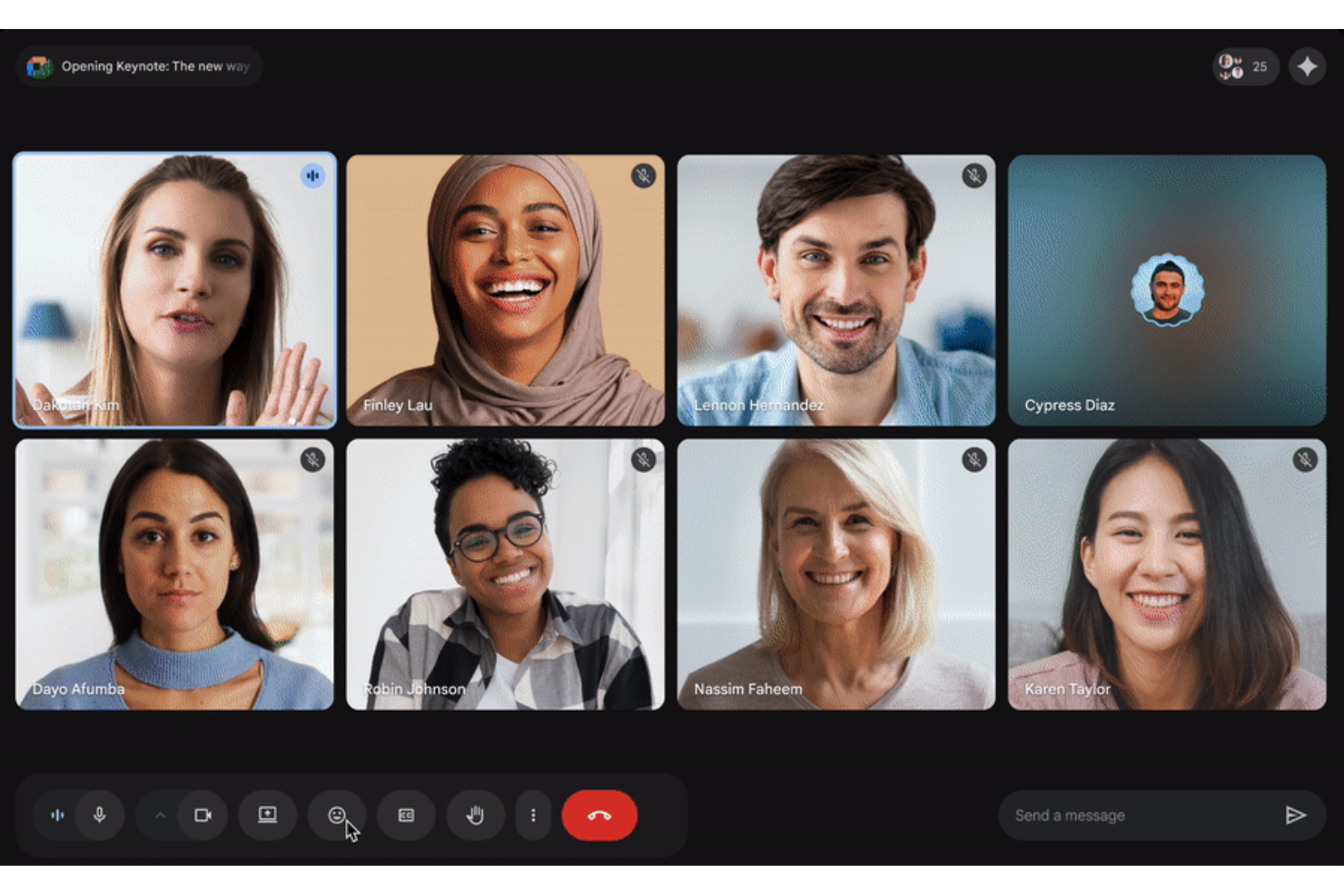
Google Meet è una piattaforma di videoconferenza basata su browser che consente agli utenti di organizzare e partecipare a riunioni, programmare chiamate su Google Calendar, condividere lo schermo e gestire i partecipanti da qualsiasi dispositivo senza richiedere l'installazione di software.
Per Chi è Ideale Google Meet?
Google Meet è perfetto per team da remoto o ibridi che desiderano partecipare a riunioni video direttamente dal loro browser web senza dover scaricare software.
Perché Ho Scelto Google Meet
Ho scelto Google Meet tra i migliori perché chiunque può unirsi a una riunione direttamente dal browser, senza bisogno di download o plugin. Il mio team può condividere rapidamente i link alle riunioni e avviare chiamate direttamente da Google Calendar. Apprezzo anche la funzione di cancellazione del rumore di fondo, disponibile anche nel piano gratuito, che aiuta a mantenere le conversazioni concentrate.
Funzionalità Principali di Google Meet
- Sottotitoli in tempo reale: Genera automaticamente sottotitoli in tempo reale per una migliore accessibilità.
- Condivisione dello schermo: Consente agli utenti di presentare l'intero schermo o una finestra specifica durante le chiamate.
- Controlli dell'host: Fornisce strumenti per silenziare i partecipanti o rimuoverli dalle riunioni.
- Integrazione con Google Drive: Salva le registrazioni delle riunioni direttamente su Google Drive per un accesso rapido.
Integrazioni di Google Meet
Google Meet offre integrazioni native con tutto l'ecosistema Google Workspace, inclusi Gmail, Google Calendar, Google Drive e Google Docs.
Cosa è Gratuito?
Google Meet offre un piano gratuito per sempre a chiunque abbia un account Google. Il piano gratuito limita le riunioni a 1 ora e fino a 100 partecipanti, con accesso alle funzionalità di base come la condivisione dello schermo e i sottotitoli in tempo reale.
Pros and Cons
Pros:
- Nessun download richiesto per le riunioni da browser
- Integrazione diretta con la programmazione di Google Calendar
- Chat di gruppo illimitata durante le riunioni
Cons:
- Le riunioni del piano gratuito sono limitate a 1 ora
- Nessuna registrazione nativa delle riunioni nel piano gratuito

Ideale per webinar preregistrati
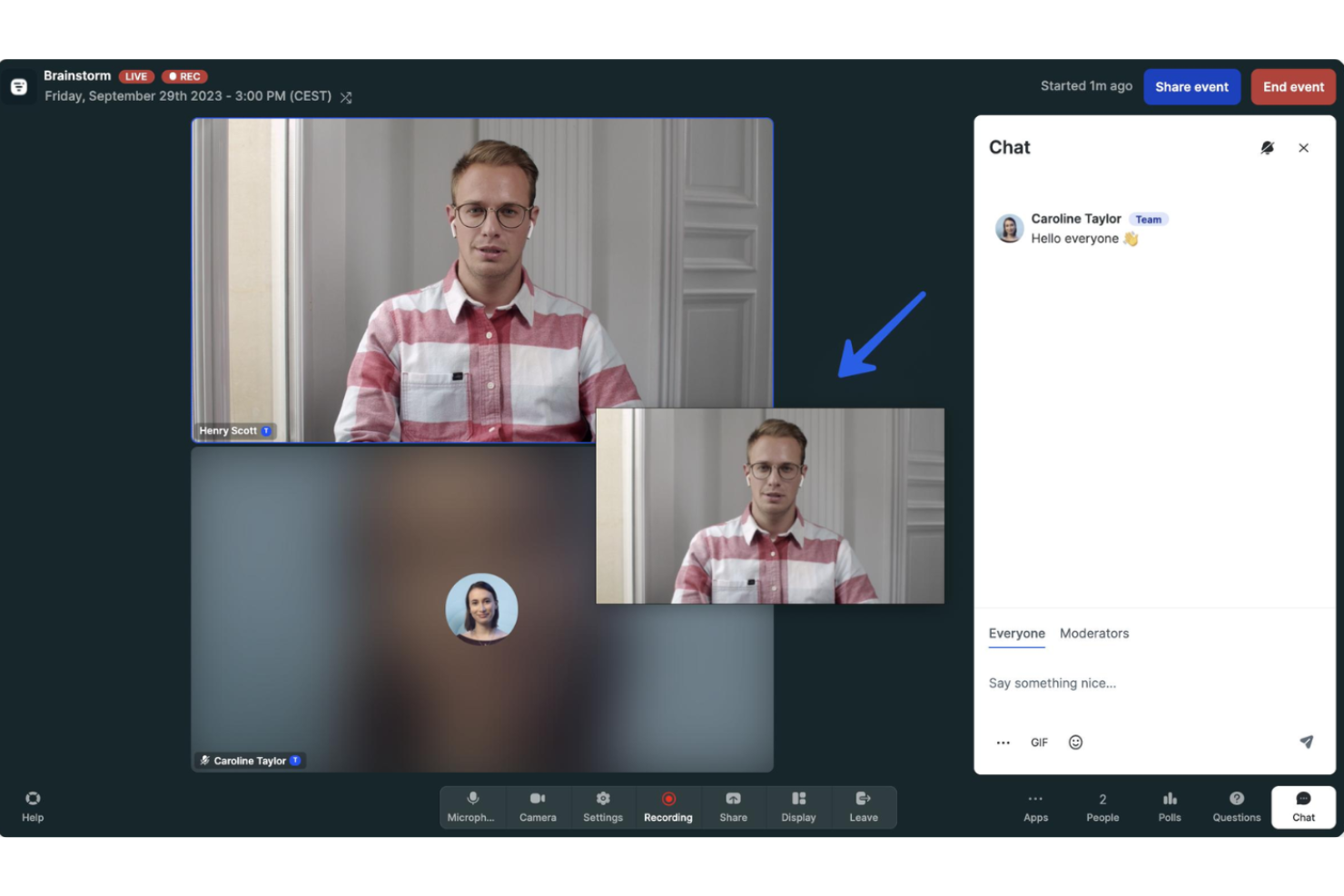
Livestorm è una piattaforma di videoconferenza basata su browser per ospitare webinar dal vivo, on-demand e preregistrati con funzionalità interattive come sondaggi, sessioni di domande e risposte e analisi dettagliate.
Per chi è ideale Livestorm?
Livestorm è adatto a team di marketing ed eventi che necessitano di gestire webinar video automatizzati o preregistrati.
Perché ho scelto Livestorm
Ho scelto Livestorm tra i migliori perché mi piace come consenta al mio team di gestire webinar preregistrati insieme a chat video dal vivo all'interno dello stesso flusso di lavoro. Posso automatizzare la programmazione e i promemoria dei webinar, e la funzione di replay delle sessioni rende facile mantenere il coinvolgimento dei partecipanti anche dopo la fine di un evento dal vivo. Gli strumenti email integrati e le analisi mi aiutano a monitorare registrazione e partecipazione senza sforzo.
Caratteristiche principali di Livestorm
- Sondaggi e domande e risposte: Raccogli risposte e coinvolgi i partecipanti con sondaggi integrati e moduli di domande e risposte in tempo reale.
- Accesso tramite browser: Partecipa o ospita tutte le riunioni ed eventi direttamente dal browser senza scaricare nulla.
- Supporto multilingue: Ospita videochiamate e webinar in più lingue per un pubblico globale.
- Tracciamento automatico della partecipazione: Monitora la presenza dei partecipanti ed esporta report dettagliati sulle presenze.
Integrazioni di Livestorm
Livestorm offre integrazioni native con Google Analytics, HubSpot, Salesforce, Slack, Intercom, Microsoft Dynamics e Google Calendar. Si collega a Zapier e offre un'API per integrazioni personalizzate.
Cosa è gratuito?
Livestorm offre un piano gratuito limitato a riunioni della durata di 20 minuti e fino a 30 partecipanti dal vivo per sessione, con accesso limitato a funzionalità e integrazioni avanzate.
Pros and Cons
Pros:
- Funziona interamente via browser, senza necessità di download
- Include sondaggi, Q&A e chat
- Offre programmazione e promemoria automatizzati per i webinar
Cons:
- Piano gratuito limitato a 20 minuti per sessione
- Richiede l'upgrade per opzioni di branding dei webinar
Ideale per utenti Microsoft 365
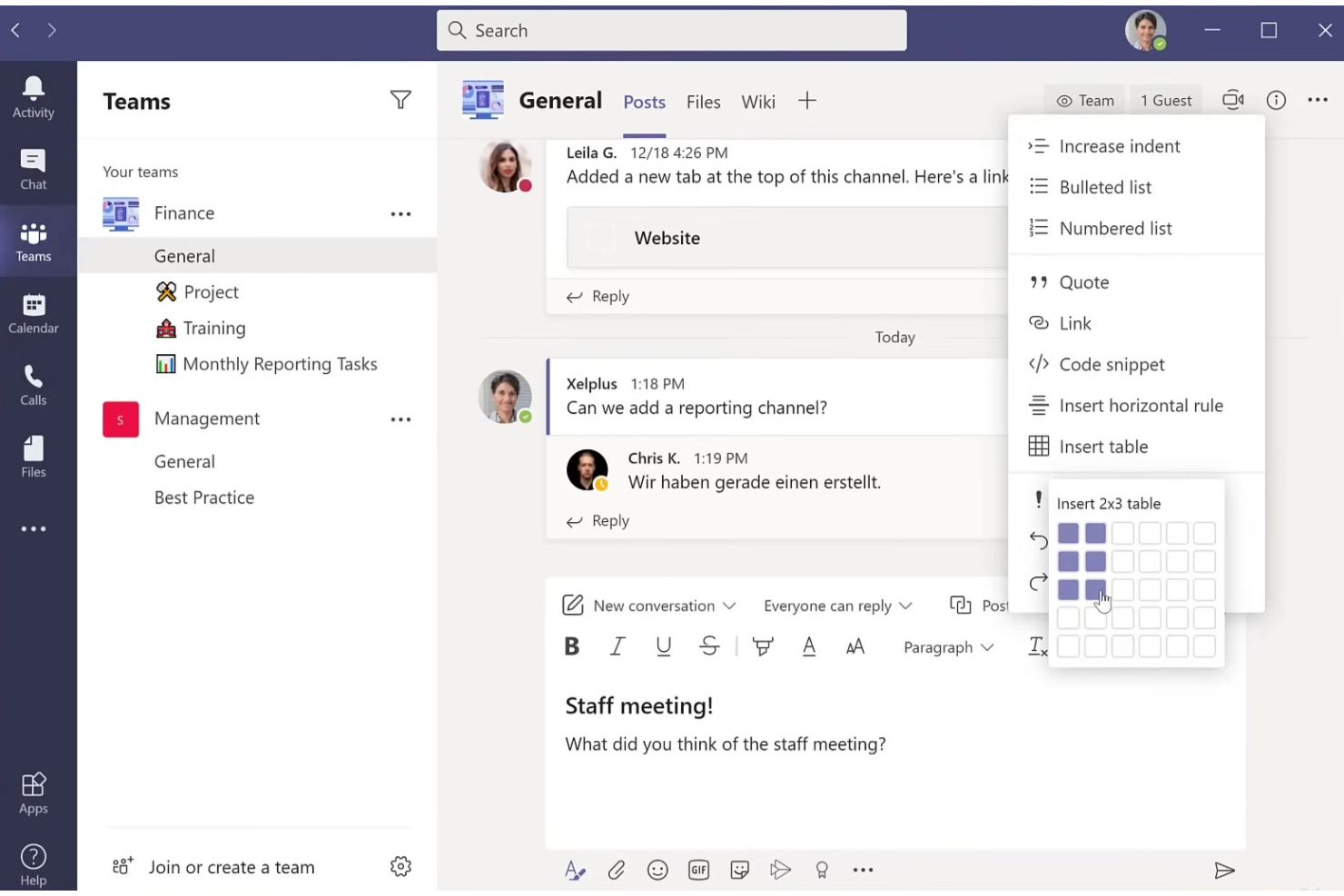
Microsoft Teams è una piattaforma di videoconferenza di Microsoft che combina riunioni online, chat in tempo reale, chiamate video di gruppo, condivisione dello schermo e collaborazione su file.
Per chi è più indicato Microsoft Teams?
Microsoft Teams è una scelta ideale per le organizzazioni che già utilizzano Microsoft 365 per la produttività e la collaborazione tra team distribuiti.
Perché ho scelto Microsoft Teams
Ho scelto Microsoft Teams tra i migliori perché il mio team può ospitare grandi videochiamate e lavorare all'interno di canali che collegano le chat delle riunioni, i file condivisi e la collaborazione in tempo reale. L'integrazione con Microsoft 365 permette di programmare riunioni su Outlook, co-modificare documenti durante le chiamate e gestire calendari condivisi, tutto senza uscire dall'app desktop. Funzionalità come la Modalità Insieme creano un'esperienza di riunione di gruppo più coinvolgente, soprattutto quando le sessioni si svolgono a distanza o in modalità ibrida.
Funzionalità principali di Microsoft Teams
- Sottotitoli in tempo reale: Genera sottotitoli in tempo reale durante le riunioni per migliorare l'accessibilità.
- Controllo sala d'attesa: Permette all'organizzatore di ammettere o rifiutare i partecipanti prima che entrino nella riunione.
- Sfocatura dello sfondo: Sfoca lo sfondo durante le videochiamate per maggiore privacy.
- Strumento 'alza la mano': I partecipanti possono segnalare domande o commenti senza interrompere la sessione.
Integrazioni di Microsoft Teams
Microsoft Teams offre integrazioni native nell'ecosistema Microsoft, inclusi Microsoft 365 e Azure. È disponibile un'API per integrazioni personalizzate.
Cosa è gratuito?
Microsoft Teams offre un piano gratuito che include chat illimitate, videochiamate con fino a 100 partecipanti, condivisione di file e integrazioni native con Microsoft 365. Le riunioni gratuite sono limitate a 60 minuti per sessione.
Pros and Cons
Pros:
- Collabora nativamente con le app Microsoft 365
- Sottotitolazione in tempo reale in più lingue
- Chat persistente insieme a videoriunioni
Cons:
- Le riunioni gratuite sono limitate a 60 minuti
- Richiede un account Microsoft per l'accesso

Ideale per ospitare webinar semplici
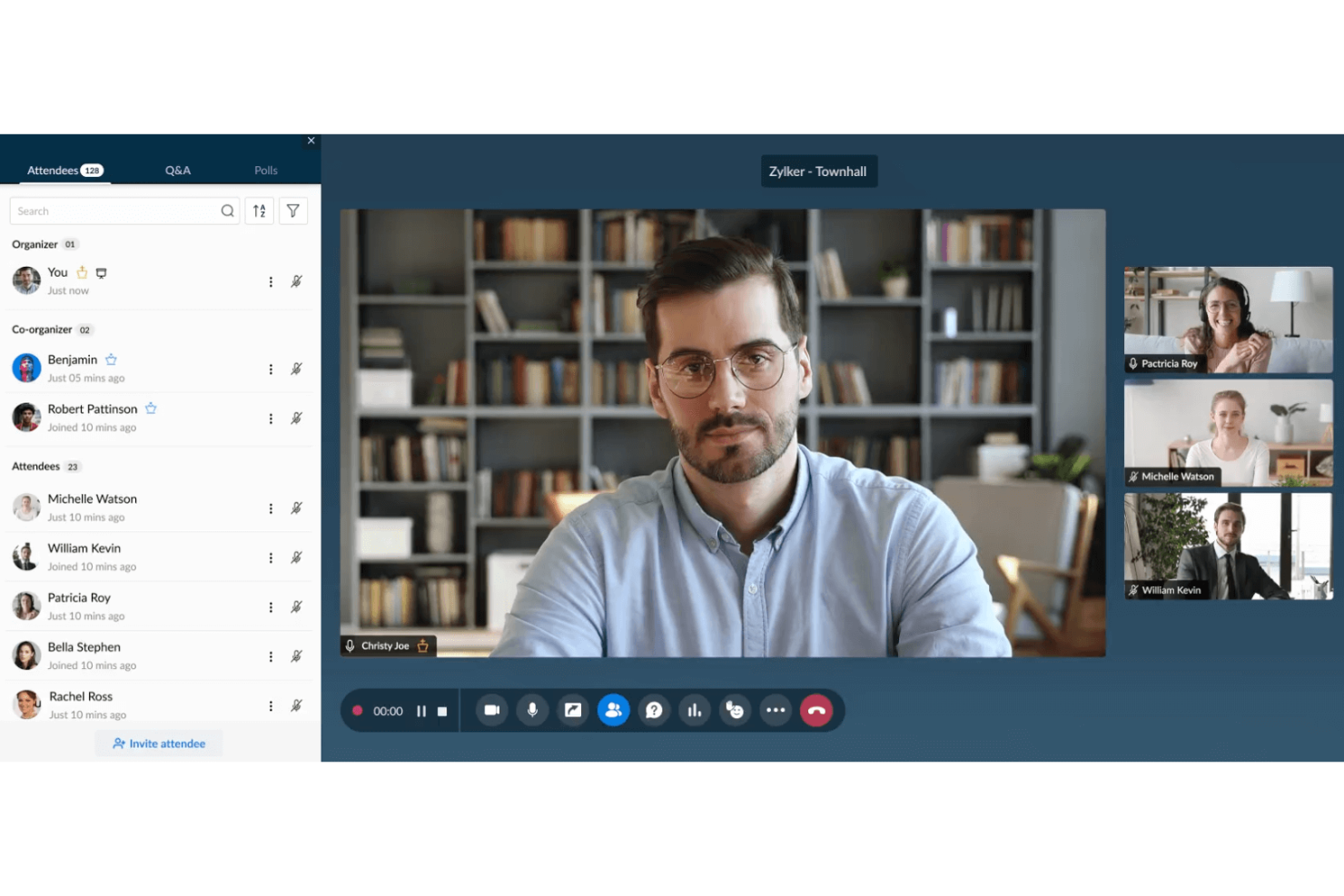
Zoho Meeting è una piattaforma per videoconferenze e webinar basata su browser che offre riunioni online, webinar interattivi, condivisione dello schermo, chat durante la sessione e strumenti per la gestione delle registrazioni.
A Chi è Rivolto Zoho Meeting?
Professionisti singoli e piccoli team che necessitano di una soluzione semplice per organizzare riunioni web sicure e webinar interattivi.
Perché Ho Scelto Zoho Meeting
Ho scelto Zoho Meeting tra i migliori perché apprezzo quanto sia veloce impostare ed avviare webinar semplici, direttamente dal browser. Posso utilizzare moduli di registrazione integrati e moderare le interazioni dei partecipanti con sessioni di domande e risposte e sondaggi. Mi piace anche poter registrare i webinar e condividerli immediatamente con i partecipanti.
Caratteristiche Principali di Zoho Meeting
- Condivisione schermo: Condividi l'intero schermo o solo specifiche finestre di applicazioni con i partecipanti alla riunione.
- Blocco riunione: Controlla chi può partecipare alle tue riunioni bloccando la sessione dopo l’avvio.
- Gestione RSVP: Invia inviti e traccia le risposte degli invitati direttamente dalla piattaforma.
- Accesso da browser: Organizza o partecipa alle riunioni senza dover scaricare alcun software.
Integrazioni Zoho Meeting
Zoho Meeting offre integrazioni native con Zoho CRM, Zoho Projects, Zoho Mail, Zoho Calendar e Google Workspace. È disponibile un’API per integrazioni personalizzate.
Cosa è Gratuito?
Zoho Meeting offre un piano gratuito per sempre con fino a 100 partecipanti per riunione e riunioni di gruppo di 60 minuti. Il piano gratuito include uno spazio limitato per la registrazione e non prevede alcune integrazioni avanzate e funzioni webinar.
Pros and Cons
Pros:
- I webinar possono essere ospitati direttamente dal browser
- Moduli di registrazione personalizzabili per i partecipanti
- Controlli per il moderatore per disattivare microfoni e condividere lo schermo
Cons:
- Le opzioni di visualizzazione video degli speaker sono basilari
- Gli strumenti di personalizzazione del branding per i webinar sono minimi
Webex
Ideale per la tecnologia di rimozione del rumore
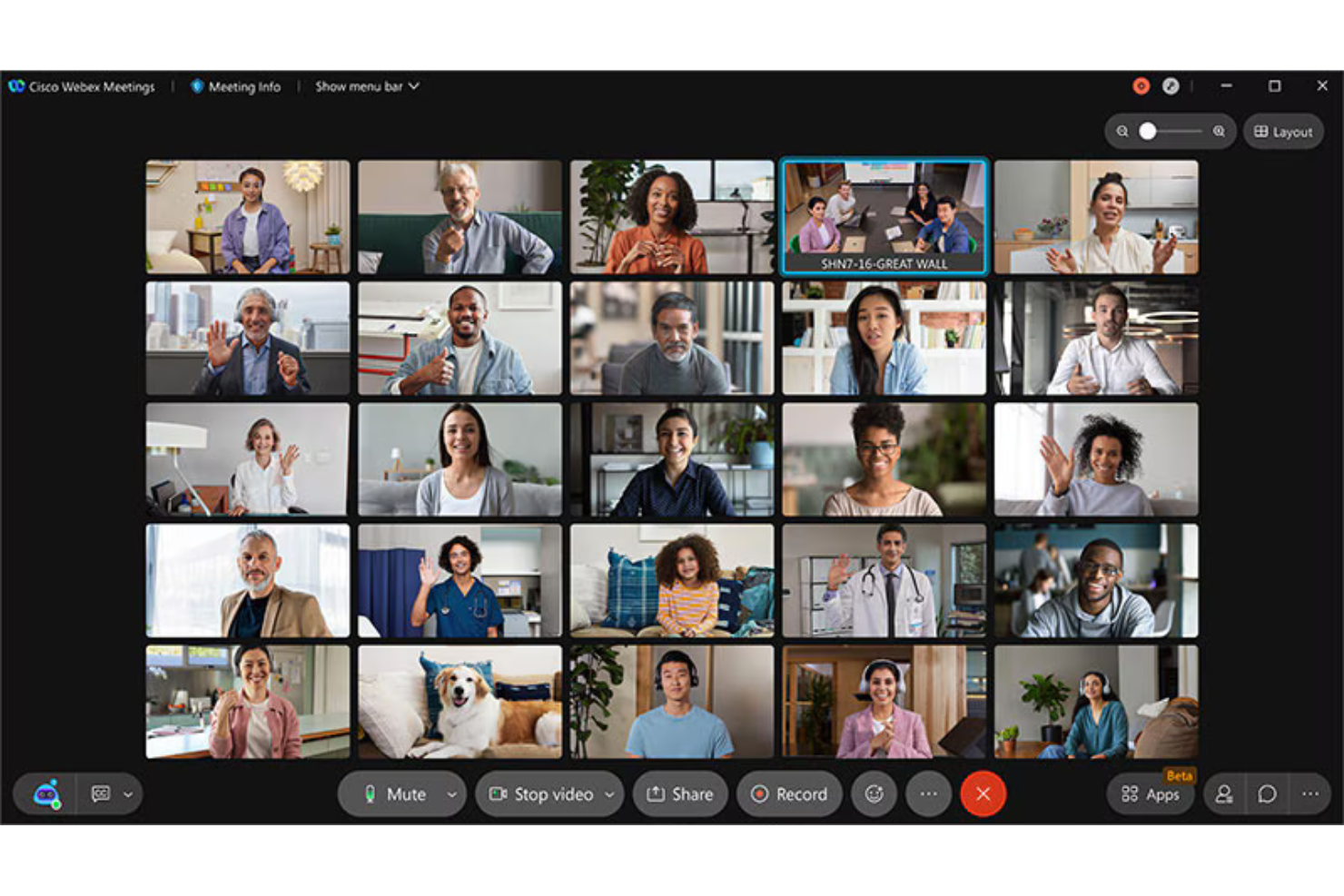
Webex è un software di videoconferenza basato su cloud che offre riunioni video in HD sicure, registrazioni intelligenti degli incontri, chat in riunione, condivisione di file, sessioni suddivise in gruppi e lavagna virtuale.
A chi è adatto Webex?
Webex è ideale per team distribuiti e aziende che necessitano di videoconferenze sicure e di alta qualità, oltre che di strumenti avanzati di collaborazione.
Perché ho scelto Webex
Ho scelto Webex come uno dei migliori perché la sua tecnologia di rimozione del rumore filtra costantemente le distrazioni di sottofondo durante le riunioni. Mi piace poter attivare la cancellazione del rumore in tempo reale quando partecipo da un ambiente rumoroso. Il mio team utilizza anche il miglioramento vocale basato su AI e la trascrizione automatica per mantenere le riunioni produttive ovunque ci troviamo.
Funzionalità principali di Webex
- Stanze suddivise in gruppi: Suddividi i partecipanti in gruppi più piccoli di discussione durante le riunioni.
- Lavagna virtuale: Disegna, scrivi e fai brainstorming insieme su una tela digitale condivisa.
- Blocco riunione: Limita l'accesso alla riunione dopo l'inizio, impedendo l'ingresso a ospiti non invitati.
- Chat in-app: Invia messaggi di testo a singoli o a tutto il gruppo senza uscire dalla riunione.
Integrazioni di Webex
Webex offre centinaia di integrazioni native tramite il suo App Hub, inclusi Google Workspace, Microsoft 365, Salesforce, Slack, Trello, Asana, Box, Zendesk, Miro e ServiceNow. È disponibile un'API per integrazioni personalizzate.
Cosa offre gratuitamente?
Webex offre un piano gratuito per sempre con riunioni illimitate 1:1 e riunioni di gruppo fino a 100 partecipanti. Le riunioni di gruppo con il piano gratuito sono limitate a 40 minuti e la registrazione su cloud non è inclusa.
Pros and Cons
Pros:
- Rimozione del rumore in tempo reale leader nel settore
- Il piano gratuito include riunioni 1:1 illimitate
- Crittografia avanzata e funzionalità di conformità
Cons:
- Richiede un account Webex per i partecipanti
- Interfaccia complessa rispetto agli strumenti più semplici

Ideale per riunioni senza limiti di durata
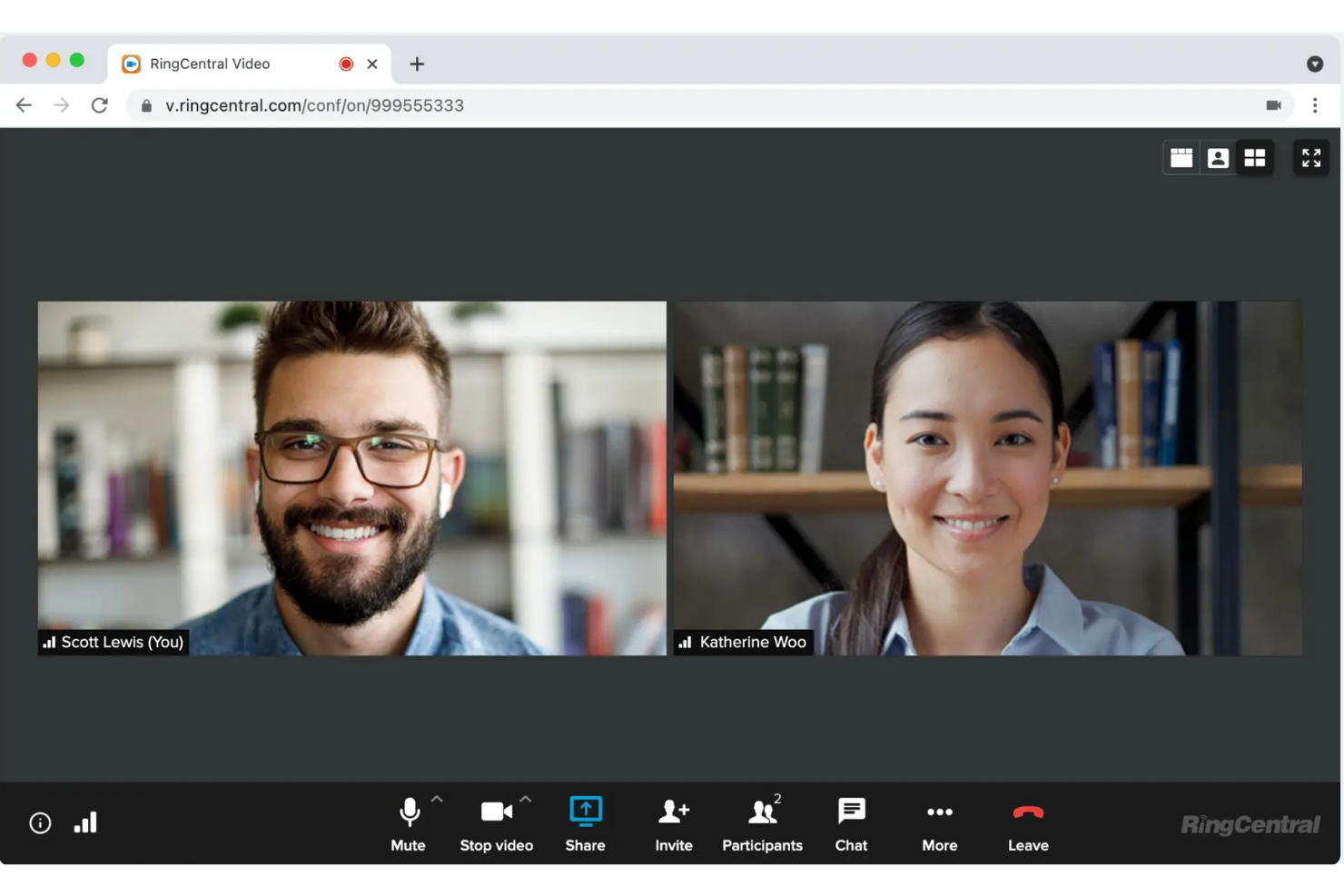
RingCentral Video è una piattaforma gratuita per videoconferenze e riunioni che supporta la pianificazione degli incontri, la chat durante la riunione, la condivisione dello schermo, la messaggistica di team, le lavagne interattive e l'integrazione del calendario per una collaborazione quotidiana.
Per chi è ideale RingCentral?
RingCentral Video è adatto ai team distribuiti che si affidano al lavoro da remoto e necessitano di riunioni video senza limiti di durata.
Perché ho scelto RingCentral
Ho scelto RingCentral perché posso organizzare riunioni video di gruppo senza limiti di tempo, una rarità tra le offerte gratuite di videoconferenza. Mi affido a funzionalità come la chat persistente di team, la lavagna collaborativa e i link sicuri delle stanze per incontri interni e con i clienti. Il mio team dispone inoltre di pianificazione integrata tramite calendario e condivisione dello schermo, mantenendo così il flusso di lavoro collegato.
Funzionalità principali di RingCentral
- Sfondo virtuale: Modifica o sfoca lo sfondo delle tue chiamate per maggiore privacy.
- Trascrizione delle riunioni: Accedi a trascrizioni ricercabili dopo ogni riunione registrata.
- Controlli di accesso basati sui ruoli: Assegna permessi di host, co-host e partecipante alle riunioni.
- Supporto per app mobile: Partecipa o organizza riunioni da dispositivi iOS e Android.
Integrazioni di RingCentral
RingCentral offre oltre 500 integrazioni preconfigurate, tra cui Google Workspace, Microsoft Teams, Salesforce, Jira e Google Sheets. È disponibile un'API per integrazioni personalizzate.
Cosa è gratuito?
RingCentral Video offre un piano gratuito per sempre per riunioni della durata massima di 50 minuti ciascuna. Il piano gratuito non include la registrazione su cloud, analisi avanzate e alcune integrazioni premium.
Pros and Cons
Pros:
- Include lavagna interattiva per la collaborazione
- Integrazione nativa con Google Workspace
- Chat persistente tra le riunioni
Cons:
- Non include sfondi virtuali per gli utenti gratuiti
- Ritardi occasionali nella funzionalità di condivisione schermo

Jitsi Meet è una soluzione open-source per videoconferenze che permette agli utenti di organizzare riunioni sicure direttamente dal browser, con condivisione dello schermo, chat, live streaming su YouTube e supporto per integrazioni personalizzate.
Per chi è ideale Jitsi Meet?
Freelance, educatori e piccoli team che desiderano organizzare riunioni gratuite nel browser senza bisogno di account.
Perché ho scelto Jitsi Meet
Ho scelto Jitsi Meet tra i migliori perché posso avviare riunioni all’istante, senza bisogno di creare un account, e invitare chiunque semplicemente condividendo un link. Mi piace che supporti partecipanti illimitati e la condivisione dello schermo, il che lo rende ottimo per riunioni rapide e non programmate del team. Nella mia esperienza, lo streaming live su YouTube funziona senza problemi anche per eventi e webinar più grandi.
Funzionalità principali di Jitsi Meet
- Crittografia end-to-end: Le riunioni sono protette da connessioni sicure e crittografate.
- URL di stanza personalizzati: Crea e riutilizza i tuoi link alle sale riunioni.
- Riunioni protette da password: Proteggi le riunioni con una password per maggior sicurezza.
- Registrazione integrata delle riunioni: Registra le riunioni direttamente su Dropbox con un semplice clic.
Integrazioni di Jitsi Meet
Le integrazioni non sono elencate pubblicamente.
Cosa è gratuito?
Jitsi Meet offre un piano gratuito per sempre con riunioni illimitate per durata e partecipanti. Alcune funzionalità avanzate, come la registrazione su cloud e integrazioni estese, possono richiedere l'hosting autonomo o configurazioni su misura.
Pros and Cons
Pros:
- Open source, sviluppato dalla comunità
- Durata illimitata delle riunioni per tutti gli utenti
- Riunioni crittografate per la privacy
Cons:
- Nessuna funzione di sfondo virtuale integrata
- Manca la lavagna collaborativa integrata

Lark offre una suite completa di strumenti che unisce videochiamate, chat e modifica collaborativa dei documenti in un unico spazio di lavoro.
Per chi è ideale Lark Meetings?
Team remoti che hanno bisogno di collaborare in tempo reale sui documenti durante le videochiamate.
Perché ho scelto Lark Meetings
Ho scelto Lark Meetings perché mi piace come il mio team possa co-modificare documenti, fogli di calcolo e presentazioni direttamente nella finestra della riunione. Ho inserito note della riunione in un documento condiviso durante una chiamata, coinvolgendo immediatamente i colleghi assenti. In pratica, riusciamo a lavorare insieme su agende condivise e modificare in tempo reale i piani di progetto mentre condividiamo lo schermo—il tutto senza dover cambiare scheda.
Caratteristiche principali di Lark Meetings
- Sfondi virtuali: Carica immagini personalizzate e applicale durante le riunioni.
- Registrazione delle riunioni: Registra le chiamate e archiviale in modo sicuro nel cloud.
- Chat integrata: Invia messaggi di gruppo o diretti senza uscire dalla riunione.
- Gestione dei partecipanti: Silenzia, rimuovi o aggiungi ospiti direttamente nel pannello dell'host.
Integrazioni di Lark Meetings
Le integrazioni includono Microsoft Exchange, Outlook, Google Calendar e Gmail.
Cosa è gratuito?
Lark Meetings include un piano gratuito per sempre con riunioni 1-a-1, traduzione in tempo reale illimitata e 100 GB di spazio di archiviazione. Per supportare più partecipanti, è necessario passare al piano a pagamento.
Pros and Cons
Pros:
- Modifica dei documenti in tempo reale durante le riunioni
- Archiviazione cloud integrata per file condivisi
- Condivisione dello schermo con strumenti di annotazione
Cons:
- Opzioni limitate per i link delle riunioni
- Poche integrazioni native di terze parti


Meet Hour è una piattaforma software per videoconferenze che consente di organizzare riunioni online, webinar ed eventi virtuali con sale riunioni personalizzabili, integrazioni e controlli di moderazione interattivi.
A chi è più adatto Meet Hour?
Meet Hour è ideale per piccole e medie imprese e organizzazioni che desiderano esperienze di riunioni online brandizzate.
Perché ho scelto Meet Hour
Ho scelto Meet Hour come uno dei migliori perché è l'unica piattaforma gratuita di videoconferenza nel mio elenco che mi permette di mettere il branding della mia azienda al centro in ogni riunione. Mi piace poter controllare l'aspetto delle sale, gli URL personalizzati e la posizione del logo. Il mio team utilizza gli strumenti di branding per creare un'esperienza curata e riconoscibile durante le chiamate di vendita e le sessioni di onboarding dei clienti.
Funzionalità principali di Meet Hour
- Sale separate (breakout rooms): suddividi i partecipanti in gruppi più piccoli per discussioni mirate.
- Registrazione delle riunioni: registra l'audio e il video delle sessioni per riferimento futuro.
- Chat integrata: invia messaggi a tutti i partecipanti senza uscire dalla riunione.
- Controlli dell'host: gestisci i permessi dei partecipanti, silenzia gli utenti e blocca le riunioni.
Integrazioni di Meet Hour
Meet Hour offre integrazioni native con Slack, Microsoft Office 365, Google Workspace, Trafft, Calendly e WordPress. Si connette anche con Zapier, Pabbly Connect e Make, ed è disponibile un'API per integrazioni personalizzate.
Cosa è gratuito?
Meet Hour offre un piano gratuito per sempre che supporta fino a 100 partecipanti per riunione e un limite di 60 minuti per ogni incontro. Alcune funzionalità avanzate e integrazioni sono riservate ai piani a pagamento.
Pros and Cons
Pros:
- Il branding ti permette di personalizzare le sale d’attesa
- Supporta webinar e panel con più relatori
- Facile incorporare le riunioni nel tuo sito WordPress
Cons:
- La durata illimitata delle riunioni richiede un componente aggiuntivo
- Manca la lavagna collaborativa integrata
Altri software gratuiti per videoconferenze
Ecco alcune opzioni aggiuntive di software gratuiti per videoconferenze che non sono state incluse nel mio elenco, ma che vale comunque la pena valutare:
- Slack
Ideale per riunioni rapide di team
- FreeConferenceCall.com
Ideale per limiti di 1.000 partecipanti
- TrueConf
Ideale per la risoluzione video 4K


Come valuto i software gratuiti per videoconferenze
Per prima cosa, definisco cosa considero gratuito. Per i software di videoconferenza, ciò significa un piano gratuito per sempre — non una prova a tempo — perché i team HR hanno bisogno di un accesso affidabile per colloqui ricorrenti, sessioni di onboarding e check-in con i dipendenti. Da qui, valuto la funzionalità di base che ogni strumento deve offrire per essere incluso in questo elenco, seguita dai fattori differenzianti che separano le migliori opzioni dal resto.
Funzionalità di base (requisiti essenziali per questa lista)
Oltre ai requisiti relativi all’offerta gratuita, utilizzo anche un sistema di punteggio per selezionare gli strumenti della mia lista. Ecco come funziona:
Attribuisco a ciascuno un punteggio da 0 (non offre la funzionalità) a 5 (eccelle in quest’area) per ognuna delle funzionalità di base elencate di seguito. Quindi, calcolo il punteggio totale dello strumento in percentuale. Ogni strumento deve raggiungere un punteggio minimo totale del 65% per essere preso in considerazione.
- Riunioni video di gruppo: Controllo quanti partecipanti supporta il piano gratuito, poiché per usi HR come colloqui di gruppo e sessioni di onboarding di team serve spesso la possibilità di includere più di due persone.
- Condivisione dello schermo: Che si tratti di illustrare a un nuovo assunto la procedura per l’iscrizione ai benefit o presentare aggiornamenti sulle policy, verifico che la condivisione schermo sia disponibile sia per gli host sia per i partecipanti nel piano gratuito.
- Registrazione delle riunioni: Valuto se il piano gratuito include la registrazione e se è solo locale o anche su cloud — i recruiter spesso devono condividere le registrazioni dei colloqui con i responsabili delle assunzioni dopo la chiamata.
- Chat durante la riunione: La chat in tempo reale è importante per condividere link, descrizioni di lavoro o risorse di follow-up durante la conversazione, quindi verifico se il piano gratuito comprende condivisione di file e cronologia dei messaggi.
- Integrazione con calendario e pianificazione: Collegarsi con Google Calendar e Outlook fa risparmiare molto tempo ai recruiter che devono prenotare colloqui uno dopo l’altro, quindi verifico quali integrazioni sono disponibili senza dover effettuare un upgrade.
- Accesso da browser e per ospiti: I candidati e partecipanti esterni non dovrebbero dover creare un account o installare software per partecipare a una chiamata, quindi valuto quanto sia semplice l’esperienza di accesso come ospite su ogni piattaforma.
Una volta ottenuta una lista di strumenti che soddisfano i criteri, considero cosa distingue ciascuna piattaforma.
Fattori differenzianti (cosa distingue i fornitori)
Ecco come confronto i diversi fornitori:
Funzionalità distintive
Le sale d’attesa e i controlli per l’host sono molto importanti per l’HR — consentono ai recruiter di gestire l’ingresso dei candidati durante i colloqui e di mantenere sicure conversazioni sensibili come quelle sulle performance. Cerco anche sfondi virtuali e opzione sfocatura, che aiutano sia lo staff HR che i candidati a presentarsi in modo professionale indipendentemente da dove si collegano. I sottotitoli in tempo reale aggiungono un ulteriore livello di valore, rendendo le riunioni più accessibili e offrendo agli specialisti della formazione una traccia consultabile una volta conclusa la sessione.
Oltre le funzionalità
I limiti di durata delle riunioni nei piani gratuiti sono più importanti di quanto si pensi — un limite di 40 minuti può interrompere un colloquio strutturato proprio quando si inizia con le domande comportamentali. Valuto anche sicurezza e privacy, verificando la presenza di crittografia end-to-end e password per le riunioni, poiché spesso le conversazioni HR trattano dati sensibili dei dipendenti. Quanto bene una piattaforma si integra con strumenti ATS come Greenhouse o Lever mi dà un’idea chiara di quanto sarà facile la pianificazione per i recruiter nella pratica quotidiana.
Come scegliere un software gratuito per videoconferenze
È facile perdersi in lunghi elenchi di funzionalità e strutture tariffarie complesse. Per aiutarti a rimanere concentrato mentre affronti il tuo processo unico di selezione del software, ecco un elenco di fattori da tenere a mente:
| Fattore | Cosa considerare |
| Scalabilità | Il software sarà ancora adatto alle tue esigenze se il team o le dimensioni delle riunioni aumentano? Controlla i limiti dei partecipanti e le possibilità di espansione. |
| Integrazioni | Si collega agli strumenti che già utilizzi, come il calendario, la gestione dei progetti o i sistemi di posta elettronica? Verifica solo le integrazioni native che utilizzerai davvero. |
| Personalizzazione | Puoi adattare le notifiche, gli inviti alle riunioni e le sale d’attesa ai tuoi flussi di lavoro? Valuta i limiti delle impostazioni del piano gratuito. |
| Facilità d’uso | Tutti i membri del team, indipendentemente dalle competenze tecniche, possono partecipare e gestire le chiamate senza dover richiedere assistenza ripetutamente? Se possibile, fai una prova con un gruppo campione. |
| Implementazione e inserimento | Quanto rapidamente può passare il tuo team dalla registrazione all’organizzazione effettiva delle riunioni? Cerca tutorial integrati e assistenza durante la transizione. |
| Costo | Ci sono funzionalità essenziali bloccate dietro un pagamento? Comprendi esattamente cosa è incluso gratuitamente e quando potrebbero essere applicati costi per il passaggio a un piano superiore. |
| Misure di sicurezza | Supporta sale d’attesa, blocco delle riunioni e crittografia di base? Assicurati che la versione gratuita protegga le conversazioni sensibili. |
| Disponibilità dell’assistenza | Quali canali di assistenza sono accessibili agli utenti gratuiti e i tempi di risposta sono compatibili con il livello di rischio che sei disposto ad accettare? Verifica la presenza di forum della comunità o basi di conoscenza come supporto aggiuntivo. |
Che cos’è un software gratuito per videoconferenze?
Il software gratuito per videoconferenze è costituito da piattaforme digitali che consentono agli utenti di ospitare e partecipare a riunioni virtuali senza pagare un abbonamento. Questi strumenti supportano la comunicazione audio e video in tempo reale, la condivisione dello schermo, la messaggistica tramite chat e spesso includono funzioni di base per la gestione dei partecipanti. La maggior parte limita funzionalità come la durata delle riunioni, il numero di partecipanti o le integrazioni nei piani gratuiti, ma offre comunque opzioni affidabili per le riunioni dei team da remoto, i colloqui e la collaborazione.
Funzionalità del software gratuito per videoconferenze
Esaminiamo le funzionalità comunemente presenti nel software per videoconferenze e quali sono generalmente incluse nei piani gratuiti rispetto a quelli a pagamento.
Funzionalità generalmente gratuite del software per videoconferenze
- Videochiamate: Ospita riunioni video in tempo reale tra due o più partecipanti utilizzando dispositivi connessi a Internet per la comunicazione visiva.
- Conferenze audio: Consenti agli utenti di partecipare alle riunioni utilizzando solo la voce, supportando gli scenari in cui il video non è necessario o la larghezza di banda è limitata.
- Condivisione dello schermo: Presenta il desktop, finestre specifiche o documenti durante le riunioni dal vivo per collaborare, fare dimostrazioni o esaminare insieme i contenuti.
- Chat durante la riunione: Scambia messaggi di testo, link o file con tutti i partecipanti o privatamente durante una riunione dal vivo senza interrompere lo svolgimento della chiamata.
- Gestione dei partecipanti: Fornisce all'organizzatore controlli di base per disattivare il microfono, rimuovere o ammettere i partecipanti, contribuendo a gestire lo svolgimento e la sicurezza della riunione.
- Pianificazione delle riunioni: Crea riunioni e invita i partecipanti in anticipo, spesso con la possibilità di generare inviti nel calendario o condividere link di partecipazione.
- Passaggio da un dispositivo all'altro: Passa facilmente dal computer ai dispositivi mobili prima o durante una riunione, supportando ambienti di lavoro flessibili.
- Sfondi virtuali: Sostituisci o sfoca lo sfondo reale durante le riunioni per tutelare la privacy o creare un aspetto più professionale.
Funzionalità generalmente a pagamento del software per videoconferenze
- Elevata capacità delle riunioni: Aumenta i limiti dei partecipanti per consentire webinar, riunioni aziendali o grandi eventi virtuali.
- Registrazione nel cloud e trascrizioni: Registra le riunioni e genera automaticamente trascrizioni ricercabili per utilizzarle in seguito, per esigenze di conformità o per condividerle con gli assenti.
- Stanze per sottogruppi: Dividi i partecipanti in gruppi più piccoli per discussioni mirate, workshop o attività di gruppo all'interno di una riunione più ampia.
- Controlli di sicurezza avanzati: Implementa protezioni aggiuntive come la crittografia end-to-end, restrizioni di accesso personalizzate o registri di controllo per le esigenze di conformità.
- Integrazioni di terze parti: Collega CRM, LMS, strumenti di gestione dei progetti e strumenti di produttività per semplificare i flussi di lavoro e la condivisione dei dati.
- Personalizzazione del marchio: Aggiungi loghi, colori del marchio e sale d'attesa personalizzate per rafforzare l'identità aziendale in tutte le riunioni.
- Assistenza prioritaria: Accedi a un'assistenza clienti rapida e di livello premium tramite chat dal vivo, rappresentanti dedicati o tempi di risposta più brevi.
- Analisi e report: Monitora le tendenze di utilizzo, la partecipazione alle riunioni e le metriche di coinvolgimento tramite dashboard integrate per prendere decisioni migliori.
- Sondaggi dal vivo e Q&A: Utilizza strumenti interattivi per raccogliere feedback, condurre sondaggi dal vivo o facilitare sessioni di Q&A durante riunioni e webinar.
- Assegnazione automatica ai sottogruppi: Inserisci automaticamente i partecipanti in gruppi predeterminati per riunioni ricorrenti o sessioni di formazione, rendendo più efficiente il lavoro di gruppo.
Vantaggi del software gratuito per videoconferenze
L'implementazione di un software gratuito per videoconferenze offre diversi vantaggi al tuo team e alla tua azienda. Eccone alcuni di cui potrai usufruire:
- Risparmio sui costi: Evita i costi degli abbonamenti continuando a usufruire delle funzionalità essenziali per riunioni, collaborazione e comunicazione dei team remoti e ibridi.
- Adozione rapida: Consenti al tuo team di iniziare a organizzare e partecipare alle riunioni con una configurazione minima, poiché la maggior parte degli strumenti gratuiti offre interfacce intuitive e una procedura iniziale di base.
- Flessibilità del lavoro da remoto: Consenti la collaborazione in tempo reale, i colloqui e le riunioni di gruppo tra sedi diverse, supportando i team remoti o distribuiti.
- Accesso inclusivo: Invita facilmente partecipanti interni o esterni, spesso senza requisiti di registrazione complessi o necessità di licenze aggiuntive.
- Continuità della cronologia delle comunicazioni: Mantieni l'accesso ai registri delle chat, alle riunioni precedenti o ai contenuti condivisi per consultarli senza pagare per gli aggiornamenti.
- Valutazione senza rischi: Prova funzionalità e flussi di lavoro con il tuo team prima di scegliere una piattaforma a pagamento, assicurandoti che sia più adatta alle esigenze a lungo termine.
- Efficienza delle risorse: Sfrutta al meglio le integrazioni standard e il supporto di base per i dispositivi, aiutando il tuo team a rimanere produttivo senza aggiungere complessità.
Costi e prezzi dei software per videoconferenze
Mi rendo conto che sei arrivato a questo articolo cercando le migliori opzioni di software per videoconferenze disponibili gratuitamente. Tuttavia, poiché i piani gratuiti offrono solo funzionalità limitate, è molto probabile che in futuro dovrai passare a un piano superiore.
La tabella seguente riepiloga i piani più comuni, i relativi prezzi medi e le funzionalità tipicamente incluse nei software per videoconferenze:
Tabella comparativa dei piani per i software di videoconferenza
| Tipo di piano | Prezzo medio | Funzionalità comuni |
| Piano gratuito | $0 | Organizzazione di videochiamate di gruppo, condivisione dello schermo di base, chat durante la riunione, durata limitata delle riunioni e controlli di base sui partecipanti. |
| Piano personale | $5–$10/utente/mese | Durata delle riunioni estesa, limiti più elevati per i partecipanti, registrazione sul cloud, sfondi virtuali personalizzati e assistenza via e-mail. |
| Piano aziendale | $12–$25/utente/mese | Controlli amministrativi avanzati, integrazioni con gli strumenti aziendali, analisi, stanze per sottogruppi, assistenza prioritaria e personalizzazione del marchio. |
| Piano per grandi aziende | $25–$40/utente/mese | Partecipanti illimitati, funzionalità di sicurezza avanzate, accesso singolo, account manager dedicato e assistenza alla configurazione iniziale. |
Domande frequenti sui software gratuiti per videoconferenze
Ecco alcune risposte alle domande comuni sui software gratuiti per videoconferenze:
Cosa è solitamente limitato nei piani gratuiti dei software per videoconferenze?
I piani gratuiti spesso limitano la durata delle riunioni, il numero di partecipanti, lo spazio di archiviazione per le registrazioni e le integrazioni con altri strumenti. Potresti inoltre visualizzare filigrane o perdere l’accesso all’assistenza premium e alle funzionalità di sicurezza avanzate.
È possibile organizzare riunioni aziendali utilizzando solo software gratuiti per videoconferenze?
Sì, puoi organizzare riunioni aziendali utilizzando software gratuiti per videoconferenze, soprattutto per piccole imprese o sessioni brevi. Per gruppi più numerosi o eventi importanti, potrebbe essere necessario passare a un piano superiore per evitare limiti di funzionalità o capacità.
Quanto sono sicure le piattaforme gratuite per videoconferenze?
Il livello di sicurezza varia, ma la maggior parte delle piattaforme gratuite include protezioni di base come chiamate crittografate e sale d’attesa. Per discussioni altamente sensibili, esamina le politiche di sicurezza di ciascun fornitore e valuta l’aggiornamento per ottenere funzionalità avanzate.
Gli strumenti gratuiti per videoconferenze funzionano sui dispositivi mobili?
Sì, praticamente tutti gli strumenti gratuiti per videoconferenze offrono app mobili o accesso tramite browser, consentendo ai partecipanti di partecipare facilmente alle riunioni da smartphone e tablet.
Posso registrare le riunioni con un piano gratuito?
Alcuni strumenti gratuiti per videoconferenze consentono di registrare le riunioni, ma le registrazioni potrebbero essere limitate in termini di durata, spazio di archiviazione o accesso. Consulta la documentazione di ciascuno strumento per verificare cosa è disponibile prima di fare affidamento su questa funzionalità.
Esistono costi nascosti nei software gratuiti per videoconferenze?
La maggior parte dei fornitori è trasparente sui prezzi, ma alcuni potrebbero proporre vendite aggiuntive durante la configurazione iniziale o limitare le funzionalità essenziali finché non esegui l’aggiornamento. Controlla sempre il confronto tra i piani e le limitazioni delle funzionalità prima di effettuare la scelta.