

I 10 migliori software per videoconferenze del 2026

10 Elenco dei migliori software per videoconferenze


Nell'ambiente di lavoro dinamico di oggi, hai bisogno di strumenti che aiutino il tuo team a connettersi e comunicare in modo efficace. I software per videoconferenze possono colmare il divario tra i team che lavorano da remoto, rendendo le riunioni più produttive e la collaborazione più semplice.
Avendo testato e recensito innumerevoli soluzioni software, so quanto sia importante trovare quella più adatta alle proprie esigenze. Cerchi uno strumento intuitivo e in grado di rispondere alle sfide specifiche della gestione di un team.
In questo articolo condividerò le mie scelte principali tra i migliori software per videoconferenze. Puoi aspettarti una recensione imparziale e basata su ricerche approfondite, incentrata sulle funzionalità pratiche e sui vantaggi che possono fare davvero la differenza per te e il tuo team.
Perché fidarsi delle nostre recensioni sui software
Il nostro team testa e recensisce software dal 2012. In quanto esperti HR noi stessi, sappiamo quanto sia difficile — e importante — scegliere il software giusto.
Per questa guida, abbiamo valutato gli strumenti attraverso test pratici e ricerche indipendenti, assegnando un punteggio agli strumenti in base ai nostri criteri di selezione. Ci basiamo inoltre sulle competenze di leader di pensiero del settore e di professionisti HR attivi.
Le nostre recensioni riflettono il nostro giudizio editoriale umano, non un discorso di vendita.
Revisori esperti:
Riepilogo dei migliori software per videoconferenze
Questa tabella comparativa riassume i dettagli dei prezzi delle mie migliori selezioni di software per videoconferenze, per aiutarti a trovare quello più adatto al tuo budget e alle esigenze della tua azienda.
| Tool | Best For | Trial Info | Price | ||
|---|---|---|---|---|---|
| 1 | Strumento di videoconferenza personalizzabile con funzioni di coinvolgimento e sicurezza della riunione tramite ‘bussa per entrare’ | Prova gratuita disponibile tramite il loro sito web | Da $6.99 USD/mese | Website | |
| 2 | Ideale per video in alta definizione | Disponibile piano gratuito | Da $24/mese (fatturazione annuale) | Website | |
| 3 | App avanzata per videoconferenze con un prezzo competitivo che include altre 37 app di produttività | Account freemium fino a 10 utenti. | Da $14.99 USD/mese | Website | |
| 4 | Strumento conveniente per le videoconferenze, ben integrato nella suite tecnologica completa di Zoho | Prova gratuita di 14 giorni | A partire da $3 USD/organizzatore/mese per riunioni con 10 partecipanti | Website | |
| 5 | Software evoluto per videoconferenze con funzione di trascrizione tramite Voice Intelligence basata su AI | Prova gratuita disponibile sul loro sito web | Da $20 USD/utente/mese | Website | |
| 6 | Software moderno di videoconferenza con Assistente per Riunioni Intelligenti integrato, particolarmente adatto ai professionisti sanitari | 14 giorni di prova gratuita | Da $12 USD/host/mese | Website | |
| 7 | Software di videoconferenza scalabile per riunioni di team, webinar ed eventi virtuali di grandi dimensioni | Prova gratuita di 30 giorni | Da $25 USD/mese per fino a 25 utenti | Website | |
| 8 | Software per videoconferenze completo di tutte le funzionalità, con modalità presentazione che sovrappone l’oratore ai contenuti condivisi | Prova gratuita o demo gratuita tramite il loro sito web | A partire da $15.99 USD/utente/mese | Website | |
| 9 | Soluzione di videoconferenza futuristica con strumenti di produttività per segnalare i punti salienti e assegnare compiti d'azione | Prova gratuita di 14 giorni | Da $9,99 USD/mese | Website | |
| 10 | Ideale per ambienti virtuali immersivi | Disponibile piano gratuito | A partire da $79/mese | Website |
Recensione dei migliori software per videoconferenze
Di seguito trovi i miei riepiloghi dettagliati dei migliori software per videoconferenze entrati nella mia selezione. Le mie recensioni offrono un’analisi approfondita delle funzionalità principali, dei vantaggi e degli svantaggi, delle integrazioni e dei casi d’uso ideali di ogni strumento, per aiutarti a trovare quello più adatto a te.

Whereby
Strumento di videoconferenza personalizzabile con funzioni di coinvolgimento e sicurezza della riunione tramite ‘bussa per entrare’
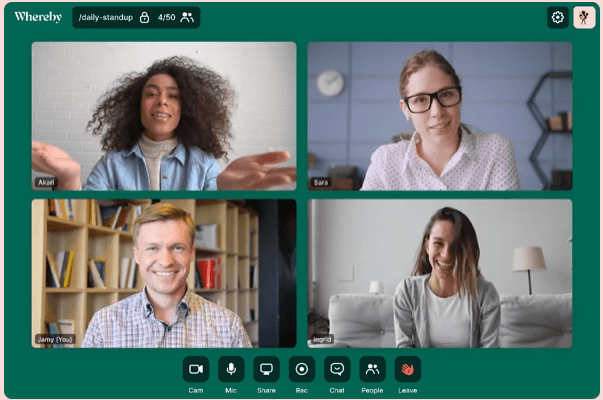
Whereby rientra nella mia lista perché è una delle poche soluzioni video in cui la sicurezza delle riunioni e le funzioni di coinvolgimento sono realmente integrate nel flusso di lavoro. Il sistema di sicurezza ‘bussa per entrare’ dà alle mie squadre remote la tranquillità che le nostre chiamate non saranno interrotte o accessibili a persone sbagliate.
Mi piace il modo in cui Whereby favorisce il coinvolgimento dei partecipanti con reazioni integrate e strumenti collaborativi che risultano più umani della maggior parte delle alternative. Raccomando questo strumento quando serve uno spazio per riunioni remote che sia al tempo stesso privato e accogliente—soprattutto durante sessioni di brainstorming aperte o check-in di squadra.
Migliori Utilizzi di Whereby
- Team remoti che vogliono videochiamate private e sicure con il minimo sforzo
- Gruppi concentrati su sessioni interattive con funzioni di coinvolgimento integrate
Quando Whereby Non è la Scelta Migliore
- Grandi aziende che necessitano di integrazioni approfondite o gestione IT complessa
- Team che desiderano funzioni avanzate per stanze di sottogruppo o eventi di grandi dimensioni
Cosa Rende Unico Whereby
Whereby si distingue per l’attenzione con cui mette l’accesso alla riunione e la privacy al centro del flusso utente. Invece di un approccio basato sull’accesso tramite login come Zoom o Google Meet, utilizza il modello ‘bussa per entrare’, che lascia il controllo all’host e crea un tono accogliente e intenzionale prima di ogni chiamata. In pratica, questo riduce gli ostacoli per i team remoti che hanno bisogno sia di accesso immediato sia di sicurezza costante, senza dover gestire codici o sale d’attesa. Spesso trovo che questa soluzione si adatti a team che vivono le riunioni ricorrenti come spazi collaborativi anziché come presentazioni formali.
Compromessi di Whereby
Whereby punta tutto su semplicità e un’esperienza di riunione focalizzata, ma si perdono funzioni avanzate di moderazione o controlli sulle sessioni di sottogruppo. Per sessioni di formazione ampie o eventi che richiedono lavori di gruppo suddivisi, incontrerai dei limiti.
Ideale per video in alta definizione
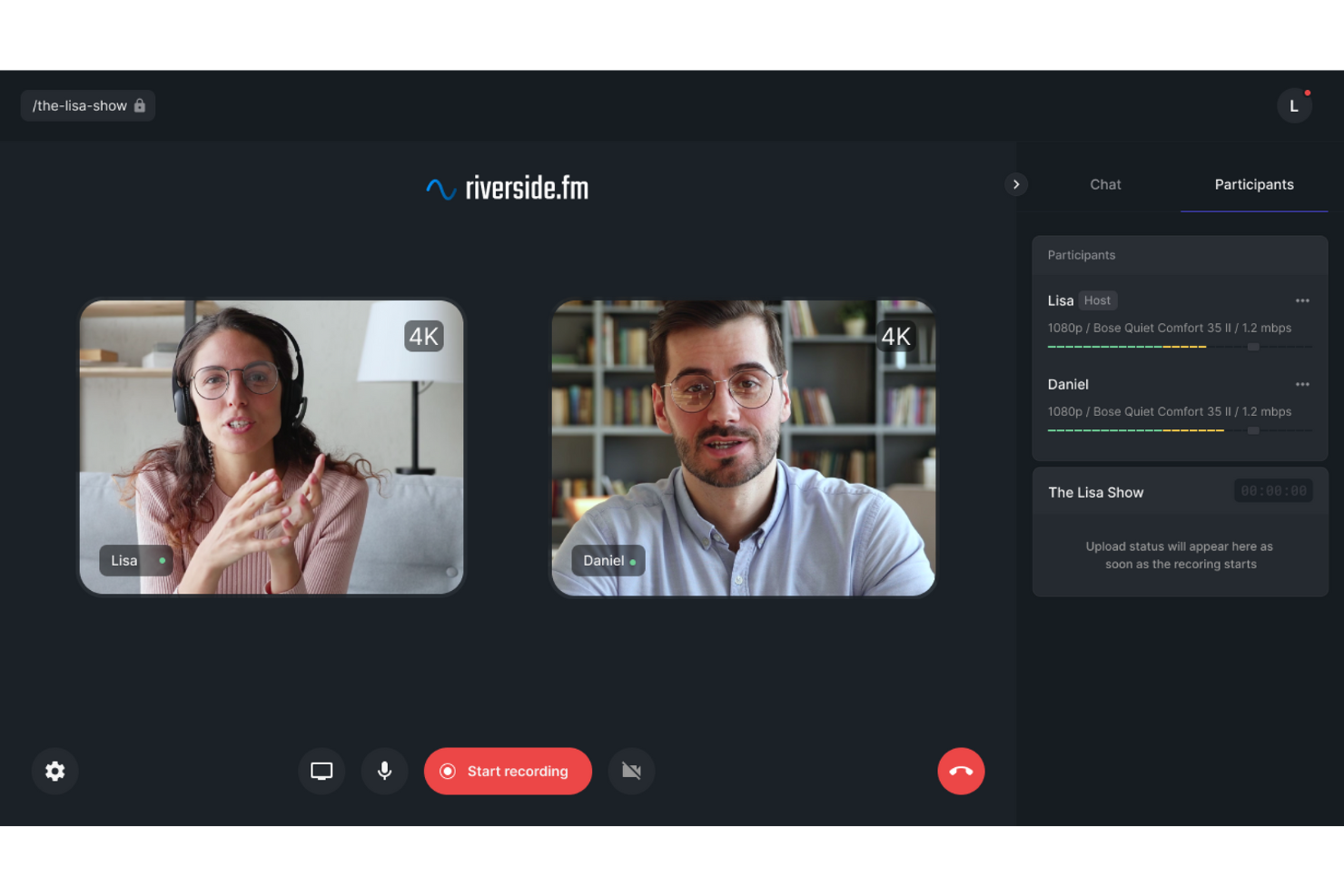
Riverside entra nella mia lista dei preferiti perché si distingue nel privilegiare la qualità audio e video da studio, anche nelle chiamate da remoto tra team.
Apprezzo molto la tecnologia di registrazione locale di Riverside, che mantiene audio e video nitidi anche con connessioni instabili. I team che lavorano su riunioni generali, webinar o sessioni di formazione possono aspettarsi risultati fluidi e una riproduzione affidabile.
A Chi È Più Adatto Riverside
- Team remoti che registrano videochiamate, webinar o interviste in alta definizione
- Aziende che danno priorità ad audio e video in qualità da studio per eventi virtuali
Quando Riverside Non È La Scelta Migliore
- Team che necessitano di stanze per sottogruppi e strumenti di collaborazione avanzati
- Organizzazioni focalizzate su brevi videocall informali e quotidiane
Cosa Distingue Riverside
Riverside si distingue perché è progettato per offrire qualità video e audio da studio direttamente dal tuo browser. A differenza di Zoom o Google Meet, che danno priorità all'interattività in tempo reale, Riverside basa il suo design sulla registrazione locale per ogni partecipante. Questo significa che le tue registrazioni mantengono la loro chiarezza anche se la connessione internet di qualcuno si interrompe.
Suggerisco spesso Riverside a chi deve registrare interviste, webinar o presentazioni da ripubblicare o condividere esternamente.
Compromessi con Riverside
Riverside ottimizza per registrazioni di altissima qualità ma mette in secondo piano strumenti di collaborazione come la condivisione dello schermo o le stanze per sottogruppi. In pratica, rinunci alle funzionalità interattive per le riunioni, quindi non è adatto a team che organizzano chiamate rapide e partecipative.
Pros and Cons
Pros:
- Archiviazione cloud previene la perdita di dati e permette facile accesso agli archivi
- Piano gratuito senza carta di credito
- Trascrizione automatica e suddivisione in capitoli
Cons:
- I costi possono aumentare
- Chrome richiesto per le migliori prestazioni

App avanzata per videoconferenze con un prezzo competitivo che include altre 37 app di produttività
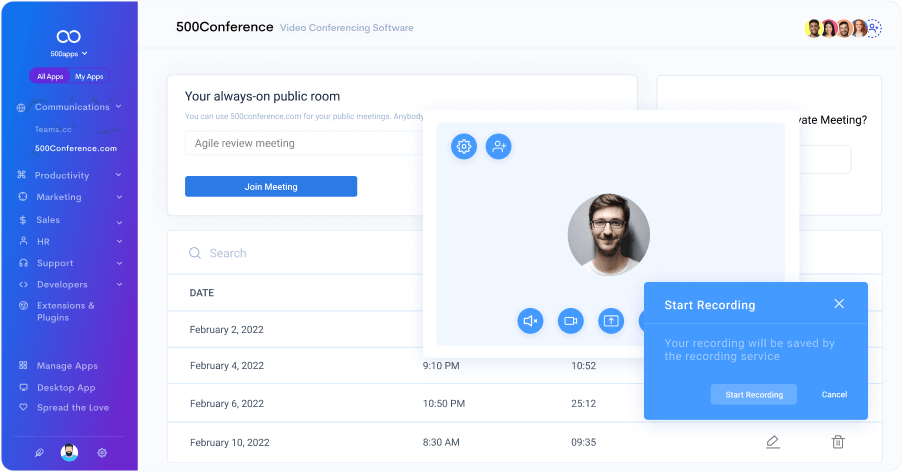
500Conference si distingue per i team remoti che desiderano riunioni video e strumenti di collaborazione integrati in un’unica piattaforma. L’ho scelto perché va ben oltre le semplici videochiamate, offrendo 37 diverse app di produttività per team che hanno bisogno di fare molto di più insieme. Ho visto organizzazioni avviare riunioni e automaticamente dare il via a task, creare sondaggi o collaborare su documenti senza mai uscire dalla piattaforma. Mi piace particolarmente il fatto che non sei costretto a destreggiarti tra più strumenti quando passi dalle riunioni al lavoro condiviso.
500Conference è l’ideale per
- Team remoti che vogliono unire videoconferenza e strumenti di produttività integrati
- Organizzazioni che desiderano gestire riunioni, task e collaborazione in un’unica piattaforma
500Conference non è ideale per
- Team che hanno bisogno solo di chiamate video di base senza funzionalità aggiuntive
- Aziende che cercano strumenti specializzati e autonomi per produzione video o broadcasting
Cosa distingue 500Conference
500Conference adotta un approccio diverso rispetto a strumenti come Zoom, partendo dal presupposto che i team vogliono uno spazio di lavoro unificato sia per le riunioni che per la collaborazione continua. Invece di limitarti a chiamate video programmate, ti incoraggia a mantenere il lavoro in movimento tra una riunione e l’altra grazie a documenti, whiteboard e strumenti per le attività integrati. Funziona meglio quando vuoi tutto collegato, senza dover passare da un’app scollegata all’altra.
Compromessi con 500Conference
Ottieni più comodità consolidando il lavoro in un’unica piattaforma, ma l’esperienza può risultare affollata se hai solo bisogno di chiamate video mirate. In pratica, alcuni team finiscono col navigare tra più menu o strumenti inutilizzati rispetto a una soluzione video dedicata.

Strumento conveniente per le videoconferenze, ben integrato nella suite tecnologica completa di Zoho
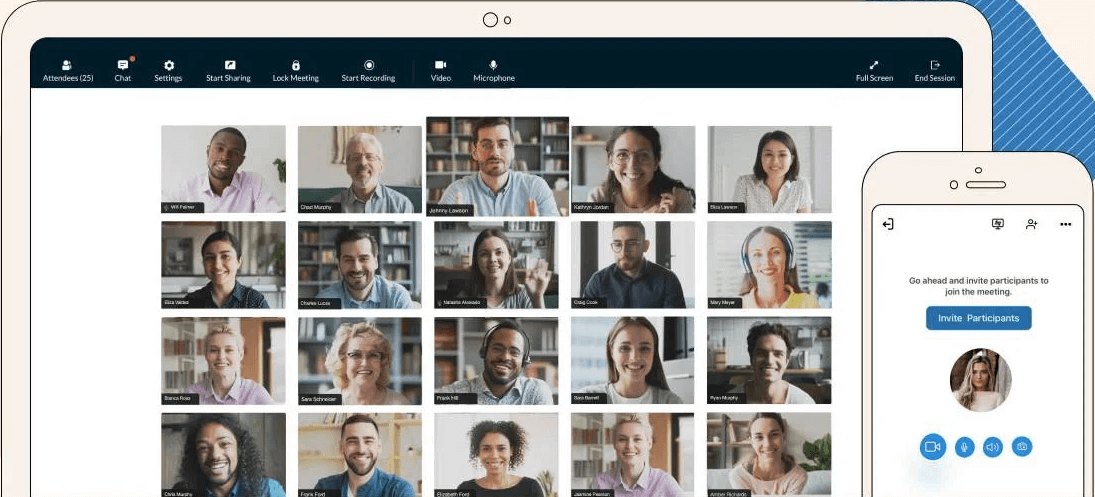
Zoho Meeting entra nella mia rosa di candidati perché è particolarmente adatto ai team da remoto che hanno già investito nell’ecosistema Zoho. Ho visto gruppi distribuiti trarre grande valore dal modo in cui si integra strettamente con i progetti, i calendari e i documenti Zoho.
Una cosa che apprezzo di Zoho Meeting è la facilità con cui è possibile avviare chiamate direttamente dagli altri strumenti Zoho. Funziona al meglio quando i team vogliono che le chiamate, la condivisione dello schermo e le attività successive siano una parte naturale del flusso di lavoro esistente, anziché un’attività isolata.
A chi è più adatto Zoho Meeting
- Team da remoto che lavorano già all’interno della suite Zoho
- Organizzazioni che desiderano collegare strettamente le videochiamate a progetti, documenti e calendari
Per chi non è l’ideale Zoho Meeting
- Team che necessitano di funzionalità avanzate per webinar video o del supporto per riunioni di grandi dimensioni
- Aziende che non utilizzano già gli strumenti Zoho o che desiderano ampie integrazioni con servizi di terze parti
Cosa distingue Zoho Meeting
Zoho Meeting si differenzia da strumenti come Zoom o Microsoft Teams perché è progettato per funzionare come un’estensione della più ampia piattaforma Zoho. Invece di portarti in un’app separata per gestire le videochiamate, ti invita a integrare le riunioni direttamente nel flusso di lavoro dei progetti o del calendario. Funziona al meglio negli ambienti in cui la collaborazione avviene già all’interno delle app Zoho, anziché essere distribuita su diverse piattaforme.
Compromessi di Zoho Meeting
Zoho Meeting privilegia l’integrazione stretta con la propria suite rispetto alle funzionalità avanzate per le riunioni e all’ampia compatibilità. In pratica, questo significa rinunciare ad alcune funzionalità per webinar o integrazioni esterne offerte da altri strumenti video dedicati.
Dialpad
Software evoluto per videoconferenze con funzione di trascrizione tramite Voice Intelligence basata su AI
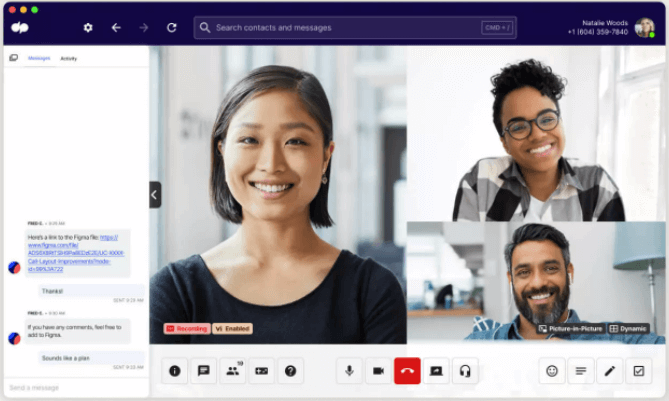
Dialpad entra nella mia lista per il grande valore che aggiunge alle riunioni dei team da remoto grazie alla trascrizione tramite Voice Intelligence basata su AI. Vedo team affidarsi a Dialpad quando è fondamentale mantenere i partecipanti coinvolti e responsabili—specialmente tra diversi fusi orari o durante il lavoro asincrono.
Mi piace il fatto che la funzione di trascrizione non solo cattura la discussione in tempo reale, ma aiuta anche i team a recuperare facilmente decisioni o compiti assegnati senza perdere un colpo. Questo strumento si distingue quando raccogliere contributi da membri distribuiti e tenere traccia dei follow-up dopo le chiamate è cruciale per gestire riunioni produttive e ben organizzate.
Dialpad è Ideale Per
- Team distribuiti che necessitano trascrizioni e documentazione delle riunioni tramite intelligenza artificiale
- Organizzazioni che svolgono frequentemente riunioni remote orientate all'azione con follow-up
Dialpad Non È Ideale Per
- Team che non necessitano di trascrizioni avanzate o analisi delle chiamate
- Team che puntano principalmente sui video e desiderano stanze separate o formati di riunione immersivi
Cosa Distingue Dialpad
Dialpad è stato costruito intorno alla trascrizione in tempo reale come parte integrante di ogni riunione, non solo come un'aggiunta. A differenza di piattaforme come Zoom, che puntano sulla qualità video e sulle stanze separate, Dialpad si basa su trascrizioni ricercabili e in tempo reale per mantenere tutti allineati e informati. Funziona meglio quando le riunioni sono dense di decisioni e i follow-up sono importanti quanto la discussione stessa.
Compromessi con Dialpad
Poiché Dialpad ottimizza per la trascrizione e gli approfondimenti post-riunione, si sacrificano alcune funzionalità avanzate di collaborazione video come i gruppi di lavoro separati. In pratica, ciò significa che le riunioni molto orientate all'interazione faccia a faccia o al brainstorming potrebbero risultare più limitate.

Software moderno di videoconferenza con Assistente per Riunioni Intelligenti integrato, particolarmente adatto ai professionisti sanitari

GoTo Meeting rientra nella mia selezione perché è una delle poche piattaforme di videoconferenza progettate pensando alle esigenze specifiche del settore sanitario. Io considero soluzioni che fanno più che semplicemente connettere le persone—cerco funzionalità che rendano le interazioni a distanza più intelligenti ed efficaci.
Apprezzo il fatto che l’Assistente per Riunioni Intelligenti di GoTo Meeting possa catturare automaticamente note e punti d’azione delle riunioni, cosa fondamentale per i team impegnati che devono documentare decisioni importanti. Quando vedo organizzazioni che necessitano di una sicurezza conforme a HIPAA e di una collaborazione affidabile e interattiva, questa è la soluzione su cui faccio affidamento.
GoTo Meeting è ideale per
- Operatori sanitari che necessitano di videoriunioni conformi a HIPAA con documentazione
- Team che desiderano trascrizioni delle riunioni automatiche e punti d’azione registrati
GoTo Meeting non è l’ideale per
- Grandi aziende che necessitano di funzionalità avanzate per eventi virtuali o webinar
- Organizzazioni che desiderano messaggistica video asincrona o chat persistente integrate
Cosa distingue GoTo Meeting
GoTo Meeting ha un approccio incentrato sulle riunioni, con l’obiettivo di semplificare le sessioni a distanza per industrie con forti esigenze di conformità. Non è come usare Zoom o Microsoft Teams, che spesso competono su funzioni di livello aziendale e messaggistica più ampia. GoTo Meeting si concentra su affidabilità e documentazione operativa delle riunioni, specialmente dove una corretta registrazione è essenziale. I team ottengono chiamate costanti e sicure, e l’Assistente per Riunioni Intelligenti punta a farti affidare a registrazioni accurate invece che a note sparse.
Compromessi con GoTo Meeting
Dedicandosi a riunioni strutturate e conformità, GoTo Meeting tralascia la messaggistica informale e le funzionalità per eventi di larga scala. In pratica, perdi l’opportunità di gestire conversazioni continue o realizzare webinar interattivi nello stesso spazio.

Software di videoconferenza scalabile per riunioni di team, webinar ed eventi virtuali di grandi dimensioni

ClickMeeting entra nella mia selezione perché è pensato per scalare ben oltre i semplici check-in di squadra, un aspetto importante quando si gestiscono grandi riunioni virtuali o webinar. Lo consiglio spesso alle organizzazioni che gestiscono tutto, dalle tavole rotonde ai workshop pratici, e desiderano un coinvolgimento costante ovunque si colleghino i partecipanti.
La funzione che trovo più utile è l'automazione degli eventi: puoi configurare registrazione, email di promemoria e follow-up senza strumenti aggiuntivi. Apprezzo molto i controlli per i webinar che permettono agli host di lanciare sondaggi, sessioni di Q&A e lavagne condivise che mantengono attivo il coinvolgimento, anche con gruppi numerosi e non solo come spettatori.
ClickMeeting è Ideale Per
- Team HR, marketing e formazione che ospitano grandi eventi virtuali o webinar interattivi
- Organizzazioni che gestiscono riunioni multi-sessione con automazione, coinvolgimento dei partecipanti ed esperienze brandizzate
ClickMeeting Non è Adatto Per
- Piccoli team che hanno bisogno solo di funzioni di videochiamata basilari
- Gruppi che privilegiano la collaborazione informale e rapida rispetto a un controllo strutturato dell'evento
Cosa Distingue ClickMeeting
ClickMeeting è progettato per gestire grandi sessioni virtuali controllate invece che semplici check-in interni. Diversamente da Zoom o Google Meet, qui ogni sessione è trattata come un evento—configurando la registrazione, automatizzando i promemoria e utilizzando strumenti guidati dall'host per promuovere il coinvolgimento. In pratica, questo sistema funziona meglio quando vuoi alta partecipazione e interazione strutturata con un pubblico numeroso e, a volte, anche esterno.
Compromessi di ClickMeeting
ClickMeeting è ottimizzato per la pianificazione e la gestione degli eventi, ma questa struttura aggiunge passaggi in più nella comunicazione di squadra improvvisata. Si rinuncia così all'immediatezza delle soluzioni di videochiamata più semplici.
Software per videoconferenze completo di tutte le funzionalità, con modalità presentazione che sovrappone l’oratore ai contenuti condivisi
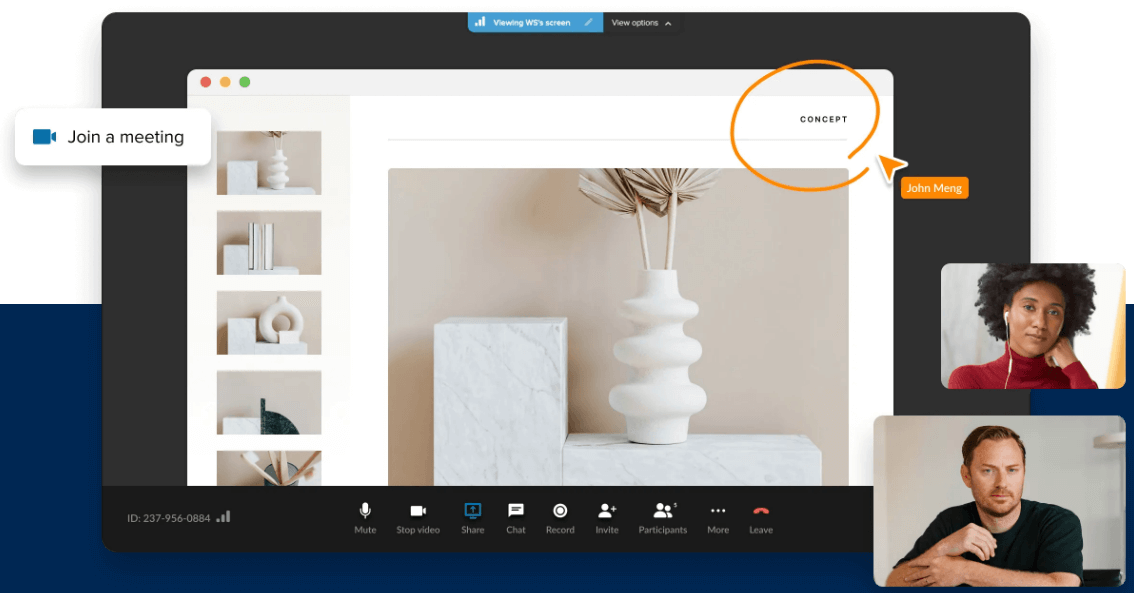
RingCentral non è solo un’altra piattaforma video: si distingue davvero per il modo in cui favorisce il coinvolgimento durante le riunioni di team a distanza. L’ho scelto per questa lista perché la modalità presentazione permette all’oratore di apparire direttamente sopra ai contenuti, così non sei costretto a scegliere tra la condivisione delle informazioni e il mantenere quei momenti di contatto visivo.
Apprezzo molto come questa funzione consenta ai presentatori di mantenere alta l’attenzione del gruppo ed evitare quella sensazione da “voce fuori campo su una presentazione di diapositive”. Quando vedo team usare RingCentral, il coinvolgimento è evidentemente più elevato perché i partecipanti possono vedere sia le reazioni del presentatore sia il contenuto in un’unica schermata.
RingCentral è ideale per
- Team remoti che necessitano di presentazioni dinamiche e interattive durante le videoriunioni
- Facilitatori che desiderano mantenere il contatto visivo mentre condividono contenuti dettagliati
RingCentral è meno indicato per
- Team che hanno bisogno di una collaborazione avanzata oltre le riunioni, come spazi di lavoro condivisi e persistenti
- Organizzazioni che cercano una videochat semplice, senza funzioni di presentazione
Cosa distingue RingCentral dagli altri
RingCentral si distingue per l’attenzione che dedica alla presenza e al coinvolgimento durante le riunioni a distanza. A differenza di Meet o Teams, permette ai presentatori di apparire sopra i contenuti condivisi, così sia i contenuti visivi che la connessione umana rimangono centrali. Ciò funziona particolarmente bene quando si vuole mantenere il focus dei partecipanti sia sul messaggio che su chi lo sta trasmettendo.
Raccomando spesso RingCentral quando i team trovano la condivisione schermo tradizionale troppo impersonale o poco coinvolgente per la collaborazione da remoto.
Compromessi di RingCentral
Centrando l’esperienza sulle riunioni e sulle presentazioni dal vivo, non è pensato per la collaborazione asincrona. Questo significa che la gestione dei file, la chat di team e le discussioni continue dovranno avvenire altrove.

Soluzione di videoconferenza futuristica con strumenti di produttività per segnalare i punti salienti e assegnare compiti d'azione
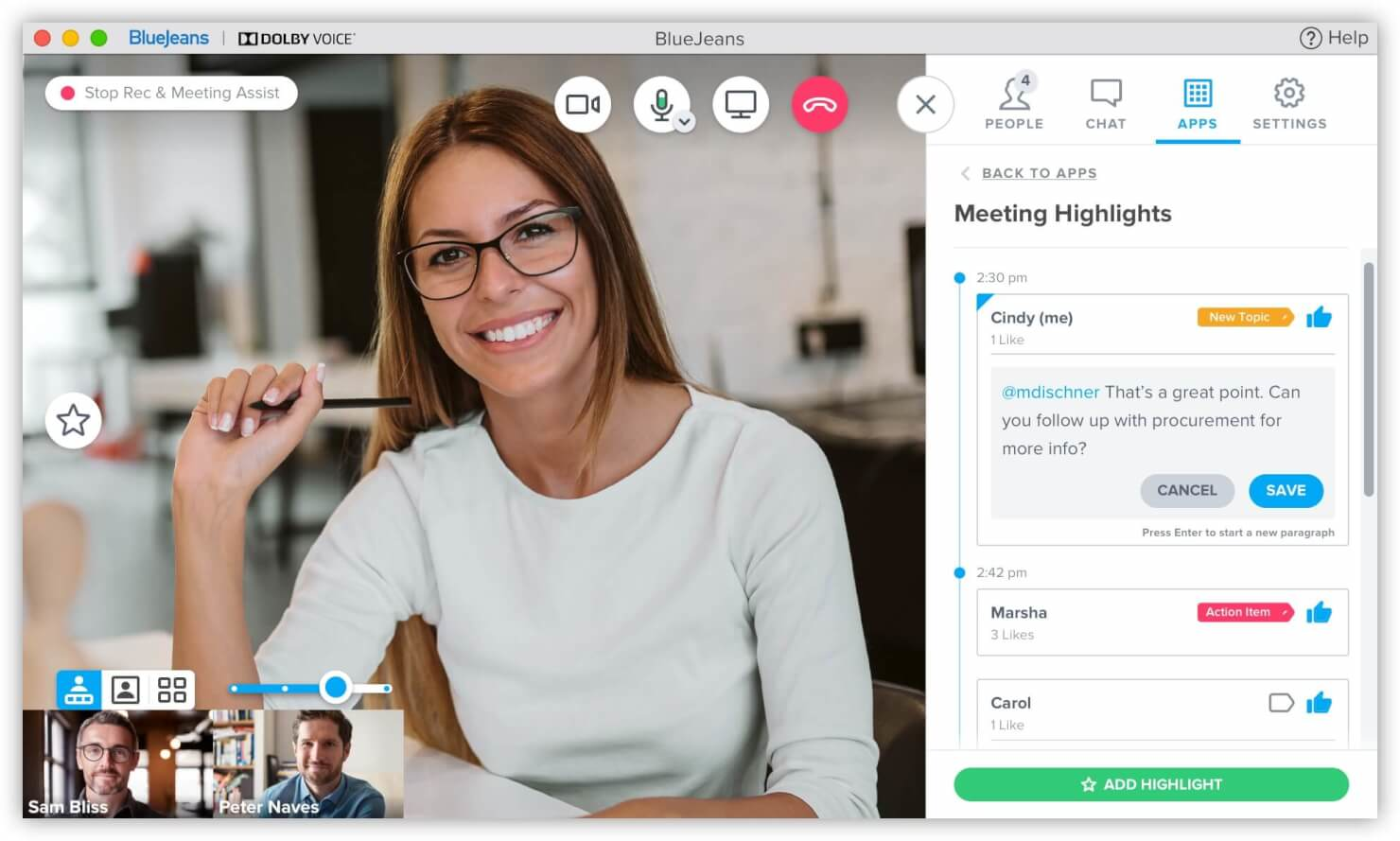
Blue Jeans Network sembra fatto apposta per i team che vogliono di più dalle loro videoriunioni che semplici volti parlanti. L'ho inserito in questa lista perché gli strumenti che permettono di segnalare momenti chiave e trasformare istantaneamente le conversazioni in azioni fanno la differenza quando si lavora da remoto.
Quello che continua a sorprendermi è la rapidità con cui posso evidenziare punti importanti della discussione e assegnare compiti di follow-up—tutto all'interno della riunione. I team tendono ad essere più coinvolti perché nessuna parte della conversazione viene persa o dimenticata al termine della chiamata.
Blue Jeans Network: Ideale per
- Team remoti che devono catturare momenti salienti delle riunioni e assegnare compiti da svolgere in tempo reale
- Manager che desiderano un migliore follow-up e maggiore responsabilizzazione dalle discussioni nelle videoriunioni
Blue Jeans Network: Non ideale per
- Organizzazioni che cercano strumenti per webinar o trasmissione di grandi eventi
- Team che necessitano solo di chiamate video semplici, senza funzionalità di produttività
Cosa distingue Blue Jeans Network
Blue Jeans Network tratta le riunioni come sessioni di lavoro anziché semplici chiamate. A differenza di Zoom o Google Meet, si aspetta che tu catturi i momenti salienti e assegni compiti di follow-up in tempo reale durante la conversazione. Questo funziona al meglio quando vuoi che le riunioni generino passi concreti successivi invece di lasciare tutto sepolto tra le note. Tendo a consigliarlo quando i team vogliono una partecipazione attiva e coinvolgente nelle videoriunioni.
Compromessi di Blue Jeans Network
Blue Jeans Network è ottimizzato per meeting produttivi grazie a strumenti integrati, ma si perde qualcosa se cerchi solo semplici videochiamate. Per i team che danno valore a conferenze semplici o di larga scala, le funzionalità aggiuntive possono risultare superflue o dispersive.

SpatialChat
Ideale per ambienti virtuali immersivi
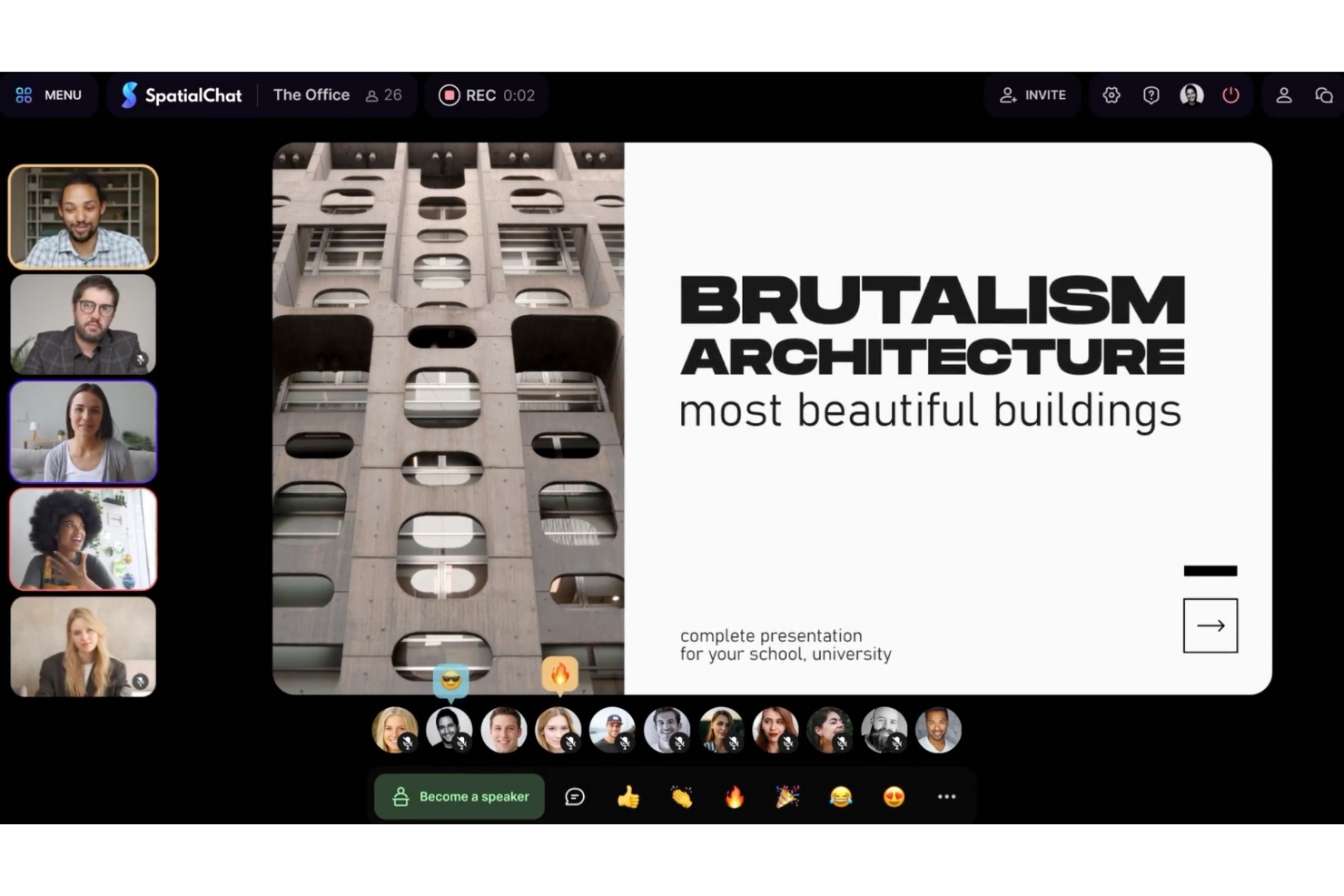
SpatialChat entra nella mia selezione perché nessun altro strumento replica davvero la sensazione di muoversi fisicamente attraverso uno spazio insieme al proprio team durante le sessioni virtuali. Lo propongo alle squadre che hanno bisogno di qualcosa di più coinvolgente rispetto alle classiche griglie video, soprattutto quando l’energia del gruppo inizia a calare o le conversazioni informali risultano forzate.
Ciò che mi colpisce è come sia possibile avvicinarsi ai gruppi, “muoversi nella stanza” e iniziare chiacchiere laterali in modo naturale durante una riunione generale o un evento sociale virtuale. Ho visto team utilizzare SpatialChat per brainstorming, onboarding e incontri interattivi in cui vogliono creare una reale connessione tra sedi remote. Non esiste nient’altro che riesca a trasmettere così bene questa sensazione di presenza virtuale condivisa.
Ideale per
- Team distribuiti che cercano ambienti virtuali immersivi e interattivi
- Gruppi remoti che organizzano brainstorming, eventi sociali di team o attività di onboarding
Meno indicato per
- Webinar o riunioni molto numerose dove contano struttura e controllo della presentazione
- Team che preferiscono configurazioni di videoconferenza tradizionali e statiche
Cosa distingue SpatialChat
SpatialChat sembra più un ingresso a un raduno virtuale che l’accesso a una normale videochiamata. A differenza di Zoom, dove tutto resta in una griglia statica, SpatialChat consente di spostarsi visivamente tra gruppi e conversazioni sullo schermo. Lo consiglio spesso quando si vuole ricreare il flusso informale di chiacchiere d’ufficio o incontri sociali—quelle occasioni casuali che non avvengono nei formati di riunione rigidi.
Funziona al meglio per sessioni spontanee e interattive, come workshop o aperitivi di team, piuttosto che per presentazioni rigidamente moderate.
Pro e contro di SpatialChat
SpatialChat è ottimizzato per l’interazione naturale e informale, ma questo va a scapito di struttura e controllo. Quando servono conduzione formale o ordine—come negli aggiornamenti aziendali o nei grandi webinar—il formato aperto rende più difficile coordinare e può lasciare inascoltate alcune voci.
Pros and Cons
Pros:
- Non serve installare software; accesso direttamente dal browser
- Offre sfondi virtuali unici per opportunità di branding
- Supporta fino a 10.000 partecipanti per grandi eventi
Cons:
- Mancano certe funzionalità avanzate per amministratori o host
- Occasionali problemi di compatibilità audio o con alcuni browser
Altri software per videoconferenze
Ecco alcune altre opzioni di software per videoconferenze che non sono entrate nella mia selezione, ma che vale comunque la pena prendere in considerazione:
- BigBlueButton
Soluzione open-source per videoconferenze e aule virtuali progettata per insegnanti e istituzioni educative
- RemotePC Meeting
Strumento avanzato di videoconferenza con stanze separate e sondaggi a scelta multipla dal vivo
- GlobalMeet Collaboration
Software di videoconferenza completo con integrazione al calendario e funzionalità di lavagna digitale


Come valuto il software di videoconferenza
Suddivido la mia valutazione in due livelli: i requisiti di base indispensabili, come la registrazione affidabile per documentare i colloqui, e i fattori differenzianti che rendono una piattaforma la soluzione ideale per il tuo team HR.
Funzionalità principali (Requisiti minimi per questa lista)
Quando seleziono gli strumenti per la mia lista, valuto ciascuno su una scala da 0 (non offre la funzionalità) a 5 (eccelle in questo aspetto) per ogni funzionalità principale elencata di seguito. Poi, calcolo il punteggio totale dello strumento in percentuale. Ogni strumento deve raggiungere un punteggio totale minimo del 65% per essere preso in considerazione.
- Qualità audio e video in HD: Valuto la risoluzione video, la capacità massima dei partecipanti e la soppressione del rumore—soprattutto durante i colloqui di gruppo dove più intervistatori parlano rapidamente a turno.
- Condivisione schermo & presentazione: Che si tratti di illustrare a un nuovo assunto la procedura di iscrizione ai benefit o di gestire un aggiornamento di policy, cerco modalità di condivisione flessibili e supporto all’annotazione.
- Registrazione & trascrizione delle riunioni: Verifico la possibilità di registrazione su cloud con trascrizioni ricercabili, dato che i team HR spesso devono rivedere i colloqui o archiviare le sessioni di formazione.
- Pianificazione & integrazione calendario: Prenotare colloqui con candidati in diversi fusi orari può trasformarsi presto in un caos, quindi valuto quanto bene ogni strumento si sincronizza con Google Calendar e Outlook.
- Sicurezza & controlli di accesso: Conversazioni sensibili come revisioni di prestazioni e riunioni disciplinari richiedono almeno crittografia, sale d’attesa e permessi basati su ruoli.
- Chat & strumenti di collaborazione: Stanze separate, sondaggi e funzionalità Q&A sono essenziali per casi d’uso interattivi come workshop di onboarding, formazione del team e riunioni plenarie aziendali.
Una volta compilata la lista degli strumenti che soddisfano questi criteri, considero ciò che distingue ciascuna piattaforma.
Fattori differenzianti (Cosa distingue i fornitori)
Ecco come metto a confronto i diversi fornitori:
Funzionalità distintive
Gli assistenti AI per le riunioni sono un grande elemento differenziante—cerco strumenti che generano automaticamente riassunti e azioni da intraprendere, facendo risparmiare ore ai recruiter nella documentazione post-colloquio. Anche le integrazioni con ATS e HRIS sono importanti, perché piattaforme che sincronizzano i dati di candidati o dipendenti con sistemi come Greenhouse o BambooHR riducono l’inserimento manuale. Valuto inoltre il supporto per la sottotitolazione e la traduzione in tempo reale, particolarmente preziosi per i team HR che si occupano di selezione e formazione in più regioni e lingue.
Oltre alle funzionalità
La conformità e la protezione dei dati sono in cima alla mia lista—le conversazioni HR riguardano dati personali sensibili, quindi verifico gli standard di crittografia, le opzioni di residenza dei dati e certificazioni come SOC 2 e conformità GDPR. Anche la scalabilità e le licenze orientano la mia valutazione. Una piattaforma dovrebbe gestire sia una riunione disciplinare da cinque persone sia un incontro aziendale da 500 partecipanti senza obbligare a cambiare piano. Considero anche le analisi sull’engagement, perché monitorare presenze e partecipazione durante le sessioni formative aiuta gli specialisti della formazione a misurare l’impatto dei programmi e a giustificare investimenti futuri.
Come scegliere un software per videoconferenze
È facile perdersi in lunghi elenchi di funzionalità e strutture tariffarie complesse. Per aiutarti a rimanere concentrato mentre affronti il tuo esclusivo processo di selezione del software, ecco una lista di fattori da tenere a mente:
| Fattore | Cosa considerare |
|---|---|
| Scalabilità | Il software crescerà insieme al tuo team? Cerca strumenti in grado di gestire un numero maggiore di utenti e riunioni più grandi man mano che il team si espande. |
| Integrazioni | Funziona con gli strumenti che già utilizzi? Verifica la compatibilità con il tuo CRM, il calendario e gli altri software essenziali. |
| Personalizzazione | Puoi adattare lo strumento alle tue esigenze? Valuta se puoi modificare le impostazioni e le interfacce in base ai tuoi flussi di lavoro. |
| Semplicità d'uso | È intuitivo per tutti? Valuta la curva di apprendimento e se i membri del team possono iniziare a utilizzarlo senza una formazione approfondita. |
| Implementazione e avviamento | Quanto velocemente puoi iniziare? Valuta i tempi di configurazione e la disponibilità di risorse come tutorial e assistenza durante la fase di avviamento. |
| Costo | Rientra nel tuo budget? Confronta i piani tariffari, i costi nascosti e il valore offerto rispetto alle altre opzioni. |
| Misure di sicurezza | Le tue riunioni sono sicure? Cerca crittografia, protezione tramite password e conformità agli standard di protezione dei dati. |
| Disponibilità dell'assistenza | Puoi ricevere aiuto quando ne hai bisogno? Considera la disponibilità dell'assistenza clienti, i tempi di risposta e la qualità del supporto fornito. |
Che cos'è il software per videoconferenze?
Il software per videoconferenze è uno strumento che consente riunioni virtuali e comunicazioni tramite connessioni video e audio. Professionisti di vari settori, come responsabili delle risorse umane, team remoti e docenti, utilizzano questi strumenti per migliorare la collaborazione e la comunicazione. Funzionalità come la condivisione dello schermo, la registrazione e la messaggistica in chat contribuiscono a una gestione efficace delle riunioni e all'interazione tra i membri del team. In generale, questi strumenti facilitano la connessione e la collaborazione da qualsiasi luogo.
Funzionalità
Quando scegli un software per videoconferenze, presta attenzione alle seguenti funzionalità chiave:
- Condivisione dello schermo: consente ai partecipanti di condividere i propri schermi per presentazioni e collaborazioni, migliorando la comunicazione e la chiarezza durante le riunioni.
- Registrazione: consente di registrare le riunioni per consultarle in futuro, assicurando che le discussioni importanti possano essere riesaminate e condivise con chi non ha potuto partecipare.
- Messaggistica in chat: offre un canale di comunicazione aggiuntivo che consente ai partecipanti di scambiarsi messaggi durante le riunioni senza interrompere chi sta parlando.
- Stanze per gruppi: facilitano le discussioni in gruppi più piccoli all'interno di una riunione più ampia, promuovendo una collaborazione mirata e il brainstorming.
- Sfondi virtuali: offrono la possibilità di cambiare o sfocare lo sfondo, mantenendo privacy e professionalità negli ambienti da remoto.
- Trascrizione in tempo reale: trascrive automaticamente le parole pronunciate in testo, migliorando l'accessibilità e consentendo di consultare facilmente i contenuti della riunione.
- Funzionalità di integrazione: si collega ad altri strumenti, come sistemi CRM o calendari, ottimizzando il flusso di lavoro e aumentando la produttività.
- Misure di sicurezza: includono la crittografia e la protezione tramite password per salvaguardare le informazioni sensibili e garantire comunicazioni sicure.
- Accesso da dispositivi mobili: consente agli utenti di partecipare alle riunioni da dispositivi mobili, offrendo flessibilità e comodità ai partecipanti in movimento.
- Impostazioni personalizzabili: consentono agli utenti di adattare l'interfaccia e le funzionalità alle proprie esigenze specifiche, migliorando l'esperienza utente e l'adattabilità.
Vantaggi
L'implementazione di un software per videoconferenze offre diversi vantaggi al tuo team e alla tua azienda. Eccone alcuni:
- Comunicazione migliorata: facilita le interazioni in tempo reale, riducendo i fraintendimenti e migliorando la collaborazione tra i membri del team.
- Risparmio sui costi: riduce le spese di viaggio consentendo riunioni virtuali e permettendo ai team di connettersi da qualsiasi luogo.
- Maggiore produttività: funzionalità come la condivisione dello schermo e la messaggistica in chat aiutano i team a collaborare in modo efficiente e a prendere decisioni più rapidamente.
- Maggiore flessibilità: l'accesso da dispositivi mobili consente ai membri del team di partecipare alle riunioni da qualsiasi luogo, adattandosi al lavoro da remoto e a orari diversi.
- Maggiore coinvolgimento: strumenti come gli sfondi virtuali e le stanze per gruppi rendono le riunioni più interattive e coinvolgenti.
- Accessibilità: la trascrizione in tempo reale rende le riunioni più accessibili a tutti i partecipanti, assicurando che ognuno possa seguire la conversazione.
- Sicurezza dei dati: le misure di sicurezza proteggono le informazioni sensibili durante le riunioni, offrendo tranquillità agli utenti che condividono dati riservati.
Costi e prezzi
La scelta di un software per videoconferenze richiede una comprensione dei vari modelli e piani tariffari disponibili. I costi variano in base alle funzionalità, alle dimensioni del team, agli extra e ad altri fattori. La tabella seguente riassume i piani più comuni, i relativi prezzi medi e le funzionalità tipicamente incluse nelle soluzioni software per videoconferenze:
Tabella comparativa dei piani per software di videoconferenza
| Tipo di piano | Prezzo medio | Funzionalità comuni |
|---|---|---|
| Piano gratuito | $0 | Organizzazione di riunioni con limitazioni, condivisione dello schermo di base e messaggistica in chat. |
| Piano personale | $5-$15/user/month | Durata delle riunioni più lunga, opzioni di registrazione e sfondi personalizzabili. |
| Piano aziendale | $15-$25/user/month | Controlli avanzati delle riunioni, integrazione con altri strumenti e funzionalità di sicurezza avanzate. |
| Piano per grandi aziende | $25-$50/user/month | Riunioni su larga scala, assistenza clienti dedicata e ampie funzionalità di reportistica e analisi. |
Domande frequenti sul software per videoconferenze
Ecco alcune risposte alle domande frequenti sul software per videoconferenze:
Quale velocità di connessione Internet è necessaria per le videoconferenze?
Per le videochiamate standard è necessaria una velocità Internet minima di 1 Mbps. Per le videochiamate in HD, è consigliabile avere almeno 3 Mbps. Verifica la tua velocità Internet utilizzando gli strumenti online e valuta un aggiornamento se riscontri ritardi o una scarsa qualità video. Ricorda che sia la velocità di caricamento sia quella di download sono importanti per videoconferenze fluide.
Posso utilizzare il software per videoconferenze sul mio smartphone?
Sì, la maggior parte dei software per videoconferenze offre app per dispositivi mobili. Queste app ti consentono di partecipare alle riunioni mentre sei in movimento, risultando comode per il lavoro da remoto o durante i viaggi. Assicurati che il sistema operativo del tuo telefono sia compatibile e mantieni l’app aggiornata per ottenere le migliori prestazioni.
Come posso risolvere i problemi audio durante una conferenza?
Per prima cosa, controlla le impostazioni audio del dispositivo e assicurati che siano selezionati il microfono e l’altoparlante corretti. A volte può essere utile semplicemente scollegare e ricollegare le cuffie. Se il problema persiste, verifica la connessione Internet e riavvia il software. La maggior parte delle piattaforme dispone di una funzione integrata per il test dell’audio che puoi utilizzare.
Il software per videoconferenze è sicuro?
Sì, la maggior parte degli strumenti per videoconferenze dà priorità alla sicurezza grazie alla crittografia e alla protezione tramite password. Tuttavia, dovresti sempre controllare le impostazioni di sicurezza e attivare funzioni come le sale d’attesa o il blocco delle riunioni. Evita di condividere pubblicamente i link delle riunioni per impedire accessi non autorizzati.
Qual è il prossimo passo:
Se stai cercando un software per videoconferenze, contatta gratuitamente un consulente SoftwareSelect per ricevere consigli.
Compili un modulo e partecipi a una breve conversazione durante la quale vengono analizzate nel dettaglio le tue esigenze. In seguito riceverai una selezione ristretta di software da valutare. Ti supporteranno anche durante l'intero processo di acquisto, comprese le negoziazioni sul prezzo.