

10 Best Productivity Tools in 2026

Best Productivity Tools Shortlist


Productivity tools are software or apps that help you manage tasks, organize work, and track progress so you get more done with less stress. If you’re searching for the best productivity tools, you’re likely looking for trusted options that actually help your team cut distractions, collaborate with ease, and get ahead of deadlines—not just more digital clutter.
In this guide, you’ll find the top picks for 2026, including both classic favorites and emerging apps, and honest insight on what each one offers. Use this list to find the right tool to boost efficiency, clarity, and focus for your workday.
Why Trust Our Software Recommendations
Our team has been testing and reviewing software since 2012. As HR experts ourselves, we know how difficult—and important—it is to choose the right software.
For this guide, we evaluated tools using hands-on testing and independent research, scoring tools using our selection criteria. We also draw on insights from industry thought leaders and practicing HR experts.
Our reviews reflect our human editorial judgment, not a sales pitch.
Expert reviewers:
Productivity Tools Comparison Table
This comparison table summarizes pricing details for my top productivity tool selections:
| Tool | Best For | Trial Info | Price | ||
|---|---|---|---|---|---|
| 1 | Best for flexible time tracking | Free plan + 7-day free trial available | From $4.99/user/month | Website | |
| 2 | Best for centralized tasks and calendars for focused daily planning | 7-day free trial | From $19/user/month | Website | |
| 3 | Best for organizing tasks and projects with powerful simplicity | Free plan available | From $5/user/month (billed annually) | Website | |
| 4 | Best for visual project and workflow management | Free plan + free trial available | From $5/user/month (billed annually) | Website | |
| 5 | Best for building customizable team workspaces | Free plan + Free trial + Free demo available | From $10/user/month | Website | |
| 6 | Best for automatic time tracking and distraction management | 14-day free trial available | From $7/month (billed annually) | Website | |
| 7 | Best for team chat, meetings, and document collaboration | Free plan + 1-month free trial available | From $4/user/month (billed annually) | Website | |
| 8 | Best for aligning goals with project execution | Free plan available | From $4/user/month (billed annually) | Website | |
| 9 | Best for blended notes, tasks, and calendar in one workspace | Free plan available | From $10/month (billed annually) | Website | |
| 10 | Best for time tracking with built-in reporting | Free plan available; 30-day free trial; Free demo available | From $9/user/month | Website |

Best Productivity Tools Reviews
Below are my detailed summaries of the best productivity tools that made it onto my shortlist. My reviews offer a detailed look at the features, best use cases, and integrations of each tool to help you find the best one for you.

Clockify
Best for flexible time tracking
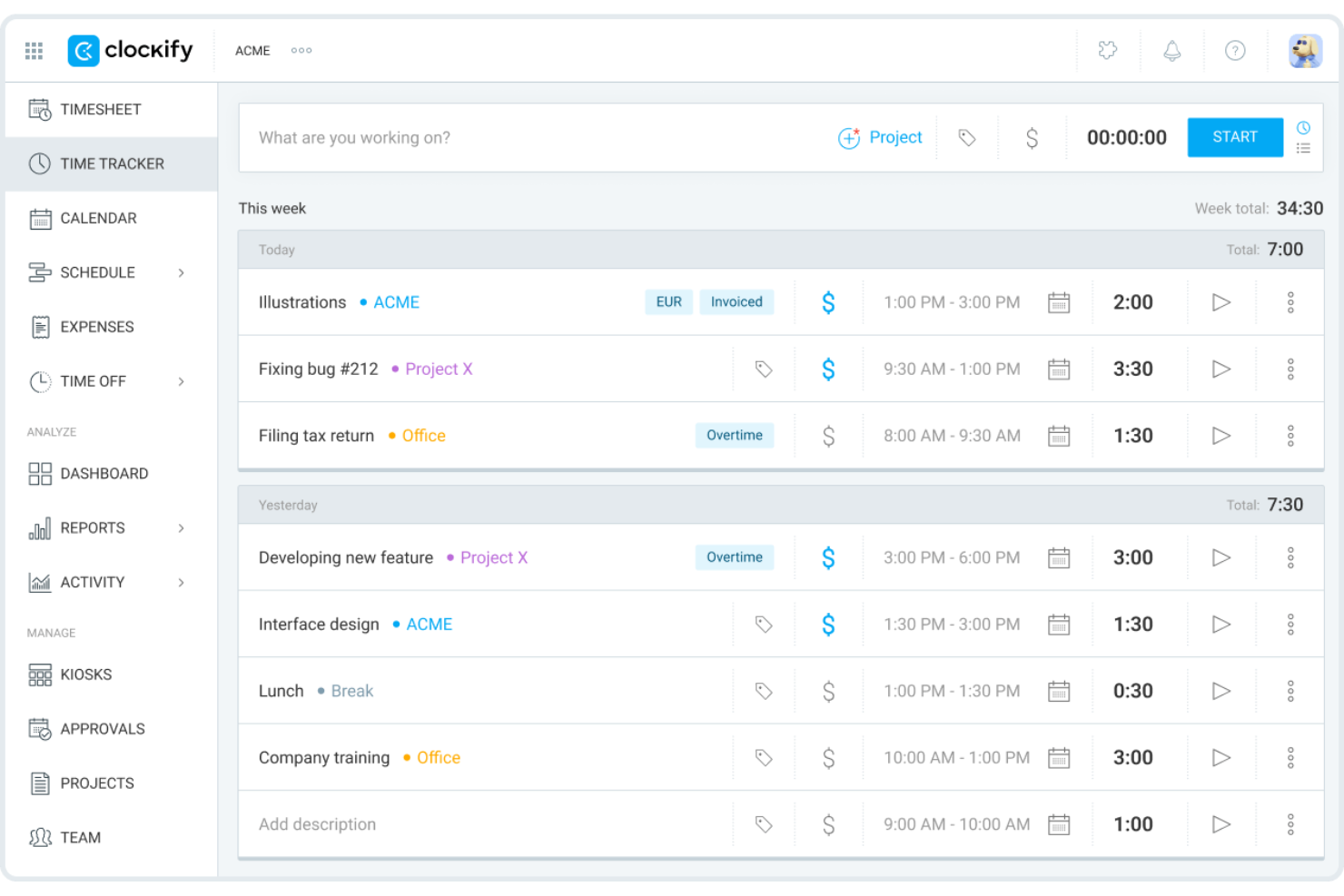
Clockify is a time tracker and timesheet app that covers manual timers, auto tracking, scheduling, reporting, invoicing, and expense management across teams.
Who Is Clockify Best For?
Clockify is a strong fit for agencies, consultancies, and service-based teams that need to track billable hours across multiple clients and projects. It is especially useful for growing teams, freelancers, and independent contractors because of its generous free tier.
Why I Picked Clockify
I picked Clockify as one of the best because it's a versatile, low-friction platform to track team productivity across diverse working styles. Its combination of real-time timers, automatic activity tracking, and visual breakdown reports lets you monitor employee output without micromanaging daily schedules. Auto Tracker silently records every app and website you visit, then lets you convert that raw activity into time entries with one click.
Clockify Key Features
- Pomodoro timer: Run timed focus sessions with automatic short and long breaks built into the work cycle.
- Project time budgets: Set hour or dollar-based budgets per project and receive alerts when you're approaching the limit.
- Visual reports: Generate summary, detailed, or weekly reports that break down logged time by user, project, or client.
- Kiosk mode: Set up a shared clock-in terminal on a tablet so team members can log hours without individual accounts.
Clockify Integrations
Clockify offers 100+ integrations through its browser extension and native connections, including QuickBooks, Xero, Jira, Asana, Trello, Slack, Google Calendar, Outlook, Salesforce, and HubSpot. It also connects with Zapier and has an API for custom integrations.
Pros and Cons
Pros:
- Kiosk mode for shared device clock-ins
- Auto tracker logs app usage silently
- Free time tracking for up to five users
Cons:
- No built-in task management features
- Reports require paid plans for filtering
Akiflow
Best for centralized tasks and calendars for focused daily planning
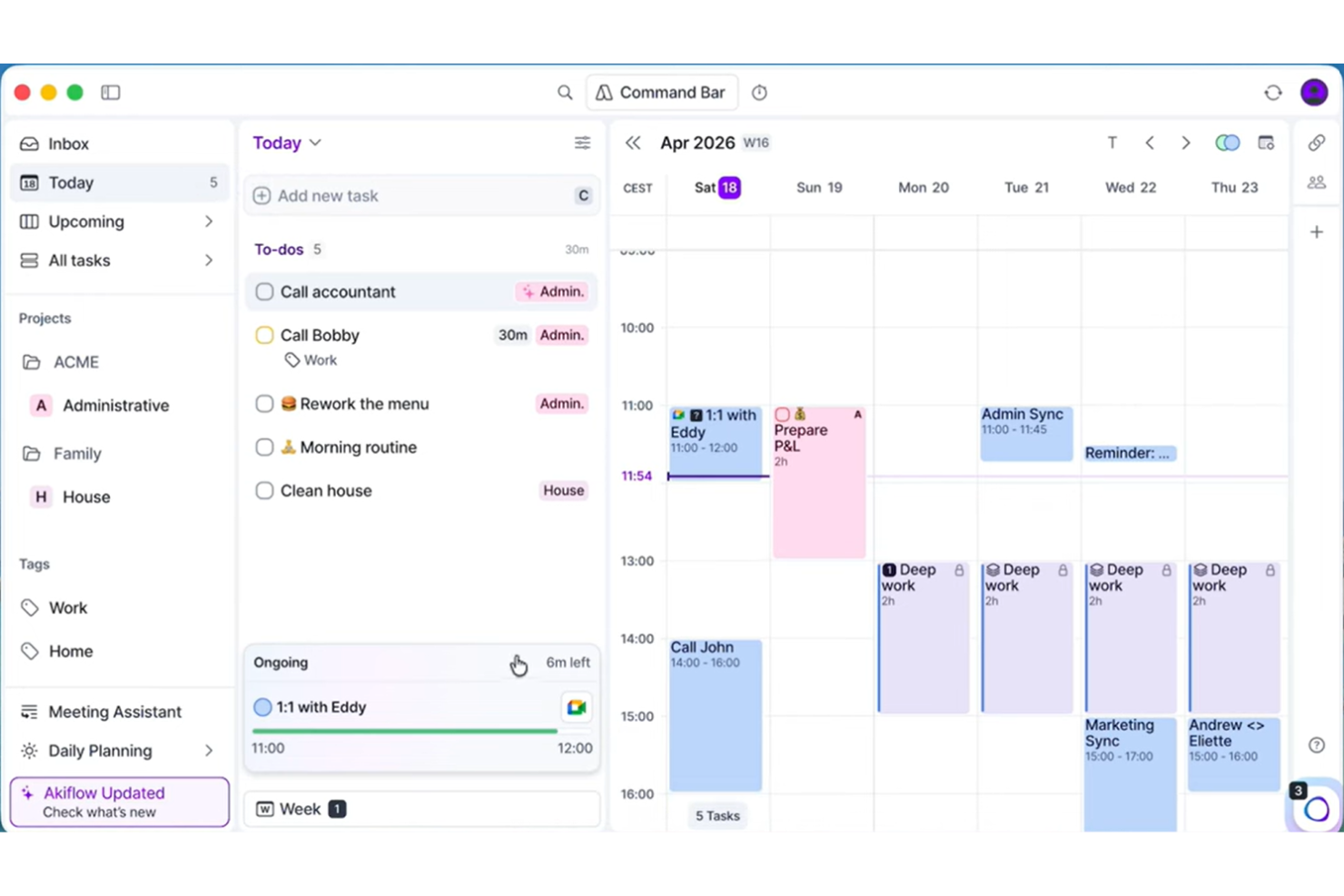
Akiflow is a daily planning tool that pulls tasks from across your apps into a single inbox and lets you schedule them directly onto your calendar.
Who Is Akiflow Best For?
Akiflow is a strong fit for busy individual professionals, particularly managers and operators who juggle tasks across multiple tools and need a single place to plan their day.
Why I Picked Akiflow
I've included Akiflow in my top picks because of features like its Universal Inbox, which is genuinely unlike what most productivity tools offer. It pulls tasks from across your connected apps into one place, so instead of checking Slack, Gmail, and Asana separately, everything lands in a single queue you can schedule directly onto your calendar. The time blocking feature is tightly built into this workflow: you drag tasks onto your calendar, and Akiflow detects conflicts automatically. I also rely on the Rituals feature, which prompts a structured daily planning and shutdown review to close out each day intentionally.
Akiflow Key Features
- Focus timer: Set a countdown timer to lock into a single task and block out distractions during deep work sessions.
- Command bar: Create tasks, events, and meetings instantly using keyboard shortcuts and natural language input.
- Stats dashboard: Review how time was spent across tasks and projects, and track your inbox zero streak over time.
- Meeting link: Share a scheduling link that lets others book one-off or recurring meetings based on your live calendar availability.
Akiflow Integrations
Akiflow offers native integrations with Slack, Gmail, Google Calendar, Outlook Calendar, Outlook Email, Microsoft Teams, Notion, Asana, ClickUp, and Jira, along with Todoist, Trello, GitHub, Linear, Zoom, and Microsoft To Do. It also connects with Zapier and IFTTT for additional app connectivity.
Pros and Cons
Pros:
- Guided daily planning and shutdown rituals
- Keyboard-driven command bar speeds up input
- Drag-and-drop time blocking on the calendar
Cons:
- Limited project management for complex workflows
- No built-in time tracking feature
Todoist
Best for organizing tasks and projects with powerful simplicity

Todoist is a task management app that lets individuals and teams capture, organize, and prioritize tasks and projects across devices with a clean, minimal interface.
Who Is Todoist Best For?
Todoist is a great fit for freelancers, solo professionals, and small teams who want a straightforward task manager without a steep learning curve.
Why I Picked Todoist
Todoist is one of my top picks because I love how its natural language input works in practice. I can type something like "submit report every Friday at 3pm" and Todoist instantly creates a recurring task with the right due date and time, no extra clicks needed. I also rely on the Priority levels (P1 through P4) to keep my task list focused, so the most critical work always surfaces first. The Karma system is a nice touch too, tracking my productivity trends over time without feeling gimmicky.
Todoist Key Features
- Project sections: Break projects into named sections to group related tasks and keep work organized by phase or category.
- Task delegation: Assign tasks to teammates directly within shared projects, with comments and file attachments on each task.
- Filters and labels: Create custom filters using combinations of due dates, assignees, and labels to build personalized task views.
- Productivity templates: Access pre-built project templates for common workflows like meeting agendas, goal tracking, and weekly reviews.
Todoist Integrations
Todoist offers 100+ integrations, including Google Calendar, Outlook Calendar, Slack, Microsoft Teams, Jira, Trello, Evernote, IFTTT, and Zoho Flow. It also connects with Zapier and Make, and provides an API for custom integrations.
Pros and Cons
Pros:
- Clean, distraction-free task views
- Works across all major platforms
- Natural language task input saves time
Cons:
- Limited project visualization beyond list view
- No built-in time tracking feature
Trello
Best for visual project and workflow management

Trello is a Kanban-based project management tool that organizes work across visual boards, lists, and cards, with support for multiple project views, including timeline, table, calendar, and map.
Who Is Trello Best For?
Trello is a strong fit for small to mid-sized teams that manage work visually and prefer a card-based system over complex project hierarchies.
Why I Picked Trello
Trello earns its spot as one of the best on my shortlist because its board-and-card system makes team planning genuinely visual and concrete. I use boards to map out every stage of a project, and each card holds checklists, due dates, and file attachments so nothing lives outside the system. The timeline view layers those cards into a Gantt-style schedule, which I find useful when my team is juggling overlapping deadlines.
Trello Key Features
- Butler automation: Build no-code automation rules that trigger actions, like moving cards or assigning members, based on set conditions.
- Power-Ups: Extend board functionality with add-ons for voting, time tracking, and reporting directly within Trello.
- Board templates: Start projects faster using pre-built templates for common workflows like sprint planning and content calendars.
- Card labels and filters: Tag cards with color-coded labels and filter boards to surface only the work that matters.
Trello Integrations
Trello offers 200+ integrations through its Power-Ups marketplace, including Slack, Jira, Microsoft Teams, Gmail, Miro, Toggl, and Make. It also connects with Zapier and provides a REST API for custom integrations.
Pros and Cons
Pros:
- Butler automation handles repetitive tasks without code
- Free plan includes unlimited cards and members
- Drag-and-drop Kanban boards visualize workflow instantly
Cons:
- Boards get cluttered with large projects
- No built-in time tracking or reporting

Notion
Best for building customizable team workspaces
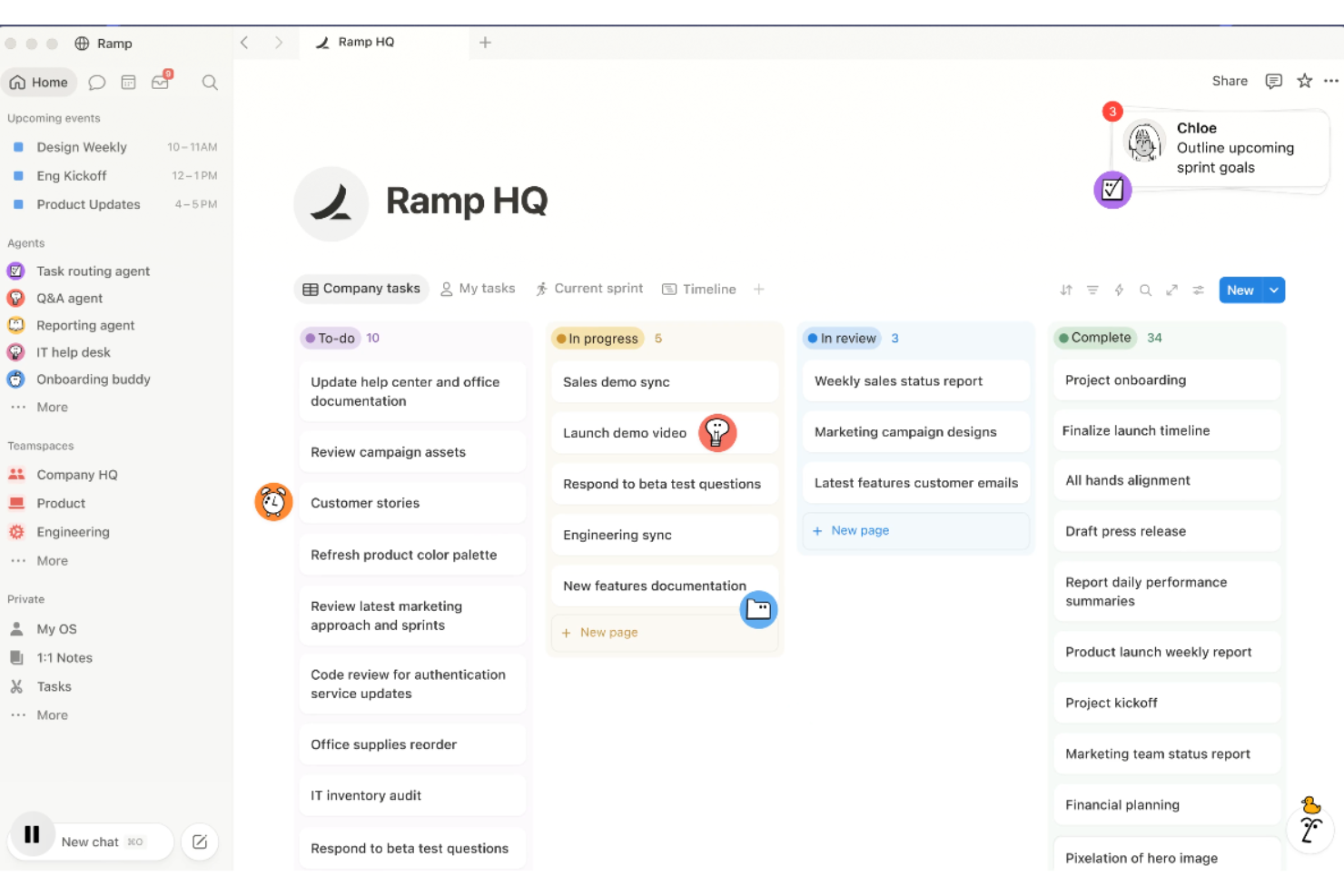
Notion is a connected workspace where you can build docs, wikis, databases, and project boards, all linked together within a single platform.
Who Is Notion Best For?
Notion is a strong fit for small to mid-sized teams that need a single place to manage knowledge, documentation, and project work together.
Why I Picked Notion
Notion earns its spot on my shortlist because the whole workspace is genuinely connected. I can link a project database to a team wiki, reference meeting notes inside a task, and pull filtered views of the same database as a board, timeline, or table. Notion's bidirectional linking means nothing lives in a silo. I also like that Notion AI can summarize pages, generate action items, and answer questions across your workspace content directly.
Notion Key Features
- Templates: Notion's template gallery includes pre-built pages for meeting notes, project plans, OKRs, and roadmaps.
- Synced blocks: Write a block of content once and sync it across multiple pages so edits update everywhere automatically.
- Inline comments: Leave comments directly on any block and @mention teammates to flag questions or assign follow-ups.
- Custom database properties: Add formulas, rollups, date pickers, and multi-select fields to structure any type of information.
Notion Integrations
Notion offers native integrations with Slack, Google Drive, Jira, GitHub, GitLab, Asana, Figma, Trello, Salesforce, and Miro, among others. It also connects with Zapier, Make, and IFTTT, and provides a public API for custom integrations.
Pros and Cons
Pros:
- Real-time co-editing on shared pages
- Replaces multiple apps with one workspace
- Relational databases link pages and projects
Cons:
- Large databases cause noticeable slowdowns
- No built-in time tracking feature
Best for automatic time tracking and distraction management
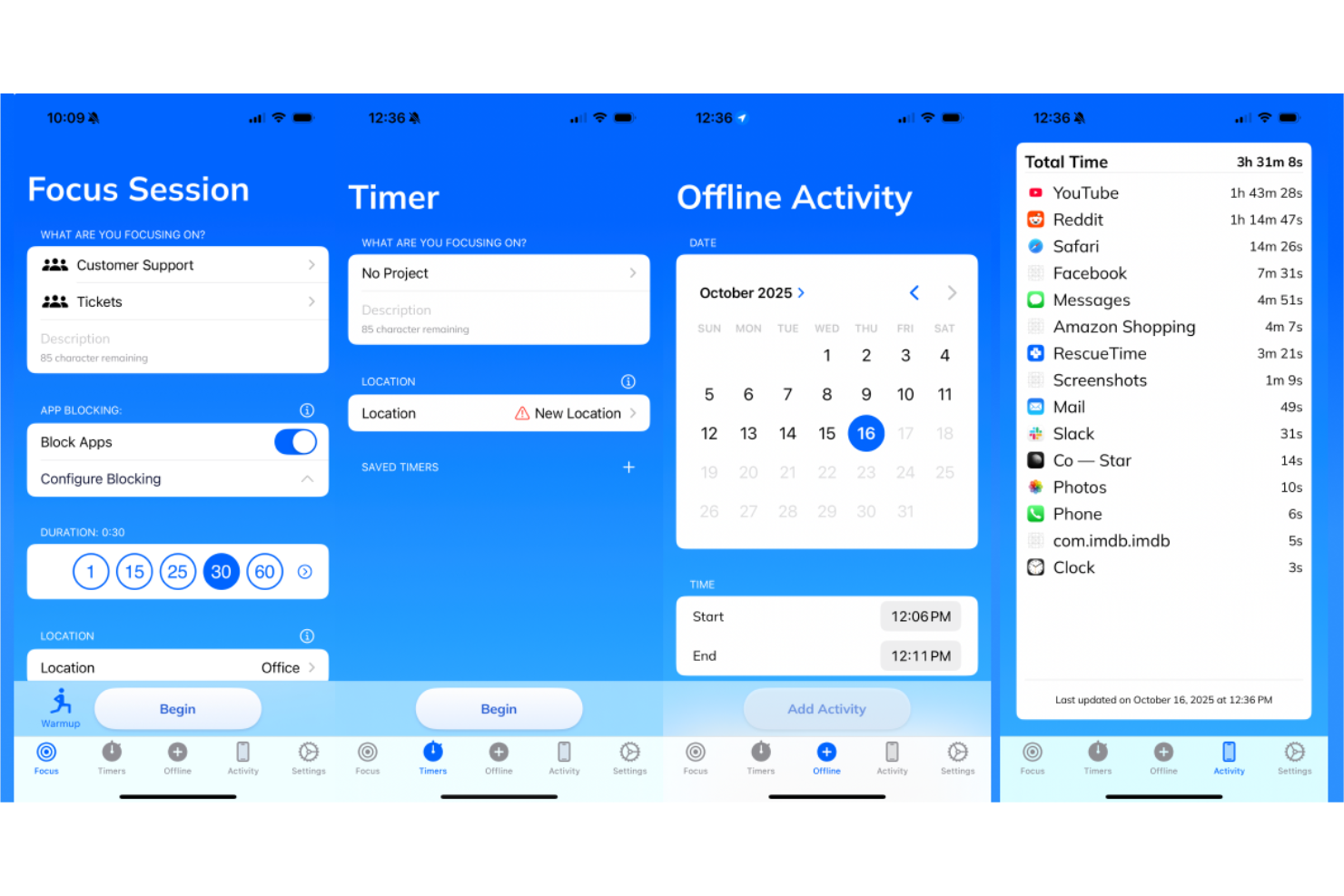
RescueTime is an automatic time tracking tool that runs silently in the background, logging time spent across apps, websites, and documents to give individuals a detailed breakdown of their daily work habits.
Who Is RescueTime Best For?
RescueTime is a natural fit for freelancers, remote workers, and individual contributors who need to understand where their time actually goes each day.
Why I Picked RescueTime
RescueTime is one of my top picks because it removes the need to manually log a single minute. The Focus Sessions feature lets you block distracting sites and apps on demand, so you can actually protect deep work time instead of just measuring what you lost to it. I also rely on the Goals and Alerts system, which nudges you back on track in real time rather than waiting until the end of the week to review what went wrong.
RescueTime Key Features
- Automatic activity categorization: RescueTime labels every app and website you use as productive, neutral, or distracting based on customizable category settings.
- Weekly email reports: A summary of your time use, productivity score, and top activities lands in your inbox each week automatically.
- Daily highlights log: Manually record what you accomplished each day alongside your tracked data to give context to your time reports.
- Offline time tracking: Log time spent in meetings, phone calls, or away from your device to keep your daily record complete.
RescueTime Integrations
RescueTime offers a small set of native integrations, including Slack, Trello, Asana, GitHub, Google Calendar, and Outlook/Office 365 Calendar. It also connects with Zapier and IFTTT. An API is available for custom integrations.
Pros and Cons
Pros:
- Runs silently without interrupting workflows
- Focus Sessions block distracting sites on-demand
- Tracks app and website time automatically
Cons:
- Tracks by app, not by project
- Mobile app is less reliable than desktops
Best for team chat, meetings, and document collaboration
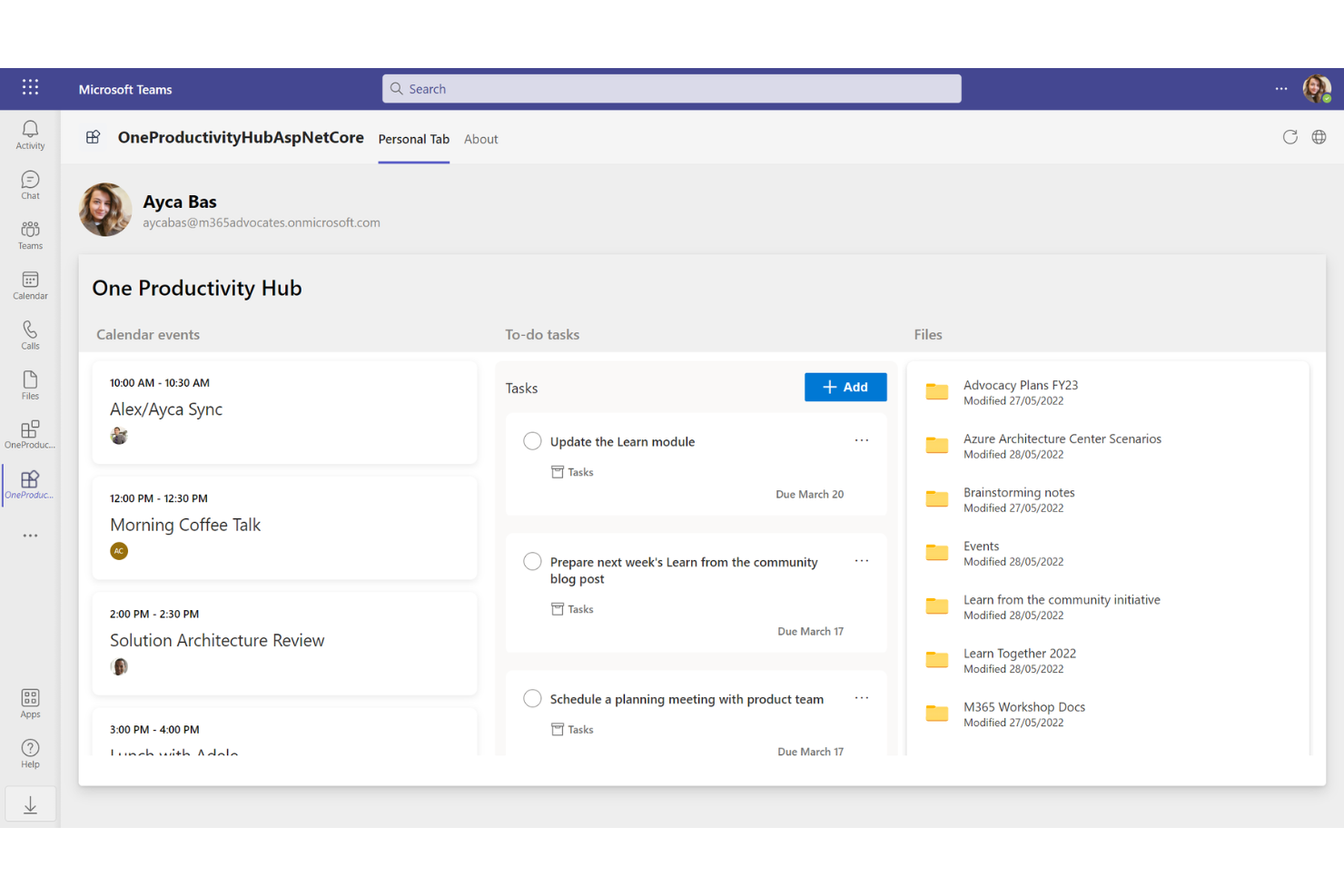
Microsoft Teams is a workplace communication and collaboration platform that combines chat, video meetings, file sharing, and task management in one connected hub.
Who Is Microsoft Teams Best For?
Microsoft Teams is a natural fit for mid-sized to enterprise organizations already running on Microsoft 365.
Why I Picked Microsoft Teams
I picked Microsoft Teams as one of the best because everything my team does, from a quick chat to a full video call to co-editing a document, happens without switching apps. Channels keep project conversations threaded and searchable, and meeting recordings with auto-generated transcripts mean I can catch up on anything I missed. I also like that tasks can be pinned directly inside a channel, so work stays connected to the conversation.
Microsoft Teams Key Features
- Together mode: Places all meeting participants in a shared virtual background so everyone appears in the same space during video calls.
- Breakout rooms: Split a meeting into smaller group sessions and bring everyone back to the main call when time is up.
- Whiteboard: A shared digital canvas built into meetings where participants can sketch, annotate, and brainstorm in real time.
- Loop components: Send live, editable content blocks inside a chat that update for everyone as changes are made.
Microsoft Teams Integrations
Microsoft Teams offers over 3,000 marketplace integrations through the Microsoft AppSource directory, including tools like Asana, Salesforce, Jira, Trello, HubSpot, Figma, Miro, Zoom, Adobe Acrobat, and Confluence. It also has deep native integrations across the Microsoft ecosystem, including Microsoft 365, Power BI, and Planner, and connects with Zapier. An API is available for custom integrations.
Pros and Cons
Pros:
- Meetings support up to 1,000 participants
- Channels organize conversations and files by project
- AI-generated meeting summaries extract action items
Cons:
- Files scatter across chats, channels, and SharePoint
- High memory usage slows down multitasking

GoodDay
Best for aligning goals with project execution
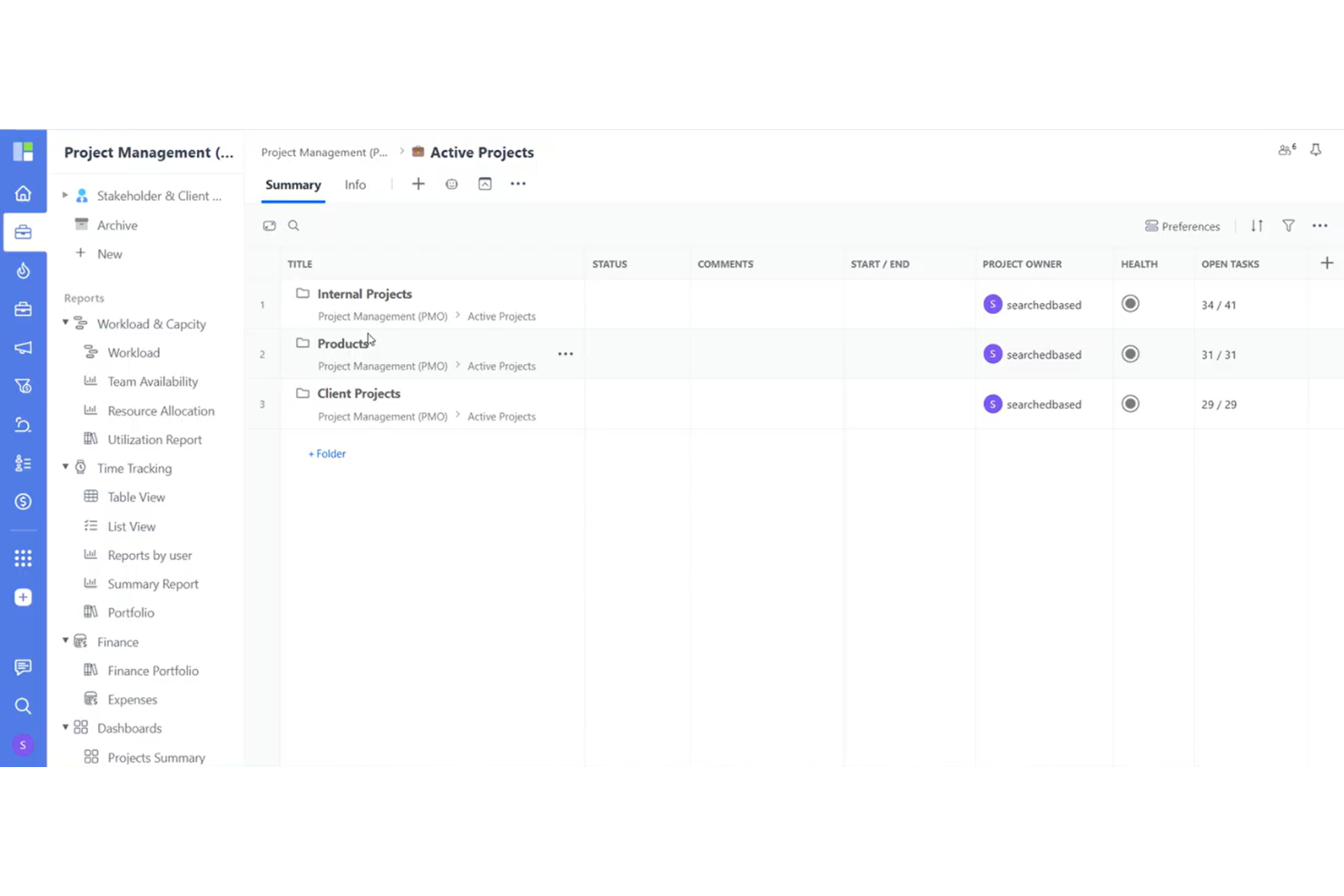
GoodDay is a work management platform that covers project planning, task tracking, resource management, goal setting, and team collaboration across 20+ configurable views.
Who Is GoodDay Best For?
GoodDay is a strong fit for mid-sized teams that need a single platform to manage multiple projects across departments without switching between tools.
Why I Picked GoodDay
I've included GoodDay in my top picks because it genuinely functions as a single system for work that usually requires multiple tools. What I find most compelling is the "Action Required" feature, which creates clear task handoffs and accountability between team members without relying on chat or email follow-ups. I also use the Goals module to connect OKRs directly to individual tasks, so everyone can see how their daily work ties to larger targets. That kind of top-to-bottom alignment is rare in a tool at this price point.
GoodDay Key Features
- Gantt chart: Plan tasks, manage dependencies, and track subprojects on a visual timeline with resource allocation built in.
- Request forms: Build custom intake forms for cross-departmental requests to keep incoming work organized and routed correctly.
- Workload view: See all task assignments across your team on a timeline to spot capacity gaps and balance work distribution.
- Custom workflows: Configure task statuses and workflows to match how your team actually moves work through each stage.
GoodDay Integrations
GoodDay offers native integrations with Google Workspace (including Gmail, Google Docs, Google Drive, and Google Calendar), Slack, Dropbox, Box.com, GitHub, and GitLab. It also connects with Zapier and provides an API for custom integrations.
Pros and Cons
Pros:
- Free plan supports up to 15 users
- Built-in time tracking and resource planning
- 20+ project views, including map and whiteboard
Cons:
- Mobile app lacks full desktop functionality
- Can get unwieldy with large task volumes

Routine
Best for blended notes, tasks, and calendar in one workspace

Routine is a personal productivity and planning tool that combines task management, calendar time blocking, a universal inbox, and AI-powered meeting notes in one workspace.
Who Is Routine Best For?
Routine is a strong fit for founders, operators, and team leads who need a single workspace to manage personal tasks, team projects, and calendar commitments without switching between tools.
Why I Picked Routine
Routine earns its spot on my shortlist because it genuinely brings tasks and time together in one view. I like that the planner screen lets me see calendar events and my task list side by side, so time blocking doesn't require a separate step. The AI meeting notes feature works without a meeting bot, which I find much less disruptive in practice. It also pulls in tasks from connected apps, so my inbox stays consolidated instead of scattered across tools.
Routine Key Features
- Quick capture: Use a desktop hotkey to add tasks instantly without opening the full app.
- Recurring task scheduling: Set tasks to repeat on a custom schedule so nothing gets dropped.
- AI voice assistant: Capture tasks and notes by voice, which is useful when away from your desk.
- Labels, priorities, and projects: Categorize tasks with labels, set priority levels, and group work into projects.
Routine Integrations
Routine offers native integrations with Gmail, Google Calendar, Google Meet, Google Workspace, Google Contacts, Microsoft Outlook, Microsoft To Do, Microsoft Teams, Notion, Slack, Todoist, Asana, GitHub, Linear, Intercom, ChatGPT, Claude, Perplexity, and Cursor. It also connects with Zapier, Make, IFTTT, n8n, and Pipedream for workflow automation and offers a GraphQL API for custom integrations.
Pros and Cons
Pros:
- Keyboard-driven command bar speeds up input
- Drag-and-drop time blocking on the calendar
- Local-first architecture works fully offline
Cons:
- No AI-powered auto-scheduling for tasks
- Mobile app is less polished than the desktop
Toggl
Best for time tracking with built-in reporting
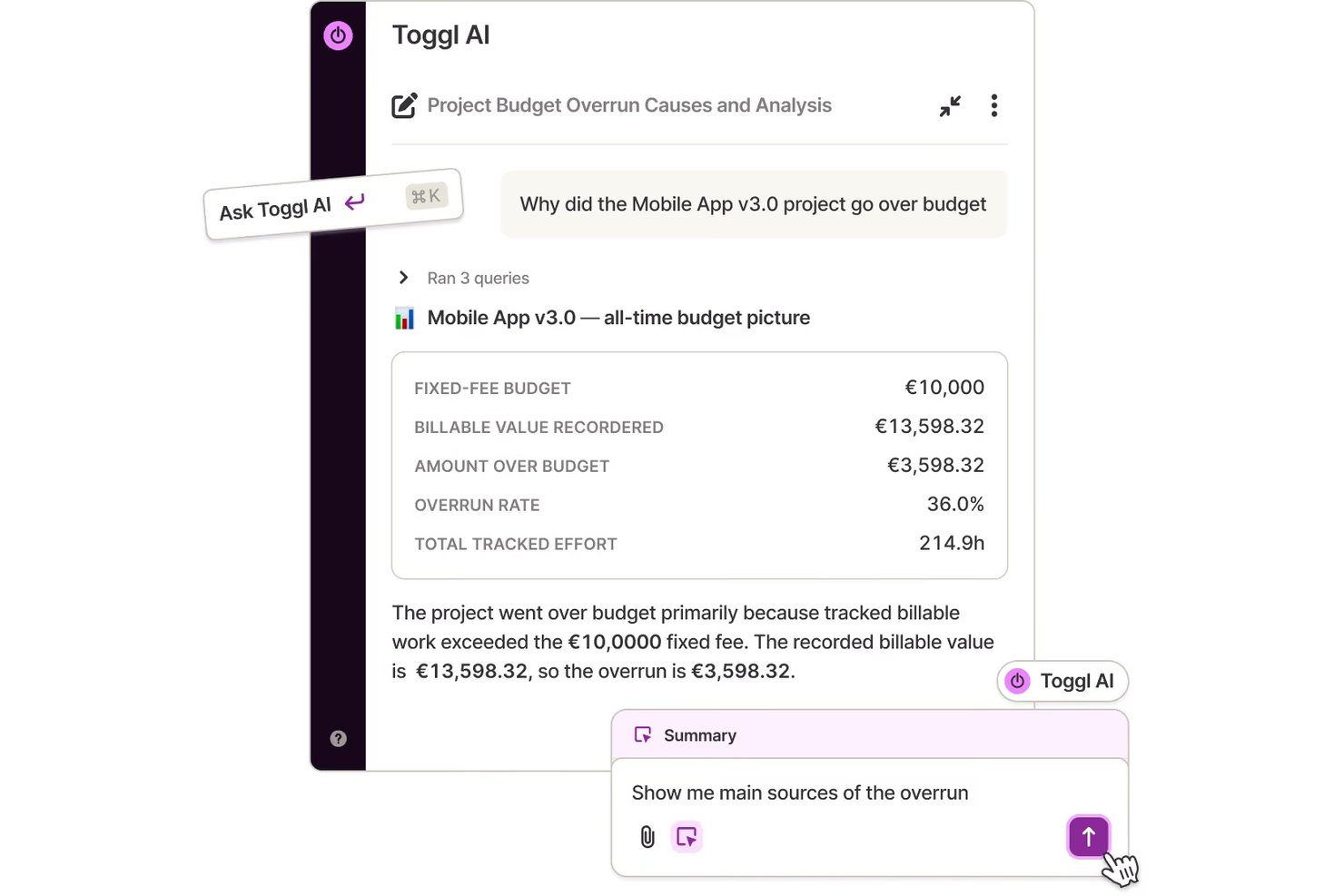
Toggl is a time tracking tool that lets individuals and teams log hours across projects, clients, and tasks, with built-in reporting and billing capabilities.
Who Is Toggl Best For?
Toggl is a natural fit for freelancers, consultants, and agencies that need to track billable hours across multiple clients and projects.
Why I Picked Toggl
I picked Toggl as one of the best because its background automated time tracking sets it apart. It runs quietly in the background, monitoring which apps and websites you use, and lets you convert that activity into time entries without manually starting and stopping a timer. I also like the calendar view, which lets you pull in existing calendar events and turn them into logged time. For anyone billing clients by the hour, the custom profitability and timesheet reports make it easy to see exactly where time went.
Toggl Key Features
- Billable rates: Set hourly rates at the workspace, project, or team member level to calculate earnings alongside logged hours.
- Project budgets: Define time or cost budgets per project and receive alerts when you're approaching the limit.
- Idle detection: Automatically detects when you've stepped away and prompts you to discard or keep the idle time from your entry.
- Browser extension: Log time directly from tools like Asana, Jira, and GitHub without leaving the tab you're working in.
Toggl Integrations
Toggl offers native integrations with Asana, Google Calendar, Jira, Outlook, QuickBooks Online, Salesforce, Slack, and iCal. Its browser extensions for Chrome, Firefox, and Edge embed a timer directly inside 100+ tools like Trello, GitHub, Notion, Todoist, and HubSpot. It also connects with Zapier and provides an API for custom integrations.
Pros and Cons
Pros:
- Filterable reports by project, client, or period
- Offline tracking syncs when reconnected
- Built-in Pomodoro timer for focused sessions
Cons:
- No pause option, only stop and restart
- No built-in invoicing for billable work
Other Productivity Tools
Here are some additional productivity options that didn’t make it onto my shortlist, but are still worth checking out:
- Smartsheet
For spreadsheet-style work management and automation
- Asana
Work tracking to manage tasks and deadlines
- Slack
Channels-based team messaging and file sharing
- Wrike
Collaborative work management for teams and enterprises
- ClickUp
Customizable workspace for task and project management
- monday.com
All-in-one platform for work management
- Guru
Knowledge management platform with browser extension
- TimeJam
Gamified time tracking for team productivity


Productivity Tools Selection Criteria
When selecting the best productivity tools to include in this list, I considered common buyer needs and pain points like reducing manual work and improving task visibility. I also used the following framework to keep my evaluation structured and fair:
Core Functionality (25% of total score)
To be considered for inclusion in this list, each solution had to fulfill these common use cases:
- Track tasks and projects
- Set reminders and deadlines
- Assign tasks to team members
- Share files and information
- Generate productivity reports
Additional Standout Features (25% of total score)
To help further narrow down the competition, I also looked for unique features, such as:
- AI-powered automation and suggestions
- Built-in goal tracking modules
- Cross-platform offline sync
- Visual dashboards with real-time data
- Custom workflow builders
Usability (10% of total score)
To get a sense of the usability of each system, I considered the following:
- Clear and uncluttered interface design
- Intuitive navigation menus
- Easy drag-and-drop functionality
- Quick-access shortcuts and commands
- Mobile responsiveness and app quality
Onboarding (10% of total score)
To evaluate the onboarding experience for each platform, I considered the following:
- Step-by-step setup guides
- Interactive tutorials and product tours
- Availability of free training videos
- Prebuilt templates for rapid setup
- Live chat or chatbot onboarding assistance
Customer Support (10% of total score)
To assess each software provider’s customer support services, I considered the following:
- 24/7 support availability
- Multiple contact options, including chat
- Comprehensive online knowledge base
- Fast response and resolution times
- Regular product updates and communications
Value For Money (10% of total score)
To evaluate the value for money of each platform, I considered the following:
- Transparent pricing plans
- Free tier or free trial options
- Feature set offered for each price
- Flexible contract and billing terms
- Upgrade and downgrade flexibility
Customer Reviews (10% of total score)
To get a sense of overall customer satisfaction, I considered the following when reading customer reviews:
- Volume of positive ratings
- Feedback on reliability and stability
- Comments about mobile and desktop apps
- Trends in reported pain points
- Recommendations for specific use cases
How to Choose Productivity Tools
It’s easy to get bogged down in long feature lists and complex pricing structures. To help you stay focused as you work through your unique software selection process, here’s a checklist of factors to keep in mind:
| Factor | What to Consider |
| Scalability | Can the tool handle your team size now and in the future? Think about growth, user caps, and project limits. |
| Integrations | Will the tool connect with your existing software stack (email, calendar, project management, etc.)? Check for native or API connections. |
| Customizability | Can you adapt layouts, workflows, or views to fit your team’s processes without extensive setup? Assess flexibility vs. rigidity. |
| Ease of use | Is the interface intuitive for all users? Consider the time to train teammates and how quickly new users can become productive. |
| Implementation and onboarding | How long will it take to adopt the tool fully? Look for migration resources, setup supports, and access to onboarding materials. |
| Cost | Does pricing align with your budget, especially as usage scales? Review user tiers, annual vs. monthly payments, and any hidden add-on fees. |
| Security safeguards | Does the tool meet your organization’s requirements for data encryption, access controls, and audit logs? Review documentation for certifications or compliance details. |
| Support availability | What channels are available if your team needs help (email, chat, phone)? Check response times and support hours against your needs. |
What Are Productivity Tools?
Productivity tools are digital applications that help individuals and teams organize tasks, manage workloads, and streamline workflows. These solutions foster better collaboration, support time management, and centralize project information. By using productivity tools, you can reduce manual processes, enhance visibility, and improve overall efficiency in daily work activities.
Features of Productivity Tools
When selecting productivity tools, keep an eye out for the following key features:
- Task management: Lets you create, assign, and prioritize tasks so everyone knows what needs to be done and by when. Keeps work visible and organized for individuals and teams.
- Collaboration tools: Shared spaces, comments, and real-time editing support teamwork by allowing multiple users to work together on files or projects.
- Scheduling and calendars: Integrates meetings, deadlines, and milestones into a unified calendar to help manage everyone’s time and plan work efficiently.
- Document sharing: Offers a central location where files can be stored, accessed, and updated by authorized users to ensure everyone is working from the latest version.
- Notifications and reminders: Alert users of deadlines, new tasks, or updates, helping to reduce missed deadlines and keep everyone on track.
- Progress tracking: Visual tools such as boards, timelines, or checklists provide at-a-glance updates on the status of tasks or projects.
- Reporting and analytics: Generates summaries and insights on team productivity, outstanding tasks, and project status for better planning and accountability.
- Mobile access: Gives users the ability to manage tasks, communicate, and access documents from any device, so work can be done remotely or on the go.
- Permissions and access control: Lets admins manage who can view, edit, or share information to maintain privacy and manage sensitive data appropriately.
Common Productivity Tools AI Features
Beyond the standard productivity tools features listed above, many of these solutions are incorporating AI with features like:
- Smart task suggestions: Recommends tasks based on your activity patterns, deadline urgency, and team priorities, helping users identify what to focus on next without manually sorting through lists.
- Automated meeting summaries: Uses natural language processing to generate concise recaps after meetings, capturing key points, action items, and decisions so no one has to take manual notes.
- Predictive scheduling: Analyzes past workload, team capacity, and project timelines to suggest optimal scheduling for new tasks or meetings, reducing bottlenecks and calendar conflicts.
- Automated prioritization: Ranks tasks or projects using algorithms that consider deadlines, dependencies, and workload, so teams can quickly identify and address the most pressing items.
- Email and message drafting: Composes suggested responses or summaries for inbound communication, saving time on routine replies and ensuring professional, consistent messaging.
Benefits of Productivity Tools
Implementing productivity tools provides several benefits for your team and your business. Here are a few you can look forward to:
- Improved task visibility: Centralized task lists and tracking features help everyone see priorities, deadlines, and progress, reducing confusion across projects.
- Stronger collaboration: Shared workspaces, document sharing, and communication tools make it easier for your team to work together, whether remote or in person.
- Increased accountability: Assignable tasks, clear timelines, and analytics give leaders and contributors a transparent view of responsibilities and follow-through.
- Faster onboarding: Guided setup, templates, and user-friendly interfaces help new users get up to speed quickly with their day-to-day work and processes.
- Better decision-making: Reporting and analytics features provide data-driven insights into team performance, resource allocation, and project status.
- Flexible scalability: Cloud-based architecture and customizable workflows allow your organization to add users and adapt processes as your needs change.
- Enhanced data security: Built-in security safeguards ensure sensitive information is stored and shared safely, meeting privacy and compliance requirements.
Costs and Pricing of Productivity Tools
Selecting productivity tools requires an understanding of the various pricing models and plans available. Costs vary based on features, team size, add-ons, and more. The table below summarizes common plans, their average prices, and typical features included in productivity tools solutions:
Plan Comparison Table for Productivity Tools
| Plan Type | Average Price | Common Features |
| Free Plan | $0 | Basic task management, limited users, basic collaboration, and limited file storage. |
| Personal Plan | $5-$12/user/month | Task management, calendar integration, document sharing, mobile access, and basic reporting features. |
| Business Plan | $12-$25/user/month | Advanced collaboration, expanded storage, integrations, reporting and analytics, workflow automation, and support. |
| Enterprise Plan | $25-$50/user/month | Custom security, advanced permissions, priority support, unlimited storage, custom integrations, and compliance. |
Productivity Tools FAQs
Here are some answers to common questions about productivity tools:
How do productivity tools support remote or hybrid teams?
Productivity tools give remote and hybrid teams a shared platform to manage tasks, communicate, and share documents in real time. Features like cloud access, mobile apps, and integrated messaging help keep everyone connected, no matter where they are working.
Can productivity tools integrate with existing software like email or calendars?
Yes, most productivity tools offer integrations with popular email clients, calendar apps, and collaboration platforms. This helps you centralize notifications, sync tasks, and make scheduling and communication more efficient.
What are some important security features to look for in productivity tools?
Look for productivity tools with user permissions, role-based access, encryption, and compliance options. These features protect sensitive business information and help you manage who can access or modify important data.
Are there productivity tools suitable for small teams or solo users?
Yes, many productivity tools offer free or affordable personal plans with scaled-down features. These versions work well for freelancers, startups, and small teams who need basic task management and collaboration.
How do AI-powered features in productivity tools help teams work better?
AI features automate repetitive work, suggest task priorities, generate meeting summaries, and recommend schedules based on analysis of your team’s activity. This saves time and makes it easier for your team to focus on high-value work.