

Las 10 mejores alternativas a Google Docs para equipos de RR. HH. en 2026

Lista de alternativas a Google Docs


Una buena alternativa a Google Docs ofrece procesamiento de textos basado en la nube con funciones fiables de colaboración, edición y uso compartido, además de opciones de privacidad, integración con flujos de trabajo o acceso sin conexión. Si buscas una herramienta que iguale o supere la flexibilidad de Google Docs, pero que se adapte mejor a las necesidades de tu equipo, no eres el único.
Tanto si necesitas un formato avanzado, una seguridad más estricta, una única solución integral o un enfoque diferente para la gestión de documentos, esta lista te ayudará a comparar las mejores opciones para 2026 y a elegir la solución adecuada para tu flujo de trabajo.
¿Qué es Google Docs?
Google Docs es un procesador de textos basado en la nube que permite a los usuarios crear, editar y compartir documentos en línea en tiempo real. Admite la edición colaborativa, el guardado automático y un acceso sencillo desde cualquier dispositivo con conexión a Internet. Google Docs es ampliamente utilizado por equipos y particulares por su interfaz sencilla, su integración con otras herramientas de Google Workspace y su capacidad para gestionar flujos de trabajo de documentos sin necesidad de instalar software local.
Resumen de las mejores alternativas a Google Docs
Esta tabla comparativa resume los detalles de precios de mis principales alternativas a Google Docs para ayudarte a encontrar la mejor opción según tu presupuesto y las necesidades de tu empresa.
| Tool | Best For | Trial Info | Price | ||
|---|---|---|---|---|---|
| 1 | Ideal para el almacenamiento privado de documentos en la nube | Prueba gratuita + demostración gratuita disponibles | Precios bajo solicitud | Website | |
| 2 | Ideal para la compatibilidad multiplataforma | Plan gratuito disponible | Desde $2.49/usuario/mes (facturado anualmente) | Website | |
| 3 | Ideal para la automatización integrada de flujos de trabajo | Plan gratuito disponible | Desde $3/usuario/mes (facturado anualmente) | Website | |
| 4 | Ideal para editar documentos sin conexión | Plan gratuito disponible | Precios bajo solicitud | Website | |
| 5 | Ideal para herramientas integradas de gestión de proyectos | Plan gratuito + prueba gratuita de 30 días disponible | Desde $20/administrador/mes | Website | |
| 6 | Ideal para controles avanzados de formato | Plan gratuito disponible | Desde $99.99/año | Website | |
| 7 | Ideal para documentos cifrados de extremo a extremo | Plan gratuito disponible | Desde $12.99/usuario/mes (facturado anualmente) | Website | |
| 8 | La mejor opción para la colaboración documental de código abierto | Demo gratuita disponible | Precios bajo solicitud | Website | |
| 9 | La mejor opción para asistencia de escritura impulsada por IA | Prueba gratuita disponible | Desde $14.99/mes (facturado anualmente) | Website | |
| 10 | Ideal para crear documentos al instante sin registrarse | Demostración gratuita disponible | Desde €14.99 (por 3 meses) | Website |
Por qué confiar en nuestras reseñas de software
Nuestro equipo lleva probando y evaluando software desde 2012. Como expertos en RR. HH., sabemos lo difícil —y lo importante— que es elegir el software adecuado.
Para esta guía, evaluamos las herramientas mediante pruebas prácticas e investigación independiente, puntuando las herramientas según nuestros criterios de selección. También nos basamos en la experiencia de líderes de opinión del sector y de profesionales de RR. HH. en activo.
Nuestras reseñas reflejan nuestro criterio editorial humano, no un discurso de ventas.
Revisores expertos:
Opiniones sobre las mejores alternativas a Google Docs
A continuación se incluyen mis resúmenes detallados de las mejores alternativas a Google Docs que llegaron a mi lista de preseleccionadas. Mis reseñas ofrecen un análisis detallado de las funciones principales, ventajas y desventajas, integraciones y casos de uso ideales de cada herramienta para ayudarte a encontrar la mejor opción para ti.
Ideal para el almacenamiento privado de documentos en la nube
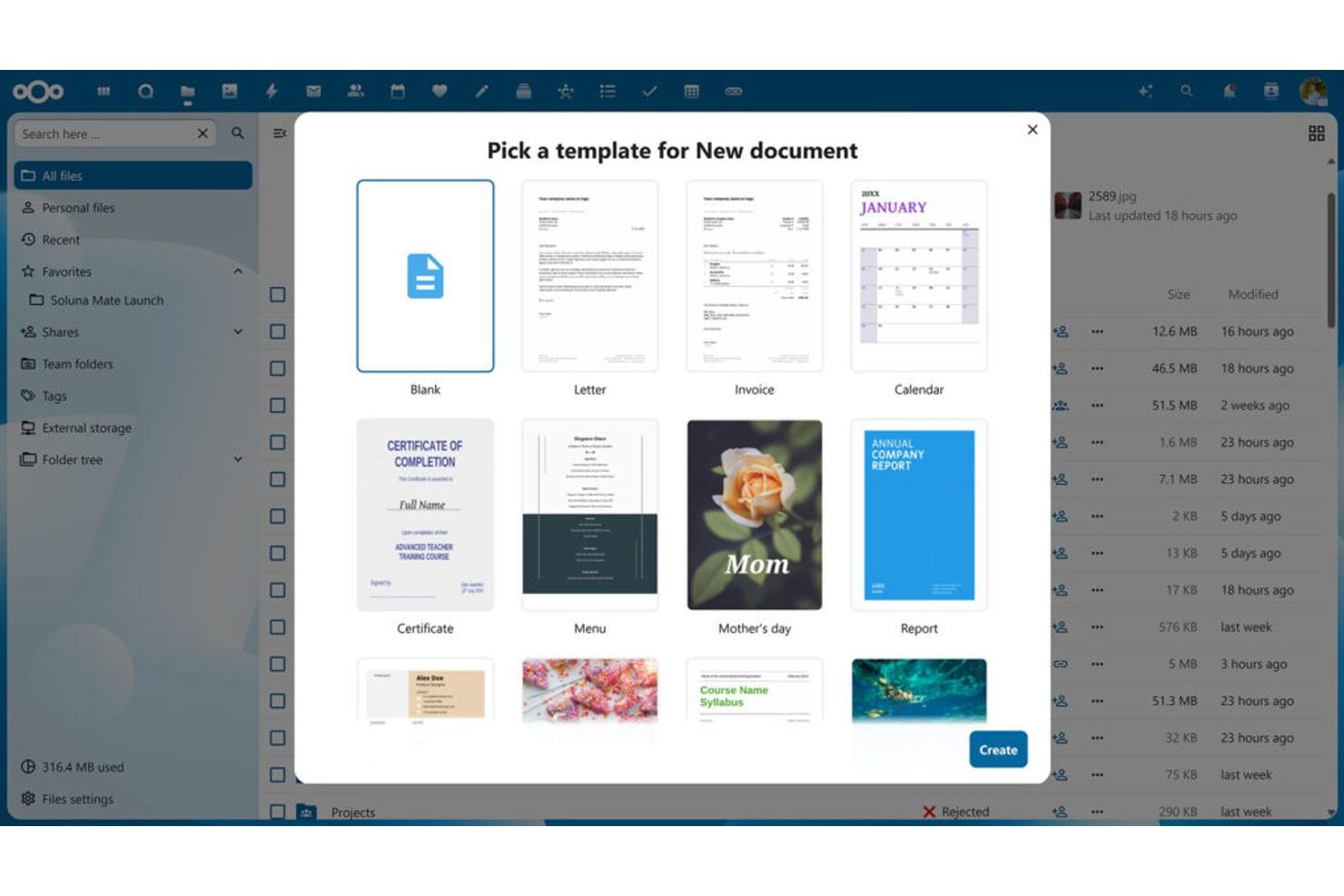
Si tu organización necesita almacenamiento privado de documentos en sus instalaciones junto con edición en línea, Nextcloud Office merece una atención especial. Esta plataforma está diseñada para empresas, instituciones educativas y equipos gubernamentales que desean conservar archivos confidenciales en sus propios servidores y, al mismo tiempo, permitir la colaboración basada en la nube. Nextcloud Office se diferencia de Google Docs al ofrecer soberanía total de los datos, controles de acceso personalizables e integración con una amplia variedad de herramientas de productividad autoalojadas.
¿Para quién es más adecuado Nextcloud Office?
Equipos de TI y seguridad de organizaciones medianas y grandes de todo el mundo que gestionan el almacenamiento privado de documentos en la nube y la colaboración.
Por qué elegí Nextcloud Office
A diferencia de la mayoría de los procesadores de texto basados en la nube, Nextcloud Office te permite almacenar y gestionar documentos completamente en tu propia infraestructura. Elegí Nextcloud Office porque está diseñado para organizaciones que necesitan almacenamiento privado de documentos en la nube y quieren evitar el alojamiento de datos por parte de terceros. Con funciones como permisos granulares de acceso a archivos y cifrado de extremo a extremo, puedes controlar exactamente quién ve y edita los documentos confidenciales. Si tu equipo necesita cumplir estrictos requisitos normativos o simplemente quiere mantener los archivos internamente, Nextcloud Office es una sólida alternativa a Google Docs.
Funciones principales de Nextcloud Office
Otras funciones que hacen atractivo a Nextcloud Office para la colaboración en documentos incluyen:
- Suite ofimática integrada: Crea, edita y colabora en documentos, hojas de cálculo y presentaciones directamente dentro de la plataforma.
- Control de versiones: Realiza un seguimiento de los cambios y restaura versiones anteriores de los archivos cuando sea necesario.
- Herramientas de colaboración: Utiliza el chat integrado, las videollamadas y los comentarios para comunicarte con los miembros del equipo mientras trabajas en documentos.
- Sincronización automática de archivos: Mantén los archivos actualizados en todos los dispositivos mediante la sincronización automática.
Integraciones en línea de Nextcloud Office
Integraciones nativas con Nextcloud Files, Talk, Deck, la API de DeepL, Outlook, SharePoint y más.
Pros and Cons
Pros:
- El alojamiento en las instalaciones proporciona a las organizaciones un control total sobre los datos de los documentos
- Admite la edición colaborativa con funciones integradas de suite ofimática
- Ofrece permisos de usuario granulares y controles de acceso avanzados
Cons:
- La configuración inicial y el mantenimiento del servidor requieren conocimientos técnicos
- La colaboración en tiempo real puede ralentizarse con archivos grandes o complejos

Ideal para la compatibilidad multiplataforma

Si necesitas un procesador de textos basado en la nube que funcione sin problemas en distintos dispositivos y sistemas operativos, vale la pena echarle un vistazo a WPS Docs. Esta plataforma está diseñada para equipos y profesionales que alternan entre Windows, Mac, Linux, Android e iOS. WPS Docs destaca por ofrecer una experiencia de edición uniforme y compatibilidad de archivos sin importar dónde o cómo trabajes.
¿Para quién es más adecuado WPS Docs?
Usuarios empresariales y estudiantes de organizaciones pequeñas y medianas de todo el mundo que trabajan en distintos dispositivos y sistemas operativos y necesitan compatibilidad multiplataforma.
Por qué elegí WPS Docs
WPS Docs destaca por su capacidad para ofrecer una experiencia de edición unificada en prácticamente cualquier dispositivo y sistema operativo. Elegí WPS Docs porque puedes comenzar un documento en tu teléfono, continuar en tu computadora portátil y terminarlo en una tableta sin perder el formato ni las funciones. La plataforma es compatible con Windows, Mac, Linux, Android e iOS, por lo que tu equipo no está limitado por sus opciones de hardware o software. Para quienes necesitan una verdadera compatibilidad multiplataforma en un procesador de textos basado en la nube, WPS Docs ofrece una flexibilidad que Google Docs no siempre puede igualar.
Funciones principales de WPS Docs
Otras funciones que hacen atractivo a WPS Docs para la colaboración en documentos incluyen:
- Herramientas de edición de PDF: Edita, anota y convierte archivos PDF directamente dentro de la plataforma.
- Biblioteca de plantillas de documentos: Accede a una amplia variedad de plantillas prediseñadas para informes, currículums y mucho más.
- Integración con almacenamiento en la nube: Conéctate a servicios como Dropbox, Google Drive y OneDrive para gestionar archivos.
- Herramientas de colaboración: Usa comentarios en tiempo real y realiza un seguimiento de los cambios para trabajar conjuntamente en documentos.
Integraciones de WPS Docs
Las integraciones nativas no aparecen publicadas.
Pros and Cons
Pros:
- Funciona de manera uniforme en dispositivos Windows, Mac, Linux, Android e iOS
- Permite editar y convertir archivos PDF dentro de la plataforma
- Ofrece una amplia biblioteca de plantillas para documentos y hojas de cálculo
Cons:
- Algunas funciones avanzadas requieren una suscripción de pago para acceder a ellas
- El espacio de almacenamiento en la nube es más limitado que el nivel gratuito de Google Drive

Ideal para la automatización integrada de flujos de trabajo

Si buscas un procesador de textos basado en la nube con automatización de flujos de trabajo integrada, vale la pena considerar Zoho Writer. Está diseñado para equipos y organizaciones que quieren automatizar las aprobaciones de documentos, las firmas y los pasos de colaboración directamente en su herramienta de escritura. Zoho Writer destaca para los usuarios que necesitan gestionar procesos documentales sin depender de plataformas independientes de flujos de trabajo o firma electrónica.
¿Para quién es más adecuado Zoho Writer?
Equipos de operaciones y usuarios empresariales de pequeñas y medianas empresas de Norteamérica y Europa que automatizan flujos de trabajo documentales dentro de entornos ofimáticos basados en la nube.
Por qué elegí Zoho Writer
A diferencia de la mayoría de los procesadores de textos basados en la nube, Zoho Writer incluye funciones de automatización de flujos de trabajo integradas directamente en la plataforma. Elegí Zoho Writer porque puedes configurar flujos de aprobación de documentos, automatizar solicitudes de firma electrónica y asignar tareas a colaboradores sin salir del documento. El panel de automatización te permite crear flujos de trabajo personalizados para revisiones y aprobaciones, lo que resulta especialmente útil para los equipos de recursos humanos, legales u operaciones. Estas herramientas integradas te ayudan a gestionar los procesos documentales de forma más eficiente que Google Docs, que requiere complementos de terceros para ofrecer una funcionalidad similar.
Características principales de Zoho Writer
Además de sus herramientas de automatización de flujos de trabajo, Zoho Writer ofrece varias funciones adicionales que facilitan la creación colaborativa de documentos:
- Colaboración en tiempo real: Varios usuarios pueden editar y comentar documentos al mismo tiempo desde cualquier dispositivo.
- Edición sin conexión: Trabaja en documentos sin conexión a Internet y sincroniza los cambios cuando vuelvas a estar conectado.
- Combinación avanzada de documentos: Genera automáticamente documentos personalizados combinando datos de hojas de cálculo o formularios.
- Plantillas integradas: Accede a una biblioteca de plantillas prediseñadas para cartas comerciales, informes y mucho más.
Integraciones de Zoho Writer
Las integraciones incluyen Slack, Trello, WordPress, Zoho Flow y muchas más.
Pros and Cons
Pros:
- La automatización integrada de flujos de trabajo gestiona las aprobaciones y firmas de documentos
- La función de combinación de documentos automatiza la creación de archivos personalizados
- La edición sin conexión permite trabajar sin conexión a Internet
Cons:
- Algunas herramientas de formato avanzado son menos intuitivas de encontrar
- Variedad de plantillas limitada en comparación con la galería de plantillas de Google Docs
Ideal para editar documentos sin conexión
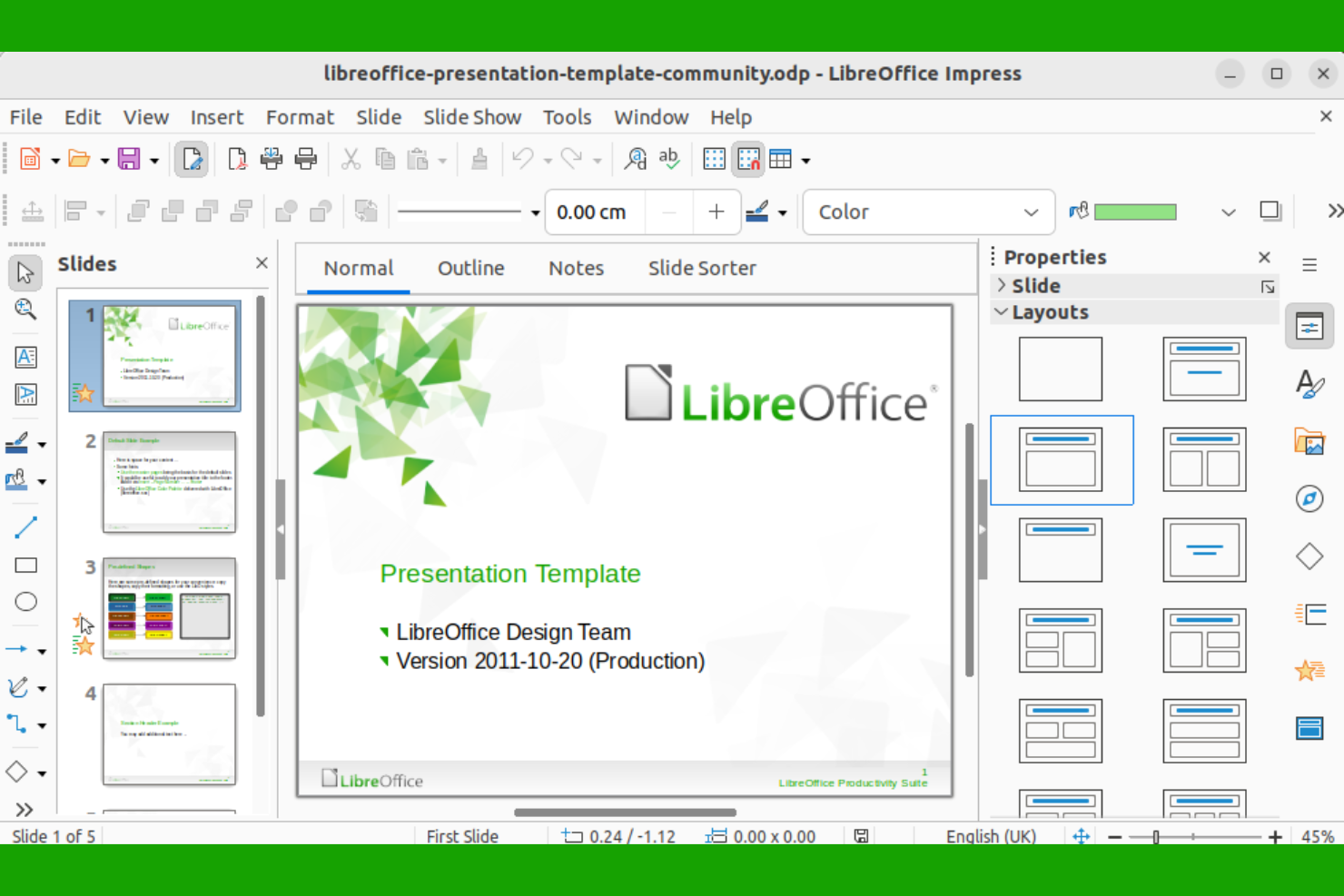
LibreOffice es una excelente opción si tu equipo necesita un procesador de textos que funcione completamente sin conexión. Es especialmente útil para organizaciones con estrictos requisitos de privacidad de datos o con acceso poco fiable a Internet. A diferencia de Google Docs y otras herramientas basadas en la nube, LibreOffice te ofrece un control total de los documentos sin necesitar una conexión a Internet.
¿Para quién es más adecuado LibreOffice?
Profesionales individuales y equipos de TI de pequeñas y medianas organizaciones de todo el mundo que necesitan editar documentos sin conexión mediante software de código abierto.
Por qué elegí LibreOffice
Para los equipos que necesitan trabajar sin depender de Internet, LibreOffice destaca como un procesador de textos sin conexión fiable. Elegí LibreOffice porque permite crear, editar y guardar documentos localmente, por lo que nunca dependes del acceso a la nube ni de la conectividad. La suite incluye herramientas avanzadas de formato y es compatible con una amplia variedad de tipos de archivo, incluidos los formatos de Microsoft Word. Esto la convierte en una opción adecuada para organizaciones con estrictas necesidades de privacidad de datos o que trabajan en lugares con un servicio de Internet limitado.
Principales características de LibreOffice
Otras características que hacen atractivo a LibreOffice para la edición de documentos incluyen:
- Amplio soporte de idiomas: La suite ofrece herramientas integradas de corrección ortográfica y gramatical para decenas de idiomas.
- Barras de herramientas personalizables: Puedes personalizar la interfaz añadiendo o eliminando botones de la barra de herramientas para adaptarla a tu flujo de trabajo.
- Exportación a PDF: Exporta documentos directamente al formato PDF sin necesitar software adicional.
- Grabación de macros: Automatiza tareas repetitivas grabando y ejecutando macros personalizadas dentro de tus documentos.
Integraciones de LibreOffice
Las integraciones nativas no están disponibles públicamente.
Pros and Cons
Pros:
- Admite una amplia variedad de formatos de archivo, incluidos DOCX y ODT
- Las opciones avanzadas de formato y estilo rivalizan con las de los procesadores de textos de escritorio
- Software de código abierto con actualizaciones periódicas y asistencia de la comunidad
Cons:
- Problemas ocasionales de compatibilidad con formatos complejos de Google Docs
- No existe una aplicación móvil oficial para editar documentos en smartphones o tabletas

Ideal para herramientas integradas de gestión de proyectos
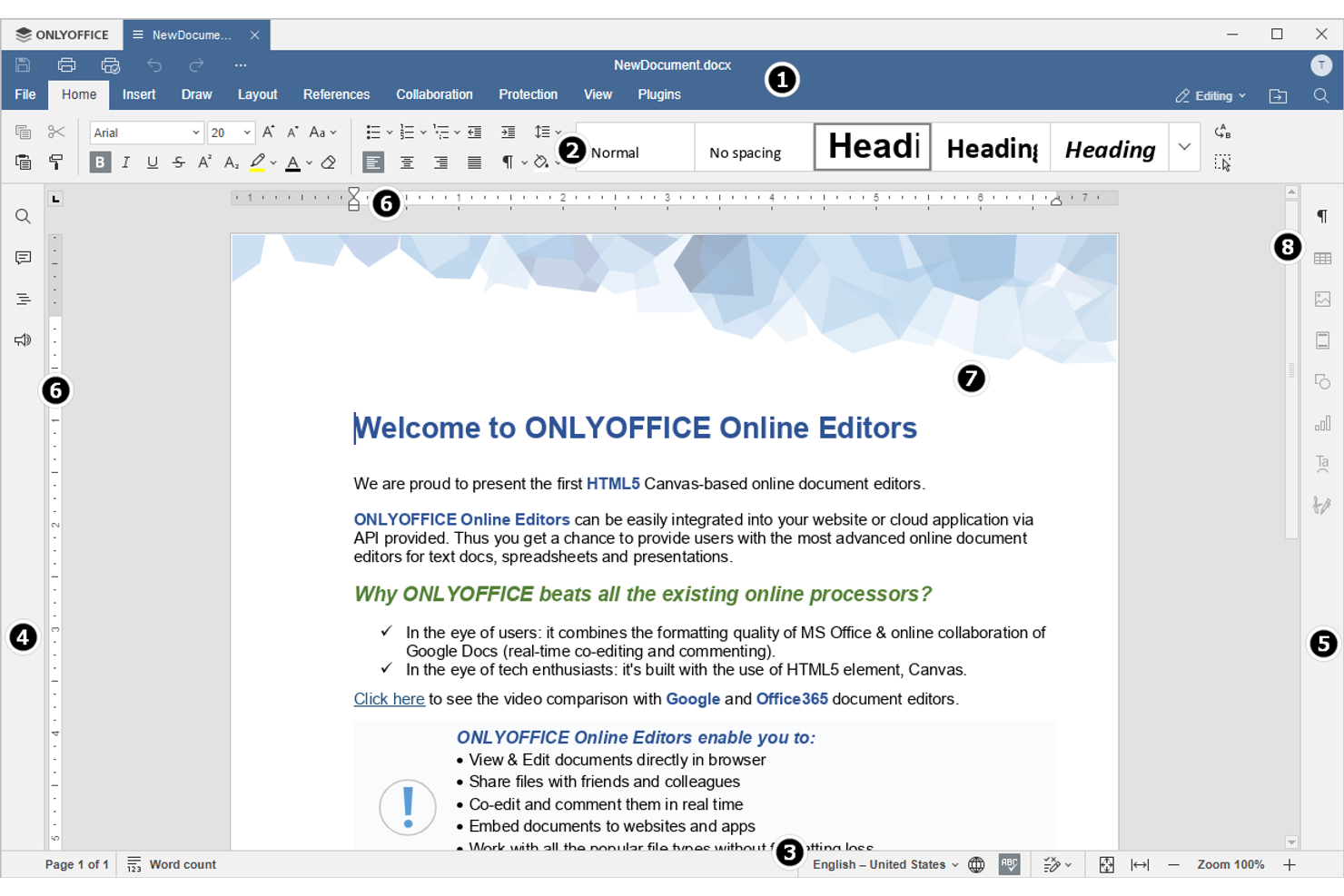
Los equipos que buscan un procesador de textos basado en la nube con gestión de proyectos integrada encontrarán OnlyOffice especialmente atractivo. Esta plataforma combina la edición de documentos con herramientas para realizar un seguimiento de las tareas, gestionar los plazos y colaborar en proyectos desde un solo lugar. Si necesita mantener los documentos y los flujos de trabajo de los proyectos estrechamente conectados, OnlyOffice ofrece un espacio de trabajo unificado que va más allá de lo que proporciona Google Docs.
¿Para quién es más adecuado OnlyOffice?
Responsables de operaciones y equipos de TI de pequeñas y medianas empresas de Europa y Norteamérica que coordinan documentos junto con flujos de trabajo de proyectos integrados.
Por qué elegí OnlyOffice
A diferencia de la mayoría de los procesadores de textos basados en la nube, OnlyOffice reúne la gestión de proyectos y la edición de documentos en una sola plataforma. Elegí OnlyOffice porque permite asignar tareas, establecer plazos y realizar un seguimiento del progreso de los proyectos directamente junto a los documentos. Puede crear, editar y colaborar en archivos mientras mantiene las conversaciones y los hitos del proyecto en el mismo espacio de trabajo. Para los equipos que desean gestionar tanto el contenido como el flujo de trabajo sin cambiar de herramienta, OnlyOffice ofrece un nivel de integración que Google Docs no iguala.
Características principales de OnlyOffice
Otras características que convierten a OnlyOffice en una opción sólida para la colaboración en documentos incluyen:
- Compatibilidad con varios formatos de documentos: Abra, edite y guarde archivos en DOCX, XLSX, PPTX y otros formatos populares.
- Edición colaborativa en tiempo real: Trabaje simultáneamente en documentos con sus colegas y vea los cambios a medida que se producen.
- Configuración avanzada de permisos: Establezca derechos de acceso detallados para usuarios y grupos en cada documento.
- Chat y comentarios integrados: Comuníquese directamente dentro de los documentos mediante el chat y comentarios organizados por hilos.
Integraciones de OnlyOffice
Las integraciones incluyen Nextcloud, ownCloud, Confluence, Odoo, Pipedrive, SuiteCRM y más.
Pros and Cons
Pros:
- Las herramientas integradas de gestión de proyectos están disponibles junto con la edición de documentos Admite la edición colaborativa en tiempo real para el trabajo colaborativo con documentos Admite una amplia variedad de formatos de archivo, incluidos DOCX y ODT
- Admite la edición colaborativa en tiempo real para el trabajo colaborativo con documentos
- Admite una amplia variedad de formatos de archivo, incluidos DOCX y ODT
Cons:
- La experiencia de edición móvil está menos pulida que la versión de escritorio
- Las opciones de almacenamiento en la nube son más limitadas en comparación con Google Drive
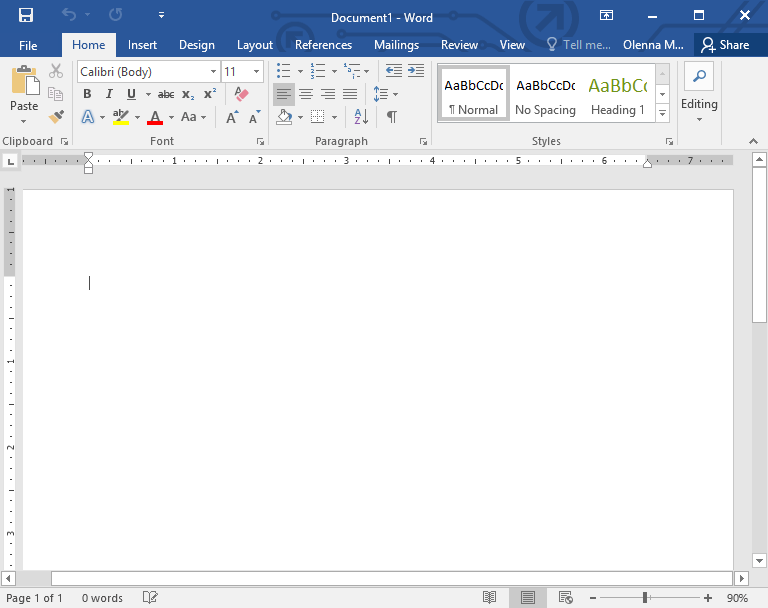
Microsoft Word ofrece procesamiento de textos basado en la nube con controles de formato avanzados que van más allá de lo que ofrecen la mayoría de los editores en línea. Es una opción adecuada para profesionales y equipos que necesitan opciones precisas de diseño, estilo y maquetación de documentos. Si tu trabajo implica informes, propuestas o documentos complejos que requieren un formato detallado, Word te proporciona la flexibilidad y el control que a menudo le faltan a Google Docs.
¿Para quién es Microsoft Word más adecuado?
Trabajadores del conocimiento y personal administrativo de organizaciones pequeñas y grandes de todo el mundo que producen documentos que requieren formato avanzado y control de la maquetación.
Por qué elegí Microsoft Word
Cuando necesitas tener más control sobre el formato de los documentos, Microsoft Word destaca entre los procesadores de texto basados en la nube. Elegí Word por sus amplias opciones de estilo y maquetación, que incluyen tablas avanzadas, saltos de sección y encabezados y pies de página personalizados. La plataforma también admite elementos complejos de los documentos, como notas al pie, citas y listas multinivel. Estas funciones lo convierten en una opción excelente para los usuarios que necesitan crear documentos pulidos y profesionales que van más allá de las funciones básicas que ofrece Google Docs.
Características principales de Microsoft Word
Algunas otras funciones de Microsoft Word lo convierten en una opción versátil para trabajar con documentos basados en la nube:
- Colaboración en tiempo real: Varios usuarios pueden editar y comentar documentos al mismo tiempo desde cualquier ubicación.
- Historial de versiones: Accede a versiones anteriores de tus documentos y restáuralas para realizar un seguimiento de los cambios o recuperar contenido.
- Editor integrado: El corrector integrado de ortografía, gramática y estilo te ayuda a perfeccionar tu redacción mientras trabajas.
- Exportación y edición de PDF: Crea, exporta y edita archivos PDF directamente en la plataforma sin necesidad de software adicional.
Integraciones de Microsoft Word
Las integraciones incluyen Excel, PowerPoint, Outlook, OneNote, Project y más.
Pros and Cons
Pros:
- Gestión integrada de citas y bibliografías para la redacción académica
- Amplia biblioteca de plantillas para necesidades empresariales, académicas y creativas
- Compatibilidad fiable con documentos y tipos de archivo antiguos de Word
Cons:
- Requiere una cuenta de Microsoft y, en ocasiones, una suscripción de pago
- La versión web carece de algunas funciones y complementos de escritorio
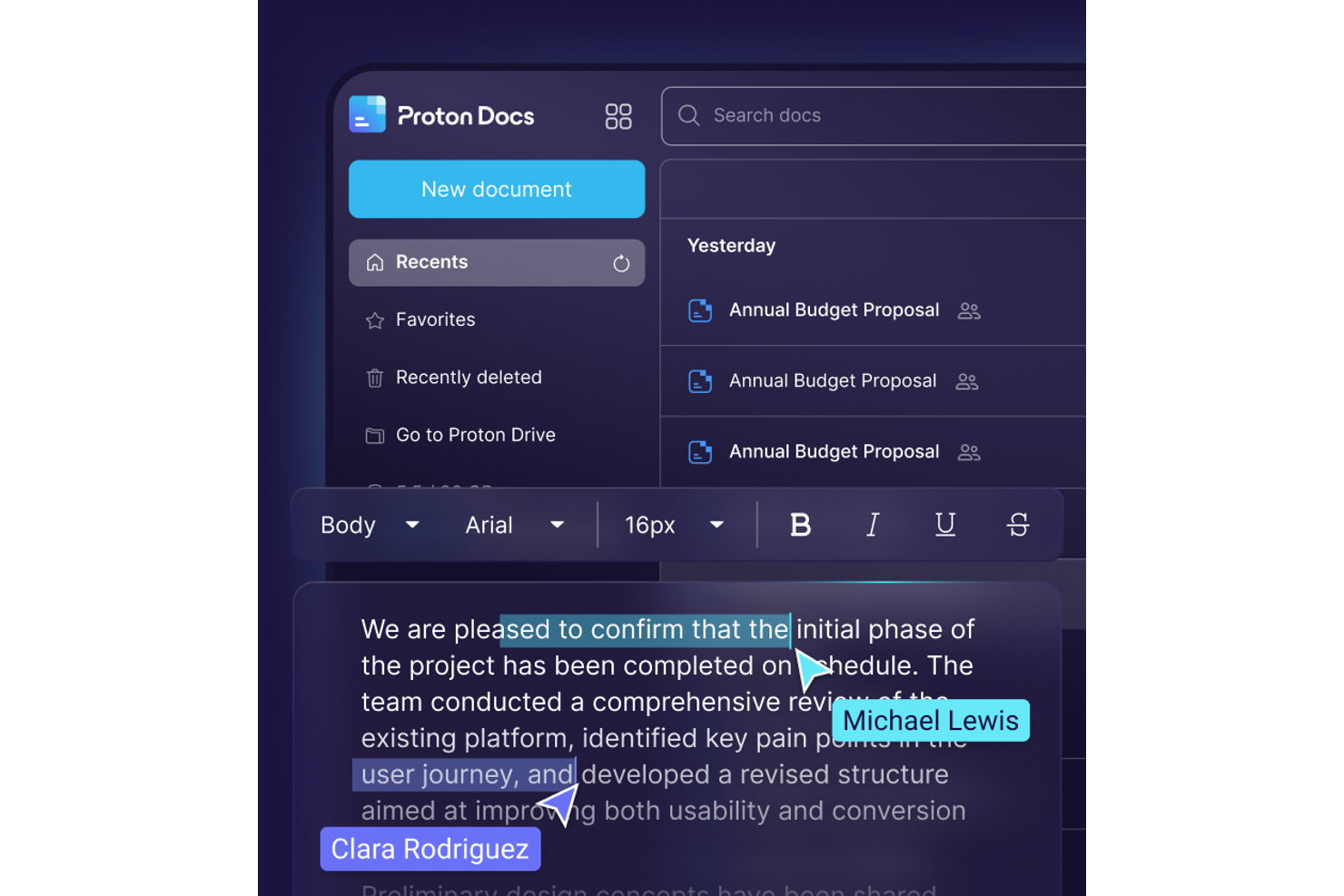
Si necesitas un procesador de textos basado en la nube que priorice la privacidad, vale la pena considerar Proton Docs. Está diseñado para profesionales, equipos jurídicos y organizaciones que requieren cifrado de extremo a extremo para documentos confidenciales. Proton Docs destaca por garantizar que solo tú y tus colaboradores puedan acceder a tu contenido, a diferencia de la mayoría de las alternativas convencionales.
¿Para quién es mejor Proton Docs?
Equipos de seguridad y cumplimiento normativo de pequeñas y medianas organizaciones de Europa y Norteamérica que gestionan documentos confidenciales que requieren cifrado de extremo a extremo.
Por qué elegí Proton Docs
Cuando la privacidad es tu principal preocupación, Proton Docs ofrece algo que Google Docs no ofrece: cifrado de extremo a extremo real para cada documento. Elegí Proton Docs porque solo tú y tus colaboradores pueden acceder a tus archivos, sin visibilidad para terceros. La plataforma también permite compartir contenido cifrado y colaborar en tiempo real, por lo que no tienes que sacrificar el trabajo en equipo por la seguridad. Para quienes gestionan información confidencial o regulada, Proton Docs proporciona un nivel de protección documental difícil de igualar.
Funciones principales de Proton Docs
Otras funciones que hacen atractivo a Proton Docs para la colaboración segura en documentos incluyen:
- Edición de texto enriquecido: Crea y da formato a documentos con encabezados, listas, tablas e imágenes.
- Historial de versiones: Accede a versiones anteriores de tus documentos y restáuralas en cualquier momento.
- Integración con Proton Drive: Almacena, organiza y gestiona tus documentos dentro del ecosistema de Proton Drive.
- Acceso multiplataforma: Trabaja en documentos desde cualquier dispositivo con un navegador web.
Integraciones de Proton Docs
Las integraciones incluyen Proton Drive y herramientas nativas de importación para Google Drive, Microsoft OneDrive, Dropbox y más.
Pros and Cons
Pros:
- El cifrado de extremo a extremo protege todos los documentos frente al acceso no autorizado
- Sin anuncios ni extracción de datos para una experiencia de edición centrada en la privacidad
- La colaboración en tiempo real permite que varios usuarios editen simultáneamente
Cons:
- Las funciones de formato y edición son más limitadas que en Google Docs
- La experiencia de edición móvil está menos pulida que la de escritorio

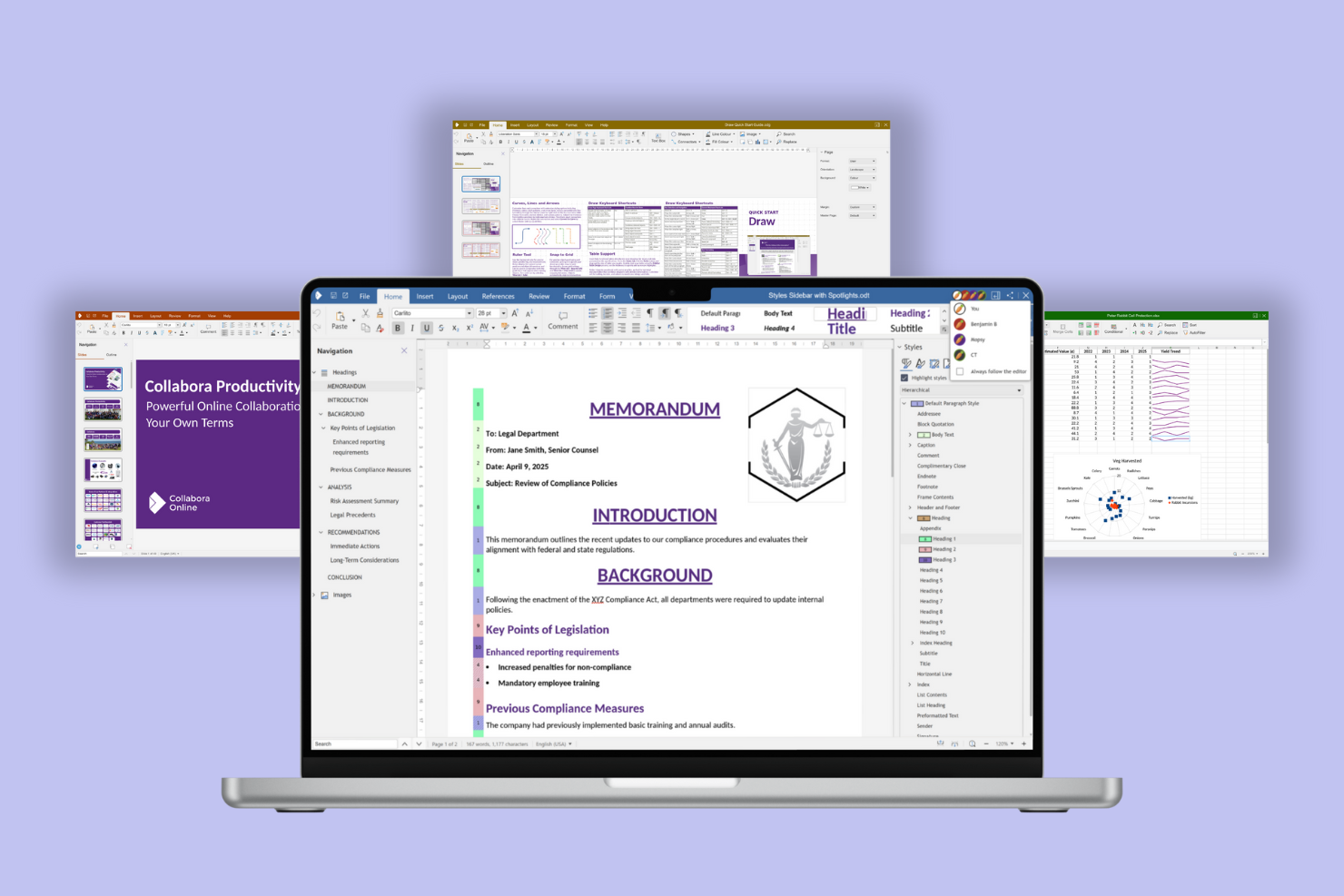
Las organizaciones que desean tener un control total sobre la colaboración en sus documentos suelen recurrir a Collabora Online. Este procesador de textos en la nube de código abierto resulta atractivo para los equipos de TI, las empresas centradas en la privacidad y los grupos del sector público que necesitan alojar y gestionar sus propios datos. Collabora Online se diferencia de Google Docs al ofrecer alojamiento propio, controles avanzados de privacidad y compatibilidad con una amplia variedad de formatos de documentos.
¿Para quién es más adecuado Collabora Online?
Administradores de TI y equipos de colaboración de organizaciones medianas de Europa y Norteamérica que implementan la edición de documentos de código abierto en entornos controlados.
Por qué elegí Collabora Online
Para los equipos que priorizan las soluciones de código abierto, Collabora Online ofrece un enfoque único para la colaboración documental basada en la nube. Elegí Collabora Online porque permite a las organizaciones alojar sus propios documentos, lo que les proporciona un control total sobre la privacidad y la seguridad de los datos. La plataforma admite la coautoría y la edición en tiempo real, al igual que Google Docs, pero con la flexibilidad adicional de la personalización de código abierto. Si tu empresa necesita cumplir estrictos requisitos de conformidad o prefiere estándares abiertos, Collabora Online es una alternativa sólida a los procesadores de textos propietarios.
Características principales de Collabora Online
Otras características que hacen atractivo a Collabora Online para la gestión documental incluyen:
- Seguimiento avanzado de cambios: Revisa, acepta o rechaza las ediciones de varios colaboradores en un mismo documento.
- Amplia compatibilidad con formatos de archivo: Abre, edita y guarda documentos en formatos de Microsoft Office, OpenDocument y otros formatos habituales.
- Edición desde móviles y tabletas: Accede a los documentos y edítalos desde dispositivos iOS y Android con una interfaz adaptable.
- Permisos de usuario personalizables: Establece controles de acceso detallados para usuarios y grupos con el fin de gestionar la seguridad de los documentos.
Integraciones de Collabora Online
Las integraciones incluyen Nextcloud, ownCloud, Seafile, Picoshare, Moodle, Canvas y otras.
Pros and Cons
Pros:
- La opción de alojamiento propio proporciona a las organizaciones un control total sobre la privacidad de los datos
- La edición colaborativa en tiempo real funciona en varias plataformas y navegadores
- Las funciones avanzadas de seguimiento de cambios y comentarios facilitan los flujos de trabajo en equipo
Cons:
- La configuración y el mantenimiento requieren más recursos y conocimientos de TI
- Problemas ocasionales de compatibilidad con documentos complejos de Microsoft Office

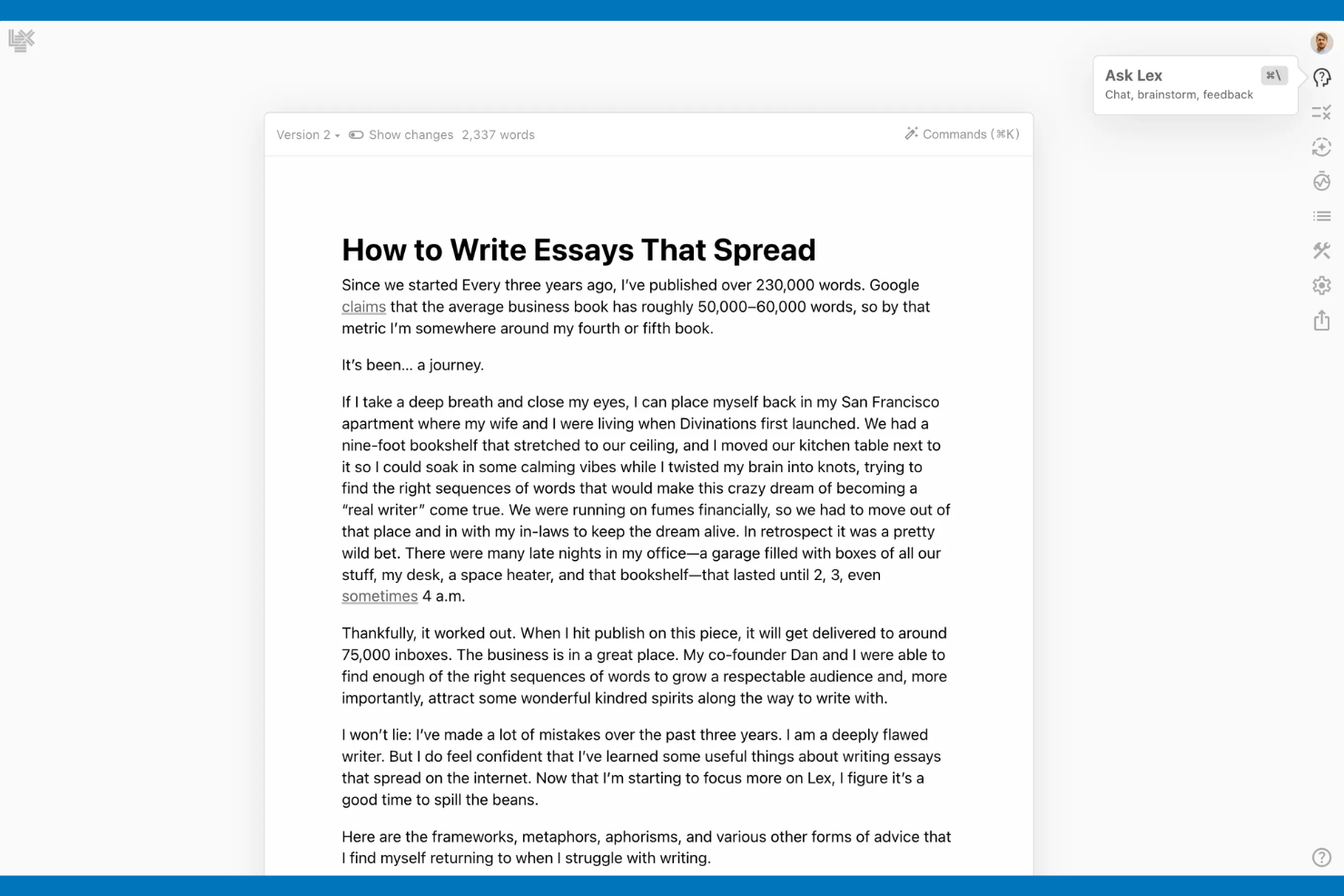
Los escritores y equipos que buscan asistencia avanzada de IA en sus documentos pueden encontrar Lex especialmente atractivo. Este procesador de textos basado en la nube utiliza herramientas de IA integradas para ayudarte a redactar, editar y perfeccionar contenido directamente mientras escribes. Lex se distingue de Google Docs por ofrecer funciones como autocompletado impulsado por IA, sugerencias de reescritura y generación de contenido dentro del editor.
¿Para quién es más adecuado Lex?
Escritores y equipos de contenido de pequeñas y medianas empresas de Norteamérica y Europa que utilizan asistencia de IA para redactar y perfeccionar textos de manera eficiente.
Por qué elegí Lex
Si quieres un procesador de textos que vaya más allá de la edición básica, vale la pena considerar Lex por su asistencia de escritura impulsada por IA. Elegí Lex porque ofrece sugerencias de IA en tiempo real, incluidas opciones de autocompletado y reescritura, directamente dentro de tu documento. La herramienta también te ayuda a generar contenido nuevo o reformular texto existente con solo una indicación, lo que puede agilizar la redacción y la revisión. Para quienes valoran la asistencia de IA integrada mientras trabajan en la nube, Lex ofrece capacidades únicas que lo diferencian de Google Docs.
Características principales de Lex
Otras funciones que hacen que Lex sea útil para crear documentos incluyen:
- Historial de versiones: Consulta y restaura versiones anteriores de tus documentos en cualquier momento.
- Comentarios y colaboración: Añade comentarios y colabora con otras personas directamente dentro del editor.
- Compatibilidad con Markdown: Da formato al texto utilizando la sintaxis de Markdown para estructurar documentos más rápidamente.
- Modo sin distracciones: Cambia a una interfaz limpia y minimalista para concentrarte en escribir sin interrupciones.
Integraciones de Lex
Las integraciones nativas no aparecen publicadas.
Pros and Cons
Pros:
- El autocompletado impulsado por IA ayuda a agilizar las tareas de redacción y edición
- La herramienta de reescritura integrada ofrece sugerencias rápidas para mejorar el contenido
- El historial de versiones te permite consultar y restaurar cambios anteriores de los documentos
Cons:
- La experiencia de edición móvil es limitada en comparación con otras herramientas en la nube
- Las opciones de formato son menos amplias que las de los procesadores de textos tradicionales

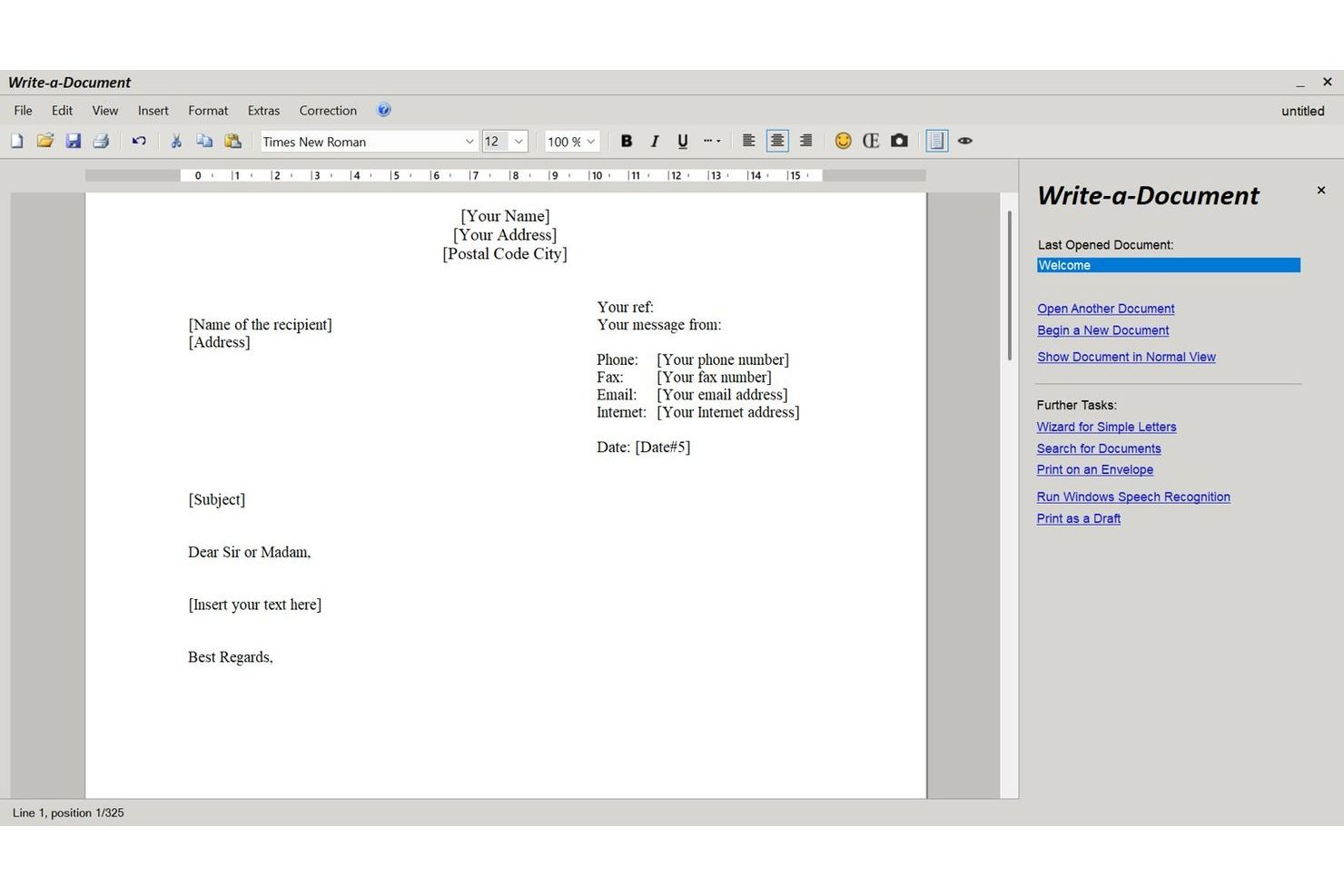

Para quienes necesitan crear un documento al instante sin las molestias del registro, JMMG Communications ofrece una solución única. Esta herramienta es ideal para trabajadores autónomos, estudiantes o cualquiera que quiera redactar y descargar documentos rápidamente, sin dejar una huella digital. A diferencia de Google Docs, JMMG Communications permite empezar a escribir de inmediato: sin cuenta, sin configuración y con una página en blanco lista para tu contenido.
¿Para quién es más adecuado JMMG Communications?
Profesionales individuales y equipos pequeños de todo el mundo que necesitan crear documentos de inmediato sin registrarse ni realizar pasos de incorporación.
Características principales de JMMG Communications
Profesionales individuales y equipos pequeños de todo el mundo que necesitan crear documentos de inmediato sin registrarse ni realizar pasos de incorporación.
Por qué elegí JMMG Communications
Si quieres empezar a escribir de inmediato sin crear una cuenta, JMMG Communications destaca como una opción práctica. Elegí JMMG Communications porque permite abrir un documento en blanco y empezar a escribir enseguida, sin necesidad de registrarse ni iniciar sesión. Puedes descargar el documento terminado en varios formatos, lo que facilita compartirlo o imprimirlo. Para quienes valoran la rapidez y la privacidad en un procesador de textos basado en la nube, JMMG Communications ofrece una alternativa refrescantemente sencilla a Google Docs.
Características principales de JMMG Communications
Algunas otras características que hacen que JMMG Communications sea útil para crear documentos rápidamente incluyen:
- Formato de texto básico: aplica negrita, cursiva, subrayado y otros formatos sencillos a tu texto.
- Inserción de tablas: añade tablas al documento para organizar la información.
- Herramienta de revisión ortográfica: comprueba si hay errores ortográficos en el documento mientras escribes.
- Salida lista para imprimir: prepara los documentos para imprimirlos directamente desde el navegador.
Integraciones de JMMG Communications
Las integraciones nativas no aparecen publicadas.
Pros and Cons
Pros:
- No se necesita una cuenta ni registrarse para empezar a escribir documentos
- Acceso instantáneo a un documento en blanco desde cualquier navegador
- Las opciones de descarga incluyen los formatos DOC, PDF y TXT
Cons:
- No dispone de funciones de colaboración ni de uso compartido en tiempo real
- No ofrece opciones de almacenamiento en la nube ni historial de versiones de documentos
Cómo evalúo las alternativas a Google Docs
Cuando los equipos de RR. HH. necesitan un reemplazo de Google Docs para redactar manuales o gestionar cartas de oferta, evalúo las herramientas primero según requisitos básicos imprescindibles y, luego, considero lo que diferencia a cada opción.
Funcionalidad principal (requisitos esenciales para esta lista)
Al seleccionar herramientas para mi lista, califico cada una en una escala de 0 (no ofrece la funcionalidad) a 5 (sobresale en este área) para cada funcionalidad principal que se detalla a continuación. Luego, convierto la puntuación total de la herramienta en un porcentaje. Cada herramienta debe alcanzar una puntuación mínima total del 75 % para ser considerada para su inclusión.
- Edición colaborativa en tiempo real: Verifico si varios miembros del equipo de RR. HH. pueden coeditar un documento en directo—como perfeccionar juntos un manual del empleado—con comentarios, sugerencias e indicadores de presencia.
- Creación de documentos con texto enriquecido: Una experiencia completa de procesamiento de texto es fundamental, así que evalúo la profundidad de formato incluyendo tablas, encabezados, medios integrados y diseños estructurados para políticas y cartas de oferta.
- Almacenamiento y acceso en la nube: Busco almacenamiento en la nube confiable con acceso desde cualquier dispositivo, para que un coordinador de RR. HH. pueda consultar documentos de incorporación desde el navegador, la app de escritorio o el móvil sin necesidad de instalar software.
- Controles de compartición y permisos: Los documentos de RR. HH. suelen contener datos sensibles. Evalúo si cada herramienta permite establecer permisos de visualización, comentarios o edición a nivel de documento y carpeta para proteger cosas como los planes de compensación.
- Historial de versiones y recuperación: Ser capaz de rastrear quién cambió qué en un borrador de política de beneficios—y deshacer cambios cuando sea necesario—es algo que busco, incluyendo versiones nombradas y comparaciones lado a lado.
- Plantillas y formatos de exportación: Verifico la existencia de plantillas reutilizables (descripciones de puestos, formularios de evaluación, esquemas de políticas) y si se puede exportar a formatos estándar como PDF y DOCX para compartir con partes externas.
Una vez que tengo una lista de herramientas que cumplen con este criterio, considero lo que diferencia a cada plataforma.
Factores diferenciadores (lo que distingue a los proveedores)
Así es como comparo y contrasto diferentes proveedores:
Características destacadas
Un asistente de escritura con IA puede ahorrar tiempo real cuando tu equipo redacta decenas de descripciones de puestos o revisa textos de políticas en varios departamentos. También busco funciones de base de conocimientos—las páginas anidadas y los enlaces internos convierten documentos dispersos de RR. HH. en un centro estructurado y consultable para empleados. El soporte integrado de firma electrónica es otro diferenciador, ya que permite enviar cartas de oferta o NDA para firma sin cambiar de herramienta.
Más allá de las características
El cumplimiento normativo y la seguridad de los datos importan mucho cuando los documentos de RR. HH. contienen información personal de empleados. Evalúo si una plataforma soporta SOC 2, GDPR y SSO, además de registros de auditoría que rastrean quién accedió a qué. Las integraciones con sistemas de información de RR. HH. son igual de importantes—conectar con herramientas como BambooHR o Workday permite transferir datos de empleados a los documentos sin ingreso manual. También considero lo sencillo que resulta para el personal de RR. HH. no técnico migrar los Google Docs existentes y adoptar la nueva plataforma sin una curva de aprendizaje pronunciada.
¿Por qué buscar una alternativa a Google Docs?
Aunque Google Docs es una buena opción de procesador de textos basado en la nube, hay varios motivos por los que algunos usuarios buscan soluciones alternativas. Puede que estés buscando una alternativa a Google Docs porque…
- Necesitas una mayor privacidad de los datos
- Necesitas disponer de funciones de edición sin conexión
- Tu equipo necesita herramientas de formato avanzadas
- Quieres una mejor integración con otras aplicaciones
- Necesitas cumplir normativas específicas
- Tu equipo necesita una interfaz más fácil de usar
Si alguna de estas situaciones te resulta familiar, has llegado al lugar adecuado. Mi lista incluye varias opciones de procesadores de textos basados en la nube que se adaptan mejor a los equipos que se enfrentan a estos problemas con Google Docs y buscan soluciones alternativas.
Funciones
Estas son algunas de las funciones principales de Google Docs, para ayudarte a contrastar y comparar lo que ofrecen las soluciones alternativas:
- Colaboración en tiempo real: Tú y tu equipo pueden trabajar en documentos simultáneamente y ver los cambios a medida que se producen.
- Comentarios y sugerencias: Añade comentarios y sugerencias a los documentos para facilitar los comentarios y la colaboración.
- Historial de versiones: Realiza un seguimiento de los cambios y vuelve a versiones anteriores de tus documentos para asegurarte de no perder nunca ediciones importantes.
- Edición sin conexión: Trabaja en tus documentos sin conexión a Internet y sincroniza los cambios cuando vuelvas a estar conectado.
- Escritura por voz: Utiliza tu voz para escribir documentos, lo que puede ahorrarte tiempo si prefieres hablar en lugar de escribir.
- Complementos y extensiones: Mejora tus documentos con diversos complementos que ofrecen funciones adicionales adaptadas a tus necesidades.
- Integración con Google Drive: Almacena y organiza tus documentos en Google Drive para garantizar un acceso y una facilidad de uso compartido sencillos.
- Plantillas: Utiliza una amplia variedad de plantillas para crear rápidamente documentos de aspecto profesional sin empezar desde cero.
- Guardado automático: No te preocupes por perder tu trabajo, ya que Google Docs guarda automáticamente los cambios mientras escribes.