

20 Meilleures Applications et Logiciels de Productivité de 2026

10 Sélection des meilleures applications de productivité


Les applications de productivité sont conçues pour nous aider à accomplir plus avec moins d'efforts. Que vous soyez freelance, manager ou entrepreneur, si vous travaillez dans le numérique, vous avez probablement déjà testé un logiciel de productivité pour optimiser votre travail.
Mais comment exploiter au mieux ces applications de productivité ? Selon vos responsabilités, vous finissez généralement par utiliser une combinaison d'outils qui vous conviennent. Ainsi, vous vous connectez à un outil pour faire votre gestion des ressources, passez à un autre pour la communication d'équipe, puis peut-être à un troisième pour gérer votre planning.
Les aperçus ci-dessous vous fourniront des informations supplémentaires sur les possibilités de ces outils, et j’expliquerai comment hiérarchiser les tâches et accroître votre productivité en fin d’article. La matrice d’Eisenhower dont je parle vous aidera à planifier vos activités et votre temps de façon stratégique.
Comment j’ai sélectionné les meilleures applications de productivité
Si vous avez des questions générales sur la stratégie de productivité, vous pouvez passer directement à notre guide pratique en bas de page. Ou bien, vous pouvez aller tout de suite aux comparatifs des meilleures applications de productivité si vous êtes prêt à les analyser.
Si vous vous demandez comment j'ai sélectionné les meilleures applications de productivité, je vais tout vous expliquer ici. D'abord, j’ai choisi des applications bénéficiant de très bonnes évaluations utilisateurs et d’un haut niveau de satisfaction. Ensuite, en me basant sur mon expérience en gestion de projet, j’ai déterminé quels critères étaient les plus importants pour ce type d’outil puis j’ai comparé chaque application selon ces points clés. Voici une brève liste expliquant mes choix :
Expérience utilisateur
L’interface est-elle claire et le système de l’application facile à prendre en main ? Les fonctionnalités encombrent-elles l’application ou sont-elles réellement utiles ? Nous n’avons sélectionné que des applications vraiment faciles à utiliser, sans stress supplémentaire !
Priorisation
Pour les applications de liste de tâches, l’application propose-t-elle un système clair pour organiser et réorganiser les tâches ? Pour indiquer les priorités et gérer ce qui est le plus important ?
Accessibilité
Est-elle disponible sur plusieurs systèmes d’exploitation ? Il existe des applications de productivité pour Mac qui ne sont pas proposées sur Android, comme Slite. Cependant, nous avons privilégié les outils disponibles sur le plus grand nombre d’appareils.
Rapport et suivi
Quels types de fonctions de reporting l’application inclut-elle ? Peut-on suivre le temps passé sur chaque tâche, comparer la productivité sur la durée, ou analyser facilement les résultats obtenus ?
Intégrations
L’application s’intègre-t-elle à d’autres meilleurs outils d’organisation, applications de rappels ou de suivi de productivité, etc. ? Nous cherchons les applications capables de se synchroniser avec d’autres, pour automatiser au maximum la gestion de vos tâches.
Tarification
Le prix demandé est-il cohérent par rapport aux bénéfices apportés ? Dans la plupart des cas, une version gratuite est disponible pour un usage personnel, tandis que les offres payantes tournent généralement autour de 6 à 10 $/utilisateur/mois.
Why Trust Our Software Reviews
We’ve been testing and reviewing HR software systems since 2019. As HR experts ourselves, we know how critical and difficult it is to make the right decision when selecting software.
We invest in deep research to help our audience make better software purchasing decisions. We’ve tested more than 2,000 tools for different HR management use cases and written over 1,000 comprehensive software reviews. Learn how we stay transparent & our software review methodology.
Résumé des meilleures applications de productivité
| Tool | Best For | Trial Info | Price | ||
|---|---|---|---|---|---|
| 1 | Idéal pour des flux de travail et tableaux de tâches personnalisés | Essai gratuit de 14 jours | À partir de 8 $/utilisateur/mois | Website | |
| 2 | Idéal pour augmenter la productivité en rationalisant votre boîte de réception d'e-mails | Essai gratuit de 14 jours disponible | À partir de $4,13/mois (facturé tous les deux ans) | Website | |
| 3 | Idéal pour le brainstorming, l’idéation et la gestion des tâches réunis en une seule solution | Plan gratuit disponible | À partir de 13 $/utilisateur/mois (facturé annuellement) | Website | |
| 4 | Idéal pour la collaboration en temps réel | Essai gratuit de 14 jours disponible | À partir de 7$/utilisateur/mois (facturation annuelle) | Website | |
| 5 | Idéal pour créer des applications de productivité personnalisées | 30 jours d'essai gratuit | À partir de 24 $/utilisateur/mois | Website | |
| 6 | Idéal pour les listes de tâches sous forme de cartes et les tableaux Kanban | Essai gratuit + offre gratuite disponible | À partir de 9,99 $/utilisateur/mois | Website | |
| 7 | Idéal pour le suivi du temps détaillé | Version gratuite + essai gratuit disponible | À partir de $6/utilisateur/mois (facturé annuellement) | Website | |
| 8 | Meilleur outil pour rechercher dans toutes vos applications et obtenir rapidement des réponses | Non disponible | Tarification sur demande | Website | |
| 9 | Idéal pour son interface conviviale | Plan gratuit disponible | À partir de 18$/utilisateur/mois | Website | |
| 10 | Idéal pour la gestion illimitée des workflows | Essai gratuit de 7 jours disponible | À partir de 99 $/mois (utilisateurs illimités) | Website |


-

Remote People
Visit WebsiteThis is an aggregated rating for this tool including ratings from Crozdesk users and ratings from other sites.5 -
Homebase
Visit WebsiteThis is an aggregated rating for this tool including ratings from Crozdesk users and ratings from other sites.4.2 -
Paycom
Visit WebsiteThis is an aggregated rating for this tool including ratings from Crozdesk users and ratings from other sites.4.3





Meilleures applications de productivité & avis sur les logiciels de productivité
D’après mon expérience, ces applications de productivité sont parmi les meilleures du marché actuellement. Retrouvez ici mon aperçu de ces outils :

Idéal pour des flux de travail et tableaux de tâches personnalisés
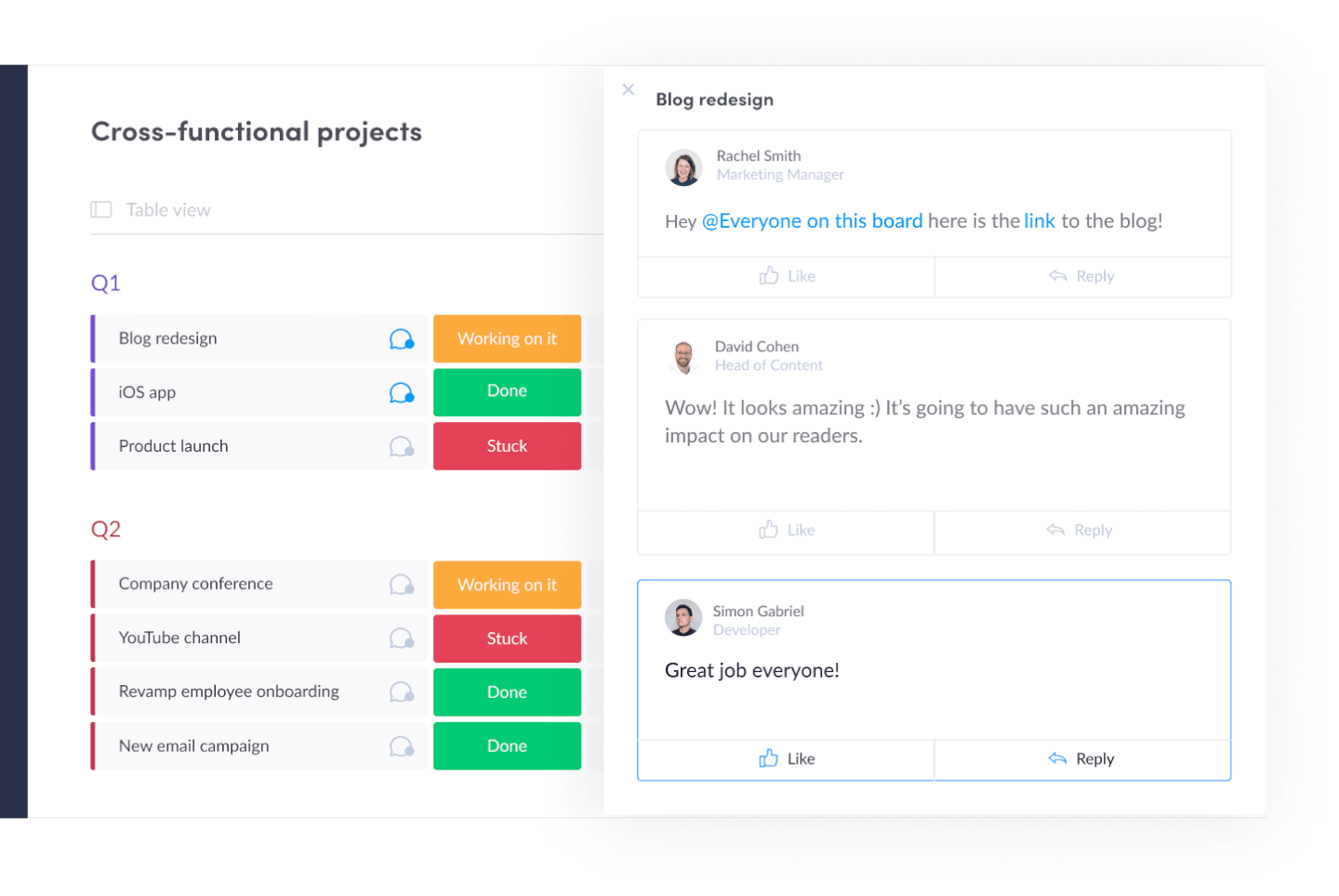
monday.com est une application de gestion de projet facile à prendre en main, qui fait également office d’outil de productivité grâce à des fonctionnalités clés pour gérer les tâches et les flux de travail permettant de suivre plusieurs missions du début à la fin. C’est un excellent outil de productivité pour les équipes, offrant une vue claire sur le travail à accomplir et le statut de chaque tâche en un clin d’œil.
Pourquoi j’ai choisi monday.com : monday.com ressemble vaguement à un tableau sur tableur à la base, mais il s'agit d'un outil de gestion de projet bien plus attrayant, qui permet de basculer rapidement entre plusieurs vues du travail, même pour des tâches répétitives (vue en liste, sur une carte, sur un tableau Kanban, dans une feuille de calcul, et d'autres vues). Il offre également des alertes, des notifications, la possibilité de joindre des fichiers et de communiquer avec ses collègues.
Fonctionnalités et intégrations remarquables de monday.com
Fonctionnalités : tableau de tâches personnalisable pour la gestion du statut des tâches, du responsable, de la date d'échéance, du temps passé, etc. Les utilisateurs peuvent télécharger et joindre des fichiers aux cartes, commenter, mentionner des membres de l’équipe, définir des rappels, et plus encore. La productivité peut être mesurée à l’aide de tableaux de bord de rapports qui collectent des données de plusieurs tableaux.
Intégrations : Slack, Google Drive, Gmail, Google Calendar, Jira, GitHub, Trello, Dropbox, Typeform et bien d’autres, accessibles via Zapier.
New Product Updates from monday.com

monday.com Adds Managed Columns Across Boards
monday.com adds Managed Column to let teams standardize and reuse column labels across multiple boards from a single source of truth. The update helps organizations maintain consistency, clarity, and centralized control at scale. For more information, visit monday.com’s official site.
SaneBox
Idéal pour augmenter la productivité en rationalisant votre boîte de réception d'e-mails
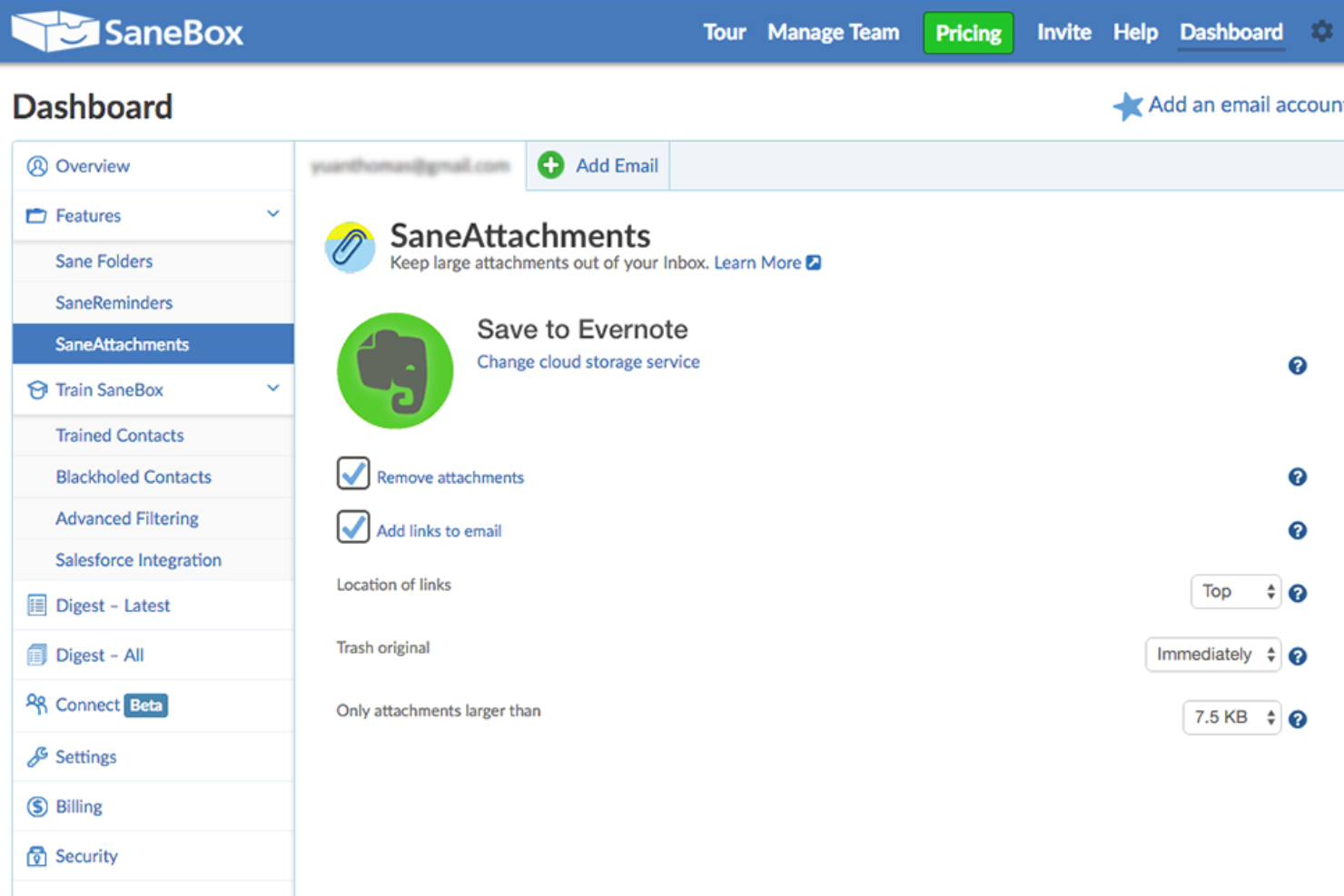
SaneBox est un outil de productivité qui vous aide à gérer votre boîte de réception d'e-mails plus efficacement. Il est conçu pour vous faire gagner du temps en filtrant les e-mails non importants et en organisant les autres dans des dossiers, afin que vous puissiez vous concentrer sur ce qui compte vraiment. SaneBox fonctionne avec la plupart des fournisseurs et clients de messagerie, ce qui en fait une option polyvalente pour toute personne souhaitant améliorer la gestion de ses e-mails.
Pourquoi j'ai choisi SaneBox : J'ai choisi SaneBox comme l'une des meilleures applications de productivité parce qu'il s'attaque à l'une des tâches les plus chronophages auxquelles nous sommes tous confrontés au quotidien : la gestion de nos boîtes de réception. Avec l'afflux constant d'e-mails, il est facile d'être submergé et de perdre le fil des messages importants. SaneBox vous aide à reprendre le contrôle de votre boîte de réception, vous permettant de vous concentrer sur les e-mails qui comptent vraiment et d'être plus productif.
Fonctionnalités et intégrations remarquables de SaneBox
Fonctionnalités : Plusieurs fonctionnalités distinguent SaneBox des autres outils de gestion des e-mails. D'abord, son système de filtrage intelligent trie automatiquement vos e-mails dans différents dossiers selon leur importance. Par exemple, il déplace les e-mails non essentiels vers un dossier 'SaneLater', afin que vous puissiez d'abord vous concentrer sur les messages les plus importants. Il existe également un dossier 'SaneNoReplies', qui garde une trace des e-mails envoyés qui n'ont pas reçu de réponse, ce qui facilite le suivi de ces messages.
Une autre fonctionnalité intéressante est le dossier 'SaneBlackHole', qui vous permet de vous désabonner rapidement des newsletters et e-mails promotionnels indésirables. Il suffit de faire glisser le courriel indésirable dans ce dossier, et SaneBox vous désabonnera automatiquement de la liste de diffusion de l'expéditeur.
Intégrations : SaneBox s'intègre à de nombreux fournisseurs et clients de messagerie populaires, tels que Gmail, Outlook, Apple Mail, et plus encore. Cela signifie que vous pouvez utiliser SaneBox avec votre configuration e-mail existante, sans avoir à changer de plateforme. De plus, SaneBox propose des intégrations avec des outils de productivité comme Evernote, Todoist et Trello, vous permettant de créer des tâches et d'enregistrer des e-mails importants directement depuis votre boîte de réception.

Idéal pour le brainstorming, l’idéation et la gestion des tâches réunis en une seule solution
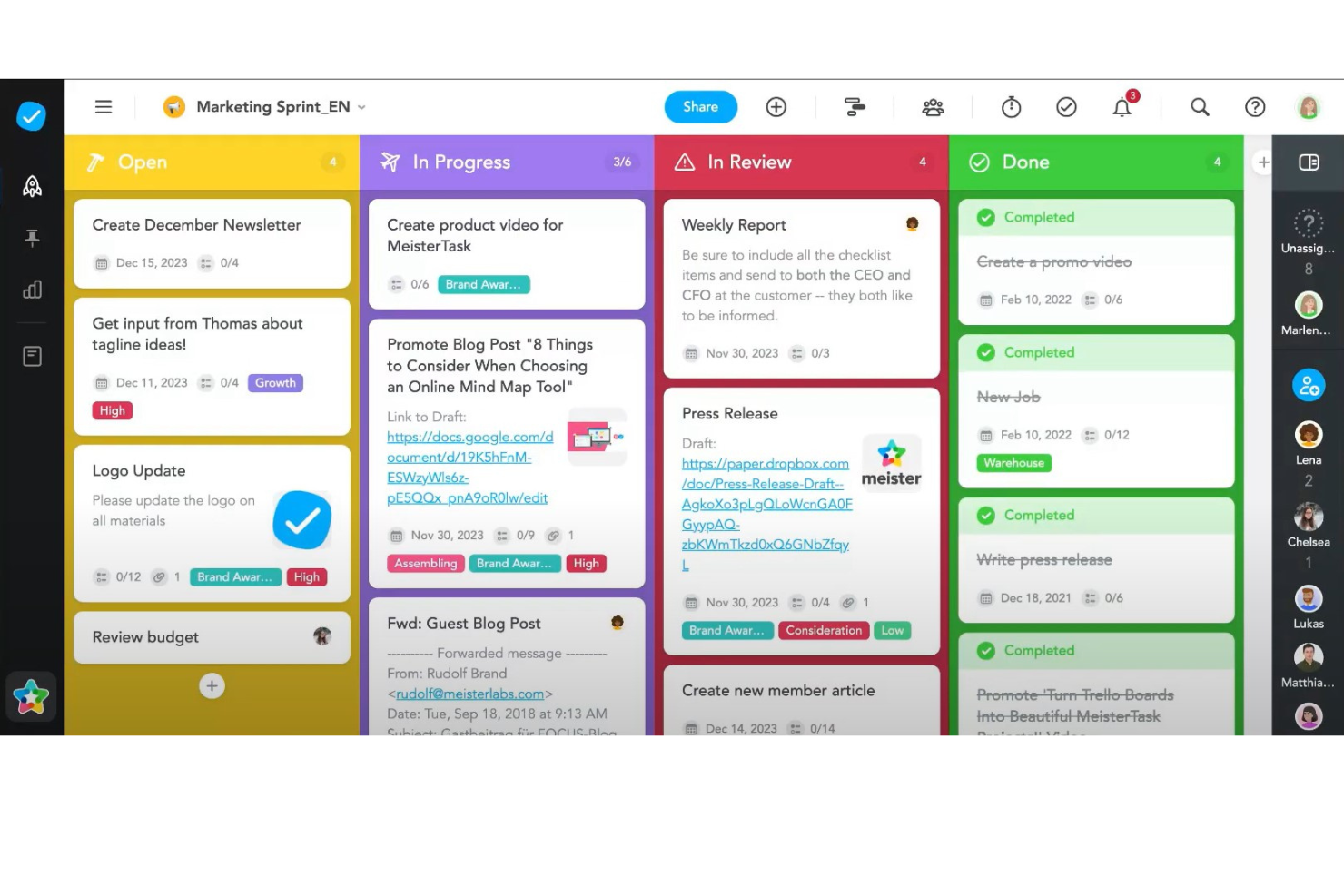
MeisterTask est un outil de gestion de projet polyvalent qui combine des tableaux Kanban intuitifs avec des fonctionnalités puissantes de collaboration et de personnalisation, ce qui le rend idéal pour les équipes de toutes tailles. Son intégration fluide avec MindMeister pour le brainstorming et l'idéation, ainsi que ses solides capacités d'automatisation des tâches et de communication en temps réel, simplifient le flux de travail et améliorent la productivité dans l'ensemble des projets.
Pourquoi j'ai choisi MeisterTask : MeisterTask se distingue en tant qu'application de productivité grâce à une interface épurée et intuitive qui simplifie la gestion des tâches et des projets. Il combine efficacement des tableaux Kanban personnalisables pour la gestion visuelle du flux de travail avec des fonctionnalités avancées telles que l'automatisation des tâches, les rappels d'échéances et le suivi du temps pour accroître l'efficacité.
L'application facilite une collaboration sans accroc grâce au partage facile de fichiers, à la possibilité de commenter et d'assigner des tâches, ce qui permet aux équipes de rester coordonnées et concentrées. Son intégration avec des outils tels que MindMeister pour la cartographie mentale assure une transition fluide de la phase de brainstorming à l'exécution, ce qui aide les utilisateurs à transformer plus facilement leurs idées en actions concrètes. L'accent mis par MeisterTask sur le design convivial et la fonctionnalité pratique en fait un outil précieux pour les particuliers et les équipes qui souhaitent renforcer leur productivité et atteindre leurs objectifs plus efficacement.
Fonctionnalités et intégrations phares de MeisterTask
Fonctionnalités : tableaux Kanban, automatisation des tâches, intégration de MindMeister, flux de travail personnalisables, modèles de projet, suivi du temps, gestion des pièces jointes, rappels d'échéances, outils de collaboration, fils d'activité, applications mobiles, chiffrement sécurisé des données, multiples intégrations avec d'autres outils, tableaux de bord personnalisés et vues de projet flexibles.
Intégrations : Slack, Dropbox, Github, Google Drive, Microsoft Teams, Outlook, Trello, Asana, MindMeister, et des centaines d'autres via un plan payant avec Zapier.
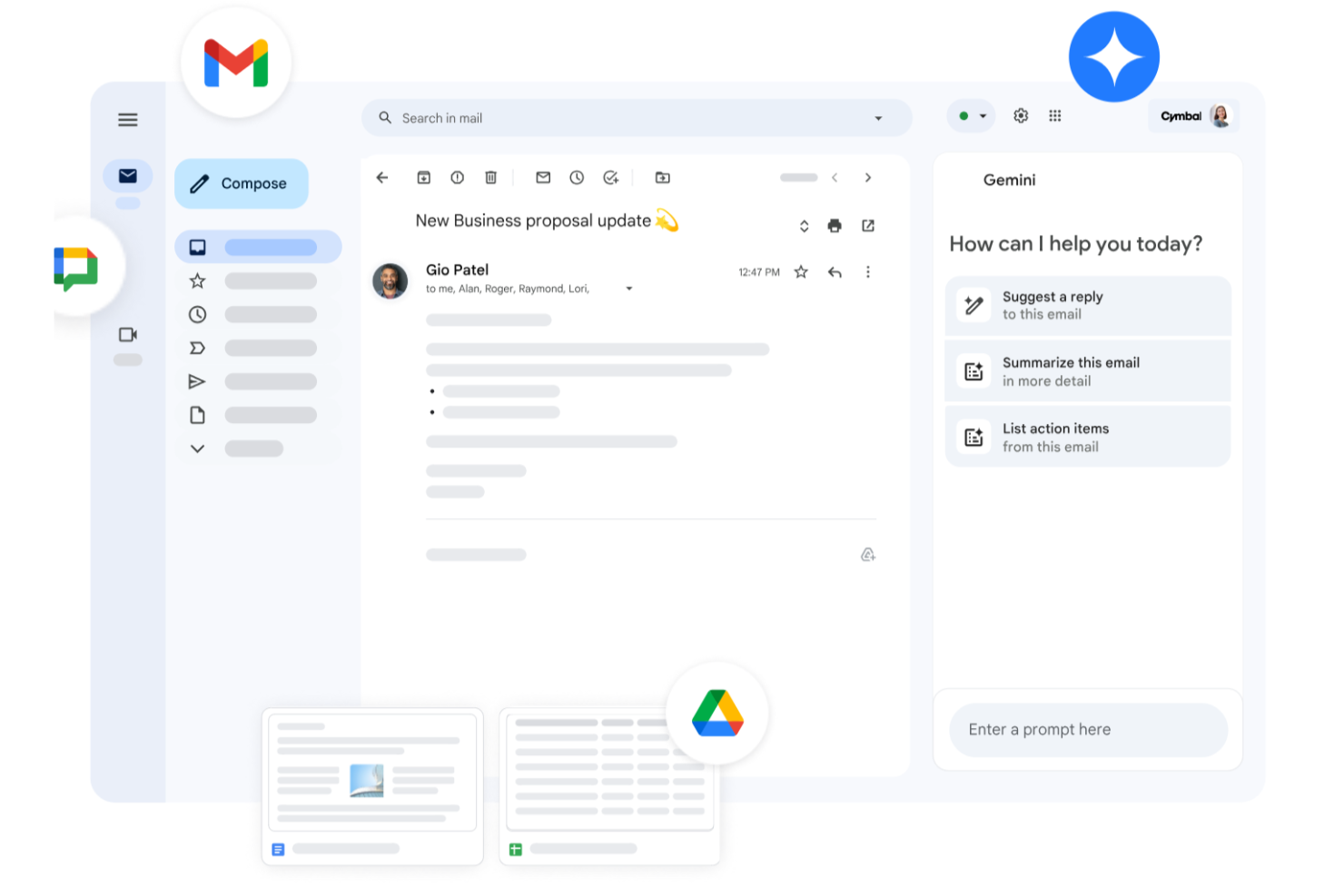
Que vous dirigiez une petite entreprise, gériez une grande entreprise ou évoluiez dans le secteur de l'éducation, Google Workspace propose une suite d'outils de productivité conçus pour répondre à vos besoins variés. Avec des applications comme Gmail, Drive et Meet, vous pouvez gérer sans effort les communications, le stockage et les réunions virtuelles tout en favorisant la collaboration et en assurant une sécurité renforcée. Grâce à Gemini, l'IA premium de Google, intégrée à toutes les formules, Workspace vous aide à rédiger des emails plus rapidement, à résumer des documents instantanément, à générer des idées et à rester organisé sur tous vos appareils. Que vous assuriez la communication client, la création de contenu ou la coordination des opérations quotidiennes, Workspace augmente la productivité et garde votre équipe connectée.
Pourquoi j'ai choisi Google Workspace
J'ai choisi Google Workspace pour son mélange unique de collaboration en temps réel, d'accessibilité dans le cloud et d'assistance pilotée par l'IA. Des outils comme Google Docs et Sheets permettent à votre équipe de collaborer simultanément, éliminant les problèmes de contrôle de versions et réduisant les échanges d'emails inutiles. Google Meet offre des visioconférences pratiques sans avoir recours à des logiciels externes, rendant la communication fluide. Gemini est directement intégré dans des applications comme Gmail, Docs, Sheets et Meet, allant au-delà de la collaboration pour améliorer activement votre façon de travailler. Qu'il s'agisse de rédiger du contenu, de résumer des documents ou de gérer des tâches, le fait d'avoir une IA intégrée vous permet de rester efficace, réactif et adaptable aux évolutions de votre activité ou de vos projets.
Fonctionnalités clés de Google Workspace
En plus de ses capacités collaboratives, Google Workspace propose plusieurs autres fonctionnalités qui renforcent la productivité :
- Drive : Stockage cloud sécurisé avec des options d'espace généreuses, pour garantir un accès à vos fichiers à tout moment et où que vous soyez.
- Calendar : Planification simplifiée avec calendriers partagés et pages de prise de rendez-vous pour garder votre équipe organisée.
- Chat : Plateforme de messagerie intégrée pour une communication et une collaboration d'équipe en temps réel.
- NotebookLM : Informations instantanées et survols audio façon podcast pour accélérer l'apprentissage et la compréhension de contenu en équipe.
Intégrations Google Workspace
Les intégrations incluent Salesforce, Atlassian, Tableau, SAP, Okta, Microsoft Office 365, Slack, Zoom, Trello et Asana.
Pros and Cons
Pros:
- L'intégration fluide avec les services Google optimise l'efficacité des flux de travail.
- Les outils de collaboration en temps réel améliorent la productivité et la communication de l'équipe.
- Des options de stockage cloud généreuses facilitent l'accès et le partage de fichiers.
Cons:
- Des problèmes de compatibilité peuvent survenir lors de la collaboration externe avec des équipes utilisant des formats non Google ou des workflows Microsoft Office.
- Les permissions sur les disques partagés et les hiérarchies de dossiers complexes peuvent devenir difficiles à gérer si la structure n'est pas soignée.
New Product Updates from Google Workspace

Google Workspace Enhances Email Proofreading In Gmail
Google Workspace introduces enhanced email proofreading in gmail. This update uses gemini to refine drafts for clarity, tone, and conciseness before sending. For more information, visit Google Workspace’s official site.
 .
.
Kintone
Idéal pour créer des applications de productivité personnalisées
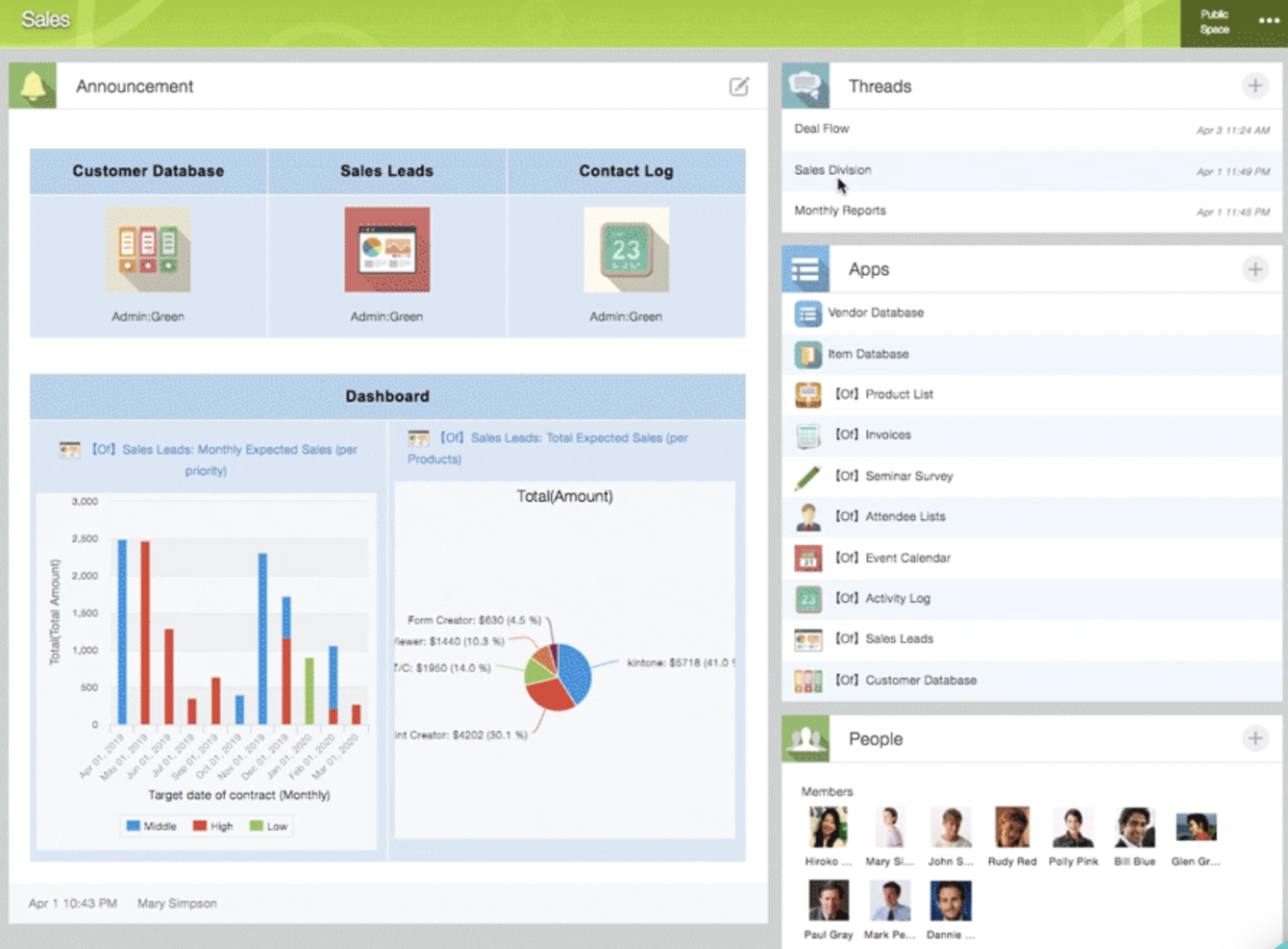
Kintone est une plateforme d'applications personnalisables utilisée par des équipes chez Volvo Trucks North America, Japan Airlines, Shiseido et plus de 23 000 organisations dans le monde entier. Leur approche unique vous permet de créer une grande variété d’« applications » personnalisables, soit à partir de zéro, à l'aide de modèles, ou à partir de vos feuilles de calcul existantes, pour la gestion des données, les processus métier et les flux de travail. Les applications Kintone peuvent être adaptées pour la gestion de projet, la gestion de la relation client (CRM), les bases de données clients, les rapports de dépenses, les listes de tâches partagées, la gestion des équipements, les retours sur produits et bien plus encore.
Pourquoi j’ai choisi Kintone : Kintone vous permet de créer des applications de gestion de tâches sans code en faisant simplement glisser et déposer sur la page les éléments que vous souhaitez voir apparaître : champs de texte enrichi, champs de date, menus déroulants, champs numériques avec calculs intégrés, espaces pour pièces jointes, menus de sélection d'utilisateur ou de groupe, données liées d’autres applications, tableaux, et plus encore.
Une fois l’application créée selon vos besoins, vous pouvez l’utiliser pour gérer plus facilement toutes les données et tâches que vous et votre équipe devez suivre. Avec des notifications et rappels personnalisés ainsi que des paramètres d’autorisations détaillés, votre solution de suivi de projet peut ressembler et fonctionner exactement comme vous le souhaitez.
Ce qui rend Kintone particulièrement adapté au suivi de projet, ce sont les fonctionnalités pour filtrer et hiérarchiser les tâches par champ de données ou membre de l’équipe afin de générer des rapports personnalisés ou des vues de tableau de bord, ainsi que la possibilité d’automatiser les rappels et les transmissions entre membres de l’équipe pour les flux de travail complexes.
Les fonctionnalités de communication intégrées de Kintone permettent également aux équipes de discuter des projets directement dans l’application et dans des fils de discussion par sujet ou par projet. Des « espaces » dédiés organisent tout ce dont votre équipe a besoin pour le projet, y compris des applications de suivi de tâches et des fils de discussion consultables.
Fonctionnalités et intégrations remarquables de Kintone
Fonctionnalités : gestion de projets, tableaux de bord, gestion des ressources, analyses, gestion de calendriers, suivi des conversions, intégration des nouveaux employés, prévisions, qualification des prospects, feuilles de temps, collaboration, rapports, gestion du pipeline, budgétisation et modélisation de processus.
Intégrations : Slack, Gmail, Google Calendar, Outlook, Tableau, Dropbox, Salesforce, HubSpot, Eventbrite, WordPress, QuickBooks, MailChimp, et bien d'autres via un abonnement payant avec Zapier ou des intégrations API.

Trello
Idéal pour les listes de tâches sous forme de cartes et les tableaux Kanban
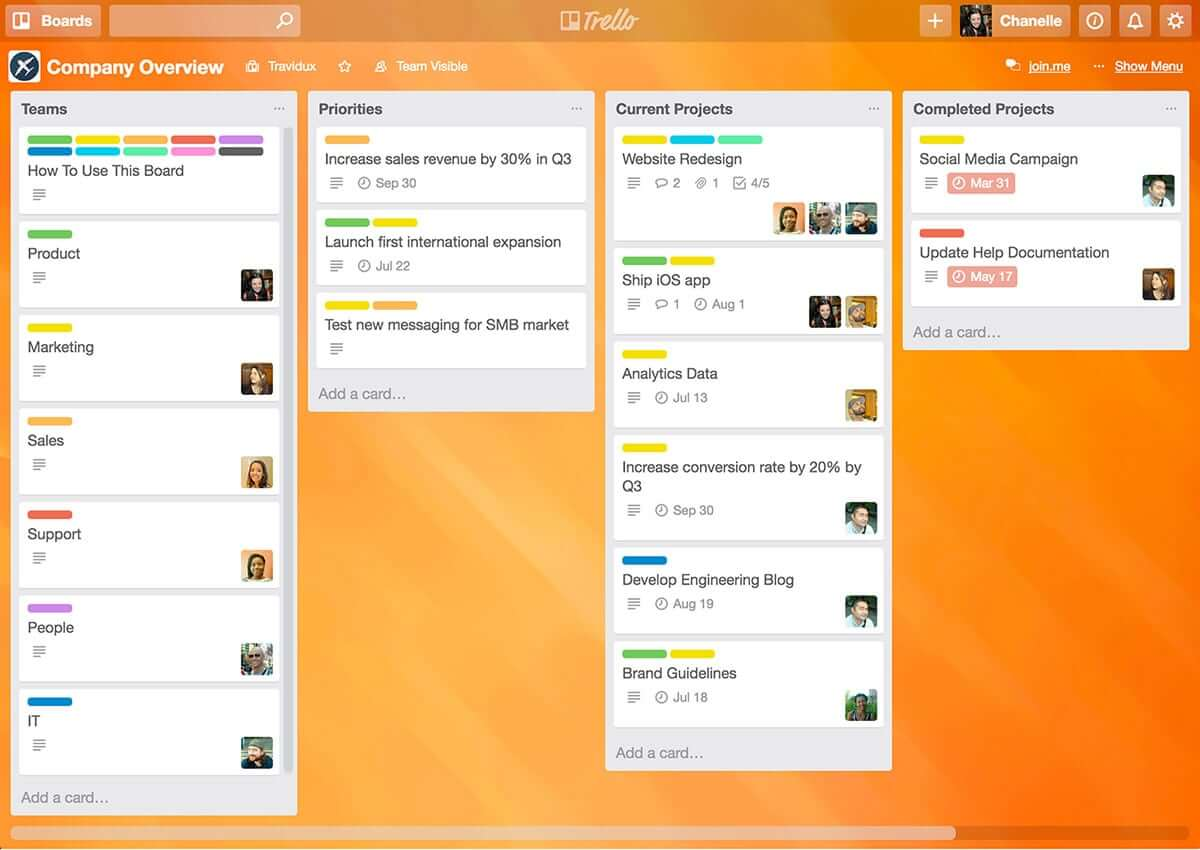
Trello est une application de tableau Kanban qui permet d’organiser visuellement les tâches. Son interface conviviale, basée sur le glisser-déposer, est intuitive et facile à prendre en main. Cet outil populaire peut vous aider à visualiser vos échéances, les tâches en cours et celles déjà terminées, vous permettant ainsi de prendre des décisions éclairées sur les prochaines étapes à suivre en fonction de la vue d’ensemble du projet.
Pourquoi j’ai choisi Trello : Trello est un outil de gestion de projet très apprécié qui aide les équipes à organiser leurs tâches et à collaborer sur les projets de façon visuelle et intuitive. Il repose sur un système de tableaux, de listes et de cartes pour représenter les tâches et les flux de travail, permettant ainsi à chaque membre de l’équipe de voir facilement ce qui doit être fait, qui est responsable de chaque tâche et quel est l’avancement de chacune. Trello peut être personnalisé pour répondre à une grande variété de besoins en gestion de projet et propose des fonctionnalités telles que des dates d’échéance, des listes de contrôle, des pièces jointes et des attributions de membres d’équipe. Sa flexibilité et sa simplicité d’utilisation en font un excellent outil pour les équipes de toutes tailles, des petites startups aux grandes entreprises.
Fonctionnalités et intégrations phares de Trello
Parmi les fonctionnalités figurent des tableaux, des listes de tâches, la gestion des tâches, la gestion des flux de travail, des étiquettes de priorité, des dates d'échéance, le partage de fichiers, des outils de communication, une application mobile et des intégrations/add-ons tiers.
Les intégrations incluent plus de 200 applications et outils essentiels à votre équipe, comme Slack, Google Drive, Salesforce, Dropbox, directement dans vos tableaux Trello. (Remarque : Certaines connexions nécessitent un abonnement supplémentaire.)

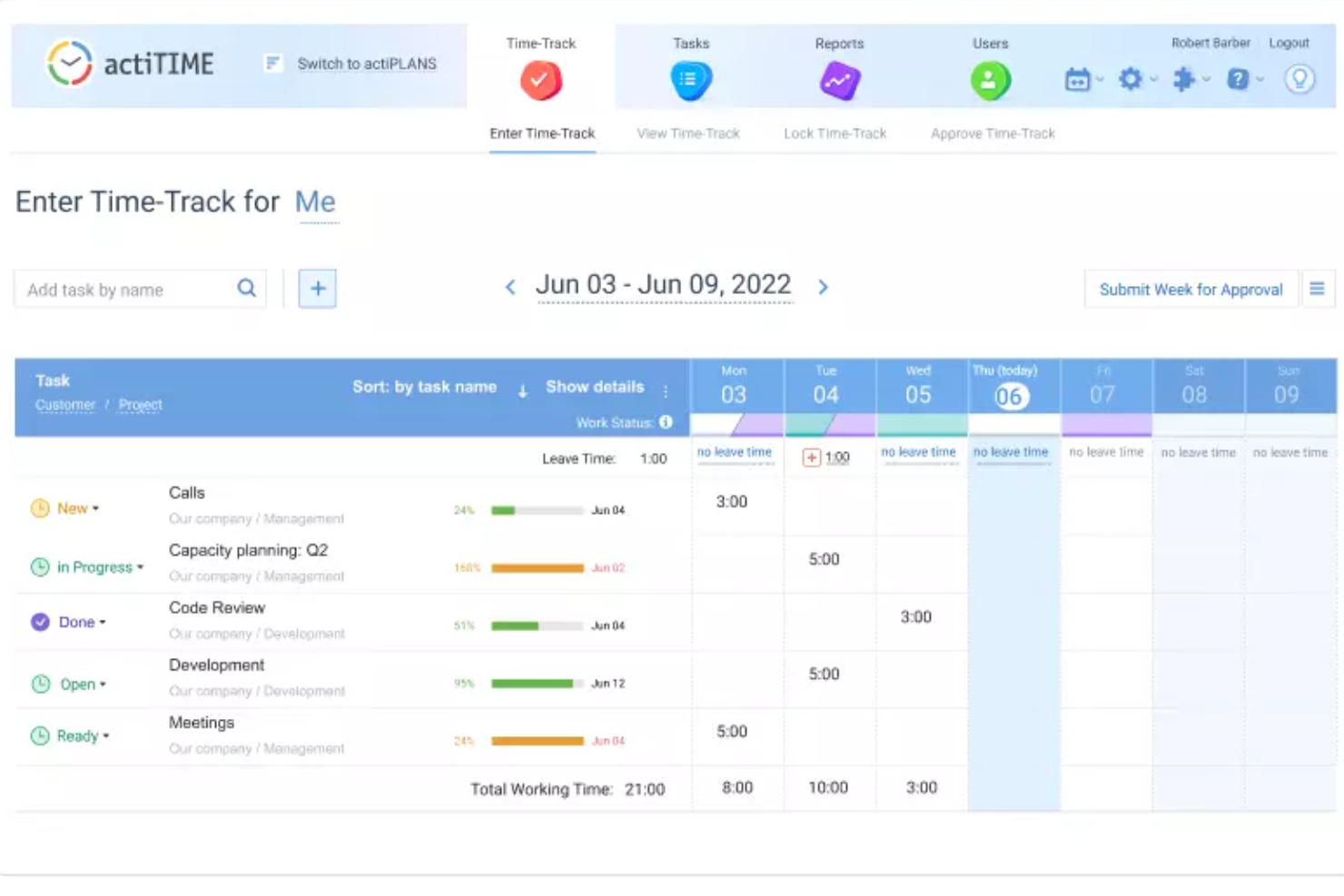
ActiTIME est un outil de suivi du temps et de gestion du travail conçu pour aider les équipes à suivre les heures, gérer les tâches et analyser la productivité.
Pourquoi j'ai choisi ActiTIME : J'ai choisi actiTIME car il vous permet de suivre le temps passé sur diverses tâches, offrant ainsi une meilleure compréhension de la façon dont votre journée est utilisée. Cela aide à mieux gérer les délais de projet, en s'assurant que vous respectez vos échéances. Vous pouvez également gérer les budgets de projet dans actiTIME, ce qui signifie que vous surveillez attentivement les dépenses et évitez que les projets ne dépassent le budget.
La plateforme vous permet même de créer des tâches, de les attribuer aux membres de l'équipe, de fixer des échéances et de suivre l'avancement. Cela permet de garder tout le monde aligné et de s'assurer que le travail est effectué dans les temps.
Fonctionnalités et intégrations marquantes d'ActiTIME
Fonctionnalités incluent des flux de travail personnalisés, vous permettant d'adapter les processus à vos besoins spécifiques de projet. De plus, actiTIME propose une fonctionnalité de gestion des congés, afin de gérer les absences des employés et d'automatiser la gestion des heures supplémentaires pour garantir la conformité et optimiser la capacité des équipes.
Intégrations comprennent ActiPLANS, QuickBooks, Zapier, GitHub, Salesforce, Jira, Trello, Outlook, Evernote, Todoist et Bamboo HR.

Guru
Meilleur outil pour rechercher dans toutes vos applications et obtenir rapidement des réponses
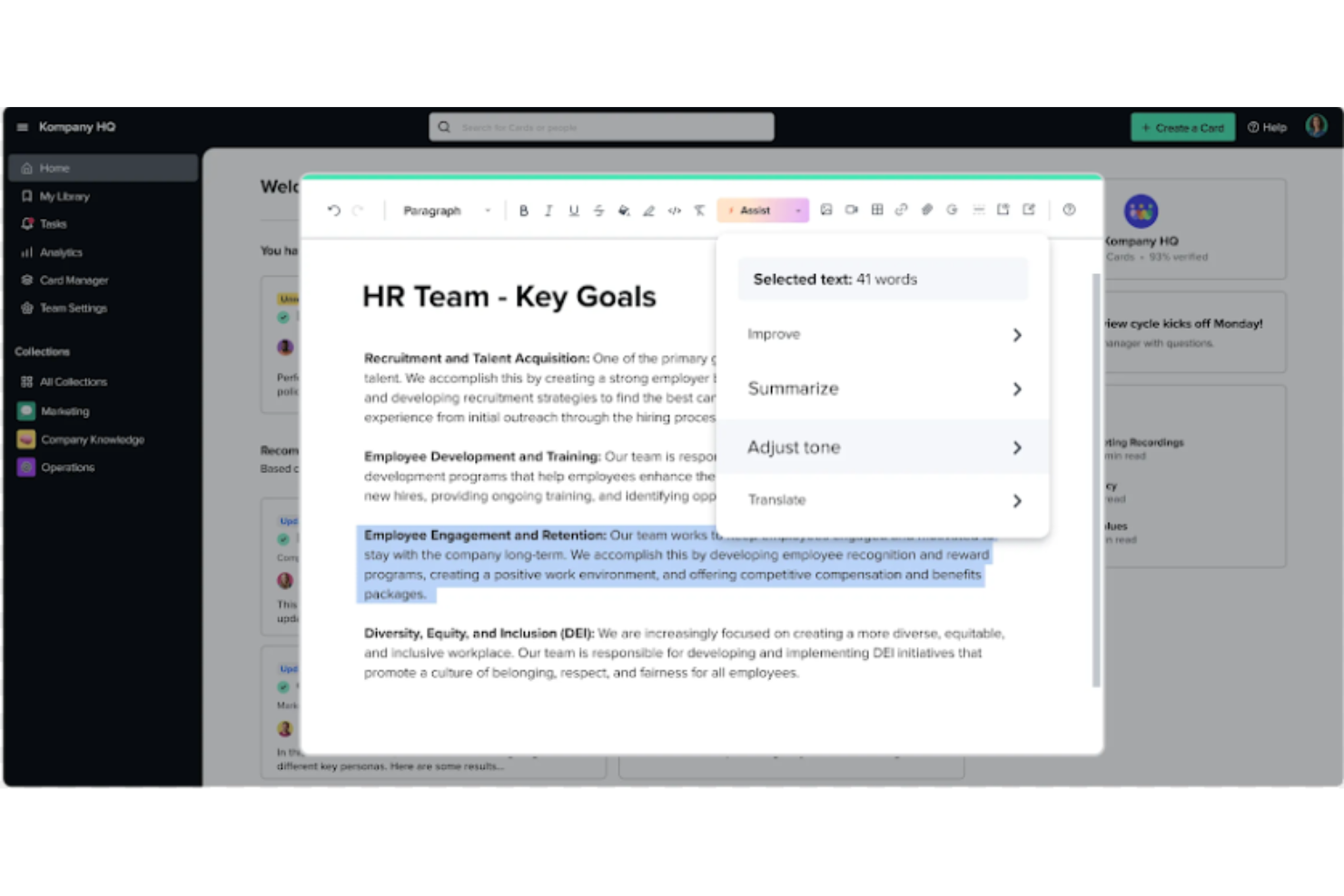
Guru est une plateforme avancée de recherche et de gestion des connaissances conçue pour aider les utilisateurs à trouver rapidement des informations pertinentes. Leur fonctionnalité de recherche intelligente alimentée par l'IA permet de rechercher dans toutes vos applications, documents et #canaux Slack pour obtenir des réponses — soit directement dans Slack, soit via une extension Chrome — ce qui facilite l'accès rapide à l'information.
Pourquoi j'ai choisi Guru : Guru utilise l'IA pour fournir des réponses instantanées au sein du flux de travail de l'utilisateur, adaptées à son rôle, à son emplacement et à ses activités. L'outil facilite également l'intégration des nouveaux employés, simplifie la création, le partage et l'organisation de la documentation de l'entreprise, et fait office de centre de connaissances pour diffuser des contenus éducatifs et des guides de dépannage dans toute l'organisation. La plateforme s'intègre également à une multitude d'outils et de services, permettant aux utilisateurs de trouver des réponses et de collaborer sans quitter leur environnement de travail.
Dans l'ensemble, Guru vise à éliminer les obstacles créés par les silos d'information et à améliorer la productivité en automatisant la recherche d'informations, permettant ainsi aux employés de se concentrer sur des tâches nécessitant une intelligence humaine.
Fonctionnalités et intégrations remarquables de Guru
Fonctionnalités : recherche intelligente d'entreprise basée sur l'IA, intranet pour les employés, wiki d'entreprise, suggestions et assistance IA, outils de personnalisation de la marque, outils de collaboration et de retour d'expérience, accessibilité mobile, et contrôles d'accès et de permissions.
Intégrations : Trello, Cognito Forms, Jira Software Cloud, Confluence Cloud, HubSpot, Google Chat, Confluence Server et GitHub.

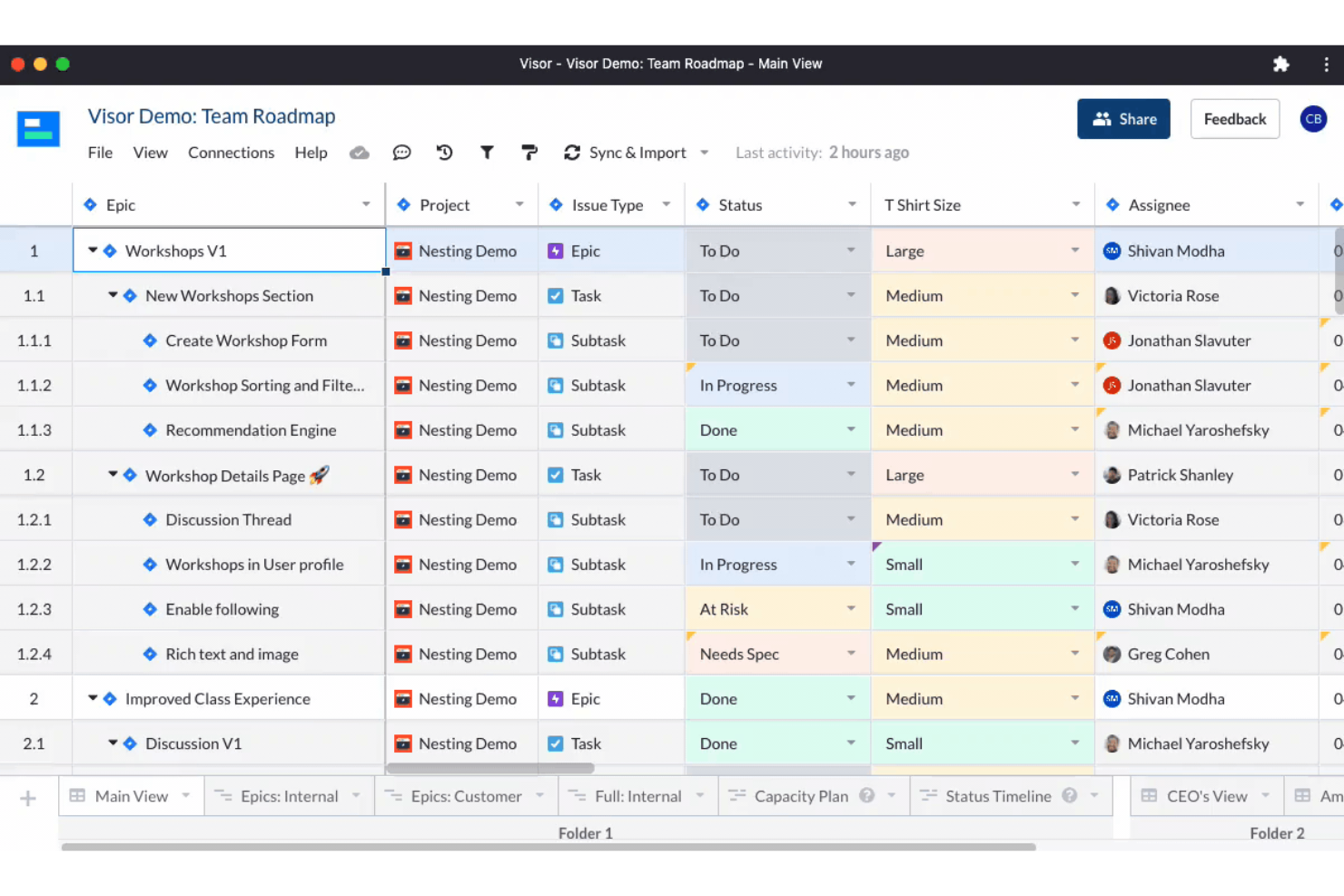
Visor est un produit SaaS basé sur le cloud qui vise à aider les particuliers et les entreprises à gérer leur temps et leurs tâches plus efficacement. Il convient parfaitement aux personnes et aux équipes qui ont besoin d'un outil de productivité complet et facile à utiliser, leur permettant de gérer leurs projets, tâches et temps en un seul endroit.
Pourquoi j'ai choisi Visor : J'ai choisi Visor comme l'un des meilleurs logiciels de productivité parce qu'il s'agit d'une solution tout-en-un qui réunit gestion des tâches, gestion de projet, suivi du temps et fonctionnalités de calendrier dans une interface conviviale. J'apprécie de pouvoir garder une vue d'ensemble de tout ce que j'ai à faire sans avoir à jongler entre plusieurs outils ou applications.
Une autre fonctionnalité intéressante est sa capacité de collaboration en temps réel, qui vous permet de travailler avec les membres de votre équipe sur des projets, d'assigner des tâches et de suivre l'avancement. Cette fonctionnalité facilite la communication avec les membres de l'équipe et permet de rester à jour sur tout ce qui se passe dans vos projets. Il dispose également d'une fonctionnalité de planification intelligente qui suggère les créneaux horaires idéaux pour chaque tâche en fonction de votre disponibilité et de votre charge de travail. Cette fonctionnalité est particulièrement utile lorsque vous avez beaucoup de tâches à accomplir et que vous devez prioriser votre temps efficacement.
Fonctionnalités et intégrations phares de Visor
Fonctionnalités : API, tableaux de bord, export/import de données, visualisation de données, intégrations externes, diagrammes de Gantt, gestion de projet, planification/suivi des tâches, gestion des ressources et plugins/extensions tiers.
Intégrations : Jira, HubSpot et Salesforce.

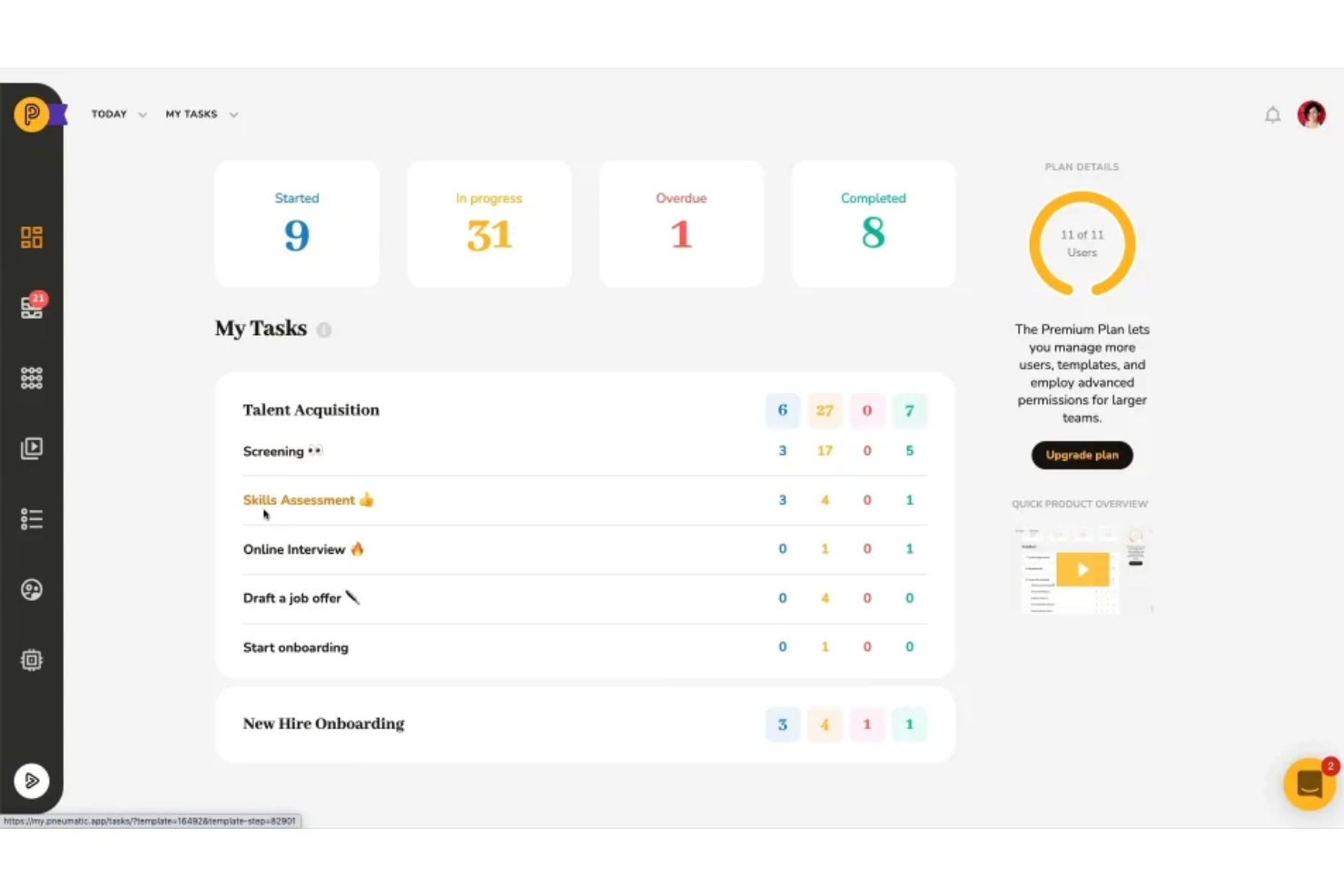
Pneumatic Workflow est un outil complet de gestion des workflows conçu pour aider les entreprises à optimiser leurs processus. Il permet la cartographie visuelle des workflows, automatise l'attribution des tâches et garantit que tous les membres de l'équipe savent toujours ce qu'ils ont à faire.
Pourquoi j'ai choisi Pneumatic Workflow : La plateforme offre des workflows illimités, permettant aux entreprises de concevoir, d'améliorer et de faire évoluer leurs processus sans craindre une augmentation des coûts. L'application propose également une variété de modèles de workflow adaptés à différentes fonctions métier telles que les ressources humaines, la vente, le marketing, la finance, les achats, le développement et le support client. Ces modèles peuvent être utilisés tels quels ou personnalisés selon des besoins spécifiques, ce qui facilite le déploiement rapide de workflows efficaces au sein des organisations.
Pneumatic Workflow : fonctionnalités et intégrations remarquables
Fonctionnalités incluent un générateur de workflows alimenté par l'IA qui simplifie la création des workflows : les utilisateurs décrivent le type de workflow souhaité et le système génère automatiquement les étapes. De plus, des tableaux de bord puissants offrent une vue d'ensemble du système, affichant des indicateurs essentiels tels que le nombre de processus lancés, en cours et terminés.
Intégrations incluent Gmail, Slack, Google Sheets, Trello, Google Docs, PandaDoc, Google Forms, Typeform, HubSpot, Google Calendar, Microsoft Outlook et ClickUp.
Autres applications de productivité
- Collabio Spaces
Idéal pour iPhone & Mac
- Focus Booster
Idéal pour la technique de productivité Pomodoro
- Slack
Meilleure application de messagerie instantanée pour les équipes
- Hubstaff
Idéal pour la gestion des équipes à distance et sur le terrain
- Hive
Idéal pour des vues de projet flexibles selon les besoins de l’équipe
- Lucidspark
Idéal pour l’idéation et la collaboration grâce à une toile infinie
- Wrike
Meilleure application de productivité pour la collaboration en équipe
- GoodDay
Idéal pour le support Agile et Waterfall


Comment être efficace et productif – utiliser la matrice d’Eisenhower
Trop souvent, nous considérons la productivité comme une question de volume : combien est-ce que je produis, et à quelle vitesse ? Pour réellement accomplir un travail qui a de l'impact, nous devons repenser notre vision de la productivité : il s'agit en fait d'utiliser votre temps de manière plus judicieuse.
Comment pouvez-vous mieux utiliser votre temps ?
D'abord, nous devons déterminer les façons les plus productives d'utiliser notre temps. Arrêtez-vous et posez-vous la question :
- Quelle est la conséquence si je ne fais pas cette chose qui semble urgente dès maintenant ? (Parce que cette chose urgente n'est probablement pas si importante !)
- Quelles sont mes activités à plus forte valeur ajoutée ? Qu'est-ce qui est essentiel ?
- Qu'est-ce que je peux faire (et que moi seul(e) peux faire) qui, si c'est bien fait, fera une réelle différence ?
Une bonne façon de répondre à ces questions est d'utiliser une matrice de priorités afin de cartographier les tâches selon leur niveau d'urgence et d'importance. J'aime utiliser la matrice ci-dessous, basée sur la matrice d'Eisenhower :
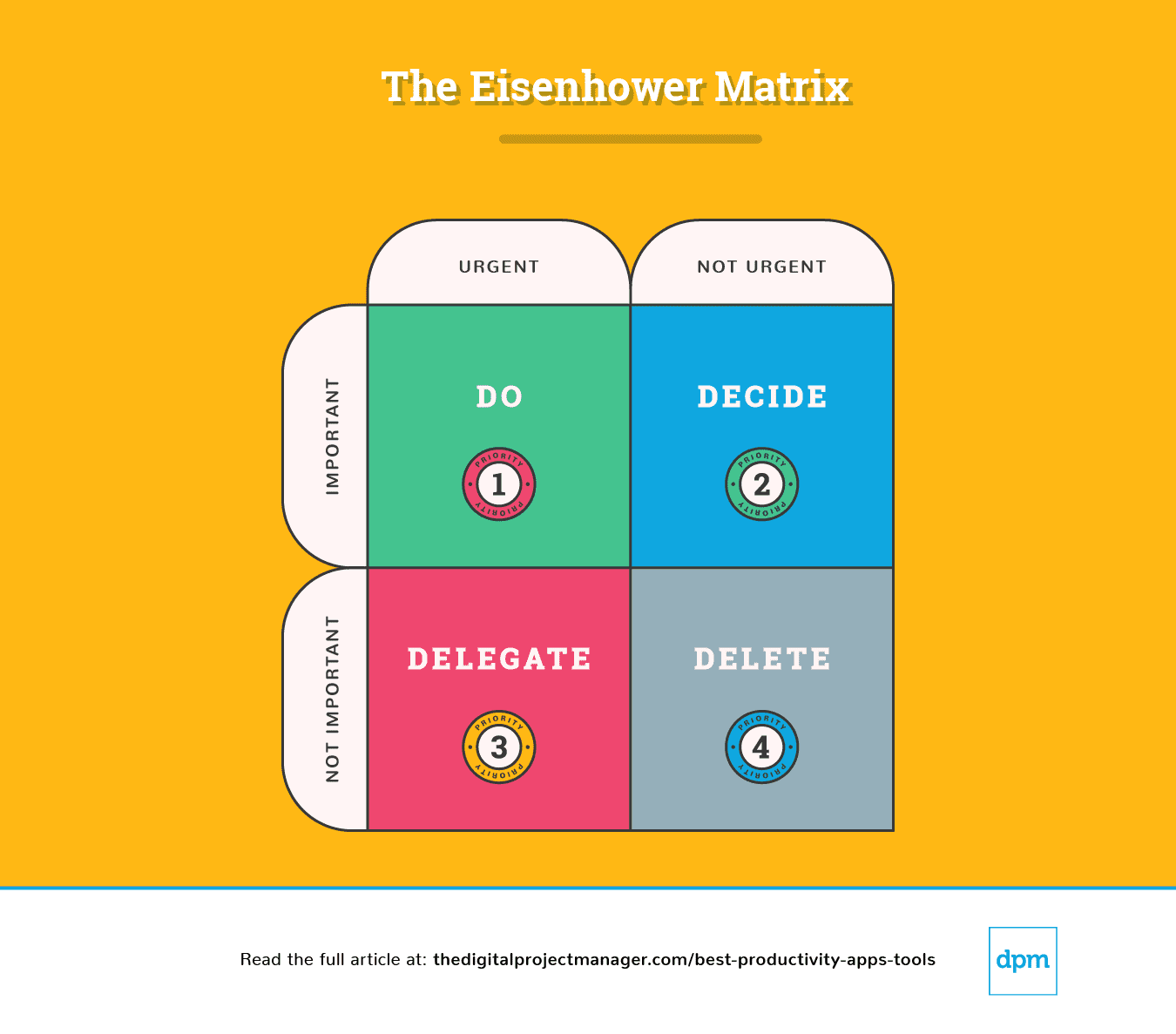
Explication de la matrice d'Eisenhower
Un découpage simple de ce schéma nous indique comment aborder une tâche :
Priorité n°1 : C'est urgent et important. Faites-le.
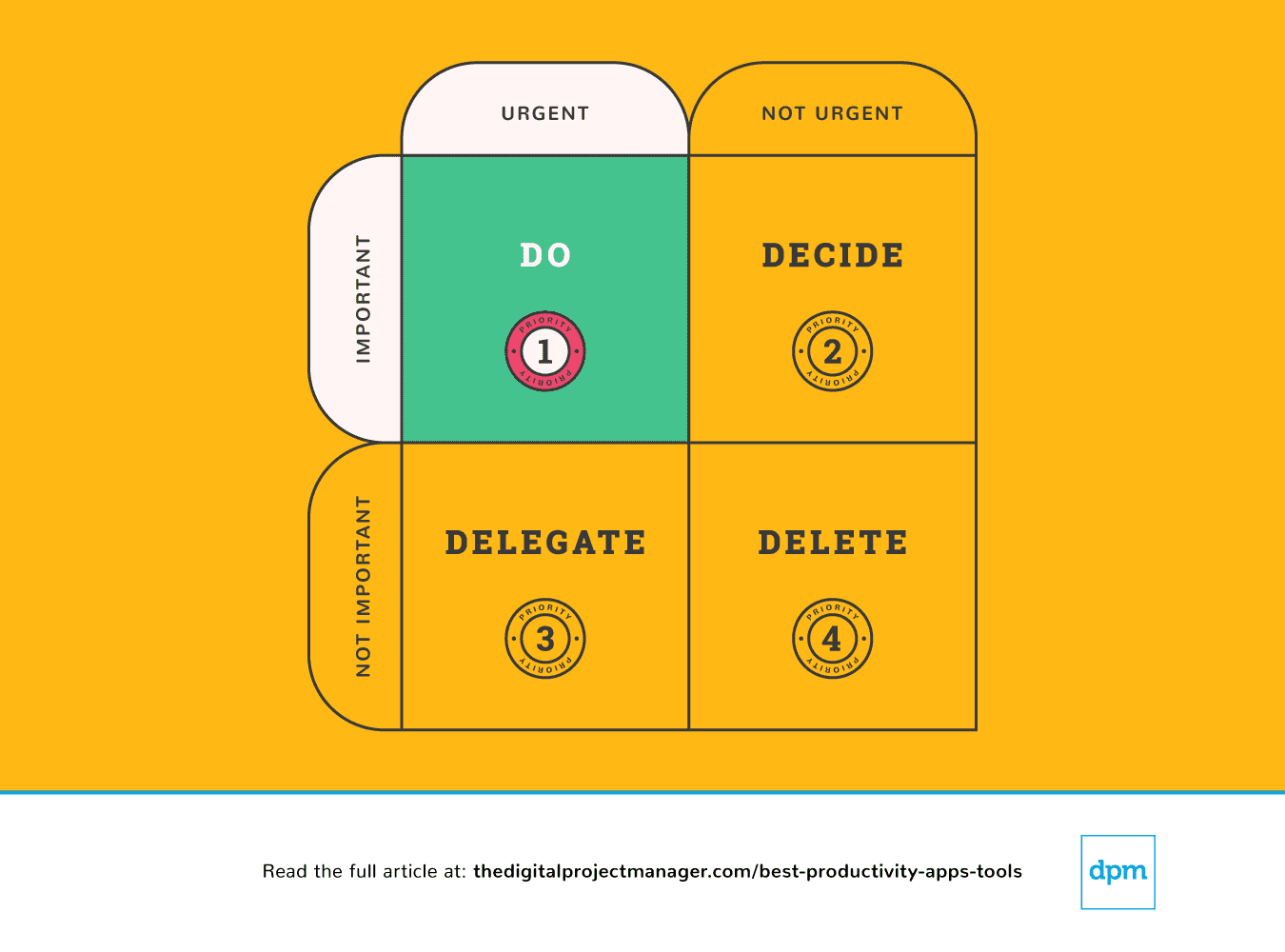 Vos tâches principales doivent suivre la règle « fais-le maintenant ». De la même manière, si vous repérez une tâche qui prend moins de 2 minutes, faites-la tout de suite (Pourquoi ? Parce qu'il vous prendrait plus de temps de la noter sur votre liste de tâches puis de la planifier et de la prioriser).
Démarrer une tâche à haute priorité et persévérer jusqu'à ce qu'elle soit accomplie à 100 % est la véritable épreuve de votre caractère. Ce n'est pas facile, mais c'est ainsi que vous serez productif. Cela demande de l'autodiscipline, mais nous pouvons nous faciliter la vie avec quelques outils de productivité.
Priorité n°2 : Ce n'est pas urgent mais c'est quand même important. Décidez-en.
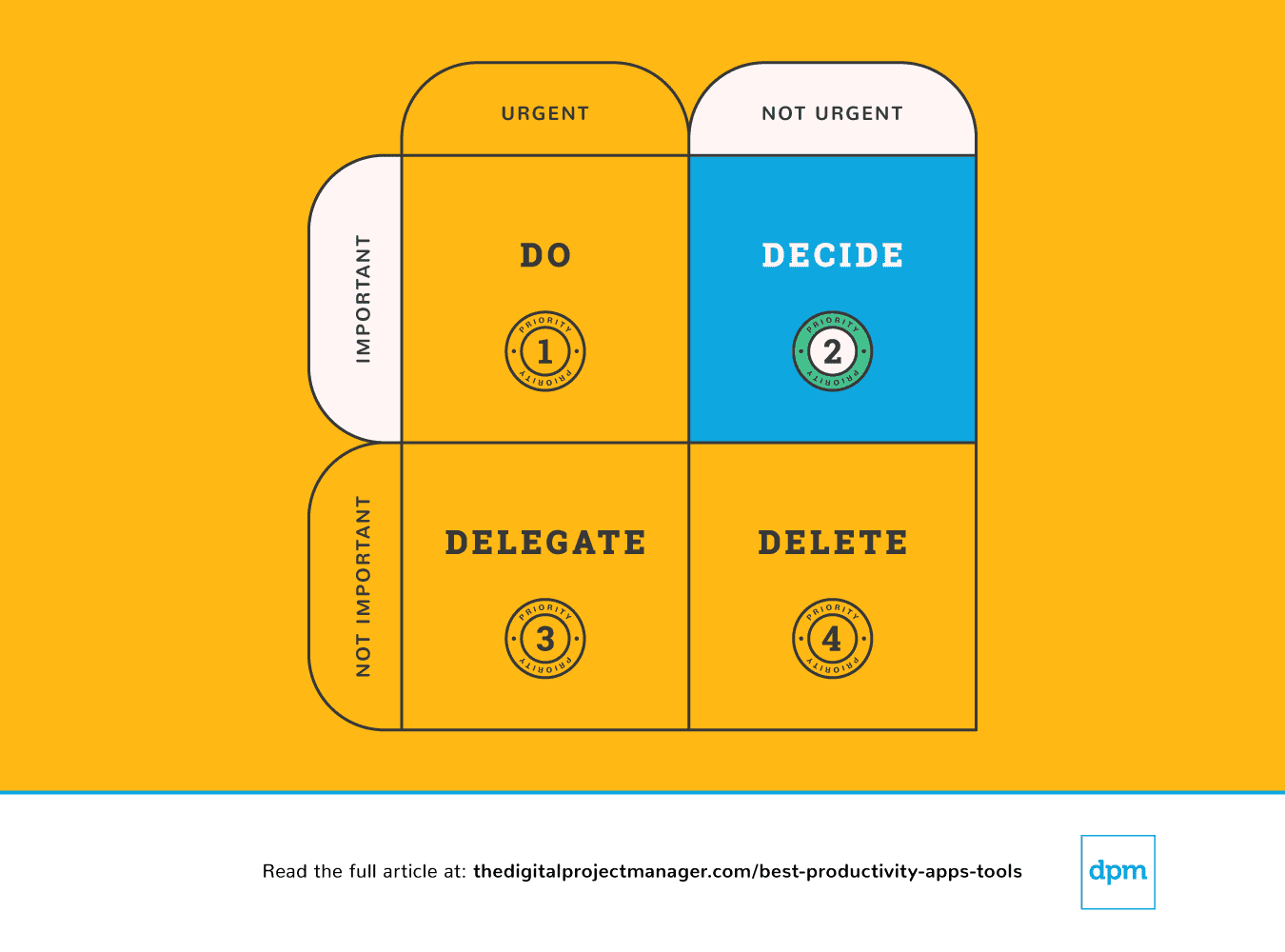 Dans ce cas, décidez de chaque point qui bloque l’avancée de la tâche. Décidez du meilleur moment, de la bonne personne, et de la meilleure méthode pour la réaliser.
Si quelque chose est important mais pas forcément urgent, vous devez prendre le temps de définir un vrai plan pour le traiter. Arrêtez de vous laisser distraire—prévoyez de prendre en main les choses importantes comme il se doit.
Nous pouvons facilement nous sentir complètement dépassés parce que nous sommes sollicités de toutes parts – on a l’impression d’avoir trop de choses à faire et qu’il est impossible de satisfaire tout le monde. Afin de prendre des décisions qui ont du sens pour nous, notre équipe et nos projets, il nous faut une vision claire de toutes nos tâches, de nos priorités et de notre avancement.
Les applications de productivité suivantes sont particulièrement utiles pour hiérarchiser les tâches—pour vérifier ce qui est en attente, suivre l’avancement, et fournir toutes les informations nécessaires pour prendre des décisions éclairées au fil de la gestion de notre travail.
Priorité n°3 : C'est urgent mais pas important. Déléguez-la.
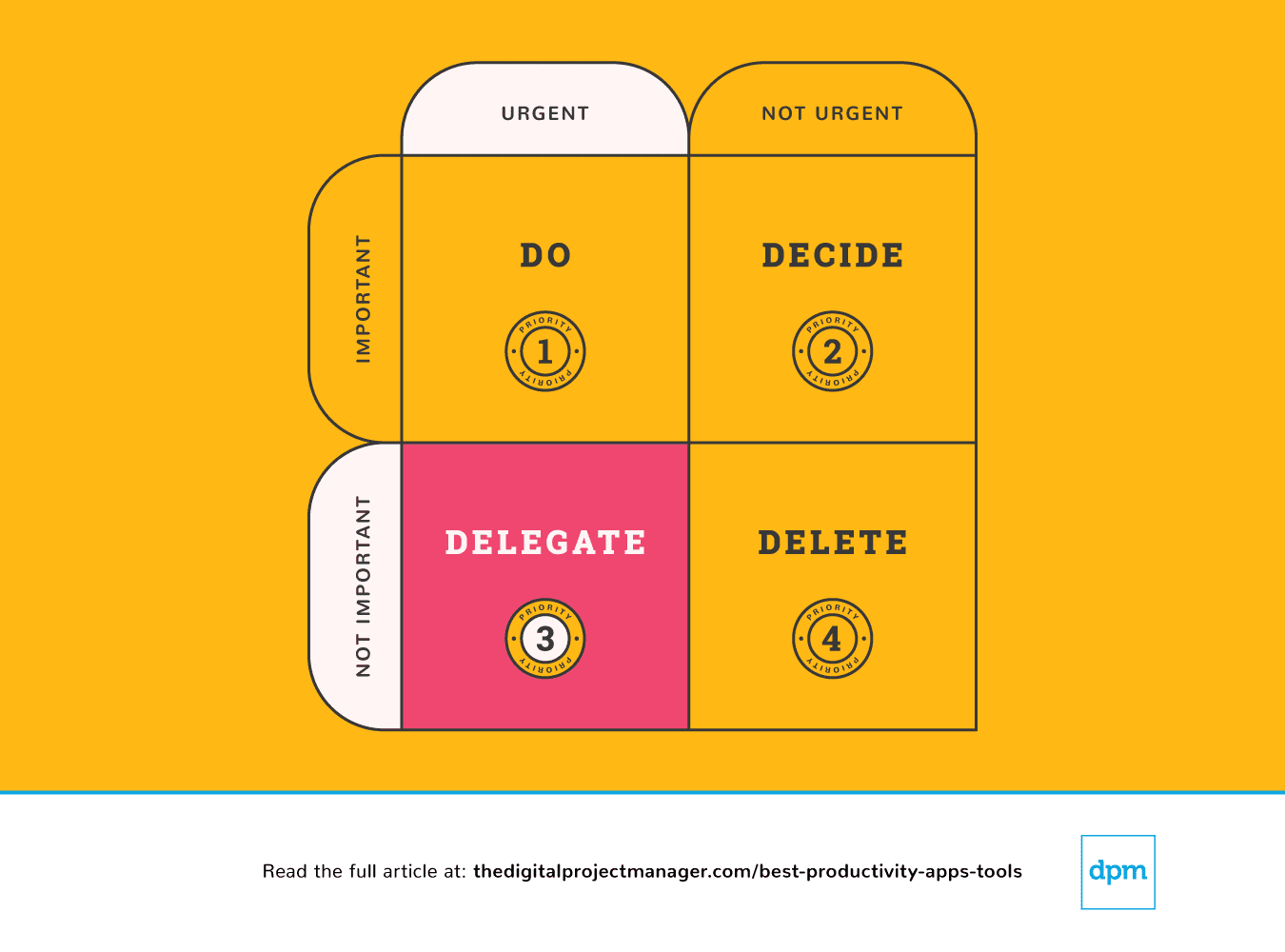 Dans ce cas, nous déléguons la tâche à la personne appropriée afin que vous puissiez vous concentrer sur les tâches importantes.
Certaines personnes délèguent facilement, tandis que d'autres ressentent une forte impulsion à "tout faire soi-même". Qu'il soit difficile ou non de confier des tâches à d'autres personnes, il est en réalité assez simple de déléguer des tâches à une machine. Il existe de nombreuses applications de productivité qui permettent d’en faire plus en moins de temps, en ajoutant de l'automatisation à nos flux de travail, et en laissant un algorithme s'occuper des petites tâches répétitives.
Priorité n°4 : Ce n'est ni urgent ni important. Supprimez-la !
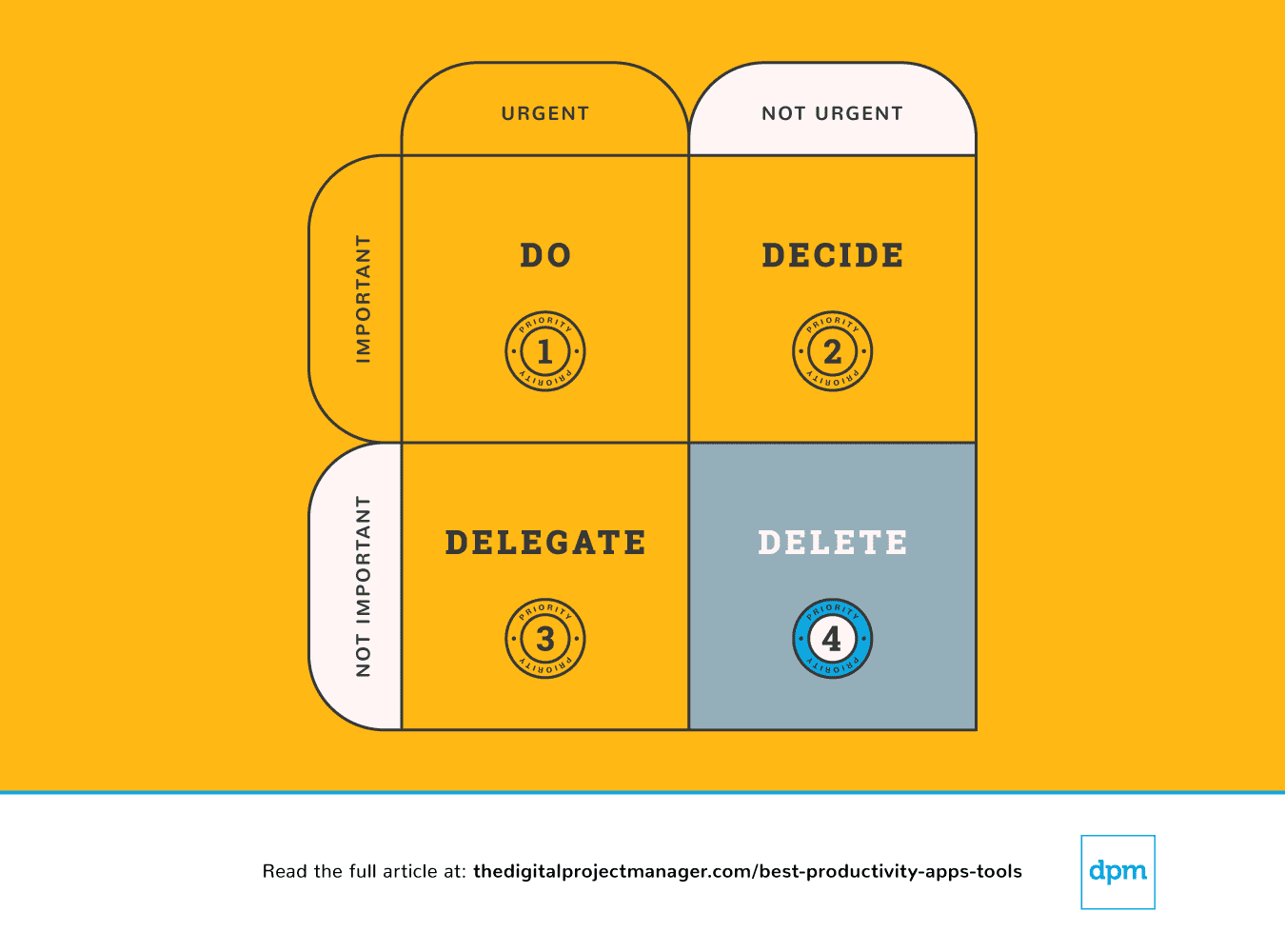 Enfin, il est parfois plus efficace d'en faire moins. Les occasions de dire « oui » à de bonnes idées sont infinies (et beaucoup d'applications de productivité peuvent vous y aider). Mais pouvoir les concrétiser vous oblige à dire « non » aux bonnes choses. Apprenez à poser des limites et à dire non.
C’est formidable d’être gentil, serviable et d’aider les autres. Le problème, c’est que nous n’avons pas toujours le temps. Cela nous laisse une grande marge pour ne pas tenir nos engagements ou ne rien livrer du tout. Vous ne rendez service à personne si vous acceptez quelque chose sur lequel vous ne pourrez pas donner le meilleur de vous-même.
Et oui, il existe des applications de productivité qui peuvent vous aider à déléguer des tâches et à établir des limites en vous offrant un système pour simplement dire « non ».
À la fin de chaque journée, prenez 10 minutes pour planifier à quoi ressemblera votre journée du lendemain—qu’allez-vous faire, décider, déléguer, et supprimer ?
Ensuite, jetez un œil aux applications de productivité présentées dans cet aperçu. J’ai sélectionné celles qui peuvent vous aider à travailler efficacement en automatisant, en suivant, en synchronisant et en rappelant des tâches—vous laissant ainsi plus de temps pour accomplir le travail qui compte vraiment, et le faire efficacement !
Quelles sont les prochaines étapes ?
Si vous êtes en train de rechercher des applications et des outils de productivité, contactez un(e) conseiller(ère) de SoftwareSelect pour obtenir des recommandations gratuites.
Vous remplissez un formulaire et avez une brève conversation où ils détaillent vos besoins spécifiques. Ensuite, vous recevrez une liste restreinte de logiciels à examiner. Ils vous accompagneront même tout au long du processus d’achat, y compris lors des négociations de prix.
Listes d’outils similaires :
- 15 meilleurs outils de collaboration en ligne pour les équipes
- 15 meilleurs logiciels de gestion de projet dont vous avez besoin
- Les 10 meilleurs logiciels et outils de gestion des ressources