

10 Best Free Video Conferencing Software in 2026

Best Free Video Conferencing Software Shortlist


Free video conferencing software lets you host video calls and online meetings at no cost, using tools that offer either a truly free plan or a free trial. If you’re searching for reliable options to connect remote teams, clients, or candidates without breaking your budget, you know how much hinges on picking the right platform.
With so many choices promising “free” features, it’s tough to cut through hype and find options that actually deliver flexibility, security, and ease of use. This list will help you quickly compare the top free video conferencing software so you can confidently choose what fits your team’s needs—no surprise hidden costs, no sales pressure.
Why Trust Our Software Recommendations
Our team has been testing and reviewing software since 2012. As HR experts ourselves, we know how difficult—and important—it is to choose the right software.
For this guide, we evaluated tools using hands-on testing and independent research, scoring tools using our selection criteria. We also draw on insights from industry thought leaders and practicing HR experts.
Our reviews reflect our human editorial judgment, not a sales pitch.
Expert reviewers:
Free Video Conferencing Software Comparison Table
This comparison table summarizes pricing details for my top free video conferencing software selections:
| Tool | Best For | Trial Info | Price | ||
|---|---|---|---|---|---|
| 1 | Best for large group sessions | Free plan available | From $14.16/user/month (billed annually) | Website | |
| 2 | Best for browser-based joining | Free plan available | Pricing upon request | Website | |
| 3 | Best for pre-recorded webinars | XX-day free trial | From $100/month (billed annually) | Website | |
| 4 | Best for Microsoft 365 users | Not available | Pricing upon request | Website | |
| 5 | Best for simple webinar hosting | Free plan available; 14-day free trial | From $1/user/month (billed annually) | Website | |
| 6 | Best for noise removal technology | 90-day free trial | From $12/user/month (billed annually) | Website | |
| 7 | Best for unlimited meeting durations | 14-day free trial | From £18/user/month | Website | |
| 8 | Best for account-free meetings | Free forever | Free forever | Website | |
| 9 | Best for real-time document collaboration | Free plan available | From $12/user/month (billed annually) | Website | |
| 10 | Best for custom company branding | Free plan available | From $6.99/month | Website |
Best Free Video Conferencing Software Reviews
Below are my detailed summaries of the free video conferencing software that made it onto my shortlist. My reviews offer a detailed look at the features, best use cases, and pricing of each platform to help you find the best one for you.
Zoom
Best for large group sessions
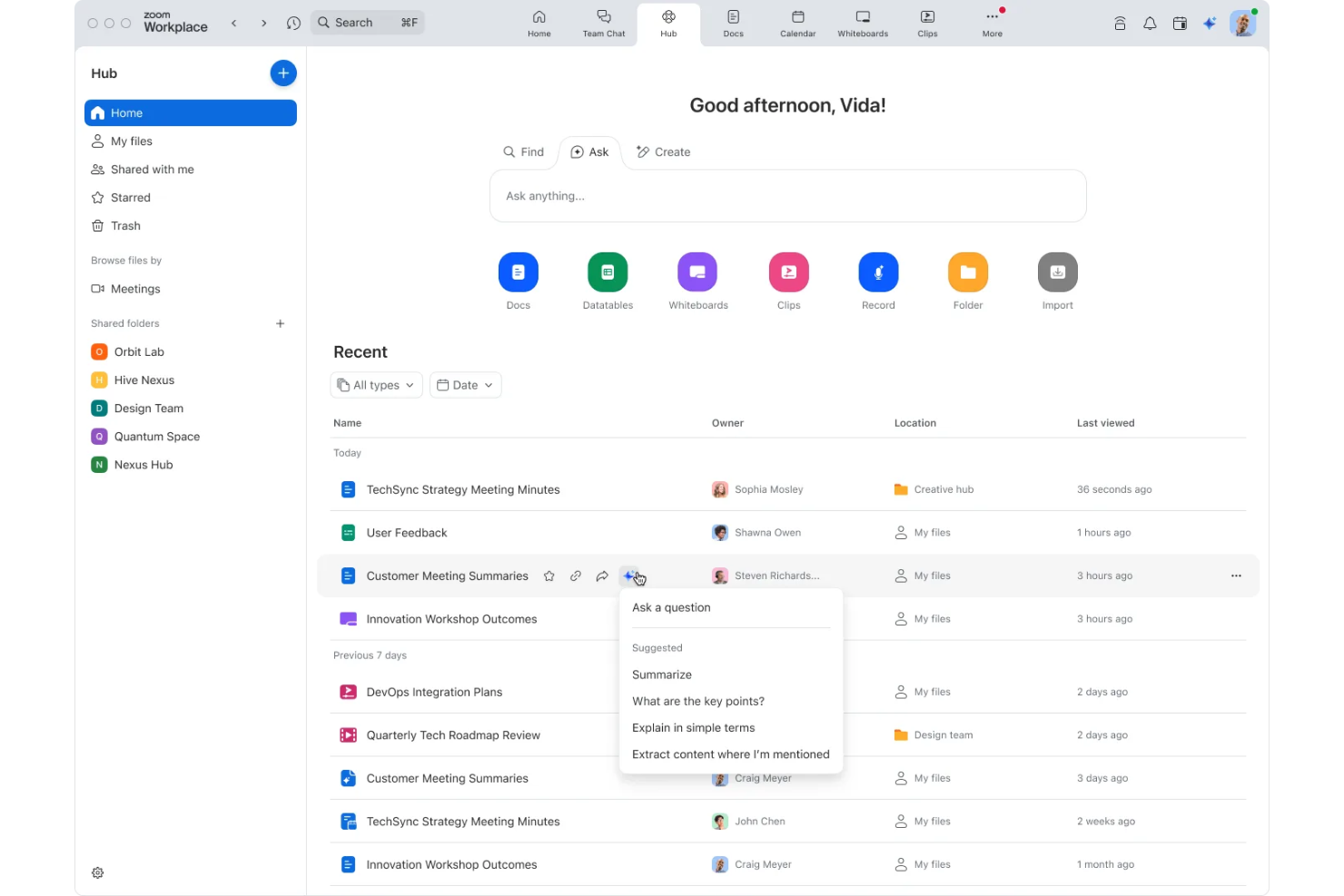
Zoom is a video conferencing platform for hosting online meetings, webinars, and collaborative sessions with interactive features like screen sharing, chat, and breakout rooms.
Who Is Zoom Best For?
Large organizations or teams that need virtual meetings with many participants across multiple locations.
Why I Picked Zoom
I picked Zoom as one of the best because it lets my team host meetings with up to 100 participants for free, which is great for large sessions. I like that the breakout rooms feature helps organize smaller group discussions within massive calls. Screen sharing and built-in chat make interactive collaboration easy during those big meetings.
Zoom Key Features
- Virtual backgrounds: Customize your video feed with preset or uploaded images.
- Meeting recording: Record meetings locally to your device for later reference.
- Waiting room: Control participant entry with a virtual holding area before the meeting starts.
- Reactions: Use emojis and icons to communicate nonverbally during calls.
Zoom Integrations
Zoom offers native integrations with Google Workspace, Microsoft 365, Slack, Salesforce, and Dropbox, and you can find hundreds more in the Zoom App Marketplace.
What's Free?
Zoom offers a free-forever plan that allows meetings with up to 100 participants for 40 minutes per session. Some advanced features, longer meeting durations, and cloud recordings require a paid upgrade.
Pros and Cons
Pros:
- Virtual backgrounds work on most devices
- Includes breakout rooms in free plan
- Meetings for up to 100 participants
Cons:
- Requires account creation for hosts
- 40-minute limit per group meeting
Best for browser-based joining
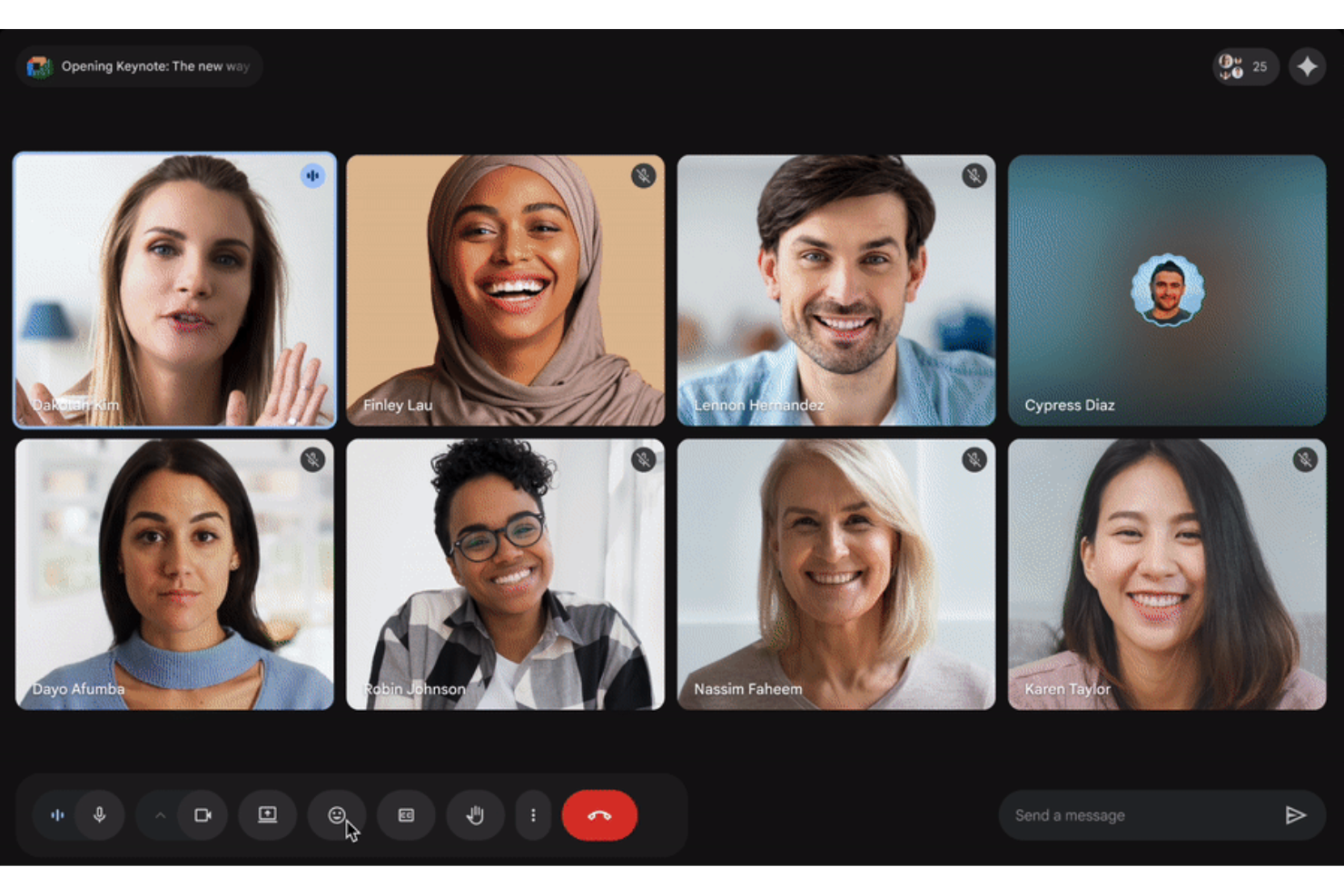
Google Meet is a browser-based video conferencing platform that lets users host and join meetings, schedule calls in Google Calendar, share screens, and manage participants from any device without requiring software installation.
Who Is Google Meet Best For?
Google Meet is a great fit for remote or hybrid teams who want to join video meetings directly from their web browser without downloading software.
Why I Picked Google Meet
I picked Google Meet as one of the best because anyone can join a meeting from their browser—no downloads or plugins needed. My team can quickly share meeting links and launch calls directly from Google Calendar. I also like how background noise cancellation works even on the free plan, which helps keep conversations focused.
Google Meet Key Features
- Live captions: Automatically generates real-time captions for better accessibility.
- Screen sharing: Lets users present their full screen or a specific window during calls.
- Host controls: Provides tools to mute participants or remove them from meetings.
- Integration with Google Drive: Saves meeting recordings directly to Google Drive for quick access.
Google Meet Integrations
Google Meet offers native integrations across the Google Workspace ecosystem, including Gmail, Google Calendar, Google Drive, and Google Docs.
What's Free?
Google Meet offers a free-forever plan for anyone with a Google account. The free plan limits meetings to 1 hour and up to 100 participants, with access to basic features like screen sharing and live captions.
Pros and Cons
Pros:
- Unlimited group chat during meetings
- Integrates directly with Google Calendar scheduling
- No downloads required for browser-based meetings
Cons:
- No native meeting recording on the free plan
- Free plan meetings capped at 1 hour

Best for pre-recorded webinars
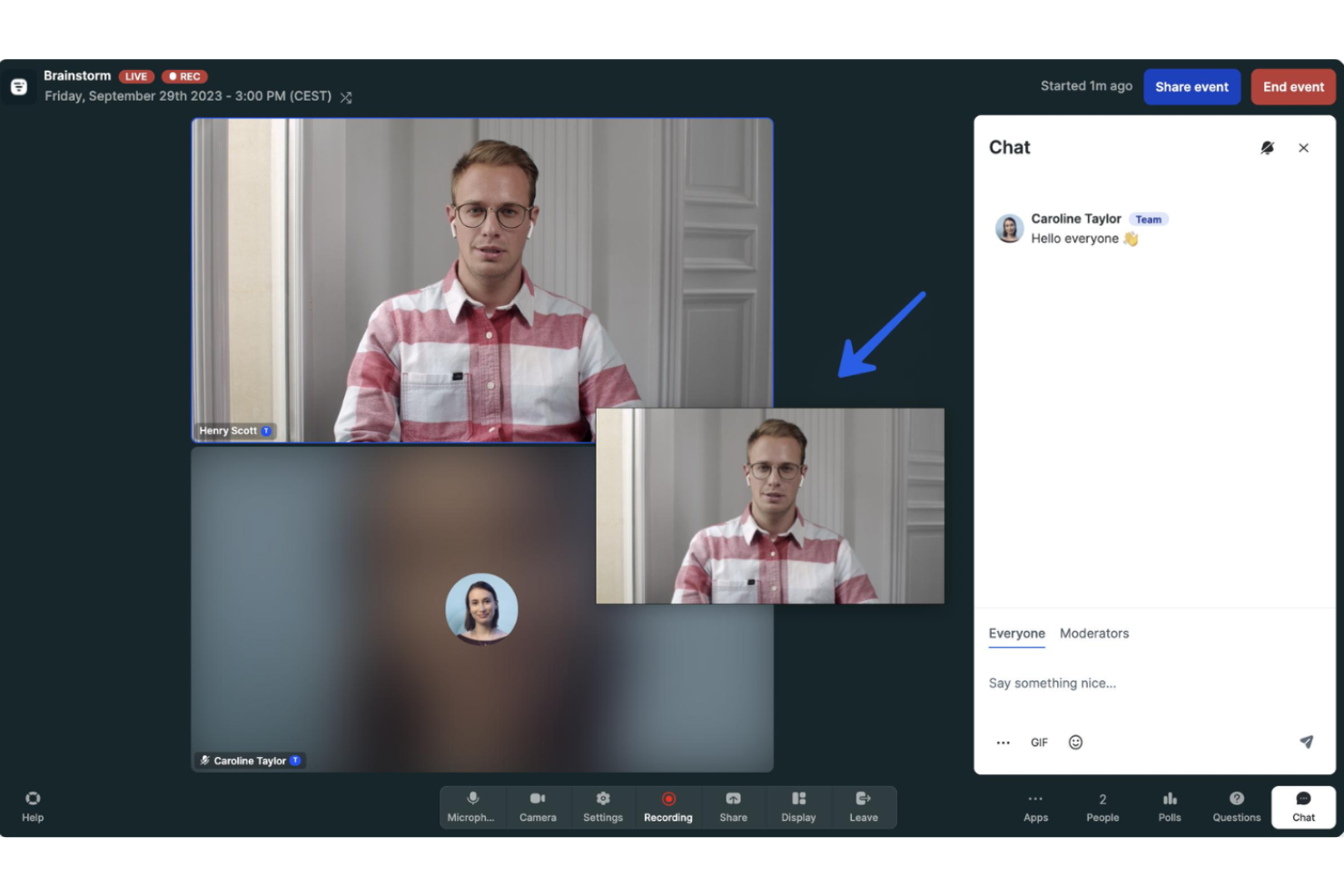
Livestorm is a browser-based video conferencing platform for hosting live, on-demand, and pre-recorded webinars with interactive features like polls, Q&A sessions, and detailed analytics.
Who Is Livestorm Best For?
Livestorm is a good fit for marketing and event teams that need to run automated or pre-recorded video webinars.
Why I Picked Livestorm
I picked Livestorm as one of the best because I like how it lets my team run pre-recorded webinars alongside live video chats in the same workflow. I’m able to automate webinar scheduling and reminders, and the replay sessions feature makes it easy to keep attendees engaged even after a live event ends. The built-in email tools and analytics help me track registration and participation effortlessly.
Livestorm Key Features
- Polls and Q&A: Collect responses and engage attendees with built-in polls and live Q&A modules.
- Browser-based access: Join or host all meetings and events directly from your browser without downloads.
- Multi-language support: Host video conference calls and webinars in multiple languages for global audiences.
- Automated attendance tracking: Track participant presence and export detailed attendance reports.
Livestorm Integrations
Livestorm offers native integrations with Google Analytics, HubSpot, Salesforce, Slack, Intercom, Microsoft Dynamics, and Google Calendar. It connects with Zapier and provides an API for custom integrations.
What's Free?
Livestorm offers a free plan limited to meetings of 20-minute duration and 30 live attendees per session, with restricted access to advanced features and integrations.
Pros and Cons
Pros:
- Offers automated webinar scheduling and reminders
- Includes polls, Q&A, and chat features
- Runs entirely in-browser, no downloads required
Cons:
- Requires upgrade for webinar branding options
- Free plan limited to 20 minutes/session

Best for Microsoft 365 users
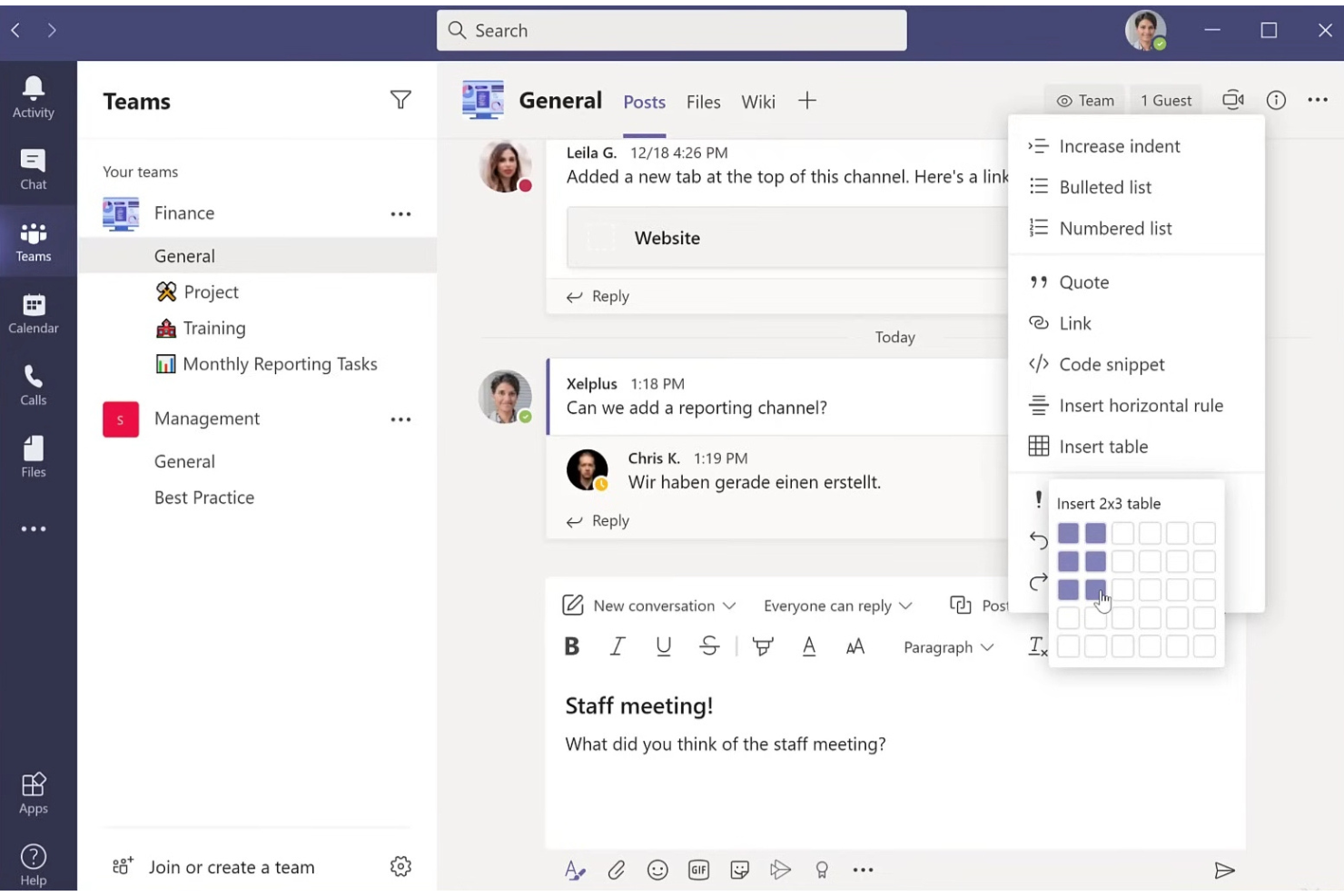
Microsoft Teams is a video conferencing platform from Microsoft that combines online meetings, real-time chat, group video calls, screen sharing, and file collaboration.
Who Is Microsoft Teams Best For?
Microsoft Teams is a good fit for organizations that already use Microsoft 365 for productivity and collaboration across distributed teams.
Why I Picked Microsoft Teams
I picked Microsoft Teams as one of the best because my team can host large video calls and work inside channels that connect meeting chats, shared files, and live collaboration. The integration with Microsoft 365 means I can schedule meetings in Outlook, co-edit documents during calls, and manage shared calendars—all without leaving the desktop app. Features like Together Mode create a more engaging group meeting experience, especially when sessions are remote or hybrid.
Microsoft Teams Key Features
- Live captions: Generate real-time subtitles during meetings to improve accessibility.
- Lobby control: Allow the host to admit or reject participants before entering the meeting.
- Background blur: Blur your background during video calls for more privacy.
- Raise hand tool: Participants can signal questions or comments without interrupting the session.
Microsoft Teams Integrations
Microsoft Teams has native integrations across the Microsoft ecosystem, including Microsoft 365 and Azure. An API is available for custom integrations.
What's Free?
Microsoft Teams offers a free-forever plan that includes unlimited chat, video calls with up to 100 participants, file sharing, and native Microsoft 365 integrations. Free meetings are capped at 60 minutes per session.
Pros and Cons
Pros:
- Persistent chat alongside video meetings
- Real-time captioning in multiple languages
- Collaborates natively with Microsoft 365 apps
Cons:
- Requires Microsoft account for access
- Free meetings limited to 60 minutes

Best for simple webinar hosting
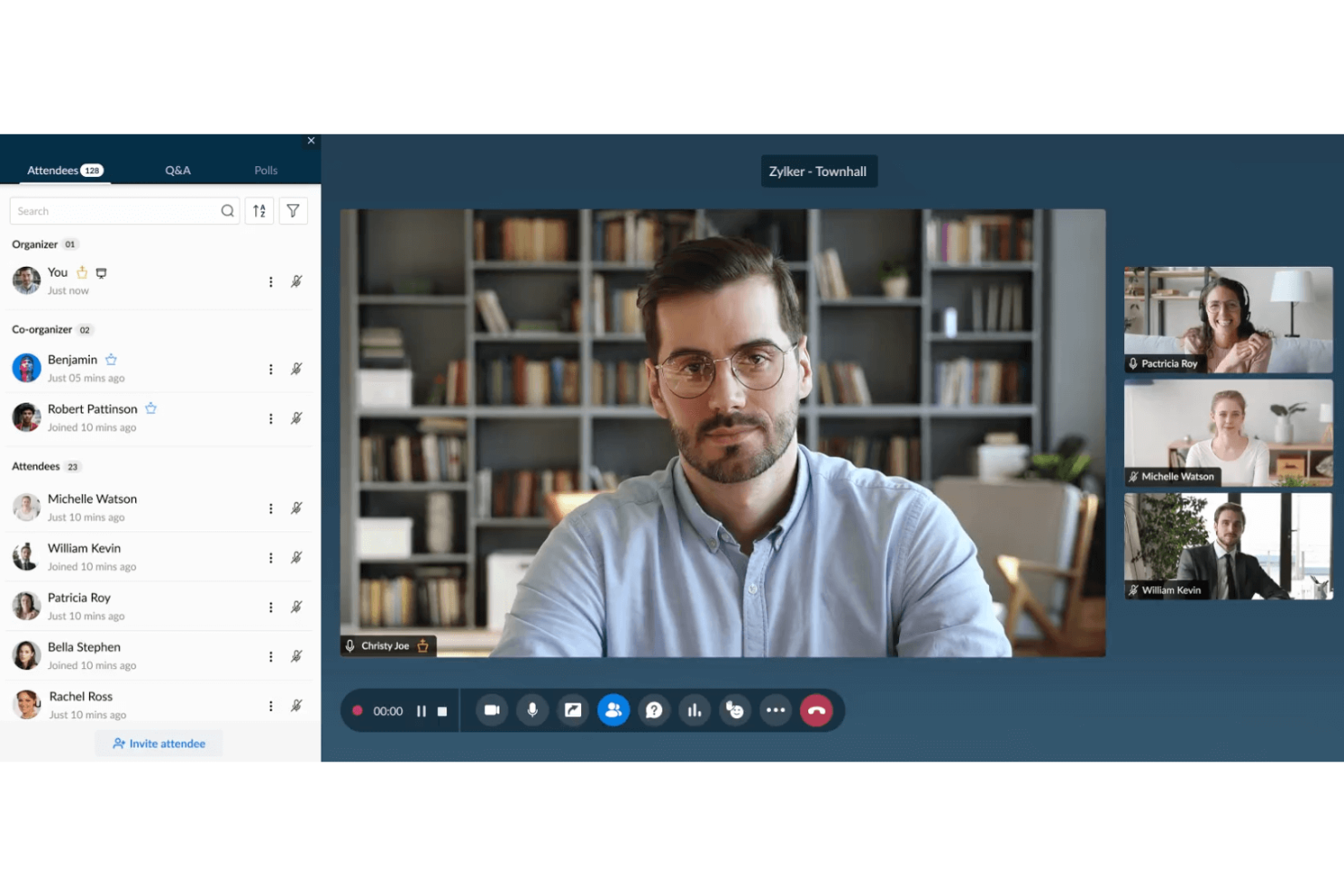
Zoho Meeting is a browser-based video conferencing and webinar platform that offers online meetings, interactive webinars, screen sharing, in-session chat, and registration management tools.
Who Is Zoho Meeting Best For?
Solo professionals and small teams who need a straightforward solution for hosting secure web meetings and interactive webinars.
Why I Picked Zoho Meeting
I picked Zoho Meeting as one of the best because I like how quickly I can set up and run simple webinars, right from a browser. I’m able to use built-in registration forms and moderate attendee interactions with Q&A and polling. I appreciate that I can record webinars and share them instantly with participants.
Zoho Meeting Key Features
- Screen sharing: Share your entire screen or just specific application windows with meeting participants.
- Meeting lock: Control who joins your meetings by locking sessions after they begin.
- RSVP management: Send out invitations and track attendee responses within the platform.
- Browser-based access: Host or join meetings without needing to download any software.
Zoho Meeting Integrations
Zoho Meeting offers native integrations with Zoho CRM, Zoho Projects, Zoho Mail, Zoho Calendar, and Google Workspace. An API is available for custom integrations.
What's Free?
Zoho Meeting offers a free-forever plan with up to 100 meeting participants and 60-minute group meetings. The free plan includes limited recording storage and excludes some advanced integrations and webinar features.
Pros and Cons
Pros:
- Moderator controls for muting and screen sharing
- Registration forms customizable for attendees
- Webinars can be hosted in-browser directly
Cons:
- Webinar branding tools are minimal
- Speaker video layout options are basic
Webex
Best for noise removal technology
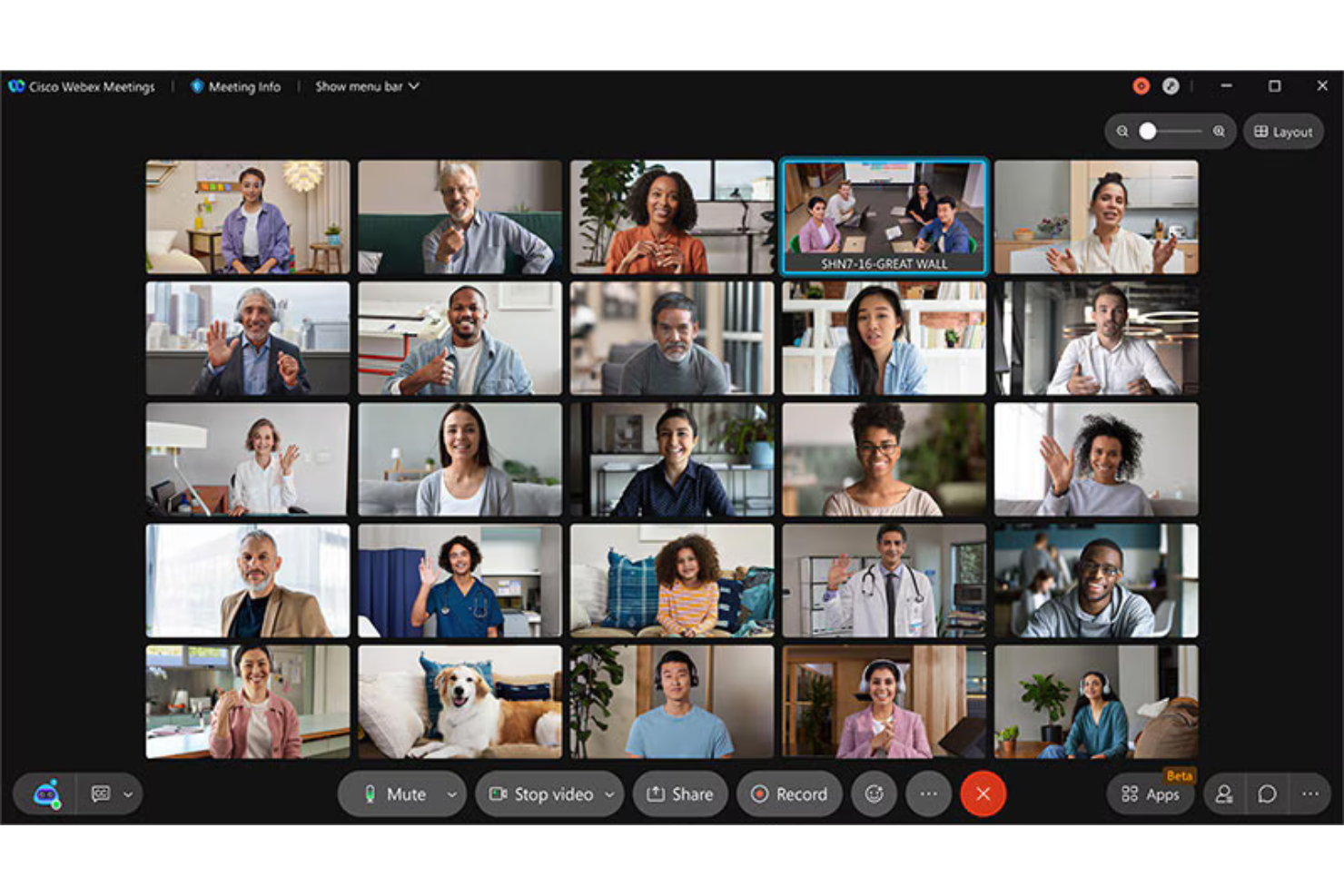
Webex is a cloud-based video conferencing software that offers secure HD video meetings, smart meeting recordings, in-meeting chat, file sharing, breakout sessions, and virtual whiteboarding.
Who Is Webex Best For?
Webex is a strong fit for distributed teams and businesses needing secure, high-quality video meetings and advanced collaboration tools.
Why I Picked Webex
I picked Webex as one of the best because its noise removal technology consistently filters out background distractions during meetings. I like that I can turn on real-time background noise cancellation when I’m joining from a busy environment. My team also uses its AI-powered voice enhancement and automatic transcription features to keep meetings productive wherever we are.
Webex Key Features
- Breakout rooms: Split participants into smaller discussion groups during meetings.
- Virtual whiteboarding: Draw, write, and brainstorm together on a shared digital canvas.
- Meeting lock: Restrict meeting access after it starts, preventing uninvited guests from joining.
- In-app chat: Send text messages to individuals or the whole group without leaving the meeting.
Webex Integrations
Webex offers hundreds of native integrations through its App Hub, including Google Workspace, Microsoft 365, Salesforce, Slack, Trello, Asana, Box, Zendesk, Miro, and ServiceNow. An API is available for custom integrations.
What's Free?
Webex offers a free-forever plan with unlimited 1:1 meetings and group meetings up to 100 participants. Group meetings on the free plan are limited to 40 minutes, and cloud recording is not included.
Pros and Cons
Pros:
- Strong encryption and compliance features
- Free plan includes unlimited 1:1 meetings
- Industry-leading real-time noise removal
Cons:
- Interface complexity compared to simpler tools
- Requires a Webex account for participants
Best for unlimited meeting durations
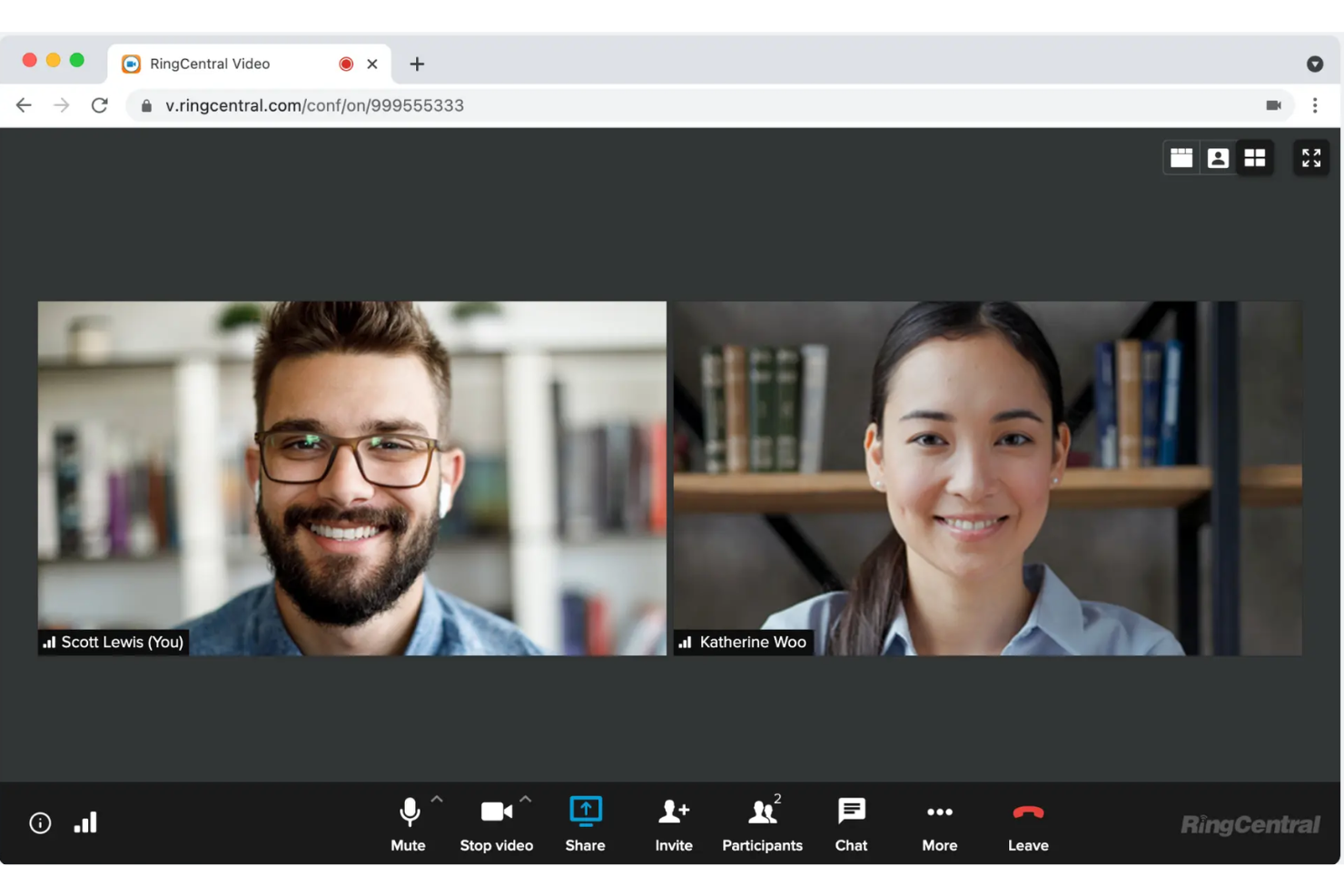
RingCentral Video is a free video conferencing and meeting platform that supports meeting scheduling, in-meeting chat, screen sharing, team messaging, interactive whiteboards, and calendar integration for daily collaboration.
Who Is RingCentral Best For?
RingCentral Video is a good fit for distributed teams relying on remote work who need unlimited-length video meetings.
Why I Picked RingCentral
I picked RingCentral because I can host group video meetings without time limits—a rare find on free video conferencing plans. I rely on features like persistent team chat, collaborative whiteboarding, and secure meeting room links for internal and client meetings. My team also gets integrated calendar scheduling and screen sharing, which keeps our workflow connected.
RingCentral Key Features
- Virtual backgrounds: Change or blur your background for privacy on calls.
- Meeting transcriptions: Access searchable transcripts after each recorded meeting.
- Role-based access controls: Assign host, co-host, and participant permissions for meetings.
- Mobile app support: Join or host meetings from iOS and Android devices.
RingCentral Integrations
RingCentral offers over 500 pre-built integrations, including Google Workspace, Microsoft Teams, Salesforce, Jira, and Google Sheets. An API is available for custom integrations.
What's Free?
RingCentral Video offers a free-forever plan for meetings lasting up to 50 minutes per meeting. The free plan excludes cloud recording, advanced analytics, and some premium integrations.
Pros and Cons
Pros:
- Features persistent chat across meetings
- Integrates natively with Google Workspace
- Includes interactive whiteboard for collaboration
Cons:
- Occasional delays in screen-sharing functionality
- Does not include virtual backgrounds for free users
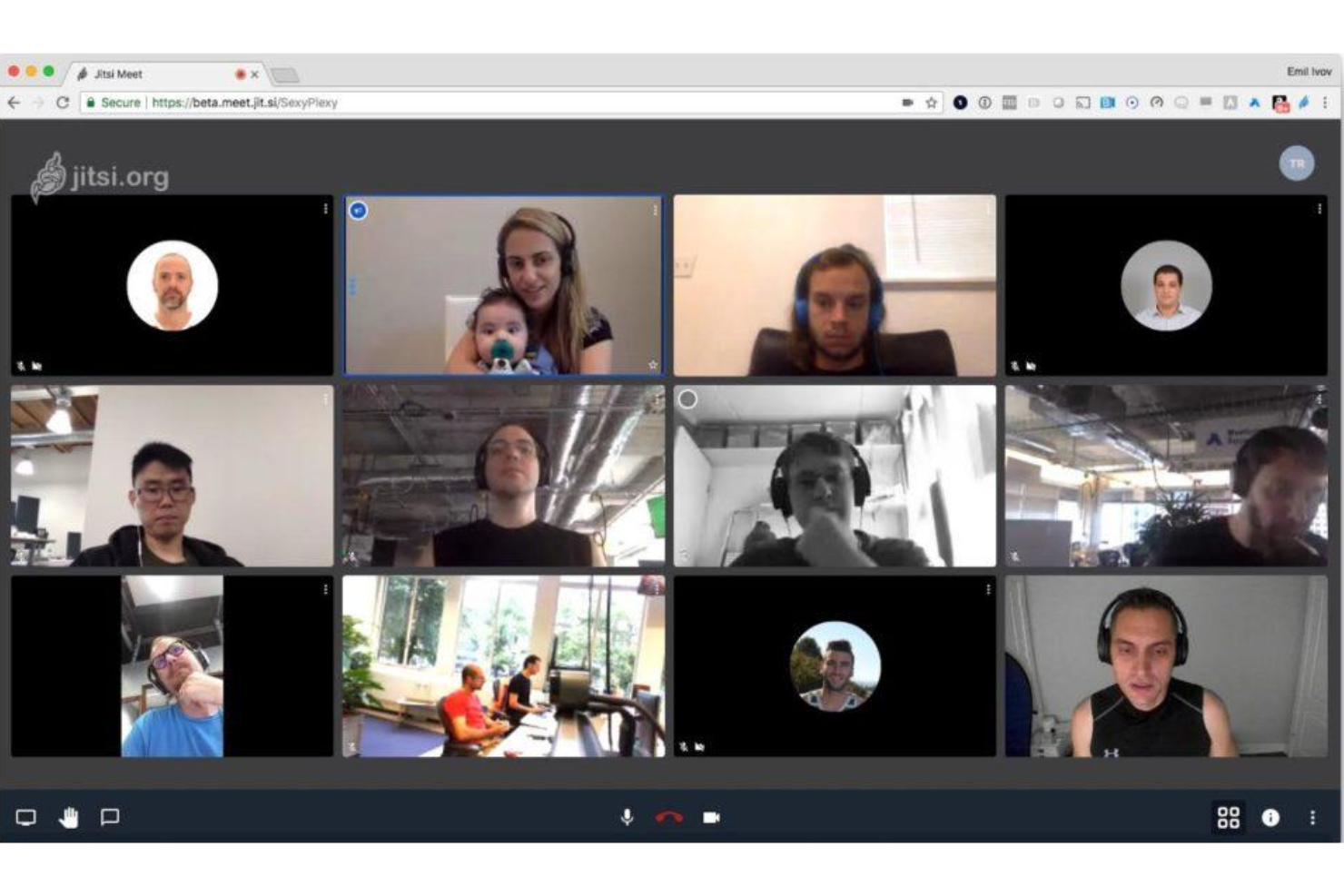
Jitsi Meet is an open-source video conferencing solution that lets users host secure, in-browser meetings with screen sharing, chat, live streaming to YouTube, and support for custom integrations.
Who Is Jitsi Meet Best For?
Freelancers, educators, and small teams who want free, in-browser meetings without requiring accounts.
Why I Picked Jitsi Meet
I picked Jitsi Meet as one of the best because I can start meetings instantly—no account required—and invite anyone simply by sharing a link. I like that it supports unlimited participants and screen sharing, making it great for spontaneous team syncs. In my experience, live YouTube streaming works smoothly for larger events and webinars.
Jitsi Meet Key Features
- End-to-end encryption: Meetings are protected with secure, encrypted connections.
- Custom room URLs: Create and reuse your own meeting room links.
- Password-protected meetings: Lock meetings with a password for added security.
- Integrated meeting recording: Record meetings directly to Dropbox with a simple click.
Jitsi Meet Integrations
Integrations are not publicly listed.
What's Free?
Jitsi Meet offers a free-forever plan with unlimited meeting length and participants. Some advanced features, like cloud recording and expanded integrations, may require self-hosting or custom setup.
Pros and Cons
Pros:
- Encrypted meetings for privacy
- Unlimited meeting length for all users
- Open-source with community-driven development
Cons:
- Lacks integrated whiteboard collaboration
- No built-in virtual background feature
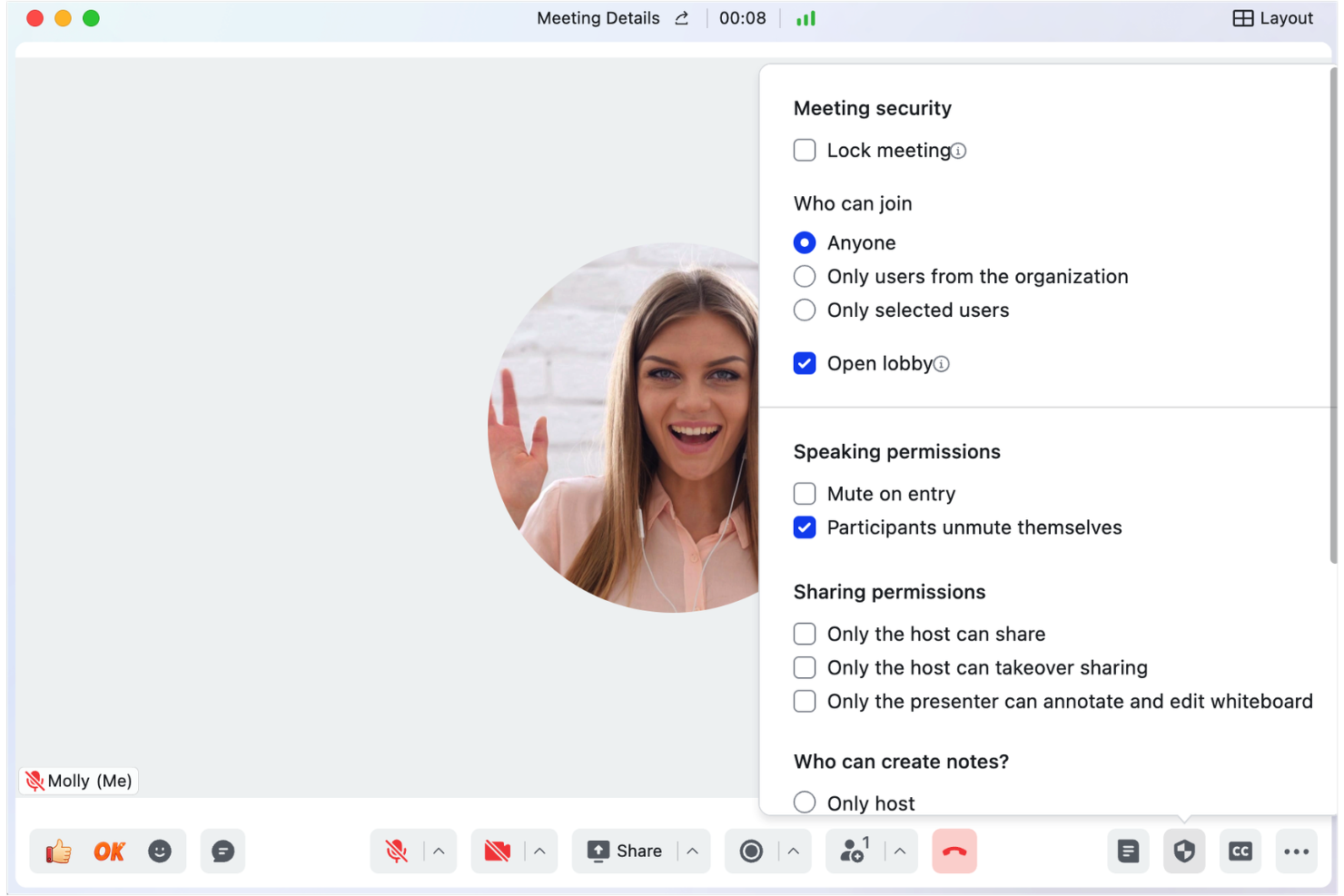
Lark offers an all-in-one suite of tools that brings together video calls, chat, and collaborative document editing in a unified workspace.
Who Is Lark Meetings Best For?
Remote teams who need real-time document collaboration during video calls.
Why I Picked Lark Meetings
I picked Lark Meetings because I like how my team can co-edit docs, spreadsheets, and slide presentations right in the meeting window. I’ve dropped meeting notes into a shared doc during a call and instantly looped in absent teammates. In practice, we’re able to work on shared agendas and edit project plans together live while sharing screens—all without switching tabs.
Lark Meetings Key Features
- Virtual backgrounds: Upload custom images and apply them during meetings.
- Meeting recording: Record calls and store them securely in the cloud.
- In-app chat: Send group or direct messages without leaving the meeting.
- Participant management: Mute, remove, or add guests directly in the host panel.
Lark Meetings Integrations
Integrations include Microsoft Exchange, Outlook, Google Calendar, and Gmail.
What's Free?
Lark Meetings includes a free-forever plan with 1-on-1 meetings, unlimited real-time translation, and 100 GB storage. To support more participants, you have to upgrade to the paid plan.
Pros and Cons
Pros:
- Screen sharing with annotation tools
- Integrated cloud storage for shared files
- Real-time document editing during meetings
Cons:
- Few native third-party integrations
- Limited options for meeting links

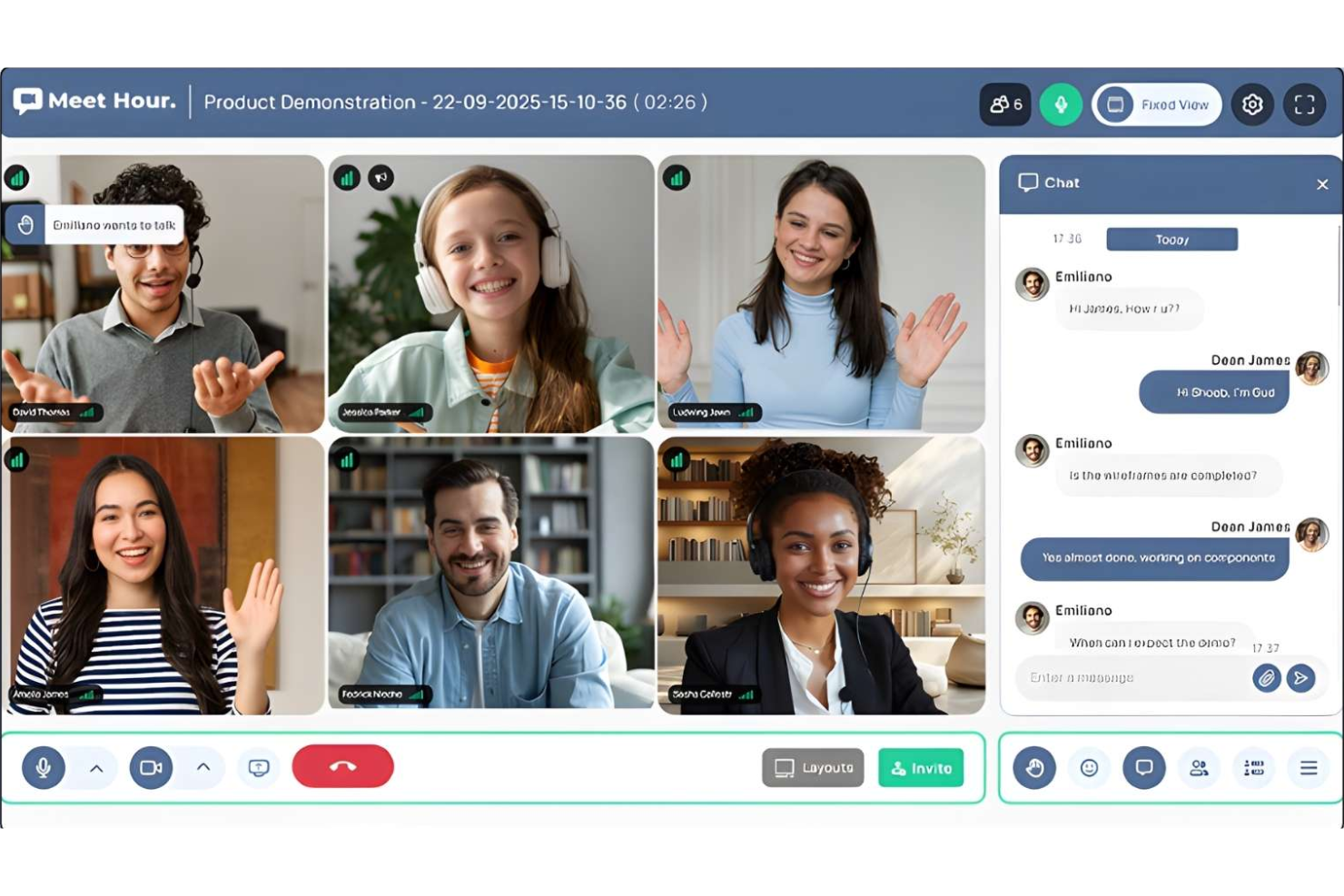
Meet Hour is a video conferencing software platform for hosting online meetings, webinars, and virtual events with customizable meeting rooms, integrations, and interactive moderation controls.
Who Is Meet Hour Best For?
Meet Hour is a good fit for small to midsize companies and organizations that want branded online meeting experiences.
Why I Picked Meet Hour
I picked Meet Hour as one of the best because it’s the only free video conferencing platform on my list that lets me put my company’s branding front and center in every meeting. I like having control over meeting room visuals, custom URLs, and logo placement. My team uses its branding tools to create a polished, recognizable experience during sales calls and client onboarding sessions.
Meet Hour Key Features
- Breakout rooms: Split participants into smaller groups for focused discussion.
- Meeting recording: Record session audio and video for future reference.
- In-app chat: Send messages to all participants without leaving the meeting.
- Host controls: Manage participant permissions, mute users, and lock meetings.
Meet Hour Integrations
Meet Hour offers native integrations with Slack, Microsoft Office 365, Google Workspace, Trafft, Calendly, and WordPress. It connects with Zapier, Pabbly Connect, and Make, and an API is available for custom integrations.
What's Free?
Meet Hour offers a free-forever plan that supports up to 100 participants per meeting and 60-minute meeting limits. Some advanced features and integrations are restricted to paid plans.
Pros and Cons
Pros:
- Easily embed meetings in your WordPress site
- Supports multi-speaker webinars and panels
- Branding lets you customize waiting rooms
Cons:
- Lacks built-in whiteboard collaboration
- Unlimited meeting length requires an add-on
Other Free Video Conferencing Software
Here are some additional free video conferencing software options that didn’t make it onto my shortlist, but are still worth checking out:
- Slack
For quick team huddles
- Whereby
For no-download guest access
- GoTo Meeting
For mobile-first users
- Dialpad
For AI-generated meeting summaries
- Pumble
For team communication history
- FreeConferenceCall.com
For 1,000 participant limits
- FreeConference
For international dial-in numbers
- We.Team
For multi-cloud file search
- Brave Talk
For privacy-focused calls
- TrueConf
For 4K video resolution


How I Evaluate Free Video Conferencing Software
First, I define what counts as free. For video conferencing software, that means a free-forever plan—not a time-limited trial—since HR teams need reliable access for recurring interviews, onboarding sessions, and employee check-ins. From there, I evaluate the core functionality every tool must have to make this list, then the differentiators that separate the strongest options from the rest.
Core Functionality (Table Stakes For This List)
In addition to my free offer requirements, I also use a scoring system to select tools for my list. Here's how it works:
I rank each one on a scale from 0 (does not offer the functionality) to 5 (excels in this area) for each core functionality listed below. Then, I calculate the tool's total score into a percentage. Each tool needs to achieve a minimum total score of 65% to be considered for inclusion.
- Group Video Meetings: I check how many participants a free plan supports, since HR use cases like panel interviews and team onboarding sessions often need room for more than just two people.
- Screen Sharing: Whether it's walking a new hire through benefits enrollment or presenting policy updates, I look for screen sharing that's available to both hosts and participants on the free tier.
- Meeting Recording: I evaluate whether the free plan includes recording, and whether it's local-only or cloud-based—recruiters often need to share interview recordings with hiring managers after the call.
- In-Meeting Chat: Real-time chat matters for sharing links, job descriptions, or follow-up resources mid-conversation, so I look at whether the free tier includes file sharing and message history.
- Calendar & Scheduling Integration: Connecting with Google Calendar and Outlook is a big time-saver for recruiters booking back-to-back interviews, so I check which integrations are available without upgrading.
- Browser & Guest Access: Candidates and external participants shouldn't need to create an account or install software to join a call, so I evaluate how frictionless the guest join experience is on each platform.
Once I have a list of tools that meet the criteria, I consider what sets each platform apart.
Differentiating Factors (What Sets Vendors Apart)
Here's how I compare and contrast different vendors:
Standout Features
Waiting rooms and host controls are a big deal for HR—they let recruiters manage candidate entry during interviews and keep sensitive conversations like performance reviews secure. I also look for virtual backgrounds and blur, which help both HR staff and candidates present themselves professionally no matter where they're joining from. Live captions add another layer of value, making meetings more accessible and giving L&D specialists a searchable reference after training sessions wrap up.
Beyond Features
Meeting duration caps on free plans matter more than most people think—a 40-minute limit can cut a structured interview short right when you're getting to behavioral questions. I also evaluate security and privacy, checking for end-to-end encryption and meeting passwords since HR conversations often involve sensitive employee data. How well a platform connects with ATS tools like Greenhouse or Lever tells me a lot about how much scheduling friction recruiters will face day to day.
How to Choose Free Video Conferencing Software
It’s easy to get bogged down in long feature lists and complex pricing structures. To help you stay focused as you work through your unique software selection process, here’s a checklist of factors to keep in mind:
| Factor | What to Consider |
| Scalability | Will the software still fit your needs if your team or meeting size grows? Check participant limits and expansion paths. |
| Integrations | Does it connect with your existing tools, like your calendar, project management, or email systems? Confirm only native integrations you’ll actually use. |
| Customizability | Are you able to tailor notifications, meeting invites, and waiting rooms to your workflows? Assess limits of free plan settings. |
| Ease of use | Can everyone on your team, regardless of technical skill, join and manage calls without repeated support? Test with a sample group if possible. |
| Implementation and onboarding | How quickly can your team move from sign-up to actually hosting meetings? Look for built-in tutorials and support during the transition. |
| Cost | Are there essential features gated behind a paywall? Understand exactly what’s included for free and when upgrade fees might apply. |
| Security safeguards | Does it support waiting rooms, meeting locks, and basic encryption? Make sure the free version protects sensitive conversations. |
| Support availability | What support channels are accessible for free users, and do response times fit your risk tolerance? Check for community forums or knowledge bases as backup. |
What is Free Video Conferencing Software?
Free video conferencing software is a digital platforms that let users host and join virtual meetings without paying a subscription fee. These tools support real-time audio and video communication, screen sharing, chat messaging, and often include basic participant management. Most limit features like meeting length, participant count, or integrations on their free plans, but still provide reliable options for remote team meetings, interviews, and collaboration.
Features of Free Video Conferencing Software
Let’s go over the features commonly found in video conferencing software, and which ones are usually included in free vs. paid plans.
Typically Free Video Conferencing Software Features
- Video calls: Host real-time video meetings between two or more participants using internet-connected devices for visual communication.
- Audio conferencing: Allow users to join meetings with voice only, supporting scenarios where video is not required or bandwidth is limited.
- Screen sharing: Present your desktop, specific windows, or documents during live meetings to collaborate, demonstrate, or review content together.
- In-meeting chat: Exchange text messages, links, or files with all participants or privately during a live meeting without disrupting the call flow.
- Participant management: Grant the host basic controls to mute, remove, or admit participants, helping manage meeting flow and security.
- Meeting scheduling: Create and invite attendees to meetings in advance, often with the option to generate calendar invites or share join links.
- Device switching: Move easily between desktop and mobile devices before or during a meeting, supporting flexible work environments.
- Virtual backgrounds: Replace or blur your real-life background during meetings to maintain privacy or create a more professional appearance.
Typically Paid Video Conferencing Software Features
- Large meeting capacity: Increase participant limits to accommodate webinars, company-wide meetings, or large virtual events.
- Cloud recording and transcripts: Record meetings and automatically generate searchable transcripts for later use, compliance, or sharing with absentees.
- Breakout rooms: Split participants into smaller groups for focused discussions, workshops, or team activities within a larger meeting.
- Advanced security controls: Implement additional protections like end-to-end encryption, custom access restrictions, or audit logs for compliance needs.
- Third-party integrations: Connect with CRM, LMS, project management, and productivity tools to simplify workflows and data sharing.
- Brand customization: Add logos, brand colors, and customized waiting rooms to reinforce company identity in all meetings.
- Priority support: Access expedited, premium-level customer support through live chat, dedicated representatives, or faster response times.
- Analytics and reporting: Monitor usage trends, meeting attendance, and engagement metrics through built-in dashboards for better decision-making.
- Live polling and Q&A: Use interactive tools to collect feedback, run live polls, or facilitate Q&A sessions during meetings and webinars.
- Automated breakout assignment: Automatically place participants into predetermined groups for recurring meetings or training, making group work more efficient.
Benefits of Free Video Conferencing Software
Implementing free video conferencing software provides several benefits for your team and your business. Here are a few you can look forward to:
- Cost savings: Avoid subscription fees while still getting core meeting, collaboration, and communication features for remote and hybrid teams.
- Quick adoption: Allow your team to start hosting and joining meetings with minimal setup since most free tools offer intuitive interfaces and basic onboarding.
- Remote flexibility: Enable real-time collaboration, interviews, and group meetings across different locations, supporting remote or distributed teams.
- Inclusive access: Invite internal or external participants easily, often without complex sign-up requirements or additional licensing needs.
- Continued communication history: Retain access to chat logs, past meetings, or shared content for reference without paying for upgrades.
- Risk-free evaluation: Test features and workflows with your team before committing to a paid platform, ensuring a better fit for long-term needs.
- Resource efficiency: Make the most of standard integrations and basic device support, helping your team stay productive without added complexity.
Costs and Pricing of Video Conferencing Software
I realize you came to this article looking for the best video conferencing software options that are available for free. However, since free plans only offer limited features, there's a good chance you'll need to scale your plan up in the future.
The table below summarizes common plans, their average prices, and typical features included in video conferencing software:
Plan Comparison Table for Video Conferencing Software
| Plan Type | Average Price | Common Features |
| Free Plan | $0 | Host group video calls, basic screen sharing, in-meeting chat, limited meeting length, and basic participant controls. |
| Personal Plan | $5–$10/user/month | Extended meeting duration, higher participant limits, cloud recording, custom virtual backgrounds, and email support. |
| Business Plan | $12–$25/user/month | Advanced admin controls, integrations with business tools, analytics, breakout rooms, priority support, and branding. |
| Enterprise Plan | $25–$40/user/month | Unlimited participants, advanced security features, single sign-on, dedicated account manager, and onboarding assistance. |
Free Video Conferencing Software FAQs
Here are some answers to common questions about free video conferencing software:
What’s usually limited in free video conferencing software plans?
Free plans often limit meeting duration, participant count, storage for recordings, and integrations with other tools. You may also see watermarks or lose access to premium support and advanced security features.
Can you host business meetings using only free video conferencing software?
Yes, you can host business meetings using free video conferencing software, especially for small businesses or short sessions. For larger groups or critical events, you may need to upgrade to avoid feature or capacity limits.
How secure are free video conferencing platforms?
Security varies, but most free platforms include basic protections like encrypted calls and waiting rooms. For highly sensitive discussions, review each provider’s security policies and consider upgrading for advanced features.
Do free video conferencing tools work on mobile devices?
Yes, virtually all free video conferencing tools offer mobile apps or browser access, making it easy for participants to join meetings from smartphones and tablets.
Can I record meetings on a free plan?
Some free video conferencing tools let you record meetings, but recordings might be limited in length, storage, or access. Check each tool’s documentation to confirm what’s available before relying on this feature.
Are there hidden costs with free video conferencing software?
Most vendors are transparent with pricing, but some may upsell during onboarding or restrict core features until you upgrade. Always check the plan comparison and feature limitations before you commit.