

22 Strumenti di Comunicazione Interna per il 2026



Gli strumenti di comunicazione interna sono piattaforme software che aiutano il tuo team a condividere informazioni, coordinare il lavoro e rimanere connessi all'interno dell'organizzazione. Se stai cercando i migliori strumenti di comunicazione interna, probabilmente vuoi migliorare la collaborazione, ridurre le incomprensioni e mantenere tutti allineati—che la tua forza lavoro sia da remoto, ibrida o in presenza.
Con così tante opzioni disponibili, è fondamentale trovare strumenti che soddisfino le esigenze del tuo team, supportino i tuoi flussi di lavoro e si adattino alla crescita della tua organizzazione. In questo elenco, troverai soluzioni affidabili che affrontano reali sfide lavorative e ti aiutano a costruire un team più connesso, informato e coinvolto.
Perché fidarsi delle nostre recensioni sui software
Il nostro team testa e recensisce software dal 2012. In quanto esperti HR noi stessi, sappiamo quanto sia difficile — e importante — scegliere il software giusto.
Per questa guida, abbiamo valutato gli strumenti attraverso test pratici e ricerche indipendenti, assegnando un punteggio agli strumenti in base ai nostri criteri di selezione. Ci basiamo inoltre sulle competenze di leader di pensiero del settore e di professionisti HR attivi.
Le nostre recensioni riflettono il nostro giudizio editoriale umano, non un discorso di vendita.
Revisori esperti:
Riepilogo dei Migliori Strumenti di Comunicazione Interna
Questa tabella comparativa riassume i dettagli sui prezzi delle mie migliori scelte di strumenti di comunicazione interna per aiutarti a trovare quello migliore per il tuo budget e le esigenze aziendali.
| Tool | Best For | Trial Info | Price | ||
|---|---|---|---|---|---|
| 1 | Best for reaching frontline employees | Free demo available | Pricing upon request | Website | |
| 2 | Best for fostering company culture | Free demo available | Pricing upon request | Website | |
| 3 | Best self-destructing messaging for secure data | 30-day free trial + free demo available | From $2.50/user/month | Website | |
| 4 | Best AI-powered suggestions for task management | Free plan + free demo available | From $3/user/month (billed annually) | Website | |
| 5 | Best for Microsoft 365 collaboration | Free plan + 1-month free trial available | From $4/user/month (billed annually) | Website | |
| 6 | Best threaded messaging to reduce clutter | Free plan available | From $6/user/month (billed annually) | Website | |
| 7 | Best for mobile-first communication | 14-day free trial + free demo | From $3.75/user/month (billed annually) | Website | |
| 8 | Best for global workforce engagement | Free demo available | Pricing upon request | Website | |
| 9 | Best for Google Workspace users | 14-day free trial available | From $4.60/month (billed annually) | Website | |
| 10 | Best with video meeting integration | Free plan + free demo available | From $14.16/user/month (billed annually) | Website |
Recensioni Strumenti di Comunicazione Interna
Di seguito trovi i miei riepiloghi dettagliati degli strumenti di comunicazione interna che sono entrati nella mia shortlist. Le mie recensioni offrono un’analisi approfondita delle caratteristiche, dei migliori casi d’uso e delle integrazioni di ciascuna piattaforma per aiutarti a trovare la soluzione più adatta a te.

Best for reaching frontline employees
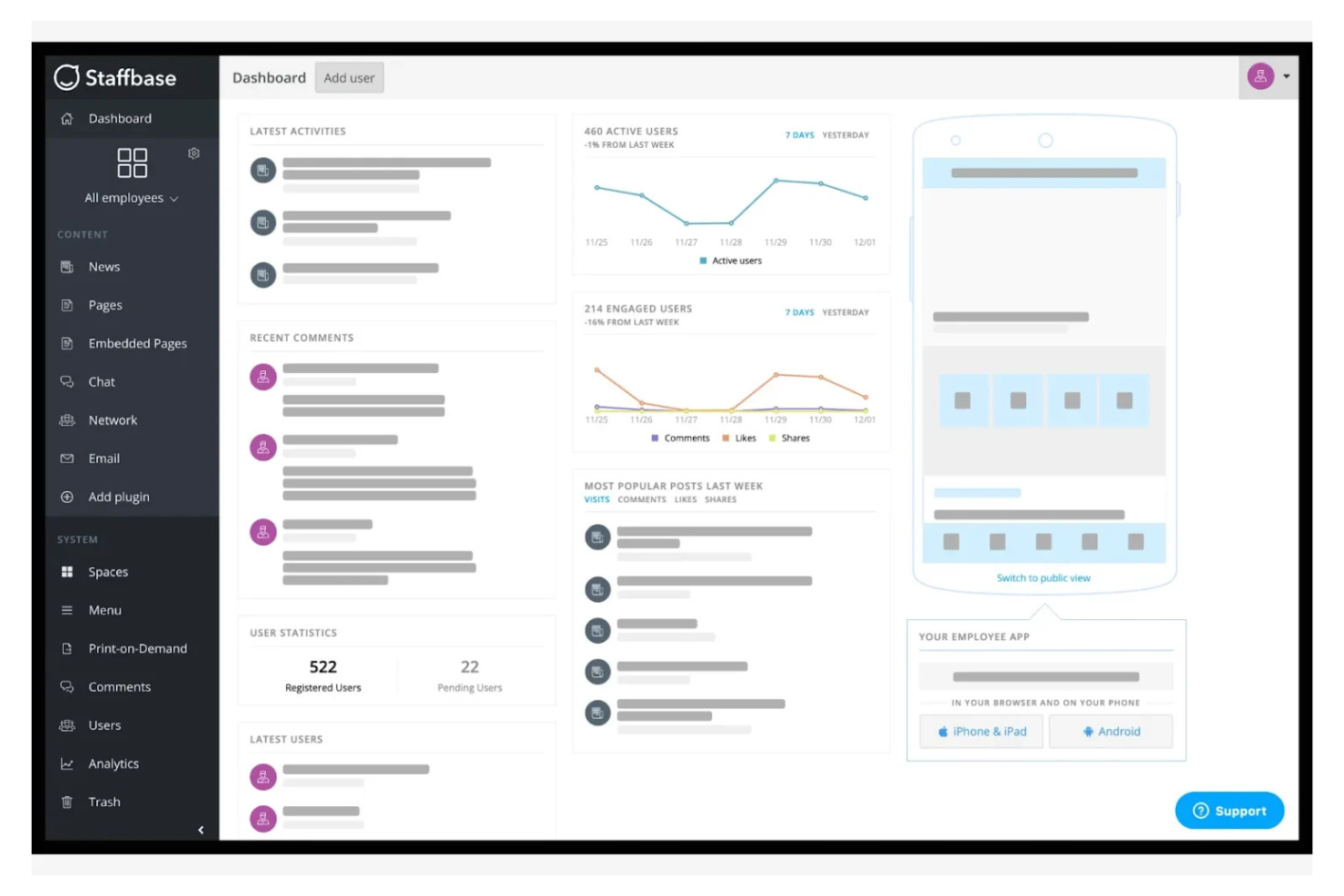
Staffbase is designed for organizations that need to connect with employees who aren’t always at a desk. The platform helps you reach frontline and mobile workers through targeted news, updates, and resources on any device. It’s especially useful in industries like healthcare, retail, and manufacturing, where keeping everyone informed can be a challenge.
Why I Picked Staffbase
Reaching employees who aren’t always at a computer is a real challenge, and that’s where Staffbase stands out. The platform offers a mobile-first employee app for knowledge management that delivers news and resources to frontline workers.
I like that you can segment communications by location, department, or role, so messages reach the right people without getting lost. This focus on targeted, accessible internal comms makes Staffbase a strong choice for organizations with a large frontline workforce.
Staffbase Key Features
Some other features in Staffbase help organizations manage communication and engagement at scale:
- Customizable News Channels: Create and manage multiple news streams for different teams or topics.
- Employee Surveys: Collect feedback from staff with built-in survey tools.
- Content Scheduling: Plan and schedule announcements or updates to go live at specific times.
- Document Management: Store and share important files, policies, and resources within the platform.
Staffbase Integrations
Integrations include Microsoft 365, SharePoint, Slack, Salesforce, and more.
Pros and Cons
Pros:
- Supports branded employee apps
- Content scheduling options
- Built-in survey tools
Cons:
- Restricted integrations with external HR systems
- Limited real-time chat functionality

Workvivo
Best for fostering company culture
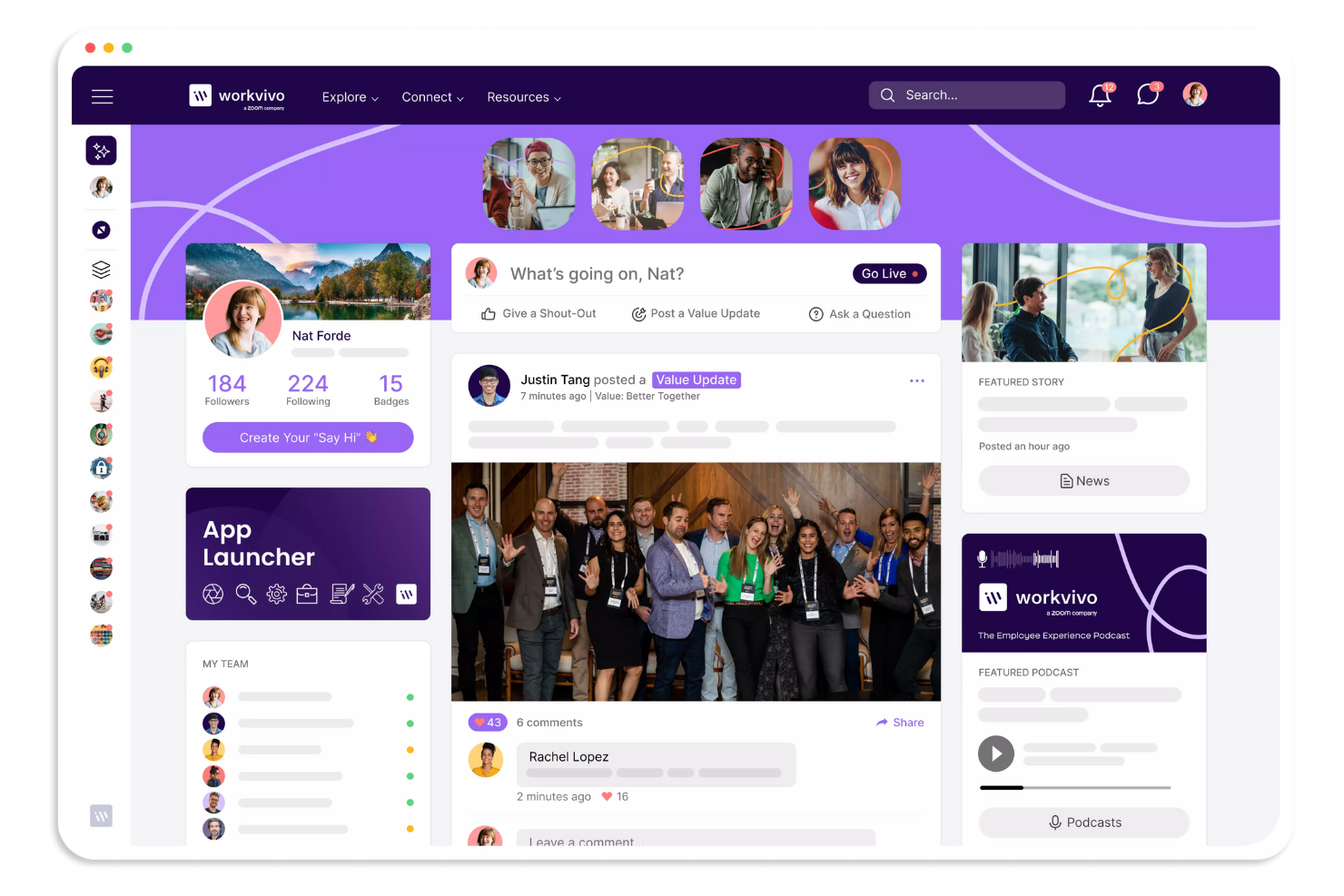
Workvivo takes a social approach to internal communication, making it easier for organizations to build a sense of belonging. It’s a strong fit for HR teams and leaders who want to boost engagement and connect employees to company values, especially in distributed or hybrid workplaces. The platform brings together news, recognition, and interactive features that help reinforce culture beyond just sharing updates.
Why I Picked Workvivo
What sets Workvivo apart is its focus on building a vibrant company culture through communication. The platform offers a social feed where employees can share updates, celebrate achievements, and recognize each other’s contributions.
I appreciate how Workvivo lets you tie posts and recognition directly to company values, making culture visible and actionable every day. These features make it a strong choice for organizations that want to go beyond basic messaging and foster real engagement.
Workvivo Key Features
Some other features in Workvivo help organizations connect and inform employees in meaningful ways:
- Event Management: Manage various types of internal communication by organizing and tracking attendance for company events.
- Podcast and Video Sharing: Upload and share multimedia content to support your culture initiatives and engage employees with different communication styles.
- Pulse Surveys: Gather quick feedback from employees with short, targeted surveys.
- Knowledge Base: Centralize important documents, policies, and resources for easy access.
Workvivo Integrations
Integrations include Zoom, Slack, Microsoft Teams, SharePoint, Google Drive, and more.
Pros and Cons
Pros:
- Offers event management tools
- Social media-style activity feed
- Peer-to-peer recognition badges
Cons:
- Basic text formatting tools
- No built-in editorial calendar
Best self-destructing messaging for secure data
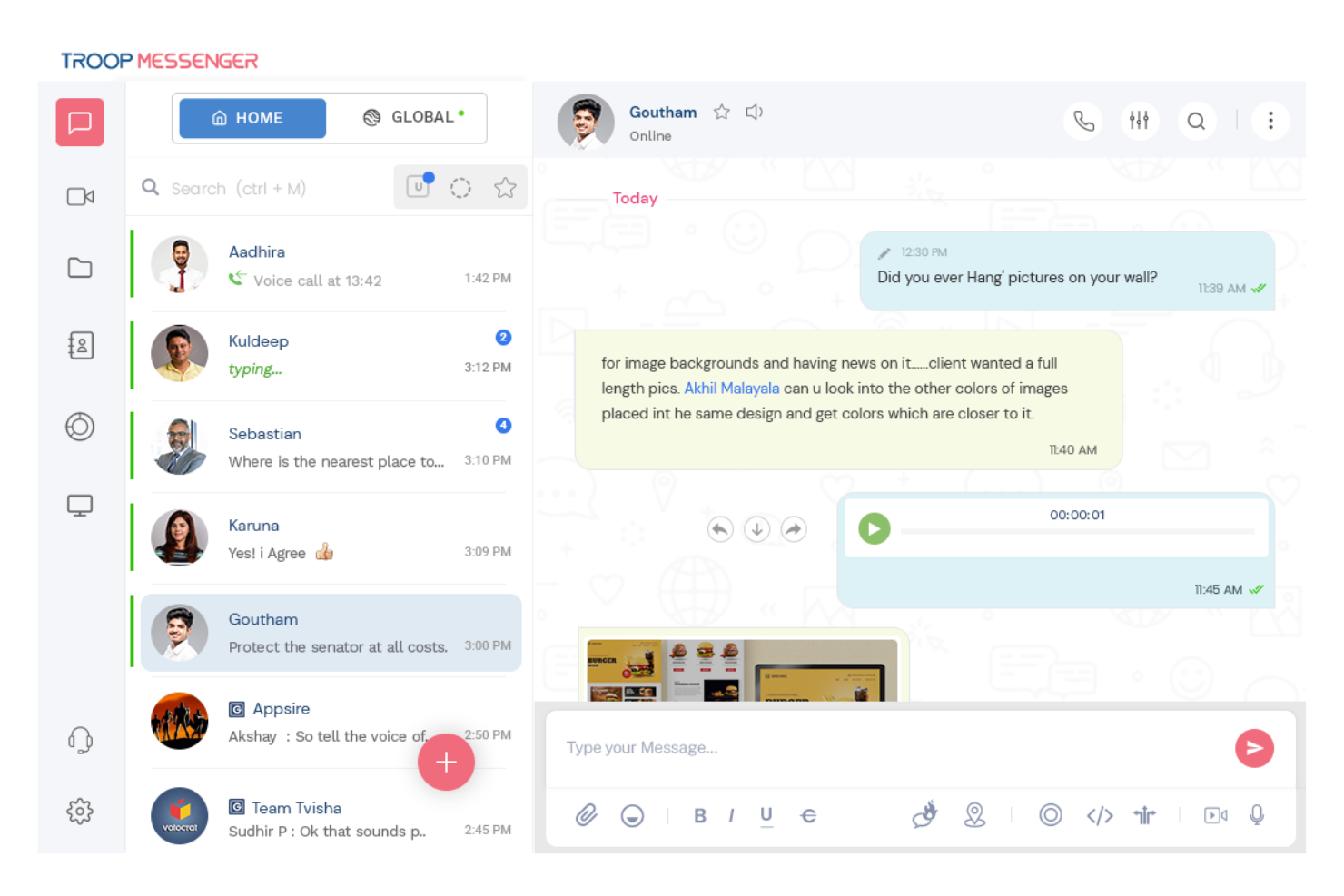
Troop Messenger is built for organizations that need secure, private team messaging without sacrificing usability. It’s a strong fit for industries like government, defense, or healthcare, where data protection and compliance are top priorities. With features like end-to-end encryption and on-premise deployment, Troop Messenger helps teams keep sensitive conversations and files protected.
Why I Picked Troop Messenger
Security is a top concern for many organizations, and that’s why I picked Troop Messenger for this list. The platform offers end-to-end encryption for messages and files, which helps protect sensitive information from unauthorized access.
I also like that Troop Messenger supports on-premise deployment, giving businesses full control over their data and compliance needs. For teams that handle confidential communications or operate in regulated industries, these security-focused features make Troop Messenger a strong choice.
Troop Messenger Key Features
Some other features in Troop Messenger help teams collaborate and manage communication more effectively:
- Burnout Chat: Send self-destructing messages that disappear after a set time.
- Forkout: Broadcast a message to multiple users or groups at once.
- Remote Screen Sharing: Share your screen with team members for real-time collaboration.
- Respond Later: Mark messages to reply to at a more convenient time.
Troop Messenger Integrations
Integrations include Google Drive, Dropbox, and Zapier.
Pros and Cons
Pros:
- Unique burnout self-destructing messages
- Advanced file search filters
- Self-hosted on-premise deployment option
Cons:
- Outdated user interface design
- Small video call participant limit

Chanty
Best AI-powered suggestions for task management
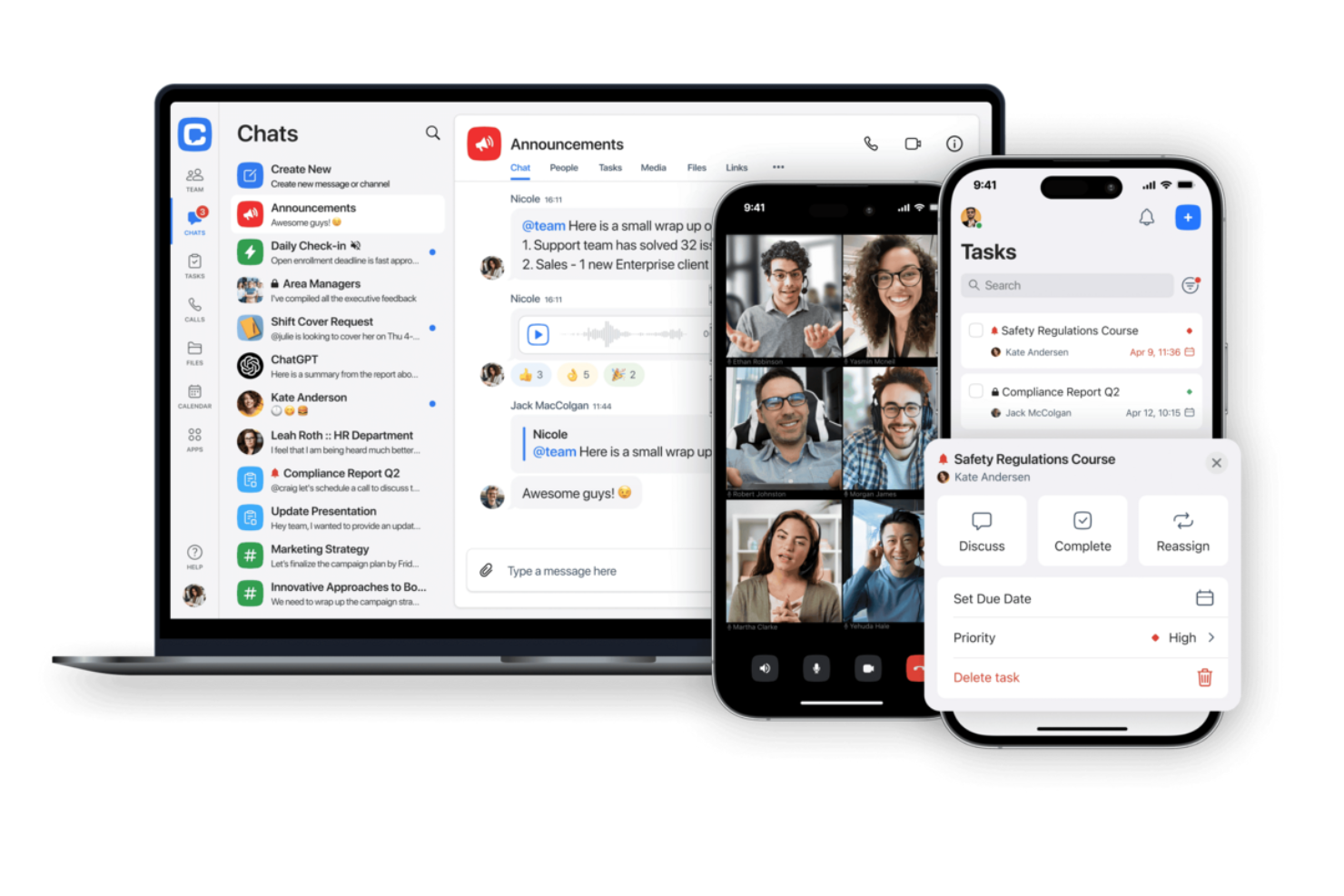
Chanty is designed for teams that want a straightforward chat solution without unnecessary complexity. It’s especially useful for small businesses or groups looking to get started with team messaging quickly and with minimal setup. With its simple interface and built-in task management, Chanty helps teams keep conversations and action items in one place.
Why I Picked Chanty
For teams that want to get up and running with minimal hassle, Chanty stands out for its simple team chat setup. You can create channels, start direct messages, and organize conversations without a complicated onboarding process.
I appreciate that Chanty includes built-in task management, so you can turn messages into actionable items right from the chat. This makes it a practical choice for small teams or businesses that want to keep communication and collaboration straightforward.
Chanty Key Features
Some other features in Chanty help teams communicate and collaborate more efficiently:
- Voice Messaging: Record and send voice messages directly within any chat or channel.
- Pinned Messages: Pin important messages in channels or conversations for quick reference.
- Teambook: Access a centralized hub for all your messages, tasks, and shared files.
- Built-in Audio and Video Calls: Start audio or video calls with team members from within the app.
Chanty Integrations
Integrations include Trello, GitHub, Google Drive, Dropbox, and more.
Pros and Cons
Pros:
- Voice message snippet recording
- Unlimited searchable message history
- Built-in Kanban task board
Cons:
- No native built-in calendar
- Glitchy large group video calls

Best for Microsoft 365 collaboration
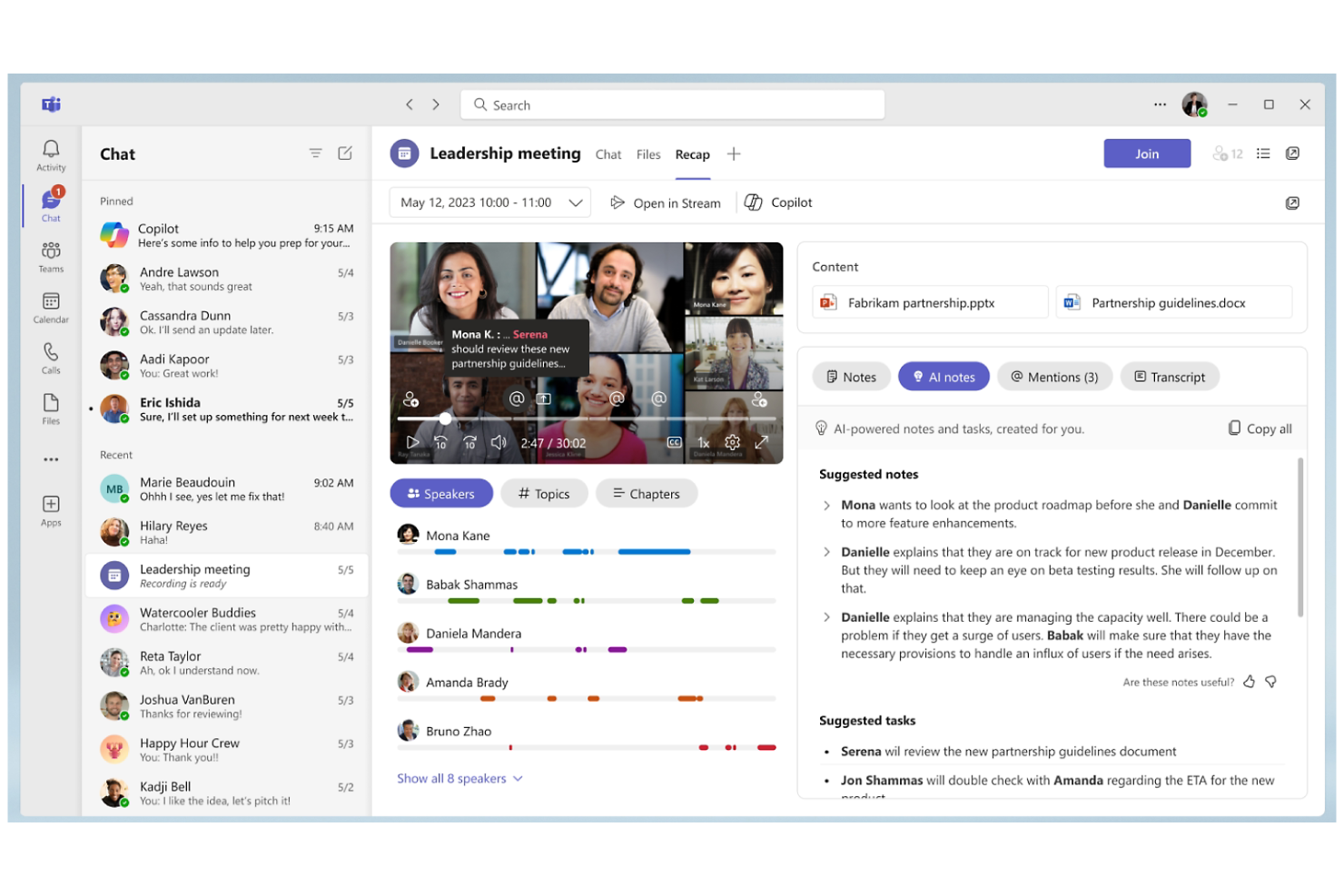
Microsoft Teams brings chat, meetings, and document collaboration into a single workspace for organizations already using Microsoft 365. It’s a strong fit for groups that want to connect communication with tools like Outlook, SharePoint, and OneDrive. The platform helps teams coordinate projects, share files, and keep conversations tied to the documents and calendars they use every day.
Why I Picked Microsoft Teams
What sets Microsoft Teams apart is how deeply it connects with the Microsoft 365 suite, making it a natural choice for organizations already invested in those tools. Teams lets you co-author documents in Word, Excel, or PowerPoint right inside a chat or meeting, so collaboration happens in real time without switching apps.
I appreciate how calendar events, emails, and files from Outlook and SharePoint are accessible directly within Teams, keeping everything in context. This tight integration helps teams keep communication, scheduling, and document management all in one place.
Microsoft Teams Key Features
Some other features in Microsoft Teams help round out its capabilities for internal communication:
- Private and Group Chats: Use the internal communication software to start one-on-one or group conversations for quick discussions.
- Meeting Recording and Transcription: Record meetings and automatically generate searchable transcripts for later reference.
- Customizable Tabs: Align your internal communication strategy by adding apps, files, or websites as tabs within channels.
- Breakout Rooms: Split larger meetings into smaller groups for focused discussions or activities.
Microsoft Teams Integrations
Integrations include Microsoft Word, Excel, PowerPoint, OneNote, SharePoint, Planner, Trello, GitHub, Zoom, and more.
Pros and Cons
Pros:
- Lets teams add apps and resources to channels
- Features meeting recording and transcription
- Built-in video meetings
Cons:
- Confusing guest access setup
- Search function may miss older messages

Twist
Best threaded messaging to reduce clutter
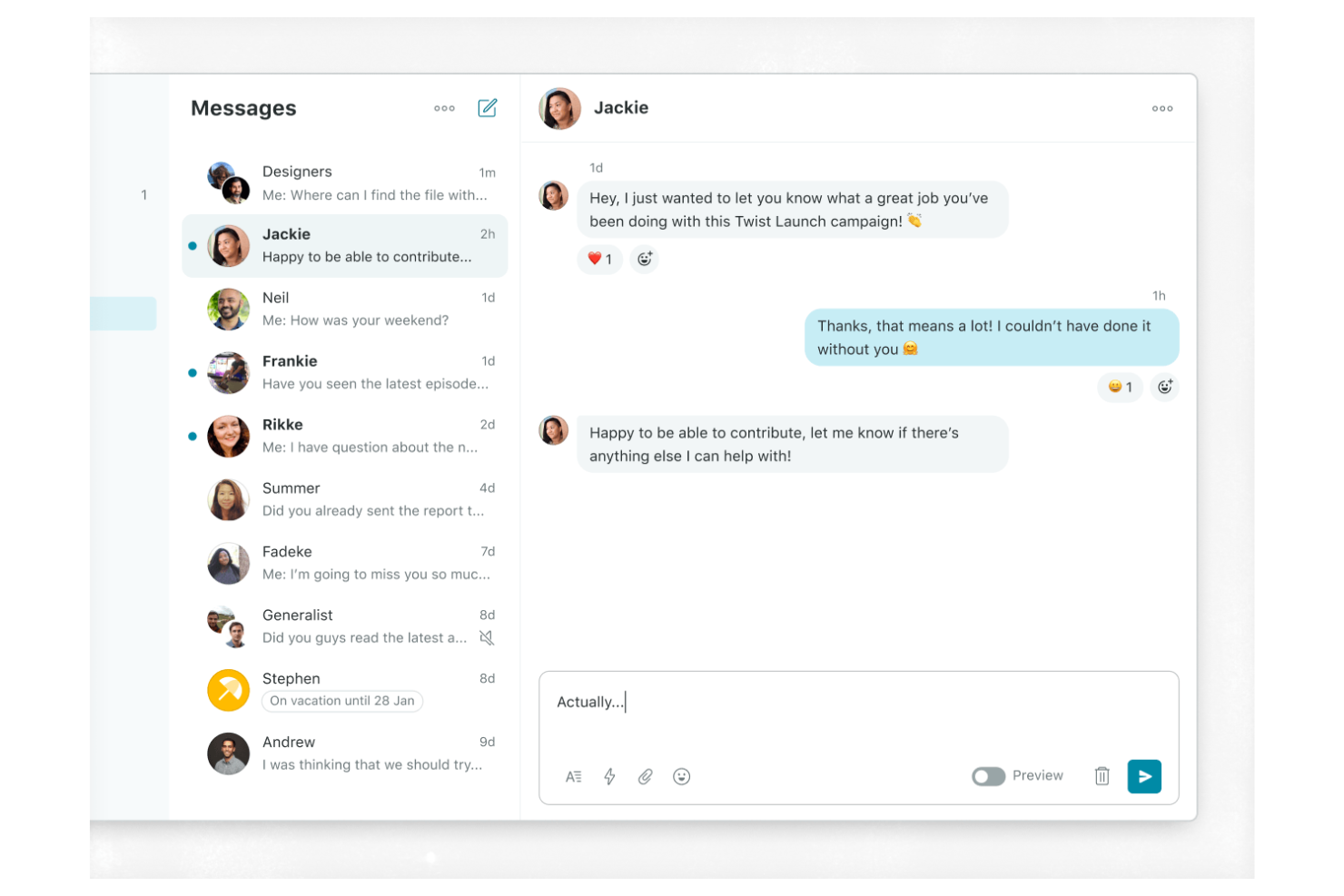
Twist takes a different approach to team messaging by focusing on asynchronous communication and organized threads. It’s a strong fit for distributed teams, remote-first companies, or any group that wants to reduce notification overload and keep conversations easy to follow. With its thread-based structure, Twist helps you avoid the chaos of real-time chat and makes it easier to find important discussions later.
Why I Picked Twist
What sets Twist apart is its commitment to asynchronous team messaging, which is especially valuable for teams working across different time zones or with flexible schedules. Instead of relying on real-time chat, Twist organizes conversations into threads, making it easier to keep discussions focused and searchable.
I like that you can catch up on important topics without sifting through endless chat history or missing key updates. This approach helps teams reduce distractions and maintain clarity in their internal communications.
Twist Key Features
Some other features in Twist help teams manage communication and collaboration more intentionally:
- Inbox View: See all your new messages and thread updates in one organized place.
- Integrations with Tools: Connect Twist with apps like GitHub, Zapier, and Todoist for workflow automation.
- Advanced Search: Find past conversations, files, and threads quickly using keyword and filter options.
- Guest Access: Invite external collaborators to specific channels without giving them full workspace access.
Twist Integrations
Integrations include Asana, Google Calendar, Box, Calendly, Jira, and more.
Pros and Cons
Pros:
- Thread-based email archive feel
- Reduced notification fatigue alerts
- Structured asynchronous thread design
Cons:
- Minimal third-party integration catalog
- No real-time presence indicators

Blink
Best for mobile-first communication
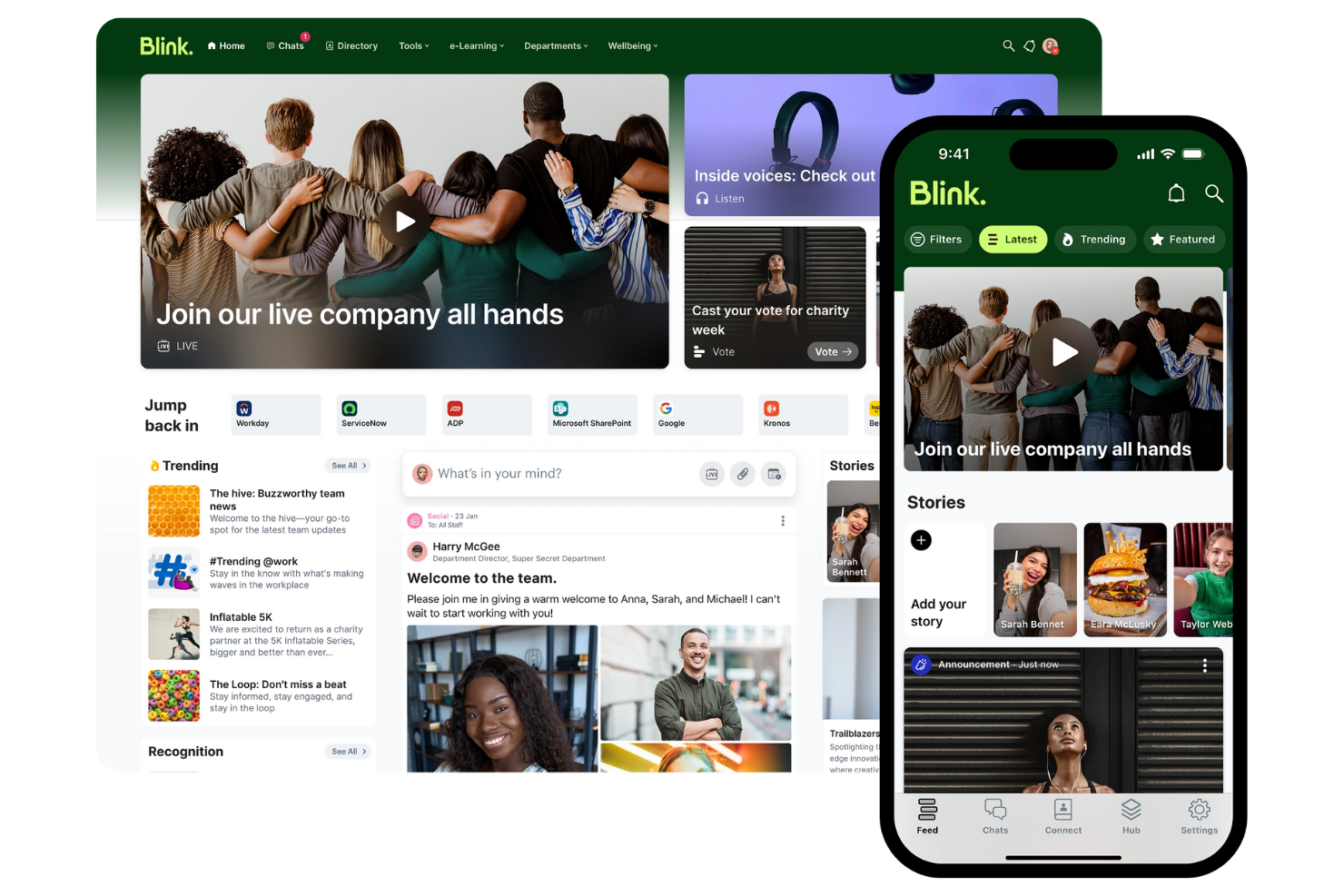
Blink puts mobile communication at the center, making it a strong choice for organizations with frontline or deskless workers. It’s designed for teams in industries like retail, healthcare, and transportation that need to reach employees who aren’t always at a desk.
With features built for quick updates, resource sharing, and secure messaging, Blink helps keep everyone connected no matter where they work.
Why I Picked Blink
Blink stands out for its mobile-first approach, which is especially important for organizations with a large frontline or remote workforce. The app offers a unified feed for company news, policy updates, and urgent alerts, all optimized for mobile devices.
I like that Blink includes secure direct messaging and group chats, making it easy for employees to connect and collaborate on the go. These features make Blink a strong fit for teams that need to reach people who aren’t tied to a desk or computer.
Blink Key Features
Some other features in Blink help teams manage communication and resources more efficiently:
- Document Hub: Store and share important documents so employees can access them from their mobile devices.
- Micro-apps: Add custom tools and workflows directly into the Blink platform to support unique business needs.
- Surveys and Polls: Collect feedback from employees quickly with built-in survey and polling tools.
- Single Sign-On (SSO): Allow users to access Blink securely using their existing company credentials.
Blink Integrations
Integrations include Microsoft 365, Google Workspace, Jira, ServiceNow, and more.
Pros and Cons
Pros:
- Digital forms for mobile workers
- Secure single sign-on access
- Frontline-first employee news feed
Cons:
- Limited structured engagement modules
- Tricky large-scale group management

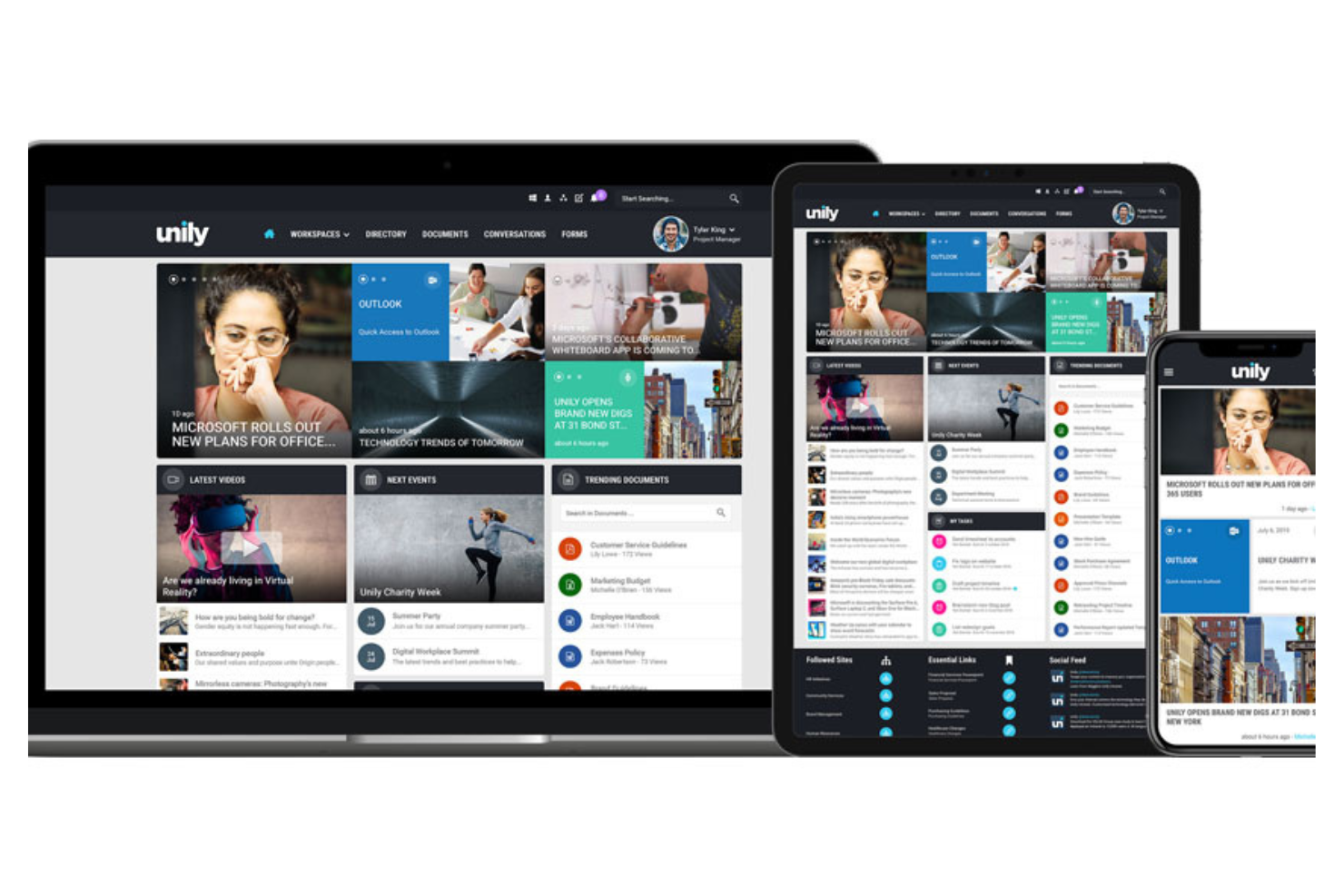
Unily is designed for organizations with a global workforce that need to connect employees across locations, languages, and devices. It’s especially useful for large enterprises and multinational teams that want to deliver targeted communications and foster engagement at scale. With features for multilingual content, personalized news feeds, and mobile access, Unily helps you reach every employee, wherever they work.
Why I Picked Unily
Unily stands out for organizations that need to engage a dispersed, global workforce. Its multilingual content management lets you deliver communications in multiple languages, so every employee can access information in their preferred language.
I appreciate how Unily’s personalized news feeds ensure that relevant updates reach the right people, no matter where they’re located. These features make Unily a strong choice for companies focused on building a global employee experience across borders.
Unily Key Features
Some other features in Unily help teams communicate and collaborate more effectively:
- Drag-and-Drop Page Builder: Create and customize intranet pages without coding or IT support with the user-friendly interface.
- Video Center: Share, organize, and stream video content for company-wide communications.
- Mobile App: Give employees access to internal communications and resources from any device.
- Social Networking Tools: Enable commenting, liking, and sharing to encourage engagement and feedback.
Unily Integrations
Integrations include Microsoft 365, ServiceNow, Zoom, Salesforce, Google Workspace, and more.
Pros and Cons
Pros:
- Multi-layered analytics and engagement metrics
- Enterprise-grade security protocols
- AI-powered content translation
Cons:
- Complex multi-step approval workflows
- High total cost of ownership

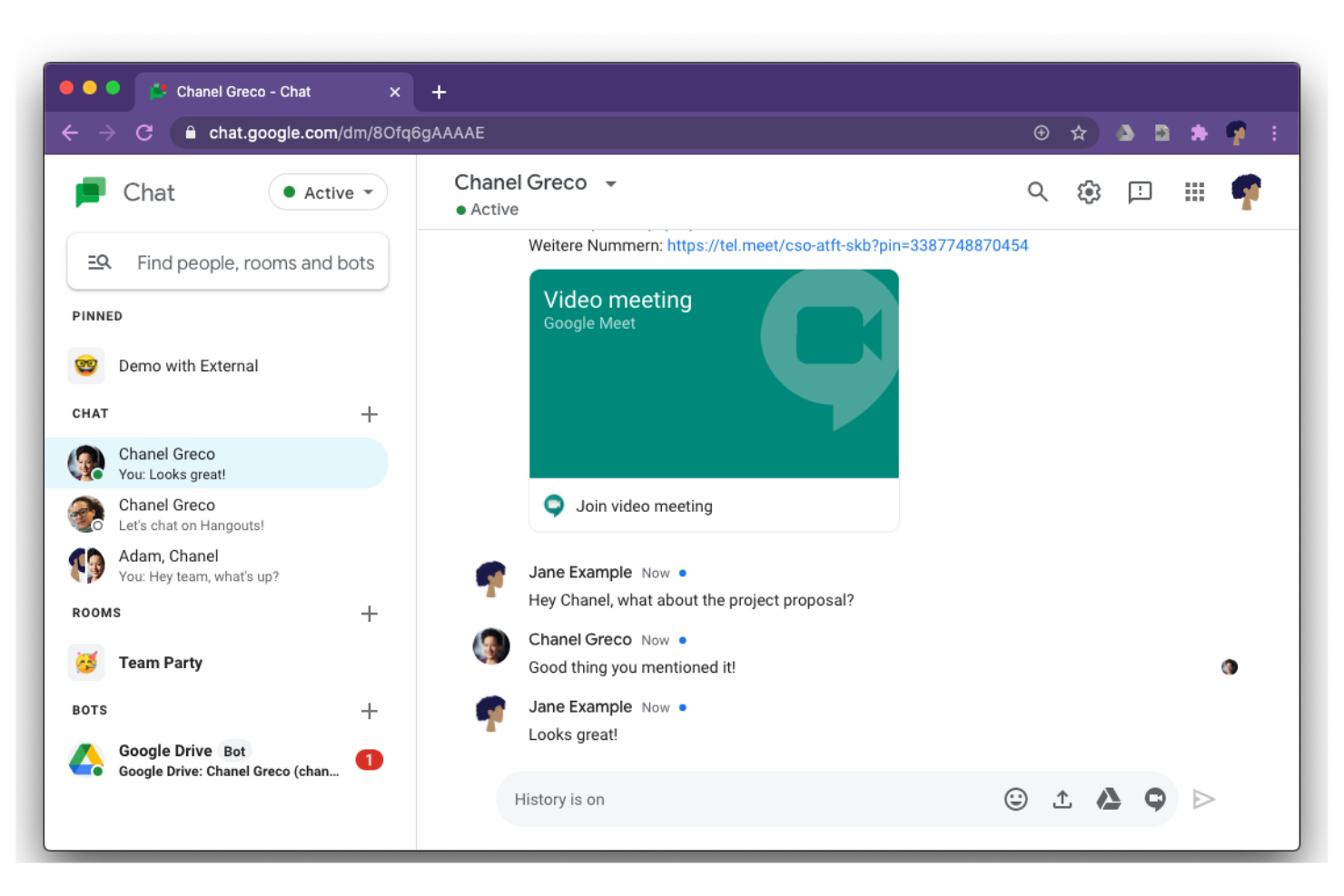
Google Chat offers messaging tools to connect conversations with Docs, Drive, and Calendar for teams that rely on Google Workspace. It’s especially useful for organizations that want to keep messaging, file sharing, and project updates within the same ecosystem as their email and documents. The platform helps groups coordinate work, manage tasks, and keep discussions organized alongside the tools they already use.
Why I Picked Google Chat
For teams already using Google Workspace, Google Chat stands out because it keeps all communication and collaboration within the same environment. You can share Google Docs, Sheets, and Slides directly in chats or rooms, making it easy to discuss and edit files without leaving the conversation.
I like that calendar invites and meeting links from Google Calendar are accessible right in the chat, so scheduling and follow-ups stay connected. This tight integration helps teams keep their work and conversations organized in one familiar place.
Google Chat Key Features
Some other features in Google Chat help teams manage communication and projects more efficiently:
- Threaded Conversations: Keep discussions organized by topic within rooms or group chats.
- Bots and Automation: Use built-in bots to automate tasks like scheduling or reminders.
- Direct Messaging: Start private one-on-one or group chats outside of rooms for quick conversations.
- Mobile and Desktop Apps: Access Google Chat from dedicated apps on both mobile devices and desktops.
Google Chat Integrations
Integrations include Google Drive, Google Calendar, Google Meet, Gmail, Google Docs, Google Sheets, Google Slides, Trello, Asana, and more.
Pros and Cons
Pros:
- Has a mobile app
- Automates reminders and scheduling
- Direct integration with Google Drive
Cons:
- Fewer third-party app integrations
- Basic notification controls

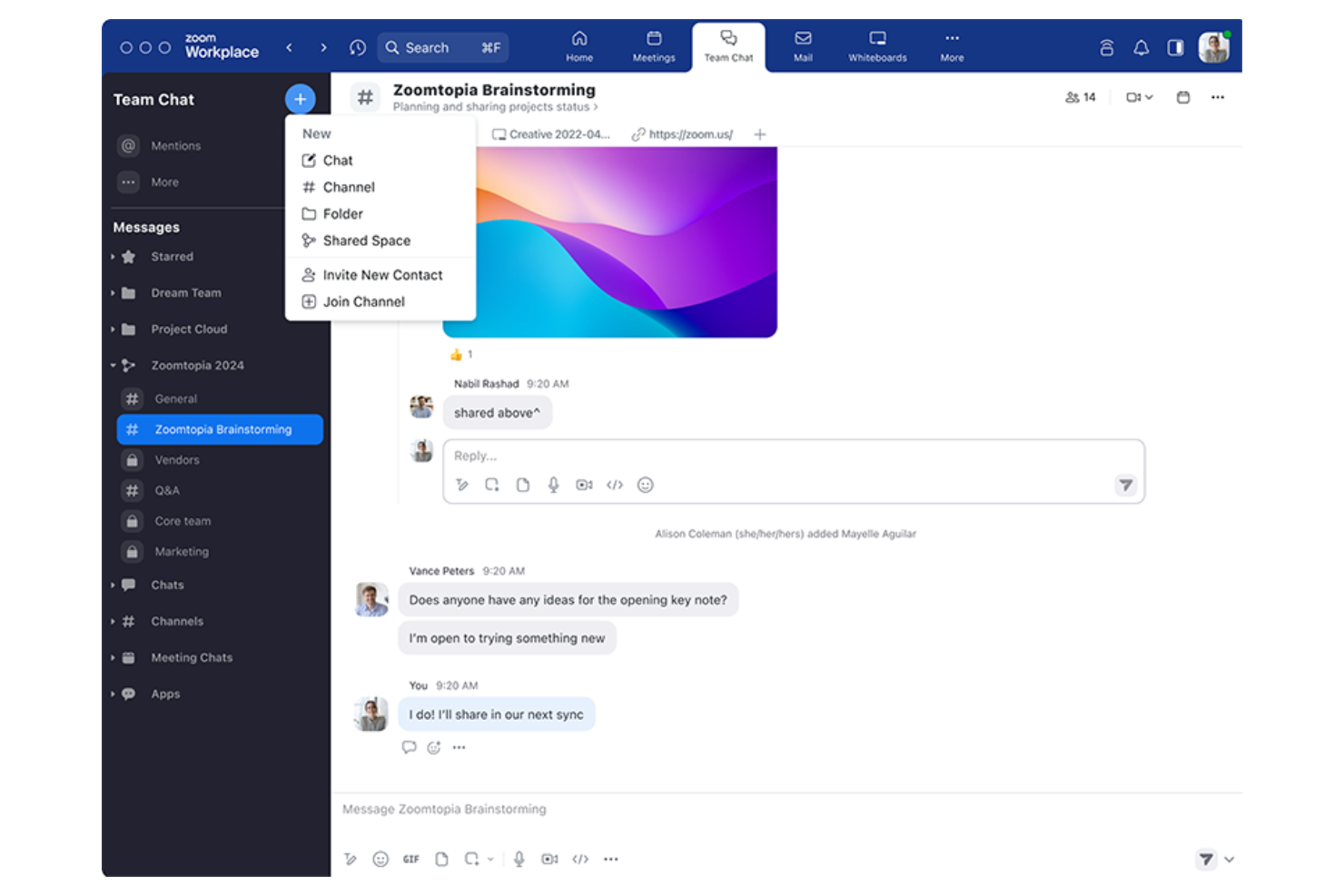
Zoom Team Chat is especially useful for teams that rely on video meetings for daily collaboration. The tool connects chat, file sharing, and meeting scheduling in one place, making it easy to move from messaging to live video with a single click. It’s a strong fit for organizations that want to keep conversations and meetings tightly linked without switching between platforms.
Why I Picked Zoom Team Chat
What sets Zoom Team Chat apart is how it brings chat and video meetings together in a single workflow. You can launch a Zoom meeting directly from any of your communication channels, which helps teams quickly shift from written discussions to face-to-face conversations when needed.
I appreciate that shared files and meeting summaries stay accessible within the chat, so important context isn’t lost between meetings and messages. This approach keeps communication fluid for teams that depend on both chat and video to get work done.
Zoom Team Chat Key Features
Some other features in Zoom Team Chat help teams manage daily communication and collaboration:
- Channels and Group Chats: Organize conversations by project, department, or topic for focused discussions.
- Message Reactions and Mentions: Use emoji reactions and to quickly respond and get someone’s attention.
- Threaded Replies: Keep related messages grouped together for better context in busy channels.
- File Sharing and Storage: Share documents and images directly within chat to ensure effective internal communication.
Zoom Team Chat Integrations
Integrations include Zoom Meetings, Google Drive, Microsoft 365, Slack, Salesforce, Dropbox, Trello, Asana, GitHub, and more.
Pros and Cons
Pros:
- Message reactions and threaded replies
- Supports both public and private team discussions
- Can launch video meetings from any chat
Cons:
- Slow search function
- No built-in project tracking features
Altri Strumenti di Comunicazione Interna
Ecco alcune ulteriori opzioni di strumenti di comunicazione interna che non sono entrate nella mia shortlist, ma che vale comunque la pena considerare:
- Slack
For integrating with enterprise workflows
- Axero
For customizable intranet solutions
- Bonusly
For peer recognition messaging
- Flock
Built-in shared to-do lists and reminders
- Connecteam
For managing deskless teams
- Teams.cc
For private team channels
- Loom
For video message sharing
- Workshop
For employee email campaigns
- Jive
For enterprise social networking
- ContactMonkey
For Outlook email tracking
- Thrive
For employee feedback collection
- Discord
For real-time voice chat


Criteri di Selezione degli Strumenti di Comunicazione Interna
Nella selezione dei migliori strumenti di comunicazione interna da includere in questo elenco, ho considerato le esigenze e i punti dolenti più comuni degli acquirenti, come mantenere i team connessi tra diverse sedi e garantire una consegna dei messaggi sicura e affidabile. Ho anche utilizzato questo schema per mantenere la mia valutazione strutturata ed equa:
Funzionalità Core (25% del punteggio totale)
Per essere preso in considerazione per questa lista, ciascuna soluzione doveva rispondere a questi casi d'uso comuni:
- Invio di messaggi diretti tra i membri del team
- Creazione di canali di chat per gruppi o team
- Condivisione di file e documenti all'interno delle conversazioni
- Ricerca nella cronologia dei messaggi e dei file
- Gestione dei permessi utente e degli accessi
Funzionalità Distintive Aggiuntive (25% del punteggio totale)
Per restringere ulteriormente le opzioni in concorrenza, ho tenuto conto anche di funzionalità uniche, come:
- Crittografia end-to-end dei messaggi
- Messaggi autodistruggenti o a tempo limitato
- Chiamate vocali o video integrate
- Trasmissione di messaggi a più gruppi
- Opzioni di implementazione on-premises
Usabilità (10% del punteggio totale)
Per valutare l'usabilità di ciascun sistema, ho preso in considerazione i seguenti aspetti:
- Navigazione semplice e intuitiva
- Design dell'interfaccia pulito e moderno
- Consegna rapida dei messaggi e notifiche
- Accesso facilitato alle funzionalità chiave
- Disponibilità di app mobile e desktop
Onboarding (10% del punteggio totale)
Per valutare l'esperienza di onboarding di ciascuna piattaforma, ho tenuto conto dei seguenti elementi:
- Guide o checklist di configurazione passo dopo passo
- Disponibilità di video formativi o tutorial
- Tour o walkthrough interattivi del prodotto
- Modelli predefiniti per casi d'uso comuni
- Accesso a chat dal vivo o webinar di onboarding
Assistenza Clienti (10% del punteggio totale)
Per valutare i servizi di assistenza clienti di ciascun fornitore di software, ho considerato i seguenti aspetti:
- Assistenza telefonica o chat dal vivo 24/7
- Tempi di risposta rapidi alle richieste
- Centro assistenza online o knowledge base
- Accesso a forum della community o gruppi utenti
- Disponibilità di account manager dedicati
Rapporto Qualità-Prezzo (10% del punteggio totale)
Per valutare il rapporto qualità-prezzo di ogni piattaforma, ho considerato i seguenti aspetti:
- Piani tariffari trasparenti e flessibili
- Disponibilità di prova gratuita o piano gratuito
- Funzionalità incluse in ogni fascia di prezzo
- Sconti per abbonamenti annuali o per grandi volumi
- Nessun costo nascosto o addebiti imprevisti
Recensioni dei Clienti (10% del punteggio totale)
Per avere un'idea della soddisfazione generale dei clienti, ho considerato questi aspetti nella lettura delle recensioni:
- Feedback positivi su affidabilità e uptime
- Lodi sulla qualità dell'assistenza clienti
- Commenti sulla facilità di adozione e formazione
- Segnalazioni di problemi tecnici ricorrenti
- Valutazioni sul valore complessivo e soddisfazione
Come Scegliere gli Strumenti di Comunicazione Interna
È facile perdersi tra lunghe liste di funzionalità offerte dalle diverse app di messaggistica e strutture di prezzo complesse. Per aiutarti a restare concentrato durante il tuo processo di selezione del software, ecco un elenco di fattori da tenere a mente:
| Fattore | Cosa Considerare |
|---|---|
| Scalabilità | Lo strumento supporterà la dimensione del tuo team man mano che cresci? Controlla limiti utenti, fasce di prezzo e prestazioni con gruppi numerosi. |
| Integrazioni | Lo strumento si connette con il tuo HRIS, sistemi di gestione progetti o archiviazione file? Verifica integrazioni native e opzioni API. |
| Personalizzazione | Puoi adattare canali, permessi e notifiche alla struttura e ai flussi di lavoro della tua organizzazione? Evita strumenti troppo rigidi. |
| Facilità d'uso | I dipendenti adotteranno lo strumento rapidamente? Cerca navigazione intuitiva, bisogno minimo di formazione e feedback positivi da organizzazioni simili. |
| Implementazione e onboarding | Quanto tempo servirà per il lancio? Valuta il supporto alla migrazione, le risorse formative e se servirà coinvolgimento dell'IT per la configurazione. |
| Costo | I piani tariffari sono chiari e prevedibili? Considera prezzi per utente, costi aggiuntivi e vincoli contrattuali. |
| Tutele di sicurezza | Lo strumento soddisfa i tuoi standard di protezione dei dati? Verifica crittografia, controlli di accesso e audit log, soprattutto se gestisci dati sensibili. |
| Requisiti di conformità | Lo strumento supporta gli obblighi legali o normativi del tuo settore (come GDPR o HIPAA)? Accertati delle certificazioni e delle opzioni di residenza dei dati. |
Cosa Sono gli Strumenti di Comunicazione Interna?
Gli strumenti di comunicazione interna sono piattaforme software che aiutano team e organizzazioni a condividere messaggi, file e aggiornamenti all'interno dell'ambiente di lavoro. Questi strumenti supportano la comunicazione in tempo reale e asincrona, rendendo più semplice la collaborazione tra i dipendenti, il coordinamento dei progetti e il mantenimento delle informazioni aggiornate.
Spesso includono funzionalità come chat di gruppo, messaggistica diretta, condivisione file e storici delle conversazioni ricercabili, tutte pensate per mantenere le informazioni interne organizzate e facilmente accessibili.
Funzionalità
Quando scegli gli strumenti di comunicazione interna, assicurati di valutare la presenza delle seguenti funzionalità chiave:
- Messaggistica diretta: Permette conversazioni private e individuali tra dipendenti per domande rapide o discussioni riservate.
- Canali di chat di gruppo: Consente a team o dipartimenti di comunicare in spazi dedicati organizzati per argomento, progetto o funzione.
- Condivisione di file: Permette agli utenti di caricare, inviare e accedere a documenti, immagini e altri file direttamente nelle conversazioni.
- Cronologia dei messaggi ricercabile: Fornisce la possibilità di cercare messaggi e file passati, rendendo facile recuperare informazioni importanti quando necessario.
- Gestione delle autorizzazioni utente: Controlla chi può accedere, pubblicare o moderare all'interno dei canali, aiutando a mantenere sicurezza e ordine.
- Notifiche dei messaggi: Avvisa gli utenti di nuovi messaggi o menzioni, garantendo che gli aggiornamenti importanti siano visti tempestivamente.
- Condivisione dello schermo: Permette agli utenti di condividere lo schermo durante riunioni o chat per dimostrazioni, risoluzione di problemi o collaborazione.
- Chiamate video e vocali: Supporta riunioni audio e virtuali in tempo reale per check-in o discussioni urgenti.
- Fissare i messaggi: Consente agli utenti di evidenziare e salvare messaggi importanti in alto in un canale o una chat per un facile riferimento.
- App per mobile e desktop: Offre accesso agli strumenti di comunicazione su diversi dispositivi, supportando il lavoro da remoto e in mobilità.
Vantaggi
L'implementazione di strumenti di comunicazione interna offre numerosi vantaggi per il tuo team e la tua azienda. Ecco alcuni benefici a cui puoi ambire:
- Condivisione delle informazioni più rapida: Messaggistica e notifiche in tempo reale aiutano i team a distribuire aggiornamenti e decisioni velocemente.
- Collaborazione migliorata: Canali di gruppo, condivisione di file e condivisione schermo facilitano il lavoro congiunto dei dipendenti su progetti.
- Migliore conservazione della conoscenza: Cronologie dei messaggi ricercabili e messaggi fissati garantiscono che le informazioni importanti siano sempre accessibili.
- Sicurezza avanzata: Gestione delle autorizzazioni utente e misure di sicurezza tutelano le conversazioni sensibili e i dati aziendali.
- Maggiore flessibilità: Le app per mobile e desktop favoriscono la comunicazione per dipendenti remoti, ibridi e in movimento.
- Responsabilità più chiara: Messaggistica diretta e cronologia dei messaggi forniscono un registro delle conversazioni e delle decisioni per consultazioni future.
- Riduzione del sovraccarico di email interne: Chat centralizzate e condivisione file riducono la necessità di lunghe conversazioni via email e comunicazioni disperse.
Costi e prezzi
La scelta degli strumenti di comunicazione interna richiede la comprensione dei vari modelli e piani tariffari disponibili. I costi variano in base a funzionalità, dimensione del team, componenti aggiuntivi e altro. La tabella seguente riepiloga i piani più comuni, i loro prezzi medi e le funzionalità tipiche incluse nelle soluzioni di strumenti di comunicazione interna:
Tabella comparativa dei piani per strumenti di comunicazione interna
| Tipo di piano | Prezzo medio | Funzionalità comuni |
|---|---|---|
| Piano gratuito | $0 | Messaggistica di base, canali di gruppo limitati, condivisione file, ricerca base e spazio di archiviazione limitato. |
| Piano personale | $4–$8/user/month | Messaggi diretti, chat di gruppo, condivisione file, cronologia ricercabile e supporto di base. |
| Piano business | $8–$15/user/month | Autorizzazioni avanzate, chiamate video e vocali, integrazioni, aumento dello spazio di archiviazione e supporto prioritario. |
| Piano enterprise | $15–$25/user/month | Sicurezza personalizzata, strumenti di conformità, opzioni on-premise, gestione dedicata dell’account e analisi avanzate. |
FAQ sugli Strumenti di Comunicazione Interna
Ecco alcune risposte alle domande più comuni sugli strumenti di comunicazione interna:
In che modo gli strumenti di comunicazione interna supportano team remoti e ibridi?
Gli strumenti di comunicazione interna supportano i team remoti e ibridi offrendo messaggistica istantanea, videochiamate e condivisione di file su diversi dispositivi. Questo aiuta i dipendenti a rimanere connessi, collaborare sui progetti e accedere agli aggiornamenti importanti ovunque lavorino.
Gli strumenti di comunicazione interna si integrano con altri software aziendali?
Sì, la maggior parte degli strumenti di comunicazione interna offre integrazioni con HRIS, gestione progetti e sistemi di archiviazione file. Le integrazioni aiutano a centralizzare i flussi di lavoro, ridurre i cambi di contesto e garantire che le informazioni si muovano senza intoppi tra le piattaforme già utilizzate dal tuo team.
Quali funzionalità di sicurezza dovrei cercare negli strumenti di comunicazione interna?
Cerca funzionalità come la crittografia end-to-end, i controlli di accesso per gli utenti, i log delle attività e le certificazioni di conformità. Queste misure aiutano a proteggere i dati sensibili dell’azienda e garantiscono che le comunicazioni rispettino i requisiti legali o di settore.
Come posso favorire l'adozione di un nuovo strumento di comunicazione interna?
Inizia con risorse formative chiare, tour del prodotto e supporto all’onboarding. Coinvolgi i team leader come promotori, definisci le aspettative di utilizzo e raccogli feedback per affrontare tempestivamente eventuali preoccupazioni. Una comunicazione costante sul valore dello strumento aiuta inoltre ad aumentarne l’adozione.
Esistono strumenti di comunicazione interna adatti alle piccole imprese?
Sì, molti strumenti di comunicazione interna offrono piani gratuiti o a basso costo pensati per piccoli team. Questi piani includono in genere funzionalità di base come messaggistica, chat di gruppo e condivisione di file, rendendoli accessibili a organizzazioni con budget limitati.
E adesso?
Se stai valutando nuovi strumenti di comunicazione interna, mettiti in contatto gratuitamente con un consulente SoftwareSelect per ricevere consigli personalizzati.
Compila un modulo e fai una breve chiacchierata durante la quale analizzeranno le tue esigenze specifiche. Riceverai quindi una selezione di software da valutare. Ti supporteranno anche durante tutto il processo d'acquisto, incluse le trattative sul prezzo.