
22 Internal Communication Tools for 2026


Internal communication tools are software platforms that help your team share information, coordinate work, and stay connected across your organization. If you’re searching for the best internal communication tools, you’re likely looking to improve collaboration, reduce miscommunication, and keep everyone aligned—whether your workforce is remote, hybrid, or on-site.
With so many options available, it’s essential to find tools that fit your team’s needs, support your workflows, and scale as your organization grows. In this list, you’ll find trusted solutions that address real workplace challenges and help you build a more connected, informed, and engaged team.
Why Trust Our Software Reviews
Best Internal Communication Tools Summary
This comparison chart summarizes pricing details for my top internal communication tools selections to help you find the best one for your budget and business needs.
| Tool | Best For | Trial Info | Price | ||
|---|---|---|---|---|---|
| 1 | Best for fostering company culture | Free demo available | Pricing upon request | Website | |
| 2 | Best for reaching frontline employees | Not available | Pricing upon request | Website | |
| 3 | Best for secure team messaging | 30-day free trial + free demo available | From $2.50/user/month | Website | |
| 4 | Best for simple team chat setup | Free demo + free plan available | From $3/user/month (billed annually) | Website | |
| 5 | Best for Microsoft 365 collaboration | Free plan available | From $4/user/month (billed annually) | Website | |
| 6 | Best for mobile-first communication | 14-day free trial + free demo | From $4.50/user/month | Website | |
| 7 | Best for asynchronous team messaging | Free plan available | From $6/month (billed annually) | Website | |
| 8 | Best for global workforce engagement | Free demo available | Pricing upon request | Website | |
| 9 | Best with video meeting integration | Free plan available | From $14.16/user/month (billed annually) | Website | |
| 10 | Best for Google Workspace users | 14-day free trial | From $7/user/month (billed annually) | Website |
-

Checkr
Visit WebsiteThis is an aggregated rating for this tool including ratings from Crozdesk users and ratings from other sites.4.5 -
Kudoboard
Visit WebsiteThis is an aggregated rating for this tool including ratings from Crozdesk users and ratings from other sites.4.8 -
Native Teams
Visit WebsiteThis is an aggregated rating for this tool including ratings from Crozdesk users and ratings from other sites.4.9




Internal Communication Tools Reviews
Below are my detailed summaries of the internal communication tools that made it onto my shortlist. My reviews offer a detailed look at the features, best use cases, and integrations of each platform to help you find the best one for you.

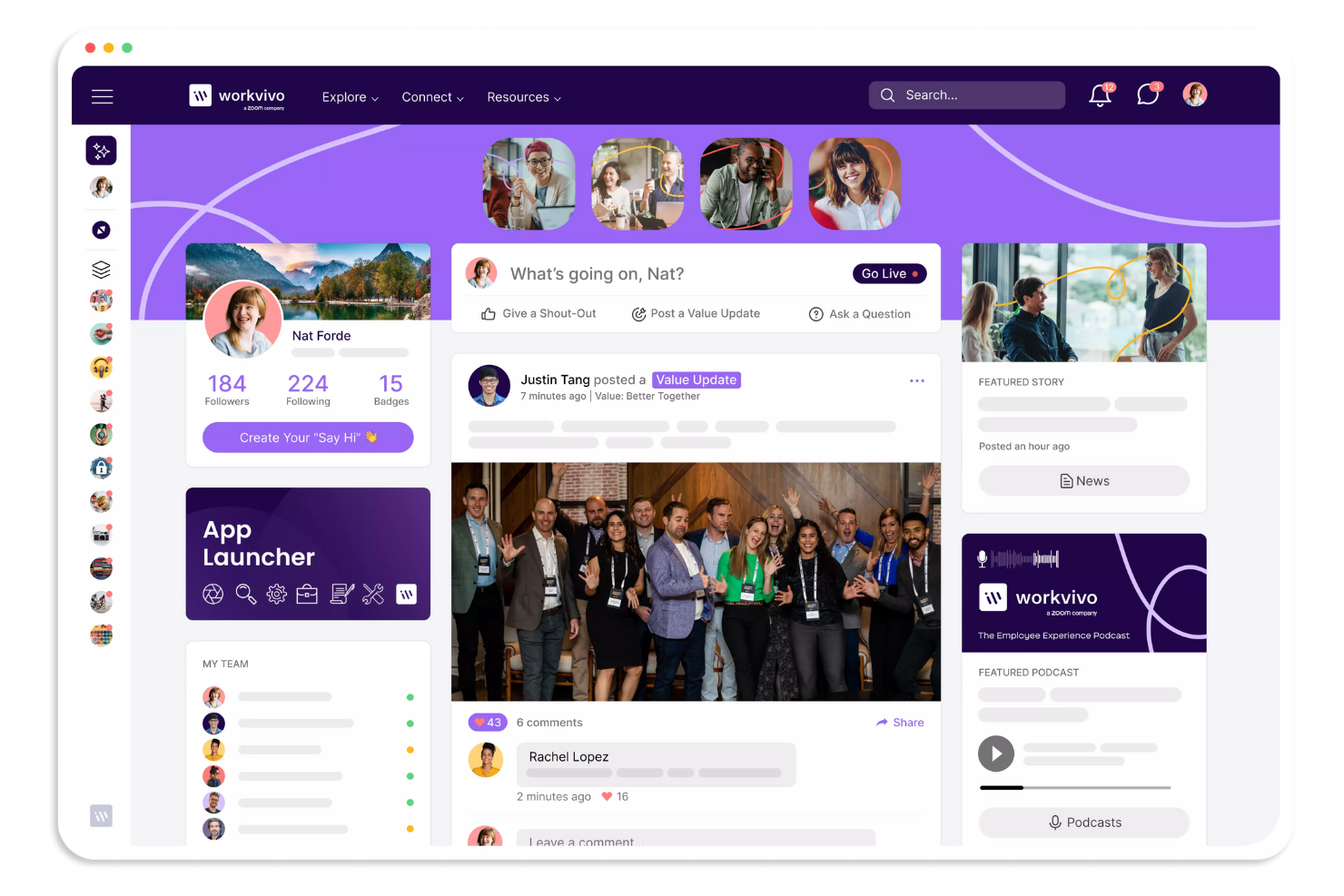
Workvivo takes a social approach to internal communication, making it easier for organizations to build a sense of belonging. It’s a strong fit for HR teams and leaders who want to boost engagement and connect employees to company values, especially in distributed or hybrid workplaces. The platform brings together news, recognition, and interactive features that help reinforce culture beyond just sharing updates.
Why I Picked Workvivo
What sets Workvivo apart is its focus on building a vibrant company culture through communication. The platform offers a social feed where employees can share updates, celebrate achievements, and recognize each other’s contributions.
I appreciate how Workvivo lets you tie posts and recognition directly to company values, making culture visible and actionable every day. These features make it a strong choice for organizations that want to go beyond basic messaging and foster real engagement.
Workvivo Key Features
Some other features in Workvivo help organizations connect and inform employees in meaningful ways:
- Event Management: Manage various types of internal communication by organizing and tracking attendance for company events.
- Podcast and Video Sharing: Upload and share multimedia content to support your culture initiatives and engage employees with different communication styles.
- Pulse Surveys: Gather quick feedback from employees with short, targeted surveys.
- Knowledge Base: Centralize important documents, policies, and resources for easy access.
Workvivo Integrations
Integrations include Zoom, Slack, Microsoft Teams, SharePoint, Google Drive, and more.
Pros and Cons
Pros:
- Offers event management tools
- Social media-style activity feed
- Peer-to-peer recognition badges
Cons:
- Basic text formatting tools
- No built-in editorial calendar

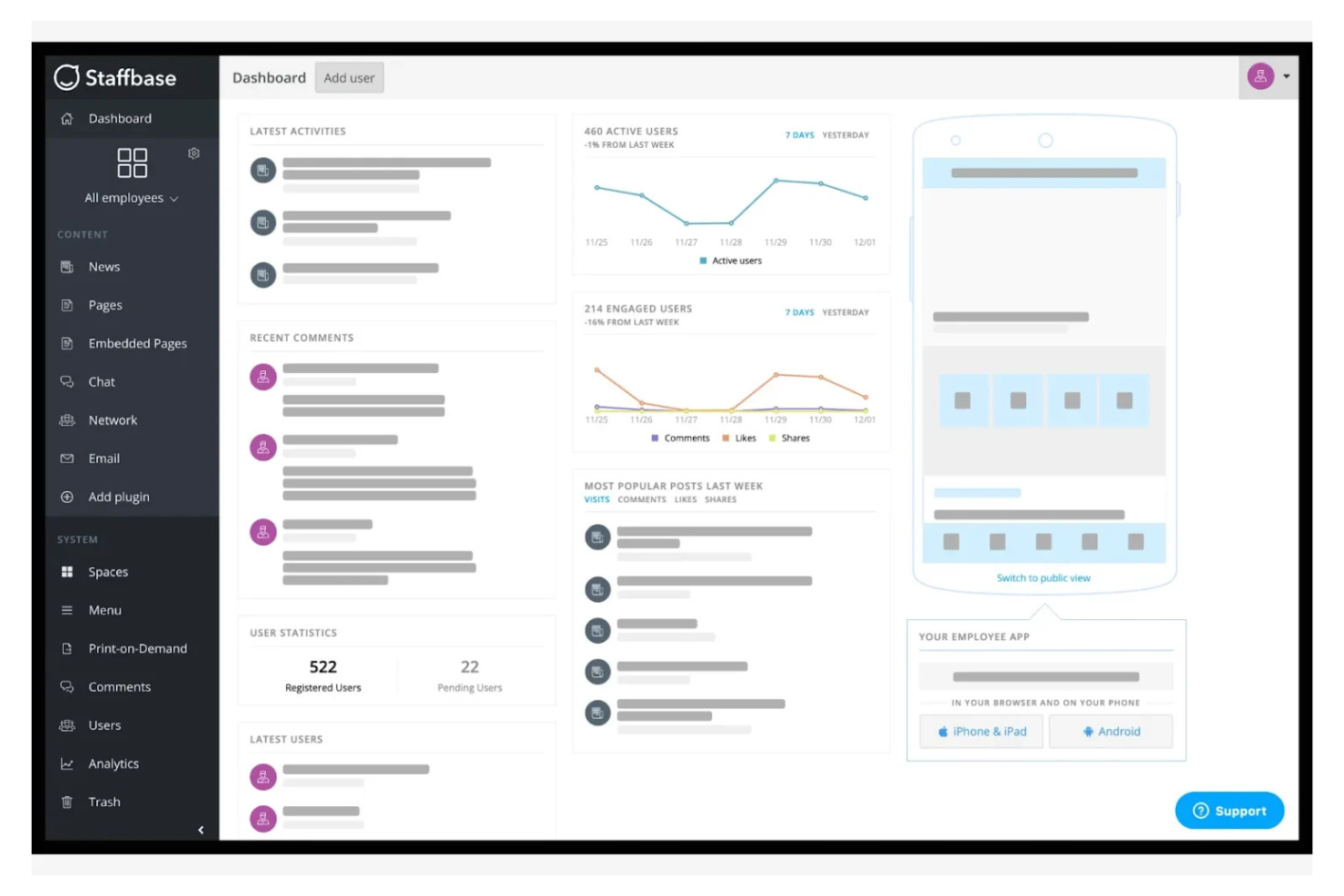
Staffbase is designed for organizations that need to connect with employees who aren’t always at a desk. The platform helps you reach frontline and mobile workers through targeted news, updates, and resources on any device. It’s especially useful in industries like healthcare, retail, and manufacturing, where keeping everyone informed can be a challenge.
Why I Picked Staffbase
Reaching employees who aren’t always at a computer is a real challenge, and that’s where Staffbase stands out. The platform offers a mobile-first employee app for knowledge management that delivers news and resources to frontline workers.
I like that you can segment communications by location, department, or role, so messages reach the right people without getting lost. This focus on targeted, accessible internal comms makes Staffbase a strong choice for organizations with a large frontline workforce.
Staffbase Key Features
Some other features in Staffbase help organizations manage communication and engagement at scale:
- Customizable News Channels: Create and manage multiple news streams for different teams or topics.
- Employee Surveys: Collect feedback from staff with built-in survey tools.
- Content Scheduling: Plan and schedule announcements or updates to go live at specific times.
- Document Management: Store and share important files, policies, and resources within the platform.
Staffbase Integrations
Integrations include Microsoft 365, SharePoint, Slack, Salesforce, and more.
Pros and Cons
Pros:
- Supports branded employee apps
- Content scheduling options
- Built-in survey tools
Cons:
- Restricted integrations with external HR systems
- Limited real-time chat functionality
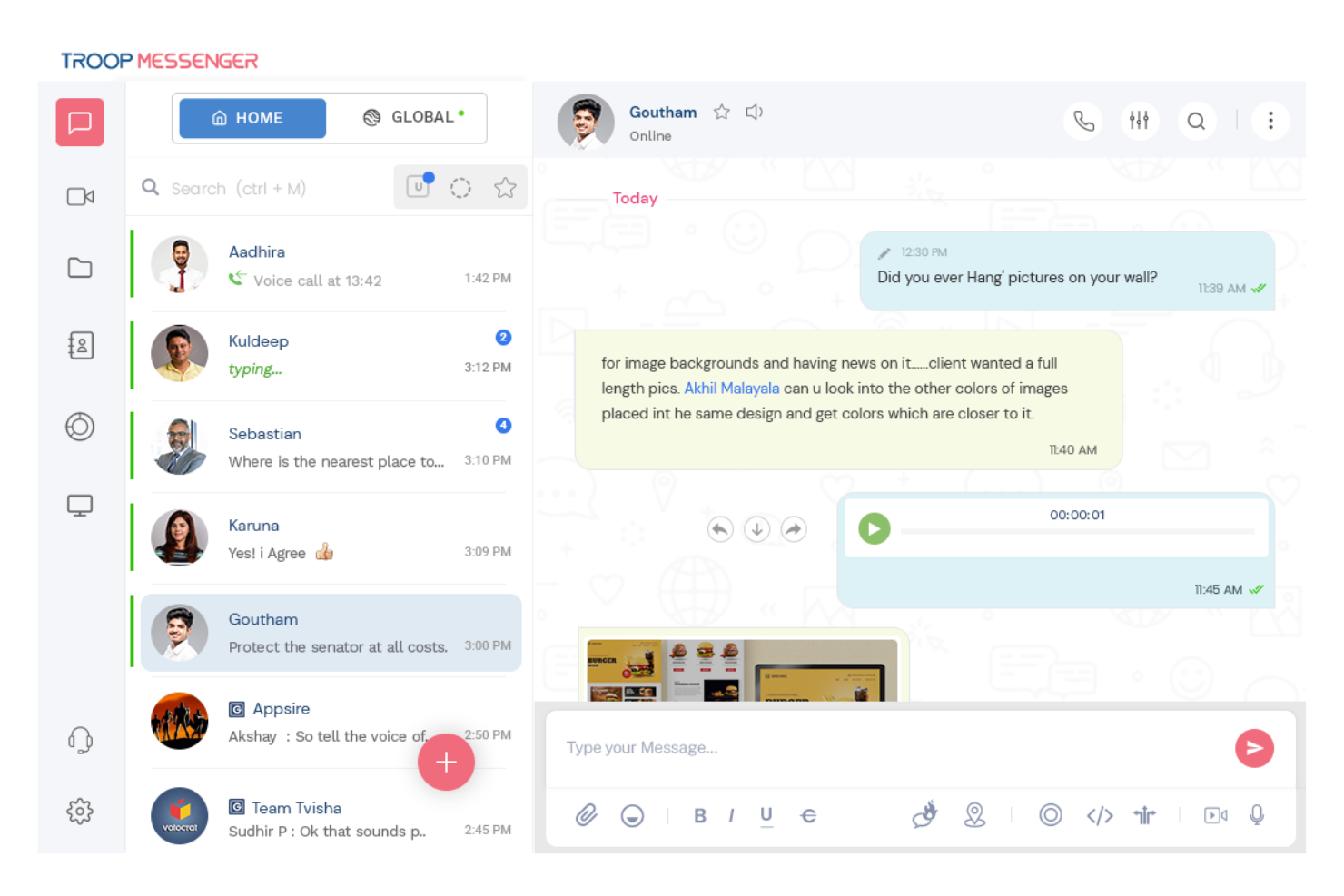
Troop Messenger is built for organizations that need secure, private team messaging without sacrificing usability. It’s a strong fit for industries like government, defense, or healthcare, where data protection and compliance are top priorities. With features like end-to-end encryption and on-premise deployment, Troop Messenger helps teams keep sensitive conversations and files protected.
Why I Picked Troop Messenger
Security is a top concern for many organizations, and that’s why I picked Troop Messenger for this list. The platform offers end-to-end encryption for messages and files, which helps protect sensitive information from unauthorized access.
I also like that Troop Messenger supports on-premise deployment, giving businesses full control over their data and compliance needs. For teams that handle confidential communications or operate in regulated industries, these security-focused features make Troop Messenger a strong choice.
Troop Messenger Key Features
Some other features in Troop Messenger help teams collaborate and manage communication more effectively:
- Burnout Chat: Send self-destructing messages that disappear after a set time.
- Forkout: Broadcast a message to multiple users or groups at once.
- Remote Screen Sharing: Share your screen with team members for real-time collaboration.
- Respond Later: Mark messages to reply to at a more convenient time.
Troop Messenger Integrations
Integrations include Google Drive, Dropbox, and Zapier.
Pros and Cons
Pros:
- Unique burnout self-destructing messages
- Advanced file search filters
- Self-hosted on-premise deployment option
Cons:
- Outdated user interface design
- Small video call participant limit

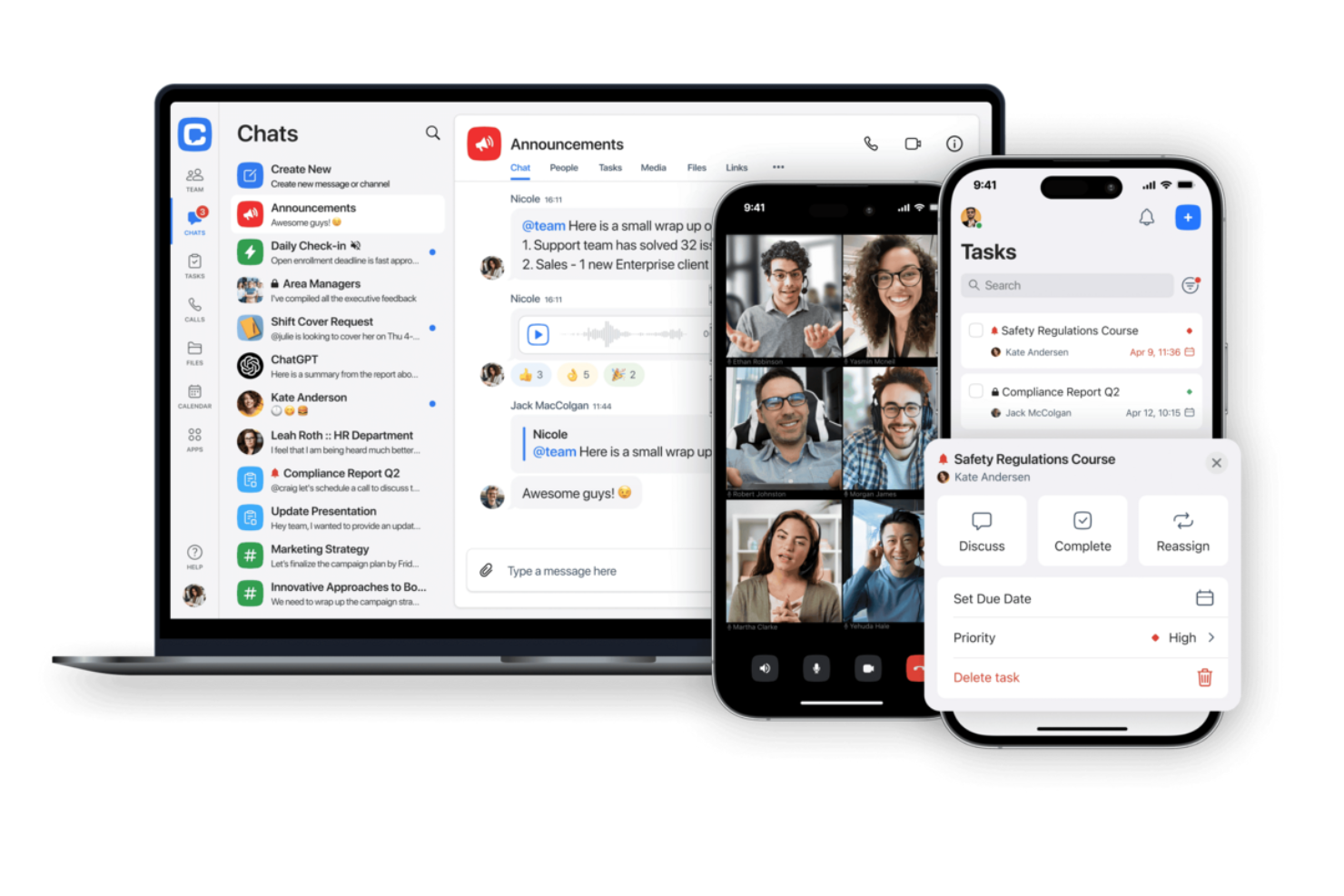
Chanty is designed for teams that want a straightforward chat solution without unnecessary complexity. It’s especially useful for small businesses or groups looking to get started with team messaging quickly and with minimal setup. With its simple interface and built-in task management, Chanty helps teams keep conversations and action items in one place.
Why I Picked Chanty
For teams that want to get up and running with minimal hassle, Chanty stands out for its simple team chat setup. You can create channels, start direct messages, and organize conversations without a complicated onboarding process.
I appreciate that Chanty includes built-in task management, so you can turn messages into actionable items right from the chat. This makes it a practical choice for small teams or businesses that want to keep communication and collaboration straightforward.
Chanty Key Features
Some other features in Chanty help teams communicate and collaborate more efficiently:
- Voice Messaging: Record and send voice messages directly within any chat or channel.
- Pinned Messages: Pin important messages in channels or conversations for quick reference.
- Teambook: Access a centralized hub for all your messages, tasks, and shared files.
- Built-in Audio and Video Calls: Start audio or video calls with team members from within the app.
Chanty Integrations
Integrations include Trello, GitHub, Google Drive, Dropbox, and more.
Pros and Cons
Pros:
- Voice message snippet recording
- Unlimited searchable message history
- Built-in Kanban task board
Cons:
- No native built-in calendar
- Glitchy large group video calls

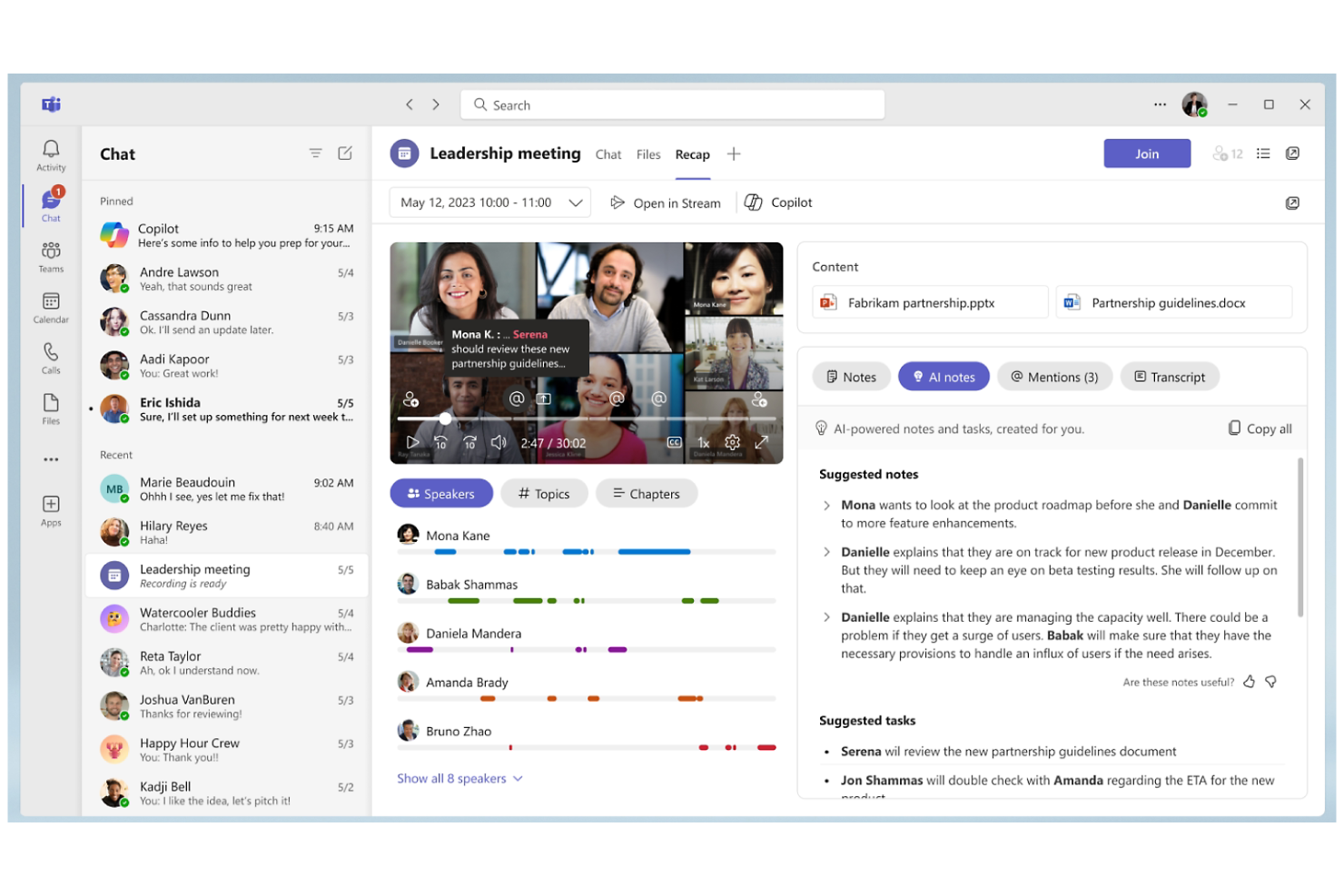
Microsoft Teams brings chat, meetings, and document collaboration into a single workspace for organizations already using Microsoft 365. It’s a strong fit for groups that want to connect communication with tools like Outlook, SharePoint, and OneDrive. The platform helps teams coordinate projects, share files, and keep conversations tied to the documents and calendars they use every day.
Why I Picked Microsoft Teams
What sets Microsoft Teams apart is how deeply it connects with the Microsoft 365 suite, making it a natural choice for organizations already invested in those tools. Teams lets you co-author documents in Word, Excel, or PowerPoint right inside a chat or meeting, so collaboration happens in real time without switching apps.
I appreciate how calendar events, emails, and files from Outlook and SharePoint are accessible directly within Teams, keeping everything in context. This tight integration helps teams keep communication, scheduling, and document management all in one place.
Microsoft Teams Key Features
Some other features in Microsoft Teams help round out its capabilities for internal communication:
- Private and Group Chats: Use the internal communication software to start one-on-one or group conversations for quick discussions.
- Meeting Recording and Transcription: Record meetings and automatically generate searchable transcripts for later reference.
- Customizable Tabs: Align your internal communication strategy by adding apps, files, or websites as tabs within channels.
- Breakout Rooms: Split larger meetings into smaller groups for focused discussions or activities.
Microsoft Teams Integrations
Integrations include Microsoft Word, Excel, PowerPoint, OneNote, SharePoint, Planner, Trello, GitHub, Zoom, and more.
Pros and Cons
Pros:
- Lets teams add apps and resources to channels
- Features meeting recording and transcription
- Built-in video meetings
Cons:
- Confusing guest access setup
- Search function may miss older messages

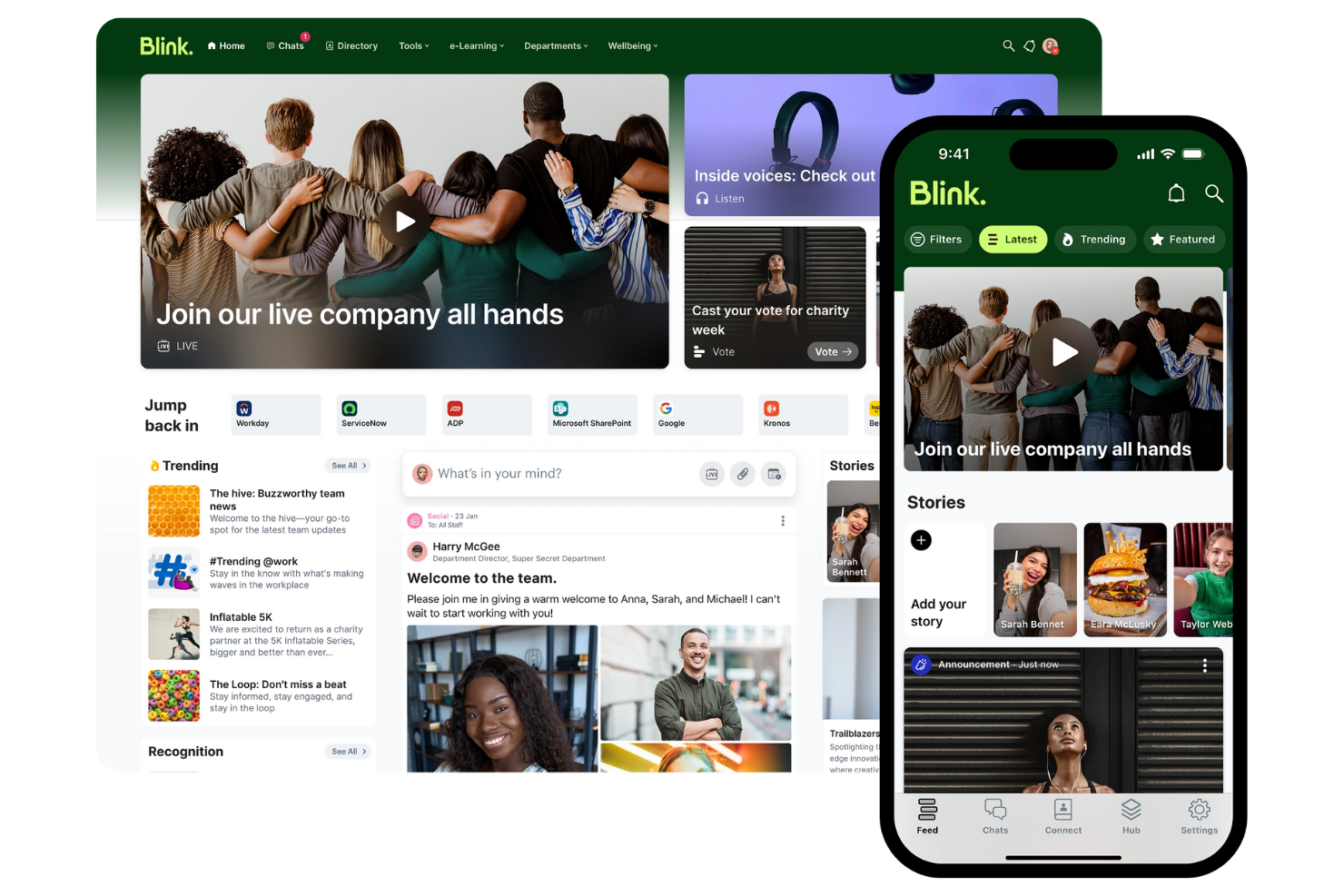
Blink puts mobile communication at the center, making it a strong choice for organizations with frontline or deskless workers. It’s designed for teams in industries like retail, healthcare, and transportation that need to reach employees who aren’t always at a desk.
With features built for quick updates, resource sharing, and secure messaging, Blink helps keep everyone connected no matter where they work.
Why I Picked Blink
Blink stands out for its mobile-first approach, which is especially important for organizations with a large frontline or remote workforce. The app offers a unified feed for company news, policy updates, and urgent alerts, all optimized for mobile devices.
I like that Blink includes secure direct messaging and group chats, making it easy for employees to connect and collaborate on the go. These features make Blink a strong fit for teams that need to reach people who aren’t tied to a desk or computer.
Blink Key Features
Some other features in Blink help teams manage communication and resources more efficiently:
- Document Hub: Store and share important documents so employees can access them from their mobile devices.
- Micro-apps: Add custom tools and workflows directly into the Blink platform to support unique business needs.
- Surveys and Polls: Collect feedback from employees quickly with built-in survey and polling tools.
- Single Sign-On (SSO): Allow users to access Blink securely using their existing company credentials.
Blink Integrations
Integrations include Microsoft 365, Google Workspace, Jira, ServiceNow, and more.
Pros and Cons
Pros:
- Digital forms for mobile workers
- Secure single sign-on access
- Frontline-first employee news feed
Cons:
- Limited structured engagement modules
- Tricky large-scale group management

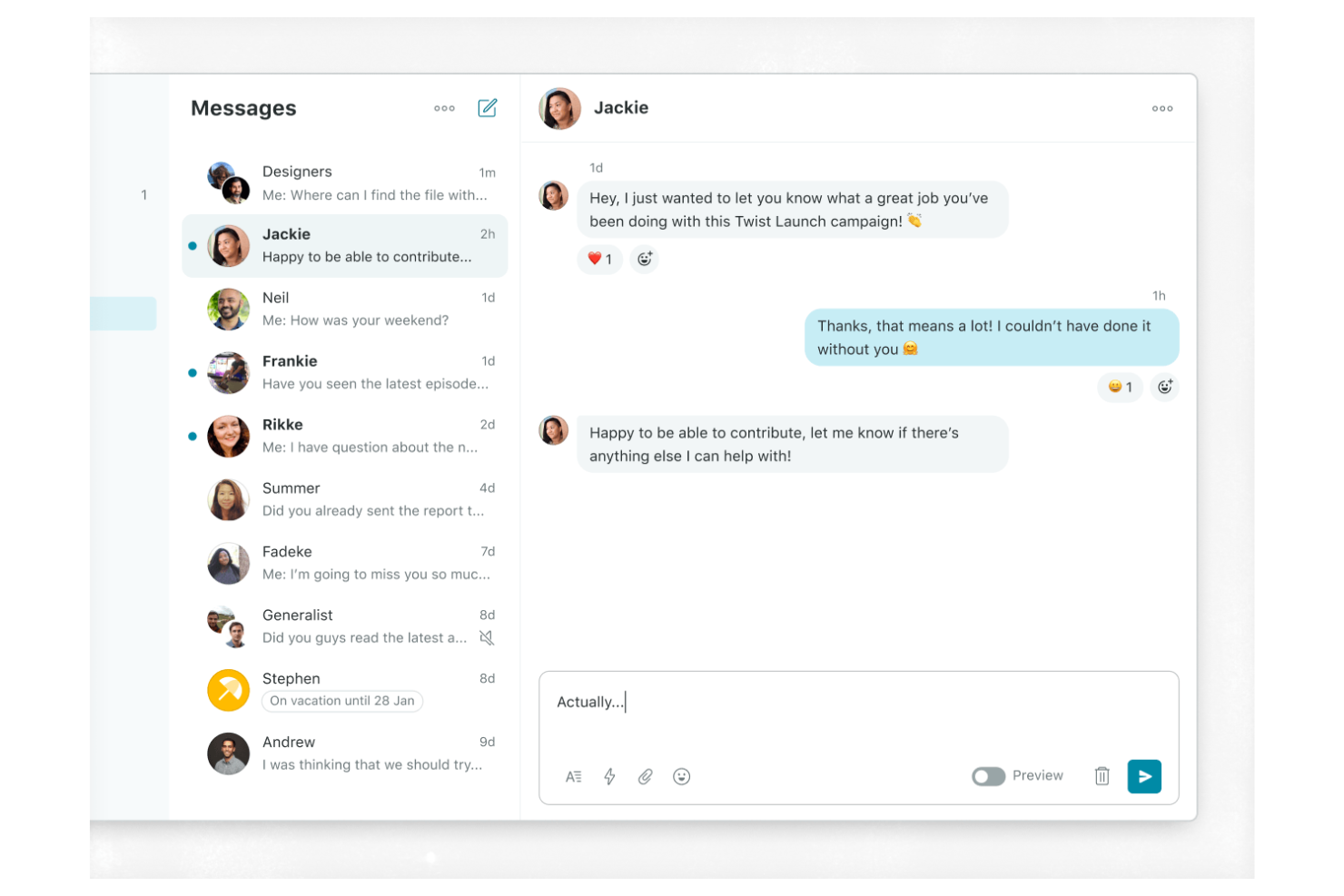
Twist takes a different approach to team messaging by focusing on asynchronous communication and organized threads. It’s a strong fit for distributed teams, remote-first companies, or any group that wants to reduce notification overload and keep conversations easy to follow. With its thread-based structure, Twist helps you avoid the chaos of real-time chat and makes it easier to find important discussions later.
Why I Picked Twist
What sets Twist apart is its commitment to asynchronous team messaging, which is especially valuable for teams working across different time zones or with flexible schedules. Instead of relying on real-time chat, Twist organizes conversations into threads, making it easier to keep discussions focused and searchable.
I like that you can catch up on important topics without sifting through endless chat history or missing key updates. This approach helps teams reduce distractions and maintain clarity in their internal communications.
Twist Key Features
Some other features in Twist help teams manage communication and collaboration more intentionally:
- Inbox View: See all your new messages and thread updates in one organized place.
- Integrations with Tools: Connect Twist with apps like GitHub, Zapier, and Todoist for workflow automation.
- Advanced Search: Find past conversations, files, and threads quickly using keyword and filter options.
- Guest Access: Invite external collaborators to specific channels without giving them full workspace access.
Twist Integrations
Integrations include Asana, Google Calendar, Box, Calendly, Jira, and more.
Pros and Cons
Pros:
- Thread-based email archive feel
- Reduced notification fatigue alerts
- Structured asynchronous thread design
Cons:
- Minimal third-party integration catalog
- No real-time presence indicators

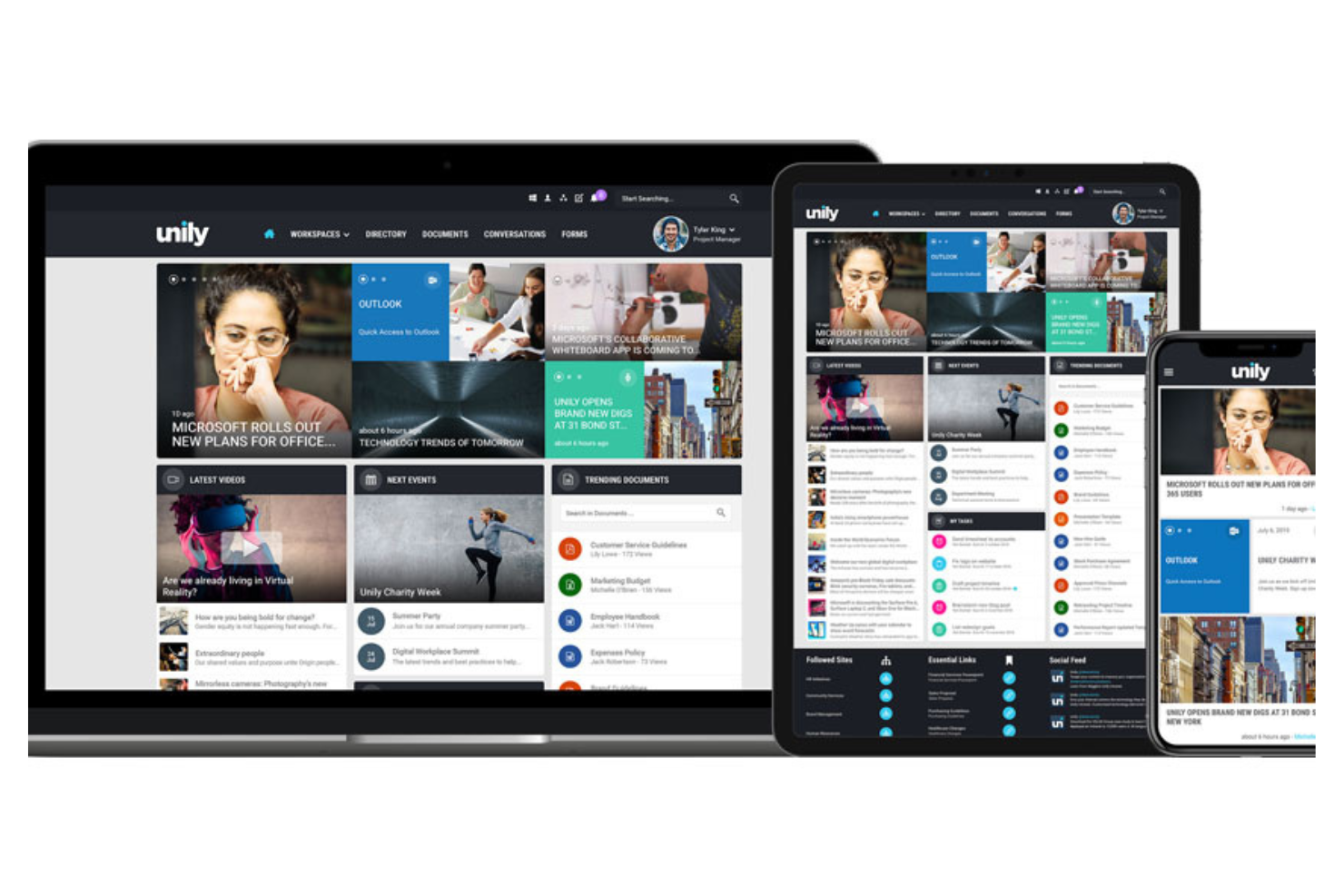
Unily is designed for organizations with a global workforce that need to connect employees across locations, languages, and devices. It’s especially useful for large enterprises and multinational teams that want to deliver targeted communications and foster engagement at scale. With features for multilingual content, personalized news feeds, and mobile access, Unily helps you reach every employee, wherever they work.
Why I Picked Unily
Unily stands out for organizations that need to engage a dispersed, global workforce. Its multilingual content management lets you deliver communications in multiple languages, so every employee can access information in their preferred language.
I appreciate how Unily’s personalized news feeds ensure that relevant updates reach the right people, no matter where they’re located. These features make Unily a strong choice for companies focused on building a global employee experience across borders.
Unily Key Features
Some other features in Unily help teams communicate and collaborate more effectively:
- Drag-and-Drop Page Builder: Create and customize intranet pages without coding or IT support with the user-friendly interface.
- Video Center: Share, organize, and stream video content for company-wide communications.
- Mobile App: Give employees access to internal communications and resources from any device.
- Social Networking Tools: Enable commenting, liking, and sharing to encourage engagement and feedback.
Unily Integrations
Integrations include Microsoft 365, ServiceNow, Zoom, Salesforce, Google Workspace, and more.
Pros and Cons
Pros:
- Multi-layered analytics and engagement metrics
- Enterprise-grade security protocols
- AI-powered content translation
Cons:
- Complex multi-step approval workflows
- High total cost of ownership

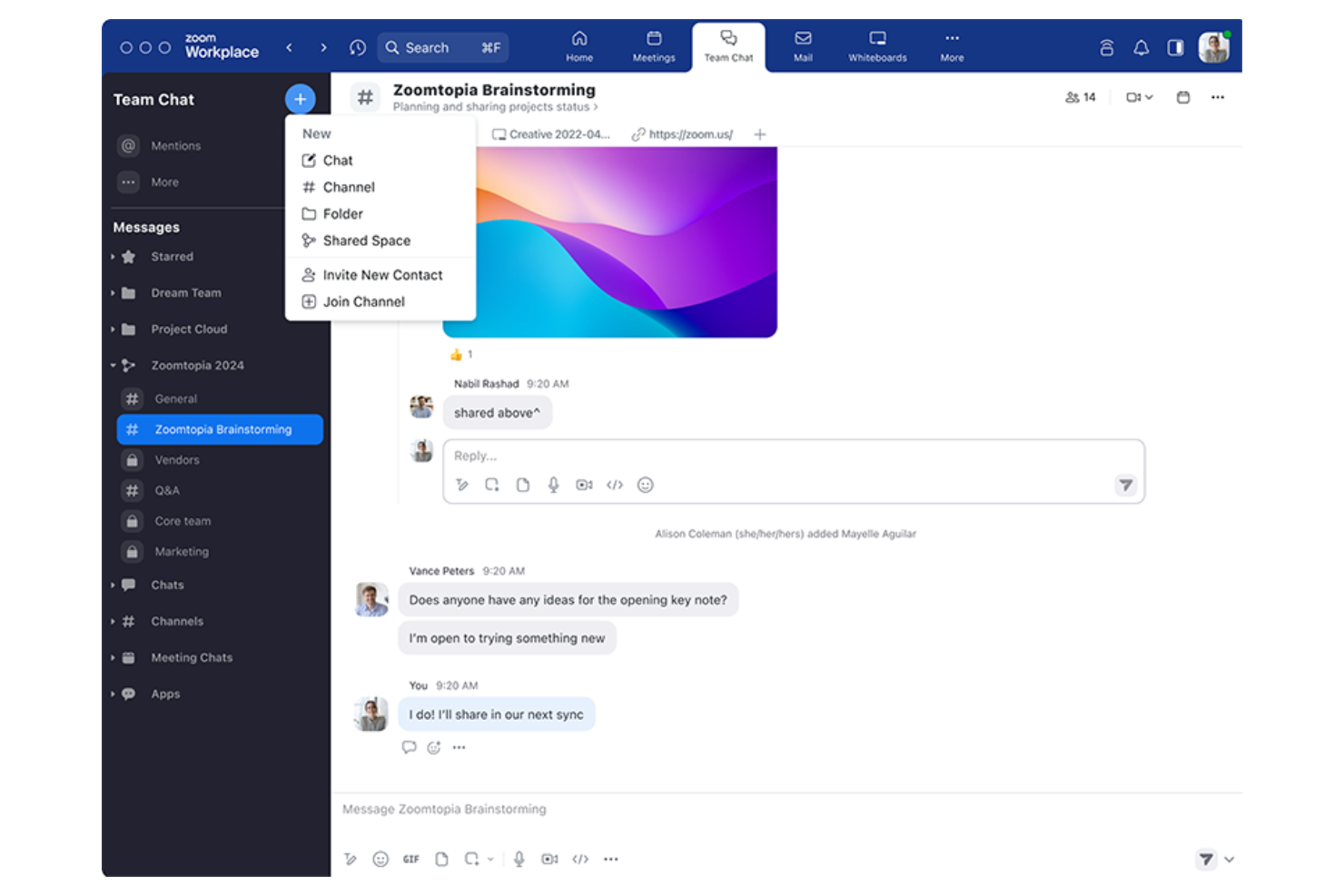
Zoom Team Chat is especially useful for teams that rely on video meetings for daily collaboration. The tool connects chat, file sharing, and meeting scheduling in one place, making it easy to move from messaging to live video with a single click. It’s a strong fit for organizations that want to keep conversations and meetings tightly linked without switching between platforms.
Why I Picked Zoom Team Chat
What sets Zoom Team Chat apart is how it brings chat and video meetings together in a single workflow. You can launch a Zoom meeting directly from any of your communication channels, which helps teams quickly shift from written discussions to face-to-face conversations when needed.
I appreciate that shared files and meeting summaries stay accessible within the chat, so important context isn’t lost between meetings and messages. This approach keeps communication fluid for teams that depend on both chat and video to get work done.
Zoom Team Chat Key Features
Some other features in Zoom Team Chat help teams manage daily communication and collaboration:
- Channels and Group Chats: Organize conversations by project, department, or topic for focused discussions.
- Message Reactions and Mentions: Use emoji reactions and to quickly respond and get someone’s attention.
- Threaded Replies: Keep related messages grouped together for better context in busy channels.
- File Sharing and Storage: Share documents and images directly within chat to ensure effective internal communication.
Zoom Team Chat Integrations
Integrations include Zoom Meetings, Google Drive, Microsoft 365, Slack, Salesforce, Dropbox, Trello, Asana, GitHub, and more.
Pros and Cons
Pros:
- Message reactions and threaded replies
- Supports both public and private team discussions
- Can launch video meetings from any chat
Cons:
- Slow search function
- No built-in project tracking features

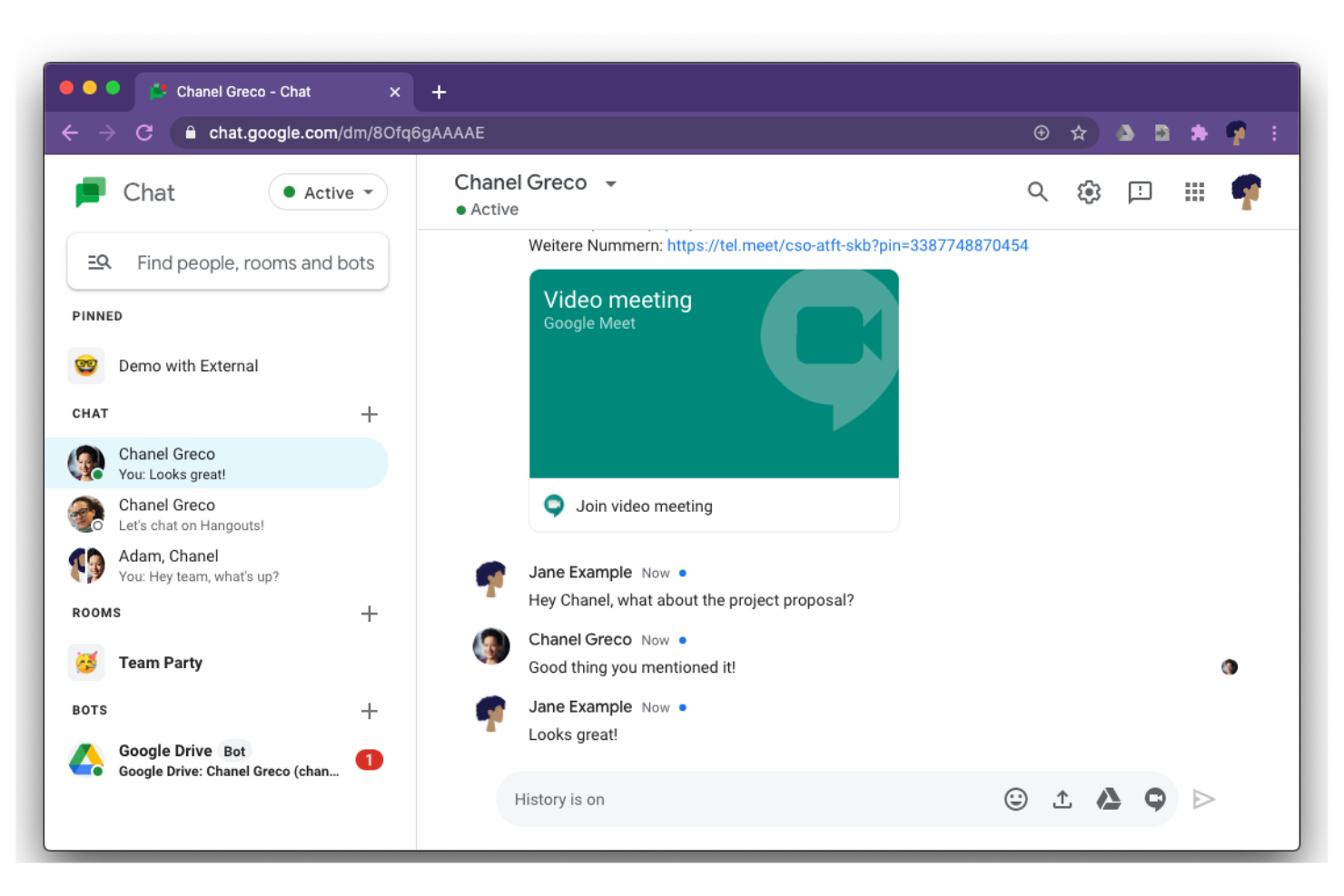
Google Chat offers messaging tools to connect conversations with Docs, Drive, and Calendar for teams that rely on Google Workspace. It’s especially useful for organizations that want to keep messaging, file sharing, and project updates within the same ecosystem as their email and documents. The platform helps groups coordinate work, manage tasks, and keep discussions organized alongside the tools they already use.
Why I Picked Google Chat
For teams already using Google Workspace, Google Chat stands out because it keeps all communication and collaboration within the same environment. You can share Google Docs, Sheets, and Slides directly in chats or rooms, making it easy to discuss and edit files without leaving the conversation.
I like that calendar invites and meeting links from Google Calendar are accessible right in the chat, so scheduling and follow-ups stay connected. This tight integration helps teams keep their work and conversations organized in one familiar place.
Google Chat Key Features
Some other features in Google Chat help teams manage communication and projects more efficiently:
- Threaded Conversations: Keep discussions organized by topic within rooms or group chats.
- Bots and Automation: Use built-in bots to automate tasks like scheduling or reminders.
- Direct Messaging: Start private one-on-one or group chats outside of rooms for quick conversations.
- Mobile and Desktop Apps: Access Google Chat from dedicated apps on both mobile devices and desktops.
Google Chat Integrations
Integrations include Google Drive, Google Calendar, Google Meet, Gmail, Google Docs, Google Sheets, Google Slides, Trello, Asana, and more.
Pros and Cons
Pros:
- Has a mobile app
- Automates reminders and scheduling
- Direct integration with Google Drive
Cons:
- Fewer third-party app integrations
- Basic notification controls
Other Internal Communication Tools
Here are some additional internal communication tools options that didn’t make it onto my shortlist, but are still worth checking out:
- Slack
For integrating with enterprise workflows
- Axero
For customizable intranet solutions
- Flock
For built-in productivity tools
- Connecteam
For managing deskless teams
- Bonusly
For peer recognition messaging
- Teams.cc
For private team channels
- Workshop
For employee email campaigns
- ContactMonkey
For Outlook email tracking
- Jive
For enterprise social networking
- Loom
For video message sharing
- Thrive
For employee feedback collection
- Discord
For real-time voice chat


Internal Communication Tools Selection Criteria
When selecting the best internal communication tools to include in this list, I considered common buyer needs and pain points like keeping teams connected across locations and ensuring secure, reliable message delivery. I also used the following framework to keep my evaluation structured and fair:
Core Functionality (25% of total score)
To be considered for inclusion in this list, each solution had to fulfill these common use cases:
- Send direct messages between team members
- Create group or team chat channels
- Share files and documents within conversations
- Search message history and files
- Manage user permissions and access
Additional Standout Features (25% of total score)
To help further narrow down the competition, I also looked for unique features, such as:
- End-to-end message encryption
- Self-destructing or time-limited messages
- Built-in video or voice calling
- Message broadcasting to multiple groups
- On-premises deployment options
Usability (10% of total score)
To get a sense of the usability of each system, I considered the following:
- Simple and intuitive navigation
- Clean and modern interface design
- Fast message delivery and notifications
- Easy access to key features
- Mobile and desktop app availability
Onboarding (10% of total score)
To evaluate the onboarding experience for each platform, I considered the following:
- Step-by-step setup guides or checklists
- Availability of training videos or tutorials
- Interactive product tours or walkthroughs
- Pre-built templates for common use cases
- Access to live chat or onboarding webinars
Customer Support (10% of total score)
To assess each software provider’s customer support services, I considered the following:
- 24/7 live chat or phone support
- Fast response times to inquiries
- Online help center or knowledge base
- Access to community forums or user groups
- Availability of dedicated account managers
Value For Money (10% of total score)
To evaluate the value for money of each platform, I considered the following:
- Transparent and flexible pricing plans
- Free trial or free plan availability
- Features included at each pricing tier
- Discounts for annual or volume commitments
- No hidden fees or surprise charges
Customer Reviews (10% of total score)
To get a sense of overall customer satisfaction, I considered the following when reading customer reviews:
- Positive feedback on reliability and uptime
- Praise for customer support quality
- Comments on ease of adoption and training
- Reports of any recurring technical issues
- Overall value and satisfaction ratings
How to Choose Internal Communication Tools
It’s easy to get bogged down in long feature lists for different messaging apps and complex pricing structures. To help you stay focused as you work through your unique software selection process, here’s a checklist of factors to keep in mind:
| Factor | What to Consider |
|---|---|
| Scalability | Will the tool support your team size as you grow? Check user limits, pricing tiers, and performance with large groups. |
| Integrations | Does the tool connect with your HRIS, project management, or file storage systems? Confirm native integrations and API options. |
| Customizability | Can you tailor channels, permissions, and notifications to your organization’s structure and workflows? Avoid tools with rigid setups. |
| Ease of use | Will employees adopt the tool quickly? Look for clear navigation, minimal training needs, and positive feedback from similar organizations. |
| Implementation and onboarding | How long will it take to roll out? Assess migration support, training resources, and whether you’ll need IT involvement for setup. |
| Cost | Are the pricing plans transparent and predictable? Factor in user-based pricing, add-on costs, and contract commitments. |
| Security safeguards | Does the tool meet your data protection standards? Look for encryption, access controls, and audit logs, especially if you handle sensitive information. |
| Compliance requirements | Does the tool support your industry’s legal or regulatory needs (like GDPR or HIPAA)? Confirm certifications and data residency options. |
What Are Internal Communication Tools?
Internal communication tools are software platforms that help teams and organizations share messages, files, and updates within the workplace. These tools support real-time and asynchronous communication, making it easier for employees to collaborate, coordinate projects, and stay informed.
They often include features like group chats, direct messaging, file sharing, and searchable conversation histories, all designed to keep internal information organized and accessible.
Features
When selecting internal communication tools, keep an eye out for the following key features:
- Direct messaging: Enables private, one-on-one conversations between employees for quick questions or confidential discussions.
- Group chat channels: Allows teams or departments to communicate in dedicated spaces organized by topic, project, or function.
- File sharing: Lets users upload, send, and access documents, images, and other files directly within conversations.
- Searchable message history: Provides the ability to search past messages and files, making it easy to retrieve important information when needed.
- User permissions management: Controls who can access, post, or moderate within channels, helping maintain security and order.
- Message notifications: Alerts users to new messages or mentions, ensuring important updates are seen promptly.
- Screen sharing: Allows users to share their screens during meetings or chats for demonstrations, troubleshooting, or collaboration.
- Video and voice calling: Supports real-time audio and virtual meetings for check-ins or urgent discussions.
- Message pinning: Lets users highlight and save important messages at the top of a channel or chat for easy reference.
- Mobile and desktop apps: Offers access to communication tools across devices, supporting remote and on-the-go work.
Benefits
Implementing internal communication tools provides several benefits for your team and your business. Here are a few you can look forward to:
- Faster information sharing: Real-time messaging and notifications help teams distribute updates and decisions quickly.
- Improved collaboration: Group chat channels, file sharing, and screen sharing make it easier for employees to work together on projects.
- Better knowledge retention: Searchable message histories and pinned messages ensure important information is always accessible.
- Enhanced security: User permissions management and security safeguards protect sensitive conversations and company data.
- Greater flexibility: Mobile and desktop apps support communication for remote, hybrid, and on-the-go employees.
- Clearer accountability: Direct messaging and message history provide a record of conversations and decisions for future reference.
- Reduced internal email overload: Centralized chat and file sharing decrease the need for lengthy email threads and scattered communications.
Costs and Pricing
Selecting internal communication tools requires an understanding of the various pricing models and plans available. Costs vary based on features, team size, add-ons, and more. The table below summarizes common plans, their average prices, and typical features included in internal communication tools solutions:
Plan Comparison Table for Internal Communication Tools
| Plan Type | Average Price | Common Features |
|---|---|---|
| Free Plan | $0 | Basic messaging, limited group channels, file sharing, basic search, and limited storage. |
| Personal Plan | $4–$8/user/month | Direct messaging, group chats, file sharing, searchable history, and basic support. |
| Business Plan | $8–$15/user/month | Advanced permissions, video and voice calls, integrations, increased storage, and priority support. |
| Enterprise Plan | $15–$25/user/month | Custom security, compliance tools, on-premise options, dedicated account management, and advanced analytics. |
Internal Communication Tools FAQs
Here are some answers to common questions about internal communication tools:
How do internal communication tools support remote and hybrid teams?
Internal communication tools support remote and hybrid teams by providing real-time messaging, video calls, and file sharing across devices. This helps employees stay connected, collaborate on projects, and access important updates no matter where they work.
Can internal communication tools integrate with other workplace software?
Yes, most internal communication tools offer integrations with HRIS, project management, and file storage systems. Integrations help centralize workflows, reduce context switching, and ensure information flows smoothly between platforms your team already uses.
What security features should I look for in internal communication tools?
Look for features like end-to-end encryption, user access controls, audit logs, and compliance certifications. These safeguards help protect sensitive company data and ensure your communications meet industry or legal requirements.
How can I encourage adoption of a new internal communication tool?
Start with clear training resources, product tours, and onboarding support. Involve team leads as champions, set expectations for usage, and gather feedback to address concerns early. Consistent communication about the tool’s value also helps drive adoption.
Are there internal communication tools suitable for small businesses?
Yes, many internal communication tools offer free or low-cost plans designed for small teams. These plans typically include core features like messaging, group chats, and file sharing, making them accessible for organizations with limited budgets.
What’s Next:
If you're in the process of researching internal communication tools, connect with a SoftwareSelect advisor for free recommendations.
You fill out a form and have a quick chat where they get into the specifics of your needs. Then you'll get a shortlist of software to review. They'll even support you through the entire buying process, including price negotiations.