

10 Best Google Docs Alternatives for HR Teams in 2026

Google Docs Alternative Shortlist


A strong Google Docs alternative gives you cloud-based word processing with reliable collaboration, editing, and sharing features—plus options for privacy, workflow integration, or offline access. If you’re searching for a tool that matches or exceeds Google Docs’ flexibility but better fits your team’s needs, you’re not alone.
Whether you need advanced formatting, tighter security, a single all-in-one solution, or a different approach to document management, this list will help you compare the top options for 2026 and choose the right solution for your workflow.
What is Google Docs?
Google Docs is a cloud-based word processor that lets users create, edit, and share documents online in real time. It supports collaborative editing, automatic saving, and easy access from any device with an internet connection. Google Docs is widely used by teams and individuals for its simple interface, integration with other Google Workspace tools, and ability to manage document workflows without the need for local software installation.
Best Google Docs Alternatives Summary
This comparison chart summarizes pricing details for my top google docs alternative selections to help you find the best one for your budget and business needs.
| Tool | Best For | Trial Info | Price | ||
|---|---|---|---|---|---|
| 1 | Best for private cloud document storage | Free trial + free demo available | From €71.29/user/year | Website | |
| 2 | Best for cross-platform compatibility | Free plan available | From $2.49/user/month (billed annually) | Website | |
| 3 | Best for built-in workflow automation | Free plan available | From $25/month | Website | |
| 4 | Best for offline document editing | Free plan available | Pricing upon request | Website | |
| 5 | Best for integrated project management tools | Free plan + 30-day free trial available | From $20/admin/month | Website | |
| 6 | Best for advanced formatting controls | Free plan available | Pricing upon request | Website | |
| 7 | Best for end-to-end encrypted documents | Free plan available | From $12.99/user/month (billed annually) | Website | |
| 8 | Best for open-source document collaboration | Free demo available | Pricing upon request | Website | |
| 9 | Best for AI-powered writing assistance | Free trial available | From $14.99/month (billed annually) | Website | |
| 10 | Best for instant document creation without signup | Free demo available | From €14.99 (for 3 months) | Website |
Why Trust Our Software Recommendations
Our team has been testing and reviewing software since 2012. As HR experts ourselves, we know how difficult—and important—it is to choose the right software.
For this guide, we evaluated tools using hands-on testing and independent research, scoring tools using our selection criteria. We also draw on insights from industry thought leaders and practicing HR experts.
Our reviews reflect our human editorial judgment, not a sales pitch.
Expert reviewers:
Best Google Docs Reviews
Below are my detailed summaries of the best google docs alternatives that made it onto my shortlist. My reviews offer a detailed look at the key features, pros & cons, integrations, and ideal use cases of each tool to help you find the best one for you.
Best for private cloud document storage
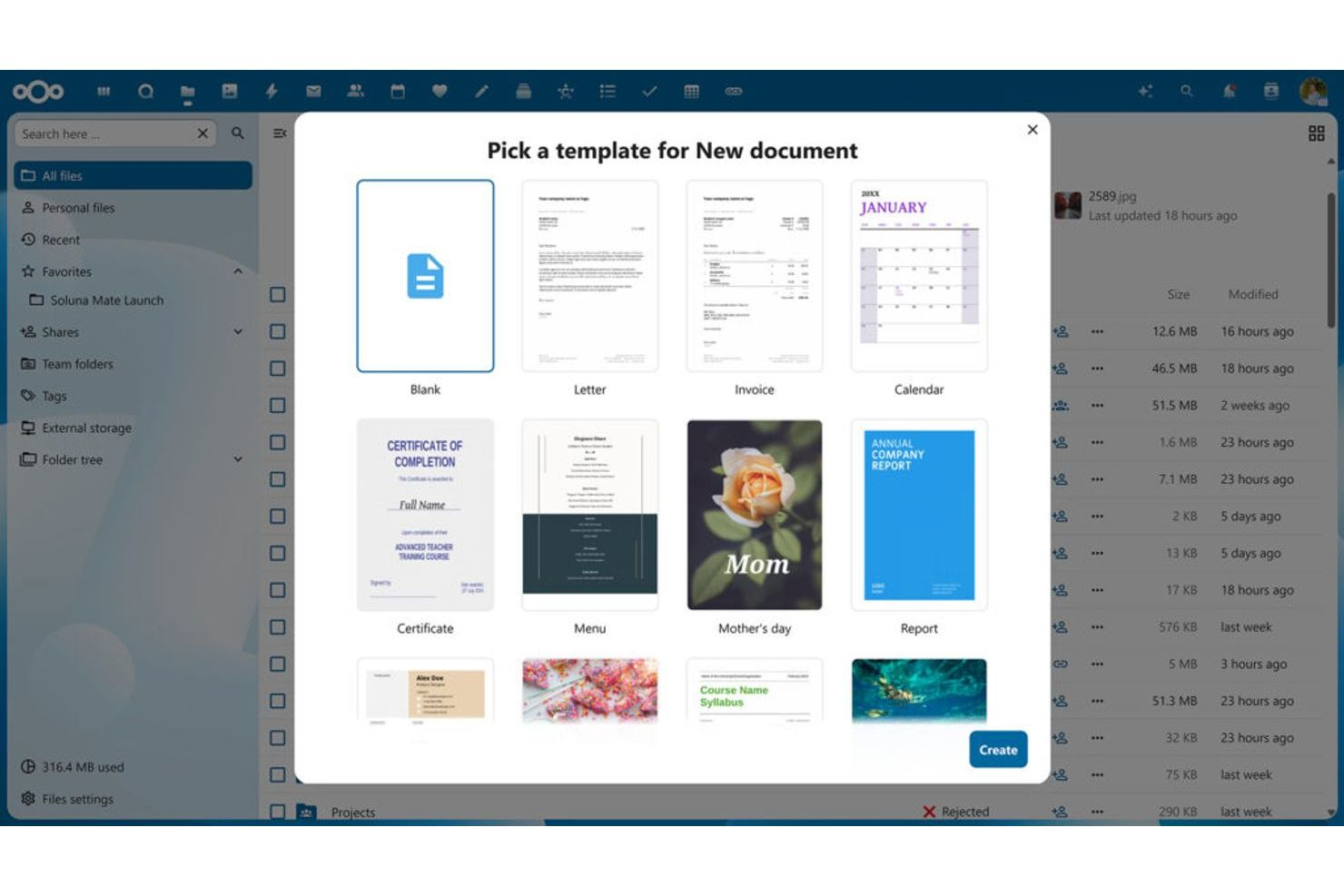
If your organization needs private, on-premises document storage alongside online editing, Nextcloud Office is worth a close look. This platform is designed for businesses, educational institutions, and government teams that want to keep sensitive files on their own servers while still enabling cloud-based collaboration. Nextcloud Office stands apart from Google Docs by offering full data sovereignty, customizable access controls, and integration with a wide range of self-hosted productivity tools.
Who is Nextcloud Office Best For?
IT and security teams in mid-sized to large organizations globally managing private cloud document storage and collaboration.
Why I Picked Nextcloud Office
Unlike most cloud-based word processors, Nextcloud Office gives you the ability to store and manage documents entirely on your own infrastructure. I picked Nextcloud Office because it’s built for organizations that need private cloud document storage and want to avoid third-party data hosting. With features like granular file access permissions and end-to-end encryption, you can control exactly who sees and edits sensitive documents. If your team needs to meet strict compliance requirements or simply wants to keep files in-house, Nextcloud Office is a strong alternative to Google Docs.
Nextcloud Office Key Features
Some other features that make Nextcloud Office appealing for document collaboration include:
- Integrated Office Suite: Create, edit, and collaborate on documents, spreadsheets, and presentations directly within the platform.
- Version Control: Track changes and restore previous versions of files as needed.
- Collaboration Tools: Use built-in chat, video calls, and comments to communicate with team members while working on documents.
- Automated File Sync: Keep files updated across devices with automatic synchronization.
Nextcloud Office Online Integrations
Native integrations Nextcloud Files, Talk, Deck, DeepL API, Outlook, SharePoint, and more.
Pros and Cons
Pros:
- Offers granular user permissions and advanced access controls
- Supports collaborative editing with integrated office suite functionality
- On-premises hosting gives organizations full control over document data
Cons:
- Real-time collaboration can lag with large or complex files
- Initial setup and server maintenance require technical expertise

Best for cross-platform compatibility
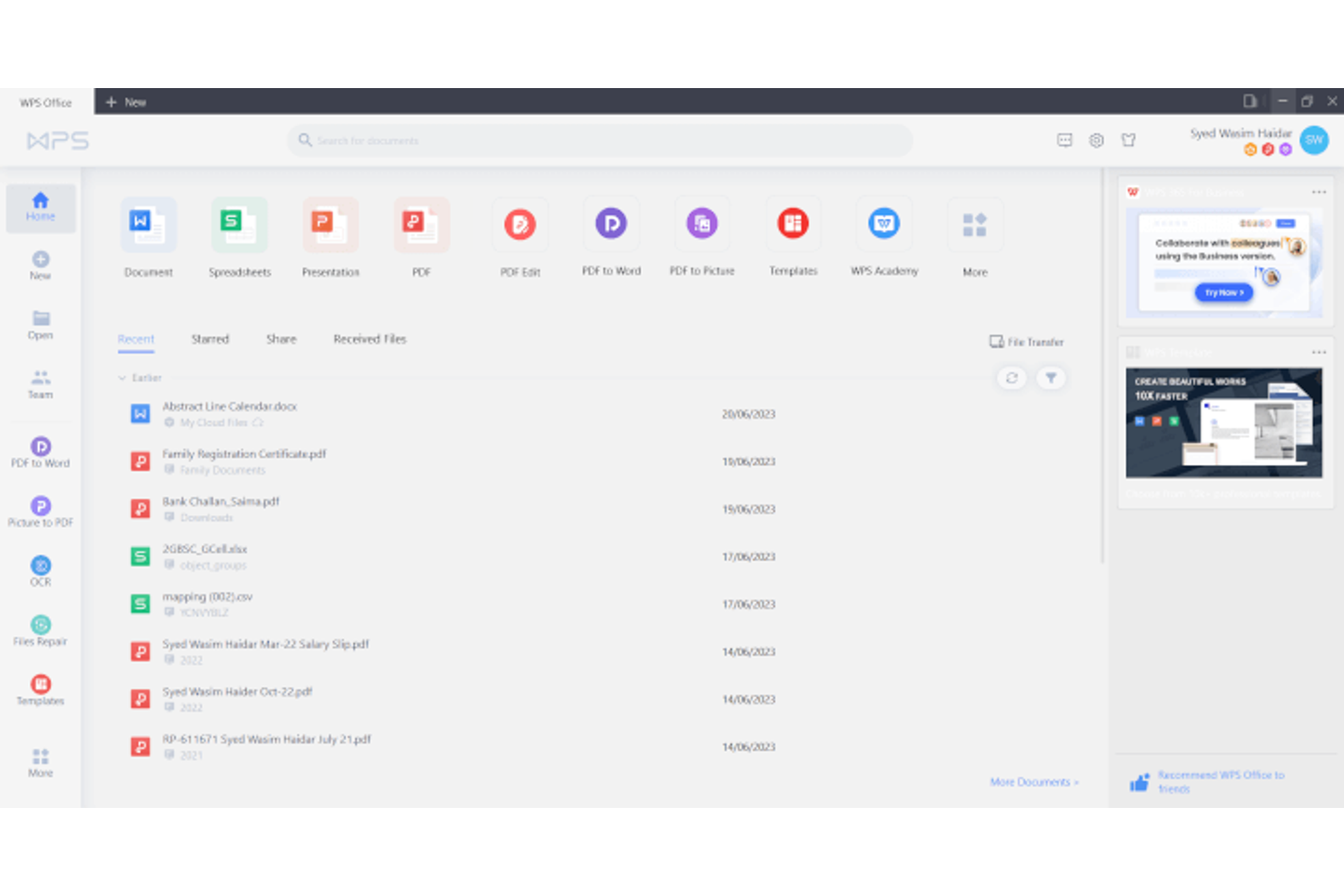
If you need a cloud-based word processor that works smoothly across devices and operating systems, WPS Docs is worth a look. This platform is designed for teams and professionals who switch between Windows, Mac, Linux, Android, and iOS. WPS Docs stands out by offering a consistent editing experience and file compatibility no matter where or how you work.
Who is WPS Docs Best For?
Business users and students in small to mid-sized organizations globally working across devices and operating systems requiring cross-platform compatibility.
Why I Picked WPS Docs
WPS Docs stands out for its ability to deliver a unified editing experience across nearly every device and operating system. I picked WPS Docs because you can start a document on your phone, continue on your laptop, and finish on a tablet without losing formatting or features. The platform supports Windows, Mac, Linux, Android, and iOS, so your team isn’t limited by hardware or software choices. For anyone who needs true cross-platform compatibility in a cloud-based word processor, WPS Docs offers flexibility that Google Docs can’t always match.
WPS Docs Key Features
Some other features that make WPS Docs appealing for document collaboration include:
- PDF Editing Tools: Edit, annotate, and convert PDF files directly within the platform.
- Document Templates Library: Access a wide range of pre-built templates for reports, resumes, and more.
- Cloud Storage Integration: Connect with services like Dropbox, Google Drive, and OneDrive for file management.
- Collaboration Tools: Use real-time comments and track changes to work together on documents.
WPS Docs Integrations
Native integrations are not publicly listed.
Pros and Cons
Pros:
- Offers a large library of document and spreadsheet templates
- Supports editing and converting PDF files within the platform
- Works consistently across Windows, Mac, Linux, Android, and iOS devices
Cons:
- Cloud storage space is more restricted than Google Drive’s free tier
- Some advanced features require a paid subscription to access
Best for built-in workflow automation
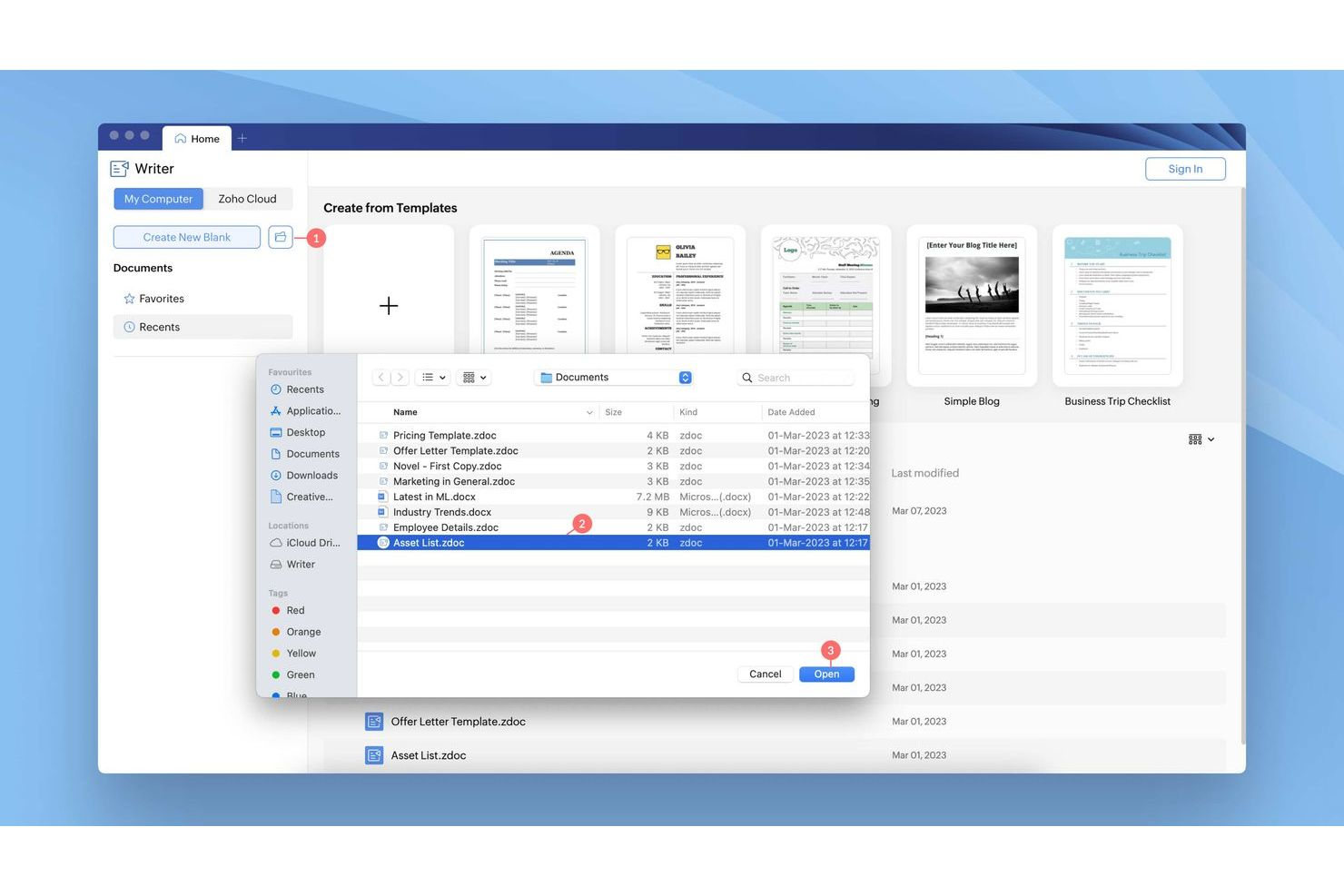
If you’re looking for a cloud-based word processor with built-in workflow automation, Zoho Writer is worth a closer look. It’s designed for teams and organizations that want to automate document approvals, signatures, and collaboration steps right inside their writing tool. Zoho Writer stands out for users who need to manage document processes without relying on separate workflow or e-signature platforms.
Who is Zoho Writer Best For?
Operations teams and business users in small to mid-sized companies in North America and Europe automating document workflows within cloud-based office environments.
Why I picked Zoho Writer
Unlike most cloud-based word processors, Zoho Writer includes workflow automation features built directly into the platform. I picked Zoho Writer because you can set up document approval flows, automate e-signature requests, and assign tasks to collaborators without leaving your document. The automation panel lets you create custom workflows for reviews and sign-offs, which is especially useful for HR, legal, or operations teams. These built-in tools help you manage document processes more efficiently than Google Docs, which requires third-party add-ons for similar functionality.
Zoho Writer Key Features
In addition to its workflow automation tools, Zoho Writer offers several other features that support collaborative document creation:
- Real-Time Collaboration: Multiple users can edit and comment on documents at the same time from any device.
- Offline Editing: Work on documents without an internet connection and sync changes when you’re back online.
- Advanced Document Merge: Automatically generate personalized documents by merging data from spreadsheets or forms.
- Built-In Templates: Access a library of pre-designed templates for business letters, reports, and more.
Zoho Writer Integrations
Integrations include Slack, Trello, WordPress, Zoho Flow, and more.
Pros and Cons
Pros:
- Offline editing allows work without an internet connection
- Document merge feature automates creation of personalized files
- Built-in workflow automation manages document approvals and signatures
Cons:
- Limited template variety compared to Google Docs’ template gallery
- Some advanced formatting tools are less intuitive to access
Best for offline document editing
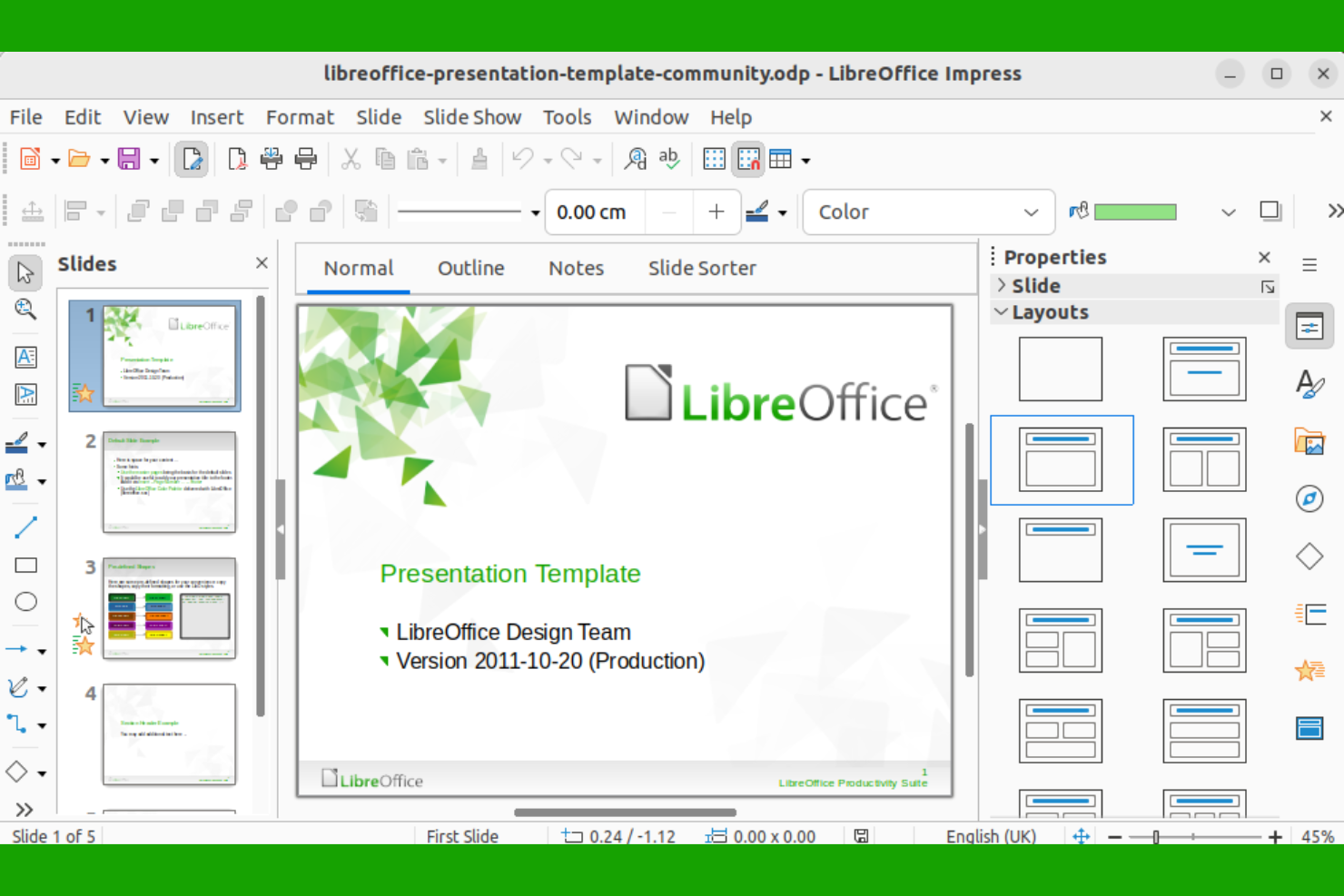
LibreOffice is a strong choice if your team needs a word processor that works entirely offline. It’s especially useful for organizations with strict data privacy requirements or unreliable internet access. Unlike Google Docs and other cloud-based tools, LibreOffice gives you full document control without needing an internet connection.
Who is LibreOffice Best For?
Individual professionals and IT teams in small to mid-sized organizations globally needing offline document editing with open-source software.
Why I Picked LibreOffice
For teams that need to work without relying on the internet, LibreOffice stands out as a reliable offline word processor. I picked LibreOffice because it lets you create, edit, and save documents locally, so you’re never dependent on cloud access or connectivity. The suite includes advanced formatting tools and supports a wide range of file types, including Microsoft Word formats. This makes it a strong fit for organizations with strict data privacy needs or those working in locations with limited internet service.
LibreOffice Key Features
Some other features that make LibreOffice appealing for document editing include:
- Extensive Language Support: The suite offers built-in spellcheck and grammar tools for dozens of languages.
- Customizable Toolbars: You can personalize the interface by adding or removing toolbar buttons to fit your workflow.
- PDF Export: Export documents directly to PDF format without needing extra software.
- Macro Recording: Automate repetitive tasks by recording and running custom macros within your documents.
LibreOffice Integrations
Native integrations are not publicly listed.
Pros and Cons
Pros:
- Open-source software with regular updates and community support
- Advanced formatting and style options rival desktop word processors
- Supports a wide range of file formats including DOCX and ODT
Cons:
- No official mobile app for editing documents on smartphones or tablets
- Occasional compatibility issues with complex Google Docs formatting

Best for integrated project management tools
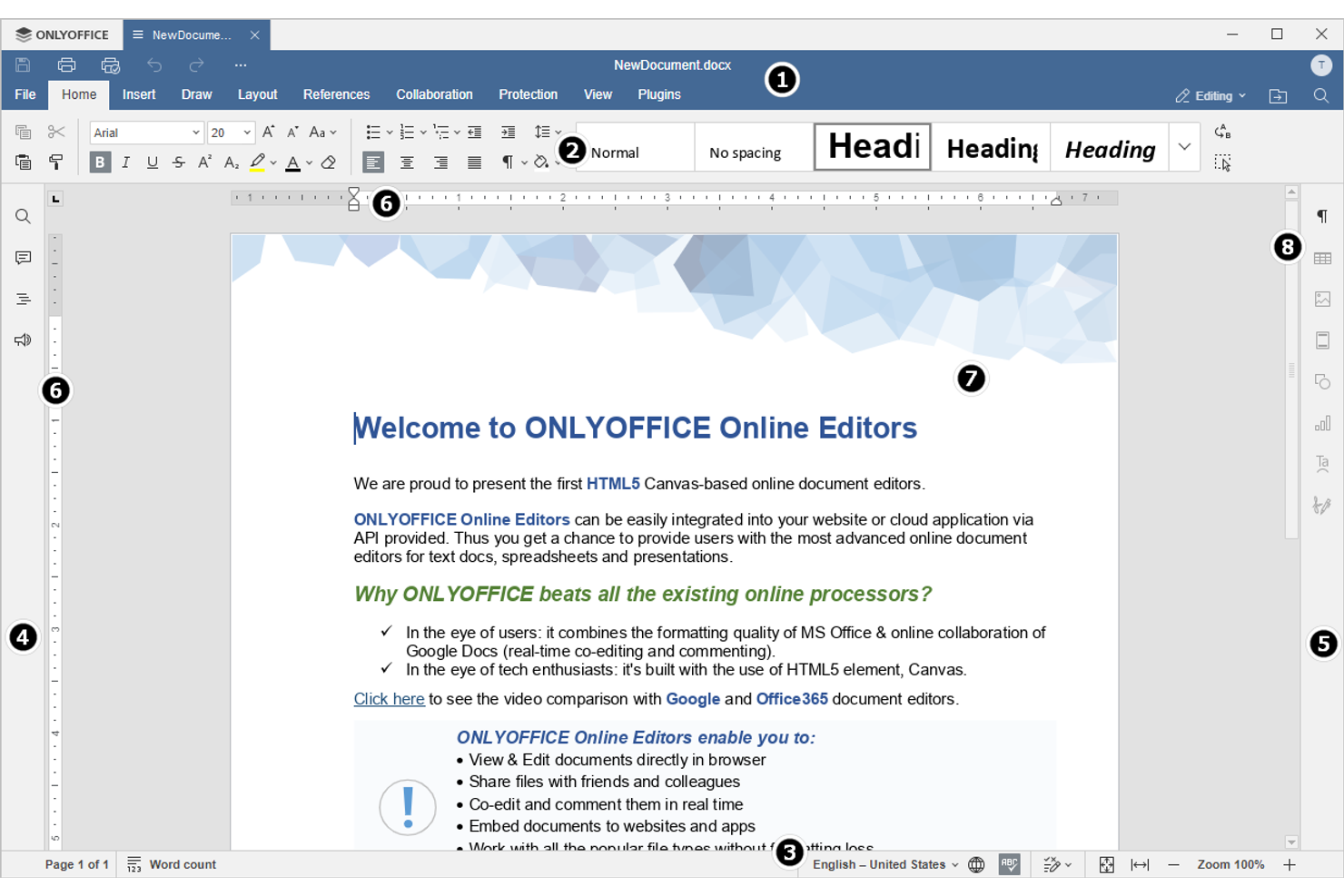
Teams looking for a cloud-based word processor with built-in project management will find OnlyOffice especially appealing. This platform combines document editing with tools for tracking tasks, managing deadlines, and collaborating on projects in one place. If you need to keep documents and project workflows tightly connected, OnlyOffice offers a unified workspace that goes beyond what Google Docs provides.
Who is OnlyOffice Best For?
Operations managers and IT teams in small to mid-sized companies in Europe and North America coordinating documents alongside integrated project workflows.
Why I Picked OnlyOffice
Unlike most cloud-based word processors, OnlyOffice brings project management and document editing together in one platform. I picked OnlyOffice because it lets you assign tasks, set deadlines, and track project progress directly alongside your documents. You can create, edit, and collaborate on files while keeping project discussions and milestones in the same workspace. For teams that want to manage both content and workflow without switching tools, OnlyOffice offers a level of integration that Google Docs doesn’t match.
OnlyOffice Key Features
Some other features that make OnlyOffice a strong choice for document collaboration include:
- Multi-Format Document Support: Open, edit, and save files in DOCX, XLSX, PPTX, and other popular formats.
- Real-Time Co-Editing: Work on documents simultaneously with colleagues and see changes as they happen.
- Advanced Permission Settings: Set granular access rights for users and groups on each document.
- Built-In Chat and Comments: Communicate directly within documents using chat and threaded comments.
OnlyOffice Integrations
Integrations Include Nextcloud, ownCloud, Confluence, Odoo, Pipedrive, SuiteCRM, and more.
Pros and Cons
Pros:
- Handles a wide range of file formats including DOCX and ODT
- Supports real-time co-editing for collaborative document work
- Integrated project management tools are available alongside document editing Supports real-time co-editing for collaborative document work Handles a wide range of file formats including DOCX and ODT
Cons:
- Cloud storage options are more limited compared to Google Drive
- Mobile editing experience is less polished than desktop version
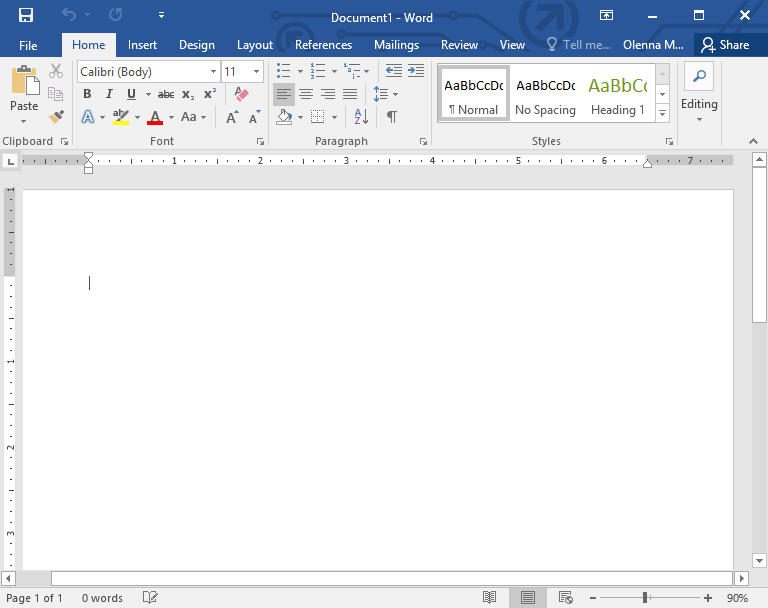
Microsoft Word offers cloud-based word processing with advanced formatting controls that go beyond what most online editors provide. It’s a strong fit for professionals and teams who need precise layout, style, and document design options. If your work involves complex reports, proposals, or documents that require detailed formatting, Word gives you the flexibility and control that Google Docs often lacks.
Who is Microsoft Word Best For?
Knowledge workers and administrative staff in small to large organizations worldwide producing documents that require advanced formatting and layout control.
Why I Picked Microsoft Word
When you need more control over document formatting, Microsoft Word stands out among cloud-based word processors. I picked Word for its extensive style and layout options, including advanced tables, section breaks, and custom headers and footers. The platform also supports complex document elements like footnotes, citations, and multi-level lists. These features make it a strong choice for users who need to create polished, professional documents that go beyond the basics offered by Google Docs.
Microsoft Word Key Features
Some other features in Microsoft Word make it a versatile choice for cloud-based document work:
- Real-Time Collaboration: Multiple users can edit and comment on documents at the same time from any location.
- Version History: Access and restore previous versions of your documents to track changes or recover content.
- Built-In Editor: The integrated spelling, grammar, and style checker helps you refine your writing as you work.
- PDF Export and Editing: Create, export, and edit PDF files directly within the platform without needing extra software.
Microsoft Word Integrations
Integrations include Excel, PowerPoint, Outlook, OneNote, Project, and more.
Pros and Cons
Pros:
- Reliable compatibility with legacy Word documents and file types
- Extensive template library for business, academic, and creative needs
- Built-in citation and bibliography management for academic writing
Cons:
- Web version lacks some desktop features and add-ins
- Requires a Microsoft account and sometimes a paid subscription
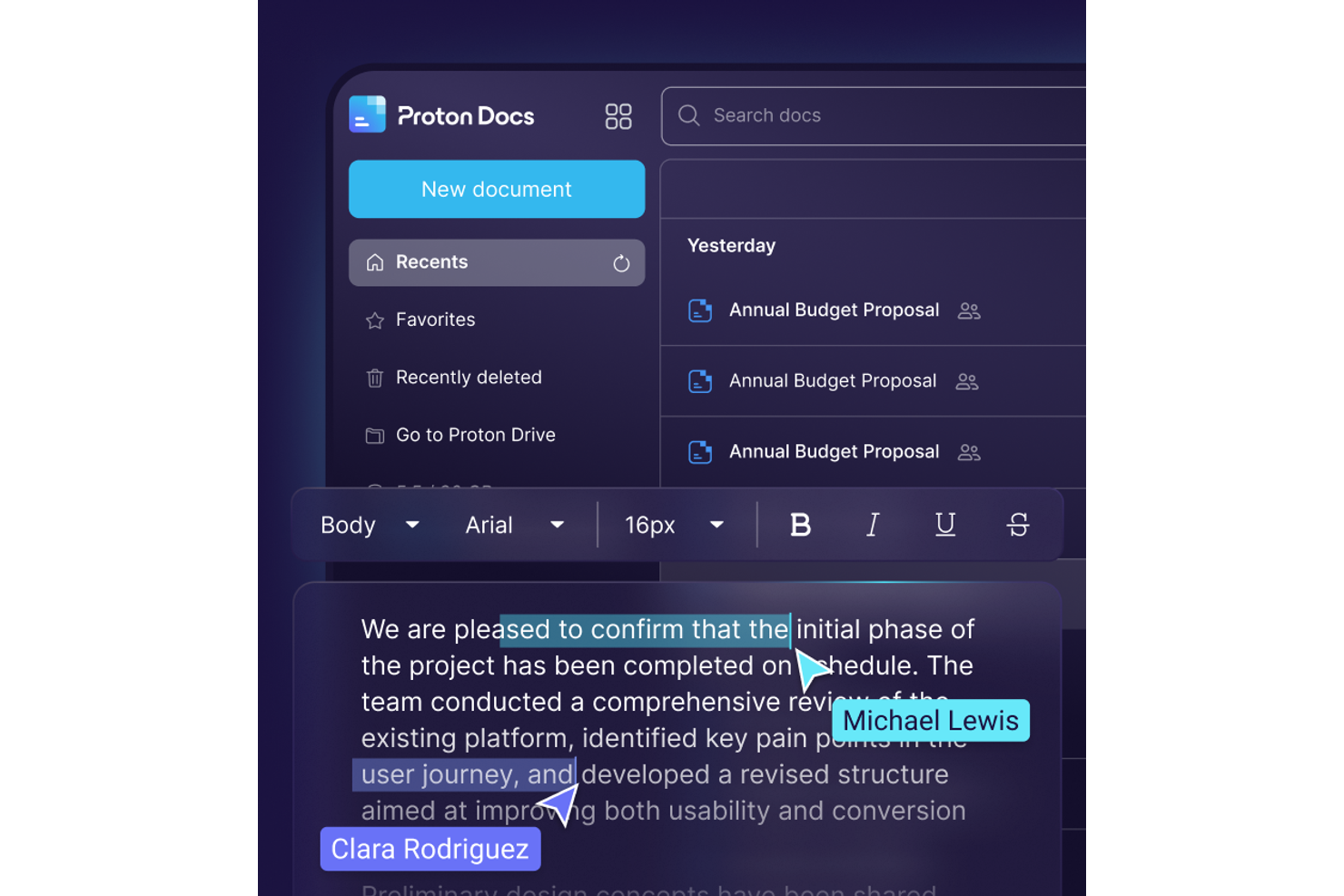
If you need a cloud-based word processor that puts privacy first, Proton Docs is worth a close look. It’s designed for professionals, legal teams, and organizations that require end-to-end encryption for sensitive documents. Proton Docs stands out by ensuring that only you and your collaborators can access your content, unlike most mainstream alternatives.
Who is Proton Docs Best For?
Security and compliance teams in small to mid-sized organizations in Europe and North America handling sensitive documents requiring end-to-end encryption.
Why I Picked Proton Docs
When privacy is your top concern, Proton Docs offers something Google Docs doesn’t: true end-to-end encryption for every document. I picked Proton Docs because only you and your collaborators can access your files, with no third-party visibility. The platform also supports encrypted sharing and real-time collaboration, so you don’t have to sacrifice teamwork for security. For anyone handling confidential or regulated information, Proton Docs provides a level of document protection that’s hard to match.
Proton Docs Key Features
Some other features that make Proton Docs appealing for secure document collaboration include:
- Rich Text Editing: Create and format documents with headings, lists, tables, and images.
- Version History: Access and restore previous versions of your documents at any time.
- Proton Drive Integration: Store, organize, and manage your documents within the Proton Drive ecosystem.
- Cross-Platform Access: Work on documents from any device with a web browser.
Proton Docs Integrations
Integrations include Proton Drive, Native import tools for Google Drive, Microsoft OneDrive, Dropbox, and more.
Pros and Cons
Pros:
- Real-time collaboration supports multiple users editing simultaneously
- No ads or data mining for a privacy-focused editing experience
- End-to-end encryption protects all documents from unauthorized access
Cons:
- Mobile editing experience is less polished than desktop
- Formatting and editing features are more limited than Google Docs

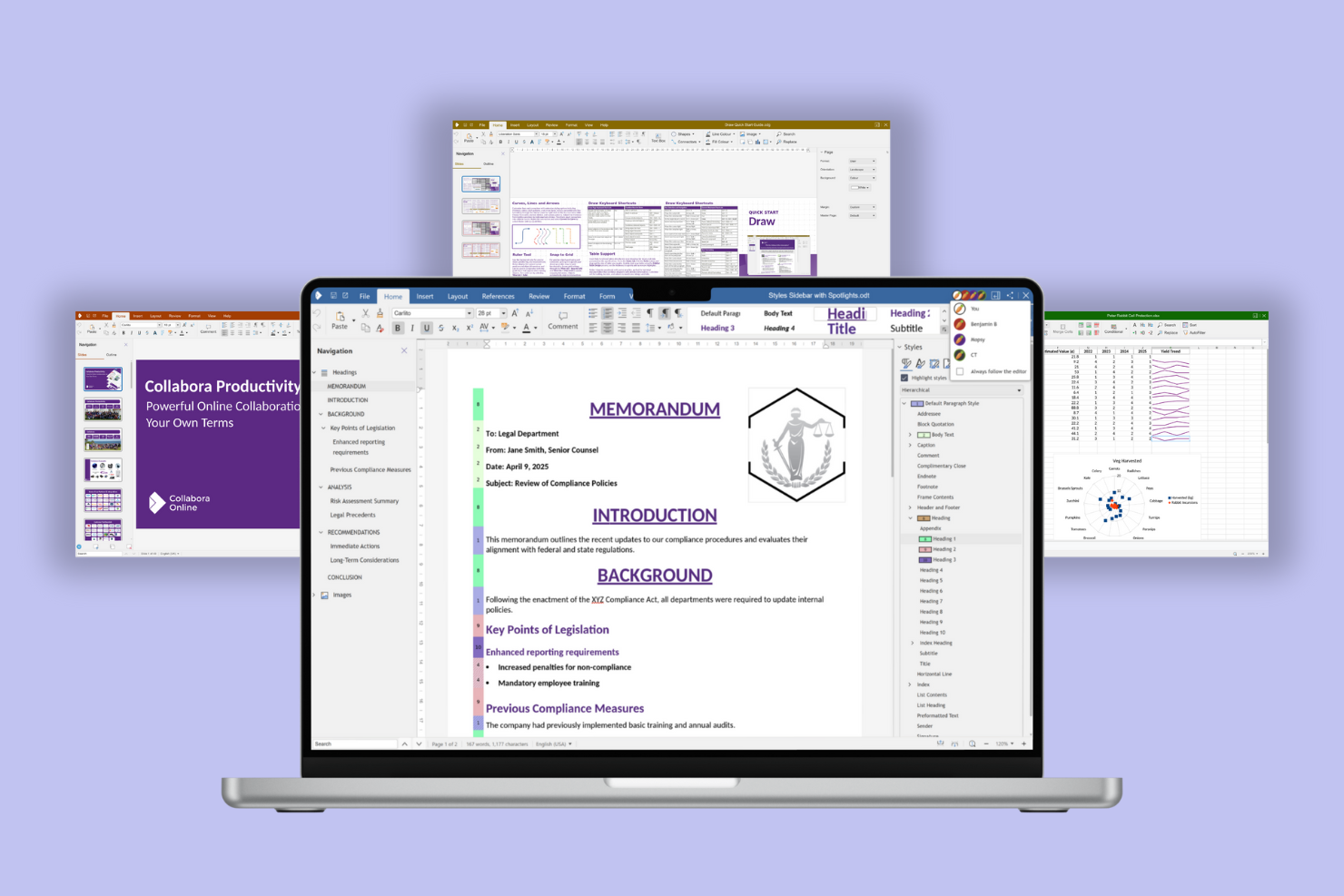
Organizations that want full control over their document collaboration often turn to Collabora Online. This open-source cloud-based word processor appeals to IT teams, privacy-focused businesses, and public sector groups that need to host and manage their own data. Collabora Online stands out from Google Docs by offering self-hosting, advanced privacy controls, and compatibility with a wide range of document formats.
Who is Collabora Online Best For?
IT administrators and collaboration teams in mid-sized organizations in Europe and North America deploying open-source document editing within controlled environments.
Why I Picked Collabora Online
For teams that prioritize open-source solutions, Collabora Online offers a unique approach to cloud-based document collaboration. I picked Collabora Online because it lets organizations self-host their documents, giving them full control over data privacy and security. The platform supports real-time co-authoring and editing, much like Google Docs, but with the added flexibility of open-source customization. If your business needs to meet strict compliance requirements or prefers open standards, Collabora Online is a strong alternative to proprietary word processors.
Collabora Online Key Features
Some other features that make Collabora Online appealing for document management include:
- Advanced Track Changes: Review, accept, or reject edits from multiple contributors in a single document.
- Extensive File Format Support: Open, edit, and save documents in Microsoft Office, OpenDocument, and other common formats.
- Mobile and Tablet Editing: Access and edit documents from iOS and Android devices with a responsive interface.
- Customizable User Permissions: Set granular access controls for users and groups to manage document security.
Collabora Online Integrations
Integrations include Nextcloud, ownCloud, Seafile, Picoshare, Moodle, Canvas, and more.
Pros and Cons
Pros:
- Advanced track changes and commenting features support team workflows
- Real-time collaborative editing works across multiple platforms and browsers
- Self-hosting option gives organizations full control over data privacy
Cons:
- Occasional compatibility issues with complex Microsoft Office documents
- Setup and maintenance require more IT resources and expertise

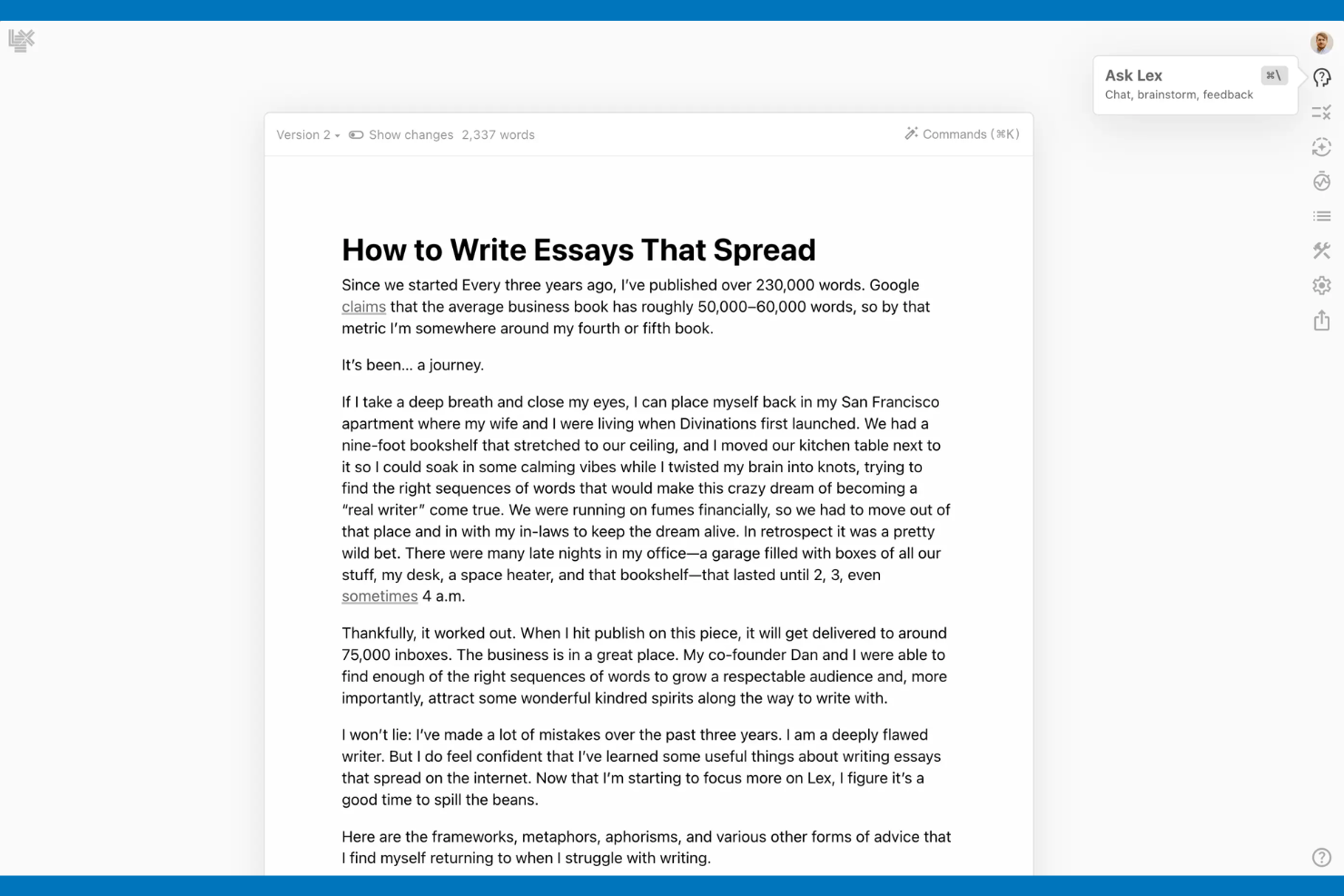
Writers and teams looking for advanced AI support in their documents may find Lex especially appealing. This cloud-based word processor uses built-in AI tools to help you draft, edit, and refine content directly as you write. Lex stands out from Google Docs by offering features like AI-powered autocomplete, rewriting suggestions, and content generation within the editor.
Who is Lex Best For?
Writers and content teams in small to mid-sized companies in North America and Europe using AI assistance to draft and refine text efficiently.
Why I Picked Lex
If you want a word processor that goes beyond basic editing, Lex is worth considering for its AI-powered writing assistance. I picked Lex because it offers real-time AI suggestions, including autocomplete and rewriting options, directly within your document. The tool also helps you generate new content or rephrase existing text with just a prompt, which can speed up drafting and revision. For anyone who values built-in AI support while working in the cloud, Lex brings unique capabilities that set it apart from Google Docs.
Lex Key Features
Some other features that make Lex useful for document creation include:
- Version History: Track and restore previous versions of your documents at any time.
- Commenting and Collaboration: Add comments and collaborate with others directly within the editor.
- Markdown Support: Format text using markdown syntax for faster document structuring.
- Distraction-Free Mode: Switch to a clean, minimal interface to focus on writing without interruptions.
Lex Integrations
Native integrations are not publicly listed.
Pros and Cons
Pros:
- Version history lets you track and restore previous document changes
- Built-in rewriting tool offers quick content improvement suggestions
- AI-powered autocomplete helps speed up drafting and editing tasks
Cons:
- Formatting options are less extensive than traditional word processors
- Mobile editing experience is limited compared to other cloud tools

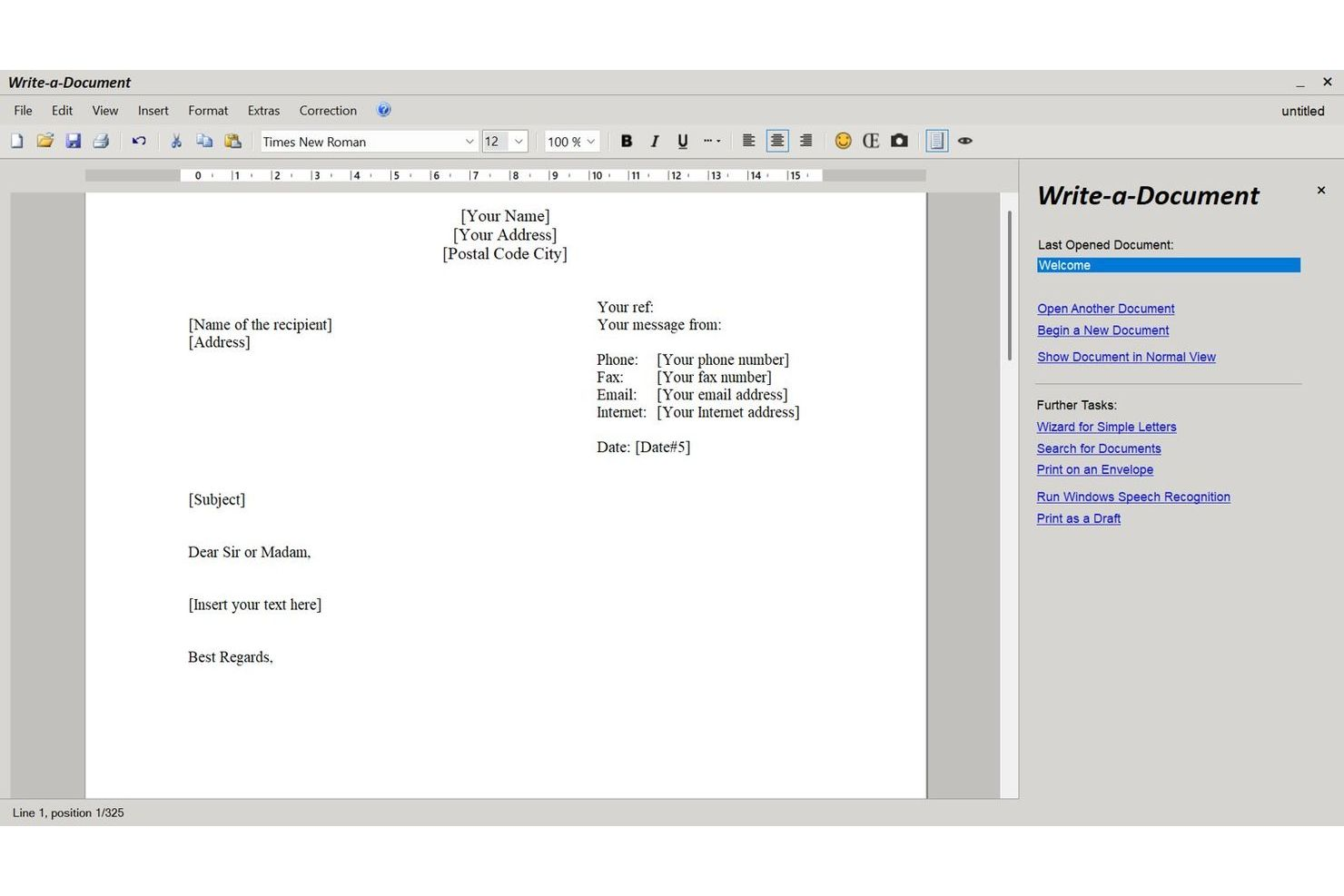
For anyone who needs to create a document instantly without the hassle of registration, JMMG Communications offers a unique solution. This tool is ideal for freelancers, students, or anyone who wants to draft and download documents quickly, without leaving a digital footprint. Unlike Google Docs, JMMG Communications lets you start writing right away—no account, no setup, just a blank page ready for your content.
Who is JMMG Communications Best For?
Individual professionals and small teams worldwide needing immediate document creation without account registration or onboarding steps.
JMMG Communications Key Features
Individual professionals and small teams worldwide needing immediate document creation without account registration or onboarding steps.
Why I Picked JMMG Communications
If you want to start writing immediately without creating an account, JMMG Communications stands out as a practical choice. I picked JMMG Communications because it lets you open a blank document and begin typing right away, with no signup or login required. You can download your finished document in multiple formats, making it easy to share or print. For anyone who values speed and privacy in a cloud-based word processor, JMMG Communications offers a refreshingly simple alternative to Google Docs.
JMMG Communications Key Features
Some other features that make JMMG Communications useful for quick document creation include:
- Basic Text Formatting: Apply bold, italics, underline, and other simple formatting to your text.
- Table Insertion: Add tables to your document for organizing information.
- Spell Check Tool: Check your document for spelling errors as you write.
- Print-Ready Output: Prepare documents for direct printing from the browser.
JMMG Communications Integrations
Native integrations are not publicly listed.
Pros and Cons
Pros:
- Download options include DOC, PDF, and TXT formats
- Instant access to a blank document from any browser
- No account or sign-up required to start writing documents
Cons:
- Lacks cloud storage or document version history options
- No real-time collaboration or sharing features available
Other Google Docs Alternatives
Here are some additional google docs alternatives that didn’t make it onto my shortlist, but are still worth checking out:


How I Evaluate Google Docs Alternatives
When HR teams need a Google Docs replacement for drafting handbooks or routing offer letters, I evaluate tools against baseline must-haves first, then weigh what sets each option apart.
Core Functionality (Table Stakes For This List)
When I'm selecting tools for my list, I rank each one on a scale from 0 (does not offer the functionality) to 5 (excels in this area) for each core functionality listed below. Then, I calculate the tool's total score into a percentage. Each tool needs to achieve a minimum total score of 75% to be considered for inclusion.
- Real-Time Collaborative Editing: I check whether multiple HR team members can co-edit a document live—like refining an employee handbook together—with comments, suggestions, and presence indicators.
- Rich Text Document Creation: A full word-processing experience matters, so I evaluate formatting depth including tables, headings, embedded media, and structured layouts for policies and offer letters.
- Cloud-Based Storage & Access: I look for reliable cloud storage with cross-device access, so an HR coordinator can pull up onboarding documents from a browser, desktop app, or phone without installing software.
- Sharing & Permission Controls: HR documents often contain sensitive data. I evaluate whether each tool lets you set view, comment, or edit access at the document and folder level to protect things like compensation plans.
- Version History & Recovery: Being able to trace who changed what in a benefits policy draft—and roll back when needed—is something I look for, including named versions and side-by-side comparisons.
- Templates & Export Formats: I check for reusable templates (job descriptions, review forms, policy outlines) and whether you can export to standard formats like PDF and DOCX for sharing with external stakeholders.
Once I have a list of tools that meet this criteria, I consider what sets each platform apart.
Differentiating Factors (What Sets Vendors Apart)
Here's how I compare and contrast different vendors:
Standout Features
An AI writing assistant can save real time when your team is drafting dozens of job descriptions or revising policy language across departments. I also look for knowledge base features—nested pages and internal linking turn scattered HR documents into a structured, searchable employee hub. Built-in eSignature support is another differentiator, since it lets you route offer letters or NDAs for signing without switching to a separate tool.
Beyond Features
Compliance and data security matter a lot when HR documents contain personal employee information. I evaluate whether a platform supports SOC 2, GDPR, and SSO alongside audit logs that track who accessed what. HRIS integrations are equally important—connecting to tools like BambooHR or Workday means you can pull employee data into documents without manual entry. I also consider how easy it is for non-technical HR staff to migrate existing Google Docs and adopt the new platform without a steep learning curve.
Why Look For a Google Docs Alternative?
While google docs is a good choice of cloud-based word processor, there are a number of reasons why some users seek out alternative solutions. You might be looking for a google docs alternative because…
- You need stronger data privacy
- You require offline editing capabilities
- Your team needs advanced formatting tools
- You want better integration with other apps
- You need compliance with specific regulations
- Your team needs a more user-friendly interface
If any of these sound like you, you’ve come to the right place. My list contains several cloud-based word processor options that are better suited for teams facing these challenges with google docs and looking for alternative solutions.
Features
Here are some of the key features of google docs, to help you contrast and compare what alternative solutions offer:
- Real-time collaboration: You and your team can work on documents simultaneously, seeing changes as they happen.
- Commenting and suggestions: Add comments and suggestions to documents, making it easy to give feedback and collaborate.
- Version history: Track changes and revert to previous versions of your documents, ensuring you never lose important edits.
- Offline editing: Work on your documents without an internet connection, syncing changes when you're back online.
- Voice typing: Use your voice to type documents, which can be a time-saver for those who prefer speaking over typing.
- Add-ons and extensions: Enhance your documents with a variety of add-ons, providing extra functionality tailored to your needs.
- Integration with Google Drive: Store and organize your documents in Google Drive, ensuring easy access and sharing.
- Templates: Use a wide range of templates to quickly create professional-looking documents without starting from scratch.
- Automatic saving: Never worry about losing your work, as google docs automatically saves your changes as you type.