

10 Best Knowledge Management Software Reviewed in 2026

10 Best Knowledge Management Software Shortlist


The best knowledge management software helps you capture, organize, and share your organization’s collective know-how—so your team can access information instantly and work more efficiently.
When knowledge lives in scattered documents, emails, or chat threads, it slows down productivity and leads to duplicated effort. The right tool centralizes that information, streamlines collaboration, and turns everyday insights into searchable, actionable knowledge that drives better decisions.
Drawing on years of experience evaluating HR and collaboration software, I’ve reviewed the top knowledge management solutions that are intuitive, scalable, and designed to help teams work smarter. In this guide, you’ll find tools that keep knowledge flowing across your organization, saving time and improving alignment.
Why Trust Our Software Recommendations
Our team has been testing and reviewing software since 2012. As HR experts ourselves, we know how difficult—and important—it is to choose the right software.
For this guide, we evaluated tools using hands-on testing and independent research, scoring tools using our selection criteria. We also draw on insights from industry thought leaders and practicing HR experts.
Our reviews reflect our human editorial judgment, not a sales pitch.
Expert reviewers:
Knowledge Management Software Comparison Table
The table below compares pricing details for my top knowledge management software selections.
| Tool | Best For | Trial Info | Price | ||
|---|---|---|---|---|---|
| 1 | Best for customer service | Free demo + 14-day free trial available | Pricing upon request | Website | |
| 2 | Best for support ticket deflection features | Free demo available | Pricing upon request | Website | |
| 3 | Best for self-service portals | 14-day free trial | From $19/user/month (billed annually) | Website | |
| 4 | Best for enterprise-wide search integration | Free demo available | Pricing upon request | Website | |
| 5 | Best for HR knowledge with content freshness controls | Free demo available | Pricing upon request | Website | |
| 6 | Best for intranet knowledge management | Free demo available | Pricing upon request | Website | |
| 7 | Best for company training | Free trial available | From $6.91/user/month (billed annually) | Website | |
| 8 | Best for knowledge sharing in remote teams | 14-day free trial | Pricing upon request | Website | |
| 9 | Best for searchable profiles. | Free trial available | From $1.50/user/month | Website | |
| 10 | Best for interconnected knowledge databases | Free plan available | From $10/user/month (billed annually) | Website |


Best Knowledge Management Software Reviews
Below are my detailed summaries of the best knowledge management software that made it onto my shortlist. My reviews offer a detailed look at the key features, pros & cons, integrations, and ideal use cases of each tool to help you find the best one for you.

Stonly
Best for customer service

Stonly is a knowledge management platform that lets teams build interactive guides, step-by-step tutorials, and searchable knowledge bases for both internal and customer-facing use.
Who Is Stonly Best For?
Stonly is a good fit for customer support teams that need to deliver consistent, guided answers to customers across multiple channels.
Why I Picked Stonly
Stonly earns its spot on my shortlist because of how it handles knowledge delivery for customer service teams specifically. Unlike a standard knowledge base, it uses an interactive guide format—instead of pointing agents or customers to a long static article, Stonly walks them through branching decision trees that adapt to the situation. Agents can access these guides inside their help desk without switching tabs, which keeps the workflow focused during live tickets. The ability to automatically fill ticket fields and trigger macros from within a guide is a feature I haven't seen handled this well elsewhere.
Stonly Key Features
- Auto-translate: Automatically translate knowledge base content into multiple languages to support global customer bases.
- Content segmentation and targeting: Display different knowledge content to different users based on their context or profile.
- Review flows: Set up structured content review and approval processes to keep knowledge accurate and up to date.
- Guided answers: Detect user intent and surface the most relevant guide, giving you control over the resolution path.
Stonly Integrations
Stonly offers native integrations with Zendesk, Freshdesk, Intercom, Salesforce, HubSpot, LiveChat, and Front. An API is available for custom integrations.
Pros and Cons
Pros:
- Contextual help brings knowledge directly into web apps.
- AI search pinpoints exact steps instead of full articles.
- Interactive guides adapt instructions to each user’s situation.
Cons:
- AI answers and help desk integrations are limited to the enterprise plan.
- Guide building can feel complex for large conditional flows.

Best for support ticket deflection features

Document360 is a knowledge management software platform for building, organizing, and publishing internal and external knowledge bases with advanced authoring, categorization, and analytics tools.
Who Is Document360 Best For?
Document360 is a good fit for customer support and product teams at SaaS companies that need a self-service knowledge base to help users find answers without contacting support.
Why I Picked Document360
Document360 made my shortlist because it's deliberately built to keep users out of your support queue. I particularly like the Ticket Deflector feature, which automatically surfaces relevant knowledge base articles when a user is about to submit a support request—intercepting the ticket before it's ever created. The Eddy AI Chatbot is trained on your knowledge base content and can handle follow-up questions in real time, escalating to Zendesk or Freshdesk only when it can't resolve the issue. The search analytics show which queries aren't returning results, letting me identify content gaps and fill them before they become repeat tickets.
Document360 Key Features
- Category manager: Organize your knowledge base using a drag-and-drop category manager that supports over six levels of nested categories and subcategories.
- Version control and rollback: View the full history of any article and restore a previous version to prevent accidental overwrites.
- Interactive decision tree: Build step-by-step guided flows that walk users through complex processes to help them reach the right answer.
- AI-powered auto-translation: Localize your knowledge base across 50+ languages using context-aware AI translation.
Document360 Integrations
Document360 offers native integrations with Zendesk, Freshdesk, Intercom, Slack, Microsoft Teams, Google Analytics, and Disqus. It also provides an API for custom integrations.
Pros and Cons
Pros:
- Smart file management features
- Offers powerful reporting and analytics
- Provides robust version control with audit trails
Cons:
- Most integrations are only available on higher-tier plans
- Support for large media files needs improvement
New Product Updates from Document360

Document360 Adds Drive and Eddy AI Workflow Updates
Document360 adds Drive file renaming, Eddy AI email ticket notifications, and Drive image support in AI Capture. These updates simplify file management, support escalation, and visual content editing. For more information, visit Document360’s official site.
 .
.
Best for self-service portals
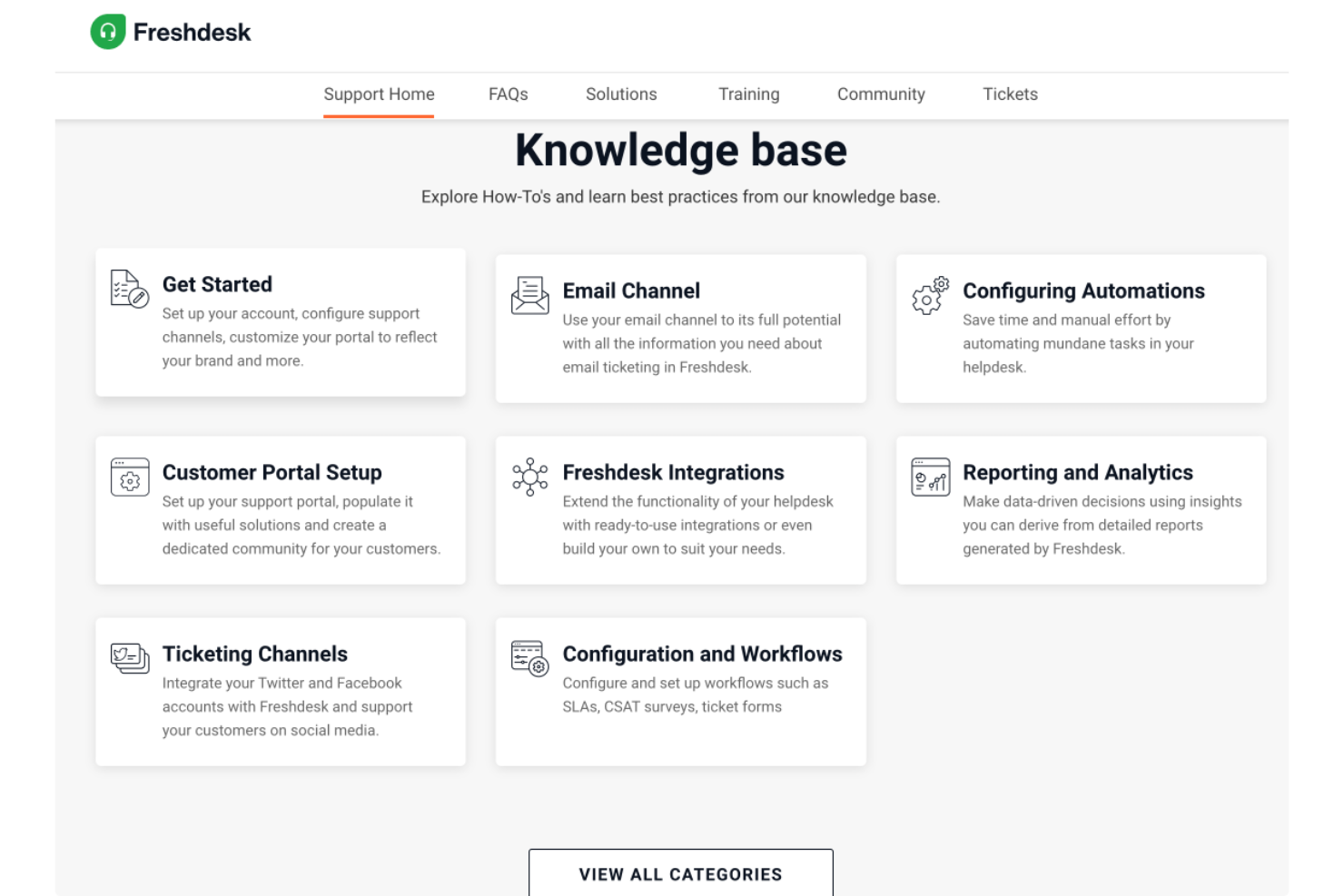
Freshdesk is a cloud-based knowledge management platform that lets teams build knowledge bases, manage support content, and organize self-service resources for both customers and internal users.
Who Is Freshdesk Best For?
Freshdesk is a strong fit for customer support teams at small to mid-sized businesses that need a structured way to manage help content and reduce incoming ticket volume.
Why I Picked Freshdesk
Freshdesk earns its spot on my shortlist because of how well its self-service portal handles both customer-facing content and internal knowledge needs in one place. I like that you can build fully branded portals where customers search the knowledge base, browse community forums, or submit a ticket—all without agent involvement. The flexible knowledge base hierarchy lets my team organize content by category and topic, and article versioning means I can track changes and push updates without losing previous drafts. The approval workflow adds another layer of control before anything goes live.
Freshdesk Key Features
- Multilingual knowledge base: Create and manage help content in multiple languages, with built-in translation support for global customer bases.
- Community forums: Build a peer-to-peer support space where customers can post questions, share answers, and engage with your team's published content.
- Freddy AI Copilot: An AI assistant that helps agents draft knowledge base articles and suggest relevant content while handling tickets.
- Role-based access control: Assign different permission levels to agents and editors to control who can create, edit, or publish knowledge content.
Freshdesk Integrations
Freshdesk offers 100+ native integrations, including Slack, Jira, Salesforce, HubSpot, Shopify, Mailchimp, Google Workspace, Microsoft Teams, Trello, and Zoom. An API is available for custom integrations.
Pros and Cons
Pros:
- Organized ticketing system with multiple views for tracking and collaboration
- Self-service portal connects knowledge base with ticketing for faster support
- AI Copilot suggests replies and summarizes tickets to save agent time
Cons:
- Slow loading times when handling large ticket volumes
- No built-in asset management compared to other Freshworks products

Glean
Best for enterprise-wide search integration
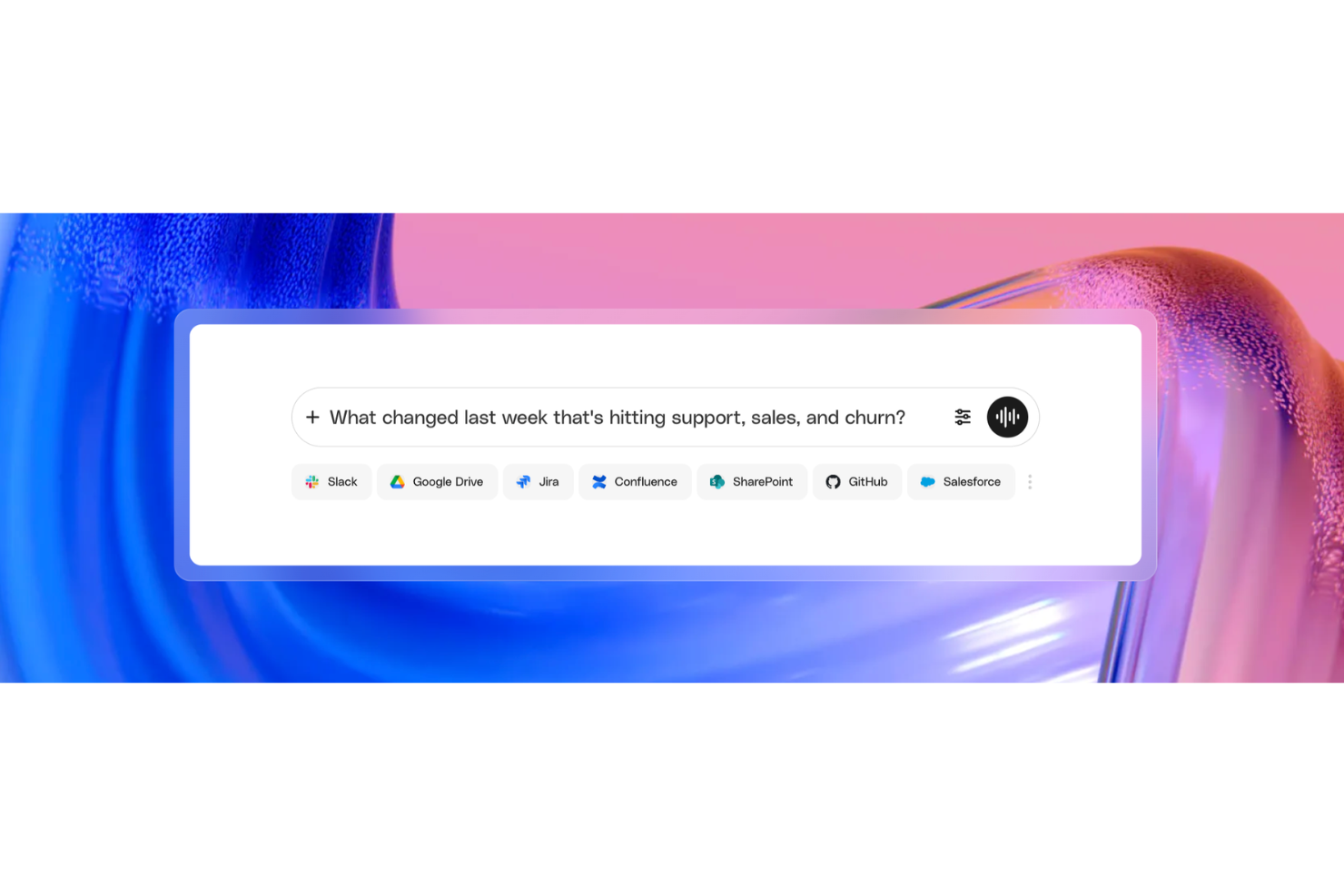
Glean is an AI-powered enterprise knowledge management platform that indexes information across your connected apps, enabling unified search, permission-aware access, and AI-assisted answers from a single interface.
Who Is Glean Best For?
Glean is a strong fit for large enterprises with complex, multi-app tech stacks where employees need fast, centralized access to information spread across dozens of tools.
Why I Picked Glean
I picked Glean as one of the best for enterprise-wide search integration because it connects over 100 apps through native connectors, from Slack and Google Drive to Jira and Salesforce, indexing them all in real time from a single search bar. What I find especially impressive is that search results reflect each app's existing permissions automatically, so you never have to manage access separately inside Glean. On top of that, Glean continuously trains on your company's unique language and content, which means queries like "Q3 pricing deck" return relevant results without any manual fine-tuning.
Glean Key Features
- Answers: Create and pin verified, authoritative responses to frequently asked questions so employees always find the most accurate information first.
- Collections: Group related documents, links, and resources from across connected apps into curated topic or project hubs.
- Go Links: Create short, memorable internal URLs that route employees directly to specific resources, pages, or tools across your organization.
- AI assistant: Ask natural language questions and get synthesized, cited responses drawn from content across all connected sources.
Glean Integrations
Glean offers 275+ native and MCP-based connectors, including Confluence, Slack, Google Drive, Jira, Salesforce, GitHub, BambooHR, Dropbox, ServiceNow, and Box. It also connects with Zapier and provides an API for custom integrations.
Pros and Cons
Pros:
- AI personalizes results by role and team
- Searches 100+ connected apps at once
- Answers natural language questions with cited sources
Cons:
- No pricing transparency without contacting sales
- Search can surface outdated or stale documents

Haystack
Best for HR knowledge with content freshness controls
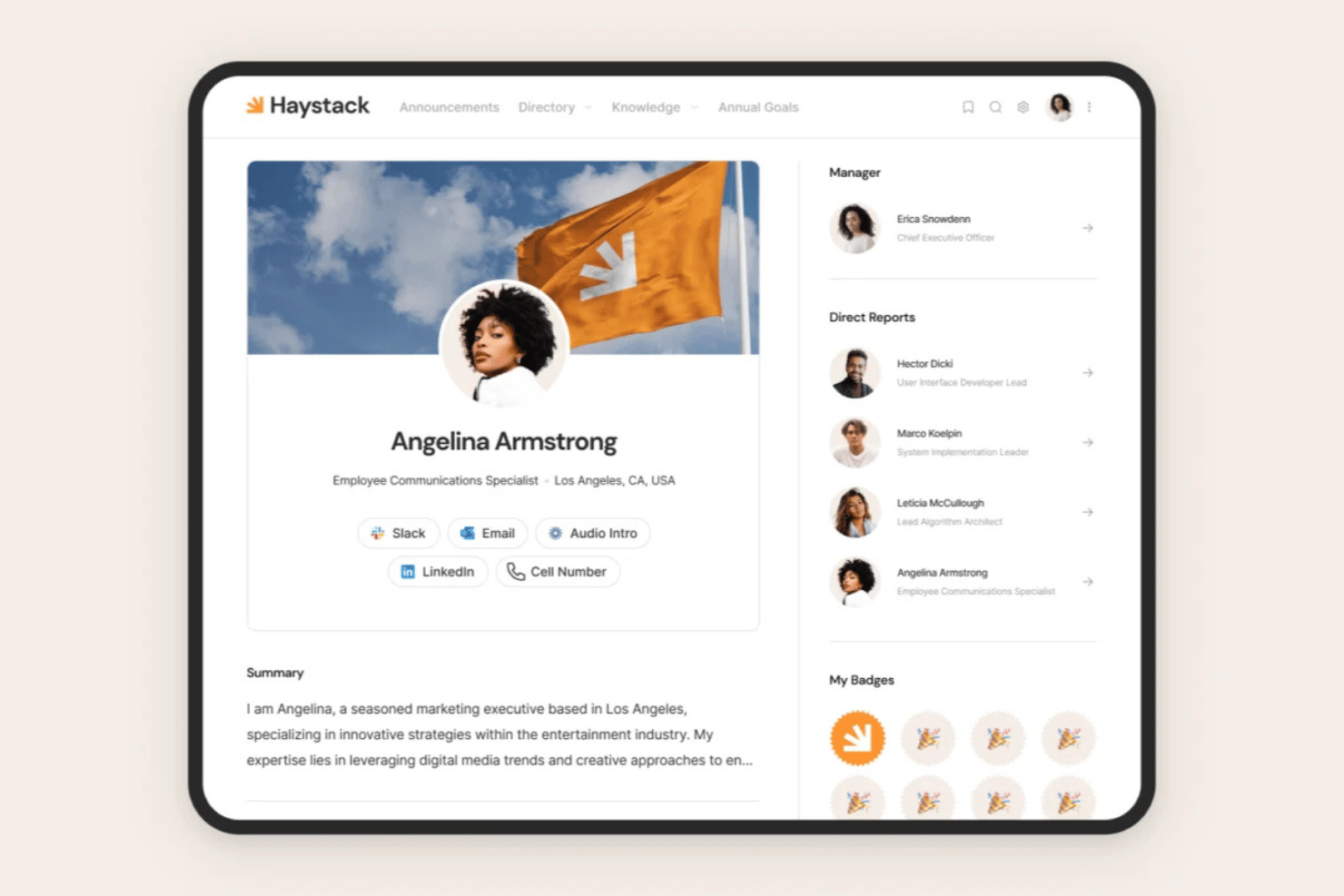
Haystack is an intranet and HR knowledge management platform that centralizes policies, handbooks, and SOPs alongside multi-channel employee communications, AI-powered search, and content freshness controls.
Who Is Haystack Best For?
Haystack is a strong fit for HR teams managing distributed or frontline workforces who need policy content to stay current and reach every employee, regardless of channel or location.
Why I Picked Haystack
I picked Haystack as one of the best because its Freshness Engine directly solves a problem most HR teams quietly struggle with: policies going stale without anyone noticing. You can set expiration dates on handbooks or SOPs, assign content experts to apply verified badges, and get automated review reminders before anything becomes outdated. I also like that Must Read acknowledgment tracking creates a clear record of who confirmed they've read critical documents.
Haystack Key Features
- Universal search: Queries native content and connected platforms like Google Drive, SharePoint, Confluence, and Guru from a single search bar.
- Multi-channel delivery: Sends HR content via Slack, Microsoft Teams, SMS, email, push notifications, and a branded web portal in one workflow.
- Employee directory: Provides a self-service people directory with org chart and global map view for looking up colleagues.
- Translate with Trust: Uses AI to dynamically translate content into dozens of languages for global and distributed workforces.
Haystack Integrations
Haystack offers 40+ native HRIS integrations, plus Google Drive, Confluence, SharePoint, Guru, Slack, and Microsoft Teams. A public API supports custom integrations.
Pros and Cons
Pros:
- Mobile-first access for distributed workforces
- Must Read tracking confirms document acknowledgment
- Freshness Engine alerts for outdated policies
Cons:
- Search sometimes misses relevant documents
- Lacks advanced version rollback options

Hub
Best for intranet knowledge management

Hub is an intranet knowledge management platform that brings together document management, content sharing, collaboration tools, and advanced search to help organizations organize and access internal information.
Who Is Hub Best For?
Hub is a good fit for mid-sized to large organizations that need a centralized intranet to manage internal knowledge, company documents, and employee communications in one place.
Why I Picked Hub
Hub earns its spot on my shortlist because it approaches knowledge management from the intranet up—meaning your knowledge base isn't a bolt-on, it's baked into the same environment where employees already communicate and collaborate. I particularly like the federated search feature, which searches across connected cloud drives like SharePoint and Google Drive, and even inside PDFs, so employees aren't hunting across multiple systems to find a policy or procedure. The version control on every page and document provides a full audit history and lets you roll back to a previous version in a single click, which is important for managing compliance-sensitive content. Content ownership assignments also mean specific team members are accountable for keeping pages current, with automated review notices when content is due to expire.
Hub Key Features
- Pulse surveys: Run anonymous employee surveys with hidden scoring to quantify responses and track wellbeing trends over time.
- Assessment builder: Create knowledge checks with randomised questions, scorable answers, and leaderboards to test employee understanding of key content.
- Approval workflows: Route draft pages and news articles through a structured approval process before they go live, so only reviewed content gets published.
- Must reads: Mark content as mandatory and track who has confirmed they've read it, with automated reminders sent to anyone who hasn't.
Hub Integrations
Hub offers native integrations with Microsoft 365, SharePoint, Google Drive, OneDrive, and Dropbox. An API is available for custom integrations.
Pros and Cons
Pros:
- Efficient document management and sharing
- Provides insights into user engagement
- Advanced search functionality
Cons:
- Limited language support
- Comprehensive features may not be ideal for smaller businesses

Best for company training

iSpring LMS is a cloud-based knowledge management system designed for organizing, delivering, and tracking company training materials, courses, and resources.
Who Is iSpring LMS Best For?
iSpring LMS is a strong fit for HR and L&D teams in mid-size to large companies that need a structured platform for employee onboarding, compliance training, and ongoing skill development.
Why I Picked iSpring LMS
iSpring LMS earns its spot on my shortlist because it's one of the few platforms that treats company training as a full knowledge lifecycle—not just a course library. I particularly like the intelligent reenrollment system, which automatically tracks certification expiry dates and reassigns training before a lapse occurs. That's a real differentiator for compliance-heavy teams managing dozens of certifications across a large workforce. I also use the observation checklists to verify that employees aren't just completing courses but actually applying knowledge on the job—something most LMS platforms don't address at all.
iSpring LMS Key Features
- Individual development plans: Create personalized learning paths for each employee that map out courses, milestones, and skill-building activities tied to their role.
- Knowledge base: Store and organize corporate resources, guides, and FAQs in a role-based, cloud-accessible hub that subject matter experts and managers can update directly.
- 360-degree review: Collect multi-source performance feedback to build a full picture of each employee's competencies beyond course completion data.
- Gamification: Award points and badges and display leaderboard rankings to give employees real-time visibility into their training progress.
iSpring LMS Integrations
iSpring LMS offers native integrations with Zoom, Microsoft Teams, and Salesforce. An API is available for custom integrations.
Pros and Cons
Pros:
- The mobile app facilitates learning on-the-go
- Supports various training needs
- Good content management system
Cons:
- Some reporting options are limited
- Could offer more robust search capabilities
New Product Updates from iSpring LMS

iSpring LMS Adds Multiple Observations to OJT Sessions
iSpring LMS now lets managers log multiple observations within one OJT session, grouping visits and auto-generating summary stats like averages, criterion results, and comparisons. For more information, visit iSpring LMS's official site.
SkyPrep
Best for knowledge sharing in remote teams

SkyPrep is a knowledge management platform that lets you organize, share, and track training materials, documents, and resources in a centralized online hub.
Who Is SkyPrep Best For?
SkyPrep is a good fit for HR and L&D teams in mid-sized organizations that need to manage and distribute training content across distributed or remote workforces.
Why I Picked SkyPrep
SkyPrep handles knowledge sharing across distributed teams particularly well. SkyPrep Unity, the platform's collaborative learning module, lets remote employees participate in group discussions, comment on training materials, and pose questions directly within the content—so knowledge doesn't just flow top-down, it circulates across the team. I also like the folder-based document management, which lets you store materials in public or private folders and assign them to specific users, so the right people always have access to the right content. The deep search functionality, which lets you search text within documents as well as across comments and discussions, makes it easy for remote employees to find what they need without having to ask around.
SkyPrep Key Features
- AI course builder: Automatically generates assessments, questions, and visuals from your content using built-in AI authoring tools.
- Trigger-based workflow automation: Kicks off enrollment, notifications, and user group updates based on events like course completion, expiration, or user status changes.
- Scheduled and configurable reporting: Lets you build custom reports with filters and columns, then schedule them to be automatically delivered to stakeholders on a recurring basis.
- SCORM and multimedia support: Accepts SCORM packages, videos, PDFs, and interactive media so you can upload and deliver content in multiple formats.
SkyPrep Integrations
SkyPrep offers native integrations with Google Workspace, Microsoft 365, Zoom, Okta, BambooHR, and Salesforce. It also provides an API for custom integrations.
Pros and Cons
Pros:
- Easy content organization
- Solid analytics
- Employee engagement features
Cons:
- Limited customization
- No offline access
Sift
Best for searchable profiles.

Sift is a knowledge management platform that helps organizations build a searchable directory of employee profiles, skills, and organizational structure.
Who Is Sift Best For?
Sift is a good fit for mid-sized to large organizations where finding the right person or expertise across teams and departments is a daily challenge.
Why I Picked Sift
Sift earns its spot on my shortlist because of how well it handles the "who knows what" problem that slows down work in large organizations. The search feature surfaces results in under 100 milliseconds across every data point in the directory—skills, experience, projects, languages, and more—so my team can find a subject matter expert without digging through org charts or pinging managers. I also like that profiles pull data from multiple sources, including HR systems, Active Directory, and LinkedIn, so the information employees find is current and complete. The skill proficiency levels on each profile are a nice touch too, letting you gauge not just who knows something, but how well they know it.
Sift Key Features
- Org chart visualization: An interactive, auto-updating org chart built from your existing HR and IT system data, with color coding, flexible card views, and open role visibility.
- Sift Pages: Dedicated pages for departments, projects, remote teams, ERGs, and communities that go beyond the standard directory to capture the informal structure of your organization.
- Analytics dashboard: Visual breakdowns of skills, interests, locations, and other profile data points, with filters to identify talent gaps and support internal mobility decisions.
- Open API: A GraphQL and REST API that lets developers pull profile data, photos, and search functionality into other internal tools and applications.
Sift Integrations
Sift offers native integrations with Microsoft 365, Azure Active Directory, Google Workspace, Okta, and Workday, and provides an API for custom integrations.
Pros and Cons
Pros:
- Customizable profiles for rich context
- Find experts in seconds
- Visual org charts improve clarity
Cons:
- Not ideal for small teams
- Limited advanced analytics options

Notion
Best for interconnected knowledge databases

Notion is a knowledge management platform that lets teams organize, connect, and share information using customizable databases, collaborative workspaces, and flexible content blocks.
Who Is Notion Best For?
Notion is a good fit for small to mid-sized teams that need a flexible, all-in-one workspace to document, organize, and connect knowledge across projects and departments.
Why I Picked Notion
Notion earns its spot as one of the best on my shortlist because of how it handles interconnected knowledge through its relational database system. I can link a project database to a team wiki, a meeting notes database, and an HR policy library—all pulling from the same source of truth. I also like Notion's bidirectional linking, which lets my team surface related content without duplicating it across pages.
Notion Key Features
- Synced blocks: Write a piece of content once and have it automatically update across every page where it's embedded.
- Page verification: Mark pages as verified so team members know they're reading accurate, current information.
- Collapsible toggles: Organize long documents with collapsible sections that keep pages readable without hiding content.
- AI meeting notes: Automatically capture and summarize meeting notes, then connect them directly to relevant pages and projects.
Notion Integrations
Notion offers native integrations with Slack, GitHub, Google Drive, Figma, Asana, Jira, Zoom, and Typeform. It also connects with Zapier and provides an API for custom integrations.
Pros and Cons
Pros:
- Wiki-style page interconnections support knowledge sharing
- Rich template library jump-starts knowledge systems
- Flexible database linking enhances knowledge retrieval
Cons:
- Initial setup can be time-intensive
- Performance may lag with very large or complex databases
Other Knowledge Management Software
Here are some additional knowledge management software options that didn’t make it onto my shortlist, but are still worth checking out:
- Slite
For AI-powered instant answers
- Google Drive
With secure cloud storage
- Nuclino
For unified project management
- Microsoft 365
For integrated community knowledge sharing
- Bloomfire
For social sharing of knowledge
- Knowmax
For centralized knowledge access
- Tettra
For internal knowledge management
- XWiki
For open-source enterprise wikis
- Guru
For AI-driven contextual searches
- Bit.ai
For flexible sharing options
- Papyrs
For small teams needing customization
- Kipwise
For Slack integration
- SlimWiki
For simple team wikis
- Readin
For onboarding new employees


How I Evaluate Knowledge Management Software
When HR teams are drowning in scattered policies and repetitive employee questions, I evaluate whether a tool can first serve as a reliable single source of truth—then look at what sets it apart.
Core Functionality (Table Stakes For This List)
When I'm selecting tools for my list, I rank each one on a scale from 0 (does not offer the functionality) to 5 (excels in this area) for each core functionality listed below. Then, I calculate the tool's total score as a percentage. Each tool needs to achieve a minimum total score of 65% to be considered for inclusion.
- Centralized Knowledge Repository: I evaluate how well a tool organizes HR content into logical structures—like separate spaces for benefits, leave policies, and workplace safety—with tagging and cross-linking.
- Search & AI Retrieval: Strong search matters when employees need fast answers, so I check whether a tool supports natural language queries like "how do I update my emergency contact?"
- Access Controls & Permissions: HR teams manage sensitive content like compensation bands and disciplinary procedures, so I look for granular, role-based permissions at the article or section level.
- Content Authoring & Collaboration: I check whether HR generalists can draft, comment on, and co-edit policy updates using a rich-text editor with templates and embedded media like walkthrough videos.
- Version Control & Audit Trails: Policy updates need a clear paper trail, so the tool should track revision history, support rollback, and log who approved changes and when.
- Employee Self-Service Portal: I look for a branded, employee-facing portal or native integrations with tools like Slack or Microsoft Teams that let staff find HR answers without filing a ticket.
Once I have a list of tools that meet the criteria, I consider what sets each platform apart.
Differentiating Factors (What Sets Vendors Apart)
Here's how I compare and contrast different vendors:
Standout Features
An AI knowledge assistant can turn a static policy library into something employees actually use—answering questions like "am I eligible for parental leave?" without HR lifting a finger. I also look for analytics that surface content gaps, such as failed searches or outdated articles, so HR teams know exactly where to focus. Scheduled content reviews round this out by automatically flagging policies due for renewal, which keeps compliance documentation current.
Beyond Features
HRIS integrations matter because a knowledge base that connects with platforms like BambooHR or Workday can serve contextual content based on role, location, or department. Compliance and security standards are equally important—I check for SOC 2 Type II certification and data residency options, especially for HR teams handling sensitive employee records. Pricing structure also shapes fit; per-seat models can become expensive fast when the goal is company-wide employee access, so I evaluate whether a tool offers viewer-friendly tiers.
How to Choose Knowledge Management Software
It’s easy to get bogged down in long feature lists and complex pricing structures. To help you stay focused as you work through your unique software selection process, here’s a checklist of factors to keep in mind:
| Factor | What to Consider |
|---|---|
| Scalability | Can it grow with your team? Consider user limits and data capacity. Ensure it can handle your projected growth without needing a complete overhaul. |
| Integrations | Does it connect with your current tools? Check for compatibility with essential software like Slack, Google Workspace, or Salesforce, and evaluate ease of setup. |
| Customizability | Can you tailor it to fit your workflows? Look for flexible settings and the ability to create custom fields or dashboards that align with your processes. |
| Ease of use | Is it intuitive for all users? Test the interface with a diverse group in your team to ensure it’s straightforward and doesn’t require extensive training. |
| Implementation and onboarding | How long will it take to get started? Assess the time and resources needed for setup. Look for solutions with quick-start guides and support resources. |
| Cost | Does it fit your budget? Consider the total cost of ownership, including subscriptions, training, and potential add-ons. Avoid solutions with unexpected fees. |
| Security safeguards | Are your data protected? Verify features like encryption, user access controls, and compliance with standards like GDPR or HIPAA, if applicable. |
Trends for Knowledge Management Software
Knowledge management software is changing remarkably, transforming how businesses manage their human resources and payroll. As technology advances, staying informed about the latest developments is essential. Here are some key trends to watch closely that could impact your organization.
- AI-Powered Search: AI-powered search is becoming more prevalent. It helps users find information faster and more accurately. This trend is significant because it improves productivity.
- Integration with Collaboration Tools: Knowledge management software is increasingly integrating with collaboration tools. This allows for better information sharing and teamwork. It is interesting because it breaks down silos within organizations.
- Enhanced Data Security: Enhanced data security features are being prioritized. These features protect sensitive information from breaches. This trend is important due to rising cyber threats.
- Mobile Accessibility: Mobile accessibility is on the rise. Users can access knowledge management systems from anywhere. This is important for remote and on-the-go workers.
- Personalized User Experience: Personalized user experiences are becoming standard. The software adapts to individual user needs and preferences. This trend is interesting because it increases user engagement.
Companies that leverage these changing trends will likely gain a competitive edge as technology advances.
What Is Knowledge Management Software?
Knowledge management software is a tool that helps organizations capture, store, and share information efficiently. Professionals like HR managers, IT specialists, and customer support teams use these tools to enhance collaboration and access important data quickly.
Search functions, collaboration tools, and document management capabilities support the efficient handling of company knowledge. These tools provide overall value by improving productivity and ensuring that team members can easily find and use the information they need.
Features
When choosing knowledge management software, it's essential to recognize the key features that will let you manage your HR tasks more efficiently. Here are the most essential features to look for.
- User-Friendly Interface: A user-friendly interface ensures the software is easy to implement, set up, and access. This saves time and reduces frustration, increasing productivity and job satisfaction.
- Solid Search Functionality: A solid search engine, like Google, allows users to find relevant information quickly. This feature is essential for streamlining the process of searching and gathering information.
- Multi-Device Compatibility: Multi-device compatibility ensures that users can access the knowledge base from various devices, including desktops, laptops, tablets, and smartphones. This is essential for remote teams and on-the-go users.
- Customization Options: Customization options allow organizations to tailor the knowledge base to their needs. This includes branding, themes, and the ability to create custom roles and permissions.
- Team Collaboration Tools: Team collaboration tools enable multiple users to work together on creating, managing, and maintaining the knowledge base. This feature is essential for fostering a culture of teamwork and knowledge sharing.
- Content Authoring & Editing: An intuitive content authoring and editing tool allows users to create and update content easily. This feature is essential for keeping the knowledge base up-to-date and relevant.
- Third-Party Integrations: Faultless integration with third-party tools such as CRM, help desk, and survey software enhances the knowledge management system's functionality. This feature ensures that the knowledge base can be a central hub for various business processes.
- Built-In Analytics: Built-in analytics provide insights into the knowledge base's performance. This includes metrics such as the number of articles created, search success rates, and user engagement. These insights help make informed decisions to improve the knowledge base.
- Feedback System: A solid feedback system allows users to provide input on the content. This feature is essential for keeping the knowledge base relevant and valuable by incorporating user suggestions and addressing any issues.
- Scalability: Scalability ensures that the knowledge management system can grow within the organization. This feature is essential for accommodating increasing data and users as the business expands.
Choosing the right knowledge management software involves focusing on these key features to ensure it meets your organization's specific needs.
Benefits
By leveraging knowledge management software, businesses can enhance productivity, improve decision-making, and foster a culture of continuous learning. Below are five primary benefits of knowledge management software for users and organizations.
- Enhanced Collaboration: Knowledge management software facilitates efficient collaboration among team members by providing a centralized platform for sharing information and resources.
- Improved Efficiency: The software organizes and categorizes information, reducing the time employees spend searching for data and leading to increased productivity and efficiency.
- Better Decision-Making: Access to accurate and up-to-date information enables employees to make informed decisions quickly, improving overall business outcomes.
- Knowledge Retention: The software documents and stores information to ensure valuable knowledge is retained within the organization, even when employees leave.
- Customer Satisfaction: With easy access to information, customer service teams can provide faster and more accurate responses, leading to higher customer satisfaction and loyalty.
Investing in knowledge management software can transform how organizations handle information, leading to numerous benefits that enhance internal operations and customer experiences.
Costs & Pricing
This section provides a detailed estimate of average knowledge management software plans and associated costs. The data is derived from an analysis of standard pricing tiers and the features they offer.
By understanding these pricing structures, users can better assess their needs and budget considerations when choosing knowledge management software that fits their requirements.
Plan Comparison Table for Knowledge Management Software
| Plan Type | Average Price | Common Features |
|---|---|---|
| Free Plan | $0 | Basic document storage, limited users, and basic search functionality |
| Personal Plan | $4 - $12/ user/month | Enhanced search, basic analytics, limited integrations, and basic support |
| Business Plan | $12 - $54/ user/month | Advanced search, detailed analytics, multiple integrations, role-based access control, and enhanced support |
| Enterprise Plan | $54/ user/month | Customizable features, extensive integrations, advanced security, dedicated support, unlimited users |
Knowledge Management Software FAQs
Here are some answers to common questions about knowledge management software:
How can I ensure data security in knowledge management software?
Implement solid access controls, encryption, and regular security audits to ensure data security in knowledge management software. Use multi-factor authentication (MFA) to add an extra layer of protection. Regularly update the software to patch vulnerabilities and ensure compliance with industry standards and regulations.
What are the best practices for migrating data to a new knowledge management system?
When migrating data to a new knowledge management system, start with a complete data audit to identify what needs to be transferred. Cleanse the data to remove duplicates and outdated information. Automated tools are used to facilitate the migration process and ensure data integrity. Test the migration in a controlled environment before going live to identify and resolve any issues.
How do I measure the ROI of a knowledge management system?
Measure the ROI of a knowledge management system by tracking key performance indicators (KPIs) such as user adoption rates, time saved in information retrieval, and reduction in redundant work. Conduct regular surveys to gather user feedback and assess the system’s impact on productivity and decision-making. Compare these metrics against the costs of implementing and maintaining the system to determine the ROI.
What strategies can I use to encourage user adoption of knowledge management software?
To encourage user adoption, provide complete training and support to help users understand the benefits and functionalities of the software. Create a user-friendly interface and integrate the software with existing tools and workflows. Recognize and reward users who actively contribute to the knowledge base. Regularly update the system based on user feedback to improve the user experience.
How can I integrate knowledge management software with other enterprise systems?
Integrate knowledge management software with other enterprise systems using APIs and middleware solutions. Ensure that the software supports standard integration protocols such as REST or SOAP. Work with vendors to develop custom integrations if necessary. Test the integrations thoroughly to ensure data flow and functionality across systems.
What are the common challenges in maintaining a knowledge management system, and how can they be addressed?
Common challenges in maintaining a knowledge management system include keeping the content up-to-date, ensuring user engagement, and managing data quality. Address these challenges by establishing clear content governance policies, regularly reviewing and updating the knowledge base, and encouraging user contributions. Use analytics to monitor system usage and identify areas for improvement.